
RuView
π RuView turns commodity WiFi signals into real-time spatial intelligence, vital sign monitoring, and presence detection — all without a single pixel of video.
- 105k
- Rust
- MIT
- 6 h ago
macOS / Windows menu bar control for Xiaomi Mijia and Home Assistant devices (formerly MenuBarMijia)
Repo jryang2026-code/MenuBarHome, read from GitHub 2 h ago. jryang2026-code has not joined Take My Repo.
jryang2026-code/MenuBarHome is a public repo on GitHub by jryang2026-code. macOS / Windows menu bar control for Xiaomi Mijia and Home Assistant devices (formerly MenuBarMijia). It declares the MIT license on GitHub. It is written mainly in Swift, has 55 stars and last changed on 2026-11-25. Nobody has reviewed it on Take My Repo yet, which says nothing about its quality. Read from GitHub on 2026-11-25.
π RuView turns commodity WiFi signals into real-time spatial intelligence, vital sign monitoring, and presence detection — all without a single pixel of video.
English | 简体中文
Run your whole home from your computer, without reaching for your phone.
A Mi Home control center that lives in the Mac menu bar, with a Windows 11 tray edition too.
Scan one QR code with the Mi Home app and you're connected. No Home Assistant setup required.
Formerly known as MenuBarMijia.
Download latest · Install & Connect · Will my devices work? · Platform Comparison · Safety & Privacy · Changelog

Press ⌥M, type sftd (the pinyin initials of 书房台灯, "study desk lamp"), and hit Return. Recorded in macOS demo mode with virtual devices; the interface shown is in Chinese.
Three steps: install (Homebrew, DMG, or the Windows installer) → connect (scan one QR code, or try the Demo with no account) → press ⌥M (Alt+M on Windows).
[!NOTE] New name, new address: as of 1.2.0, MenuBarMijia is called MenuBarHome and lives at github.com/jryang2026-code/MenuBarHome. Version 1.1.7 and earlier can't pick up this update on their own, so install it by hand once. Your sign-in and settings carry over; afterwards, delete the old
MenuBarMijiaapp (on Windows, uninstall the old version first).
[!IMPORTANT] Not affiliated with Xiaomi. MenuBarHome is an independent open-source project, not an official Xiaomi or Mijia product, and is not affiliated with, endorsed by, or sponsored by Xiaomi Corporation or its affiliates. "Xiaomi", "Mijia", "Mi Home", and "米家" are trademarks of Xiaomi Corporation and its affiliates. The project uses these names only to describe compatibility with Xiaomi / Mijia devices; no endorsement is implied.
You're writing, coding, or on a call, and the light needs to go off. Normally that means unlocking your phone, finding the app, and digging through rooms. MenuBarHome turns it into one shortcut.
⌥M opens the panel. Start typing a device name, a room, or pinyin initials, and press Return to toggle. Arrow keys adjust brightness and temperature.macOS · Homebrew
brew tap jryang2026-code/tap
brew trust --cask jryang2026-code/tap/menubarhome
brew install --cask jryang2026-code/tap/menubarhome
macOS · DMG
Download MenuBarHome-<version>.dmg (for example, MenuBarHome-1.4.0.dmg) from GitHub Releases and drag MenuBarHome.app into Applications.
The project isn't enrolled in the paid Apple Developer Program, so the app isn't notarized. If macOS Gatekeeper blocks the first launch:
- Double-click
/Applications/MenuBarHome.appand click Done (or OK) to dismiss the warning dialog.- On macOS 15 or later, open System Settings → Privacy & Security and scroll down to the Security section.
- Click Open Anyway next to the message about
MenuBarHome, click Open Anyway again in the confirmation dialog, and authenticate with Touch ID or your password.- Alternative: if it still won't open or the Open Anyway button doesn't appear, clear the quarantine attribute in Terminal:
xattr -dr com.apple.quarantine /Applications/MenuBarHome.app
Verify the DMG download against MenuBarHome-1.4.0.dmg.sha256 from the same release:
shasum -a 256 MenuBarHome-1.4.0.dmg
# Or verify automatically if the .sha256 file is in the same directory:
shasum -a 256 -c MenuBarHome-1.4.0.dmg.sha256
Windows 11
Download MenuBarHome-<version>-windows-x64-setup.exe (for example, MenuBarHome-1.4.0-windows-x64-setup.exe) or MenuBarHome-<version>-windows-x64.msi (for example, MenuBarHome-1.4.0-windows-x64.msi) from GitHub Releases.
The installer isn't signed with a commercial Authenticode certificate. If Windows SmartScreen blocks it:
- When the blue Windows protected your PC prompt appears, click More info.
- Click Run anyway at the bottom of the dialog to continue installation.
Verify the Windows installer in PowerShell against the corresponding .sha256 file on the release page:
# For the EXE installer (compare with MenuBarHome-1.4.0-windows-x64-setup.exe.sha256)
Get-FileHash -Algorithm SHA256 .\MenuBarHome-1.4.0-windows-x64-setup.exe

# For the MSI installer (compare with MenuBarHome-1.4.0-windows-x64.msi.sha256)
Get-FileHash -Algorithm SHA256 .\MenuBarHome-1.4.0-windows-x64.msi
Click the menu bar (or tray) icon to open the panel, open Settings ⚙️, and pick one:
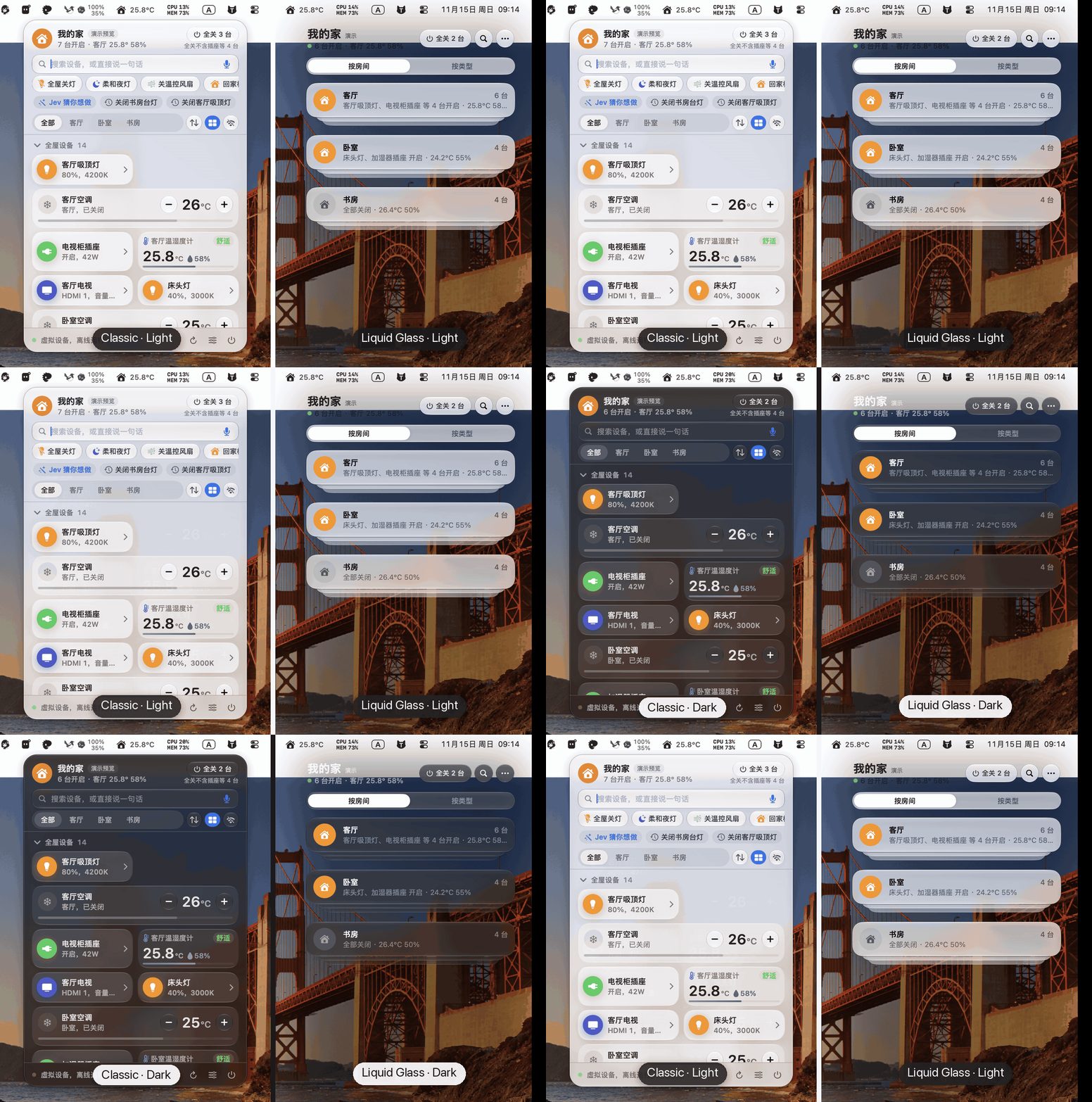
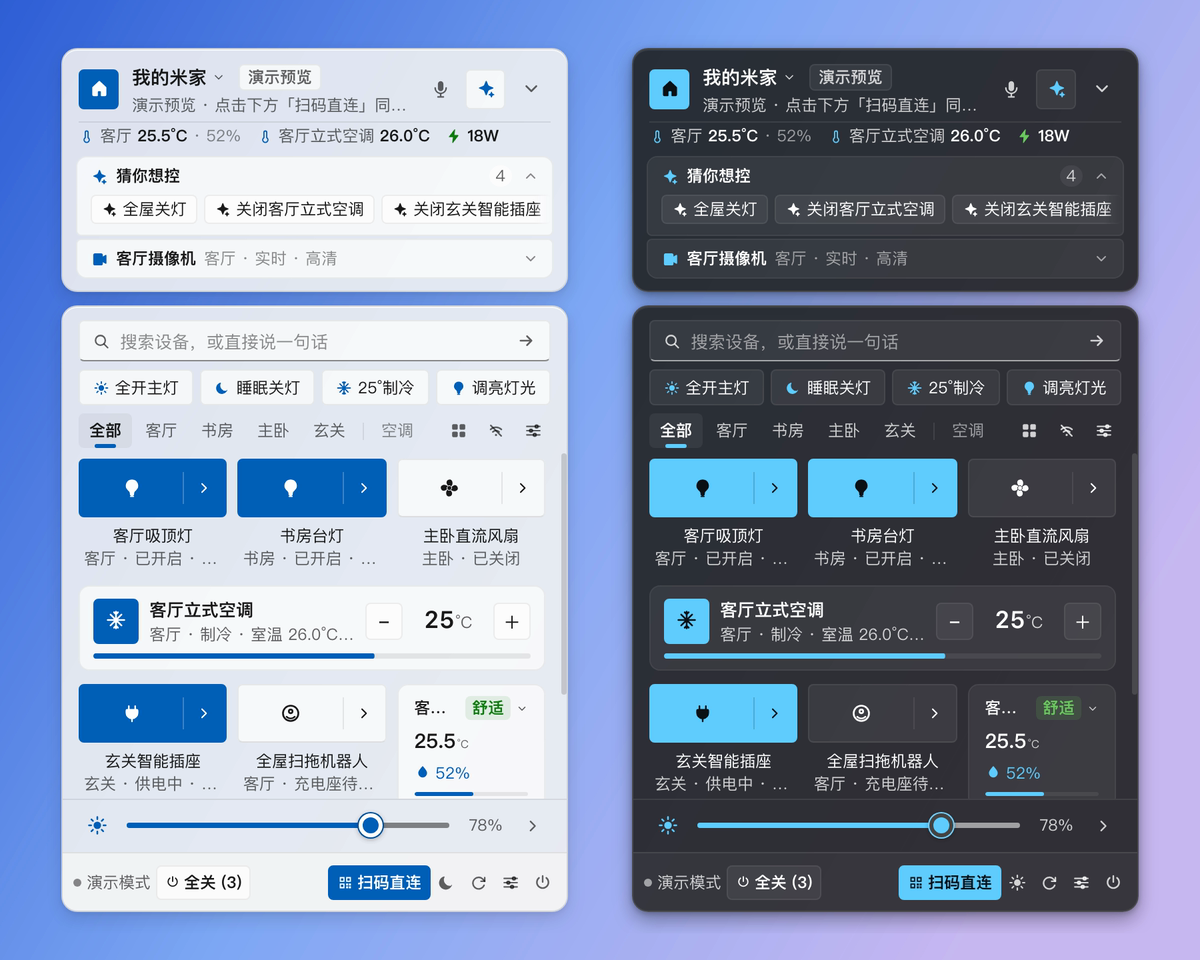
http://192.168.1.100:8123; reverse-proxy subpaths work too) and a long-lived access token. Both macOS and Windows can find Home Assistant on your local network. The token is kept in the macOS Keychain or Windows Credential Manager.Search now sits at the top, and the same box takes device names, state questions, and spoken commands. Favorite devices are laid out as tiles, the AC can be nudged up or down right on its card, and room tabs, room auto-group capsules, sorting, and the compact view are a click away. Quick Actions and "For You" suggestions fold behind a single Shortcuts toggle (⌘K on macOS, Ctrl+K on Windows) so the first screen stays uncluttered. Light and dark follow the system, and on macOS 26 or later you can switch to the Liquid Glass theme; opening the macOS panel no longer dims the app you're working in.
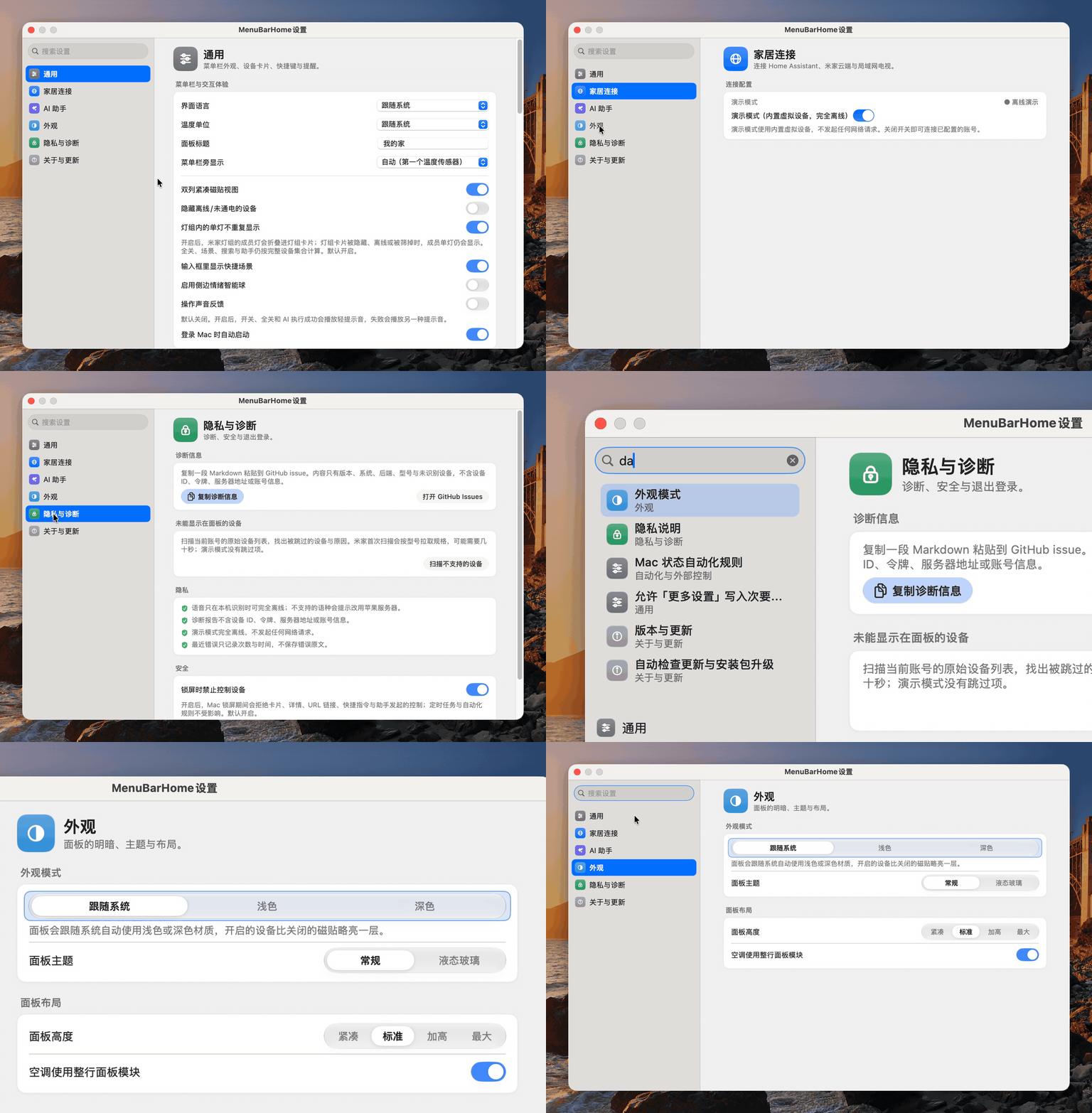
A sidebar of categories with colored icons and grouped cards, laid out like the Mac's own System Settings. The search field understands Chinese and English keywords plus synonyms, and picking a result jumps straight to that setting and highlights it.
Hold ⌥M or the menu bar icon, say what you want, and let go. What you say appears in the search field as you speak and runs the moment you release. Everyday commands are parsed locally, so there's almost no wait; for trickier requests you can plug in an AI service of your choice.

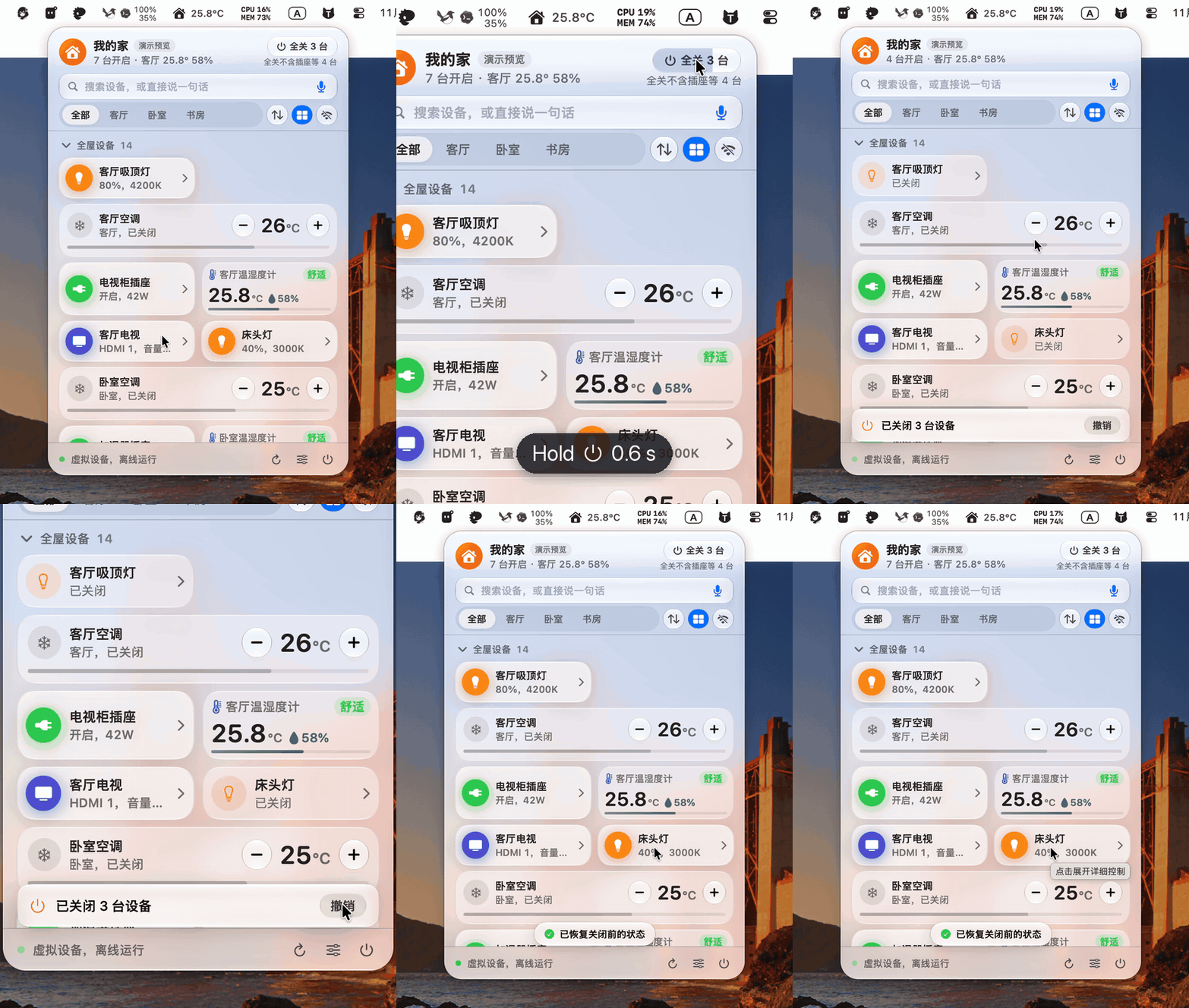
Heading out or going to bed? Hold All Off for 0.6 seconds and everything that's on in the current view switches off. Plugs, robot vacuums, and cameras sit it out by default (you can change that in Settings). An Undo button appears right after; one tap restores the way things were.
The tray app uses the Classic two-column split-tile panel by default and also offers a Windows 11 Fluent 2 two-island flyout (home status, "For You" suggestions, and a camera glance on top; search, quick actions, and device tiles below). Keyboard search, Alt+M, native Mica/Acrylic backdrop with system accent colors (Windows 11 22H2+), an independent always-on-top camera PiP window, and light/dark appearance are all there.
jryang2026-code/MenuBarHome is a public repo on GitHub by jryang2026-code. macOS / Windows menu bar control for Xiaomi Mijia and Home Assistant devices (formerly MenuBarMijia).
It declares the MIT license on GitHub.
Its maker tagged it for macOS, Windows and Linux, or as Docker or cross-platform. That is declared by the maker; Take My Repo has not tested it.
Open "Take it" on its page: Take My Repo writes an install plan for your machine and hands it to your AI agent (Claude Code, Codex or Cursor), which asks you before each step. Take My Repo has not tested it on any machine.
Flutter makes it easy and fast to build beautiful apps for mobile and beyond
Reverse engineer anything with agents, from app behavior down to native binaries.
The agent harness performance optimization system. Skills, instincts, memory, security, and research-first development for Claude Code, Codex, Opencode, Cursor and beyond.
Its last change on GitHub was on 2026-11-25. Take My Repo does not judge from that whether it is maintained.
Nobody has reviewed it on Take My Repo yet, which says nothing about its quality.
Take My Repo cannot say: it does not audit code and has not run MenuBarHome. What is known comes from GitHub. It declares the MIT license on GitHub. Its last change was on 2026-11-25. It has 55 stars, which measure popularity, not safety. Nobody has reviewed it on Take My Repo yet, which says nothing about its quality. Read the source before you run it. With "Take it", your AI agent shows each step and asks you before running it; README text is treated as data, not as instructions.




