shadPS4
PlayStation 4 emulator for Windows, Linux, macOS and FreeBSD written in C++
- 34k
- C++
- GPL-2.0
- 1 d ago
Emulates Mac Plus, PC, & Atari ST in the browser using WebAssembly
Repo jsdf/pce, read from GitHub 18 min ago. jsdf has not joined Take My Repo.
jsdf/pce is a public repo on GitHub by jsdf. Emulates Mac Plus, PC, & Atari ST in the browser using WebAssembly. It declares the GPL-2.0 license on GitHub. It is written mainly in C, has 919 stars and last changed on 2026-11-01. Nobody has reviewed it on Take My Repo yet, which says nothing about its quality. Read from GitHub on 2026-11-25.
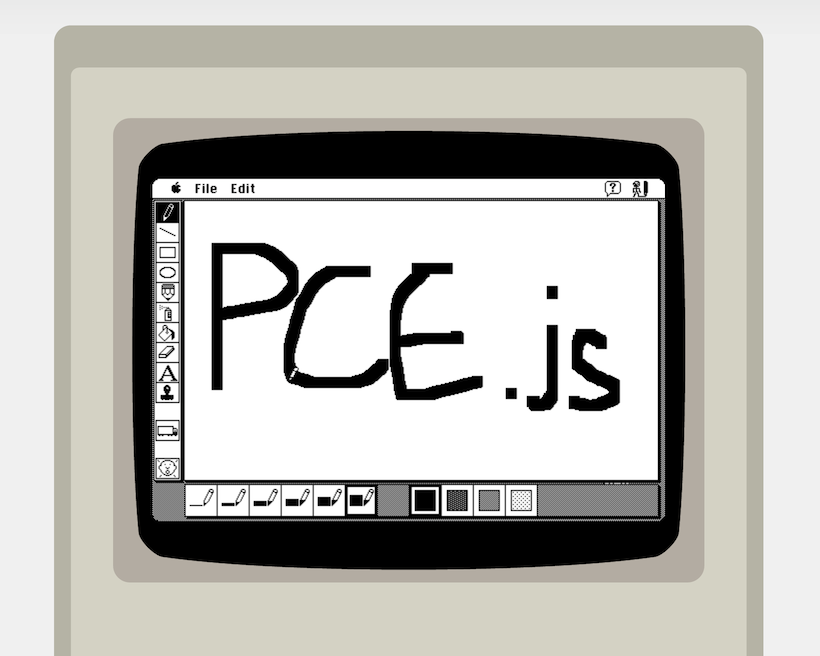
PCE.js runs classic computers in the browser. It's a port of Hampa Hug's excellent PCE emulator, put together by James Friend.
PCE.js currently emulates Mac Plus, IBM PC/XT and Atari ST functionally in recent versions of Chrome and Firefox.
More info:
The emulators are based on PCE 20250420-cc0c583c (April 2025), with these changes for the browser:
requestAnimationFrame (*_run_emscripten() in
src/arch/*/cmd*.c, using pce_em_*() in src/lib/sysdep.c), which
emulates the real time that passed since the previous browser frame instead
of sleeping (sleeping busy waits in the browser). While the page is hidden
it runs from a timer instead, because browsers pause animation frames.pce_usleep() doesn't sleep, and the realtime sync functions
(*_realtime_sync(), pc_clock_delay()) return earlysrc/arch/*/main.c (config file pce-config.cfg,
debug logging, VGA for the IBM PC)sdl sound driver for the PSG by defaultsrc/drivers/video/sdl.csrc/lib/sysdep.clibjs/library_sdl.jssrc/devices/serport.c (see below)Functions that are called through a function pointer must have exactly the signature of the pointer, otherwise the call fails in WebAssembly with "function signature mismatch" (native builds tolerate this).
This branch merges upstream PCE (git://git.hampa.ch/pce.git). To update to
a newer PCE version, merge its master branch and resolve conflicts in the
files with these changes:
git remote add upstream git://git.hampa.ch/pce.git
git fetch upstream
git merge upstream/master
See this CodePen example.
I recommend installing the native version of PCE on your computer to create your own disk images. Alternatively, you could use Mini vMac.
PCE.js is available from npm as a set of browserify compatible node packages, which also include UMD bundles.
There is one for each emulator build:
See each of the above links for install and usage instructions
Note: I recommend instead just using the npm packages listed above, unless you want to hack on the C source of the emulators themselves (which is not necessary if you just want to get them running on a page).
Make sure you've installed node.js
These instructions assume you're working with my fork of PCE on the
pcejs branch. Presumably that's where you're reading this right now.
Run npm install in this directory (the source root). This should install the
required node.js tools to build the commonjs modules and run the examples.
Install the Emscripten SDK.
Install and activate version 1.38.48 of the SDK
cd ../path/to/emsdk/
./emsdk install 1.38.48
./emsdk activate 1.38.48
source ./emsdk_env.sh
Check that running emcc -v successfully returns current Emscripten version.
Note: emscripten 1.38.48 runs its scripts with python, so on systems that
only have python3 you need a python -> python3 symlink in your PATH.
./configure also runs small test programs with node; on node 18 and newer
these fail ("Failed to parse URL") unless node's fetch is disabled, e.g. by
setting NODE_JS = ['/usr/bin/node', '--no-experimental-fetch'] in the
emsdk's .emscripten config file. Newer versions of node don't have that
option; instead preload a script that contains delete globalThis.fetch;:
NODE_JS = ['/usr/bin/node', '--require', '/path/to/nofetch.js'].
Detailed installation instructions are on the Emscripten SDK page.
In the same terminal, return to the pcejs repository. Run ./pcejs_build env once which will create a pcejs_build_conf.sh file if it
doesn't already exist.
Most of the build process involves running the ./pcejs_build bash script in the
root of the repo. Commands should be run like ./pcejs_build [command] or pcejs_build [command] [arg]
Run ./pcejs_build build [target] to build the emulator, where [target] is macplus,
ibmpc or atarist. This will output a pce-[target].js file to dist/.
After the output file for the target you're interested in has been built, you can:
example/ directory with ./pcejs_build example [target] or example/run_example.sh [target]commonjs/[target]/ directories by running
npm run prepublish in the respective directory.Commands you might be interested in:
macplus, ibmpc, atarist or native. Specifiying an emulator arch
builds the in-browser emulator JS file for that architecture. native builds
all PCE executables normally. If you don't specify a [target] then all JS
targets will be built.Other commands (used internally by build scripts)
npm install, then:
npm run test:unit: unit tests for the JavaScript that is wrapped around
the emscripten output (commonjs/script-directory.js, prelude.js,
epilogue.js). These don't need a build.npm run test:setup: download the system files that the browser tests boot
(ROMs, disk images and configs from the *-system.zip files) into
test/.cache/, and install the browser that Playwright uses. Run this once.npm run test:browser: boot each emulator in headless Chromium and check
that it reaches its desktop or prompt (compared with the screenshots in
test/browser/__screenshots__/), that it emulates real time both while the
page is visible and while it is hidden, and that it logs no errors. This
uses the UMD bundles in commonjs/pcejs-*/, so build the emulators and run
./umd.sh in each commonjs/pcejs-* directory first.npm test: the unit and browser tests.If a change is supposed to alter what an emulator shows after booting, update
the screenshots with npm run test:browser -- --update-snapshots and check
them before committing.
jsdf/pce is a public repo on GitHub by jsdf. Emulates Mac Plus, PC, & Atari ST in the browser using WebAssembly.
It declares the GPL-2.0 license on GitHub.
Its maker has not tagged a system, so it is unknown here. Its README says what it needs.
Open "Take it" on its page: Take My Repo writes an install plan for your machine and hands it to your AI agent (Claude Code, Codex or Cursor), which asks you before each step. Take My Repo has not tested it on any machine.
Its last change on GitHub was on 2026-11-01. GitHub counts 22 open issues and pull requests. Take My Repo does not judge from that whether it is maintained.
Websites, web apps, portfolios that look like desktop operating systems
Nobody has reviewed it on Take My Repo yet, which says nothing about its quality.
Take My Repo cannot say: it does not audit code and has not run pce. What is known comes from GitHub. It declares the GPL-2.0 license on GitHub. Its last change was on 2026-11-01. It has 919 stars, which measure popularity, not safety. Nobody has reviewed it on Take My Repo yet, which says nothing about its quality. Read the source before you run it. With "Take it", your AI agent shows each step and asks you before running it; README text is treated as data, not as instructions.