Javascript Data Grid
Official website and documentation is here
Compatible with Vanilla JavaScript, LemonadeJS, React, Vue or Angular.
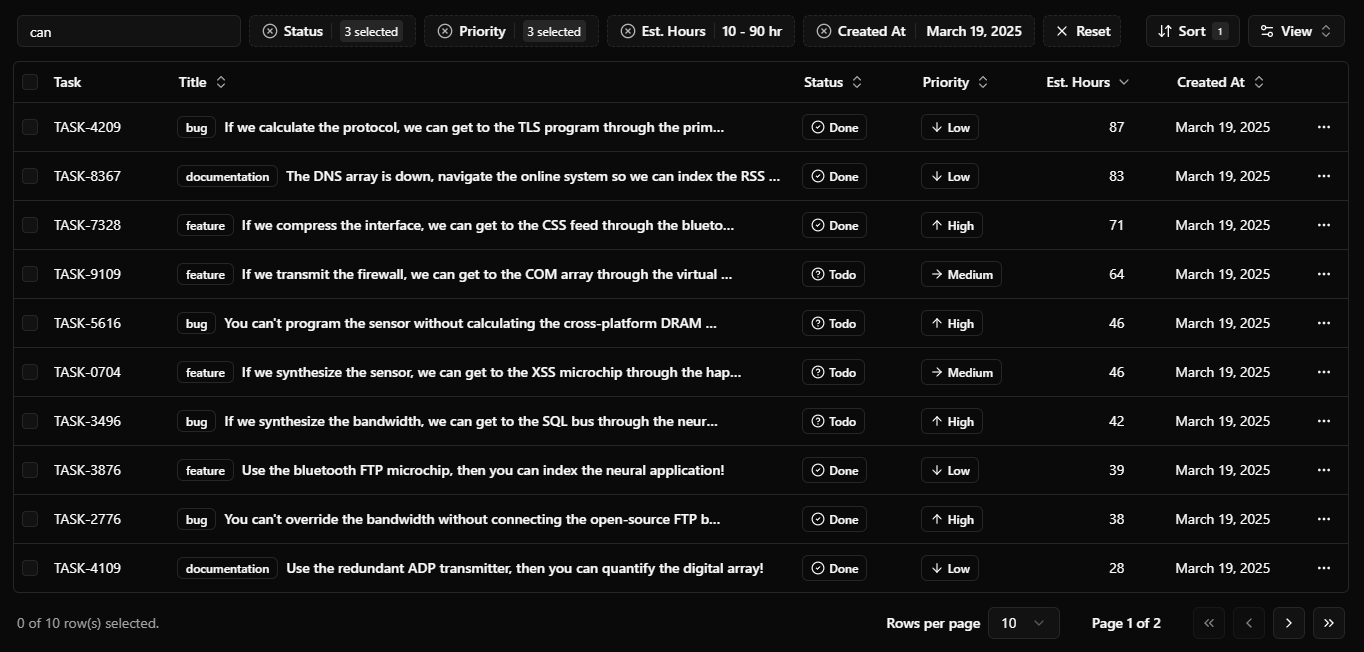
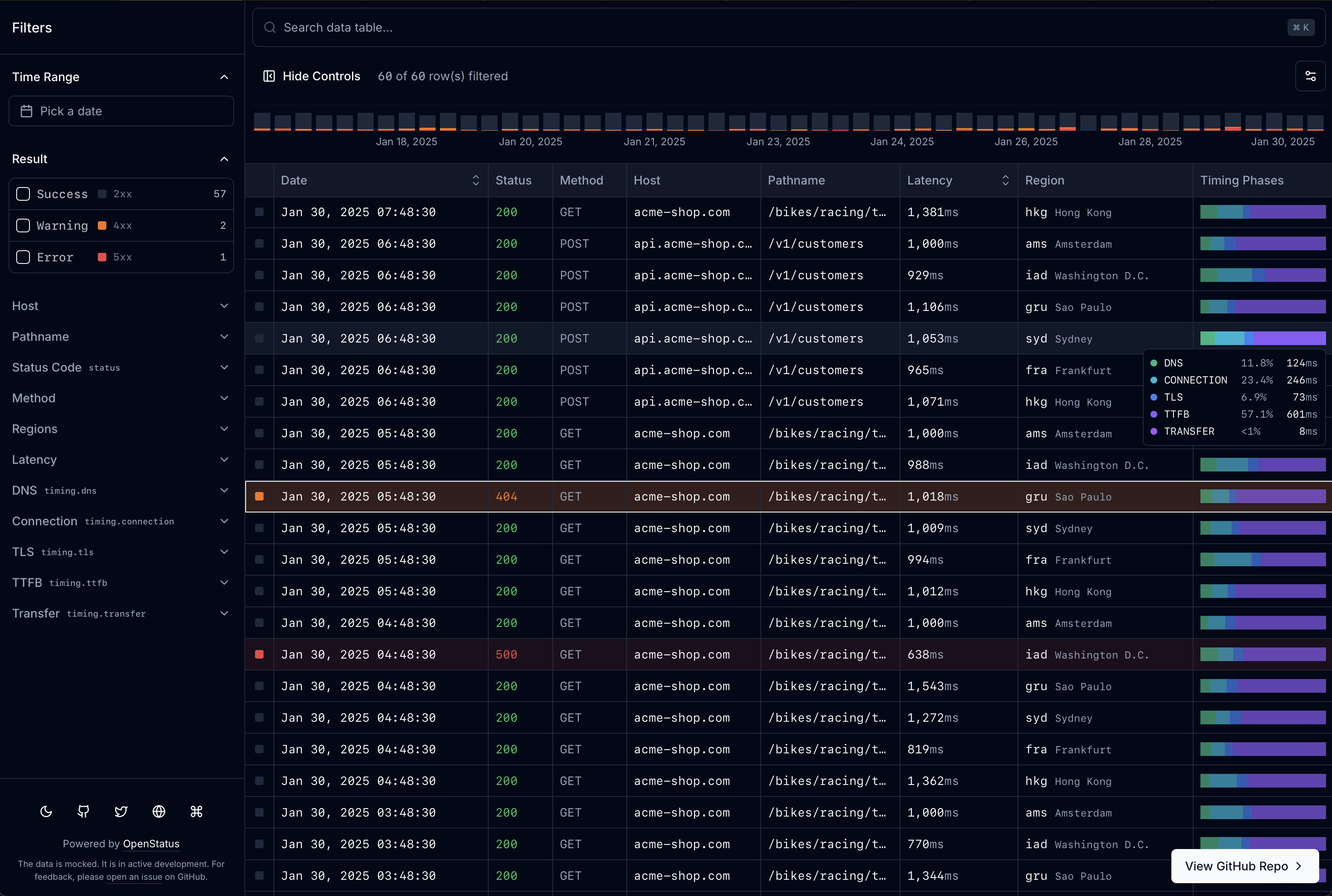
The JavaScript Data Grid is a lightweight library that effortlessly enables you to embed lightweight data grids into your applications. Compatible with Vanilla JavaScript, LemonadeJS, React, VueJS, and Angular, this versatile component allows you to conveniently load JSON data, define columns, and seamlessly render the grid within your HTML. Enjoy robust features like search, pagination, and editable rows, empowering you to build interactive and feature-rich data grid experiences.
Features
- Lightweight: The lemonade data grid is only about 4 KBytes;
- Customizable: You can define columns and user-defined actions to suit your use case;
- Reactive: Any changes to the underlying data are automatically applied to the HTML, making it easy to keep your grid up-to-date;
- Integration: It can be used as a standalone library or integrated with any modern framework;
Getting Started
You can install using NPM or using directly from a CDN.
npm Installation
To install it in your project using npm, run the following command:
$ npm install @lemonadejs/datagrid
CDN
To use data grid via a CDN, include the following script tags in your HTML file:
<script type="text/javascript" src="https://cdn.jsdelivr.net/npm/lemonadejs/dist/lemonade.min.js"></script>
<script type="text/javascript" src="https://cdn.jsdelivr.net/npm/@lemonadejs/datagrid/dist/index.min.js"></script>
Usage
There are two ways to instantiate a Data Grid, Programmatically or Dynamically
Programmatically
Create an instance of the data grid by providing the DOM element, and the options object.
<div id="root"></div>
<script>
    const root = document.getElementById('root')
    Datagrid(root, {
        data: [
            { id: 1, person: 'Maria', age: 28 },
            { id: 2, person: 'Carlos', age: 33 }
        ],
        columns: [
            { name: 'person', title: 'Name' },
            { name: 'age', title: 'Age' }
        ]
    })
</script>
Dynamically with LemonadeJS
The LemonadeJS data grid is invoked within the template, with the options being passed as properties.
import Datagrid from '@lemonadejs/datagrid'

export default function Component() {
    let self = this;

    self.data = [
        { id: 1, person: 'Maria', age: 28 },
        { id: 2, person: 'Carlos', age: 33 }
    ]

    self.columns = [
        { name: 'person', title: 'Name' },
        { name: 'age', title: 'Age' }
    ]

    return `<Datagrid :data="self.data" :columns="self.columns" />`
}
Configuration
Additionally, you have the option of incorporating pagination and search functionalities by including them in the options. For example:
Datagrid(root, {
    data: [
        { id: 1, person: 'Maria', age: 28 },
        { id: 2, person: 'Carlos', age: 33 }
    ],
    columns: [
        { name: 'person', title: 'Name' },
        { name: 'age', title: 'Age' }
    ],
    pagination: 5, // Each page will contain this quantity of items.
    search: true
})
Examples
Here are a few examples of DataGridLM in action:
React wrapper
Utilize the Data Grid React component to integrate the grid into your React applications seamlessly. This wrapper simplifies the process, enabling you to display, manipulate, and interact with large datasets using React's declarative and component-based approach. Enjoy the convenience and power of the Data Grid, making data management a breeze within your React projects.
npm install @lemonadejs/react-data-grid
import React, { useRef, useState } from "react";
import Datagrid from '@lemonadejs/react-data-grid';

default export function App() {
    const datagrid = useRef();

    const [columns, setColumns] = useState([
        { name: 'name', title: 'Product', width: '200px', align: 'left' },
        { name: 'price', title: 'Price', width: '100px', align: 'center' },
        { name: 'description', title: 'Description', width: '300px', align: 'left' },
    ])

    const [data, setData] = useState([
        {
            id: 1,
            name: "T-Shirt",
            price: 19.99,
            description: "This is a high-quality cotton t-shirt in a variety of colors and sizes.",
        },
        {
            id: 2,
            name: "Jeans",
            price: 49.99,
            description: "These are premium denim jeans in a slim-fit style.",
        },
        {
            id: 3,
            name: "Sneakers",
            price: 79.99,
            description: "These are comfortable and stylish sneakers in a range of colors.",
        },
        {
            id: 4,
            name: "Backpack",
            price: 39.99,
            description: "This is a durable and spacious backpack with multiple compartments.",
        },
    ])

    // This function assigns a value to the second cell of the column 'name'.
    const setItemValue = function () {
        datagrid.current.setValue('name', 1, 'Blue Jeans')
    }

    // This function update the current page in pagination to 2.
    const goToPage2 = function () {
        datagrid.current.page = 1;
    }

    return (<>
        <Datagrid
            ref={datagrid}
            data={data}
            columns={columns}
            pagination={2}
            onupdate={() => console.log('Datagrid was updated')}
            onchangepage={() => console.log('Datagrid page changed')}
        />
        <button onclick={() => goToPage2()}>Go To Page 2</button>
        <button onclick={() => setItemValue()}>Change Value in 'Name' Second Line</button>
    </>);
}
Development
You can clone the project on github.
git clone https://github.com/lemonadejs/data-grid.git
Running the project
To run the project in development mode, use the following commands:
$ npm i
$ npm start
This will start a web-server with a DataGrid page as playground.
Running Tests
After installing the packages run:
$ npm run test
To see more details in a browser:
$ npm run test:browser
To have more information about test coverage:
$ npm run test:coverage
Contributing
The LemonadeJS data grid is an open-source project, and contributions are welcome! If you find a bug or have a feature request, please open an issue on GitHub. To contribute code, please fork the repository and submit a pull request.
Ensure that you run the formatting plugins to maintain consistent code patterns. You can use the following command to do that:
$ npm run format
License
The LemonadeJS data grid is released under the MIT.
Other Tools