
weston
A lightweight and functional Wayland compositor
- 0
- 4 mo ago
Repo lfdevs/weston, read from GitHub 21 min ago. lfdevs has not joined Take My Repo.
In short
lfdevs/weston is a public repo on GitHub by lfdevs. A lightweight and functional Wayland compositor. It declares no license on GitHub. Public does not mean open source: without a license, nobody is granted the right to reuse it. It is written mainly in C, has 0 stars and last changed on 2026-07-22. Nobody has reviewed it on Take My Repo yet, which says nothing about its quality. Read from GitHub on 2026-11-24.
Weston
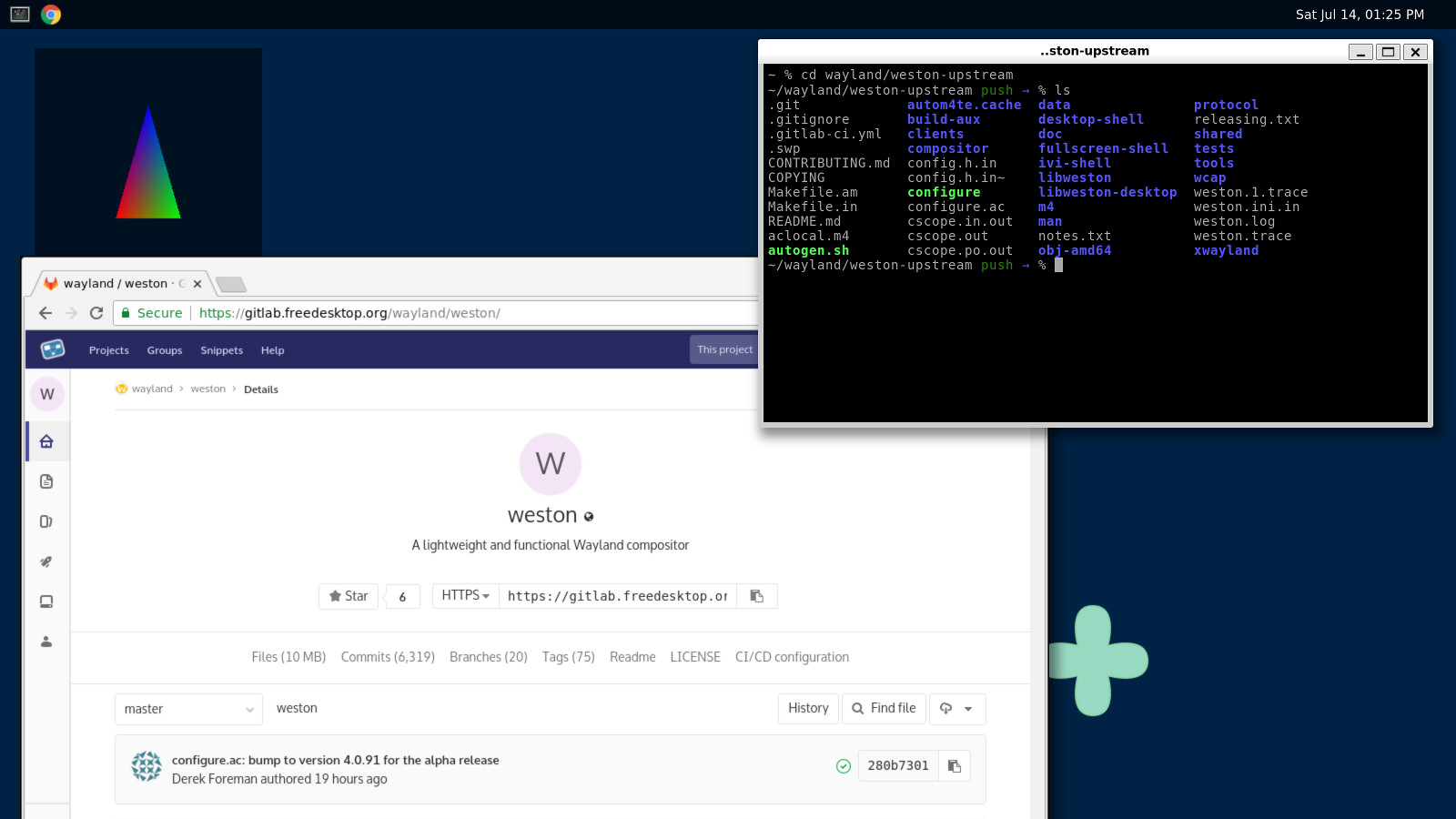
Weston is a Wayland compositor designed for correctness, reliability, predictability, and performance.
Out of the box, Weston provides a very basic desktop, or a full-featured environment for non-desktop uses such as automotive, embedded, in-flight, industrial, kiosks, set-top boxes and TVs.
It also provides a library called libweston which allows users to build their own custom full-featured environments on top of Weston's core.
Building Weston
Weston is built using Meson. Weston often depends on the current release versions of Wayland and wayland-protocols.
If necessary, the latest Meson can be installed as a user with:
$ pip3 install --user meson
Weston's Meson build does not do autodetection and it defaults to all features enabled, which means you likely hit missing dependencies on the first try. If a dependency is avoidable through a build option, the error message should tell you what option can be used to avoid it. You may need to disable several features if you want to avoid certain dependencies.
$ git clone https://gitlab.freedesktop.org/wayland/weston.git
$ cd weston
$ meson build/ --prefix=...
$ ninja -C build/ install
$ cd ..
The meson command populates the build directory. This step can
fail due to missing dependencies. Any build options you want can be added on
that line, e.g. meson build/ --prefix=... -Ddemo-clients=false. All the build
options can be found in the file meson_options.txt.
Once the build directory has been successfully populated, you can inspect the
configuration with meson configure build/. If you need to change an
option, you can do e.g. meson configure build/ -Ddemo-clients=false.
Every push to the Weston master repository and its forks is built using GitLab CI. Reading the configuration may provide a useful example of how to build and install Weston.
More detailed documentation on building Weston is available on the Wayland site. There are also more details on how to run and write tests.
For building the documentation see documentation.
Running Weston
Once Weston is installed, most users can simply run it by typing weston. This
will launch Weston inside whatever environment you launch it from: when launched
from a text console, it will take over that console. When launched from inside
an existing Wayland or X11 session, it will start a 'nested' instance of Weston
inside a window in that session.
By default, Weston will start with a skeletal desktop-like environment called
desktop-shell. Other shells are available; for example, to load the kiosk
shell designed for single-application environments, you can start with:
$ weston --shell=kiosk
Help is available by running weston --help, or man weston, which will list
the available configuration options and display backends. It can also be
configured through a file on disk; more information on this can be found through
man weston.ini.
A small suite of example or demo clients are also provided: though they can be useful in themselves, their main purpose is to be an example or test case for others building compositors or clients.
Using libweston
libweston is designed to allow users to use Weston's core - its client support, backends and renderers - whilst implementing their own user interface, policy, configuration, and lifecycle. If you would like to implement your own window manager or desktop environment, we recommend building your project using the libweston API.
Building and installing Weston will also install libweston's shared library and development headers. libweston is both API-compatible and ABI-compatible within a single stable release. It is parallel-installable, so multiple stable releases can be installed and used side by side.
Documentation for libweston's API can be found within the source (see the documentation section), and also on Weston's online documentation for the current stable release.
Reporting issues and contributing
Weston's development is hosted on freedesktop.org GitLab. Please also see the contributing document, which details how to make code or non-technical contributions to Weston.
Weston and libweston are not suitable for severely memory-constrained environments
where the compositor is expected to continue running even in the face of
trivial memory allocations failing. If standard functions like malloc()
fail for small allocations,
you can expect libweston to abort.
This is only likely to occur if you have disabled your OS's 'overcommit'
functionality, and not in common cases.
Documentation
To read the Weston documentation online, head over to the Weston website.
For documenting weston we use sphinx together with breathe to process and augment code documentation from Doxygen. You should be able to install both sphinx and the breathe extension using pip3 command, or your package manager. Doxygen should be available using your distribution package manager.
Once those are set up, run meson with -Ddoc=true option in order to enable
building the documentation. Installation will place the documentation in the
prefix's path under datadir (i.e., share/doc).
Adding and improving documentation
For re-generating the documentation a special docs target has been added.
Although first time you build (and subsequently install) weston, you'll see the
documentation being built, updates to the spinx documentation files or to the
source files will only be updated when using docs target!
Example:
$ ninja install # generates and installs the documentation
# time passes, hack hack, add doc in sources or rST files
$ ninja install # not sufficient, docs will not be updated
$ ninja docs && ninja install # run 'docs' then install
Improving/adding documentation can be done by modifying rST files under
doc/sphinx/ directory or by modifying the source code using doxygen
directives.
Questions
What is weston?
lfdevs/weston is a public repo on GitHub by lfdevs. A lightweight and functional Wayland compositor.
Is weston open source?
It declares no license on GitHub. Public does not mean open source: without a license, nobody is granted the right to reuse it.
Does weston run on macOS, Windows or Linux?
Its maker has not tagged a system, so it is unknown here. Its README says what it needs.
How do I install weston?
Open "Take it" on its page: Take My Repo writes an install plan for your machine and hands it to your AI agent (Claude Code, Codex or Cursor), which asks you before each step. Take My Repo has not tested it on any machine.