
cc-switch
A cross-platform desktop All-in-One assistant for Claude Code, Codex, OpenCode,DeepSeek Harness and more. Only official website: ccswitch.io
- 157k
- Rust
- MIT
- 3 h ago
Universal provider proxy for OpenAI Codex & Claude Code — use any LLM (Claude, Gemini, Grok, DeepSeek, Ollama…) with Codex CLI, App, SDK, and Claude Code
Repo lidge-jun/opencodex, read from GitHub 26 min ago. lidge-jun has not joined Take My Repo.
lidge-jun/opencodex is a public repo on GitHub by lidge-jun. Universal provider proxy for OpenAI Codex & Claude Code — use any LLM (Claude, Gemini, Grok, DeepSeek, Ollama…) with Codex CLI, App, SDK, and Claude Code. It declares the MIT license on GitHub. It is written mainly in TypeScript, has 18,749 stars and last changed on 2026-11-25. Nobody has reviewed it on Take My Repo yet, which says nothing about its quality. Read from GitHub on 2026-11-25.
A cross-platform desktop All-in-One assistant for Claude Code, Codex, OpenCode,DeepSeek Harness and more. Only official website: ccswitch.io

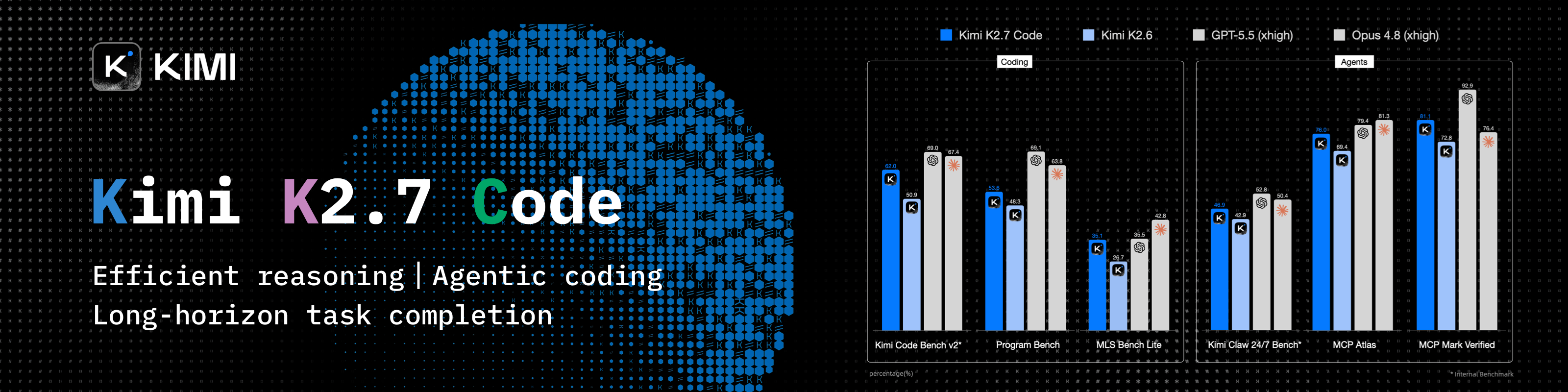
Use the models you choose with Codex, Claude Code, Claude Desktop and Grok Build,
and connect OpenCode, Pi, Qoder, WorkBuddy, Kilo, Cline, T3 Code and more through managed configs.
See every supported tool →
Part of GOAT: run your coding agents on any model, on any machine → trygoat.ai
npm install -g --allow-scripts=bun @bitkyc08/opencodex
ocx start
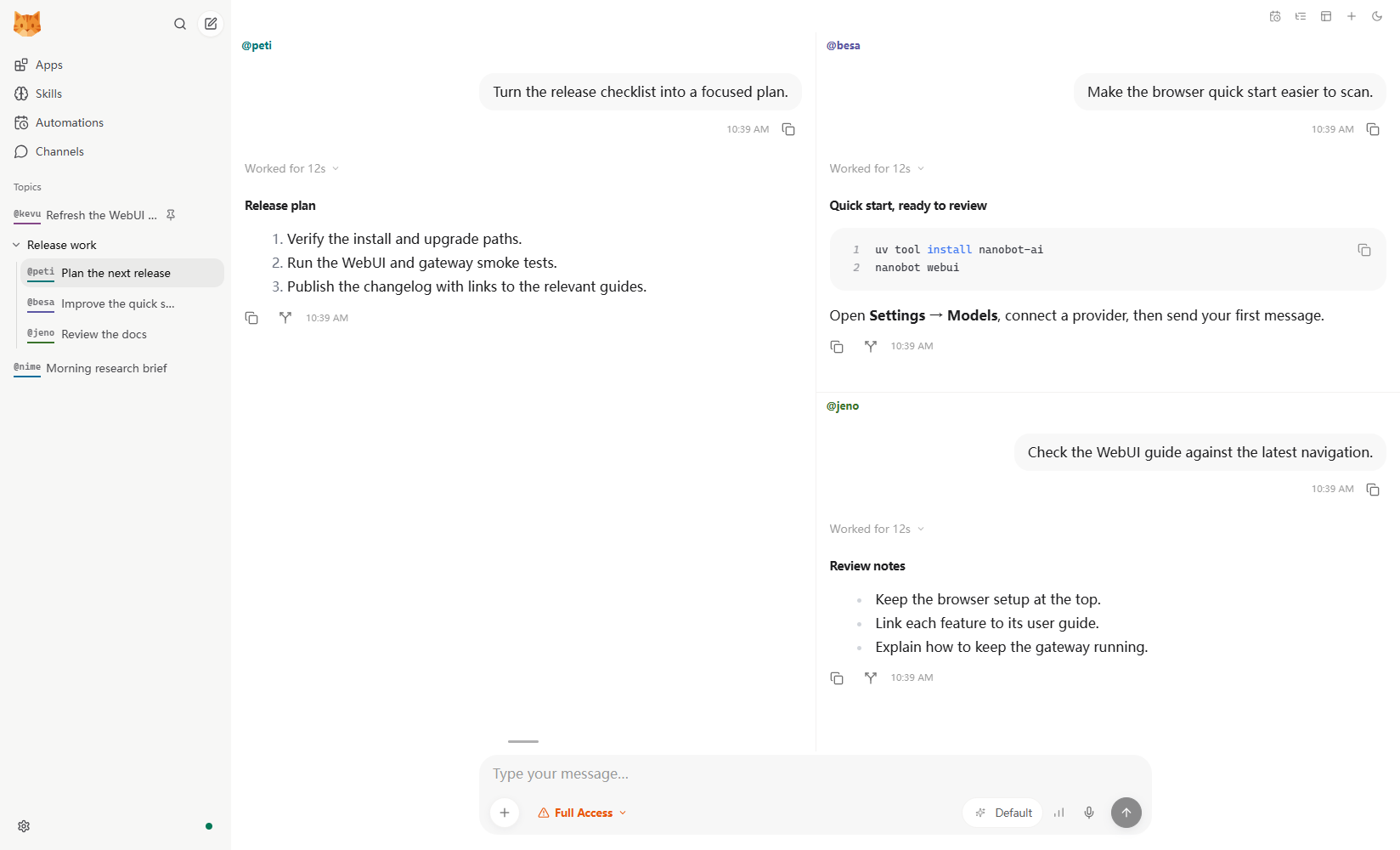
Claude Code, running any modelThe picker is stock Claude Code. The brain behind it isn't. |

|
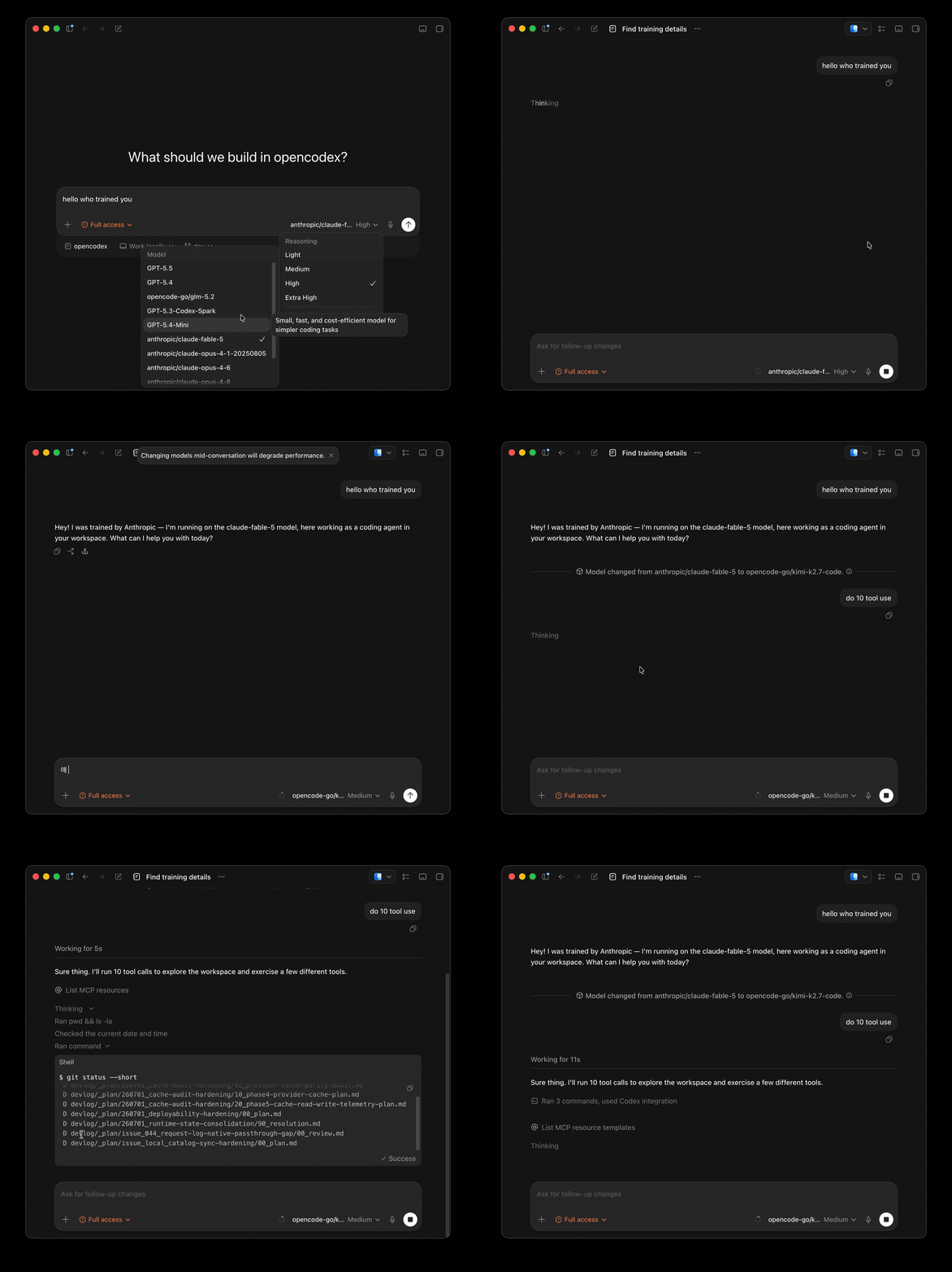
Codex, running any modelPick a provider and go — same workflow, different brain. |
|
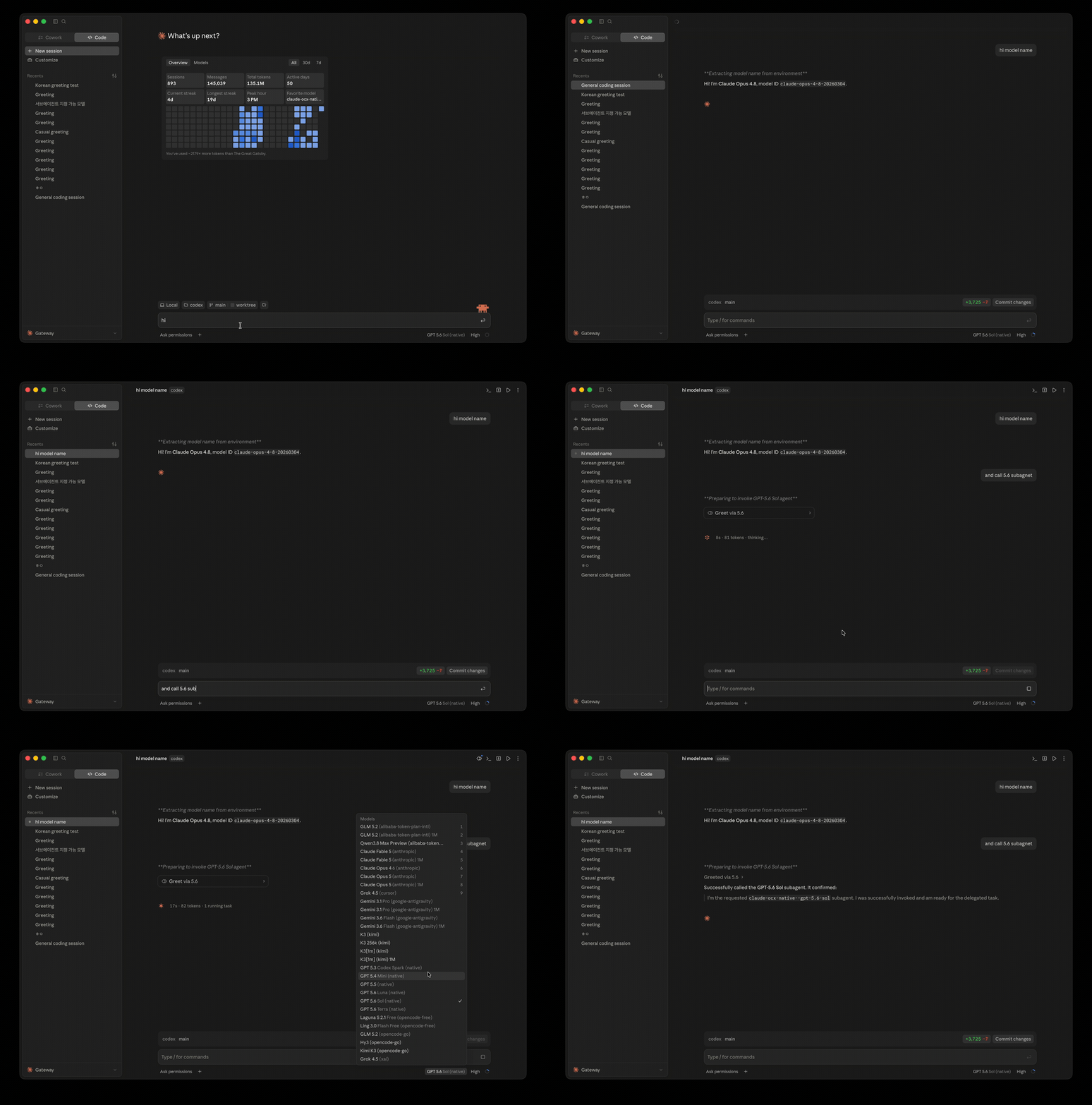
Claude Desktop, running any modelOpus answers, then hands the task to a GPT-5.6 Sol subagent. |
|
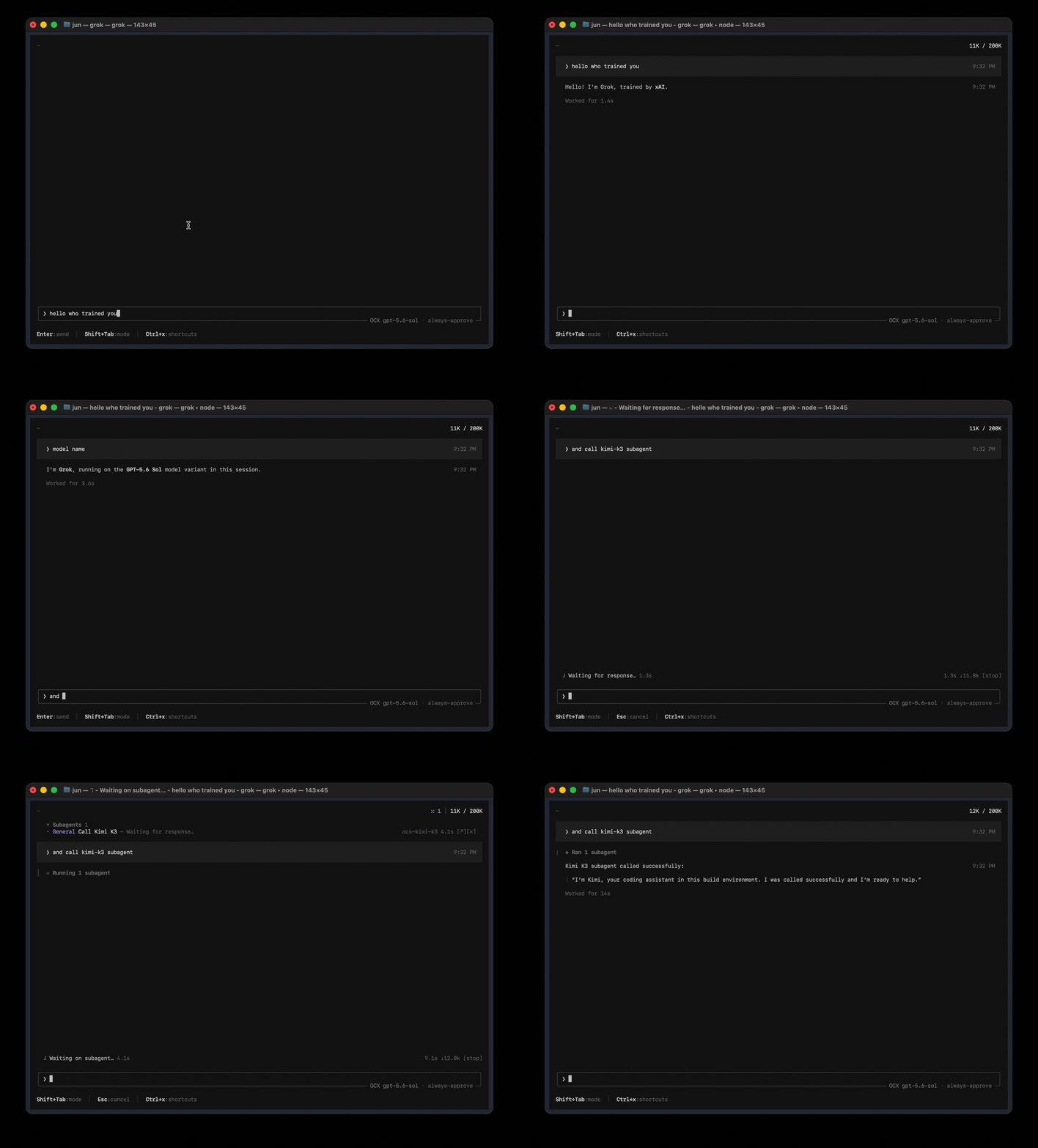
Grok Build, running any modelSol drives the session and calls a Kimi K3 subagent. |
|
English · Français · 한국어 · 简体中文 · 繁體中文 · Русский · 日本語 · Türkçe · Español · 📖 Full documentation →
opencodex is a lightweight local gateway between your coding tools and your model providers. It accepts the Responses, Chat Completions and Anthropic Messages APIs and translates each request into whatever your provider speaks, carrying streaming, tool calls, reasoning and images where the client, model and provider support them. Use Claude, Gemini, Grok, GLM, DeepSeek, Kimi, Qwen, Ollama and other providers with Codex, Claude Code, Claude Desktop, Grok Build and the tools listed on the client support page.
npm install -g --allow-scripts=bun @bitkyc08/opencodex   # Node 18+; the Bun runtime is bundled automatically
ocx start                         # proxy + dashboard on localhost:10100
Use ocx service to run it in the background.
Open http://localhost:10100 and configure everything in the web dashboard — add providers
(40+ built-ins, or any OpenAI-compatible endpoint), pick models, manage accounts. ocx gui
re-opens the dashboard at any time.
Connect the tool you already use:
| Tool | How to connect |
|---|---|
| Codex | Turn on the Codex switch on the dashboard's Route page, then run codex as usual. On a local listener this points Codex's built-in provider at the proxy. From the terminal, run ocx init before adding providers in the dashboard and accept its Codex prompt. |
| Claude Code | With the claude CLI installed, run ocx claude. It starts the proxy if needed and launches Claude Code through it. |
| Claude Desktop | Run ocx claude desktop. On a new install it sets up the gateway profile for the whole app; an existing first-party setup is kept, and ocx claude desktop apply --gateway switches explicitly. See the Claude Code guide. Fully quit and reopen Claude Desktop after a switch. |
| Grok Build | On a local listener with Grok integration enabled, ocx start registers the models when ~/.grok exists; pick an ocx-* model in Grok Build. Remote setups: see the Grok Build guide. After adding providers, restart the proxy (or run ocx ensure when Codex autostart is enabled) to refresh the list. |
| Tools with a managed integration | Use the dashboard Route page, or ocx integration client enable --client <id>. |
| Any other tool | Set a custom OpenAI-compatible base URL of http://localhost:10100/v1, or an Anthropic base URL of http://localhost:10100. |
The client support page lists which path each tool has and which protocol it speaks.
The desktop app is the same proxy and dashboard in a native window, with a tray and bundled ocx.
It attaches to a proxy that is already running, or starts its bundled one, and the dashboard stays
on the proxy port (http://localhost:10100 unless you configured another). Pick the file for your
platform from the latest release:
| Platform | File | Notes |
|---|---|---|
| macOS 13+ (Apple Silicon and Intel) | OpenCodex-<version>-macos.dmg |
Universal build, signed with a Developer ID and notarized |
| Windows (x64) | OpenCodex-<version>-windows-x64.msi |
Code signing via SignPath Foundation is rolling out (code signing policy); until a release is signed, SmartScreen asks once: choose More info → Run anyway |
| Linux (x86_64) | OpenCodex-<version>-linux-x86_64.AppImage or -linux-amd64.deb |
The tray needs an AppIndicator-capable desktop |
Every file has a .sha256 next to it on the release page. On macOS 14+ the app also ships a
WidgetKit extension that shows proxy status, today's usage and provider quotas; the snapshot model
it renders lives in app/ (MenuBarCore). To build the app yourself, run
bun install && bun run build:gui at the repository root, then in desktop/ run
bun install && bun run prepare-sidecar && bun run prepare-widget && bun run build:local on macOS,
or bun install && bun run prepare-sidecar && bun run build:local on Windows and Linux (the widget
step needs macOS). The Desktop App guide and the
macOS Menu Bar App guide cover first launch, and
AGENTS_INSTALL.md lists everything written to disk.
Sponsors keep opencodex maintained across every upstream protocol change. Interested? See SPONSORS.md.
 |
Thanks to OrcaRouter for sponsoring this project! OrcaRouter is one OpenAI-compatible AI gateway for production AI: adaptive routing that grades every prompt and sends it to the model that clears your bar, automatic failover, routing rules as code, zero-markup provider pricing with prompt caching, and guardrails, an agent firewall, and request logs on every call across 200+ models. Pick OrcaRouter in the Add provider picker or run ocx provider add orcarouter; orcarouter/auto is the adaptive router. |
 |
Thanks to TokenLab for sponsoring this project! TokenLab gives coding agents one API key for leading models, supporting OpenAI Responses and Chat Completions, Anthropic Messages, and Gemini's native API formats, with streaming and tool calling. It also provides an MCP server and agent Skills for easy integration. Choose your delivery mode and pay as you go. Pick TokenLab in the Add provider picker or run ocx provider add tokenlab.TokenLab 为编程智能体提供统一的多模型 API,一枚 API Key 即可接入主流模型,支持 OpenAI Responses、Chat Completions、Anthropic Messages 和 Gemini 原生 API 格式,以及流式输出和工具调用。同时提供 MCP 服务器和 Agent Skills,方便接入现有工作流;交付模式可选,按量付费。 |
The repository ships a digest-pinned, non-root Compose build. The build generates and verifies the canonical compatibility manifest from the selected Git snapshot. A local clone needs Git and Docker Compose; a remote Git context needs Docker Compose. Neither path needs host Bun or a preparation step. Initialize the data-plane token once through stdin and start the hub:
git clone https://github.com/lidge-jun/opencodex.git
cd opencodex
docker compose build
openssl rand -hex 32 | docker compose run --rm -T hub bun run docker/bootstrap-token.ts
docker compose up -d
curl --fail --silent http://127.0.0.1:10100/healthz
curl --fail --silent http://127.0.0.1:10100/readyz
The default host binding is 127.0.0.1:10100. Remote exposure requires explicit
OPENCODEX_BIND_ADDRESS=<LAN-or-Tailscale-IP> docker compose up -d; 0.0.0.0 opts into
all host interfaces. Restrict access with a firewall and an authenticated TLS/tailnet frontend.
The generated JSON stays untracked. The build context admits only .git/index and .git/HEAD — the
inventory git ls-files reads, about 1 MB rather than the full object store — and they are visible
only to the build-only manifest stage through a read-only mount, so no COPY includes .git. An existing host-generated manifest
is still accepted only after validation; otherwise the build generates one itself. The build rejects
stale manifests, missing or mismatched files, extra source files, and symlinks.
It checks every recorded SHA-256 against the build context and copied runtime files, including
package.json, bun.lock, and the specifically included scripts/model-metadata.source.json.
A remote Git context needs BuildKit to retain Git metadata. This Compose build fragment selects the remote snapshot and passes the required built-in argument:
lidge-jun/opencodex is a public repo on GitHub by lidge-jun. Universal provider proxy for OpenAI Codex & Claude Code — use any LLM (Claude, Gemini, Grok, DeepSeek, Ollama…) with Codex CLI, App, SDK, and Claude Code.
It declares the MIT license on GitHub.
Its maker tagged it for macOS, Windows and Linux, or as Docker or cross-platform. That is declared by the maker; Take My Repo has not tested it.
The agent harness performance optimization system. Skills, instincts, memory, security, and research-first development for Claude Code, Codex, Opencode, Cursor and beyond.
f.k.a. Awesome ChatGPT Prompts. Share, discover, and collect prompts from the community. Free and open source — self-host for your organization with complete privacy.
Open-source Python library for AI browser agents, plus Browser Use Cloud: stealth browsers and a hosted agent API.
Open "Take it" on its page: Take My Repo writes an install plan for your machine and hands it to your AI agent (Claude Code, Codex or Cursor), which asks you before each step. Take My Repo has not tested it on any machine.
Its last change on GitHub was on 2026-11-25. GitHub counts 94 open issues and pull requests. Take My Repo does not judge from that whether it is maintained.
Nobody has reviewed it on Take My Repo yet, which says nothing about its quality.
Take My Repo cannot say: it does not audit code and has not run opencodex. What is known comes from GitHub. It declares the MIT license on GitHub. Its last change was on 2026-11-25. It has 18,749 stars, which measure popularity, not safety. Nobody has reviewed it on Take My Repo yet, which says nothing about its quality. Read the source before you run it. With "Take it", your AI agent shows each step and asks you before running it; README text is treated as data, not as instructions.