picard
Picard is a cross-platform music tagger powered by the MusicBrainz database
- 5.4k
- Python
- GPL-2.0
- 7 h ago
A smart music file organization tool based on audio fingerprinting technology. It automatically monitors the download directory, identifies songs using AcoustID and MusicBrainz, completes metadata (artist, album, cover), and automatically downloads lyrics.
Repo lux032/MusicAutoTagger, read from GitHub 17 h ago. lux032 has not joined Take My Repo.
lux032/MusicAutoTagger is a public repo on GitHub by lux032. A smart music file organization tool based on audio fingerprinting technology. It automatically monitors the download directory, identifies songs using AcoustID and MusicBrainz, completes metadata (artist, album, cover), and automatically downloads lyrics. It declares the MIT license on GitHub. It is written mainly in Java, has 80 stars and last changed on 2026-11-23. Nobody has reviewed it on Take My Repo yet, which says nothing about its quality. Read from GitHub on 2026-11-23.
Picard is a cross-platform music tagger powered by the MusicBrainz database
Music Auto Tagger is an automated music library organizer based on audio fingerprinting and duration sequence fingerprinting. Designed for NAS and server environments, it monitors your download folder, identifies music files, fetches comprehensive metadata (including lyrics), and organizes them into a clean structure.
Core Value: Say goodbye to messy music folders. Automatically tag, cover, and organize your music library to perfection.
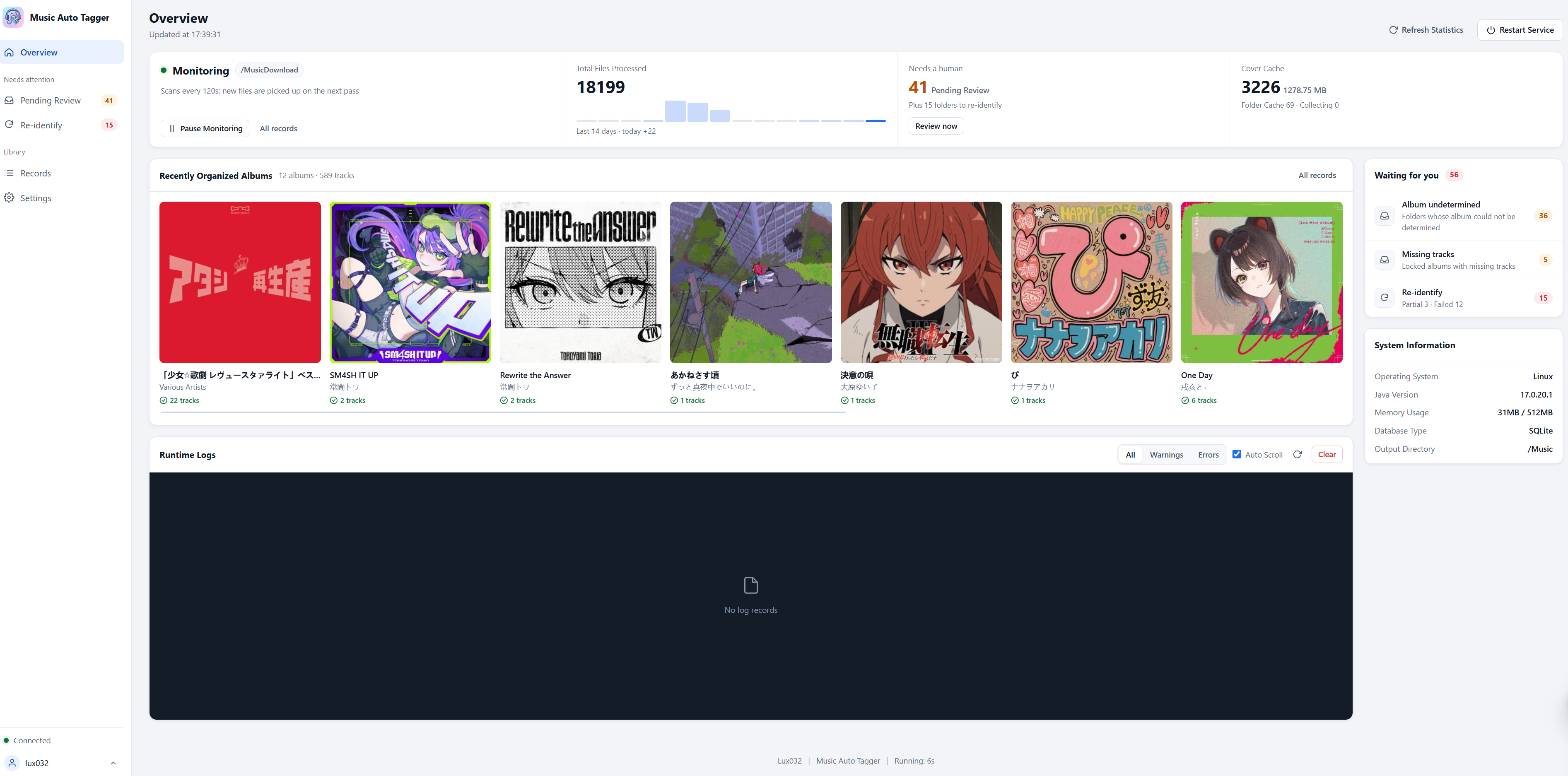
The built-in real-time monitoring dashboard provides:
review.enabled): When tracks are recognized but the album cannot be determined, the folder is queued instead of being archived by guesswork. Original files keep their tags, names, and locations until you confirm a release, archive it as “not in MusicBrainz”, or reject it.partial_files / failed_files quarantine folders. Retry jobs run in an atomic workspace (rollback on failure, cross-filesystem safe), and a recycle bin with a retention policy keeps the quarantined copies restorable.llm.webSearch.provider). Candidates require at least one HIGH or two independent MEDIUM sources, and they always end up in the review queue for human confirmation, never auto-archived.data/llm-providers.json. Pull models from a provider to fill a dropdown and self-test connectivity in one click. Old comma-separated settings are migrated automatically on first start. Server-side SSRF guards only allow public HTTPS endpoints unless llm.allowPrivateEndpoints is enabled.cover.preferAnimeEdition): For Japanese OP/ED singles that ship both an anime jacket and a regular artist jacket, candidate releases are scored by keyword so the anime cover wins, with fallback to the default cover.release_group_id for already-processed records album-by-album and warms the cover cache. Resumable, never touches audio files, and only accepts exact title matches with score ≥ 80.Various Artists).audio.normalize.ffmpegPath is read-only via the API (command-execution vector), secrets are returned masked from GET /api/config, write APIs validate CSRF, and filenames are sanitized for length, reserved device names, and traversal-unsafe components.Upgrading from an earlier version? Read UPGRADE_NOTES.md first.
track01.mp3).Artist/Album/Title structure.data/music-tagger.db). No database server needed, tables are created automatically on startup.Since music releases are extremely complex (Singles, EPs, Albums, Compilations, Deluxe Editions, etc.), to ensure the tool accurately categorizes your music into the correct albums, it is highly recommended to follow this practice:
Please place audio files from the same album (or single) into a separate folder before processing them with this tool.
❌ Not Recommended: Dumping hundreds of songs from different artists and albums into a single directory. ✅ Recommended:
/Downloads/Jay_Chou_Fantasy/ (Contains songs from the Fantasy album)/Downloads/Adele_21/ (Contains songs from the 21 album)Reason: When files are isolated in separate folders, the program can better determine that they belong to the same album based on context, avoiding misidentification of album tracks as "Best Of" compilations or "Single" versions.
The easiest way to run the application. Configuration is done in the web UI after login.
Create docker-compose.yml
version: '3.8'
services:
  music-tagger:
    image: ghcr.io/lux032/musicautotagger:latest
    container_name: music-tagger
    ports:
      - "8080:8080"  # Web dashboard
    environment:
      - PUID=1000
      - PGID=1000
      - UMASK=022
    volumes:
      - /path/to/downloads:/music
      - /path/to/music_library:/app/tagged_music
      # SQLite database, admin account, review queue, LLM providers, recovery trash (keep persisted!)
      - ./data:/app/data
      # quarantine dirs used by the recovery page (otherwise lost on recreate)
      - ./partial_files:/app/partial_files
      - ./failed_files:/app/failed_files
      - ./config.properties:/app/config.properties
    restart: unless-stopped
Set PUID/PGID to match the NAS user/group that owns your mounted folders. UMASK controls default permissions.
💡 The built-in SQLite database is used by default — no separate MySQL container is needed. Processing history lives in
./data/music-tagger.db; as long as./datais kept, recreating the container loses nothing.
Start Service
docker-compose up -d
Access Web Monitoring Dashboard
Open http://localhost:8080 in your browser.
data/admin.json).config.properties is missing, the app auto-generates it on startup.If you prefer to run it locally for development or testing:
# 1. Build
mvn clean package

# 2. Run
java -jar target/MusicDemo-1.4.0.jar

# 3. Access Web Dashboard
# Open http://localhost:8080 in your browser
Configuration is created automatically on first run.
All settings (API keys, database, proxy, paths, language) are managed in the web UI after login.
The SQLite database is created at data/music-tagger.db relative to the current working directory, so always start the app from the same directory.
The app keeps track of which files have already been processed (to avoid re-processing) and caches cover art metadata. Three storage backends are available via db.type (also editable under Settings → Database; takes effect after restart):
db.type |
Description | Setup cost | Best for |
|---|---|---|---|
sqlite (default) |
Embedded single-file database, tables created automatically | None | Most personal / NAS users |
mysql |
External MySQL server | Install MySQL and run schema.sql |
Existing MySQL setups, external querying |
file |
Plain text log (legacy default) | None | Backward compatibility only |
SQLite settings (usually no changes needed):
db.type=sqlite
# Relative to the working directory; /app/data/music-tagger.db in Docker
db.sqlite.path=data/music-tagger.db
Upgrading from file mode: if you never set db.type explicitly, you are switched to SQLite on upgrade. On first start, the old log at logging.processedFileLogPath is imported once, so already-processed files are not identified again; the original log file is left untouched. To stay on file mode, set db.type=file.
Viewing and editing records: everyday tasks (search, re-identify files, delete records, export) are handled on the Records page of the web dashboard, for all three storage modes. "Re-identify" immediately re-queues files that are still in the monitored folder and never deletes or moves audio files. For lower-level edits, stop the app and open data/music-tagger.db with DB Browser for SQLite or sqlite3.
Backup: stop the app and copy the whole data/ directory. The music-tagger.db-wal / -shm files that appear while running are normal and should be copied too.
Caveat: do not put the SQLite file on an SMB / NFS network share (unreliable file locking can corrupt the database); use a local volume on your NAS. For MySQL details see Database Setup.
data/lux032/MusicAutoTagger is a public repo on GitHub by lux032. A smart music file organization tool based on audio fingerprinting technology. It automatically monitors the download directory, identifies songs using AcoustID and MusicBrainz, completes metadata (artist, album, cover), and automatically downloads lyrics.
It declares the MIT license on GitHub.
🌐 The Internet Computer! Free, Open-Source, and Self-Hostable.
A list of Free Software network services and web applications which can be hosted on your own servers
Fair-code workflow automation platform with native AI capabilities. Combine visual building with custom code, self-host or cloud, 400+ integrations.
Its maker tagged it for macOS, Windows and Linux, or as Docker or cross-platform. That is declared by the maker; Take My Repo has not tested it.
Open "Take it" on its page: Take My Repo writes an install plan for your machine and hands it to your AI agent (Claude Code, Codex or Cursor), which asks you before each step. Take My Repo has not tested it on any machine.
Its last change on GitHub was on 2026-11-23. GitHub counts 0 open issues and pull requests. Take My Repo does not judge from that whether it is maintained.
Nobody has reviewed it on Take My Repo yet, which says nothing about its quality.
Take My Repo cannot say: it does not audit code and has not run MusicAutoTagger. What is known comes from GitHub. It declares the MIT license on GitHub. Its last change was on 2026-11-23. It has 80 stars, which measure popularity, not safety. Nobody has reviewed it on Take My Repo yet, which says nothing about its quality. Read the source before you run it. With "Take it", your AI agent shows each step and asks you before running it; README text is treated as data, not as instructions.