
MATLAB-extension-for-vscode
This extension provides support for editing MATLAB® code in Visual Studio® Code and includes features such as syntax highlighting, code analysis, navigation support, and more.
- 445
- 13 d ago
Repo mathworks/MATLAB-extension-for-vscode, read from GitHub 11 h ago. mathworks has not joined Take My Repo.
In short
mathworks/MATLAB-extension-for-vscode is a public repo on GitHub by mathworks. This extension provides support for editing MATLAB® code in Visual Studio® Code and includes features such as syntax highlighting, code analysis, navigation support, and more. It declares no license on GitHub. Public does not mean open source: without a license, nobody is granted the right to reuse it. It is written mainly in TypeScript, has 445 stars and last changed on 2026-11-12. Nobody has reviewed it on Take My Repo yet, which says nothing about its quality. Read from GitHub on 2026-11-24.

MATLAB Extension for Visual Studio Code
This extension provides support for editing, running, and debugging MATLAB® code in Visual Studio® Code and includes features such as syntax highlighting, code analysis, navigation support, and more.
You can use this extension with or without MATLAB installed on your system. However, to make use of the advanced features of the extension or run MATLAB code, you must have MATLAB R2021b or later installed. For more information, see the Get Started section.
Note: This extension no longer supports MATLAB R2021a. To use advanced features or run MATLAB code, you must have MATLAB R2021b or later installed.
Table of Contents
- Installation
- Get Started
- Run and Debug MATLAB Code
- View MATLAB Workspace Content
- Work with MATLAB Projects
- Run MATLAB Tests
- Run MATLAB in Jupyter Notebooks
- Configuration
- Troubleshooting
- Contact Us
- Release Notes
Installation
You can install the extension from within Visual Studio Code or download it from Visual Studio Code Marketplace. After installing the extension, you might need to configure it to make full use of all the features. For more information, see the Configuration section.
Get Started
To get started using the extension, open any MATLAB code file (.m), or create a new file and set the language to MATLAB.
Basic Features (MATLAB not required)
The extension provides several basic features, regardless of whether you have MATLAB installed on your system. These features include:
- Syntax highlighting
- Code snippets
- Commenting
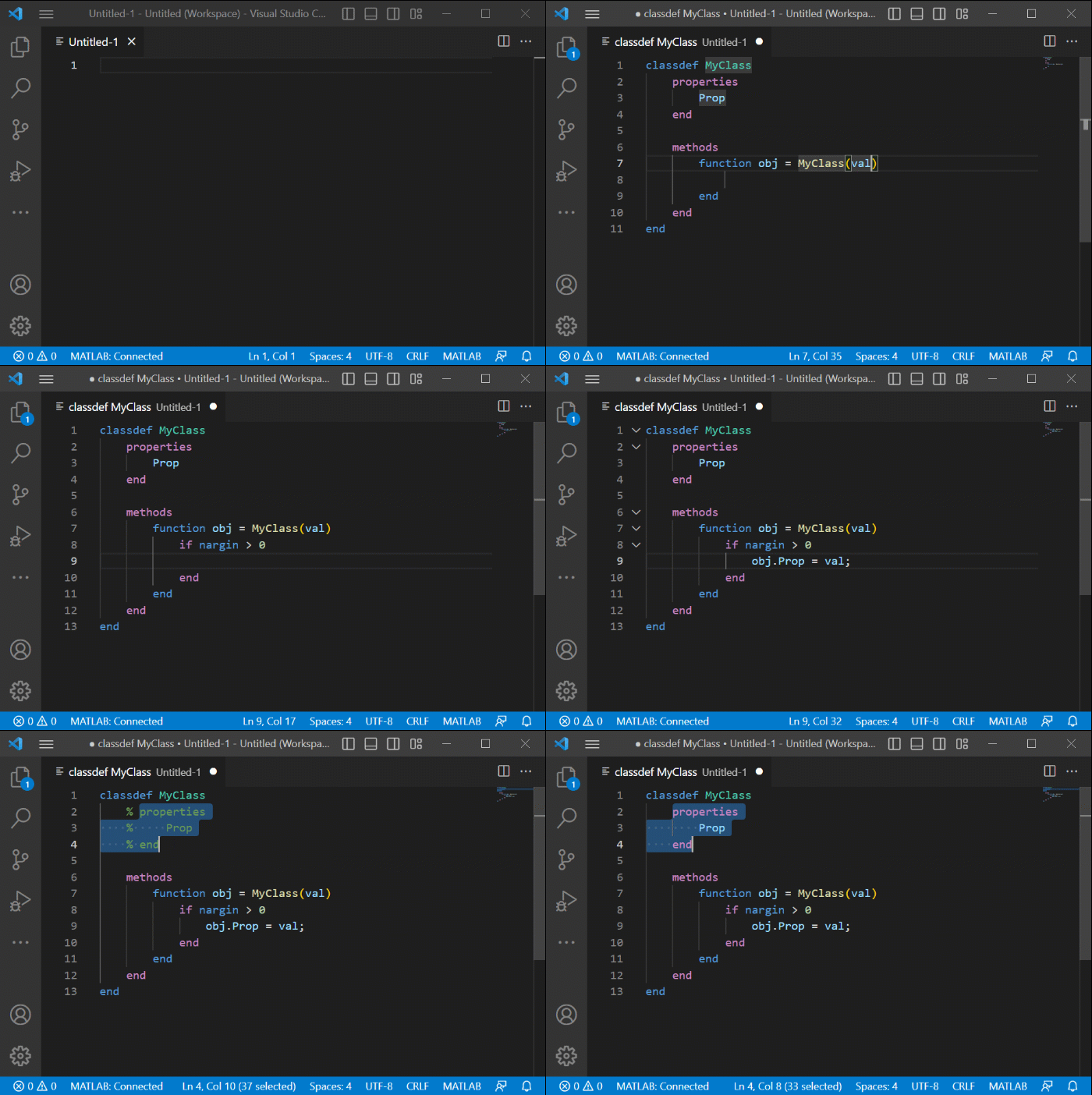
- Code folding

Advanced Features (requires MATLAB installed on your system)
If you have MATLAB R2021b or later installed on your system, you have access to an additional set of advanced features. These features include:
- Code execution and debugging
- Automatic code completion
- Source code formatting (document formatting)
- Code navigation
- Code analysis, such as continuous code checking and automatic fixes
- Code outline
- Symbol renaming
- Test discovery and execution

Run and Debug MATLAB Code
To run a MATLAB code file in Visual Studio Code, click the Run button at the top of the file. You also can use the Run File or Run Current Selection commands. When you run the file, output displays in the "Terminal" pane of Visual Studio Code. You also can enter MATLAB code directly in the MATLAB terminal. To stop execution of MATLAB code, press Ctrl+C.
To debug a MATLAB code file, add breakpoints to the file by clicking the area to the left of an executable line. Then run the file. Visual Studio Code stops at the first breakpoint. When Visual Studio Code is paused, you can use the Debug toolbar to peform debugging actions such as Continue, Step into, and Stop. You also can enter commands in the MATLAB terminal to perform debug actions or change variable values. Use the Run and Debug view to see your workspace variables, watch points, and call stack.

Limitations
There are some limitations to running and debugging MATLAB code in Visual Studio Code:
- Output from timers, callbacks, and DataQueue objects is not shown in the Command Window.
- Creating a custom run configuration for a file is not supported.
- When using the dbstop and dbclear functions to set and clear breakpoints, the breakpoints are added to file but are not shown in Visual Studio Code.
- Variable values changed in the MATLAB terminal when Visual Studio Code is paused do not update in the Run and Debug view until the next time Visual Studio Code pauses.
View MATLAB Workspace Content
If you have MATLAB R2023a or later installed on your system, you can interactively inspect the MATLAB workspace by opening the MATLAB view in Visual Studio Code. In the Workspace section of the MATLAB view, you can interactively manage variables in the MATLAB workspace while you run and debug MATLAB code. To access the MATLAB view, select the MATLAB icon in the Activity Bar on the left side of the Visual Studio Code window, which opens the view in the Side Bar.
In the Workspace section of the MATLAB view, you can:
- View the name, value, size, and class of each variable in the MATLAB workspace.
- Interactively rename, delete, and sort variables in the MATLAB workspace.
- Open variables in a new tab to inspect their contents.
To inspect a variable, right-click the variable in the Workspace section and select Open Variable. The variable opens in a new tab. Numeric variables that are scalars, vectors, or 2-D matrices, as well as tables, open in a scrollable data grid. Table data that cannot be displayed in the grid appears as plain text. Other variable types, such as structs, strings, categoricals, cell arrays, sparse matrices, and tall arrays, open as plain text previews.
Tip: To access the MATLAB Workspace while debugging, drag the MATLAB icon from the Activity bar into the Run and Debug view. This adds the Workspace section of the MATLAB view to the Run and Debug view.

Limitations
- Interactively editing workspace variables in the Workspace section of the MATLAB view is limited to inline edits. Editing complex data types such as matrices, cells, and structs is not supported.
- Variables opened from the workspace are read-only and cannot be edited.
- Multi-row selection is not supported.
- Refreshing the workspace is not supported.
Work with MATLAB Projects
If you have MATLAB R2021b or later installed on your system, you can work with MATLAB Projects directly in Visual Studio Code. You can create new projects, open existing projects, and close the current project.
To create a new project, right-click a folder in the Explorer and select MATLAB: Project > MATLAB: New Project. To open an existing project, right-click a project file or a folder that contains a project and select MATLAB: Project > MATLAB: Open Project.
When a project is open, Visual Studio Code shows the project name in the status bar.

Run MATLAB Tests
If you have MATLAB R2021b or later installed on your system, you can run MATLAB unit tests using the Test Explorer in Visual Studio Code. To add tests to the Test Explorer, open the Testing view by selecting the Testing icon in the Activity Bar on the left side of the Visual Studio Code window, and then click Add Test Folder or Add Test File in the Test Explorer. You also can add tests using the MATLAB: Add Test Folder and MATLAB: Add Test File commands in the Command Palette.
When you add a test folder, the extension adds all tests in that folder and its subfolders. Tests appear in a hierarchical tree organized by file, test procedure, and parameterization. The extension supports class-based tests (including parameterized tests), function-based tests, and script-based tests.
By default, the test tree updates automatically when you modify or remove a discovered test file. To include newly added test files, click Refresh Tests on the Test Explorer toolbar. You also can refresh tests using the MATLAB: Discover Tests command in the Command Palette. To turn off automatic discovery, set the MATLAB.discoverTestsAutomatically setting to false. Then, to manually update the test tree, click Refresh Tests. To remove all tests from the Test Explorer, select ... > Clear All Tests on the toolbar.
To run tests, click Run Test to the right of a test or test file in the Test Explorer, or click Run Tests on the toolbar. You also can run all tests using the MATLAB: Run All Tests command in the Command Palette. Results appear in real time as each test completes, with icons indicating whether the test passed, failed, or remained incomplete. Additionally, as the tests run, test output appears in real time in the Test Results panel.
If a test fails, click the failed test in the Test Explorer to navigate directly to the failing line in your test code and view test diagnostics. Alternatively, click the failed test in the Test Results panel to view diagnostic messages.

Run MATLAB in Jupyter Notebooks
You also can use this extension along with the Jupyter Extension for Visual Studio Code to run MATLAB in Jupyter notebooks using Visual Studio Code. For instructions, see Run MATLAB in Jupyter Notebooks Using VS Code.
Configuration
To configure the extension, go to the extension settings and select from the available options.
MATLAB Settings
MATLAB Default Editor Setting
By default, the extension uses the editor specified in the MATLAB Editor/Debugger settings to open files with the MATLAB edit and open commands. To make Visual Studio Code the default editor for these commands, set the MATLAB.defaultEditor setting to true. To revert to using the editor specified in the MATLAB Editor/Debugger settings, set MATLAB.defaultEditor to false.
Note: Certain file types always open in MATLAB by default — for example, live scripts saved in the binary Live Code file format (.mlx) and MATLAB app files (.mlapp).
MATLAB Discover Tests Automatically Setting
By default, the extension automatically updates the test tree in the Test Explorer when test files change. To turn off automatic test discovery, set MATLAB.discoverTestsAutomatically to false. Then, to manually update the test tree, click Refresh Tests on the Test Explorer toolbar or use the MATLAB: Discover Tests command in the Command Palette.
MATLAB Index Workspace Setting
By default, the extension indexes all the MATLAB code files (.m) in your current Visual Studio Code workspace. Indexing allows the extension to find and navigate between your MATLAB code files.
You can disable indexing to improve the performance of the extension. To disable indexing, set the MATLAB.indexWorkspace setting to false. Disabling indexing can cause features such as code navigation not to function as expected.
MATLAB Install Path Setting
If you have MATLAB installed on your system, the extension automatically checks the system path for the location of the MATLAB executable. If the MATLAB executable is not on the system path, you may need to manually set the MATLAB.installPath setting to the full path of your MATLAB installation. For example, C:\Program Files\MATLAB\R2022b (Windows®), /Applications/MATLAB_R2022b.app (macOS), or /usr/local/MATLAB/R2022b (Linux®).
You can determine the full path of your MATLAB installation by using the matlabroot command in MATLAB.
For example, run the matlabroot command in the MATLAB Command Window.
matlabroot
ans =
    'C:\Program Files\MATLAB\R2022b'
In the extension settings, set the MATLAB.installPath setting to the value returned by the matlabroot command.

MATLAB Connection Timing Setting
By default, the extension starts MATLAB in the background when you open a MATLAB code file in Visual Studio Code. To control when the extension starts MATLAB, set the MATLAB.matlabConnectionTiming setting to one of these values:
Questions
What is MATLAB-extension-for-vscode?
mathworks/MATLAB-extension-for-vscode is a public repo on GitHub by mathworks. This extension provides support for editing MATLAB® code in Visual Studio® Code and includes features such as syntax highlighting, code analysis, navigation support, and more.