
julia-mit
Tutorials and information on the Julia language for MIT numerical-computation courses.
- 821
- 10 mo ago
Repo mitmath/julia-mit, read from GitHub 3 h ago. mitmath has not joined Take My Repo.
In short
mitmath/julia-mit is a public repo on GitHub by mitmath. Tutorials and information on the Julia language for MIT numerical-computation courses. It declares no license on GitHub. Public does not mean open source: without a license, nobody is granted the right to reuse it. It is written mainly in Jupyter Notebook, has 821 stars and last changed on 2026-02-07. Nobody has reviewed it on Take My Repo yet, which says nothing about its quality. Read from GitHub on 2026-11-23.
Julia for Numerical Computation in MIT Courses
Several MIT courses involving numerical computation, including 18.06 / 18.C06, 18.065/18.0651, 18.303, 18.330, 18.335/6.7310, 18.337/6.7320, and 18.338, are beginning to use Julia, a fairly new language for technical computing. This page is intended to supplement the Julia documentation with some simple tutorials on installing and using Julia targeted at MIT students. See also our Julia cheatsheet listing a few basic commands, and various Julia tutorials online.
In particular, we will be using Julia in the Jupyter browser-based enviroment (via the IJulia plug-in), which leverages your web browser and to provide a rich environment combining code, graphics, formatted text, and even equations, with sophisticated plots via Matplotlib.
You can also look at the Jupyter notebook from the fall 2020 tutorial, as well as the tutorial video (MIT only).
Why Julia?
Julia is relatively new high-level free/open-source language for numerical computing in the same spirit, with a rich set of built-in types and libraries for working with linear algebra and other types of computations, with a syntax that is superficially reminiscent of Matlab's. Basically, we are using Julia because, unlike Matlab or Python or R, it scales better to real computational problems — you can write performance-critical "inner loops" in Julia, whereas similar tasks in other high-level languages often require one to drop down to C or similar low-level languages. (See e.g. this 6.172 lecture on performance in Julia vs. Python.) Because of this, we are using Julia more and more in our own research, and we want to teach using software tools that we really employ ourselves.
Running Julia in the cloud
The easiest way to get started with Julia is to run it in the cloud on mybinder.org, which is as easy as clicking this link:

That link opens up a default MIT-math Julia + Python environment that we set up, but you can also easily set up your own environments. Although the link above gives you access to our tutorial notebook here, you can create alternate links (e.g. for particular MIT courses) using nbgitpuller.
There are two major drawbacks to using the free mybinder.org service:
It's often slow (sometimes an order of magnitude slower than a typical laptop), especially to start up, although it's probably fast enough for simple problems in coursework.
It has a very short timeout: if you go for a coffee break, your session will probably have stopped running by the time you get back. Fortunately, there are save/download buttons that still work in a timed-out session, so you can save your work and restore it after restarting the binder session.
There are at most 100 simultaneous users for a given configuration repository. (Therefore, if your instructor wants to use mybinder for a course, encourage them to set up their own docker configuration, perhaps by forking our repo.)
Eventually you'll probably want to install Julia on your own computer to eliminate these frustrations. Fortunately, this is usually relatively easy:
Installing Julia and IJulia on your own computer
First, download the latest release of Julia and run the installer.
Then run the Julia application (double-click on
it, or run julia in a terminal); a window with a julia> prompt will appear. At the julia> prompt,
type a ] (close square bracket) to get a Julia package prompt pkg>,
where you can type
(v1.11) pkg> add IJulia
You may also want to install these packages, which we tend to use in a lot of the lecture materials:
(v1.11) pkg> add Interact PyPlot Plots
(You can install other packages later as you need them using the same interface, of course. Thousands of other packages can be found on JuliaHub.)
Running Julia through the JupyterLab app
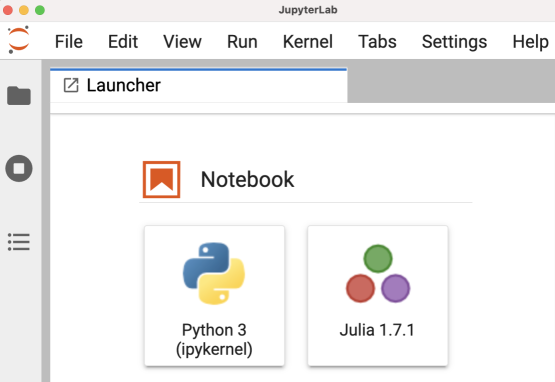
Download the jupyterlab-desktop program, and launch it. Click the "Julia" button (or choose "New > Notebook" from the file menu and select the "Julia" kernel):
You should now have an interactive Julia notebook, whose usage we describe below.
If you have problems printing or exporting PDF from the JupyterLab Desktop (on some systems this fails if you don't have LaTeX installed), a workaround is to export as HTML (from File > Save and Export Notebook As… > HTML), open the resulting .html in your browser (double-click on it) and print to PDF from your browser.
Running Julia through Jupyter in your browser
You can alternatively use Julia itself to install the Jupyter software and have it run its interface through your web browser.
Switch back to the julia> prompt by hitting backspace or ctrl-C, and then
you can launch the notebook by running
julia> using IJulia

julia> notebook()
and type "y" if you are asked to install Jupyter. A "dashboard" window like this should open in your web browser (at address localhost:8888, which you can return to at any time as long as the notebook() server is running; I usually keep it running all the time):
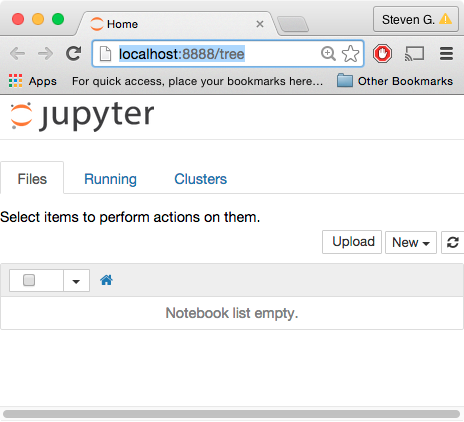
Now, click on the New button and select the Julia option to start a new "notebook".
(You will have to leave this Julia command-line window open in order
to keep the Jupyter process running. Alternatively, you can run notebook(detached=true) if you want to run the Jupyter server as a background process, at which point you can close the Julia command line, but then if you
ever want to restart the Jupyter server you will need to kill it manually.
Troubleshooting:
- If you ran into a problem with the above steps, after fixing the problem you can type
buildat thepkg>prompt to try to rerun the install scripts. - If you tried it a while ago, try running
updateat thepkg>prompt and try again: this will fetch the latest versions of the Julia packages in case the problem you saw was fixed. Runbuild IJuliaat thepkg>prompt if your Julia version may have changed. If this doesn't work, try just deleting the whole.juliadirectory in your home directory (on Windows, it is calledAppData\Roaming\julia\packagesin your home directory) and re-adding the packages. - On MacOS, you need MacOS 10.8 or later.
- If the notebook opens up, but doesn't respond (the input label is
In[*]indefinitely), try creating a new Python notebook (not Julia) from theNewbutton in the Jupyter dashboard, to see if1+1works in Python. If it is the same problem, then probably you have a firewall running on your machine (this is common on Windows) and you need to disable the firewall or at least to allow the IP address 127.0.0.1. (For the Sophos endpoint security software, go to "Configure Anti-Virus and HIPS", select "Authorization" and then "Websites", and add 127.0.0.1 to "Authorized websites"; finally, restart your computer.)
Other Julia environments
Pluto.jl
A different interactive-computing environment for Julia is Pluto.jl, which runs in the browser like Jupyter but is more oriented towards "live" interaction where updating one piece of code automatically re-runs anything affected by that change. Running Julia is as easy as:
pkg> add Pluto

julia> using Pluto

julia> Pluto.run()
VSCode
For writing larger programs, modules, and packages (as opposed to little interactive snippets), you'll want to start putting code into files and modules, and use a more full-featured code-editing environment. A popular choice is the free/cross-platform Visual Studio Code (VSCode) editor, which has a Julia VSCode plugin to provide a full-featured integrated development environment (IDE).
Other Editors
Of course, there is also good support for editing Julia in many other programs, such as Emacs, Vim, Atom, and so forth.
Updating Julia and IJulia
Julia is improving rapidly, so it won't be long before you want to update to a more recent version. The same is true of Julia add-on packages like PyPlot. To update the packages only, keeping Julia itself the same, just run:
(v1.11) pkg> update
at the Julia pkg> prompt after typing ]; you can also run ] update in IJulia.
If you download and install a new version of Julia from the Julia web
site, you will also probably want to update the packages with
update (in case newer versions of the packages are required
for the most recent Julia). In any case, if you install a new Julia
binary (or do anything that changes the location of Julia on your
computer), you must update the IJulia installation (to tell IPython
where to find the new Julia) by running build at the
Julia pkg> prompt line (not in IJulia).
Running Julia in the Jupyter Notebook
Once you have followed the installation steps above, then you will want to open the Jupyter notebook interface. As explained above, you can either launch the standalone JupyterLab Desktop app (which you download and install separately), or you can install Jupyter via Julia and run it via your web browser.
Either way, a notebook will combine code, computed results, formatted text, and images; for example, you might use one notebook for each problem set. The notebook window that opens will look something like:
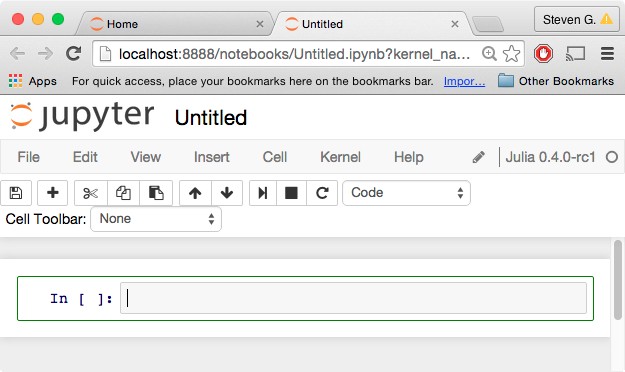
In the browser can click the "Untitled" at the top to change the name, e.g. to
"My first Julia notebook"; in JupyterLab you click the "Rename" option in the "File" menu. You can enter Julia code at the In[ ]
prompt, and hit shift-return to execute it and see the results.
If you hit return without the shift key, it will add additional
lines to a single input cell. For example, we can define a variable
x (using the built-in constant pi and the built-in function
sin), and then evaluate a polynomial 3x^2 + 2x - 5
Questions
What is julia-mit?
mitmath/julia-mit is a public repo on GitHub by mitmath. Tutorials and information on the Julia language for MIT numerical-computation courses.
Is julia-mit open source?
It declares no license on GitHub. Public does not mean open source: without a license, nobody is granted the right to reuse it.
Does julia-mit run on macOS, Windows or Linux?
Its maker has not tagged a system, so it is unknown here. Its README says what it needs.
How do I install julia-mit?
Open "Take it" on its page: Take My Repo writes an install plan for your machine and hands it to your AI agent (Claude Code, Codex or Cursor), which asks you before each step. Take My Repo has not tested it on any machine.