Wireguard-macOS-LinuxVM
Send all traffic from macOS through Wireguard running on a Linux VM
- 103
- GPL-2.0
- 7 y ago
Repo mrash/Wireguard-macOS-LinuxVM, read from GitHub 2 d ago. mrash has not joined Take My Repo.
In short
mrash/Wireguard-macOS-LinuxVM is a public repo on GitHub by mrash. Send all traffic from macOS through Wireguard running on a Linux VM. It declares the GPL-2.0 license on GitHub. It is written mainly in Python, has 103 stars and last changed on 2019-12-09. Nobody has reviewed it on Take My Repo yet, which says nothing about its quality. Read from GitHub on 2026-11-22.
Similar repos
flutter
Flutter makes it easy and fast to build beautiful apps for mobile and beyond

Wireguard, macOS, and Linux Virtual Machines
- Introduction
- Prerequisites
- Wireguard Configuration
- Routing and Traffic Filtering
- Shutting Down Wireguard
- License
- Contact
Introduction
Over the long term, the Wireguard VPN is set to send shockwaves through the VPN community with its modern cryptographic design, performance, stealthiness against active network scanners, and commitment to security through a minimally complex code base. It is my belief that these characteristics firmly place Wireguard among the best VPN options available. Over time, it is likely that commercial solutions will be developed around Wireguard similarly to commercial wrappers around OpenVPN.
This repository is dedicated to deploying a Wireguard VPN on macOS via a Linux VM running under a virtualization solution such as Parallels. There are many alternatives to this approach including omitting the Linux piece altogether and using the cross-platform macOS Wireguard tools or the native MacOS client. However, I'm interested in using the Wireguard kernel module from a Mac. This has to be done from a Linux VM, and that is the focus of this write up.
The primary use case for running such a VPN solution is to provide security for network traffic emanating from a Mac laptop that is connected to a potentially hostile wireless network. This includes the network at the local coffee shop among many others. Nothing against coffee shops of course (I love coffee), but they are in the business of making wonderful caffeinated potions - not hardening their network infrastructure against adversaries. In terms of general threats to network traffic, a properly deployed VPN allows you to shift much of the security burden to the other side of the VPN. In this case, the remote Wireguard end point will be deployed in a major cloud provider or ISP network. The security of, say, Google's GCE network or Amazon's AWS network is far higher than the network of the local coffee shop.
Note macOS security is a broad topic, and this repository is meant only to discuss a VPN solution based on Wireguard. For a comprehensive treatment of macOS security, including other VPN options, see the excellent macOS Security and Privacy Guide.
Prerequisites
To fully implement Wireguard in this manner, we'll assume the following:
- An Ubuntu Linux VM is running under Parallels on a Mac laptop. Wireguard will run from this VM, and will constitute the "client" side of the VPN.
- The Mac laptop will be connected wirelessly to the network at the local coffee shop, and have an IP assigned via DHCP as usual.
- The "server" side of the Wireguard VPN is an Ubuntu system running on a major cloud provider with an Internet-facing IP address.
- Wireguard has been installed on both Ubuntu VM's, and key pairs have been generated and shared.
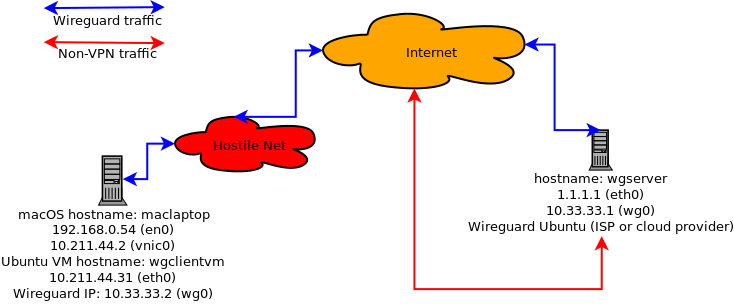
- Wireguard client - Mac laptop hostname and IP addresses:
- Mac laptop hostname:
maclaptop - Mac laptop wireless IP on the coffee shop network:
192.168.0.54, interface:en0 - Mac laptop virtual NIC IP (under Parallels):
10.211.44.2, interface:vnic0 - Mac laptop Ubuntu VM Wireguard hostname:
wgclientvm, IP:10.211.44.31 - Mac laptop Ubuntu VM Wireguard IP:
10.33.33.2, interface:wg0
- Mac laptop hostname:
- Wireguard server - Ubuntu system hostname and IP addresses:
- Hostname:
wgserver - IP:
1.1.1.1, interface:eth0 - Wireguard IP:
10.33.33.1, interface:wg0
- Hostname:
Graphically, the network setup looks like this:
Wireguard Configuration
On wgserver, we have only one peer to worry about (wgclientvm), but this could be
expanded to arbitrarily many peers if necessary in order to support lots of VPN clients
for more complex scenarios. For now, we just have one peer, and the configuration is
shown below. Note the cryptographic keys below are obviously for testing purposes
only - you will need to generate your own keys per the prerequisites above. See the
Wireguard Quickstart page for detailed
instructions. The main command to get things going is:
$ wg genkey | tee wg0.privkey | wg pubkey > wg0.pubkey
Now, the wgserver configuration:
[wgserver]# cat /etc/wireguard/wg0.conf
[Interface]
Address = 10.33.33.1/32
ListenPort = 30003
PrivateKey = WD5wagqwC3o/JO6TVLov/jdoxu+Z1leiyuIlnQqbT3M=

[Peer]
PublicKey = 3LD8h3Cq7PgmCPyFaqOzEjF59UJFbtgR0TPAM86iYzg=
AllowedIps = 10.33.33.2/32
And on wgclientvm we have:
[wgclientvm]# cat /etc/wireguard/wg0.conf
[Interface]
Address = 10.33.33.2/32
PostUp   = iptables -I FORWARD 1 -i %i -j ACCEPT && iptables -I FORWARD 1 -o %i -j ACCEPT && iptables -t nat -I POSTROUTING 1 -s 10.211.44.2 -j SNAT --to 10.33.33.2 && echo 1 > /proc/sys/net/ipv4/ip_forward
PostDown = iptables -D FORWARD -i %i -j ACCEPT && iptables -D FORWARD -o %i -j ACCEPT && iptables -t nat -D POSTROUTING -s 10.211.44.2 -j SNAT --to 10.33.33.2
ListenPort = 30003
PrivateKey = AEXOcHOMZkn2B5lOElBTMqLsB5P8oIbYSVYGa6ku6Hc=

[Peer]
PublicKey = yKRBaa9yLKlxLmIiPQKaKj9TD0u1+BfDCUHk0tF6rG4=
AllowedIps = 0.0.0.0/0, ::0/0
Endpoint = 1.1.1.1:30003
Note that the AllowedIps line in the client configuration allows all IPv4 and IPv6 addresses.
This is so that connections to any systems around the Internet worldwide will be allowed to
transit the Wireguard VPN. The server side does not need the same AllowedIPs line because the
source address of all traffic from the server's perspective will be the client IP of 10.33.33.2.
Also, the PostUp line sets up the necessary iptables NAT configuration and IP forwarding to
translate all incoming traffic from the Mac laptop to the source IP of the Wireguard tunnel.
The PostDown line removes the iptables rules added by the PostUp line.
With the Wireguard client and server configurations defined, it is time to bring up the VPN from both sides.
[wgserver]# wg-quick up wg0
[#] ip link add wg0 type wireguard
[#] wg setconf wg0 /dev/fd/63
[#] ip address add 10.33.33.1/32 dev wg0
[#] ip link set mtu 1420 dev wg0
[#] ip link set wg0 up
[#] ip route add 10.33.33.2/32 dev wg0
[wgclientvm]# wg-quick up wg0
[#] ip link add wg0 type wireguard
[#] wg setconf wg0 /dev/fd/63
[#] ip address add 10.33.33.2/32 dev wg0
[#] ip link set mtu 1420 dev wg0
[#] ip link set wg0 up
[#] ip -6 route add ::/0 dev wg0 table 51820
[#] ip -6 rule add not fwmark 51820 table 51820
[#] ip -6 rule add table main suppress_prefixlength 0
[#] ip -4 route add 0.0.0.0/0 dev wg0 table 51820
[#] ip -4 rule add not fwmark 51820 table 51820
[#] ip -4 rule add table main suppress_prefixlength 0
[#] iptables -I FORWARD 1 -i wg0 -j ACCEPT && iptables -I FORWARD 1 -o wg0 -j ACCEPT && iptables -t nat -I POSTROUTING 1 -s 10.211.55.2 -j SNAT --to 10.44.44.2 && echo 1 > /proc/sys/net/ipv4/ip_forward
[wgclientvm]# wg
interface: wg0
  public key: 3LD8h3Cq7PgmCPyFaqOzEjF59UJFbtgR0TPAM86iYzg=
  private key: (hidden)
  listening port: 30003
  fwmark: 0xca6c

peer: yKRBaa9yLKlxLmIiPQKaKj9TD0u1+BfDCUHk0tF6rG4=
  endpoint: 1.1.1.1:30003
  allowed ips: 0.0.0.0/0, ::/0
  latest handshake: 2 seconds ago
  transfer: 384.27 KiB received, 62.09 KiB sent

[wgclientvm]# ping -c 3 10.33.33.1
PING 10.33.33.1 (10.33.33.1) 56(84) bytes of data.
64 bytes from 10.33.33.1: icmp_seq=1 ttl=64 time=2.39 ms
64 bytes from 10.33.33.1: icmp_seq=2 ttl=64 time=2.63 ms
64 bytes from 10.33.33.1: icmp_seq=3 ttl=64 time=2.33 ms

--- 10.33.33.1 ping statistics ---
3 packets transmitted, 3 received, 0% packet loss, time 2004ms
rtt min/avg/max/mdev = 2.336/2.454/2.632/0.134 ms
So, the VPN is up and running. This is great, but now we need to ensure that all traffic is
routed through it. This applies to both the Ubuntu VM wgclientvm and, most importantly,
to traffic coming from Mac laptop host maclaptop itself. Achieving this is the subject of
the next section.
Routing and Traffic Filtering
Routing all traffic over the VPN needs to happen even though the Mac laptop has only one
interface en0 that is connected to the local wireless network. Basic routing through the
default gateway of this network needs to remain intact, but we also need to first send
everything down to the wgclientvm system for routing over the established VPN tunnel.
A convenience script wg-routes.py is included for this task. This script is meant to be
executed on the Mac laptop and it adds three new routes to the routing table on
the Mac. Although the existing default route is not changed, it is overridden with two more
specific routes - each for half of the entire IPv4 address space with a gateway of the
wgclientvm IP. The final route is for the Wireguard server out of the gateway originally
assigned to the default route. The original default route can optionally be deleted after
these routes are established and everything is sent over the VPN.
The wg-routes.py script has a setup mode that generates a config file from the specified
Wireguard endpoints along with PF config and anchor files, and an operational mode that
adds, deletes, or checks the status of Wireguard routes and PF policy rules. We start with
the setup phase:
[maclaptop]# ./wg-routes.py --setup --wg-client 10.211.44.31 --wg-server 1.1.1.1 --wg-port 30003
Configs written to '/var/root/.wg-routes.conf', '/var/root/.wg-pf.conf',
and '/var/root/.wg-pf.rules'. Now 'up|down|status' cmds can be used.
With the config files written, we can now bring the routes and PF policy up and also check the status (some output has been removed for brevity):
[maclaptop]# ./wg-routes.py up
Running cmd: 'route add 0.0.0.0/1 10.211.44.31'
Running cmd: 'route add 128.0.0.0/1 10.211.44.31'
Running cmd: 'route add 1.1.1.1 192.168.0.1'
Implementing default-drop PF policy via command: 'pfctl -f /var/root/.wg-pf.conf'

[maclaptop]# ./wg-routes.py status
Wireguard client route active: '0/1        10.211.44.31  UGSc  50  0   vnic0'
Wireguard client route active: '128.0/1    10.211.44.31  UGSc   1  0   vnic0'
Wireguard server route active: '1.1.1.1    192.168.0.1   UGHS   0  0     en0'
Wireguard PF 'wg-pf.rules' anchor rule active: 'block drop in log on en0 all'
Wireguard PF 'wg-pf.rules' anchor rule active: 'block drop out log on en0 all'
Wireguard PF 'wg-pf.rules' anchor rule active: 'pass quick on en0 inet proto tcp from any port 67:68 to any port 67:68 flags S/SA keep state'
Wireguard PF 'wg-pf.rules' anchor rule active: 'pass quick on en0 inet proto udp from any port 67:68 to any port 67:68 keep state'
Wireguard PF 'wg-pf.rules' anchor rule active: 'pass out quick on en0 inet proto udp from any to 1.1.1.1 port = 30003 keep state'
Note in the above output that there is no need to manually specify the default
gateway 192.168.0.1 on the wireless network since wg-routes.py automatically
parses it out of the routing table. Further, wg-routes.py builds a default-drop
PF policy against all communications on en0 except for Wireguard UDP traffic
and for DHCP requests/responses.
This concludes the necessary steps to route all traffic from both the Mac laptop maclaptop
and the wgclientvm systems through Wireguard to the wgserver system and then out to the
broader Internet. In addition, the PF firewall on the Mac laptop drops all non-DHCP and non-Wireguard
communications on en0. Note that the wg-quick tool that instantiated the Wireguard instance
on wgclientvm also sets up routing such that everything is sent over Wireguard too.
Verifying Traffic Routing
With the Wireguard VPN up and running and routing configured on maclaptop
to send everything over the VPN, let's verify that IP traffic is indeed sent via Wireguard.
For this, we'll use tcpdump on the en0 interface and then ping 8.8.8.8.
Because the Wireguard configuration in the previous section set ListenPort = 30003, the
only traffic we should see on en0 should be UDP traffic on port 30003. Simultaneously,
if we sniff the wg0 interface on wgclientvm, we should only ICMP traffic to and from
8.8.8.8. All of this is displayed below, with the understanding that the ping command
is run after both tcpdump commands have been started so we see everything:
Questions
What is Wireguard-macOS-LinuxVM?
mrash/Wireguard-macOS-LinuxVM is a public repo on GitHub by mrash. Send all traffic from macOS through Wireguard running on a Linux VM.
Is Wireguard-macOS-LinuxVM open source?
It declares the GPL-2.0 license on GitHub.
Does Wireguard-macOS-LinuxVM run on macOS, Windows or Linux?
Its maker tagged it for macOS. That is declared by the maker; Take My Repo has not tested it.
How do I install Wireguard-macOS-LinuxVM?
Open "Take it" on its page: Take My Repo writes an install plan for your machine and hands it to your AI agent (Claude Code, Codex or Cursor), which asks you before each step. Take My Repo has not tested it on any machine.