
yip
Low-latency P2P mesh VPN in Rust. Reed–Solomon FEC loss immunity, Post-Quantum, 40 Gbps AF_XDP, multi-core scaling, NAT traversal, decentralized CA, self-certifying routing, DAITA, and anti-DPI TLS mimicry.
- 247
- Rust
- AGPL-3.0
- 7 h ago
LLDP (IEEE 802.1AB) agent for Windows: announces the host and discovers its network neighbors. Single self-contained Rust executable — XDP for Windows to send, Packet Monitor to capture, runs as a service, nothing to install.
Repo oriolrius/WinLLDP, read from GitHub 7 h ago. oriolrius has not joined Take My Repo.
oriolrius/WinLLDP is a public repo on GitHub by oriolrius. LLDP (IEEE 802.1AB) agent for Windows: announces the host and discovers its network neighbors. Single self-contained Rust executable — XDP for Windows to send, Packet Monitor to capture, runs as a service, nothing to install. It declares the MIT license on GitHub. It is written mainly in Rust, has 4 stars and last changed on 2026-11-12. Nobody has reviewed it on Take My Repo yet, which says nothing about its quality. Read from GitHub on 2026-11-25.
Low-latency P2P mesh VPN in Rust. Reed–Solomon FEC loss immunity, Post-Quantum, 40 Gbps AF_XDP, multi-core scaling, NAT traversal, decentralized CA, self-certifying routing, DAITA, and anti-DPI TLS mimicry.
LLDP for Windows — announce your machines to the network and discover what they are plugged into.
WinLLDP is a single, self-contained executable that implements the Link Layer Discovery Protocol (IEEE 802.1AB) on Windows. It advertises the host — name, Windows version and build, management address, LLDP-MED inventory — to switches and network management systems, and records the LLDP neighbors it hears on every interface. It runs from the command line or as a Windows service, and needs nothing else installed: the components it relies on are embedded and set up automatically.
neighbors.json, with a live table view (show-neighbors --watch).winlldp.exe,
installed on first use and removed with the service. Capturing uses Windows' built-in Packet
Monitor.vEthernet adapters sit on an external virtual switch, LLDP
is sent on the physical adapter behind the switch, so it actually reaches the network, and
neighbors are still reported under the vEthernet name.winlldp service..env or environment configuration, exit code 1 on failure.| Operating system | Windows 11 or Windows Server 2019 or later, x64 |
Discovering neighbors (capture) |
Windows 11 24H2 or later, or Windows Server 2025 or later (Packet Monitor API) |
| Privileges | Administrator (raw Ethernet frames, driver and service installation) |
| Anything else | Nothing — see Third-party components |
winlldp-<version>-windows-x64.zip (or the bare .exe) from the
latest release and unpack it in a folder
such as C:\Tools\WinLLDP\. SHA256SUMS.txt lists the checksums of the release files..\winlldp.exe send -v # announce this machine now (prints the packet it sends)
.\winlldp.exe capture start # start listening for neighbors in the background
.\winlldp.exe show-neighbors --watch # live table, refreshed every 5 seconds (Ctrl+C to exit)
The first send installs the network driver it needs; it takes about a second and happens once.
The service announces the machine every LLDP_INTERVAL seconds and keeps the neighbor table up
to date, starting automatically with Windows.
.\winlldp.exe service install    # register the "WinLLDP" service (automatic start)
.\winlldp.exe service start
.\winlldp.exe service status     # add -v for the full service configuration and log tail
service stop, service restart and service uninstall complete the set; uninstalling also
removes the components WinLLDP installed. Keep winlldp.exe where it is while the service exists:
the service runs it from that folder, and its files live next to it.
All commands accept -h/--help. Commands that read the configuration accept
-e/--env-file <path>, and most accept -v/--verbose for debug output.
| Command | Description |
|---|---|
send [-i <interface>] [-v] |
Send the LLDPDU now on every active interface, or on one (-i); -v prints the decoded packet and its bytes |
capture start |
Start the background capture process (returns once it is capturing) |
capture stop |
Stop it |
capture status |
PID, uptime, memory and CPU of the capture process |
capture log [-n <lines>] |
Show the capture log (last 20 lines; -n 0 for all) |
show-neighbors [-w] |
Table of discovered neighbors; --watch refreshes every 5 s |
clear-neighbors |
Empty the neighbor table |
show-interfaces |
Network interfaces with MAC address, state and IPv4 addresses |
show-config |
Effective configuration |
debug-paths |
Where the configuration and data files are, and whether they exist |
service install · uninstall · start · stop · restart · status |
Manage the Windows service |
driver status · install · uninstall |
Inspect or manage the bundled network driver (normally automatic) |
version |
Show the version |
Exit codes: 0 success, 1 failure (with a message on stderr), 2 invalid command line.
Settings come from environment variables, then from a .env file, then from the defaults. The
.env file is the one given with --env-file, or the first .env found in the working directory
or its parents; the service runs in the executable's folder, so put it next to winlldp.exe.
The release includes an annotated env.example.
| Variable | Default | Description |
|---|---|---|
LLDP_INTERVAL |
30 |
Seconds between announcements (service). Minimum 5. |
LLDP_TTL |
120 |
Seconds neighbors should keep this host. At least LLDP_INTERVAL, at most 65535; 3–4× the interval is typical. |
LLDP_INTERFACE |
all |
all active interfaces, or one interface name as shown by show-interfaces. |
LLDP_SYSTEM_NAME |
auto |
System Name TLV; auto uses the computer's host name. |
LLDP_PORT_DESCRIPTION |
Ethernet Port |
Port Description TLV; empty uses the interface name. |
LLDP_MANAGEMENT_ADDRESS |
auto |
IPv4 or IPv6 address to advertise; auto uses the interface's first IPv4 address, else the host's primary address. |
LLDP_NEIGHBORS_FILE |
neighbors.json |
Absolute path for the neighbor table; otherwise it is kept next to the executable. |
LLDP_SYSTEM_DESCRIPTION |
— | Reserved: the System Description TLV always carries the Windows version and build. |
# .env next to winlldp.exe
LLDP_INTERVAL=30
LLDP_TTL=120
LLDP_INTERFACE=all
LLDP_SYSTEM_NAME=FileServer01
LLDP_PORT_DESCRIPTION=Uplink to core switch
LLDP_MANAGEMENT_ADDRESS=auto
Values may contain spaces without quotes; single and double quotes, # comments,
export KEY=value and ${VARIABLE} / ${VARIABLE:-default} expansion are supported.
One LLDPDU per interface, to the nearest-bridge address 01:80:c2:00:00:0e (EtherType 0x88CC):
| TLV | Content | Example |
|---|---|---|
| Chassis ID | MAC address of the interface (subtype 4) | 50:eb:f6:2c:f2:ba |
| Port ID | MAC address of the interface (subtype 3) | 50:eb:f6:2c:f2:ba |
| Time To Live | LLDP_TTL |
120 |
| Port Description | LLDP_PORT_DESCRIPTION |
Ethernet Port |
| System Name | Host name or LLDP_SYSTEM_NAME |
FILESERVER01 |
| System Description | Windows version, build and architecture | Windows 10.0.26100 AMD64 |
| System Capabilities | Station only (supported and enabled) | 0x0080 |
| Management Address | IPv4 or IPv6 address, with the interface's ifIndex | 10.2.0.47, ifIndex 11 |
| LLDP-MED Capabilities | Endpoint Class III | capabilities 0x0001, class 3 |
| LLDP-MED Hardware Revision | Processor architecture | AMD64 |
| LLDP-MED Firmware Revision | Windows version and build | 10.0.26100 |
| LLDP-MED Software Revision | WinLLDP version | WinLLDP 2.0.0 |
| LLDP-MED Model Name | Windows edition | Microsoft Windows 11 Pro |
Switches show these as the neighbor's name, platform, version and management IP — for example
MikroTik's /ip neighbor, Cisco's show lldp neighbors detail or a UniFi controller.
> .\winlldp.exe show-neighbors
LLDP Neighbors:
+------------+-------------------+-------------+-----------------+--------+-------+-----------------+
| Interface  | Neighbor          | System Name | Port            | Age    | TTL   | Management IP   |
+============+===================+=============+=================+========+=======+=================+
| Ethernet   | d4:ca:6d:fa:a5:26 | core-sw01   | bridge/ether20  | 3m 12s | 120s  | 10.2.99.2       |
+------------+-------------------+-------------+-----------------+--------+-------+-----------------+
| Ethernet   | 58:47:ca:79:73:a2 | pve01       | enp87s0         | 2m 40s | 120s  | 10.2.0.2        |
+------------+-------------------+-------------+-----------------+--------+-------+-----------------+

Total neighbors: 2
Each neighbor is stored in neighbors.json under interface:source-MAC:chassis-ID:
{
  "Ethernet:d4:ca:6d:fa:a5:39:d4:ca:6d:fa:a5:26": {
    "interface": "Ethernet",
    "source_mac": "d4:ca:6d:fa:a5:39",
    "data": {
      "chassis_id": "d4:ca:6d:fa:a5:26",
      "chassis_id_subtype": "MAC_ADDRESS",
      "port_id": "bridge/ether20",
      "port_id_subtype": "INTERFACE_NAME",
      "ttl": 120,
      "system_name": "core-sw01",
      "system_description": "MikroTik RouterOS 6.49.7 (stable) CRS125-24G-1S-2HnD",
      "management_addresses": ["10.2.99.2"],
      "management_address": "10.2.99.2"
    },
    "first_seen": "2026-10-22T19:08:05.713838",
    "last_seen": "2026-10-22T19:11:17.221904",
    "ttl": 120
  }
}
management_address is the first IPv4 address the neighbor advertises (or its first address);
all of them are in management_addresses.
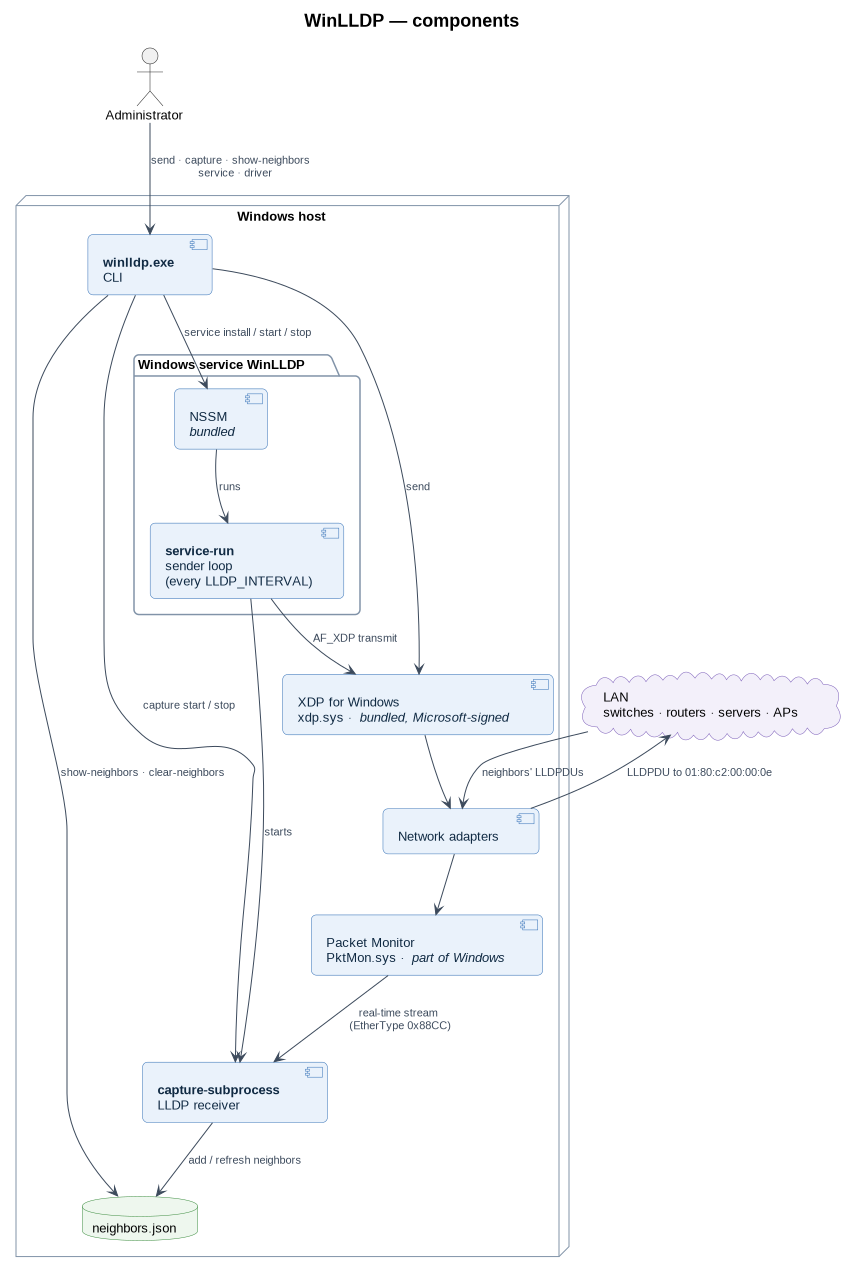
winlldp.exe is the command-line tool, the service process (run by the bundled NSSM) and the
capture process. Frames leave through XDP for Windows and are captured through Packet Monitor.
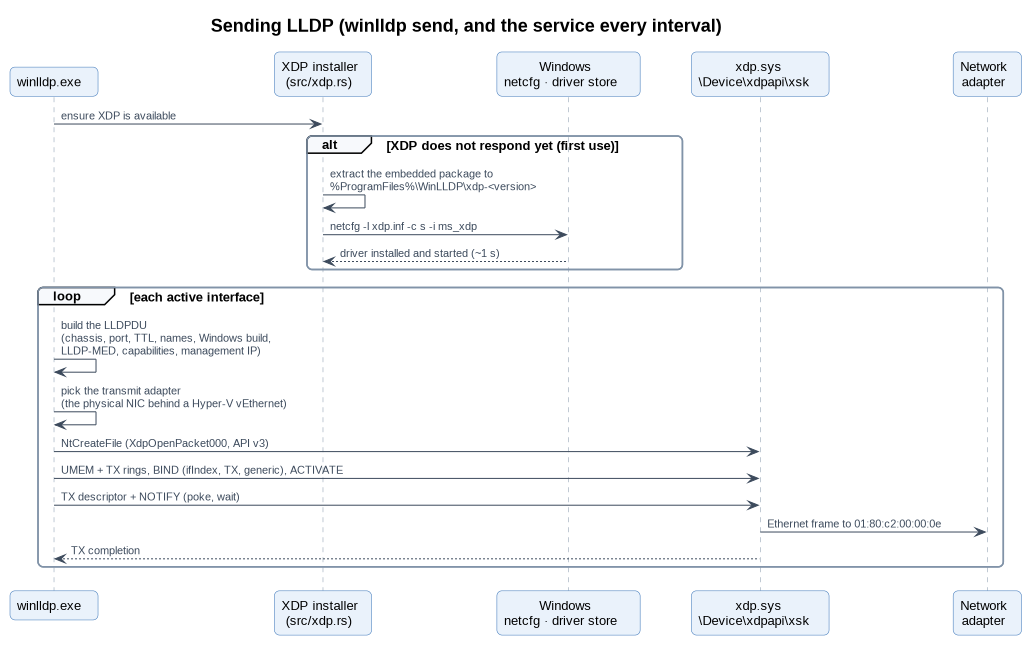
On first use WinLLDP installs the embedded, Microsoft-signed XDP driver package. Each announcement builds the LLDPDU of the interface, chooses the adapter that puts it on the wire and transmits it through an AF_XDP socket (XDP API v3, generic mode).
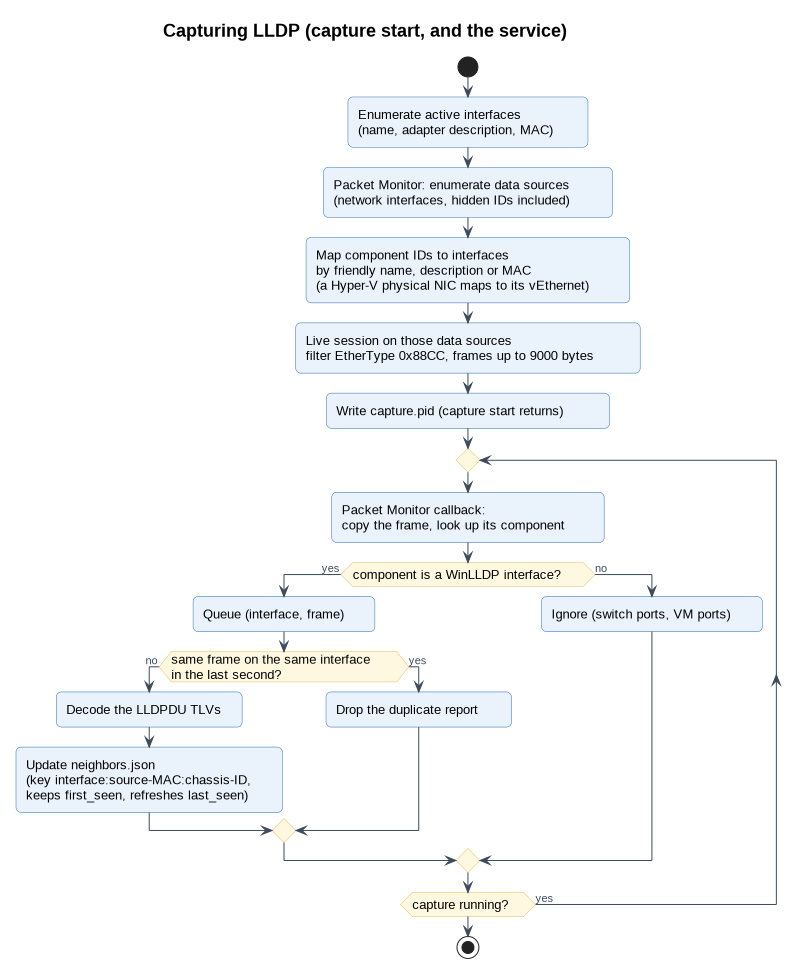
The capture process opens a Packet Monitor session filtered on EtherType 0x88CC, maps every
reporting component to a WinLLDP interface, drops the duplicate reports of a frame that crosses
several components, and updates neighbors.json.
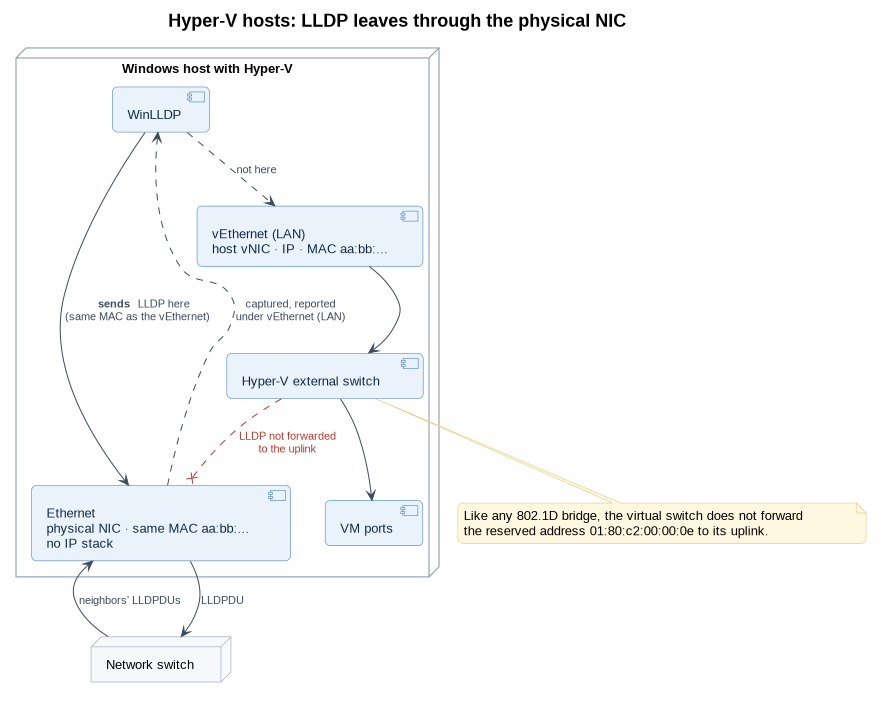
A Hyper-V external virtual switch behaves like an 802.1D bridge and does not forward LLDP's
reserved address to its uplink, so an LLDPDU sent on a vEthernet adapter never reaches the
physical network. WinLLDP sends on the physical adapter that shares the vEthernet MAC address,
and reports what it receives there under the vEthernet name.
oriolrius/WinLLDP is a public repo on GitHub by oriolrius. LLDP (IEEE 802.1AB) agent for Windows: announces the host and discovers its network neighbors. Single self-contained Rust executable — XDP for Windows to send, Packet Monitor to capture, runs as a service, nothing to install.
It declares the MIT license on GitHub.
Its maker tagged it for Windows. That is declared by the maker; Take My Repo has not tested it.
Open "Take it" on its page: Take My Repo writes an install plan for your machine and hands it to your AI agent (Claude Code, Codex or Cursor), which asks you before each step. Take My Repo has not tested it on any machine.
Multipass orchestrates virtual Ubuntu instances
A powerful open-source tool for managing networks and troubleshooting network problems!
Windows software for sharing locally connected USB devices to other machines, including Hyper-V guests and WSL 2.
Its last change on GitHub was on 2026-11-12. Take My Repo does not judge from that whether it is maintained.
Nobody has reviewed it on Take My Repo yet, which says nothing about its quality.
Take My Repo cannot say: it does not audit code and has not run WinLLDP. What is known comes from GitHub. It declares the MIT license on GitHub. Its last change was on 2026-11-12. It has 4 stars, which measure popularity, not safety. Nobody has reviewed it on Take My Repo yet, which says nothing about its quality. Read the source before you run it. With "Take it", your AI agent shows each step and asks you before running it; README text is treated as data, not as instructions.


