
rea
Reverse engineer anything with agents, from app behavior down to native binaries.
- 475k
- TypeScript
- MIT
- 57 min ago
📸 Terminal output SVG screenshot tool
Repo pamburus/termframe, read from GitHub 21 h ago. pamburus has not joined Take My Repo.
pamburus/termframe is a public repo on GitHub by pamburus. 📸 Terminal output SVG screenshot tool. It declares the MIT license on GitHub. It is written mainly in Rust, has 146 stars and last changed on 2026-11-23. Nobody has reviewed it on Take My Repo yet, which says nothing about its quality. Read from GitHub on 2026-11-23.
Reverse engineer anything with agents, from app behavior down to native binaries.
OBS Studio - Free and open source software for live streaming and screen recording
Terminal output SVG screenshot tool.
This tool is a non-interactive terminal emulator that executes a single command, renders its output in an internal virtual session, and exports a screenshot as an SVG file.
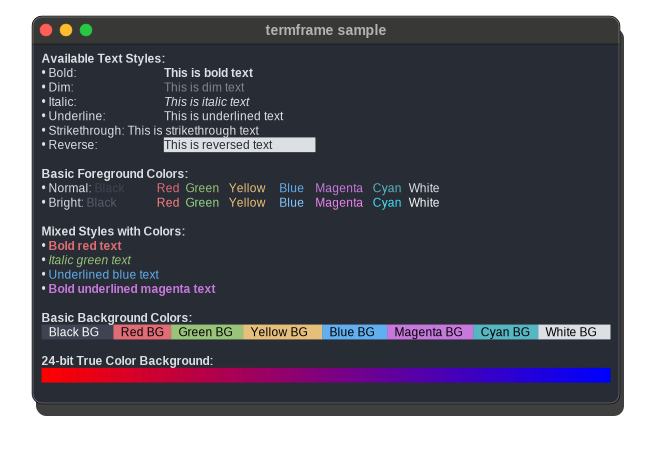
PNG images: sample-dark.png and sample-light.png
Install using homebrew on macOS
brew install termframe
Download and extract using curl and tar on Linux (x86_64)
curl -sSfL -o /usr/local/bin/termframe https://github.com/pamburus/termframe/releases/latest/download/termframe-linux-x86_64-musl.tar.gz | tar xz
Download and extract using curl and tar on Linux (arm64)
curl -sSfL -o /usr/local/bin/termframe https://github.com/pamburus/termframe/releases/latest/download/termframe-linux-arm64-musl.tar.gz | tar xz
Install using cargo
cargo install --locked --git https://github.com/pamburus/termframe.git
Install using scoop
scoop bucket add pamburus https://github.com/pamburus/scoop-bucket.git
scoop install termframe
Download latest release from download page
Run a command and save the output to an SVG file
termframe -o hello.svg -- echo "Hello, World"
Redirect output of a command to termframe
echo "Hello, World" | termframe -o hello.svg
Use auto-sizing to determine optimal dimensions based on command output
# Auto-detect both width and height
termframe --width auto --height auto -o output.svg -- command

# Width between 80 and 120 columns, height auto-detected
termframe -W 80..120 -H auto -o output.svg -- command

# Width between 80 and 200 columns, step of 4, initial 120
# Height auto-detected, initial 40
termframe -W 80..200:4@120 -H @40 -o output.svg -- command
[!NOTE] It is recommended to set proper initial values for commands that may use terminal capabilities to scale their output or interface depending on the terminal size.
Configuration files are automatically loaded if found in predefined platform-specific locations.
| OS | System-Wide Location | User Profile Location |
|---|---|---|
| macOS | /etc/termframe/config.{yaml,toml,json} | ~/.config/termframe/config.{yaml,toml,json} |
| Linux | /etc/termframe/config.{yaml,toml,json} | ~/.config/termframe/config.{yaml,toml,json} |
| Windows | %PROGRAMDATA%\termframe\config.{yaml,toml,json} | %USERPROFILE%\AppData\Roaming\termframe\config.{yaml,toml,json} |
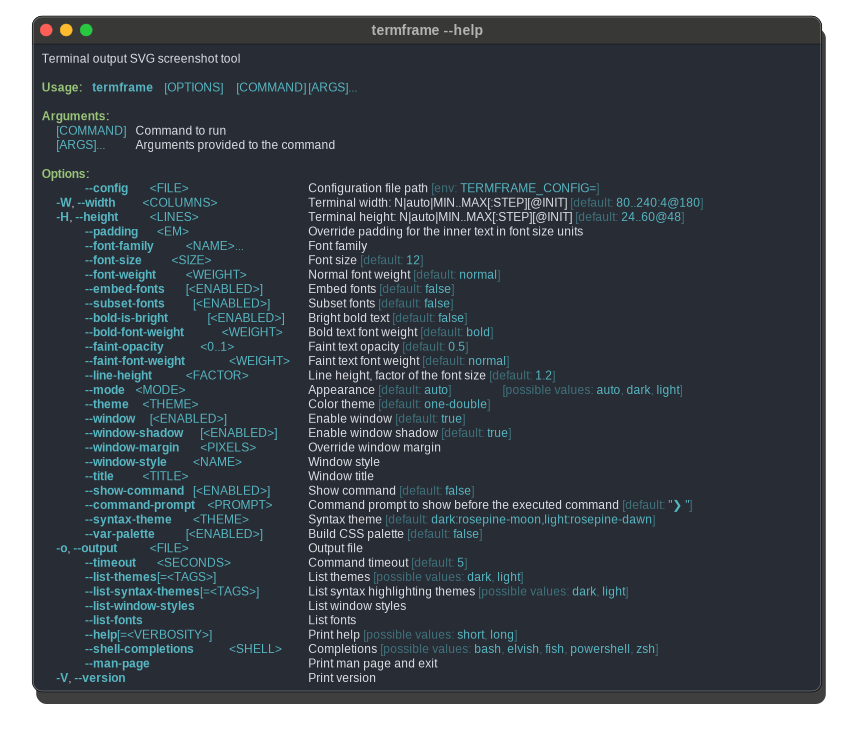
The path to the configuration file can be overridden using the TERMFRAME_CONFIG environment variable or the --config command-line option.
The order in which the configuration files are searched and loaded is as follows:
TERMFRAME_CONFIG environment variable (unless the --config option is used).--config option (can be specified multiple times).If a configuration file is found in multiple locations, the file in each subsequent location overrides only the parameters it contains.
If TERMFRAME_CONFIG or --config specifies - or an empty string, all default locations and any locations specified by previous --config options are discarded. The search for the configuration file locations starts over.
To disable loading of configuration files and use the built-in defaults, --config - can be used.
All parameters in the configuration file are optional and can be omitted. In such cases, default values will be used.
The [terminal] section supports flexible dimension configuration with auto-sizing capabilities:
[terminal]
# Simple fixed dimensions
width = 80
height = 24

# Auto-detection
width = "auto"
height = "auto"

# Range constraints with auto-detection
width = { min = 80, max = 200 }
height = { min = 24, max = 60 }

# Step alignment (round to nearest multiple)
width = { min = 80, max = 200, step = 10 }

# Initial values (preferred size with fallback to auto-detection)
width = { initial = 120 }
height = { initial = 30 }

# Full specification with all options
width = { min = 80, max = 240, step = 4, initial = 180 }
height = { min = 24, max = 60, initial = 48 }
The initial value in dimension configuration:
min/max constraints if they are also specifiedYou can create custom themes by placing theme files in the themes subfolder of your configuration directory.
Create a themes folder in your configuration directory:
| OS | Theme Directory Location |
|---|---|
| macOS | ~/.config/termframe/themes/ |
| Linux | ~/.config/termframe/themes/ |
| Windows | %USERPROFILE%\AppData\Roaming\termframe\themes\ |
Theme files can be in TOML, YAML, or JSON format. Use the appropriate file extension (.toml, .yaml, .yml, or .json).
assets/themes/One Double.tomlassets/themes/One Double Dark.tomlYou can create custom window styles by placing window style files in the window-styles subfolder of your configuration directory.
Create a window-styles folder in your configuration directory:
| OS | Window Styles Directory Location |
|---|---|
| macOS | ~/.config/termframe/window-styles/ |
| Linux | ~/.config/termframe/window-styles/ |
| Windows | %USERPROFILE%\AppData\Roaming\termframe\window-styles\ |
Window style files can be in TOML, YAML, or JSON format. Use the appropriate file extension (.toml, .yaml, .yml, or .json).
assets/window-styles/macos.tomlassets/window-styles/compact.toml
pamburus/termframe is a public repo on GitHub by pamburus. 📸 Terminal output SVG screenshot tool.
It declares the MIT license on GitHub.
Its maker has not tagged a system, so it is unknown here. Its README says what it needs.
Open "Take it" on its page: Take My Repo writes an install plan for your machine and hands it to your AI agent (Claude Code, Codex or Cursor), which asks you before each step. Take My Repo has not tested it on any machine.
Its last change on GitHub was on 2026-11-23. Take My Repo does not judge from that whether it is maintained.
OCR software, free and offline. 开源、免费的离线OCR软件。支持截屏/批量导入图片,PDF文档识别,排除水印/页眉页脚,扫描/生成二维码。内置多国语言库。
The agent harness performance optimization system. Skills, instincts, memory, security, and research-first development for Claude Code, Codex, Opencode, Cursor and beyond.
Fair-code workflow automation platform with native AI capabilities. Combine visual building with custom code, self-host or cloud, 400+ integrations.
Nobody has reviewed it on Take My Repo yet, which says nothing about its quality.
Take My Repo cannot say: it does not audit code and has not run termframe. What is known comes from GitHub. It declares the MIT license on GitHub. Its last change was on 2026-11-23. It has 146 stars, which measure popularity, not safety. Nobody has reviewed it on Take My Repo yet, which says nothing about its quality. Read the source before you run it. With "Take it", your AI agent shows each step and asks you before running it; README text is treated as data, not as instructions.




