
micropython-micro-gui
A lightweight MicroPython GUI library for display drivers based on framebuf, allows input via pushbuttons. See also micropython-touch.
- 353
- MIT
- 1 d ago
Repo peterhinch/micropython-micro-gui, read from GitHub 9 h ago. peterhinch has not joined Take My Repo.
In short
peterhinch/micropython-micro-gui is a public repo on GitHub by peterhinch. A lightweight MicroPython GUI library for display drivers based on framebuf, allows input via pushbuttons. See also micropython-touch. It declares the MIT license on GitHub. It is written mainly in Python, has 353 stars and last changed on 2026-11-24. Nobody has reviewed it on Take My Repo yet, which says nothing about its quality. Read from GitHub on 2026-11-25.
micropython-micro-gui
This is a lightweight, portable, MicroPython GUI library for displays having
drivers subclassed from framebuf. Written in Python it runs under a standard
MicroPython firmware build. Options for data input comprise:
- Two pushbuttons: restricted capabilities with some widgets unusable for input.
- All the following options offer full capability:
- Three pushbuttons.
- Five pushbuttons: extra buttons provide a less "modal" interface.
- A switch-based navigation joystick: another way to implement five buttons.
- Two pushbuttons and a rotary encoder such as this one. An intuitive interface.
- A rotary encoder with built-in push switch only.
- On ESP32 and RP2 physical buttons may be replaced with touchpads.
- Alternative interfaces (speech, gestures) may be added via a user supplied driver.
It is larger and more complex than nano-gui owing to the support for input.
It enables switching between screens and launching modal windows. Widgets are
a substantial superset of nano-gui widgets.
Supported displays
It is compatible with all display drivers for nano-gui so is portable to a wide range of displays. It is also portable between hosts.
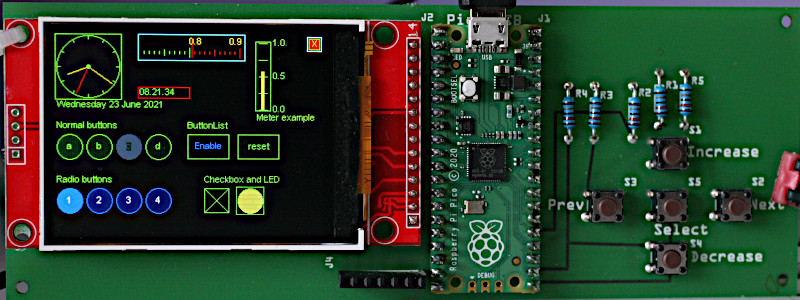
Raspberry Pico with an ILI9341 from eBay.
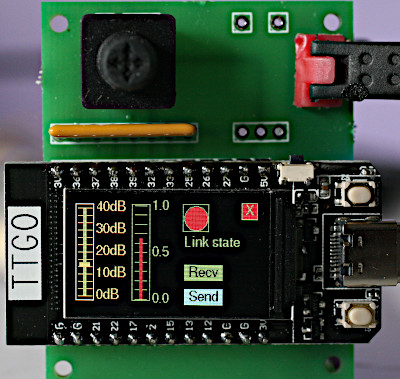
TTGO T-Display. A joystick switch and an SIL resistor make a simple inexpensive
and WiFi-capable system.
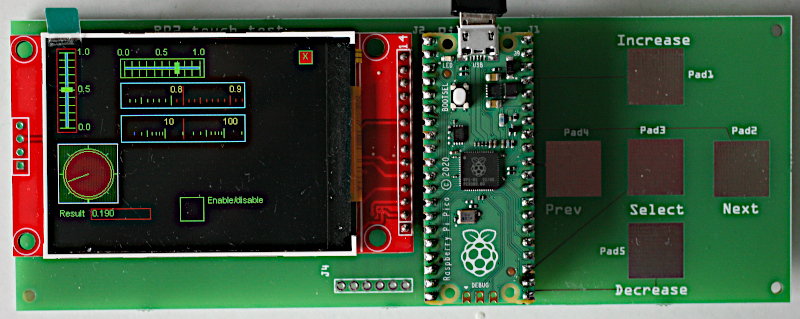
ESP32 and RP2 can use touchpads in place of physical buttons.
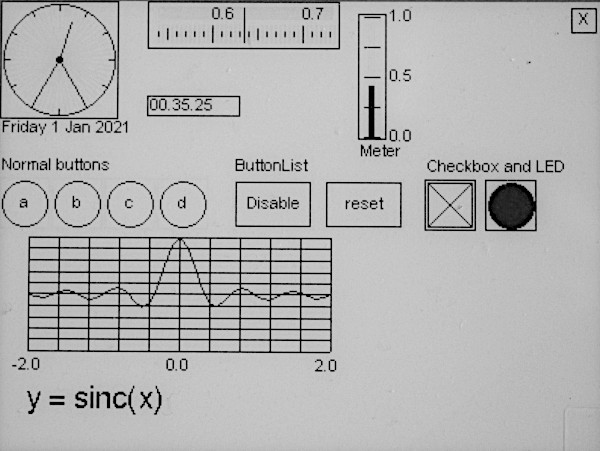
micro_gui now has limited support for ePaper.
Rationale
Touch GUI's are supported by micropython-touch. This GUI provides an alternative for displays without a touch overlay. A non-touch solution avoids the need for calibration and can also save cost. Cheap Chinese touch displays often marry a good display to a poor touch overlay. It can make sense to use such a screen with micro-gui, ignoring the touch overlay. For touch support it is worth spending money on a good quality device (for example Adafruit).
The micro-gui input options work well and can yield inexpensive solutions. A network-connected board with a 135x240 color display can be built for under £20 ($20?) using the TTGO T-Display. The test board shown above has a 320x240 display from eBay with a Pi Pico and has a component cost of well below £20.
The following are similar scalable GUI repos with differing objectives.
- nano-gui Extremely low RAM usage but display-only with no provision for input.
- micropython-touch Touch GUI for various displays and touch controllers.
- RA8875 Touch GUI for displays with RA8875 controller. Supports large displays, e.g. from Adafruit.
- SSD1963 Touch GUI for displays based on SSD1963 and XPT2046. High performance on large displays due to the parallel interface. Specific to STM hosts.
- LCD160cr Touch GUI for the official display (appears to be obsolete).
LVGL is a pretty icon-based GUI library. It is written in C with MicroPython bindings; consequently it requires the build system for your target and a C device driver (unless you can acquire a suitable binary).
Project status
Jun 2026: Supports touchpads on RP2 and ESP32.
Dec 2025: GUI can optionally be started from a running asyncio task.
Oct 2024: Refresh locking can now be handled by device driver.
Sept 2024: Refresh control is now via a Lock. See Realtime applications.
This is a breaking change for applications which use refresh control.
Sept 2024: Dropdown and Listbox widgets support dynamically variable lists of elements.
April 2024: Add screen replace feature for non-tree navigation.
Sept 2023: Add "encoder only" mode suggested by @eudoxos.
April 2023: Add limited ePaper support, grid widget, calendar and epaper demos.
Now requires firmware >= V1.20.
Code has been tested on ESP32, ESP32-S2, ESP32-S3, Pi Pico and Pyboard. This is under development so check for updates.
0. Contents
- Basic concepts Including "Hello world" script.
1.1 Coordinates The GUI's coordinate system.
1.2 Screen Window and Widget objects Basic GUI classes.
1.3 Fonts
1.4 Navigation Options for hardware. How the GUI navigates between widgets.
1.4.1 Encoder-only mode Using only an encoder for navigation.
1.4.2 Other input devices Speech, gestures, motion.
1.5 Hardware definition How to configure your hardware.
1.6 Quick hardware check Testing the hardware config. Please do this first.
1.7 Installation Installing the library.
1.8 Performance and hardware notes
1.9 Firmware and dependencies
1.10 Supported hosts and displays
1.11 Files Discussion of the files in the library.
1.11.1 Demos Simple demos showing coding techniques.
1.11.2 Test scripts GUI tests, some needing larger displays
1.12 Floating Point Widgets How to input floating point data. - Usage Application design.
2.1 Program structure and operation A simple demo of navigation and use.
2.2 Callbacks
2.3 Colors
2.3.1 Monochrome displays - The ssd and display objects
3.1 SSD class Instantiation in hardware_setup.
3.2 Display class Instantiation in hardware_setup.py.
3.2.1 Encoder usage
3.2.2 Encoder only mode - Screen class Full screen window.
4.1 Class methods
4.2 Constructor
4.3 Callback methods Methods which run in response to events.
4.4 Method Optional interface to asyncio code.
4.5 Class variable Control latency caused by garbage collection.
4.6 Retrieving data Accessing data created in a screen. - Window class
5.1 Constructor
5.2 Class method
5.3 Popup windows - Widgets Displayable objects.
6.1 Label widget Single line text display.
6.1.1 Grid widget A spreadsheet-like array of labels.
6.2 LED widget Display Boolean values.
6.3 Checkbox widget Enter Boolean values.
6.4 Button and CloseButton widgets Pushbutton emulation.
6.5 ButtonList object Pushbuttons with multiple states.
6.6 RadioButtons object
Questions
What is micropython-micro-gui?
peterhinch/micropython-micro-gui is a public repo on GitHub by peterhinch. A lightweight MicroPython GUI library for display drivers based on framebuf, allows input via pushbuttons. See also micropython-touch.
Is micropython-micro-gui open source?
It declares the MIT license on GitHub.
Does micropython-micro-gui run on macOS, Windows or Linux?
Its maker tagged it for Windows. That is declared by the maker; Take My Repo has not tested it.