ECC
The agent harness performance optimization system. Skills, instincts, memory, security, and research-first development for Claude Code, Codex, Opencode, Cursor and beyond.
- 309k
- JavaScript
- MIT
- 12 h ago
A windows 11 widget that shows claude code and codex usage and token consumtion.
Repo pixelsncodes/tokenfish, read from GitHub 5 h ago. pixelsncodes has not joined Take My Repo.
pixelsncodes/tokenfish is a public repo on GitHub by pixelsncodes. A windows 11 widget that shows claude code and codex usage and token consumtion. It declares no license on GitHub. Public does not mean open source: without a license, nobody is granted the right to reuse it. It is written mainly in C#, has 9 stars and last changed on 2026-10-04. Nobody has reviewed it on Take My Repo yet, which says nothing about its quality. Read from GitHub on 2026-11-23.
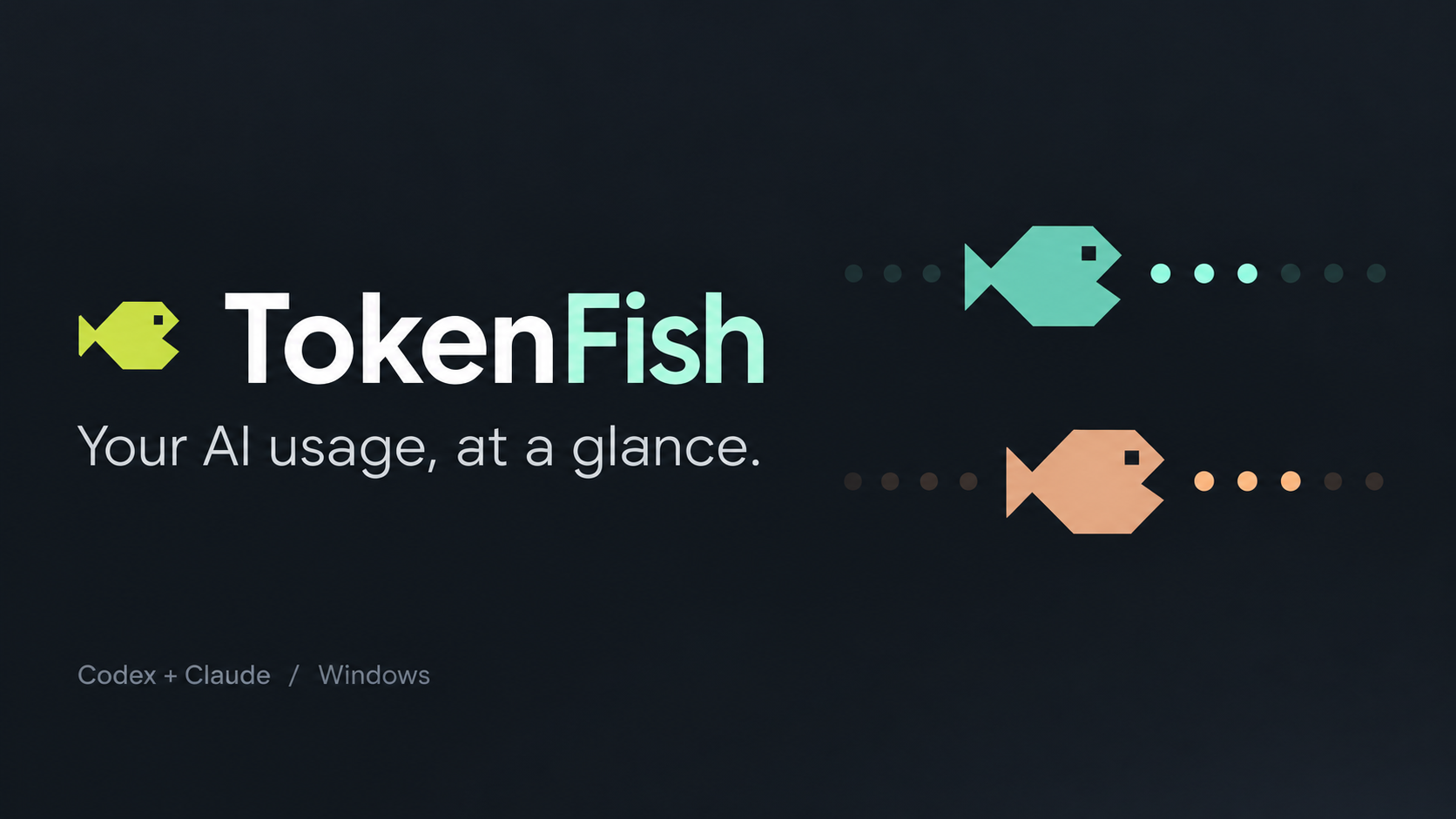
A little fish for your AI limits. TokenFish is a Windows tray companion for Codex and Claude Code. See how much quota is left, when it resets, and whether the reading is fresh. Keep a tiny widget in your desktop corner, or open the full view when you want more detail.
The fish chomp token pellets while their positions follow consumed quota. Mint is Codex; peach is Claude. Motion respects Windows' animation preference and pauses when a view is hidden.
Get a build · Releases · How it works · Development story · Report an issue
| Feature | What you get |
|---|---|
| Two providers | Codex, Claude, or both; independent quota windows and freshness |
| Full view | Remaining percentages, consumed quota, reset countdowns and exact reset tooltips |
| Desktop widget | One usage line per provider, saved corner/monitor, optional always-on-top, hide/restore |
| Activity | Codex token totals and seven UTC dates; additional summaries only when the provider reports them |
| Appearance | System, Light, and Dark across the app; Windows high contrast takes priority |
| Local data | No TokenFish account, backend, telemetry, or credential store |
These are illustrative mockups of the current beta using sample data, not account screenshots. The GIF reproduces the native mouth animation; the usage values stay fixed in the demo.
Full view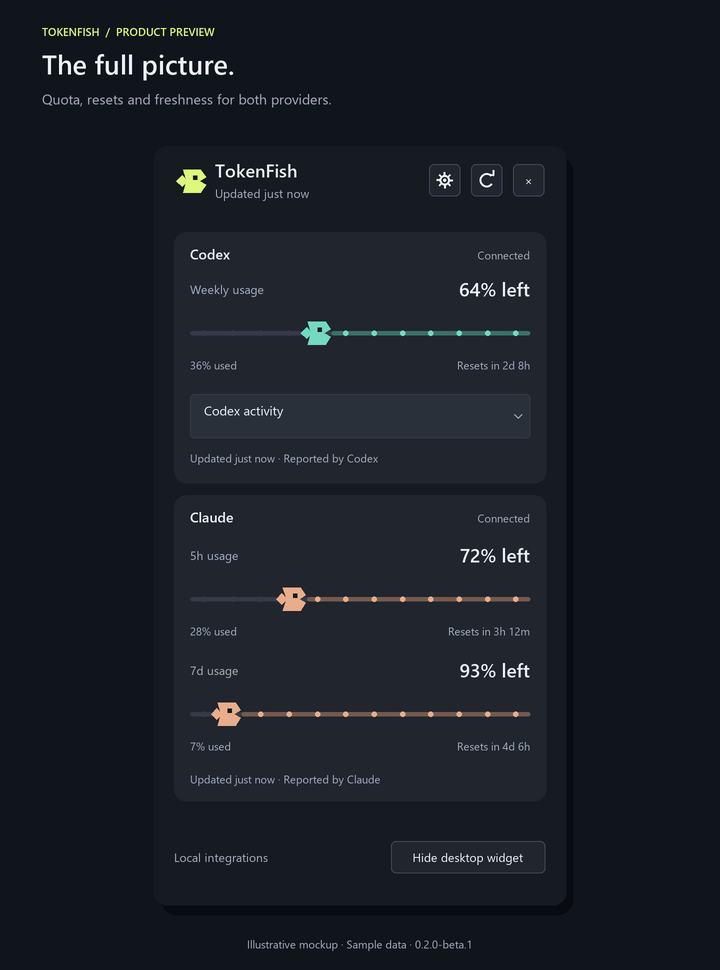
|
Desktop widget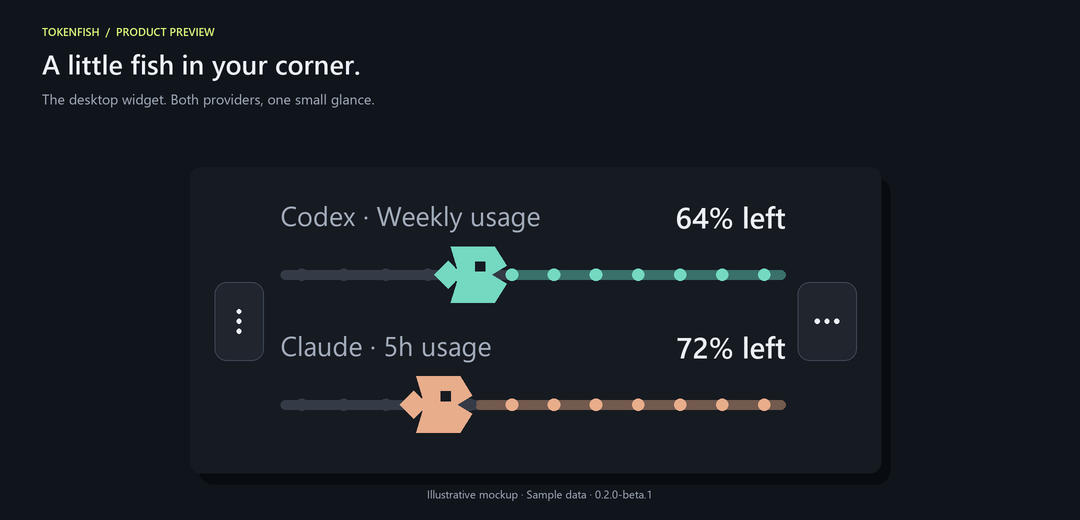
Chomp, chomp. 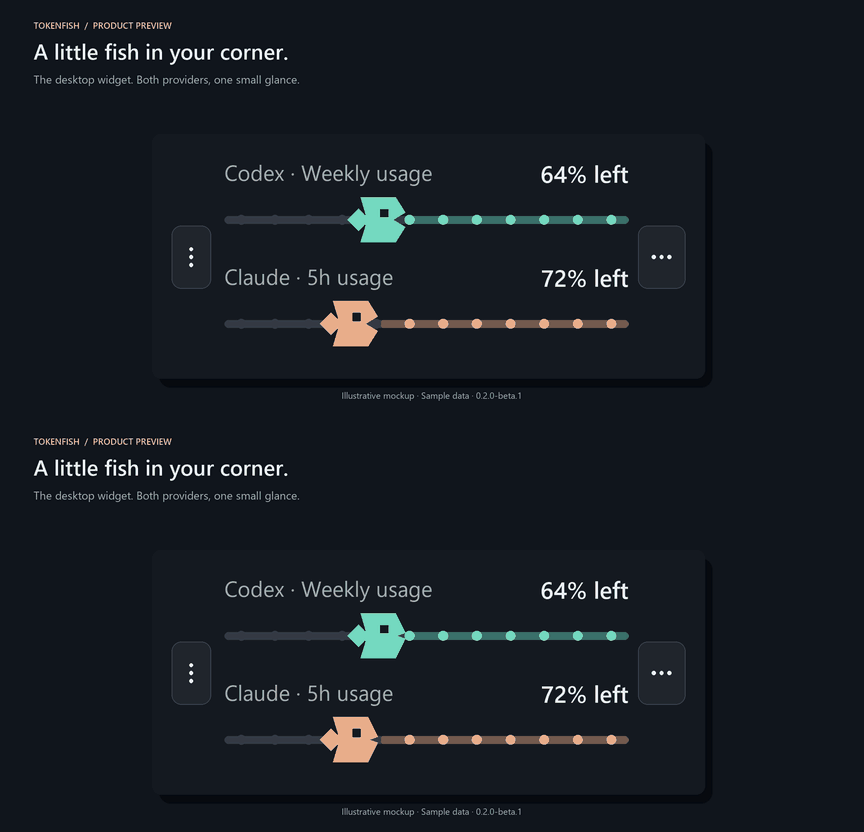
Click usage to open the full view. Drag the grip to move the widget. Its menu opens Settings or hides it. |
Expand Codex activity for token totals and a chart of the latest seven UTC dates. Lifetime tokens, peak daily tokens, streaks, and longest turn appear only when the installed provider reports them. Gray chart marks mean not reported, rather than zero; token activity is separate from remaining quota.

See the activity view beside the desktop widget. These previews use a Codex-only configuration and synthetic sample data.
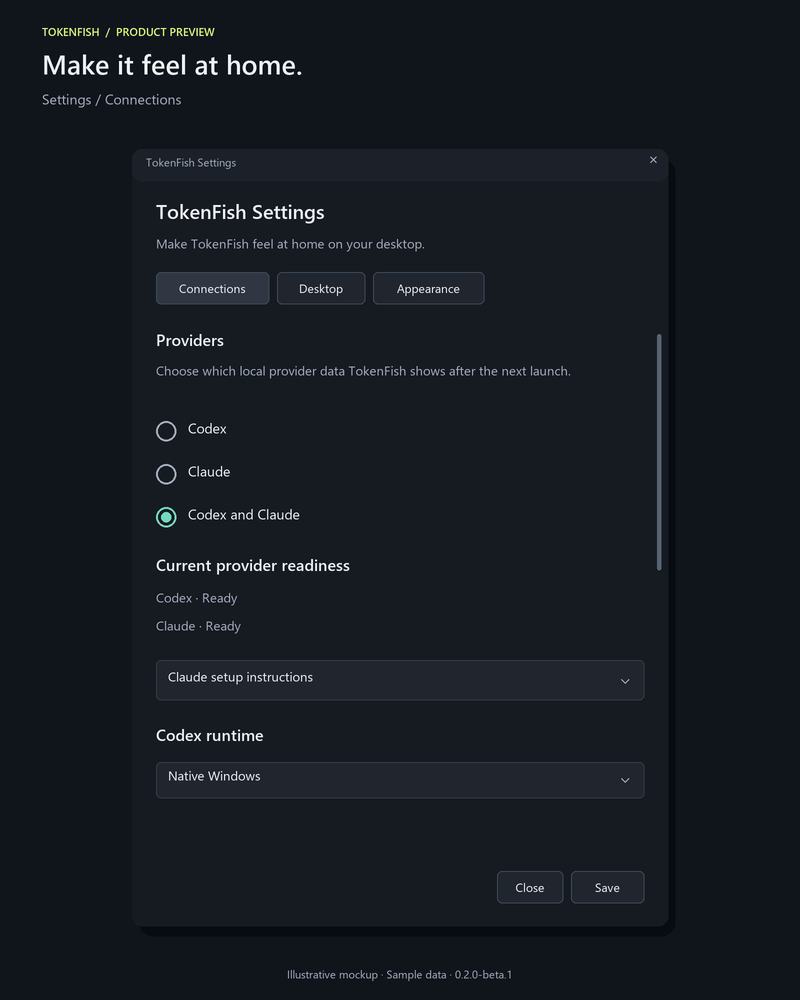
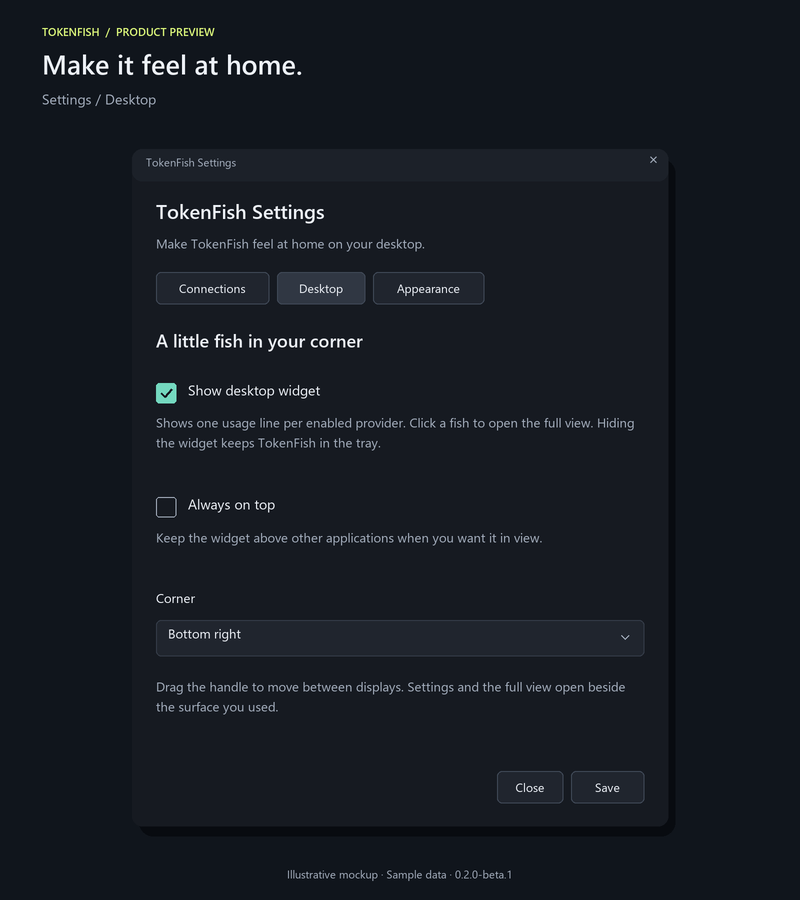
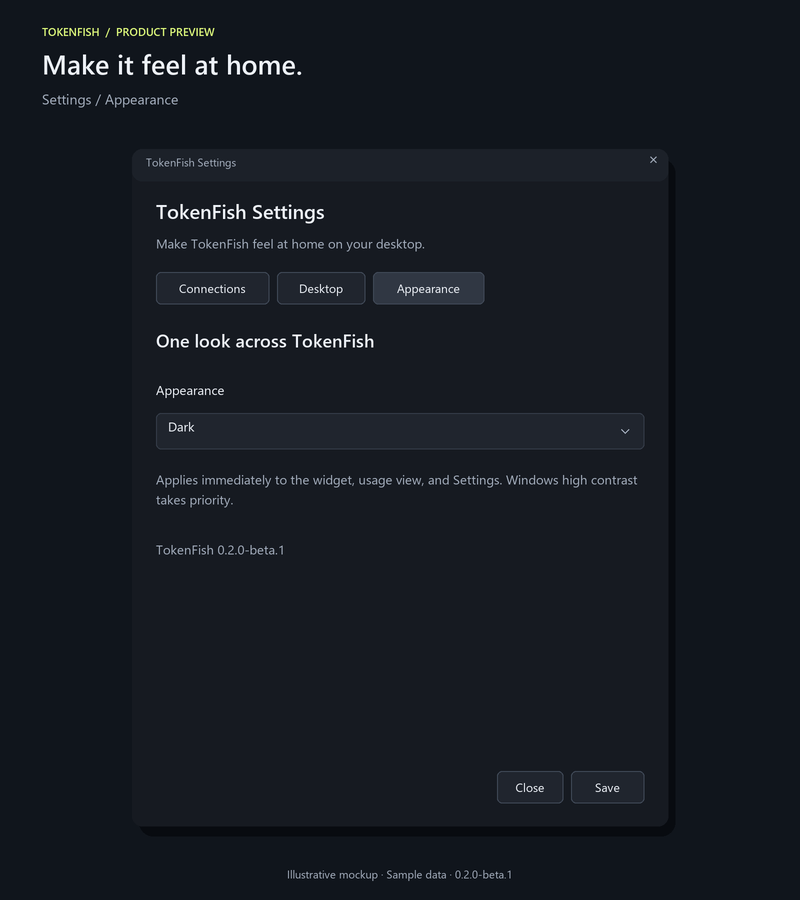
Choose your provider/runtime, place the widget, and change the theme. Settings opens beside the surface that invoked it.
| Connections | Desktop | Appearance |
|---|---|---|
 |
 |
 |
The current candidate is 0.2.0-beta.1, for Windows x64. A public GitHub release has not been published yet. The portable package includes the .NET and Windows App SDK runtimes; users do not need the development SDK.
For a development build, open Windows portable candidate, choose a successful run for main, and download its TokenFish-win-x64 artifact. GitHub requires sign-in to download workflow artifacts. Extract the artifact archive, then extract the versioned application ZIP inside it. These artifacts expire after 14 days; durable downloads will be listed in Releases when published.
win-x64.zip from Releases when available and extract the whole folder to a permanent location.TokenFish.App.exe. First-run setup lets you select Codex, Claude, or both.Windows 11 x64 is the beta target. Clean-machine testing is still pending. This is an unsigned portable build; there is no installer, automatic update, or startup registration. Do not run as administrator. Keep the bundled files together. To update, exit through the tray menu before replacing the application folder.
Enable it in Settings → Desktop or with Show desktop widget in the full view. It displays one quota window per selected provider, a fish, and the remaining percentage. Click its usage area to open the full view. The options menu opens Settings or hides the widget. Drag its grip to another corner or monitor; it snaps to the nearest corner and remembers the position. Arrow keys on the grip change corners. Always-on-top is optional and disabled by default.
Settings opens beside the widget or full view that invoked it, inside the monitor's usable area. Appearance and desktop options apply immediately. Connection changes saved in Settings apply after restarting. Setup's back/edit/recheck path reconnects using the edited configuration immediately.
Install and sign in to the Codex CLI separately. Choose the runtime matching that installation: Native Windows, WSL login shell, or WSL direct. For WSL, leave the distribution field empty to use the default distribution, or enter its name. TokenFish uses the local Codex App Server and reconnects on a later refresh after a failed session. Requests have bounded deadlines.
Quota and token activity are independent. An unsupported or temporarily unavailable activity request does not hide usable quota. Activity details show the latest seven UTC dates, with missing dates marked as not reported. Lifetime tokens, peak daily usage, streaks, and longest-running turn appear only when the installed provider supplies them. Token activity is not a measure of remaining messages, subscription value, or every ChatGPT website feature.
The included tools\claude\TokenFish.ClaudeBridge.exe reads Claude Code's status-line input and stores allowlisted quota observations locally. In Settings → Connections, copy the Windows or WSL snippet matching where Claude Code runs, and apply it manually to Claude Code's settings. TokenFish never edits those settings automatically. Start a Claude Code session so it can report data. Both five-hour and weekly quotas are shown when supplied.
See the bridge guide for setup and data details. If you move the portable folder, generate a new snippet and update the configured bridge path.
TokenFish has no backend, telemetry, or credential store. Authentication stays with the provider's own runtime. Settings and normalized Claude observations live under %LOCALAPPDATA%\TokenFish; the download does not include personal settings or observations. See privacy and security.
TokenFish reads data from your existing local tools. The Codex adapter talks to the locally installed Codex App Server through redirected standard input/output. The Claude bridge accepts Claude Code status-line input and saves only allowlisted quota observations. A shared refresh lifecycle normalizes provider data, retains the last successful reading when needed, and feeds both desktop views.
Quota is provider-reported consumption, not a calculation from the animated pellets. The fish's position represents percent used; the label emphasizes percent left. Token activity is separate from quota. TokenFish does not measure every ChatGPT website limit, infer remaining message counts, or track API billing.
See how it works for the data flow, timeouts, freshness rules, and local storage boundaries.
TokenFish is built in C# with .NET 10, WinUI 3, and the Windows App SDK. The solution separates the desktop shell, normalized models, infrastructure, and provider adapters. It was developed iteratively with Codex assistance, with the owner steering the feature set and design: retain both providers, keep the little fish, remove the native white rim, add an optional compact widget, and place Settings beside the invoking view.
The beta has 825 passing tests across Core, Infrastructure, Codex, and Claude. The test suite checks parsing, quota semantics, freshness, setup flows, timeout/recovery behavior, layout, settings compatibility, and animation eligibility. Visual checks supplement those tests; clean-machine and broader accessibility/display validation remain release gates. Read the development story and contributing guide.
Use Windows x64 and the .NET SDK selected by global.json.
dotnet build TokenFish.sln -p:Platform=x64
dotnet test TokenFish.sln -p:Platform=x64
pwsh -NoProfile -File scripts/package-portable.ps1
The packaging script builds, tests, publishes to a new directory, rejects common personal/debug artifacts, creates a ZIP, checks its contents, and writes SHA-256 checksums. GitHub Actions performs the same steps and uploads downloadable build artifacts; it does not publish a release automatically. Action configuration follows the official checkout, setup-dotnet, and upload-artifact documentation.
For an isolated development UI check, set TOKENFISH_SETTINGS_PATH to an absolute test settings file. This overrides only app settings, not provider authentication or Claude observations. --show opens the full view after startup; --settings opens Settings; --inspect-windows makes borderless surfaces discoverable in task switching and desktop inspection tools. Never distribute test settings.
See current status and release validation. Before publishing publicly, choose the project license and complete the listed desktop/clean-machine checks. A stable installer, final icon artwork, signing, ARM64 validation, notifications, and automatic updates remain separate follow-up work.
pixelsncodes/tokenfish is a public repo on GitHub by pixelsncodes. A windows 11 widget that shows claude code and codex usage and token consumtion.
It declares no license on GitHub. Public does not mean open source: without a license, nobody is granted the right to reuse it.
Its maker has not tagged a system, so it is unknown here. Its README says what it needs.
Open "Take it" on its page: Take My Repo writes an install plan for your machine and hands it to your AI agent (Claude Code, Codex or Cursor), which asks you before each step. Take My Repo has not tested it on any machine.
Its last change on GitHub was on 2026-10-04. Take My Repo does not judge from that whether it is maintained.
Nobody has reviewed it on Take My Repo yet, which says nothing about its quality.
The agent harness performance optimization system. Skills, instincts, memory, security, and research-first development for Claude Code, Codex, Opencode, Cursor and beyond.
Reverse engineer anything with agents, from app behavior down to native binaries.
Fair-code workflow automation platform with native AI capabilities. Combine visual building with custom code, self-host or cloud, 400+ integrations.
Knowledge infrastructure to make your agents smarter. Search, scrape and access 550+ data providers through one API.
A free wavetable synthesizer that plays images. C++/JUCE, VST3 + Windows standalone.
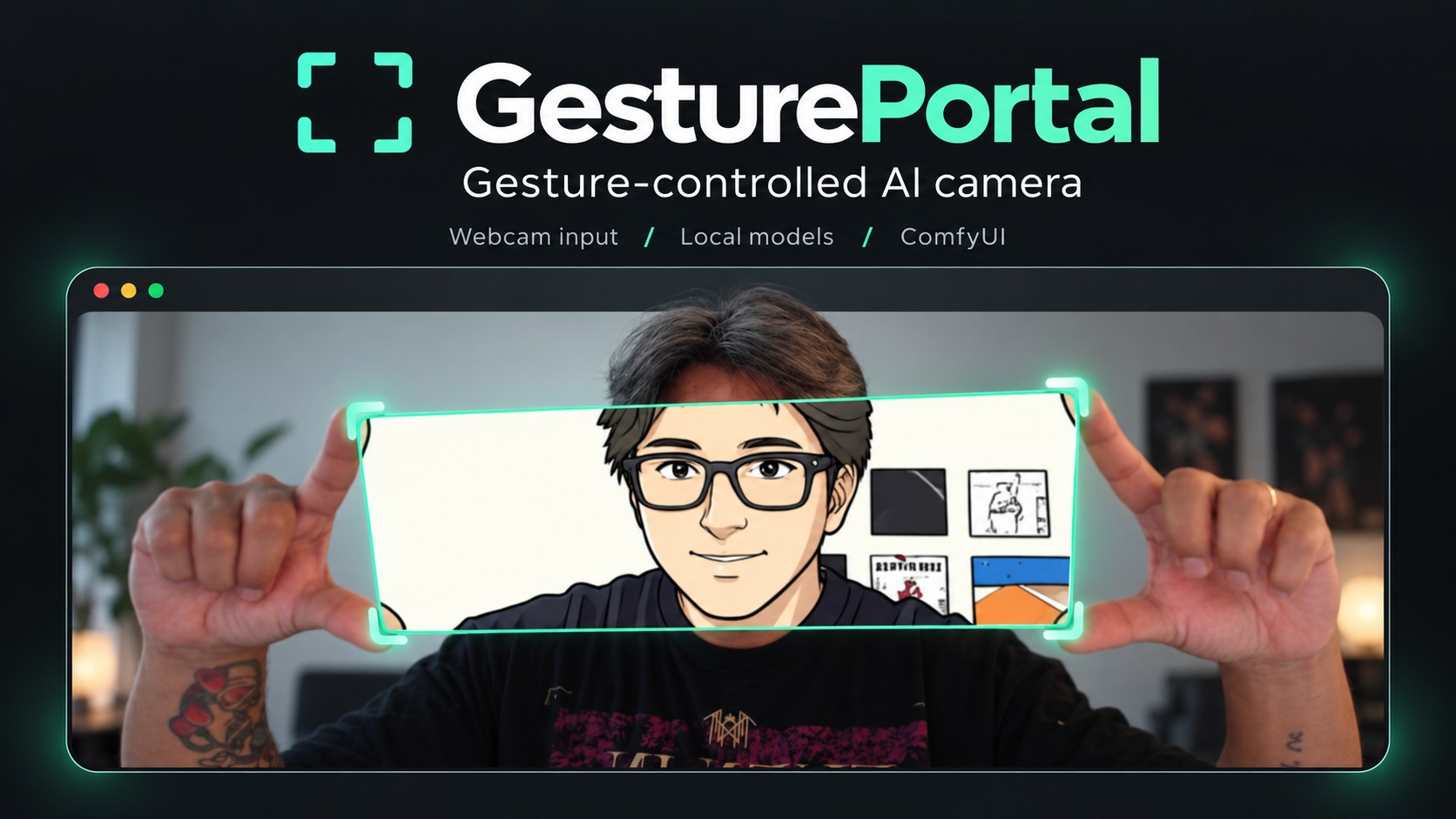
A local gesture-controlled AI webcam portal built with MediaPipe and ComfyUI. Full-scene styling with Portrait v2, FLUX and Qwen.
An open-source C++ library that turns image data into musical MIDI melodies. Companion to the Lumen synth.