ECC
The agent harness performance optimization system. Skills, instincts, memory, security, and research-first development for Claude Code, Codex, Opencode, Cursor and beyond.
- 310k
- JavaScript
- MIT
- 2 d ago
A free, MIT-licensed desktop terminal for coding agents. See which agent is waiting on you and jump to it with one key. Persistent sessions, worktrees and phone approvals.
Repo quanticstudios/pitwall, read from GitHub 3 h ago. quanticstudios has not joined Take My Repo.
quanticstudios/pitwall is a public repo on GitHub by quanticstudios. A free, MIT-licensed desktop terminal for coding agents. See which agent is waiting on you and jump to it with one key. Persistent sessions, worktrees and phone approvals. It declares the MIT license on GitHub. It is written mainly in Go, has 24 stars and last changed on 2026-11-23. Nobody has reviewed it on Take My Repo yet, which says nothing about its quality. Read from GitHub on 2026-11-25.
The agent harness performance optimization system. Skills, instincts, memory, security, and research-first development for Claude Code, Codex, Opencode, Cursor and beyond.
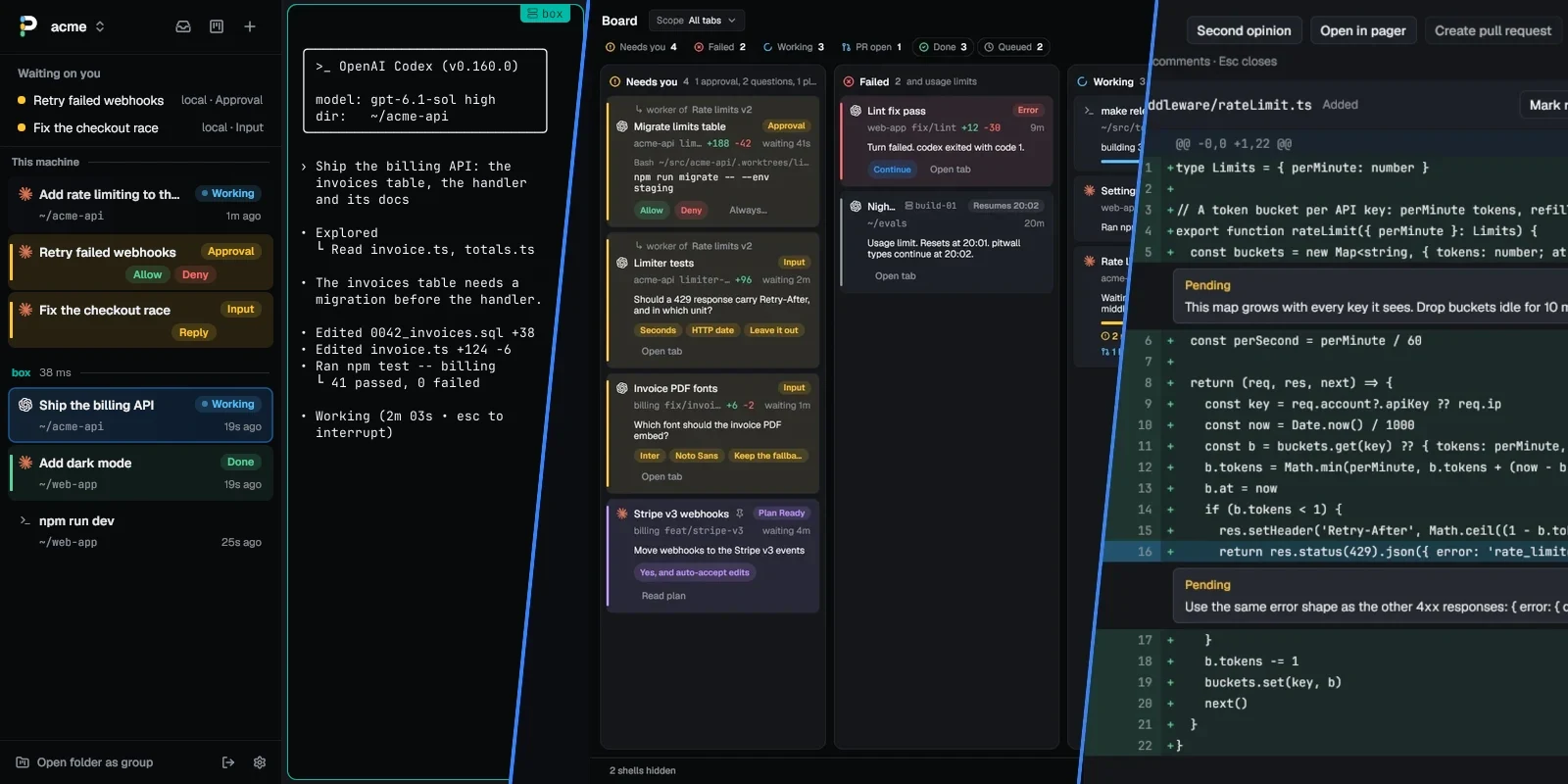
pitwall is a desktop terminal for running several coding agents at once, with a sidebar that shows what each one is doing right now.
Run five agents in five tabs and sooner or later one stops to wait on you, on a permission prompt or a question you have not seen. pitwall lights up that tab, notifies you, and takes you there with one key.
brew install quanticstudios/tap/pitwall   # macOS or Linux, with Homebrew
curl -fsSL https://raw.githubusercontent.com/quanticstudios/pitwall/main/scripts/get.sh | sh   # or the script
scoop bucket add quanticstudios https://github.com/quanticstudios/scoop-bucket
scoop install pitwall                     # Windows, with Scoop
irm https://raw.githubusercontent.com/quanticstudios/pitwall/main/scripts/get.ps1 | iex   # or the script
Then run pitwall. get.sh installs it in ~/.local/bin, so if your shell
can't find it, add that folder to your PATH or run ~/.local/bin/pitwall. The
first window lists the agents on your PATH and sets up their status reporting
with one button. pitwall doctor checks the install and says what to fix.
pitwall runs every day on Linux; the macOS and Windows builds are newer and have
had little use. When a release is out, an Update button installs it on a script
install, and your tabs and config carry over; with Homebrew or Scoop, use
brew upgrade or scoop update pitwall. docs/install.md
covers platforms, pinning a version, updates and building from source.
On a Linux server or in a container, get.sh | sh -s -- --core installs
pitwall-core instead: the daemon and every command but the window, with
no GUI library to install. See
Servers and containers.
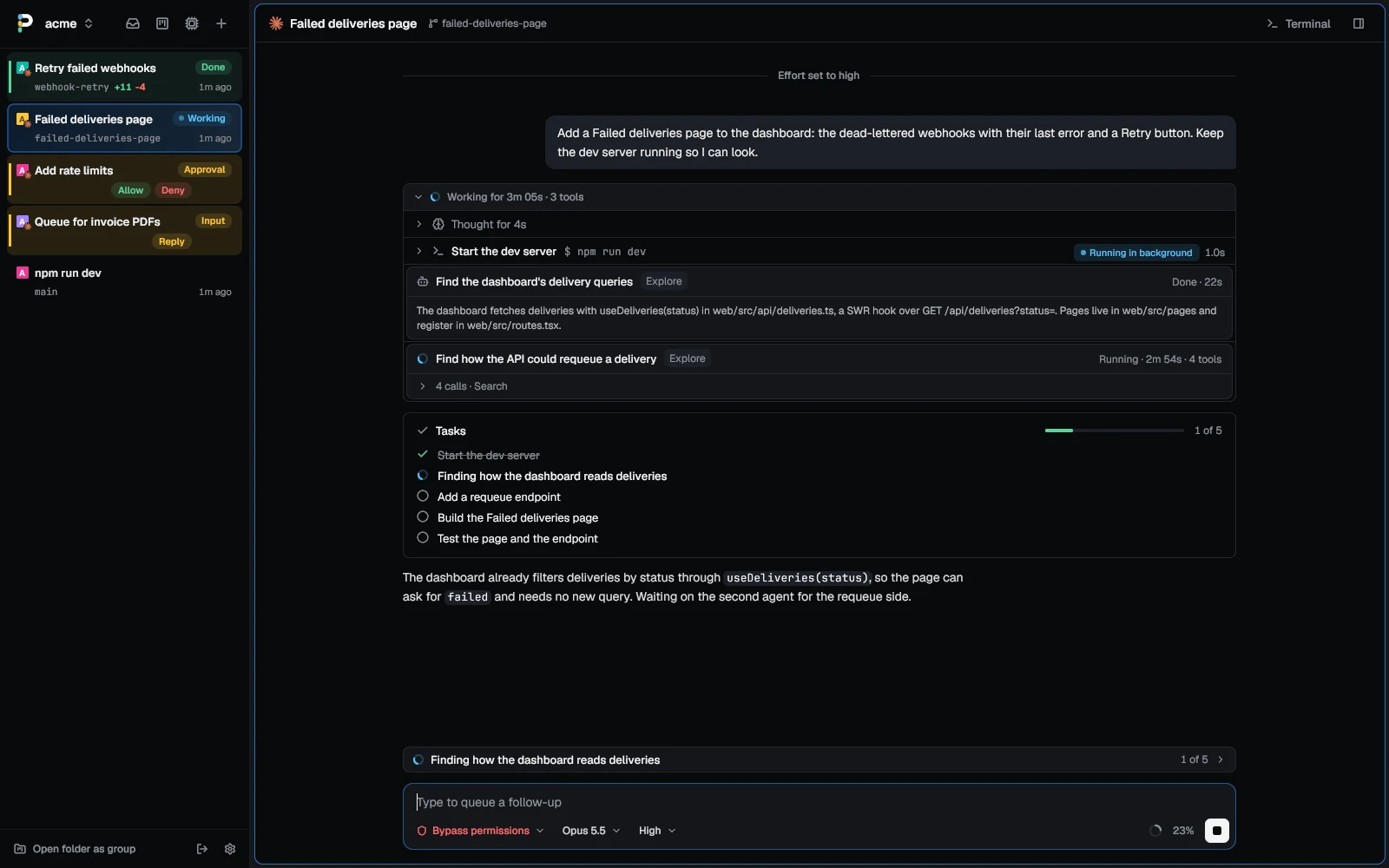
Every pane that runs Claude Code shows it as a desktop chat. Type
claude in any shell, or claude --dangerously-skip-permissions, or your
alias for it; start it from New task; let a worker start it. pitwall reads the
session's transcript and draws it as a chat. The chat and the TUI are two
views of the same running claude, so nothing restarts and its flags stay in
effect, bypass permissions included. Alt+T flips the pane between them, even
mid-turn.
Codex and Antigravity panes become the chat the same way: type codex or
agy in a shell, and the pane turns into a chat once its first hook names
the session.
[Image #1] token in your text. While
Claude works, Enter queues a message above the box and Ctrl+Enter steers it into the running turn, the queue with it. / lists
the slash commands.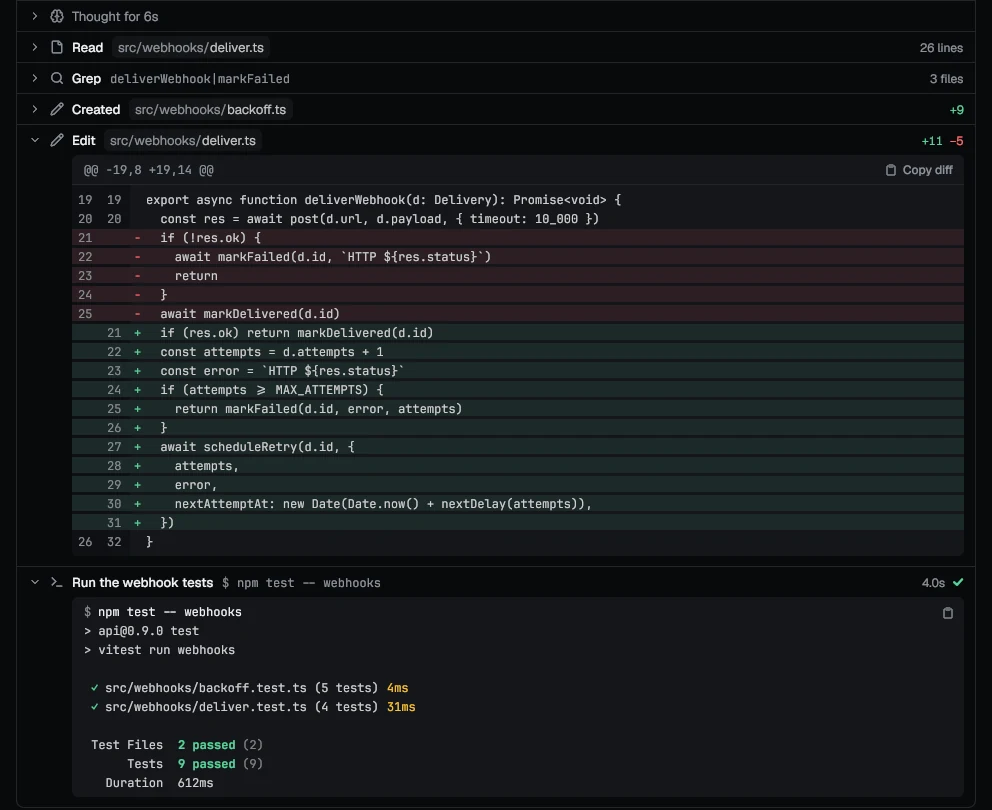
Use the TUI for /config, /login and plugin menus, then Alt+T back.
[chat] claude = "terminal" shows Claude Code panes as the TUI instead, still
one key from the chat. The desktop chat has its keys and
settings.
Use a git repo you don't mind agents changing. On macOS the keys below are Cmd+U, Cmd+Shift+Y, Cmd+Shift+N, Cmd+Shift+R, Cmd+T and Cmd+Option+T.
pitwall in the repo and press
Install hooks on the welcome card (or in Settings, Agents), so the
agents report their state.
Ctrl+Shift+T opens a tab; run claude in one, codex in another, and
give each a task that runs a command. Claude Code shows as a desktop chat;
Alt+T shows its TUI. In Codex, run /hooks once to trust the new hooks.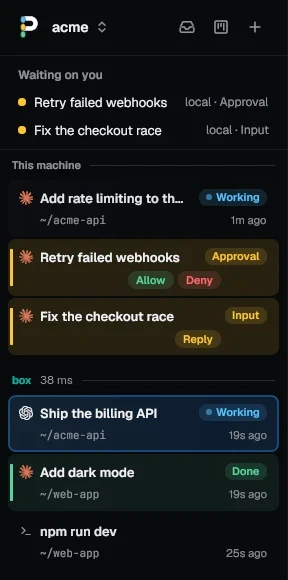
Every tab's row says what its agent is doing: Working, Input, Approval, Plan, Done or Error. A tab with three agents in split panes lists each on its own line. The row also shows the branch, the lines changed, and the pull request with its CI and review. Merge it from the tab's menu; once merged, Archive closes the tab and removes its worktree and branch.
The inbox view sorts agents by what they need from you. The button left of + in the sidebar's header switches to it: Pinned, Waiting on you, Working, Snoozed, Settled, then shells. Snooze a tab until later, and an approval, question, plan or failure wakes it early. A tab settles when its pull request merges or after three days without agent activity.
Ctrl+Shift+U jumps to the agent that started waiting most recently, in any
session. Its pane gets a ring in the state's color and you get a desktop
notification. Press the key again for the next one. Any command can ask
too: npm test && pitwall notify "tests passed".
Ctrl+Shift+K finds any tab, in every session and on every host the window shows, by name, branch, folder, agent, pull request or first prompt. It lists the tabs you closed too, up to 200 from the last 30 days, and reopens one with its agent resumed.
Ctrl+Alt+U goes back to the pane you last sent a prompt to, across tabs and sessions, popups included, so after answering three agents you return to the one you were working with.
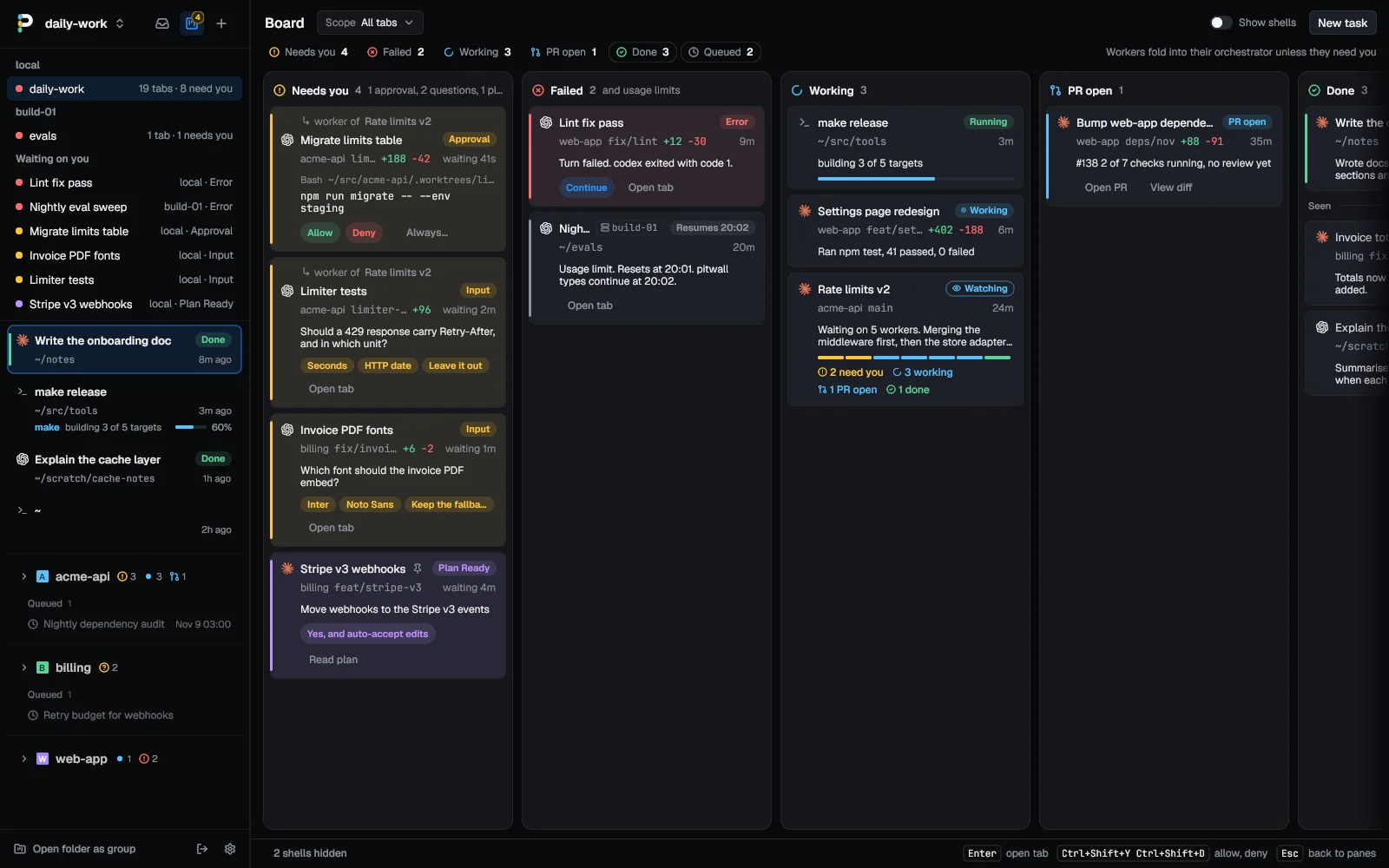
The board lays out every agent tab as a card, in columns by what it needs from you: Needs you, Failed, Working, PR open, Done and Queued. Open it with the button beside the inbox button or Ctrl+Shift+M. An approval card shows the whole command with Allow and Deny, and a question card its options. Workers fold into their orchestrator's card unless they need you. Scope it to one group, the ungrouped tabs or a host.
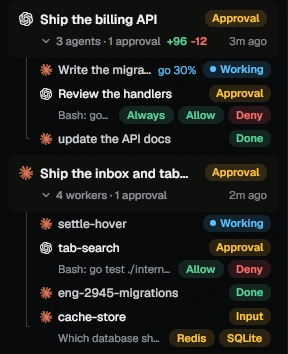
Answer a prompt from its row, without opening the tab. A Claude Code or Codex permission prompt shows Allow and Deny, plus Always when the prompt has one clear option to stop asking. When pitwall recognizes a whole Claude Code form on screen, a single-choice question shows its options as buttons, and a plan that offers manual approval shows Approve plan, which never raises the permission mode. Otherwise the row offers Open tab, or Reply for a question with no menu. An option, Always or Approve plan presses only if the screen still offers it. Allow and Deny check that the row is current and a permission prompt is on screen. When the agent's hook reported a shell command, Allow, Deny and Always also need the prompt to show that command, as much of it as fits on screen; otherwise nothing is pressed and pitwall tells you to answer in the tab. A command with a line break or a tab is always refused this way. An edit, a fetch or any other prompt with no reported command gets no such comparison, so read it first. Ctrl+Shift+Y and Ctrl+Shift+D press them, and on Linux the notification has them too.
quanticstudios/pitwall is a public repo on GitHub by quanticstudios. A free, MIT-licensed desktop terminal for coding agents. See which agent is waiting on you and jump to it with one key. Persistent sessions, worktrees and phone approvals.
It declares the MIT license on GitHub.
Its maker tagged it for macOS, Windows and Linux, or as Docker or cross-platform. That is declared by the maker; Take My Repo has not tested it.
Reverse engineer anything with agents, from app behavior down to native binaries.
Turn any idea, plan, or codebase into a beautiful interactive diagram. An agent skill for Claude Code, Codex, and more.
A cross-platform desktop All-in-One assistant for Claude Code, Codex, OpenCode,DeepSeek Harness and more. Only official website: ccswitch.io
Open "Take it" on its page: Take My Repo writes an install plan for your machine and hands it to your AI agent (Claude Code, Codex or Cursor), which asks you before each step. Take My Repo has not tested it on any machine.
Its last change on GitHub was on 2026-11-23. GitHub counts 0 open issues and pull requests. Take My Repo does not judge from that whether it is maintained.
Nobody has reviewed it on Take My Repo yet, which says nothing about its quality.
Take My Repo cannot say: it does not audit code and has not run pitwall. What is known comes from GitHub. It declares the MIT license on GitHub. Its last change was on 2026-11-23. It has 24 stars, which measure popularity, not safety. Nobody has reviewed it on Take My Repo yet, which says nothing about its quality. Read the source before you run it. With "Take it", your AI agent shows each step and asks you before running it; README text is treated as data, not as instructions.