AutoGPT
AutoGPT is the vision of accessible AI for everyone, to use and to build on. Our mission is to provide the tools, so that you can focus on what matters.
- 188k
- Python
- 11 min ago
OCO — OpenAI Codex CLI Overlay
Repo rapidrabbit76/OpenAI-Codex-Overlay, read from GitHub 14 min ago. rapidrabbit76 has not joined Take My Repo.
rapidrabbit76/OpenAI-Codex-Overlay is a public repo on GitHub by rapidrabbit76. OCO — OpenAI Codex CLI Overlay. It declares the MIT license on GitHub. It is written mainly in TypeScript, has 0 stars and last changed on 2026-03-22. Nobody has reviewed it on Take My Repo yet, which says nothing about its quality. Read from GitHub on 2026-11-25.
AutoGPT is the vision of accessible AI for everyone, to use and to build on. Our mission is to provide the tools, so that you can focus on what matters.
OpenAI Codex Overlay — A floating desktop overlay for OpenAI Codex CLI
Motivation · Installation · Features · Shortcuts · Commands · Development · 한국어
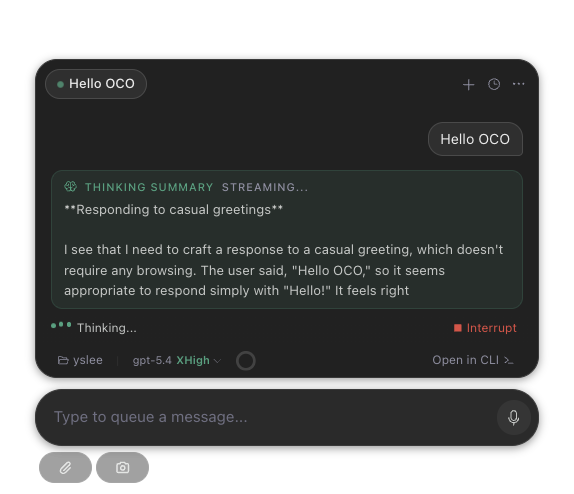
OCO is an always-on-top, click-through overlay that wraps OpenAI's Codex CLI in a modern desktop interface. It floats above your editor, terminal, or any app — giving you instant access to AI without switching windows.
Think of it as a HUD for AI coding — transparent when idle, responsive when needed.
OCO was heavily inspired by Clui CC, a polished Claude Code overlay that wraps claude -p with NDJSON streaming. While Clui CC spawns individual CLI processes per tab, OCO takes a different architectural approach — it connects directly to the Codex CLI app-server via WebSocket JSON-RPC, enabling native integration with the Codex runtime without shell-level process management.
The goal was simple: bring the same floating-overlay UX to the Codex ecosystem, built Codex-native from the ground up.
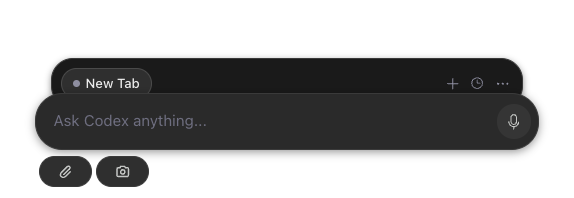
Collapsed view — minimal footprint on your screen
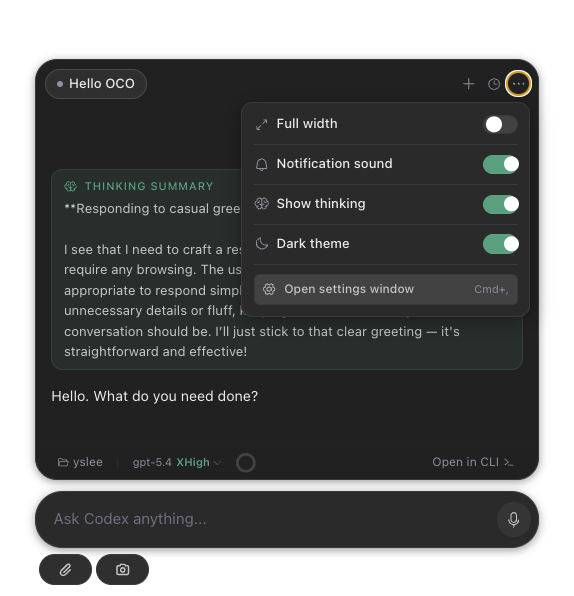
Quick settings popover — toggle theme, width, and notifications inline
$ to browse and insert Codex skillsAlt+Space or ⌘+Shift+K (configurable)
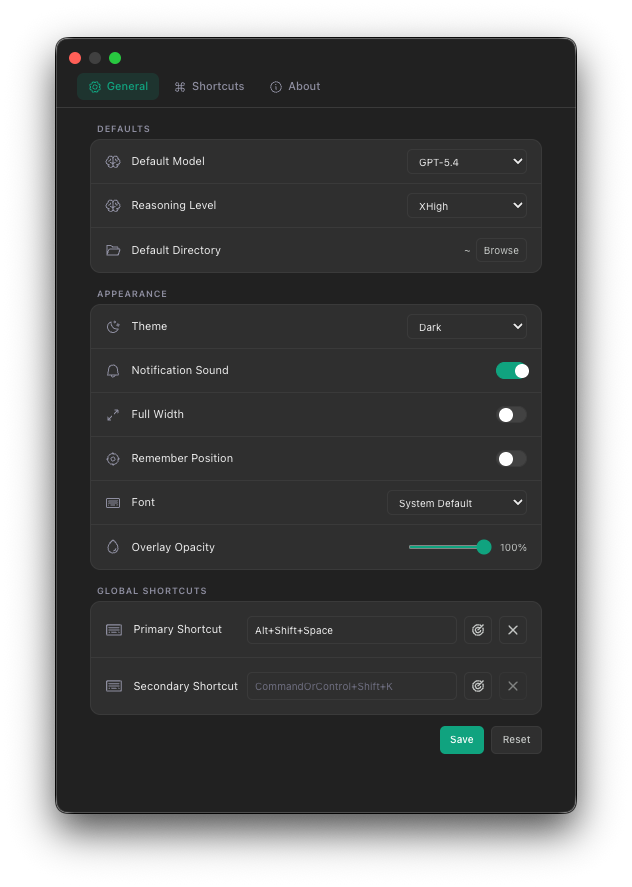
Settings — defaults, appearance, opacity, and global shortcuts
brew tap rapidrabbit76/tap
brew install --cask oco
Grab the latest pre-built binary from the Releases page:
| Platform | Download |
|---|---|
| macOS (Apple Silicon) | OCO-arm64.dmg |
Quick start: Download the DMG → drag
OCO.appto Applications → launch → toggle withAlt+Space.
If you prefer building from source:
git clone https://github.com/rapidrabbit76/OpenAI-Codex-Overlay.git
cd OpenAI-Codex-Overlay
pnpm install
pnpm dev
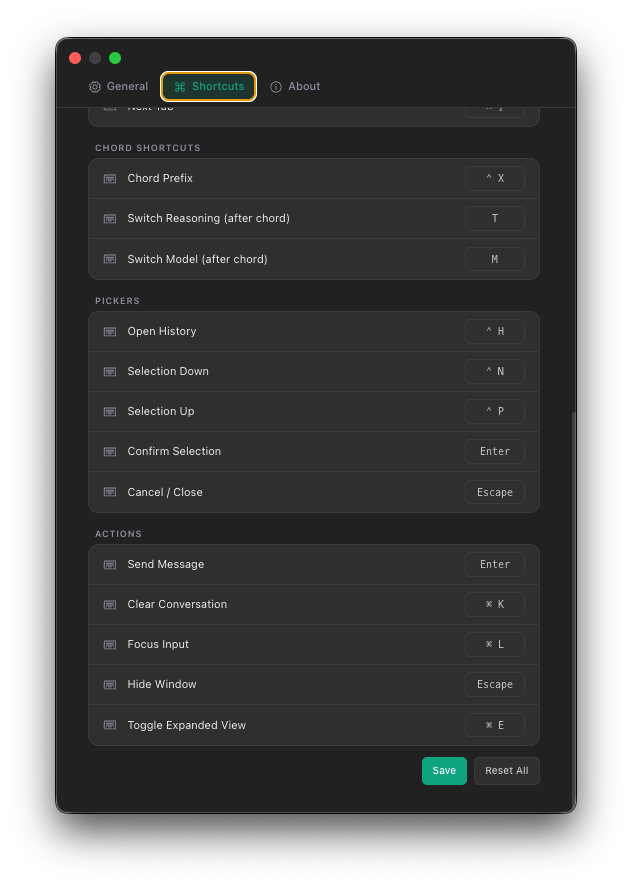
All shortcuts are fully customizable from Settings → Shortcuts
| Shortcut | Action |
|---|---|
Alt+Space |
Toggle overlay |
⌘+Shift+K |
Toggle overlay (secondary) |
⌘+, |
Open settings |
| Shortcut | Action |
|---|---|
⌘+T |
New tab |
⌘+W |
Close tab |
⌘+[ / ⌘+] |
Previous / Next tab |
⌘+1–⌘+9 |
Switch to tab N |
| Shortcut | Action |
|---|---|
⌘+E |
Toggle expanded view |
⌘+K |
Clear conversation |
⌘+L |
Focus input |
Escape |
Hide window |
Ctrl+H |
Open session history |
Press Ctrl+X first (chord prefix), then:
| Key | Action |
|---|---|
M |
Switch model |
T |
Switch reasoning level |
Type / in the input bar to access built-in commands:
| Command | Description |
|---|---|
/clear |
Clear conversation history |
/new |
Start a new conversation tab |
/model |
Show or switch active model |
/resume |
Open session history picker |
/fork |
Fork current conversation to new tab |
/cost |
Show token usage and cost |
/copy |
Copy latest assistant response |
/status |
Show session and app status |
/diff |
Ask Codex for git diff |
/mention |
Attach files to prompt |
/compact |
Ask Codex to compact context |
/review |
Ask Codex to review changes |
/plan |
Ask Codex to enter plan mode |
/init |
Ask Codex to generate AGENTS.md |
/fast |
Toggle fast preset (gpt-5.4 + low reasoning) |
/personality |
Show communication personality options |
/permissions |
Show approval policy settings |
/mcp |
Show MCP server configuration hint |
/exit |
Hide OCO window |
/quit |
Hide OCO window |
/help |
Show all commands |
Settings are stored at ~/.config/oco/settings.json:
{
  "defaultModel": "gpt-5.4",
  "defaultReasoning": "medium",
  "defaultDirectory": "~",
  "overlayOpacity": 1,
  "rememberPosition": false,
  "fontFamily": "-apple-system, BlinkMacSystemFont, ...",
  "micEnabled": true,
  "voiceLanguage": "",
  "voiceKey": "Alt"
}
Global shortcuts are stored separately at ~/Library/Application Support/OCO/shortcut-settings.json.
| Layer | Technology |
|---|---|
| Runtime | Electron 35 |
| Build | electron-vite + Vite 6 |
| UI | React 19 + TypeScript 5 |
| Styling | Tailwind CSS 4 |
| State | Zustand 5 |
| Animation | Framer Motion 12 |
| Icons | Phosphor Icons |
| Markdown | react-markdown + remark-gfm |
# Development mode with hot reload
pnpm dev

# Build for production
pnpm build

# Package as macOS DMG
pnpm dist:dmg

# Package as Windows EXE
pnpm dist:win

# Run diagnostics
pnpm doctor
Debug mode:
OCO_DEBUG=1 pnpm dev
Alt+Space isn't captured by another appcodex is in your PATHMIT © rapidrabbit76 (yslee.dev@gmail.com)
rapidrabbit76/OpenAI-Codex-Overlay is a public repo on GitHub by rapidrabbit76. OCO — OpenAI Codex CLI Overlay.
It declares the MIT license on GitHub.
Its maker has not tagged a system, so it is unknown here. Its README says what it needs.
Open "Take it" on its page: Take My Repo writes an install plan for your machine and hands it to your AI agent (Claude Code, Codex or Cursor), which asks you before each step. Take My Repo has not tested it on any machine.
The agent that grows with you
A lightweight, dependency-free JavaScript library for guiding user focus across the page.
The agent harness performance optimization system. Skills, instincts, memory, security, and research-first development for Claude Code, Codex, Opencode, Cursor and beyond.
Reverse engineer anything with agents, from app behavior down to native binaries.
Langflow is a powerful tool for building and deploying AI-powered agents and workflows.
Its last change on GitHub was on 2026-03-22. Take My Repo does not judge from that whether it is maintained.
Nobody has reviewed it on Take My Repo yet, which says nothing about its quality.
Take My Repo cannot say: it does not audit code and has not run OpenAI-Codex-Overlay. What is known comes from GitHub. It declares the MIT license on GitHub. Its last change was on 2026-03-22. It has 0 stars, which measure popularity, not safety. Nobody has reviewed it on Take My Repo yet, which says nothing about its quality. Read the source before you run it. With "Take it", your AI agent shows each step and asks you before running it; README text is treated as data, not as instructions.