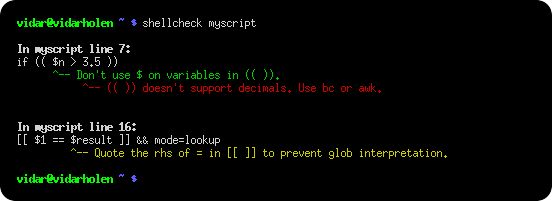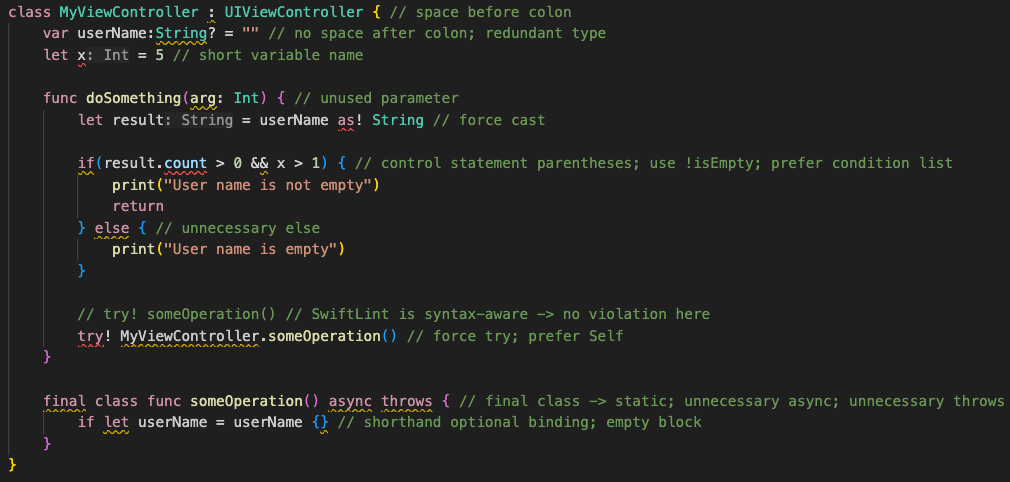

SwiftLint
A tool to enforce Swift style and conventions.
- 20k
- MIT
- 3 d ago
Repo realm/SwiftLint, read from GitHub 1 d ago. realm has not joined Take My Repo.
In short
realm/SwiftLint is a public repo on GitHub by realm. A tool to enforce Swift style and conventions. It declares the MIT license on GitHub. It is written mainly in Swift, has 19,796 stars and last changed on 2026-11-21. Nobody has reviewed it on Take My Repo yet, which says nothing about its quality. Read from GitHub on 2026-11-22.

SwiftLint
A tool to enforce Swift style and conventions, loosely based on the now archived GitHub Swift Style Guide. SwiftLint enforces the style guide rules that are generally accepted by the Swift community. These rules are well described in popular style guides like Kodeco's Swift Style Guide.
SwiftLint rules are predominantly based on SwiftSyntax. Some rules still hook into Clang and SourceKit to access type information.
This project adheres to the Contributor Covenant Code of Conduct. By participating, you are expected to uphold this code.
Video Introduction
To get a high-level overview of SwiftLint, we encourage you to watch this presentation recorded January 9th, 2017 by JP Simard (transcript provided):
Installation
Swift Package Manager
SwiftLint can be used as a command plugin or a build tool plugin.
Add
.package(url: "https://github.com/SimplyDanny/SwiftLintPlugins", from: "<version>")
to your Package.swift file to consume the latest release of SwiftLint
automatically or pin the dependency to a specific version:
.package(url: "https://github.com/SimplyDanny/SwiftLintPlugins", exact: "<version>")
Therein, replace <version> with the desired minimum or exact version.
[!NOTE] Consuming the plugins directly from the SwiftLint repository comes with several drawbacks. To avoid them and reduce the overhead imposed, it's highly recommended to consume the plugins from the dedicated SwiftLintPlugins repository, even though plugins from the SwiftLint repository are also absolutely functional. If the plugins from SwiftLint are preferred, just use the URL
https://github.com/realm/SwiftLintin the package declarations above.However, SwiftLintPlugins facilitates plugin adoption massively. It lists some of the reasons that drive the plugins as provided by SwiftLint itself very troublesome. Since the plugin code and the releases are kept in sync, there is no difference in functionality between the two, but you spare yourself a lot of time and trouble using the dedicated plugins repository.
This document assumes you're relying on SwiftLintPlugins.
Xcode Package Dependency
Use the following link to add SwiftLint as a Package Dependency to an Xcode project:
https://github.com/SimplyDanny/SwiftLintPlugins
Homebrew
brew install swiftlint
CocoaPods
Add the following to your Podfile:
pod 'SwiftLint'
This will download the SwiftLint binaries and dependencies in Pods/ during
your next pod install execution and will allow you to invoke it via
${PODS_ROOT}/SwiftLint/swiftlint in your Script Build Phases.
Installing via Cocoapods also enables pinning to a specific version of SwiftLint rather than simply the latest (which is the case with Homebrew).
Note that this will add the SwiftLint binaries, its dependencies' binaries, and
the Swift binary library distribution to the Pods/ directory, so checking in
this directory to SCM such as Git is discouraged.
Mint
mint install realm/SwiftLint
Bazel
Put this in your MODULE.bazel:
bazel_dep(name = "swiftlint", version = "0.52.4", repo_name = "SwiftLint")
Or put this in your WORKSPACE:
WORKSPACE
load("@bazel_tools//tools/build_defs/repo:http.bzl", "http_archive")

http_archive(
    name = "build_bazel_rules_apple",
    sha256 = "390841dd5f8a85fc25776684f4793d56e21b098dfd7243cd145b9831e6ef8be6",
    url = "https://github.com/bazelbuild/rules_apple/releases/download/2.4.1/rules_apple.2.4.1.tar.gz",
)

load(
    "@build_bazel_rules_apple//apple:repositories.bzl",
    "apple_rules_dependencies",
)

apple_rules_dependencies()

load(
    "@build_bazel_rules_swift//swift:repositories.bzl",
    "swift_rules_dependencies",
)

swift_rules_dependencies()

load(
    "@build_bazel_rules_swift//swift:extras.bzl",
    "swift_rules_extra_dependencies",
)

swift_rules_extra_dependencies()

http_archive(
    name = "SwiftLint",
    sha256 = "c6ea58b9c72082cdc1ada4a2d48273ecc355896ed72204cedcc586b6ccb8aca6",
    url = "https://github.com/realm/SwiftLint/releases/download/0.52.4/bazel.tar.gz",
)

load("@SwiftLint//bazel:repos.bzl", "swiftlint_repos")

swiftlint_repos()

load("@SwiftLint//bazel:deps.bzl", "swiftlint_deps")

swiftlint_deps()
Then you can run SwiftLint in the current directory with this command:
bazel run -c opt @SwiftLint//:swiftlint
Pre-Built Package
Download SwiftLint.pkg from the
latest GitHub release and
run it.
From Source
Make sure the build tool Bazel and a
recent Swift toolchain are
installed and all tools are discoverable in your PATH.
To build SwiftLint, clone this repository and run make install.
Setup
[!IMPORTANT] While it may seem intuitive to run SwiftLint before compiling Swift source files to exit a build early when there are lint violations, it is important to understand that SwiftLint is designed to analyze valid source code that is compilable. Non-compiling code can very easily lead to unexpected and confusing results, especially when executing with
--fix/--autocorrectcommand line arguments.
Build Tool Plugins
SwiftLint can be used as a build tool plugin for both Swift Package projects and Xcode projects.
The build tool plugin determines the SwiftLint working directory by locating the topmost config file within the package/project directory. If a config file is not found therein, the package/project directory is used as the working directory.
The plugin throws an error when it is unable to resolve the SwiftLint working directory. For example, this will occur in Xcode projects where the target's Swift files are not located within the project directory.
To maximize compatibility with the plugin, avoid project structures that require
the use of the --config option.
Swift Package Projects
[!NOTE] Requires installing via Swift Package Manager.
Build tool plugins run when building each target. When a project has multiple targets, the plugin must be added to the desired targets individually.
To do this, add the plugin to the target(s) to be linted as follows:
.target(
    ...
    plugins: [.plugin(name: "SwiftLintBuildToolPlugin", package: "SwiftLintPlugins")]
),
Swift Package Command Plugin
[!NOTE] Requires installing via Swift Package Manager.
The command plugin enables running SwiftLint from the command line as follows:
swift package plugin swiftlint
Xcode Projects
[!NOTE] Requires installing via Xcode Package Dependency.
Build tool plugins run as a build phase of each target. When a project has multiple targets, the plugin must be added to the desired targets individually.
To do this, add the SwiftLintBuildToolPlugin to the Run Build Tool Plug-ins
phase of the Build Phases for the target(s) to be linted.
[!TIP] When using the plugin for the first time, be sure to trust and enable it when prompted. If a macros build warning exists, select it to trust and enable the macros as well.
For unattended use (e.g. on CI), package plugin and macro validations can be disabled with either of the following:
Using
xcodebuildoptions:-skipPackagePluginValidation -skipMacroValidationSetting Xcode defaults:
defaults write com.apple.dt.Xcode IDESkipPackagePluginFingerprintValidatation -bool YES
defaults write com.apple.dt.Xcode IDESkipMacroFingerprintValidation -bool YES
[!IMPORTANT] The unattended use options bypass Xcode's validation dialogs and implicitly trust all plugins and macros, which has security implications.
Unexpected Xcode Project Structures
Project structures where SwiftLint's configuration file is located outside of the package/project directory are not directly supported by the build tool plugin. This is because it isn't possible to pass arguments to build tool plugins (e.g., passing the config file path).
If your project structure doesn't work directly with the build tool plugin, please consider one of the following options:
- To use a config file located outside the package/project directory, a config
file may be added to that directory specifying a parent config path to the
other config file, e.g.,
parent_config: path/to/.swiftlint.yml. - You can also consider the use of a Run Script Build Phase in place of the build tool plugin.
Xcode Run Script Build Phase
[!NOTE] Based upon the installation method used, the shell command syntax in the Run Script Build Phase may be different or additional configuration could be required. Refer to the installation instructions for more information.
If the build tool plugin does not work for your project setup or when
additional custom setup is required, SwiftLint can be added as a Run Script
Build Phase. This is useful when a project setup relies on the --config
SwiftLint option; or to lint all targets together in a single swiftlint
invocation. File inclusions and exclusions can be configured in the
.swiftlint.yml configuration.
To do this, add a custom script to a Run Script phase of the Build Phases
of the primary app target, after the Compile Sources phase. Use the
following script implementation:
if command -v swiftlint >/dev/null 2>&1
then
    swiftlint
else
    echo "warning: `swiftlint` command not found - See https://github.com/realm/SwiftLint#installation for installation instructions."
fi
If you're using the SwiftLintPlugin in a Swift package,
you may refer to the swiftlint executable in the
following way:
SWIFT_PACKAGE_DIR="${SWIFT_PACKAGE_DIR:-${BUILD_DIR%Build/*}SourcePackages}"
SWIFTLINT_CMD="$SWIFT_PACKAGE_DIR/artifacts/swiftlintplugins/SwiftLintBinary/SwiftLintBinary.artifactbundle/macos/swiftlint"

if test -f "$SWIFTLINT_CMD" 2>&1
then
    "$SWIFTLINT_CMD"
else
    echo "warning: `swiftlint` command not found - See https://github.com/realm/SwiftLint#xcode-run-script-build-phase for installation instructions."
fi
[!NOTE] The
SWIFTLINT_CMDpath uses the default Xcode configuration and has been tested on Xcode 15/16. In case of another configuration (e.g. a custom Swift package path), please adapt the values accordingly. If you runxcodebuildwith-clonedSourcePackagesDirPath, setSWIFT_PACKAGE_DIRto<that path>before running the script.
[!TIP] Uncheck
Based on dependency analysisto runswiftlinton all incremental builds, suppressing the unspecified outputs warning.
Consideration for Xcode 15.0
Xcode 15 made a significant change by setting the default value of the
ENABLE_USER_SCRIPT_SANDBOXING build setting from NO to YES.
As a result, SwiftLint encounters an error related to missing file permissions,
which typically manifests as
error: Sandbox: swiftlint(19427) deny(1) file-read-data.
To resolve this issue, it is necessary to manually set the
ENABLE_USER_SCRIPT_SANDBOXING setting to NO for the specific target that
SwiftLint is being configured for.
Consideration for Apple Silicon
If you installed SwiftLint via Homebrew on Apple Silicon, you might experience this warning:
warning: SwiftLint not installed, download from https://github.com/realm/SwiftLint
That is because Homebrew on Apple Silicon installs the binaries into the
/opt/homebrew/bin folder by default. To instruct Xcode where to find
SwiftLint, you can either add /opt/homebrew/bin to the PATH environment
variable in your build phase:
Questions
What is SwiftLint?
realm/SwiftLint is a public repo on GitHub by realm. A tool to enforce Swift style and conventions.
Is SwiftLint open source?
It declares the MIT license on GitHub.
Does SwiftLint run on macOS, Windows or Linux?
Its maker tagged it for macOS. That is declared by the maker; Take My Repo has not tested it.
How do I install SwiftLint?
Open "Take it" on its page: Take My Repo writes an install plan for your machine and hands it to your AI agent (Claude Code, Codex or Cursor), which asks you before each step. Take My Repo has not tested it on any machine.