
rea
Reverse engineer anything with agents, from app behavior down to native binaries.
- 479k
- TypeScript
- MIT
- 20 min ago
JUnit 5 and 6 integration for ReportPortal
Repo reportportal/agent-java-junit5, read from GitHub 1 min ago. reportportal has not joined Take My Repo.
reportportal/agent-java-junit5 is a public repo on GitHub by reportportal. JUnit 5 and 6 integration for ReportPortal. It declares the Apache-2.0 license on GitHub. It is written mainly in Java, has 26 stars and last changed on 2026-04-08. Nobody has reviewed it on Take My Repo yet, which says nothing about its quality. Read from GitHub on 2026-11-26.
Reverse engineer anything with agents, from app behavior down to native binaries.
Modern testing with JUnit for Android.
A JUnit 5 reporter that uploads the results to a ReportPortal server.
DISCLAIMER: We use Google Analytics for sending anonymous usage information such as agent's and client's names, and their versions after a successful launch start. This information might help us to improve both ReportPortal backend and client sides. It is used by the ReportPortal team only and is not supposed for sharing with 3rd parties.
The latest version: 5.5.8. Please use Maven Central link above to get the client.
The repository contains JUnit5 Extension for ReportPortal integration.
To start using ReportPortal with JUnit 5 create a service location file:
Example: /META-INF/services/org.junit.jupiter.api.extension.Extension
com.epam.reportportal.junit5.ReportPortalExtension
If you desire to configure test name, description and tags:
Extend ReportPortalExtension, override buildStartStepRq() or other methods (see javadoc comments) and replace com.epam.reportportal.junit5.ReportPortalExtension with fully qualified custom Extension class name in this file.
<dependency>
   <groupId>com.epam.reportportal</groupId>
   <artifactId>agent-java-junit5</artifactId>
   <version>5.5.8</version>
</dependency>
<build>
    <plugins>
        <plugin>
            <artifactId>maven-surefire-plugin</artifactId>
            <version>3.0.0-M5</version>
            <configuration>
                <properties>
                    <configurationParameters>
                        junit.jupiter.extensions.autodetection.enabled = true
                    </configurationParameters>
                </properties>
            </configuration>
        </plugin>
    </plugins>
</build>
repositories {
    mavenLocal()
    mavenCentral()
}

testImplementation 'com.epam.reportportal:agent-java-junit5:5.5.8'test {
useJUnitPlatform()
systemProperty 'junit.jupiter.extensions.autodetection.enabled', true
}By default reporting of @Disabled tests is switched off. To switch it on - add next parameter to an execution goal:
This manual will walk you through the steps for integration of ReportPortal with JUnit5 based project
First, make sure you have installed ReportPortal, the installation steps could be found here
We’ll assume that ReportPortal is installed and running on http://localhost:8080
If you want to integrate ReportPortal with existing project, go to step 2


ReportPortal agent implementation for JUnit 5
<dependency>
    <groupId>com.epam.reportportal</groupId>
    <artifactId>agent-java-junit5</artifactId>
    <version>5.5.8</version>
</dependency>
Latest version of the agent, could be found here
The ReportPortal agent for JUnit 5 includes the JUnit 5 library dependency, and so we won't need other explicit JUnit 5 dependencies
However, if you are adding ReportPortal agent to existing project, with JUnit 5 dependency already declared, pay attention to dependency transitivity and the conflicts that might arise
More about JUnit 5 dependencies structure could be found here
ReportPortal provides its own logger implementations for major logging frameworks like log4j and logback
If you prefer using Logback logging library, add following dependencies:
ReportPortal logback logger dependency
<dependency>
    <groupId>com.epam.reportportal</groupId>
    <artifactId>logger-java-logback</artifactId>
    <version>5.2.2</version>
</dependency>
Up to date version could be found here
The logback itself
<dependency>
    <groupId>ch.qos.logback</groupId>
    <artifactId>logback-classic</artifactId>
    <version>1.2.10</version>
</dependency>
If you prefer using Log4j logging library, add following dependencies:
ReportPortal log4j logger dependency
<dependency>
    <groupId>com.epam.reportportal</groupId>
    <artifactId>logger-java-log4j</artifactId>
    <version>5.2.2</version>
</dependency>
Up to date version could be found here
The log4j itself
<dependency>
    <groupId>org.apache.logging.log4j</groupId>
    <artifactId>log4j-api</artifactId>
    <version>2.17.1</version>
</dependency>

<dependency>
     <groupId>org.apache.logging.log4j</groupId>
     <artifactId>log4j-core</artifactId>
     <version>2.17.1</version>
</dependency>
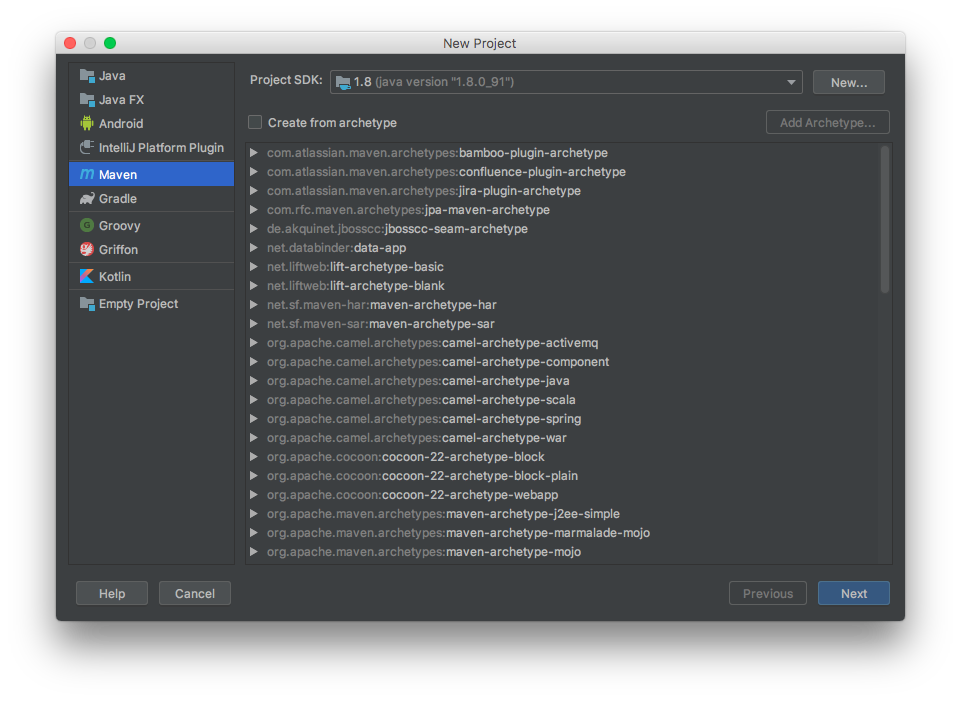
Create a test class MyTests in the test directory and add JUnit 5 test method there
package com.mycompany.tests;

import org.apache.logging.log4j.LogManager;
import org.apache.logging.log4j.Logger;
import org.junit.jupiter.api.*;

public class MyTests {

    private static final Logger LOGGER = LogManager.getLogger(MyTests.class);

    @Test
    void testMySimpleTest() {
        LOGGER.info("Hello from my simple test");
    }
}
log4j2.xml file to resources folderExample:
<?xml version="1.0" encoding="UTF-8"?>
<Configuration status="WARN">
    <Appenders>
        <Console name="ConsoleAppender" target="SYSTEM_OUT">
            <PatternLayout
                    pattern="%d [%t] %-5level %logger{36} - %msg%n%throwable"/>
        </Console>
        <ReportPortalLog4j2Appender name="ReportPortalAppender">
            <PatternLayout
                    pattern="%d [%t] %-5level %logger{36} - %msg%n%throwable"/>
        </ReportPortalLog4j2Appender>
    </Appenders>
    <Loggers>
        <Root level="DEBUG">
            <AppenderRef ref="ConsoleAppender"/>
            <AppenderRef ref="ReportPortalAppender"/>
        </Root>
    </Loggers>
</Configuration>
It's needed to add ReportPortalAppender into this (as shown in the example)
By this moment, your project tree should look somewhat like the this:

Go to http:$IP_ADDRESS_OF_REPORT_PORTAL:8080 (by default it is http://localhost:8080)
Login as Admin user and create the project (more details here and here)


Go to Administrative -> My Test Project -> Members -> Add user
Example link http://localhost:8080/ui/#administrate/project-details/my_test_project/members

reportportal.propertiesreportportal/agent-java-junit5 is a public repo on GitHub by reportportal. JUnit 5 and 6 integration for ReportPortal.
It declares the Apache-2.0 license on GitHub.
Its maker has not tagged a system, so it is unknown here. Its README says what it needs.
Open "Take it" on its page: Take My Repo writes an install plan for your machine and hands it to your AI agent (Claude Code, Codex or Cursor), which asks you before each step. Take My Repo has not tested it on any machine.
☕ Formation Java moderne (JDK 25 LTS) avec Eclipse IDE .. du langage aux API REST Spring Boot, en français. 18 chapitres, 9 annexes, développement assisté par IA.
Its last change on GitHub was on 2026-04-08. GitHub counts 1 open issue and pull requests. Take My Repo does not judge from that whether it is maintained.
Nobody has reviewed it on Take My Repo yet, which says nothing about its quality.
Take My Repo cannot say: it does not audit code and has not run agent-java-junit5. What is known comes from GitHub. It declares the Apache-2.0 license on GitHub. Its last change was on 2026-04-08. It has 26 stars, which measure popularity, not safety. Nobody has reviewed it on Take My Repo yet, which says nothing about its quality. Read the source before you run it. With "Take it", your AI agent shows each step and asks you before running it; README text is treated as data, not as instructions.


