
agent-java-spock
Spock integration agent for Report Portal
- 9
- Apache-2.0
- 8 mo ago
Repo reportportal/agent-java-spock, read from GitHub 23 h ago. reportportal has not joined Take My Repo.
In short
reportportal/agent-java-spock is a public repo on GitHub by reportportal. Spock integration agent for Report Portal. It declares the Apache-2.0 license on GitHub. It is written mainly in Java, has 9 stars and last changed on 2026-04-08. Nobody has reviewed it on Take My Repo yet, which says nothing about its quality. Read from GitHub on 2026-11-25.
Similar repos


agent-java-spock
DISCLAIMER: We use Google Analytics for sending anonymous usage information such as agent's and client's names, and their versions after a successful launch start. This information might help us to improve both ReportPortal backend and client sides. It is used by the ReportPortal team only and is not supposed for sharing with 3rd parties.
The latest version: 5.4.7. Please use Maven Central link above to get the client.
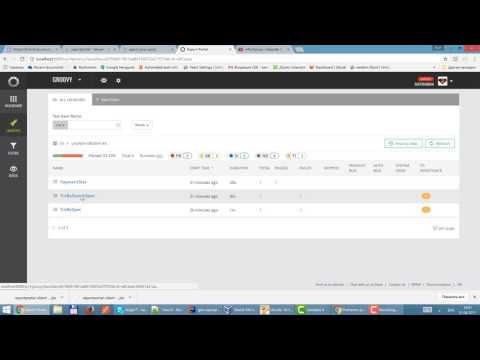
Video Tutorial for integration of SPOCK on Groovy
ReportPortal integration with Spock instructions
This manual will walk you through the steps for integration of ReportPortal with Spock + Geb based project
This manual provides instructions for ReportPortal integration from scratch. If you want to integrate ReportPortal with existing project, go to step 4
First, make sure you have installed ReportPortal, the installation steps could be found here
We’ll assume that ReportPortal is installed and running on http://localhost:8080
Step 1 - Create new project (Gradle)
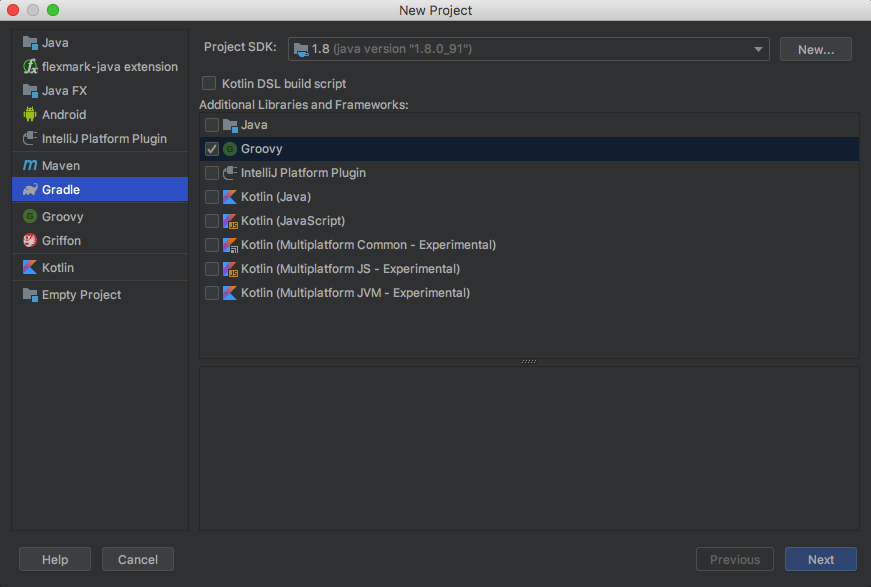
1.1 Start new Gradle project
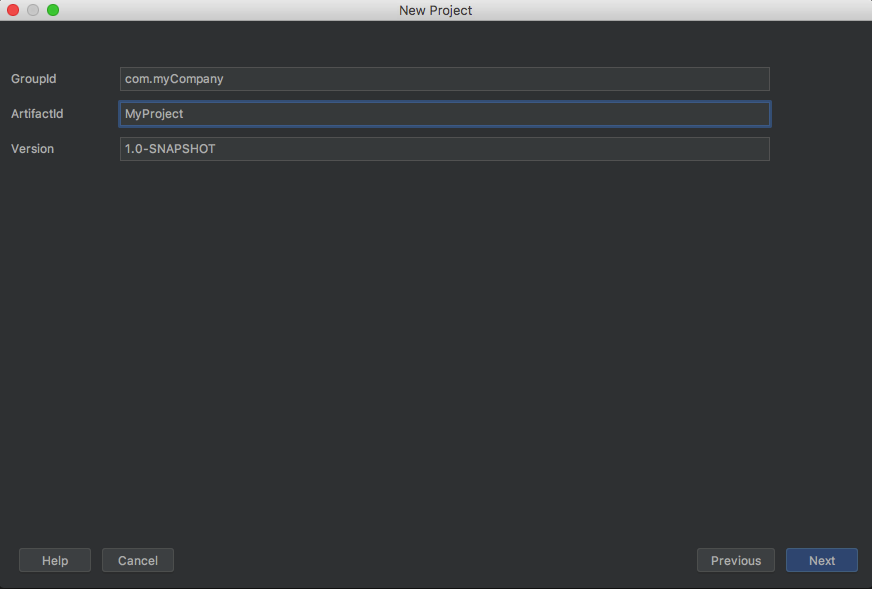
1.2 Enter GroupId and ArtifactId
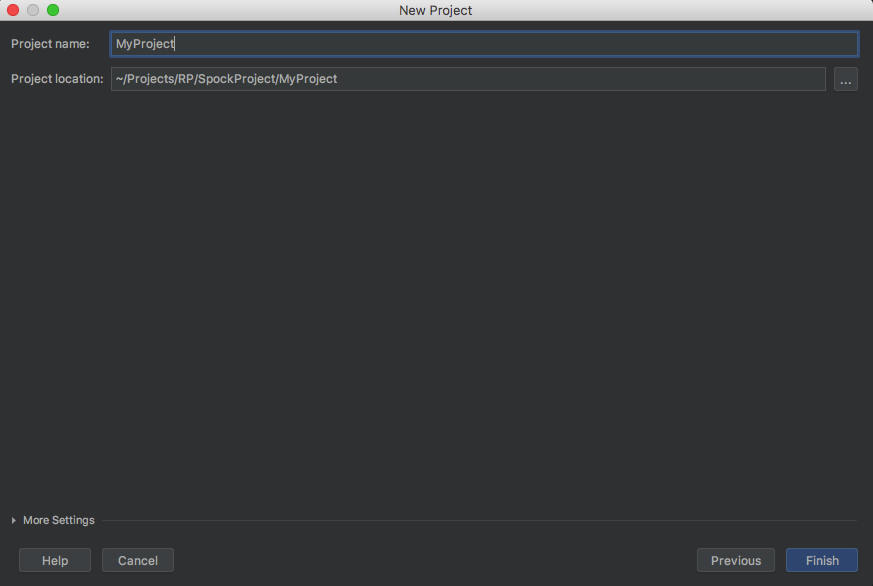
1.3 Enter project name
Step 2 - Configure build.gradle file
For convenience, let's add following ext section into our build.gradle file:
ext {
    // The drivers we want to use
    drivers = ["chrome", "firefox", "ie"]

    ext {
        groovyVersion = '2.5.14'
        gebVersion = '4.1'
        seleniumVersion = '3.141.59'
    }
}
Now we can use the *Version variables in dependencies section. And also we listed the browsers we are going to run tests on
2.1 Add following repositories:
repositories {
    mavenCentral()
}
2.2 Add following dependencies:
ReportPortal agent implementation for Spock framework
testCompile 'com.epam.reportportal:agent-java-spock:5.4.7'
Selenium support
testCompile "org.seleniumhq.selenium:selenium-support:$seleniumVersion"
Support for dedicated browser driver(s)
testCompile "org.seleniumhq.selenium:selenium-chrome-driver:$seleniumVersion"
testCompile "org.seleniumhq.selenium:selenium-firefox-driver:$seleniumVersion"
testCompile "org.seleniumhq.selenium:selenium-ie-driver:$seleniumVersion"
Groovy and Geb
testCompile "org.gebish:geb-spock:$gebVersion"
testCompile "org.gebish:geb-junit4:$gebVersion"
testCompile "org.codehaus.groovy:groovy-all:$groovyVersion"
Spock framework dependency
testCompile ("org.spockframework:spock-core:2.3-groovy-2.5") {
    exclude group: "org.codehaus.groovy"
}
2.3 Add ReportPortal dedicated logger wrapper
ReportPortal provides it's own logger implementation for major logging frameworks like log4j and logback
If you prefer using Logback logging library, add following dependencies:
ReportPortal logback logger dependency
testCompile 'com.epam.reportportal:logger-java-logback:5.2.2'
Up to date version could be found here
The logback itself
compile group: 'ch.qos.logback', name: 'logback-classic', version: '1.3.12'
If you prefer using Log4j logging library, add following dependencies:
ReportPortal log4j logger dependency
testCompile 'com.epam.reportportal:logger-java-log4j:5.2.2'
Up to date version could be found here
The log4j itself
compile group: 'org.apache.logging.log4j', name: 'log4j-api', version: '2.17.2'
compile group: 'org.apache.logging.log4j', name: 'log4j-core', version: '2.17.2'
2.4 Create gradle tasks for tests
Use the following code to make dedicated tasks for each browser type listed in the ext section
drivers.each { driver ->
    task "${driver}Test" (type: Test) {
        reports {
            html.destination = reporting.file ("$name/tests")
            junitXml.destination = file ("$buildDir/test-results/$name")
        }

        outputs.upToDateWhen { false }  // Always run tests

        systemProperty "geb.build.reportsDir", reporting.file ("$name/geb")
        systemProperty "geb.env", driver
    }
}

test {
    dependsOn drivers.collect { tasks["${it}Test"] }
    enabled = false
}
After adding this code and rebuilding the project, you should see newly added tasks in the gradle toolbar of the IDE:
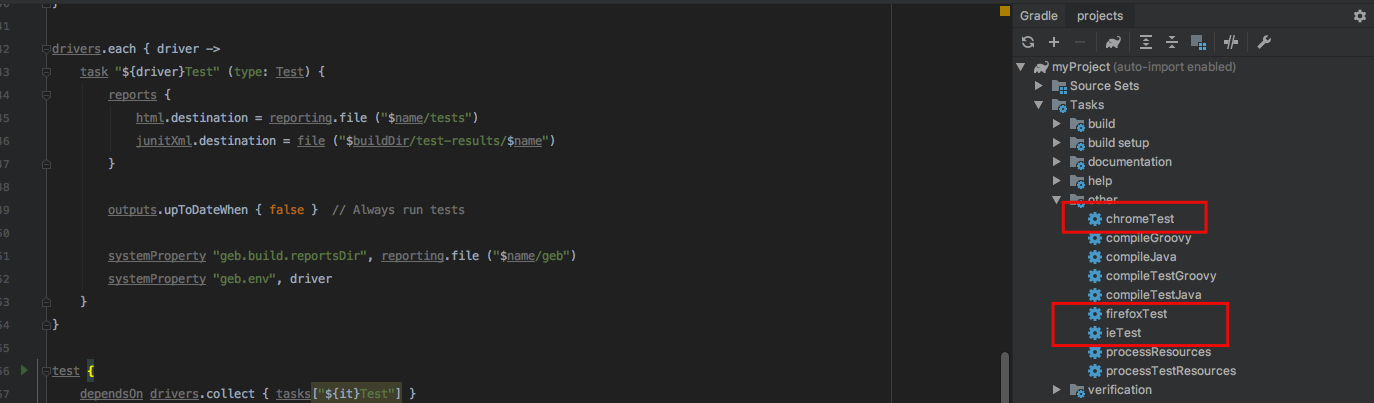
By this moment your build.gradle file should look somewhat like that:
[build.gradle]

ext {
    // The drivers we want to use
    drivers = ["chrome", "firefox", "ie"]

    ext {
        groovyVersion = '2.5.14'
        gebVersion = '4.1'
        seleniumVersion = '3.141.59'
    }
}

apply plugin: "groovy"

repositories {
    mavenCentral()
}

dependencies {
    testCompile 'com.epam.reportportal:agent-java-spock:5.4.7'
    testCompile 'com.epam.reportportal:logger-java-logback:5.2.2'

    testCompile "org.seleniumhq.selenium:selenium-support:$seleniumVersion"
    testCompile "org.gebish:geb-spock:$gebVersion"
    testCompile "org.gebish:geb-junit4:$gebVersion"
    testCompile "org.codehaus.groovy:groovy-all:$groovyVersion"

    testCompile ("org.spockframework:spock-core:2.3-groovy-2.5") {
        exclude group: "org.codehaus.groovy"
    }

    testCompile "org.seleniumhq.selenium:selenium-chrome-driver:$seleniumVersion"
    testCompile "org.seleniumhq.selenium:selenium-firefox-driver:$seleniumVersion"
    testCompile "org.seleniumhq.selenium:selenium-ie-driver:$seleniumVersion"

    compile group: 'ch.qos.logback', name: 'logback-classic', version: '1.3.12'
}

drivers.each { driver ->
    task "${driver}Test" (type: Test) {
        reports {
            html.destination = reporting.file ("$name/tests")
            junitXml.destination = file ("$buildDir/test-results/$name")
        }

        outputs.upToDateWhen { false }  // Always run tests

        systemProperty "geb.build.reportsDir", reporting.file ("$name/geb")
        systemProperty "geb.env", driver
    }
}

test {
    dependsOn drivers.collect { tasks["${it}Test"] }
    enabled = false
}
Step 3 - Configure Geb
Now we need to configure Geb framework. To do this, add GebConfig.groovy file to the resources folder
[resources/GebConfig.groovy]

import geb.report.ScreenshotReporter
import org.openqa.selenium.chrome.ChromeDriver
import org.openqa.selenium.firefox.FirefoxDriver
import org.openqa.selenium.ie.InternetExplorerDriver
import org.openqa.selenium.remote.DesiredCapabilities
import utils.RpScreenshotListener

baseUrl = "https://www.google.com/ncr"
reportsDir = new File ("target/runtime_reports_dir")

waiting {
    timeout = 20
}

System.setProperty ("webdriver.gecko.driver", getFullPathToDriver("geckodriver"))
System.setProperty ("webdriver.chrome.driver", getFullPathToDriver("chromedriver"))
System.setProperty ("webdriver.ie.driver", getFullPathToDriver("IEDriverServer"))

environments {

    chrome {
        driver = { new ChromeDriver () }
    }

    firefox = {
        driver = { new FirefoxDriver () }
    }

    ie {
        def capabilities = DesiredCapabilities.internetExplorer ()
        capabilities.setCapability(InternetExplorerDriver.IE_ENSURE_CLEAN_SESSION, true)
        driver = { new InternetExplorerDriver (capabilities) }
    }
}

private static boolean isWindows() {
    String os_name = System.getProperty("os.name").toLowerCase()
    return os_name.startsWith("win")
}

private static String getFullPathToDriver(String driverFileName) {
    String extension = isWindows() ? ".exe" : ""
    def path = "drivers${File.separatorChar}$driverFileName$extension"
    new File(path).absolutePath
}
Pay attention to baseUrl property - this url Geb will open by default when getting request to open a page
Step 4 - Add ReportPortal appender to logging framework
In order to enable and configure logging, we need to add the appropriate config file to the resources folder, in case of logback library, we should create logback.xml file and add ReportPortal appender there:
[resources/logback.xml]

<configuration>
   <appender name="STDOUT" class="ch.qos.logback.core.ConsoleAppender">
      <encoder>
         <pattern>%d{HH:mm:ss.SSS} %-5level %logger{5} - %thread - %msg%n</pattern>
      </encoder>
   </appender>

   <appender name="ReportPortalAppender" class="com.epam.reportportal.logback.appender.ReportPortalAppender">
      <encoder>
         <pattern>%d{HH:mm:ss.SSS} [%t] %-5level - %msg%n</pattern>
      </encoder>
   </appender>

   <root level="DEBUG">
      <appender-ref ref="ReportPortalAppender" />
      <appender-ref ref="STDOUT" />
   </root>
</configuration>
Step 5 - Create simple test
In this manual we'll add a small test, which opens "google.com", makes a search and then checks that search results are not empty. We'll use Spock and Geb for this purposes
5.1 Create page object classes (with Geb)
First of all, let's make page objects for Google pages We'll need 2 pages: Google's start page and the search results page:
[MyProject/src/test/groovy/page/GoogleStartPage]

package page

import geb.Page
import org.openqa.selenium.Keys

class GoogleStartPage extends Page {

    static at = {
        title == "Google"
    }

    static content = {
        searchInput(wait: true) { $ ("input[name='q']") }
    }

    def search(String searchCriteria) {
        searchInput << searchCriteria
        searchInput << Keys.ENTER

        browser.isAt GoogleSearchResultsPage
    }
}
[MyProject/src/test/groovy/page/GoogleSearchResultsPage]

package page

import geb.Page

class GoogleSearchResultsPage extends Page {

    static at = {
        title.matches(".+ - Google Search")
    }

    static content = {
        searchResultsTitles { $("div.rc h3") }
        searchResultsTitlesCount { searchResultsTitles.size() }
        searchInput(wait: true) { $("input[name='q']") }
    }
}
5.2 Add the test code
Now let's add the test, following the Spock framework approach
[MyProject/src/test/groovy/myTests/GoogleSearchTestSpec]

package myTests

import geb.spock.GebReportingSpec
import groovy.util.logging.Slf4j
import page.GoogleStartPage
import spock.lang.Unroll

@Slf4j
class GoogleSearchTestSpec extends GebReportingSpec {

    @Unroll
    def "Search for 'reportportal' returns more than #resultsCount results"(String searchCriteria, int resultsCount) {
        given: "The user is on Google Start page"
            to GoogleStartPage
        when: "Enter search criteria: $searchCriteria"
            search(searchCriteria)
        then: "Search results count is greater than $resultsCount"
            log.info("Search results count: $searchResultsTitlesCount")
            searchResultsTitlesCount > resultsCount
        where:
            searchCriteria | resultsCount
            'reportportal' | 1
    }
}
Since we are using groovy, we can benefit from it's features like automatic adding of the log field to the test class during compile time
To do this, we only need to add @Slf4j annotation to our tests class GoogleSearchTestSpec and the log field will be added
Step 6 - Configuring ReportPortal
6.1 Open ReportPortal UI
Go to http:$IP_ADDRESS_OF_REPORT_PORTAL:8080 (by default it is http://localhost:8080)
Login as Admin user and create the project (more details here and here)
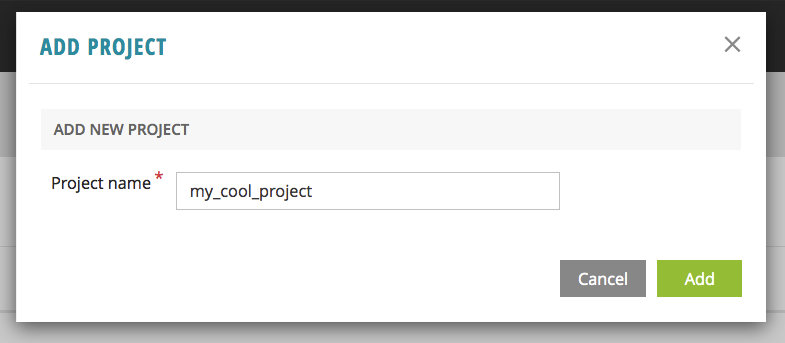
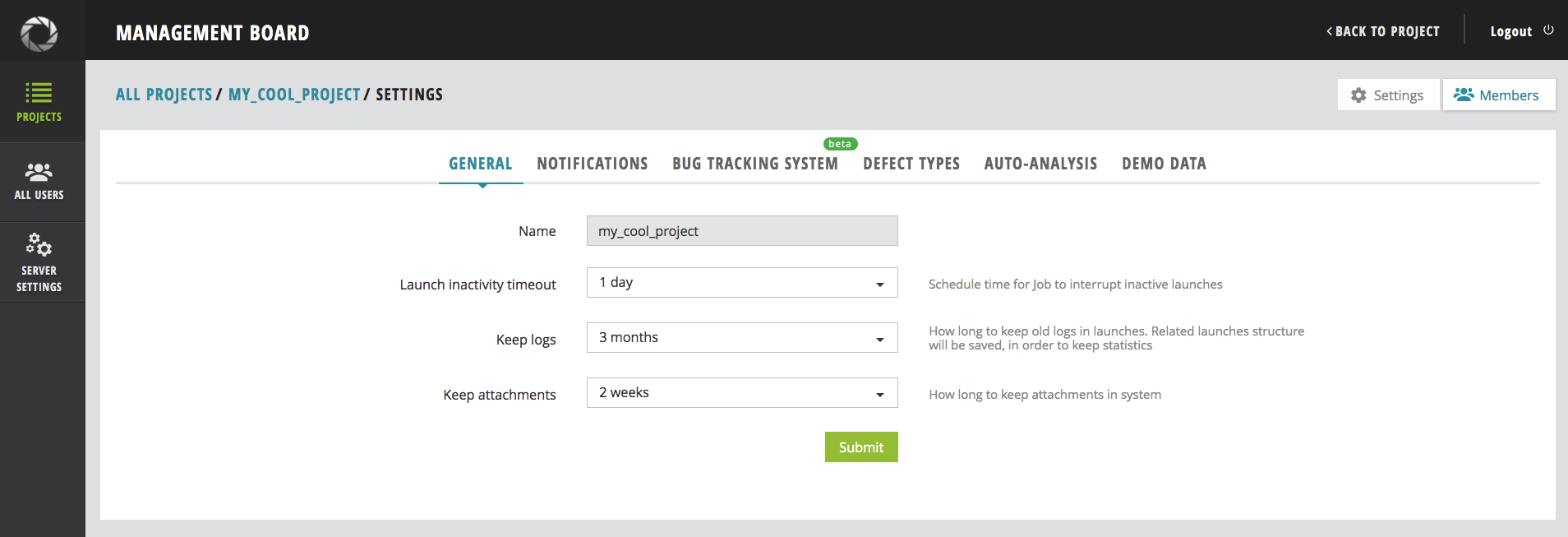
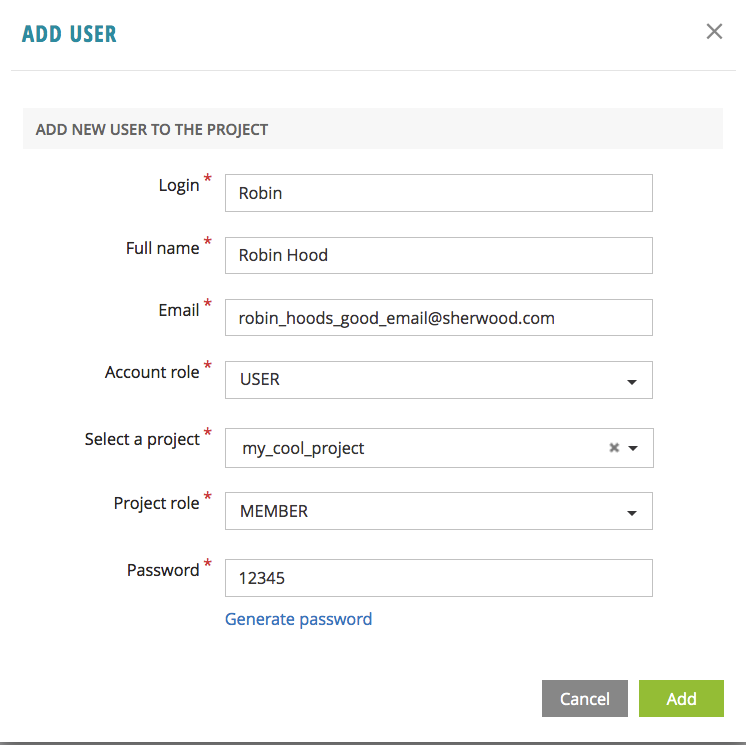
6.2 Add users to your project:
Go to Administrative -> My Test Project -> Members -> Add user
Example link http://localhost:8080/ui/#administrate/project-details/my_test_project/members
Step 7 - Link ReportPortal with your tests
Step 7.1 - Add reportportal.properties
Questions
What is agent-java-spock?
reportportal/agent-java-spock is a public repo on GitHub by reportportal. Spock integration agent for Report Portal.
Is agent-java-spock open source?
It declares the Apache-2.0 license on GitHub.
Does agent-java-spock run on macOS, Windows or Linux?
Its maker has not tagged a system, so it is unknown here. Its README says what it needs.
How do I install agent-java-spock?
Open "Take it" on its page: Take My Repo writes an install plan for your machine and hands it to your AI agent (Claude Code, Codex or Cursor), which asks you before each step. Take My Repo has not tested it on any machine.




