
WebDemo
Robot Framework web testing demo using SeleniumLibrary
- 239
- 3 y ago
Repo robotframework/WebDemo, read from GitHub 1 min ago. robotframework has not joined Take My Repo.
In short
robotframework/WebDemo is a public repo on GitHub by robotframework. Robot Framework web testing demo using SeleniumLibrary. It declares no license on GitHub. Public does not mean open source: without a license, nobody is granted the right to reuse it. It is written mainly in RobotFramework, has 239 stars and last changed on 2024-03-18. Nobody has reviewed it on Take My Repo yet, which says nothing about its quality. Read from GitHub on 2026-11-22.
Web testing with Robot Framework and SeleniumLibrary
Robot Framework is a generic open source test automation framework and SeleniumLibrary is one of the many test libraries that can be used with it. In addition to showing how they can be used together for web testing, this demo introduces the basic Robot Framework test data syntax, how tests are executed, and how logs and reports look like.
To get the demo, you can either download the repository from GitHub or checkout
the source code directly. As a result you get WebDemo directory with
demoapp and login_tests sub directories.
Example test cases and generated results are available also online. There is thus no need to download the demo if you are not interested in running it yourself.
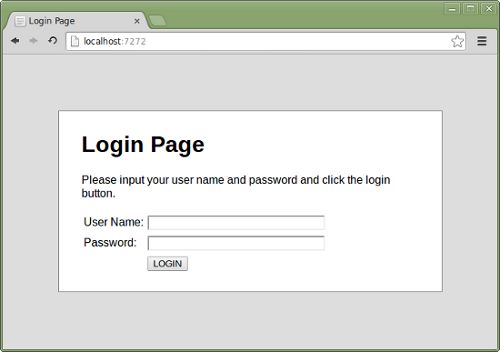
The demo application is a very simple login page shown below. With
user name demo and password mode you get into a welcome page, and
otherwise you end up to an error page. How to start and stop the
application yourself is explained in the Starting demo application
section.

Test case files as well as a resource file used by them are located in
the login_tests directory. Click file names below to see the latest versions
online.
A test suite with a single test for valid login.
This test has a workflow that is created using keywords in the imported resource file.
invalid_login.robotA test suite containing tests related to invalid login.
These tests are data-driven by their nature. They use a single
keyword, specified with the Test Template setting, that is called
with different arguments to cover different scenarios.
This suite also demonstrates using setups and teardowns in different levels.
gherkin_login.robotA test suite with a single Gherkin style test.
This test is functionally identical to the example in the valid_login.robot file.
resource.robotA resource file with reusable keywords and variables.
The system specific keywords created here form our own domain specific language. They utilize keywords provided by the imported SeleniumLibrary.
See Robot Framework User Guide for more details about the test data syntax.
After running tests you will get report and log in HTML format. Example files are also visible online in case you are not interested in running the demo yourself:
Preconditions
A precondition for running the tests is having Robot Framework and SeleniumLibrary installed, and they in turn require Python. Robot Framework installation instructions cover both Robot and Python installations, and SeleniumLibrary has its own installation instructions.
In practice it is easiest to install Robot Framework and SeleniumLibrary along with its dependencies using pip package manager. Once you have pip installed, all you need to do is running these commands:
pip install -r requirements.txt
Starting demo application
Running tests requires the demo application located under demoapp
directory to be running. It can be started either by double clicking
demoapp/server.py file in a file manager or by executing it from the
command line:
python demoapp/server.py
After the demo application is started, it is be available in URL
http://localhost:7272. You can test it manually, valid credentials are
demo/mode, and it needs to be running while executing the automated
tests.
If the application was started by double-clicking demoapp/server.py
file, it can be shut down by closing the opened window. If it was
executed from the command line, using Ctrl-C is enough.
Running tests
The test cases are located in the login_tests directory. They can be
executed using the robot command:
robot login_tests
Note
If you are using Robot Framework 2.9 or earlier, you need to
use the pybot command instead.
You can also run an individual test case file and use various command line options supported by Robot Framework:
robot login_tests/valid_login.robot
robot --test InvalidUserName --loglevel DEBUG login_tests
Run robot --help for more information about the command line usage and see
Robot Framework User Guide for more details about test execution in general.
Using different browsers
The browser that is used is controlled by ${BROWSER} variable defined in
resource.robot resource file. Firefox browser is used by default, but that
can be easily overridden from the command line:
robot --variable BROWSER:Chrome login_tests
robot --variable BROWSER:IE login_tests
Consult SeleniumLibrary documentation about supported browsers.
Questions
What is WebDemo?
robotframework/WebDemo is a public repo on GitHub by robotframework. Robot Framework web testing demo using SeleniumLibrary.
Is WebDemo open source?
It declares no license on GitHub. Public does not mean open source: without a license, nobody is granted the right to reuse it.
Does WebDemo run on macOS, Windows or Linux?
Its maker has not tagged a system, so it is unknown here. Its README says what it needs.
How do I install WebDemo?
Open "Take it" on its page: Take My Repo writes an install plan for your machine and hands it to your AI agent (Claude Code, Codex or Cursor), which asks you before each step. Take My Repo has not tested it on any machine.
Is WebDemo still maintained?
Its last change on GitHub was on 2024-03-18. GitHub counts 4 open issues and pull requests. Take My Repo does not judge from that whether it is maintained.
What do people who ran WebDemo say?
Nobody has reviewed it on Take My Repo yet, which says nothing about its quality.