
QuickText
Windows tray snippet manager & text expander — recall by pinyin or abbreviation, pasted at the cursor | 常驻托盘的文本片段管理与缩写扩展,拼音或缩写唤出,直接粘到光标处
- 11
- MIT
- 8 d ago
Repo rockbenben/QuickText, read from GitHub 4 h ago. rockbenben has not joined Take My Repo.
In short
rockbenben/QuickText is a public repo on GitHub by rockbenben. Windows tray snippet manager & text expander — recall by pinyin or abbreviation, pasted at the cursor | 常驻托盘的文本片段管理与缩写扩展,拼音或缩写唤出,直接粘到光标处. It declares the MIT license on GitHub. It is written mainly in C#, has 11 stars and last changed on 2026-11-16. Nobody has reviewed it on Take My Repo yet, which says nothing about its quality. Read from GitHub on 2026-11-23.
Similar repos
ECC
The agent harness performance optimization system. Skills, instincts, memory, security, and research-first development for Claude Code, Codex, Opencode, Cursor and beyond.



QuickText
A tray snippet manager and text expander for Windows
⬇ Download latest (Releases) · Windows x64 / ARM64 · Portable Single-File
English · 简体中文 · 繁體中文 · 日本語 · 한국어 · Español · Português · Français · Deutsch · Italiano · Русский · Tiếng Việt · ไทย · Bahasa Indonesia · हिन्दी · বাংলা · العربية · Türkçe
Stop typing the same thing twice. QuickText lives in the Windows tray: store the text you reach for again and again — email, addresses, signatures, templates, canned replies, images — once, then in any input box type a few keystrokes or an abbreviation and it lands right at your cursor. Multi-line, special characters and emoji preserved character-for-character.
- A single portable exe — no account, offline by default; only the optional update check ever contacts GitHub.
- Data is local JSON in your own folder — put it in Dropbox / OneDrive / a NAS to sync.
- Dark and light themes (or follow Windows), 18 UI languages (with right-to-left mirroring for Arabic), settings apply instantly.
Download
↓ QuickText · Windows x64 / ARM64
| Package | Requires |
|---|---|
QuickText-<tag>-setup.exe — Installer (x64) |
included |
QuickText-<tag>-win-x64.zip — Portable |
included |
QuickText-<tag>-win-arm64.zip — Portable |
included |
QuickText-<tag>-win-x64-needs-dotnet10.zip — Compact |
.NET 10 Desktop Runtime (x64) |
QuickText-<tag>-win-arm64-needs-dotnet10.zip — Compact |
.NET 10 Desktop Runtime (ARM64) |
SHA256SUMS.txt · certutil -hashfile <file> SHA256 · gh attestation verify <file> -R rockbenben/QuickText
The exe isn't code-signed, so Windows SmartScreen warns on first run: click More info → Run anyway.
Where you'd use it
Wherever you type the same thing over and over on Windows. It lives in the tray and works in every input box (chat windows, browser forms, editors, mail clients — not tied to one app). It's a snippet manager and text expander in one, plus pinyin search, variable templates, and images.
| Who | What they store |
|---|---|
| Support / e-commerce | Canned replies, standard answers, promo blurbs, QR codes or product shots |
| Sales / business | Email templates, openers, quotes, sign-offs |
| Developers / ops | Commands, config, JSON, boilerplate ({...} emitted verbatim, never parsed) |
| Office / form-filling | Email, address, phone, ID numbers, meeting-note templates (prompt you, remember the last value) |
| HR / admin / legal | Onboarding notices, standard notifications, disclaimers — stays local, nothing uploaded |
On storing anything sensitive. Snippets are saved as plain JSON — nothing is encrypted, by design, so you can read, diff, and edit the file yourself. That's fine for templates and boilerplate on a machine only you use. It also means an ID number or a password put in there is readable by anything that can read the file — including whatever else runs under your account, and the sync provider if you put the folder in Dropbox / OneDrive. For genuinely secret values, use a password manager and leave QuickText for the text you'd be comfortable having on your desktop.
See it in 30 seconds
In any place you can type — say you need your email in a chat box:
- Summon — press
Ctrl+Shift+8; the panel appears over the active window. - Search — type a few letters; matches are highlighted. It matches the name, pinyin (full + initials), abbreviation, and body.
- Enter — the email is pasted right where your cursor was. Done.
Type nothing to browse by category, with
Recent/Favoritespinned on top; the ones you use most float to the top automatically.↑↓move ·←→switch category ·Alt+1–9quick-pick · double-click to send ·Escto close.
Three ways to reach it — pick what fits
Same library, three ways to pull from it; mix them freely:
| Way | How to trigger | Best for |
|---|---|---|
| 🔍 Panel search | Ctrl+Shift+8 → type → Enter |
Many snippets, occasional use, browsing to pick |
| ⌨️ Inline abbreviation | Just type ;sig then Space / Tab / Enter |
High-frequency fixed phrases, no panel needed |
| 🧩 Variable template | Pull a snippet with {variables} via either of the above |
Email / forms: one template, a few words changed |
- Images too: add from clipboard or file, pasted as an image on send; images can have abbreviations, so type the abbr and get the picture (QR codes, logo signatures).
- Per-snippet output: chat phrases auto-send after paste, code snippets never do — they don't interfere.
Full detail on abbreviations and variables is in In detail below — the Placeholders and Abbreviations sections.
In detail. Everything above is what most people need. What follows is the full reference.
Works out of the box
Double-click QuickText.exe; it lives in the system tray (no taskbar button). On first run it:
- drops in a small starter library (two categories, in your UI language) so you can try it immediately;
- shows a balloon with the summon hotkey — default
Ctrl+Shift+8.
The panel's top-right icons: + New · Manager (open the editor) · Settings · 📌 Pin (keep the panel open after a send, to fire several in a row). Jump straight to the Manager / Settings without going back to the tray.
Add / edit your text
Image replacements and removals also require saving. Old images are cleaned up after a successful save; discarding keeps the original image.
If saving fails, the Manager keeps your draft and stays on the current snippet. Search continues to use the last successfully saved content. Retry after the file becomes writable. Undo writes the snippet back before removing its trash copy. If undo fails, retry Ctrl+Z once the file is writable.
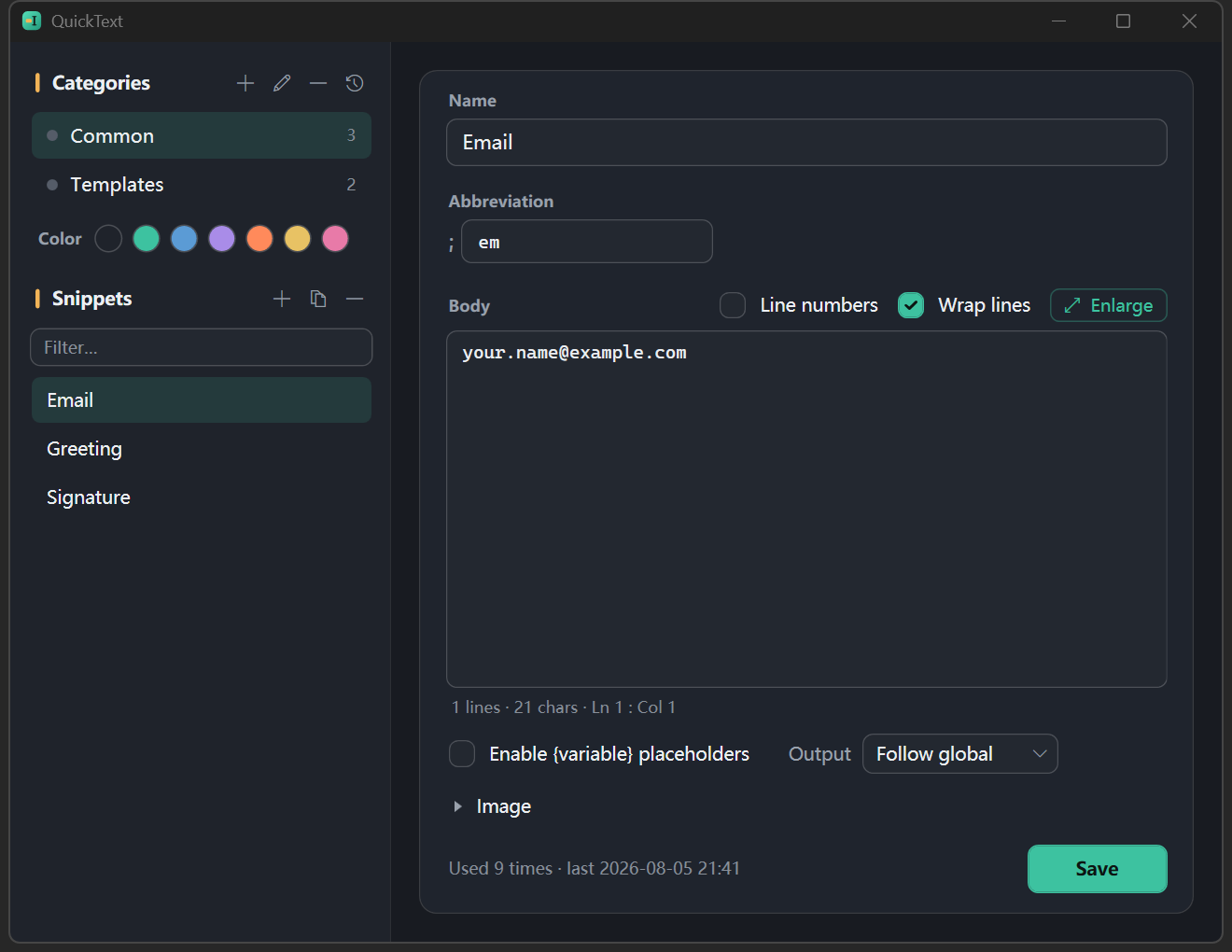
- Tray → Open Manager — the full editor: categories and snippets on the left, the editor on the right. Add/rename/delete categories (with a 7-color tag), edit snippets (name, abbreviation, body, image). Drag to reorder or move between categories;
Ctrl+Zundoes a delete. - Tray → New from clipboard — create a new snippet from the current clipboard and open it in the Manager to finish (press Save to write it to disk; nothing is written until you do, and anything unsaved is confirmed before it can be lost — on closing the Manager, on closing the enlarged editor, and on switching to another snippet).
- Create in the panel — type the text in the search box and press
Ctrl+Nto save it as a new snippet (that text becomes the body;@category …files it in that category) and jump to the Manager to finish (Ctrl+Eedits the selected one).
Long text / code: the
⤢ Enlargebutton above the body opens it in a near-full-screen editor (or pressCtrl+Shift+Enterin the body);Escor "Done" ends the session; if you changed anything it asks whether to save or discard first. With "enable {variable} placeholders" checked, tokens are tinted by kind — variables cyan, auto tokens like{date}amber,{snippet:x}purple,{cursor}cyan dashed — while a misspelled snippet name, an invalid date format or an unclosed brace gets a red squiggle you can hover for the reason. All of those paste verbatim at send time, which used to be discoverable only after pasting the wrong thing. Hovering a date token also previews its resolved value. For code, leave the checkbox off: highlighting is fully disabled so a body full of{}stays quiet, and the status bar just notes how many tokens will be output as-is. Also included: Enter keeps indentation andTabindents a whole multi-line selection.The enlarged window always shows line numbers, and its footer offers a code format picker — JSON, YAML, XML, HTML, Markdown, SQL, Python, JavaScript/TypeScript, C#, Java, PowerShell, Shell and INI, 13 in all — which syntax-highlights the body and is remembered per snippet. The stored text stays plain and what gets pasted is unchanged. Placeholder highlighting paints the background while syntax highlighting tints the glyphs, so the two never fight: a JSON body with
{variables}in it shows both its structure and its variables at once.
Placeholders (one template, many situations) · opt-in per snippet
In the Manager, Ctrl+S saves and Ctrl+F selects the filter text. The filter searches only the current category; clearing it preserves the selected snippets and editor draft. “Unsaved changes” stays visible until changes are saved or discarded, including after a failed save.
The Manager’s snippet list shows a first-line preview. Use × to clear the panel search or the Manager’s filter; clearing the filter keeps the current editor draft. The category and snippet lists share the available height, and image actions wrap in narrow windows.
Placeholders are a per-snippet switch: tick "Enable {variable} placeholders" in the Manager editor and the tokens below are resolved on send; left unticked (the default), the body is sent verbatim — code, scripts and JSON full of literal {...} are never misparsed or prompted on.
Upgrading: placeholders used to be always-on. The first launch after upgrading automatically ticks the switch for existing snippets whose body contains
{...}, so nothing changes behavior; untick it in the Manager for the ones that are actually code.
When enabled, these placeholders are resolved on send:
| Placeholder | What it does |
|---|---|
{name} (any label) |
Prompts you to fill it in before pasting; remembers your last value so repeats don’t re-ask |
{name:John} |
Variable with a default, prefilled in the prompt |
{env|dev|test|prod} |
Variable with options — the prompt shows a dropdown (first option doubles as the default; free typing still allowed) |
Questions
What is QuickText?
rockbenben/QuickText is a public repo on GitHub by rockbenben. Windows tray snippet manager & text expander — recall by pinyin or abbreviation, pasted at the cursor | 常驻托盘的文本片段管理与缩写扩展,拼音或缩写唤出,直接粘到光标处.
Is QuickText open source?
It declares the MIT license on GitHub.
Does QuickText run on macOS, Windows or Linux?
Its maker tagged it for Windows. That is declared by the maker; Take My Repo has not tested it.
How do I install QuickText?
Open "Take it" on its page: Take My Repo writes an install plan for your machine and hands it to your AI agent (Claude Code, Codex or Cursor), which asks you before each step. Take My Repo has not tested it on any machine.


