cc-switch
A cross-platform desktop All-in-One assistant for Claude Code, Codex, OpenCode,DeepSeek Harness and more. Only official website: ccswitch.io
- 157k
- Rust
- MIT
- 12 h ago
Move windows between monitors without dragging — flick one across, or trade two screens whole · UI in 한국어 العربية ไทย हिन्दी | 多屏之间搬窗口不用拖:划一下送走一扇,或整块屏对调
Repo rockbenben/WindowShuttle, read from GitHub 23 h ago. rockbenben has not joined Take My Repo.
rockbenben/WindowShuttle is a public repo on GitHub by rockbenben. Move windows between monitors without dragging — flick one across, or trade two screens whole · UI in 한국어 العربية ไทย हिन्दी | 多屏之间搬窗口不用拖:划一下送走一扇,或整块屏对调. It declares the MIT license on GitHub. It is written mainly in C#, has 1 stars and last changed on 2026-11-21. Nobody has reviewed it on Take My Repo yet, which says nothing about its quality. Read from GitHub on 2026-11-23.
A cross-platform desktop All-in-One assistant for Claude Code, Codex, OpenCode,DeepSeek Harness and more. Only official website: ccswitch.io
Move windows between monitors without dragging — one at a time, or a whole screen at once
English · 简体中文 · 繁體中文 · 日本語 · 한국어 · Deutsch · Español · Français · Italiano · Nederlands · Português · Русский · Türkçe · Tiếng Việt · ไทย · Bahasa Indonesia · हिन्दी · العربية
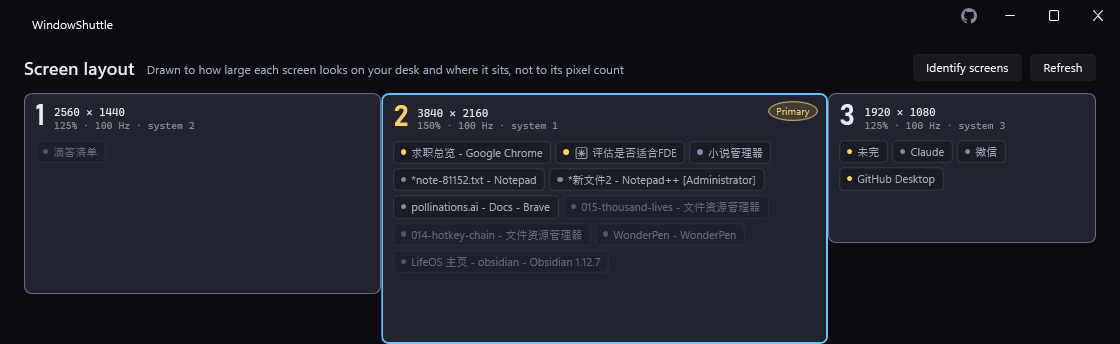
Getting a window onto another monitor should not be a drag across the desk. Hold Ctrl and the right button, flick toward the screen you want, and the window under your cursor is already there. Need the whole screen instead? One hotkey trades every window between the screen you're on and the primary. WindowShuttle lives in the tray and works out of the box.
Ctrl + right button, throw the pointer at a screen, let go. You were already pointing at it, so there is no screen number to translate first. Misflicked? Ctrl + middle-click puts it back.| Area | Support |
|---|---|
| Windows | 10 or 11 |
| Architecture | x64. Only x64 builds are published — there is no native ARM64 one |
| .NET | Not needed for the standalone build; the smaller one wants the .NET 10 desktop runtime |
| Monitors | Two or more. The screen-to-screen actions need at least two; on a single screen they answer Only one screen (or nothing to do) and move nothing |
| Mixed DPI / resolutions | Supported, and the point of the thing: geometry is rescaled for the target screen instead of copied pixel-for-pixel |
| Admin-owned windows | Need WindowShuttle itself to run elevated — see Known limitations |
⬇ Get the latest release — Windows x64.
WindowShuttle-<version>-win-x64.zip — standalone; nothing else required. Unzip and run. Take this if you're unsure.WindowShuttle-<version>-win-x64-needs-dotnet10.zip — the same app without the bundled runtime; requires the .NET 10 desktop runtime already installed on the machine. Much the smaller download; the release page prints both sizes.WindowShuttle.exe — that same build as the zip above, with no zip around it: click, run, or drop it over your existing copy to update. Windows offers the runtime download if it is missing.All three unpack to (or already are) the same single-file WindowShuttle.exe — no installer, no account. The only difference is startup cost: the standalone exe unpacks itself to a temp folder on every launch, which makes it slower to start than the runtime-installed build — most visibly on a one-shot CLI call like list. That gap doesn't touch the resident tray app or hotkey response — it's paid once at launch either way, not on every swap.
The exe isn't code-signed, so Windows SmartScreen warns on first run: click More info → Run anyway.
When something goes wrong. If an action ever dies mid-step, the app recovers, keeps running, and says so on a card — the details are appended to %APPDATA%\WindowShuttle\crash.log. The same log catches side failures (a notification or map refresh that failed) without reversing a move that already completed. The file only exists if something actually went wrong; an empty search there is itself the answer.
Removing it. There is no installer, so there is nothing to uninstall — with one exception: if you ever ticked As administrator, WindowShuttle registered a scheduled task, and deleting the exe would leave that task behind, pointing every logon at a file that no longer exists. Untick Start with Windows first — that clears both the task and the registry entry — then delete the exe. Settings live in %APPDATA%\WindowShuttle and can go with it.
Six of the seven are in the tray menu and the CLI; Send by direction is mouse-gesture only, because a menu click or a command has no direction. Identify screens is a separate tool in the tray menu and the CLI. Two actions ship with a keyboard shortcut and four with a mouse gesture:
Below, "the window" means whatever your hand is on: a mouse gesture acts on the window under the pointer (as of the moment you pressed), while the keyboard, the tray menu and the CLI all act on the current foreground window (see Known limitations for why the two differ).
| Action | Shortcut | Mouse gesture | What it does |
|---|---|---|---|
| Swap screens | Ctrl+Alt+1 |
Alt + middle-click |
Swap every window between that screen and the primary; when it is already the primary, it swaps with the screen you last swapped with |
| Swap front windows | (unbound) | Alt + right-click |
Swap just the frontmost window of each of those two monitors |
| Send to primary | (unbound) | (unbound) | Send that window to the primary monitor and raise it |
| Send to next monitor | (unbound) | (unbound) | Send that window to the monitor on its right, wrapping to the leftmost, and raise it |
| Send by direction | (not applicable) | Ctrl + right, flick |
Flick toward a screen and the window under the cursor goes there. See Mouse gestures |
| Gather all | (unbound) | (unbound) | Gather secondary-screen and fully off-screen windows back to the primary; the automatic rescue below is also available |
| Undo | Ctrl+Alt+2 |
Ctrl + middle-click |
Restore the positions from before the last move |
There is also one tool that moves nothing: Identify screens, the button next to Refresh above the map. Press it and each screen flashes its own number in the middle — that's how you check that the arrangement Windows believes in matches the one on your desk. It takes no shortcut or gesture slot (it isn't a window-moving action); the tray menu and the identify command trigger it too.
Why only two hotkeys are bound out of the box, on purpose: a global hotkey takes that combination away from every application on the desktop, so WindowShuttle claims as little as it can get away with — Swap and Undo, because being unable to undo a bad move is the worst first impression a window-moving tool can make. The rest are yours to bind. Every action's shortcut slot shows one of three states: bound (normal), unbound (gray placeholder text, not an error), or conflict (red border + tooltip, when another program already holds that combination). Send by direction is the exception — it carries no shortcut at all, so its slot shows a dash and refuses to record. To release a bound hotkey, click its key slot and press Delete or Backspace — it clears back to unbound, saved immediately, no editing settings.json by hand required. After a successful capture the slot keeps keyboard focus (so Tab keeps its place) but stops listening; click it again to record another combination. Why Ctrl+Alt+<letter> is avoided by default: docs/design-notes.md.
Your hand is already on the mouse, so four gestures ship bound. Every action has a gesture slot next to its shortcut slot in the main window — click it and perform the gesture to record, Delete to clear.
| Modifier | Right button — this one window | Middle button — a pile of windows |
|---|---|---|
Ctrl — move this one |
Send by direction | Undo |
Alt — swap both ways |
Swap front windows | Swap screens |
Shift — left clear |
(empty) | (empty) |
The best cell goes to send-by-direction, because it is the one you reach for all day: point at a window, flick toward the screen you want, done. Of the three modifiers, Ctrl + right takes the least away — Shift + right is Explorer's "copy as path" extended menu, Alt + right is AltSnap's default resize gesture, and Ctrl + right has no widely-honoured meaning to collide with.
Undo sits right beside it, on the same modifier. Move windows by flicking and you will misflick sooner or later; having to reach for the keyboard at that moment breaks the whole flow. So the Ctrl row reads "I am moving windows" — right sends it away, middle takes it back.
Two clues instead of four facts. The button says how much: right sits under your finger and acts on the one window beneath the cursor; middle takes a deliberate press and moves a pile at once — that holds for the whole middle column (undo usually takes back exactly the kind of bulk move the middle column makes), so every action whose misfire costs the most is behind the button you have to press on purpose. The modifier says what: Ctrl moves or takes back, Alt exchanges — one window and whole screen versions of the same idea.
The Shift row is left clear, both for you and for Explorer and your browser: Shift + right-click (that extended menu) and Shift + middle-click (open a tab in the foreground) are things people use every day, so the defaults stay off them. When you want gestures of your own, that row is already free.
Send to primary, Gather all and Send to next monitor ship without a gesture — not because they are weak, but because there is already a way: send-to-primary is a flick toward the primary; gather-all's main job (windows stranded off-screen after unplugging a display) can be handled by the opt-in automatic rescue, with the manual one as a backstop; send-to-next is a flick to the right. All three are in the tray menu and the CLI, and recording a gesture for one is a single click. Binding one more cell costs another combination taken from other programs, and buys a path you already had.
rockbenben/WindowShuttle is a public repo on GitHub by rockbenben. Move windows between monitors without dragging — flick one across, or trade two screens whole · UI in 한국어 العربية ไทย हिन्दी | 多屏之间搬窗口不用拖:划一下送走一扇,或整块屏对调.
It declares the MIT license on GitHub.
Its maker tagged it for Windows. That is declared by the maker; Take My Repo has not tested it.
Open "Take it" on its page: Take My Repo writes an install plan for your machine and hands it to your AI agent (Claude Code, Codex or Cursor), which asks you before each step. Take My Repo has not tested it on any machine.
The Free Software Media System - Server Backend & API
➷ A robust Javascript library for capturing keyboard input. It has no dependencies.
The agent harness performance optimization system. Skills, instincts, memory, security, and research-first development for Claude Code, Codex, Opencode, Cursor and beyond.
Reverse engineer anything with agents, from app behavior down to native binaries.
Its last change on GitHub was on 2026-11-21. Take My Repo does not judge from that whether it is maintained.
Nobody has reviewed it on Take My Repo yet, which says nothing about its quality.
Take My Repo cannot say: it does not audit code and has not run WindowShuttle. What is known comes from GitHub. It declares the MIT license on GitHub. Its last change was on 2026-11-21. It has 1 stars, which measure popularity, not safety. Nobody has reviewed it on Take My Repo yet, which says nothing about its quality. Read the source before you run it. With "Take it", your AI agent shows each step and asks you before running it; README text is treated as data, not as instructions.