
tower-cli
Nextflow Tower CLI tool
- 55
- Apache-2.0
- 2 d ago
Repo seqeralabs/tower-cli, read from GitHub 2 d ago. seqeralabs has not joined Take My Repo.
In short
seqeralabs/tower-cli is a public repo on GitHub by seqeralabs. Nextflow Tower CLI tool. It declares the Apache-2.0 license on GitHub. It is written mainly in Java, has 55 stars and last changed on 2026-11-23. Nobody has reviewed it on Take My Repo yet, which says nothing about its quality. Read from GitHub on 2026-11-23.
tw CLI
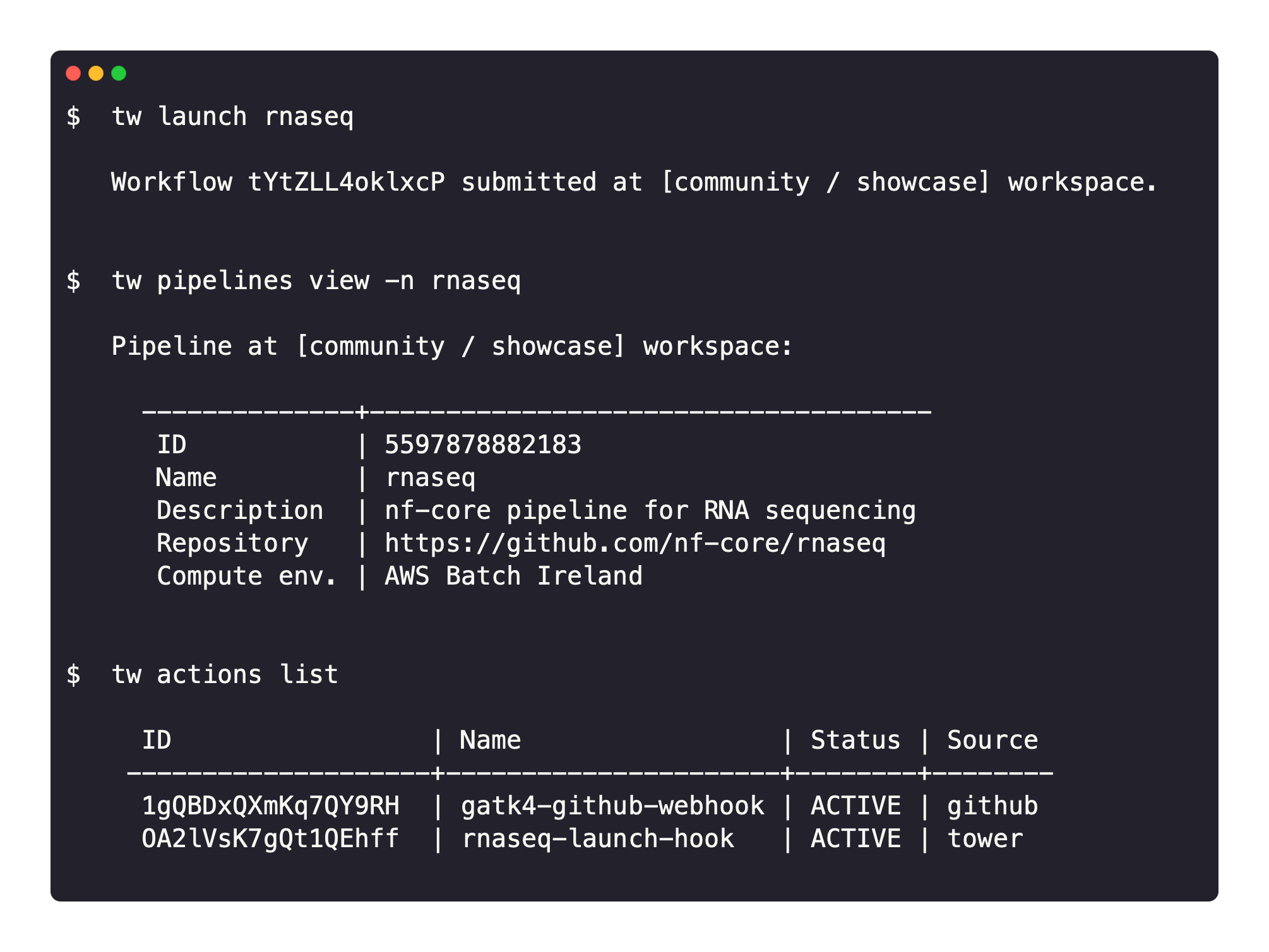
tw is Seqera Platform on the command line. It brings Seqera concepts like pipelines, actions, and compute environments to the terminal.
Seqera Platform is a full-stack application for the management of data pipelines and compute resources. It enables collaborative data analysis at scale, on-premises or in any cloud.
The CLI interacts with Seqera to provide an interface to launch pipelines, manage cloud resources, and administer your analysis.
The key features are:
A Nextflow-like experience: tw CLI provides a developer-friendly environment. Pipelines can be launched with the CLI similarly to Nextflow but with the Seqera benefits of monitoring, logging, resource provisioning, dataset management, and collaborative sharing.
Infrastructure as Code: All Seqera resources, including pipelines and compute environments, can be described in a declarative manner. This enables a complete definition of an analysis environment that can be versioned and treated as code. It greatly simplifies configuration sharing and routine administration.
Built on OpenAPI: tw CLI interacts with Seqera via the Seqera Platform API which uses the OpenAPI 3.0 specification. The CLI provides full control of the Seqera application, allowing users to get maximum insights into pipeline submissions and execution environments.
See the Seqera Platform documentation to learn more about the application.
Availability
tw CLI can be installed on macOS, Windows, and Linux.
It is compatible with Seqera Cloud and Enterprise versions 21.08 and later.
Getting Started
This guide covers the installation and configuration of the CLI, cloud infrastructure provisioning, and launching pipelines into an AWS Batch compute environment.
1. Installation
Download the latest version for your OS from the assets on the releases page.
Rename and make the file executable:
mv tw-* tw
chmod +x ./tw
Move the file to a directory accessible to your
$PATHvariable:sudo mv tw /usr/local/bin/
Alternative: Homebrew (Linux and macOS)
tw-cli is published to the Seqera Homebrew tap and can be installed like this:
brew install seqeralabs/tap/tw
2. Configuration
You need an access token for the CLI to interact with your Seqera instance. Select User tokens from the user menu in the Seqera UI, then select Add token to create a new token.
Copy the access token value and use it with the CLI in one of two ways:
Environment variable:
Export the token as a shell variable directly into your terminal:
export TOWER_ACCESS_TOKEN=<your access token>Add the
exportcommand to your.bashrc,.zshrc, or.bash_profilefile for it to be permanently added to your environment.
tw command flag:
Provide the access token directly in your
twcommand with--access-token:tw --access-token=<your access token> <other options>
If required, configure the following non-mandatory environment variables using the same methods above:
TOWER_WORKSPACE_ID: Workspace ID. Default: The user workspace.TOWER_API_ENDPOINT: Seqera API URL. Default:api.cloud.seqera.io.
You can find your
TOWER_WORKSPACE_IDfrom the Workspaces tab on your organization page. Alternatively, you can list all the workspaces your token can access withtw workspaces listand copy the workspace ID from the command output.
3. Health check
Confirm the installation, configuration, and connection:
$ tw info

    System health status
    ---------------------------------------+------------------
     Remote API server connection check    | OK
     Tower API version check               | OK
     Authentication API credential's token | OK
tw CLI commands
See Usage for detailed instructions to use the CLI.
Autocompletion
Activate autocompletion in your current session with this command:
source <(tw generate-completion)
Custom SSL certificate authority store
If you are using a Private CA SSL certificate not recognized by the default Java certificate authorities, use a custom cacerts store:
tw -Djavax.net.ssl.trustStore=/absolute/path/to/cacerts info
You can also set the trustStore's password in case you are not using the default password which is changeit:
tw -Djavax.net.ssl.trustStore=<path_to_user_keystore> -Djavax.net.ssl.trustStorePassword=<yourPassword> info
You can rename the binary to tw-binary and create a tw script to automatically include the custom cacerts store in every session:
#!/usr/bin/env bash
tw-binary -Djavax.net.ssl.trustStore=/absolute/path/to/cacerts $@
Build binary development versions
tw CLI is a platform binary executable created by a native compilation from Java GraalVM. To compile and build a development version of the binary:
If necessary, install SDKMan!
From the root of the tower-cli project, install GraalVM:
sdk env installThis ensures that SDKMan uses the tower-cli project-specific
.sdkmanrcconfiguration.Update reflection metadata config for new Tower SDK version (optional)
This step is only needed if you are updating to a newer version of Tower SDK (io.seqera.tower:tower-java-sdk).
./gradlew runReflectionConfigGeneratorThe GraalVM reflection metadata generation relies on code paths being executed with the Tracing Agent to dynamically capture various execution paths and update the
conf/reachability-metadata.jsonfile (the unified GraalVM reachability metadata format, which replaces the legacyreflect-config.json,resource-config.json, etc.). This is a utility task that uses reflection to make calls to all classes in the Tower SDK package in order to capture and generate methods reflection metadata of any new fields/classes in Tower SDK.Additionally, for more complete coverage, run the test suite with the Tracing Agent enabled:
./gradlew test -Dtracing-agent=trueCreate the native client:
./gradlew nativeCompileThis will install a locally compiled version of
twin the nativeCompile directory:Produced artifacts: <tower-cli-repository-root>/build/native/nativeCompile/tw (executable) ======================================================================================================================== Finished generating 'tw' in 1m 6s. [native-image-plugin] Native Image written to: <tower-cli-repository-root>/build/native/nativeCompile BUILD SUCCESSFUL in 1m 8s 6 actionable tasks: 2 executed, 4 up-to-dateRun
tw:./build/native/nativeCompile/tw
Non-binary development versions
Run a non-binary development version by executing the ./tw script in the root of this repository.
License
Questions
What is tower-cli?
seqeralabs/tower-cli is a public repo on GitHub by seqeralabs. Nextflow Tower CLI tool.
Is tower-cli open source?
It declares the Apache-2.0 license on GitHub.
Does tower-cli run on macOS, Windows or Linux?
Its maker has not tagged a system, so it is unknown here. Its README says what it needs.
How do I install tower-cli?
Open "Take it" on its page: Take My Repo writes an install plan for your machine and hands it to your AI agent (Claude Code, Codex or Cursor), which asks you before each step. Take My Repo has not tested it on any machine.
Is tower-cli still maintained?
Its last change on GitHub was on 2026-11-23. Take My Repo does not judge from that whether it is maintained.