rea
Reverse engineer anything with agents, from app behavior down to native binaries.
- 477k
- TypeScript
- MIT
- 2 h ago
Native Video editing/trimming/compressing :movie_camera: library for React-Native
Repo shahen94/react-native-video-processing, read from GitHub 7 h ago. shahen94 has not joined Take My Repo.
shahen94/react-native-video-processing is a public repo on GitHub by shahen94. Native Video editing/trimming/compressing :movie_camera: library for React-Native. It declares the MIT license on GitHub. It is written mainly in Objective-C, has 1,290 stars and last changed on 2026-01-21. Nobody has reviewed it on Take My Repo yet, which says nothing about its quality. Read from GitHub on 2026-11-24.
Reverse engineer anything with agents, from app behavior down to native binaries.
npm install react-native-video-processing --save
yarn add react-native-video-processing
$ npm test or $ yarn test
Note: For RN 0.4x use 1.0 version, for RN 0.3x use 0.16
Open up android/app/src/main/java/[...]/MainApplication.java
Add import com.shahenlibrary.RNVideoProcessingPackage; to the imports at the top of the file
Add new new RNVideoProcessingPackage() to the list returned by the getPackages() method
Append the following lines to android/settings.gradle:
include ':react-native-video-processing'
project(':react-native-video-processing').projectDir = new File(rootProject.projectDir, '../node_modules/react-native-video-processing/android')
android/app/build.gradle: compile project(':react-native-video-processing')
AndroidManifest.xml: <uses-permission android:name="android.permission.READ_EXTERNAL_STORAGE" />
<uses-permission android:name="android.permission.WRITE_EXTERNAL_STORAGE"/>
In Xcode, right click your Xcode project and create New Group called RNVideoProcessing.
Go to node_modules/react-native-video-processing/ios/RNVideoProcessing and drag the .swift files under the group you just created. Press Create folder references option if not pressed.
Repeat steps 1 & 2 for the subdirectories RNVideoTrimmer, RNTrimmerView, and ICGVideoTrimmer and all the files underneath them. Make sure you keep the folders hierarchy the same.
Go to node_modules/react-native-video-processing/ios/GPUImage/framework and drag GPUImage.xcodeproj to your project's root directory in Xcode.
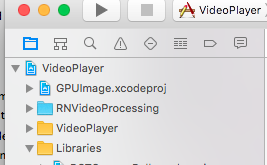
Under your project's Build Phases, make sure the .swift files you added appear under Compile Sources.
Under your project's General tab, add the following frameworks to Linked Frameworks and Libraries :
Add GPUImage.frameworkiOS to Embedded Binaries.
Navigate to your project's bridging header file <ProjectName-Bridging-Header.h> and add #import "RNVideoProcessing.h".
Clean and run your project.
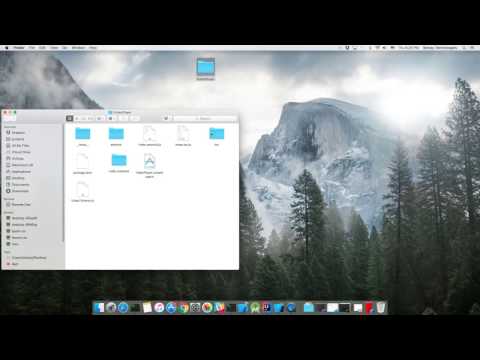
Check the following video for more setup reference.
build/android-ffmpeg.sh so it generates binaries (more info)./android.sh --lts --disable-arm-v7a-neon --enable-x264 --enable-gpl --speed. The command might finish with failed. That's okay because we modified the build script. Make sure every build outputs: ffmpeg: ok.ffmpeg binaries in prebuilt/[android-arm|android-arm64|android-x86|android-x86_64]/ffmpeg/bin/ffmpegandroid/src/main/jniLibs/[armeabi-v7a|arm64-v8a|x86|x86_64]/libffmpeg.so. Make sure you rename the binaries from ffmpeg to libffmpeg.so!import React, { Component } from 'react';
import { View } from 'react-native';
import { VideoPlayer, Trimmer } from 'react-native-video-processing';
class App extends Component {
trimVideo() {
const options = {
startTime: 0,
endTime: 15,
quality: VideoPlayer.Constants.quality.QUALITY_1280x720, // iOS only
saveToCameraRoll: true, // default is false // iOS only
saveWithCurrentDate: true, // default is false // iOS only
};
this.videoPlayerRef.trim(options)
.then((newSource) => console.log(newSource))
.catch(console.warn);
}
compressVideo() {
const options = {
width: 720,
height: 1280,
bitrateMultiplier: 3,
saveToCameraRoll: true, // default is false, iOS only
saveWithCurrentDate: true, // default is false, iOS only
minimumBitrate: 300000,
removeAudio: true, // default is false
};
this.videoPlayerRef.compress(options)
.then((newSource) => console.log(newSource))
.catch(console.warn);
}
getPreviewImageForSecond(second) {
const maximumSize = { width: 640, height: 1024 }; // default is { width: 1080, height: 1080 } iOS only
this.videoPlayerRef.getPreviewForSecond(second, maximumSize) // maximumSize is iOS only
.then((base64String) => console.log('This is BASE64 of image', base64String))
.catch(console.warn);
}
getVideoInfo() {
this.videoPlayerRef.getVideoInfo()
.then((info) => console.log(info))
.catch(console.warn);
}
render() {
return (
<View style={{ flex: 1 }}>
<VideoPlayer
ref={ref => this.videoPlayerRef = ref}
startTime={30} // seconds
endTime={120} // seconds
play={true} // default false
replay={true} // should player play video again if it's ended
rotate={true} // use this prop to rotate video if it captured in landscape mode iOS only
source={'file:///sdcard/DCIM/....'}
playerWidth={300} // iOS only
playerHeight={500} // iOS only
style={{ backgroundColor: 'black' }}
resizeMode={VideoPlayer.Constants.resizeMode.CONTAIN}
onChange={({ nativeEvent }) => console.log({ nativeEvent })} // get Current time on every second
/>
<Trimmer
source={'file:///sdcard/DCIM/....'}
height={100}
width={300}
onTrackerMove={(e) => console.log(e.currentTime)} // iOS only
currentTime={this.video.currentTime} // use this prop to set tracker position iOS only
themeColor={'white'} // iOS only
thumbWidth={30} // iOS only
trackerColor={'green'} // iOS only
onChange={(e) => console.log(e.startTime, e.endTime)}
/>
</View>
);
}
}
Or you can use ProcessingManager without mounting VideoPlayer component:
import React, { Component } from 'react';
import { View } from 'react-native';
import { ProcessingManager } from 'react-native-video-processing';
export class App extends Component {
  componentWillMount() {
    const { source } = this.props;
    ProcessingManager.getVideoInfo(source)
      .then(({ duration, size, frameRate, bitrate }) => console.log(duration, size, frameRate, bitrate));

    // on iOS it's possible to trim remote files by using remote file as source
    ProcessingManager.trim(source, options) // like VideoPlayer trim options
          .then((data) => console.log(data));

    ProcessingManager.compress(source, options) // like VideoPlayer compress options
              .then((data) => console.log(data));

    ProcessingManager.reverse(source) // reverses the source video
              .then((data) => console.log(data)); // returns the new file source

    ProcessingManager.boomerang(source) // creates a "boomerang" of the surce video (plays forward then plays backwards)
              .then((data) => console.log(data)); // returns the new file source

    const maximumSize = { width: 100, height: 200 };
    ProcessingManager.getPreviewForSecond(source, forSecond, maximumSize)
      .then((data) => console.log(data))
  }
  render() {
    return <View />;
  }
}
If this project was helpful to you, please

$ npm run commitshahen94/react-native-video-processing is a public repo on GitHub by shahen94. Native Video editing/trimming/compressing :movie_camera: library for React-Native.
It declares the MIT license on GitHub.
Its maker tagged it for macOS. That is declared by the maker; Take My Repo has not tested it.
A framework for building native applications using React
p5.js is a client-side JS platform that empowers artists, designers, students, and anyone to learn to code and express themselves creatively on the web. It is based on the core principles of Processing. Looking for p5.js 2.0? http://beta.p5js.org
Flutter makes it easy and fast to build beautiful apps for mobile and beyond
f.k.a. Awesome ChatGPT Prompts. Share, discover, and collect prompts from the community. Free and open source — self-host for your organization with complete privacy.
Open "Take it" on its page: Take My Repo writes an install plan for your machine and hands it to your AI agent (Claude Code, Codex or Cursor), which asks you before each step. Take My Repo has not tested it on any machine.
Its last change on GitHub was on 2026-01-21. Take My Repo does not judge from that whether it is maintained.
Nobody has reviewed it on Take My Repo yet, which says nothing about its quality.
Take My Repo cannot say: it does not audit code and has not run react-native-video-processing. What is known comes from GitHub. It declares the MIT license on GitHub. Its last change was on 2026-01-21. It has 1,290 stars, which measure popularity, not safety. Nobody has reviewed it on Take My Repo yet, which says nothing about its quality. Read the source before you run it. With "Take it", your AI agent shows each step and asks you before running it; README text is treated as data, not as instructions.