
pokemon-cards-css
A collection of advanced CSS styles to create realistic-looking effects for the faces of Pokemon cards.
- 8.5k
- CSS
- GPL-3.0
- 11 mo ago
🌅 Multiple beautiful VSCode gradient themes. 多个漂亮的VSCode渐变主题。
Repo shaobeichen/gradient-theme, read from GitHub 1 min ago. shaobeichen has not joined Take My Repo.
shaobeichen/gradient-theme is a public repo on GitHub by shaobeichen. 🌅 Multiple beautiful VSCode gradient themes. 多个漂亮的VSCode渐变主题。. It declares the GPL-3.0 license on GitHub. It is written mainly in CSS, has 192 stars and last changed on 2025-09-29. Nobody has reviewed it on Take My Repo yet, which says nothing about its quality. Read from GitHub on 2026-11-22.

English | 中文文档
Current repository link. If you like it, please give it a star!

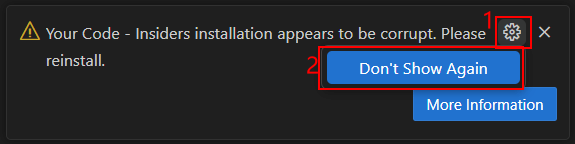
Although the warning will not affect any functionality, If you are very concerned about the VSCode "corrupted" warning prompt, it is not recommended to use this theme.
If you do not want to ignore the "corrupted" warning prompt, please consider carefully whether to use this theme.
To be honest, I was very mind at first, but after I ignored the "corrupted" warning prompt, I no longer cared.
|
Gradient Bearded Theme Arc
I added a gradient effect to in Bearded Theme Arc .
|
Gradient Dracula Theme
I added a gradient effect to in Dracula Theme .
|
 |
 |
|
Gradient Monokai Pro
I added a gradient effect to in Monokai Pro .
|
Gradient Monokai Pro Classic
I added a gradient effect to in Monokai Pro Classic .
|
 |
 |
|
Gradient Modern Dark
I added a gradient effect to in Modern Dark .
|
Gradient Atom One Dark
I added a gradient effect to in Atom One Dark .
|
 |
 |
|
Gradient Developer Theme Firefox Dark
I added a gradient effect to in Developer Theme .(Private paid customization is not available to the public)
|
Gradient Bearded Theme Arc Woodfishhhh
We added a gradient and glow effect to in Bearded Theme Arc . Thanks for woodfishhhh 's PR.
|
 |
 |
One day, I saw a video where someone modified the VSCode theme's CSS file themselves.
So I thought I could use the same method to create a VSCode gradient effect CSS file,
Then I started using Custom CSS and JS Loader plugin to load the custom gradient CSS,
Later, many people thought my gradient theme was very beautiful and wanted to use it on their own VSCode,
But to use it, they needed to install a plugin and I had to give them a CSS file, which was too troublesome!
So I learned how to make a VSCode theme plugin and made this gradient theme plugin.
Install the theme from the VSCode Marketplace.
Or
Search for Gradient Theme or gradient-theme in VSCode and install it.
After installation, you can choose the base theme, there is no gradient effect at this time, if you want to enable the gradient effect, please see the next step.
Why isn't the gradient effect enabled directly?
Because enabling the gradient effect will modify the core files of VSCode, which will be interpreted as "corrupted" by VSCode, and you may see a warning prompt when restarting the editor, but you can safely ignore this message.
If you don't want to ignore the warning prompt, please consider carefully whether to use this theme.

You can enable it by pressing Ctrl + Shift + P or Shift + ⌘ + P and selecting "Gradient Theme: Enable Gradient".
You can disable it by pressing Ctrl + Shift + P or Shift + ⌘ + P and selecting "Gradient Theme: Disable Gradient".

After enabling or disabling the gradient effect, there will be a prompt, click to restart the editor to see the gradient effect.
When you feel that the current gradient theme effect is not good, you can customize the gradient theme yourself.
Please note that if you have enabled custom gradient effects, regardless of which theme you switch to, the gradient effects will be displayed as your own.
At present, the first version of the custom theme function is simple, and it will be further improved in the future.
https://www.bilibili.com/video/BV1FemxYYEAv

Open the settings, search for 'gradient css', find' Gradient Theme: CSS', and click on 'edit in settings. json'.

Add custom CSS, array types, and support for writing multiple gradient styles in seting.json, but only one will take effect` 'enable' means true to enable this custom gradient theme CSS, 'false' means off, and 'css' means the content of the custom gradient theme CSS.
Note that CSS needs to be compressed into one line. The compression method can refer to [Online Compression Tool]( https://tool.chinaz.com/tools/cssformat.aspx ).

After writing CSS, you need to manually enable gradient and restart the editor. The method of enabling gradients is mentioned above in the document.
Please note that since enabling the gradient effect modifies the core files of VSCode, VSCode will interpret it as a "corrupted" core file, and you may see a warning prompt when restarting the editor, which you can safely ignore.
If you do not want to ignore the warning prompt, please consider carefully whether to use this theme.

If you are a Windows user, you may need to run VS Code with administrator privileges. For Linux and Mac users, Code must not be installed in a read-only location and you must have write permissions.
This theme is still being updated and optimized. I mainly use HTML, CSS, JS, TS, Vue, React, etc. for development, so although these languages and frameworks look good, other languages and frameworks may not be suitable for the theme. If you find any obvious problems, you can raise an issue, and I will resolve it as soon as possible.
I'm glad you're interested in this theme, and any suitable contribution is welcome.
git clone https://github.com/<YOUR-USERNAME>/gradient-themegit checkout -b my-new-featureThanks to Lun Dev for inspiring me to create this gradient theme. 🙏
Thanks to the authors of the following themes for their contributions to open source. 🙏 I made gradient effects for each theme based on the following themes.
shaobeichen/gradient-theme is a public repo on GitHub by shaobeichen. 🌅 Multiple beautiful VSCode gradient themes. 多个漂亮的VSCode渐变主题。.
It declares the GPL-3.0 license on GitHub.
Its maker tagged it for Windows and Linux. That is declared by the maker; Take My Repo has not tested it.
Open "Take it" on its page: Take My Repo writes an install plan for your machine and hands it to your AI agent (Claude Code, Codex or Cursor), which asks you before each step. Take My Repo has not tested it on any machine.
Its last change on GitHub was on 2025-09-29. GitHub counts 6 open issues and pull requests. Take My Repo does not judge from that whether it is maintained.
Nobody has reviewed it on Take My Repo yet, which says nothing about its quality.
A collection of advanced CSS styles to create realistic-looking effects for the faces of Pokemon cards.
🙃 A delightful community-driven (with 2,500+ contributors) framework for managing your zsh configuration. Includes 300+ optional plugins (rails, git, macOS, hub, docker, homebrew, node, php, python, etc), 140+ themes to spice up your morning, and an auto-update tool that makes it easy to keep up with the latest updates from the community.
Pytorch implementation of convolutional neural network visualization techniques
Create fluid and interactive gradient animations with this small javascript library.
把 DeepSeek Harness 装进你的口袋:电脑上跑 dsh web,手机扫码即同步访问(局域网 + 公网,实时同屏)Put DeepSeek Harness in your pocket: run dsh web on your computer and access it synchronously by scanning a QR code on your phone (LAN + public network, real‑time screen mirroring)
:school_satchel:Vue.js 初步进阶案例,路由懒加载,进入页面前登录判断,返回导航判断,RestAPI接口使用,组件封装,Vuex状态封装,keep-alive页面缓存等功能
📜 Vue3.2+Vite+TypeScript+Pinia+Setup写法,包括 命令式组件写法,Eslint Prettier规范,TypeScript入门写法