Wice
Windows Interface Composition Engine is a .NET C# UI engine for creating Windows application.
- 170
- C#
- 12 d ago
A one-exe file modern Windows file explorer with file viewers, multi-instance workflows, terminal integration, search capabilities, and deep Windows Shell interoperability
Repo smourier/ShellBat, read from GitHub 14 h ago. smourier has not joined Take My Repo.
smourier/ShellBat is a public repo on GitHub by smourier. A one-exe file modern Windows file explorer with file viewers, multi-instance workflows, terminal integration, search capabilities, and deep Windows Shell interoperability. It declares the MIT license on GitHub. It is written mainly in C#, has 10 stars and last changed on 2026-11-07. Nobody has reviewed it on Take My Repo yet, which says nothing about its quality. Read from GitHub on 2026-11-23.

A modern Windows file explorer with file viewers, multi-instance workflows, terminal integration, search capabilities, and deep Windows Shell interoperability.
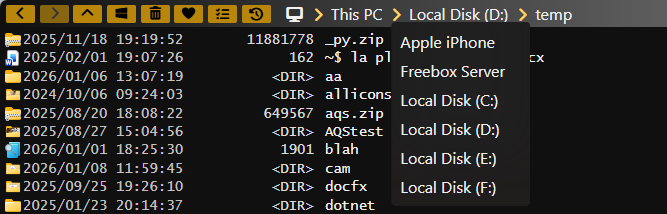
Details view:
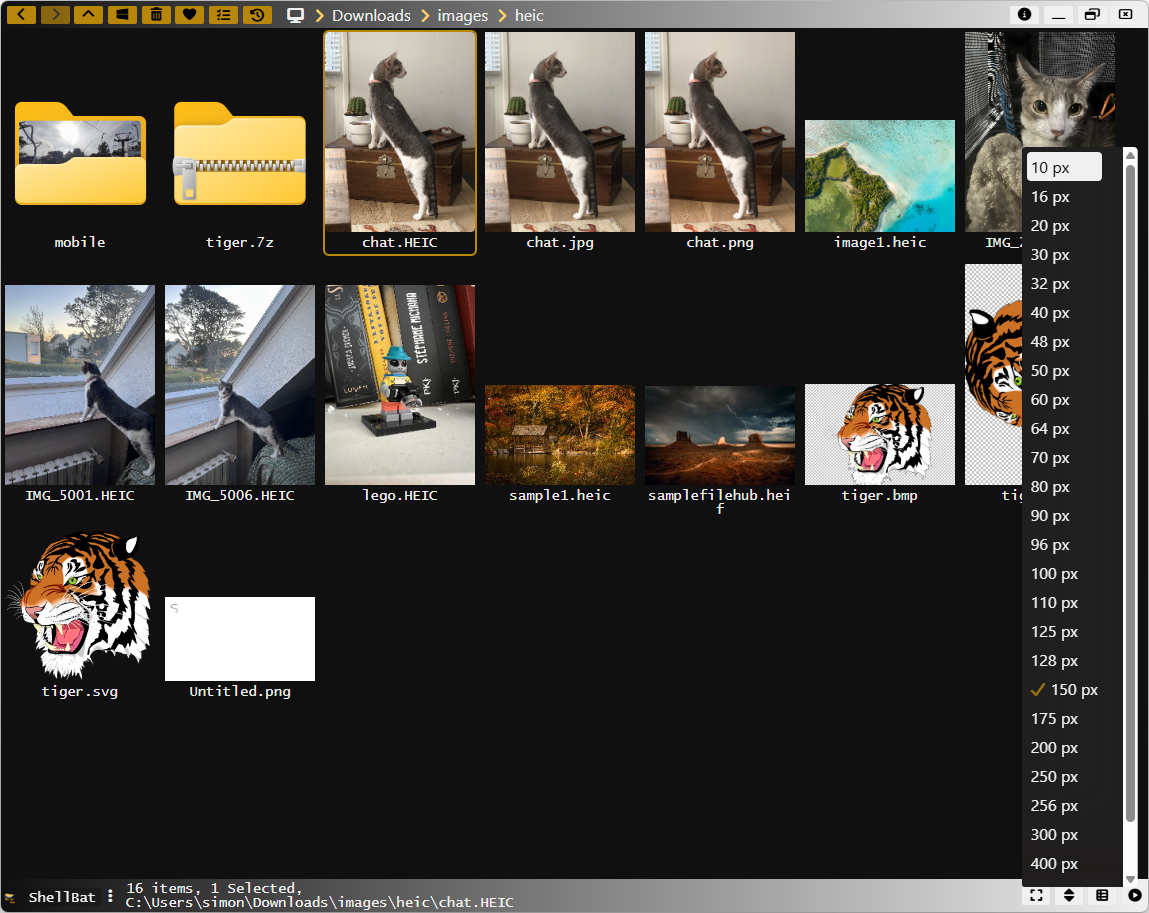
Thumbnails & previews view:
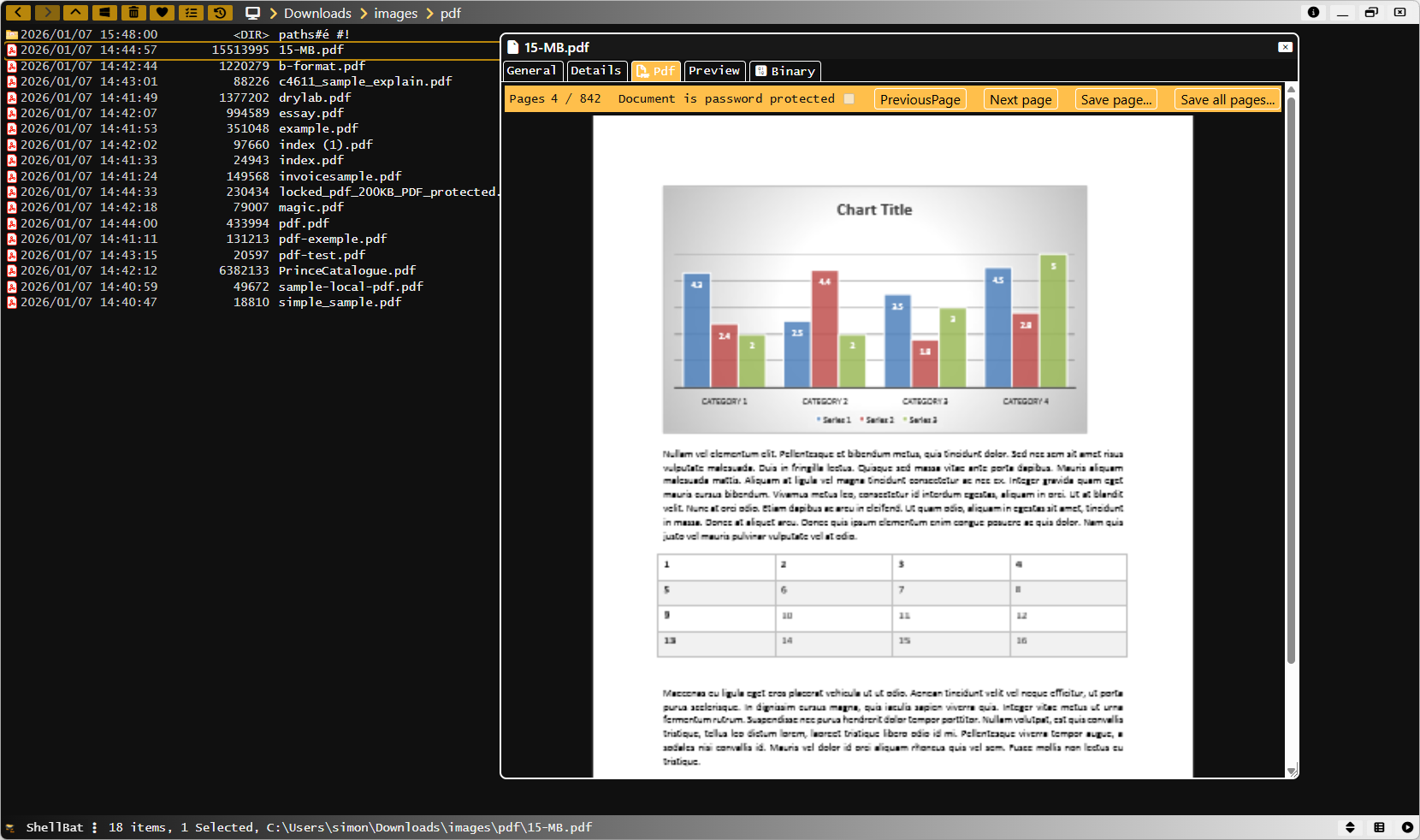
Integrated files viewers (here PDF):
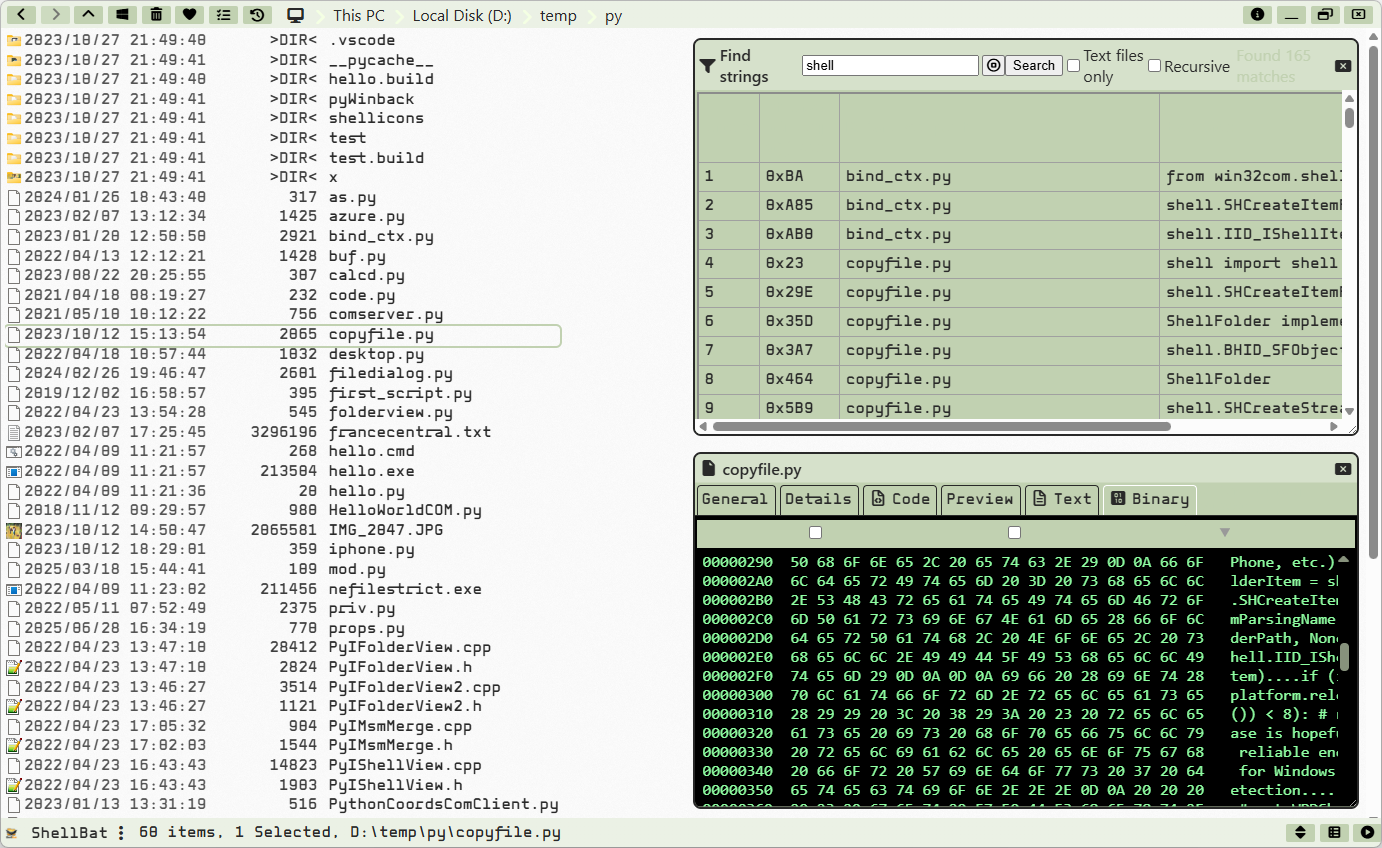
Customizable UI themes:
ShellBat is designed for power users who want flexibility, and a rich set of tools directly integrated into a single file (yes, just one unique ShellBat.exe file) application—while still offering a clean UX that works out-of-the-box without configuration. Developers benefit from its advanced viewers, Monaco-powered editor, binary inspection, raw string (ansi, unicode) search and Windows AQS Search.
It supports x64, x86 and ARM64 Windows 10 and higher and only requires the WebView2 runtime (preinstalled on most systems). It works fine in Windows Sandbox (WebView2 must be installed), Hyper-V VMs, and other virtual environments.
ShellBat provides multiple navigation paradigms:
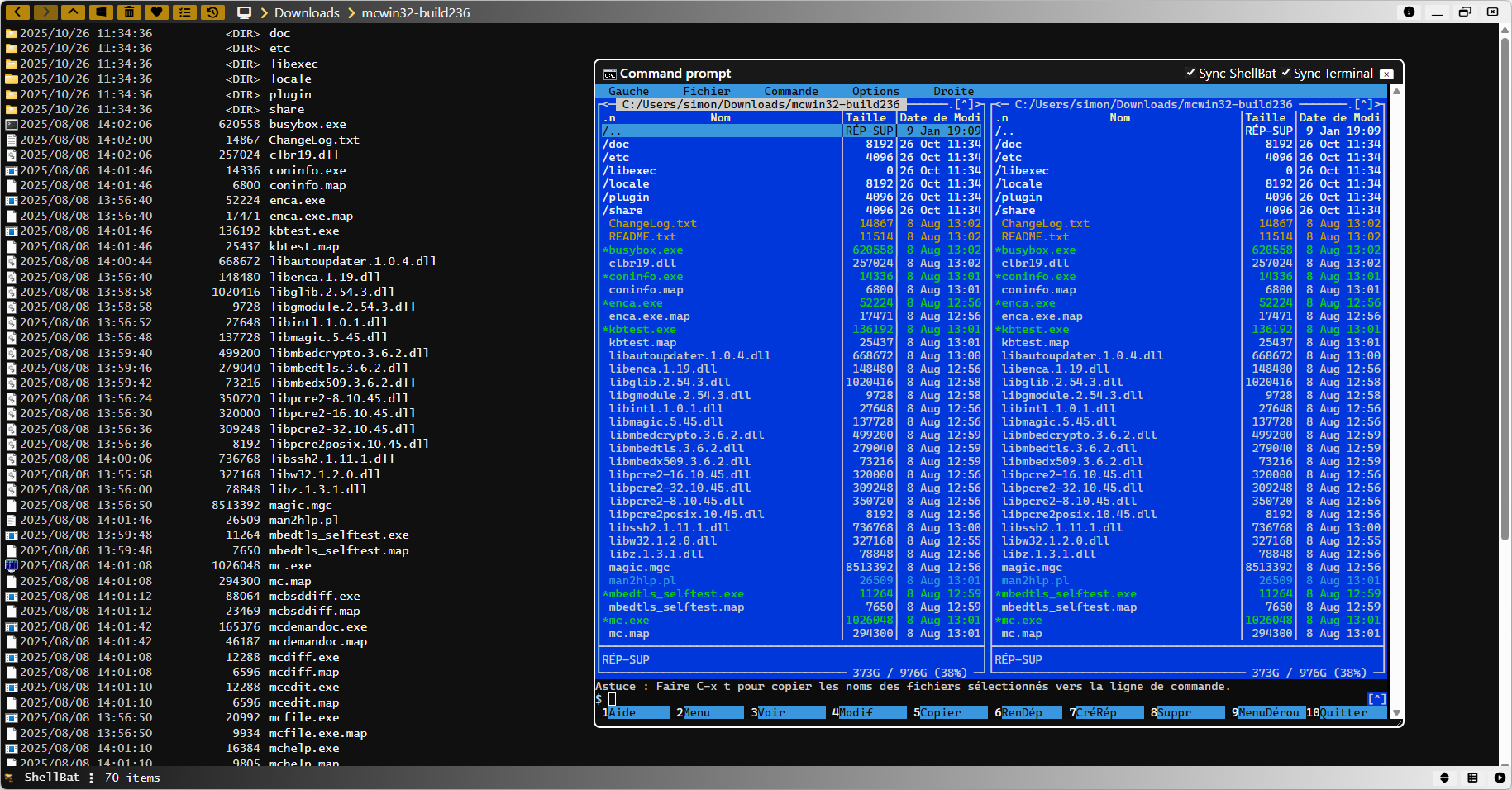
This screenshot represents ShellBat's main window showcasing its integrated terminal and file browsing capabilities, running Midnight Commander for Windows as an example.
::{CLSID}).
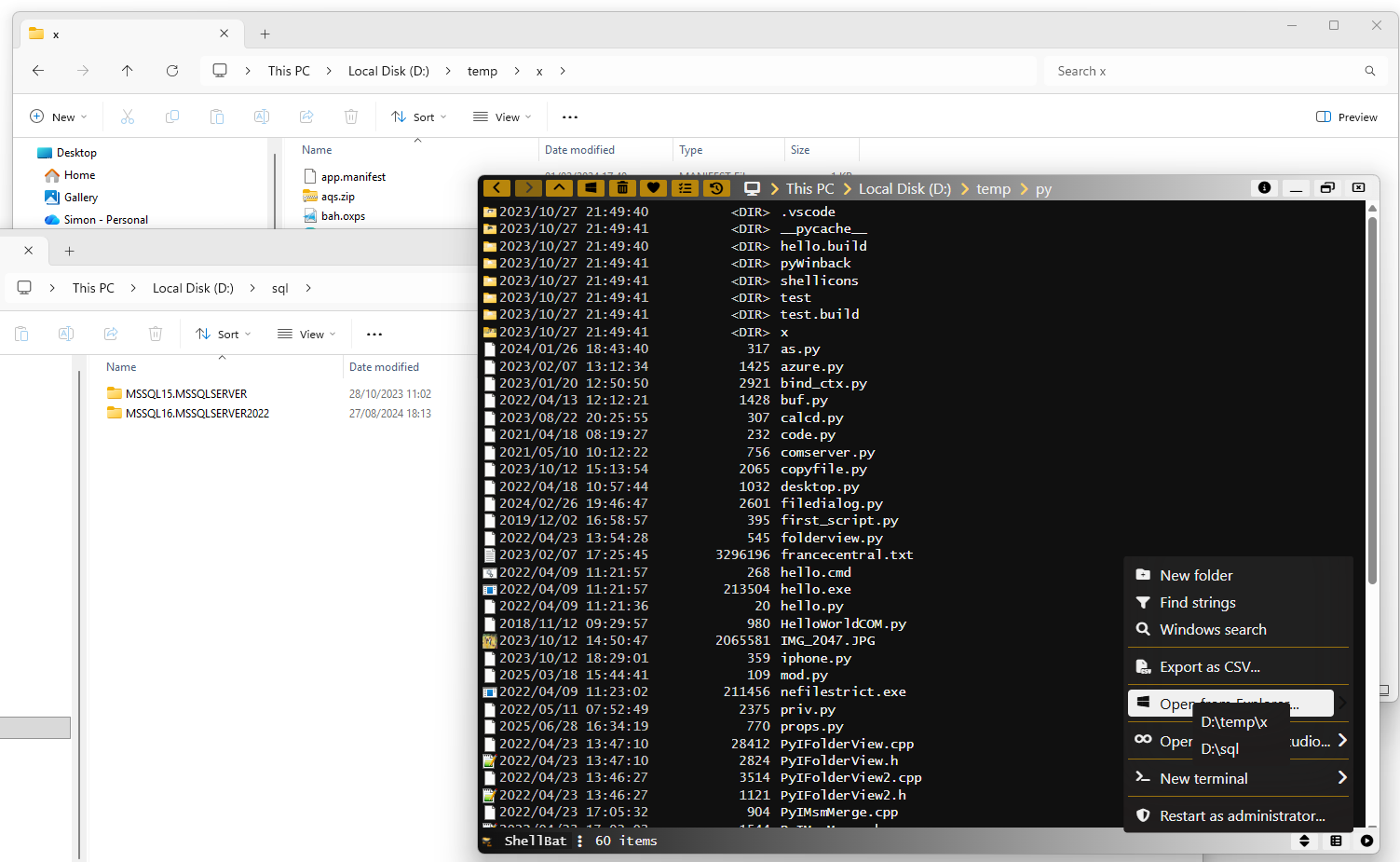
ShellBat can navigate to a folder from any open Windows Explorer instance on the Desktop, using the "Open From Explorer" context menu item.
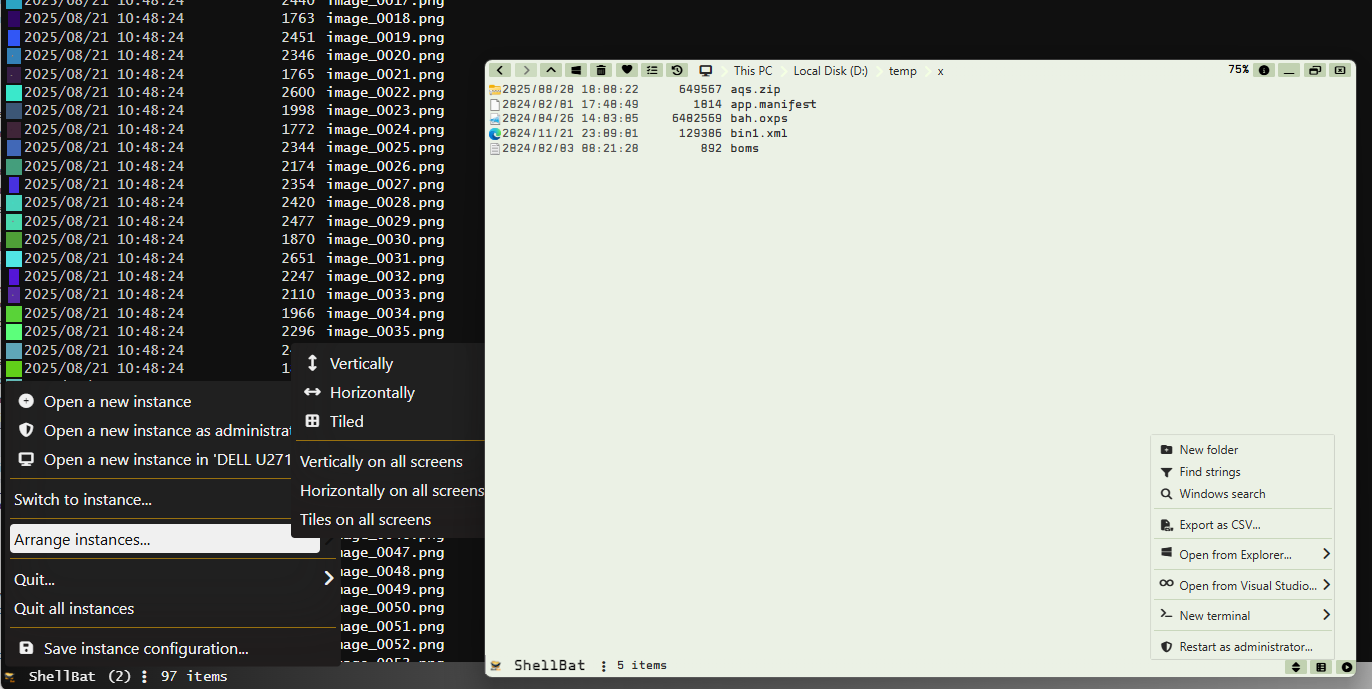
Here is an example of ShellBat proposing to open one of two folders from Explorer instances (d:\temp\x and d:\sql):
Similarly, ShellBat can navigate to a folder from any open Visual Studio instance (solution) on the Desktop, using the "Open From Visual Studio" context menu item. Here is an example of ShellBat proposing to open detected folders:
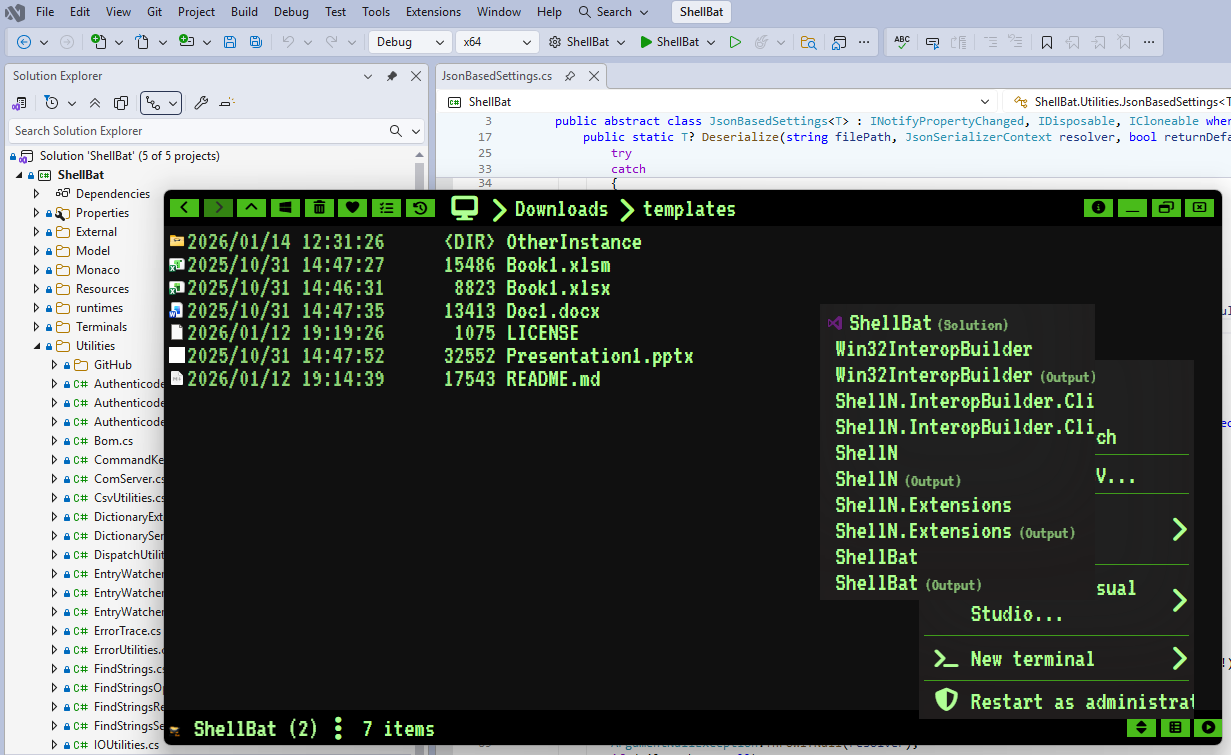 ShellBat is here using the VT323 theme :-)
ShellBat supports navigating inside compressed archive files as virtual folders for Shell items of .7z, .gz, .bz2, .tar, .rar, .tgz, .tbz2, .tzst, .txz, .zst, .xz types.
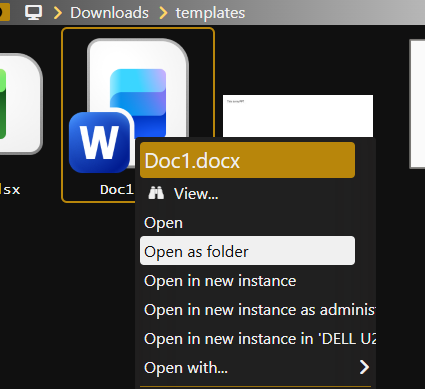
It also works for a number of well-known compressed image formats such as nupkg, .docx, .xlsx, .xlsm (more extensions may be added in the future) but you must use the "Open as Folder" menu item:

Full support for navigating through custom namespace extensions, Desktop, Recycle Bin, This PC, virtual folders, and custom shell extensions, like Apple iPhone.
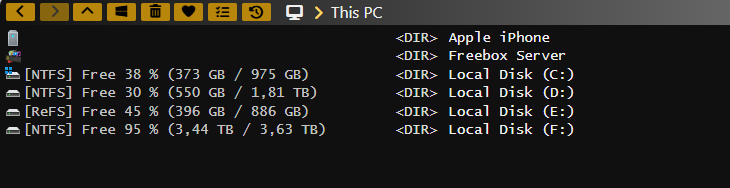
[!NOTE] Disk drives are displayed with their volume label, size and free space when available.
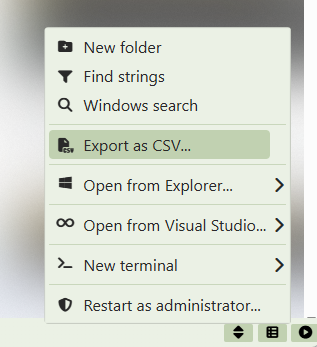
Users can export the current folder's content list as a .CSV file for further analysis or reporting. The file will be opened directly after export, which usually launches Microsoft Excel or the default CSV viewer.
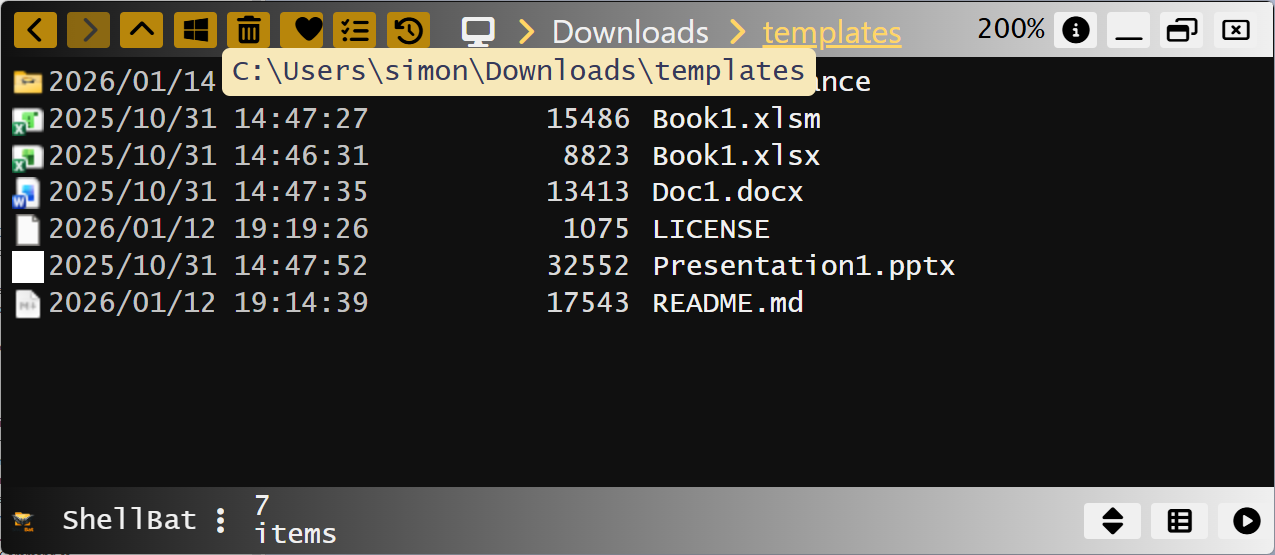 The view dynamically adapts to scaling, including high-DPI displays. Zooming (250% in the screenshot) can be adjusted with Ctrl + Mouse Wheel (only in Details-mode view).
Users can:
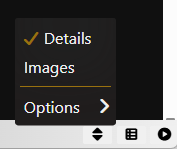
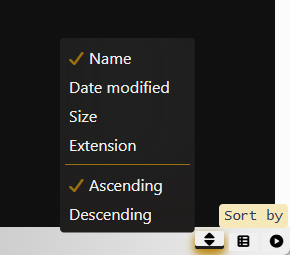
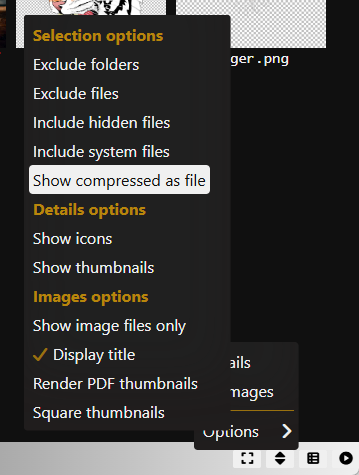
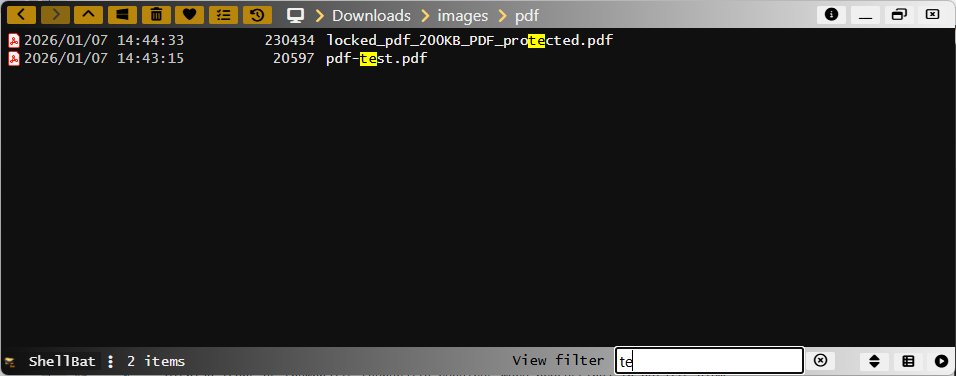
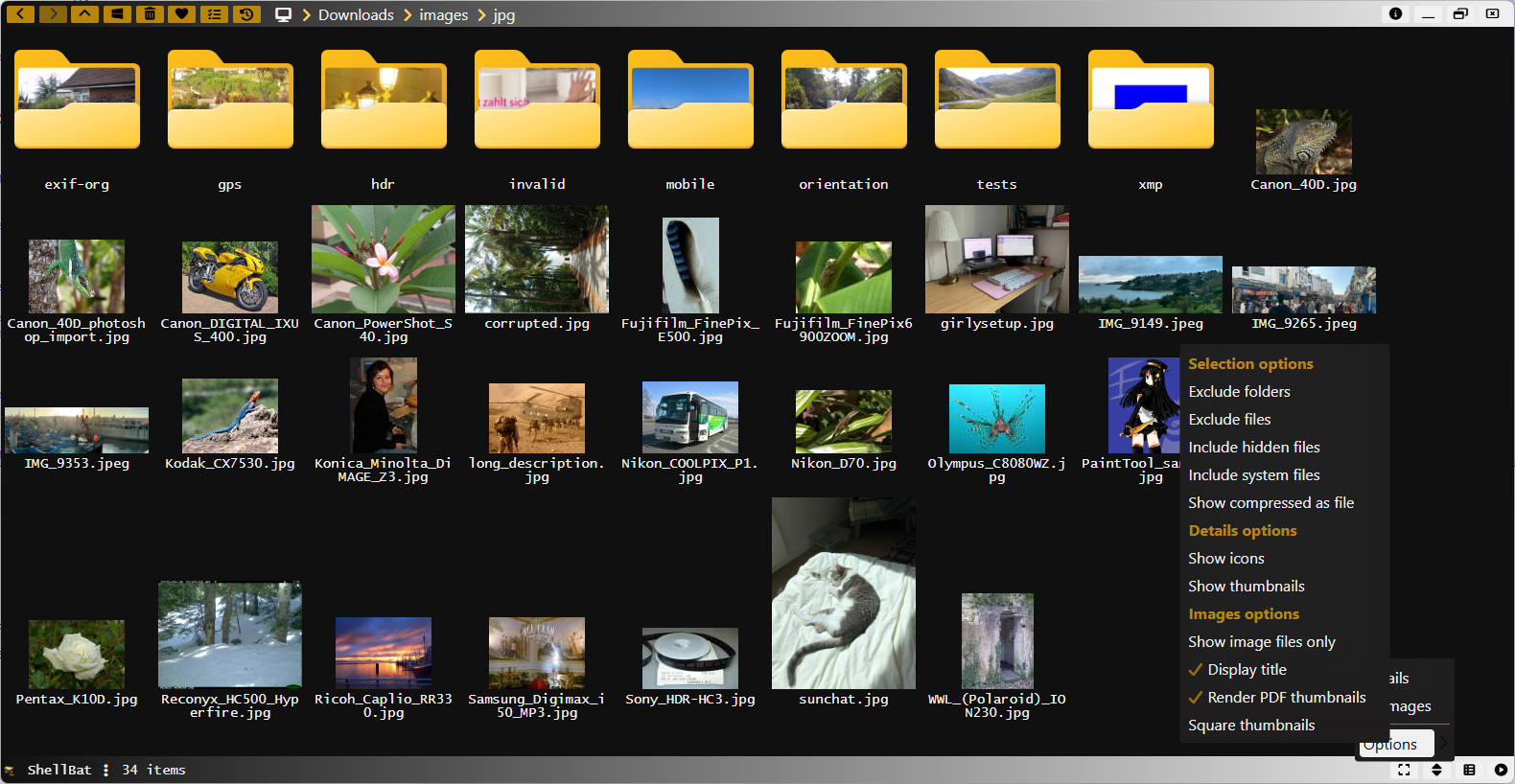 Image-mode view includes:
Thumbnails:
In the screenshot below, ShellBat is displaying a .HEIC image, which requires WIC codecs (which are available depending on your Windows version and your setup).
Square Thumbnails Example:
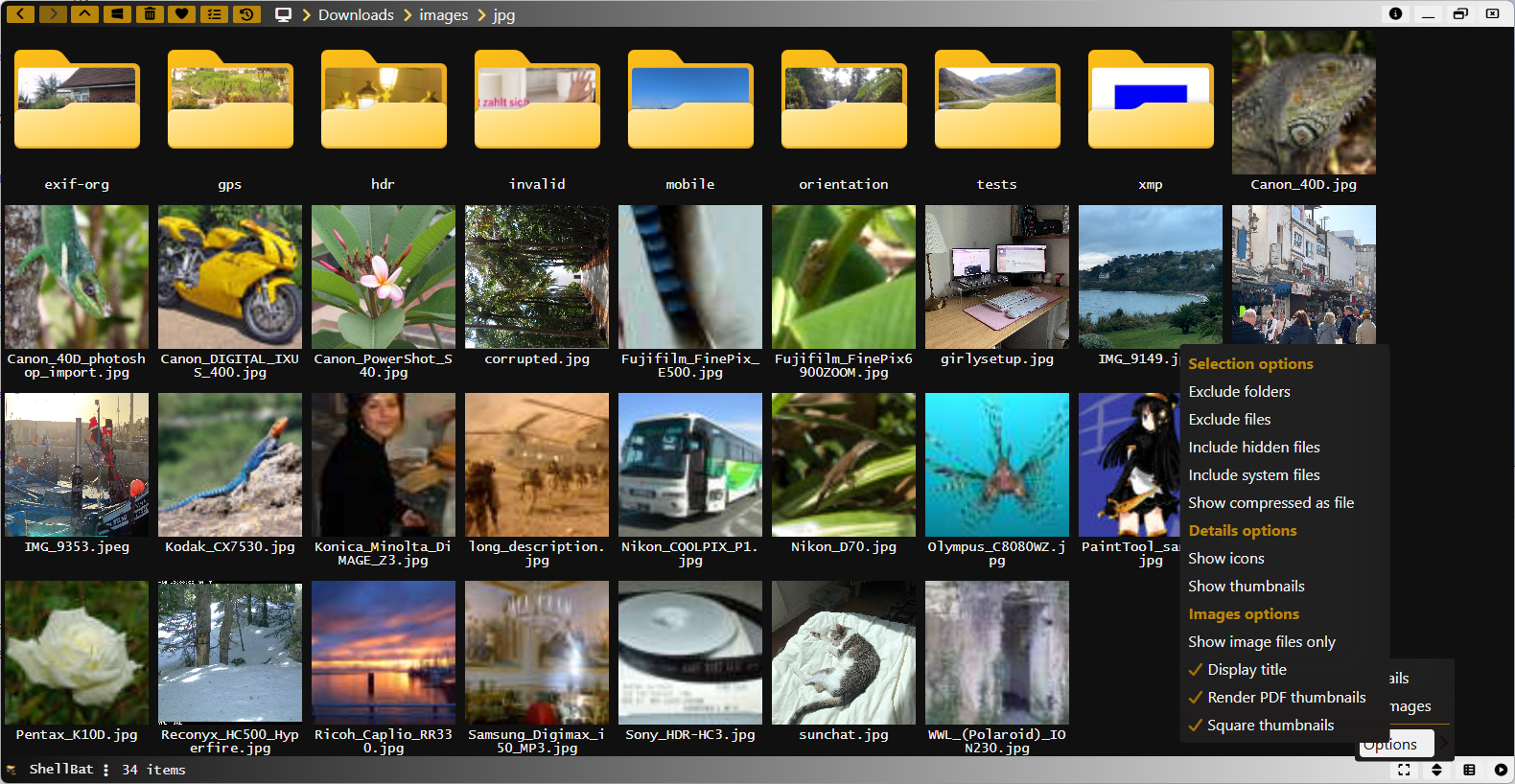 Perfect for photographers, designers, and anyone who prefers consistent visual grids.
Without Title:
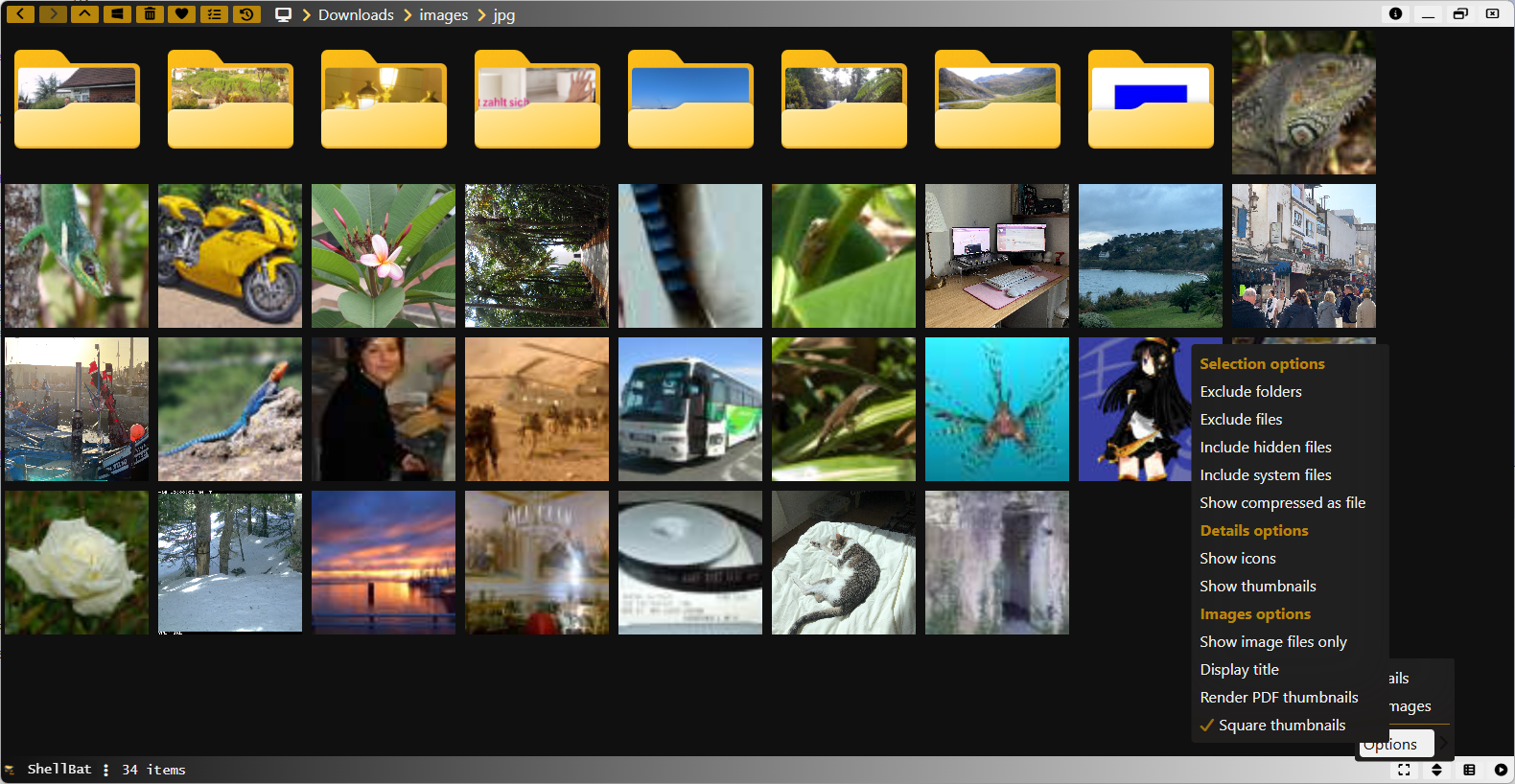 Allows rapid browsing of image sets in a dense, scrollable layout.
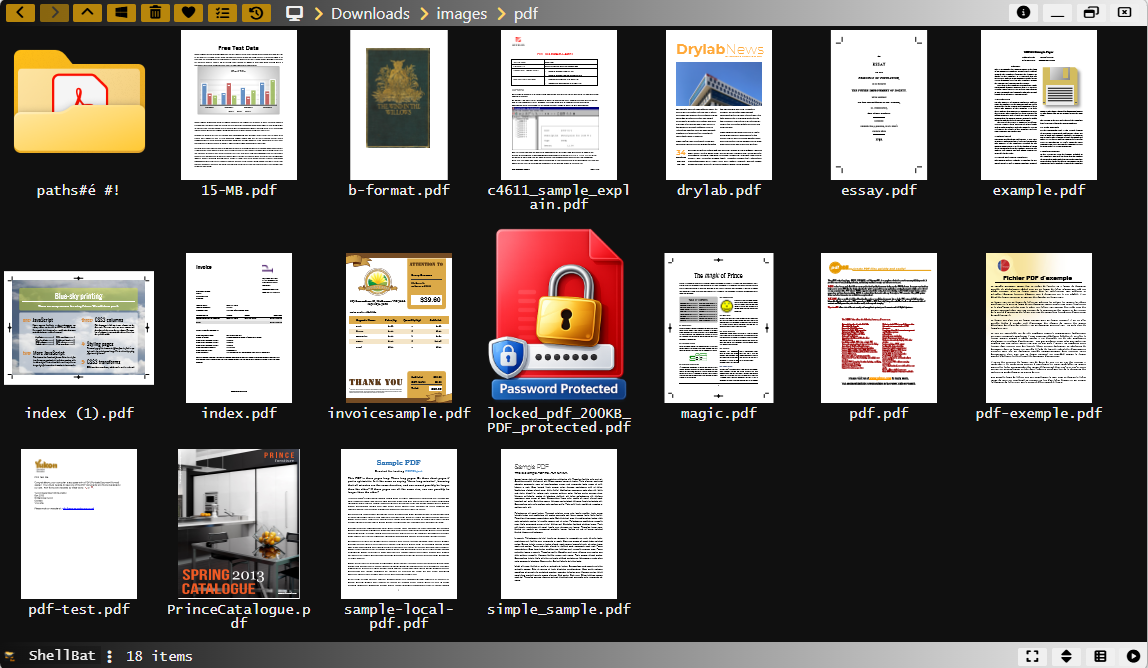
PDF Files as Images:
ShellBat includes an embedded context menu that allows access to standard Windows Shell actions as well as ShellBat-specific tools. It can be accessed by right-clicking any item. Available actions:
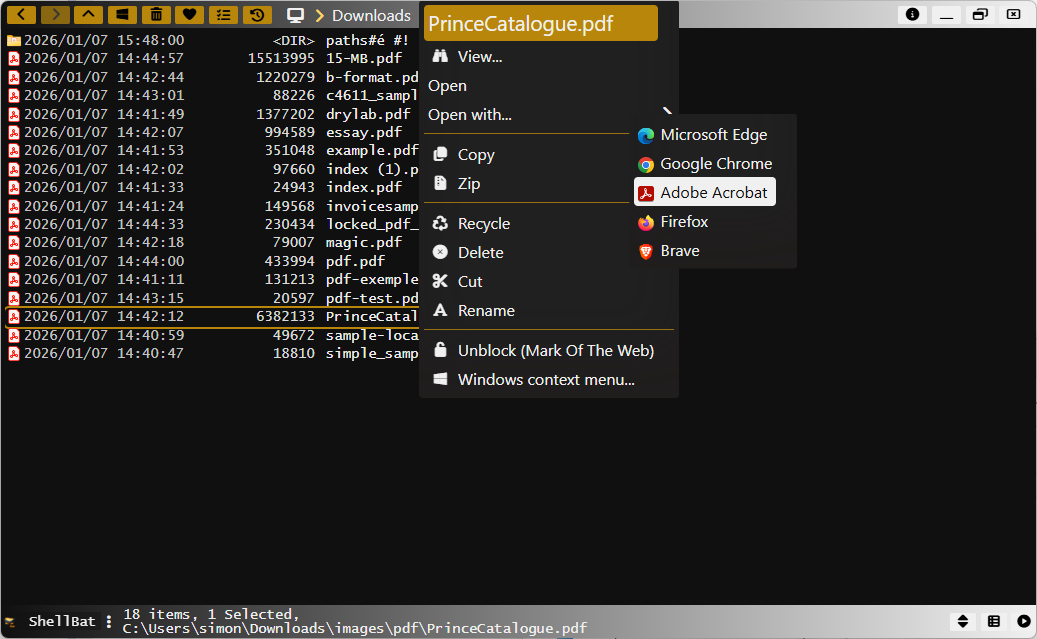
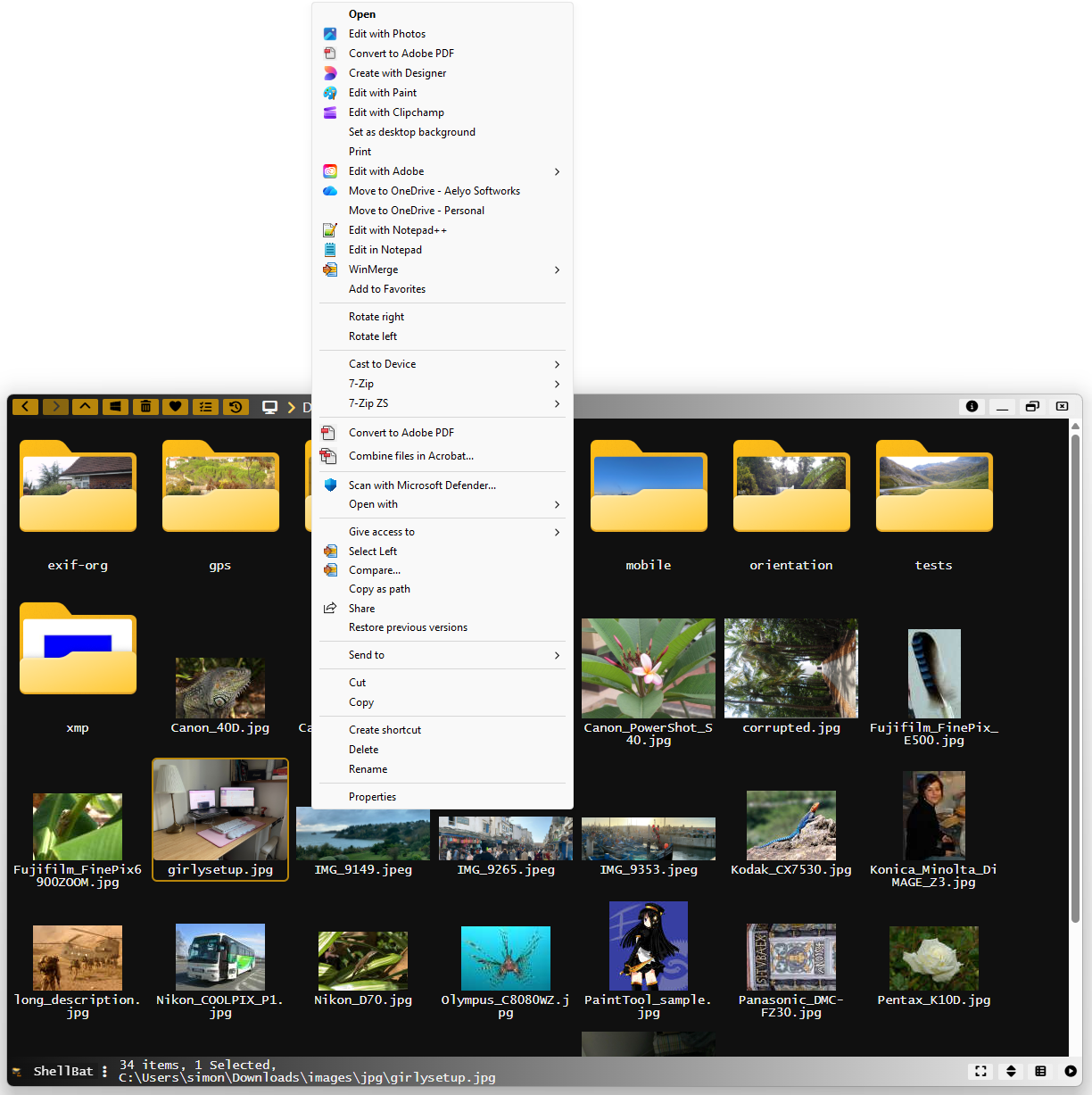
The standard Windows Shell context menu can be accessed from here using the "Windows context menu" item.
On the other way, ShellBat can be opened directly from the Windows Explorer context menu using the "Open With ShellBat" item.
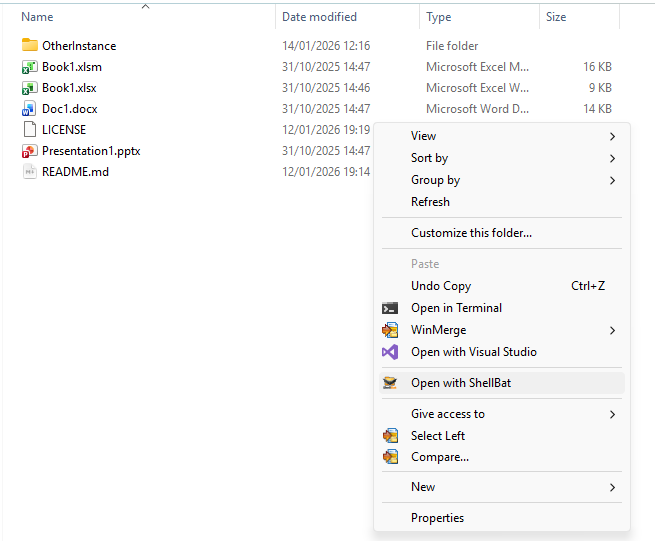
[!NOTE] This requires you to register ShellBat with the Windows Shell. This can be done easily from the upper right context menu in ShellBat, under Tools > Register Shell Extension. This must be done only once and will also register the
.ShellBatfile type as well (see Instancing chapter below).If you need to unregister it, you can do so from the same menu under Tools > Unregister Shell Extension.
ShellBat includes specialized viewers. Most of these viewers also work for virtual shell items, such as files inside compressed archives or special shell folders.
All viewers are displayed in an embedded window inside ShellBat window, containing one tab per viewer.
The list of available viewers is automatically determined based on the selected item type, and a default viewer is automatically selected when an item is selected. A given viewer can be pinned to have priority over default viewer selection.
[!NOTE] General, Details and Binary are always available.
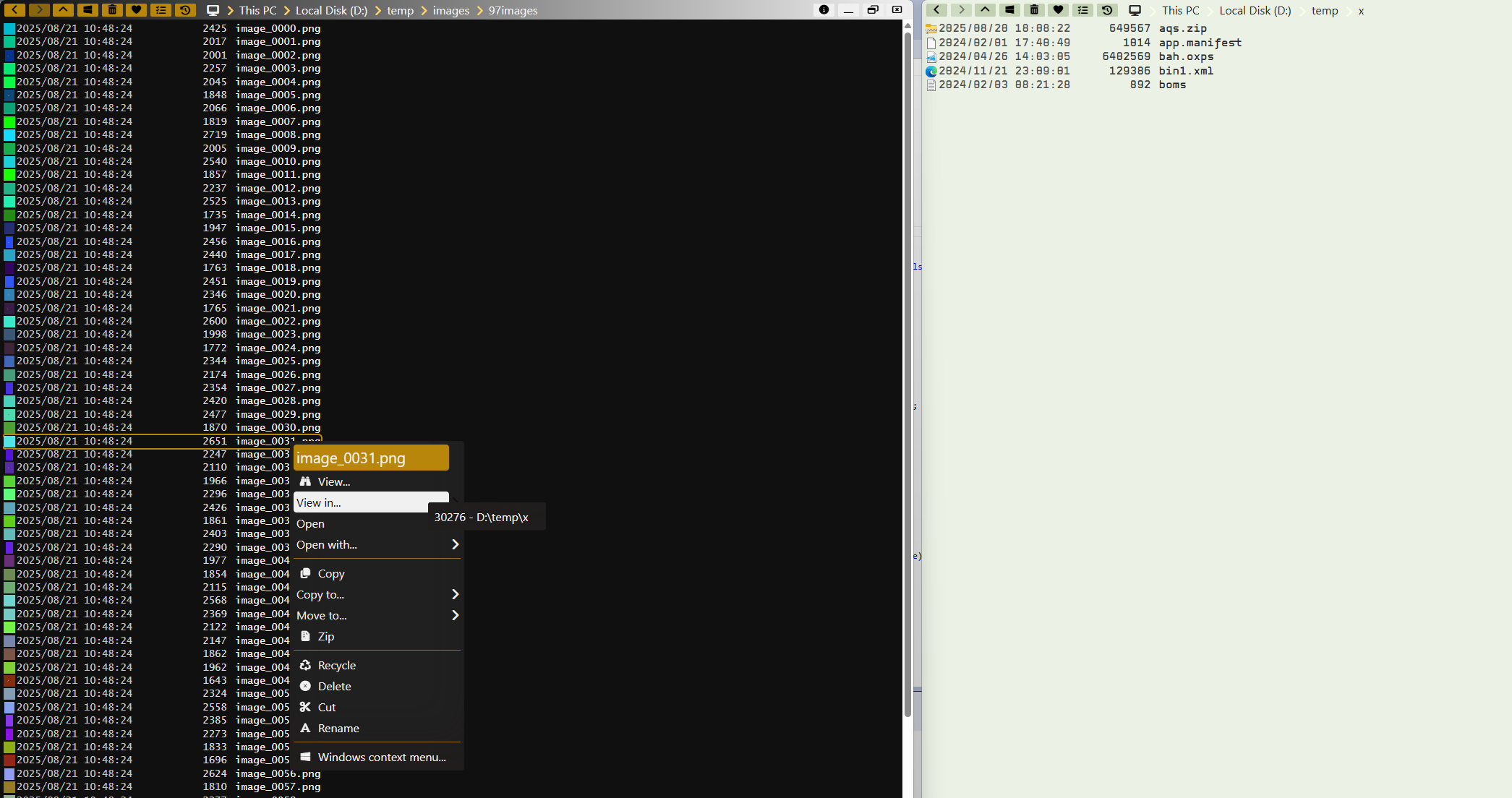
It's also possible to open another instance of the viewers window in another ShellBat instance using the context menu and clicking Shift + View in... menu item as shown here:
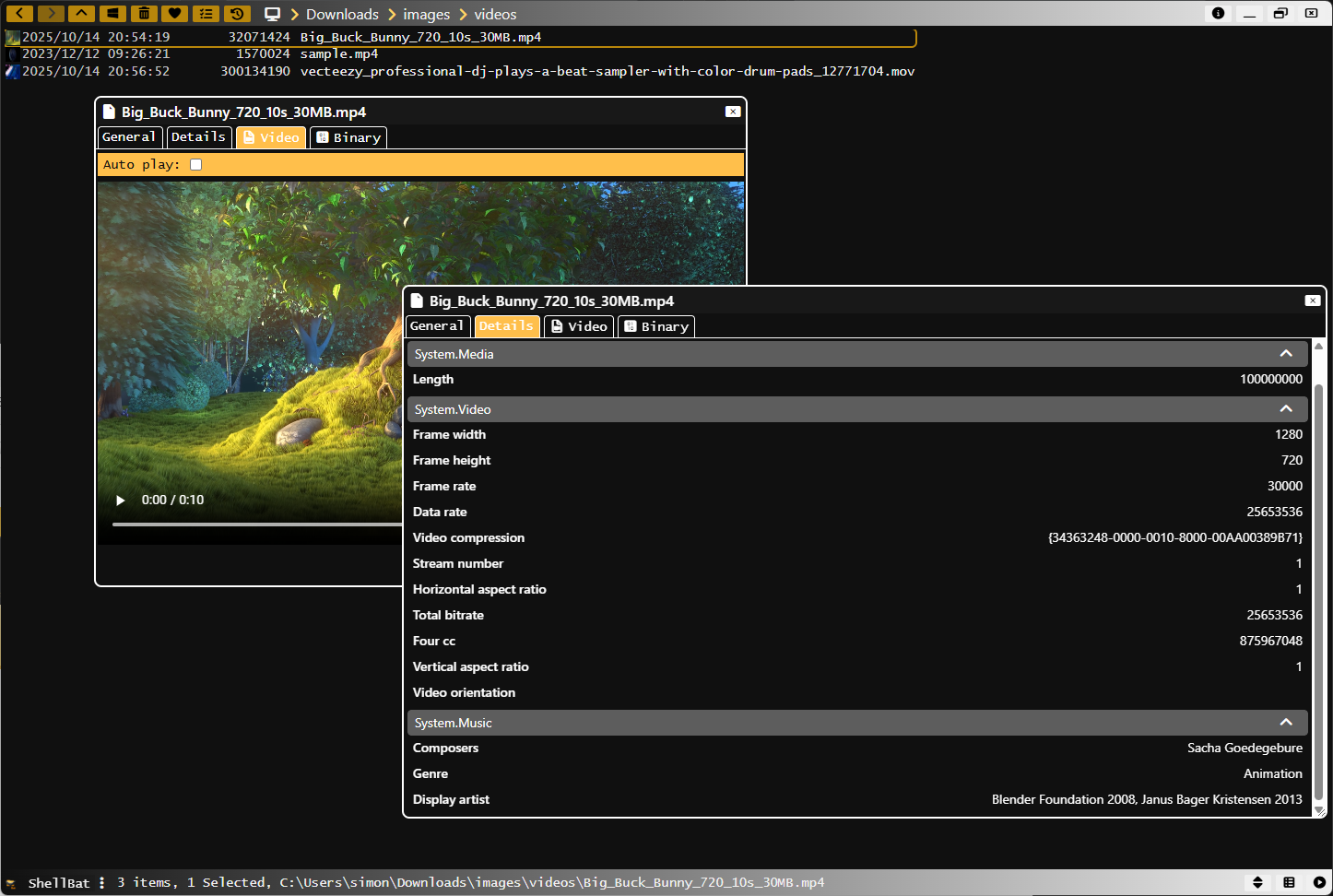
[!NOTE] In this mode, only one viewer tab will be updated when selecting items in the main instance.
A relatively simple viewer that displays classic file properties (name, size, dates, attributes).
.lnk).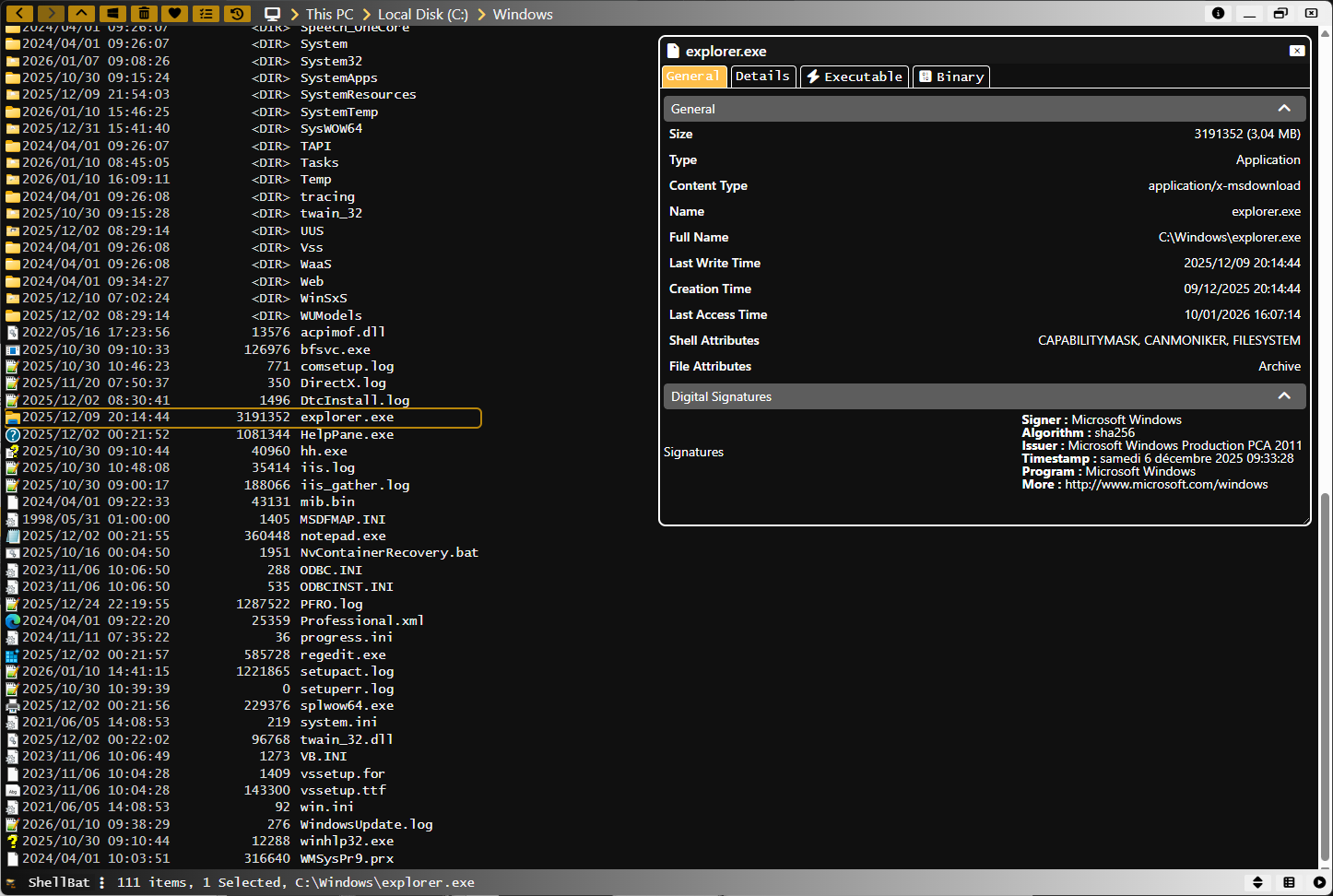
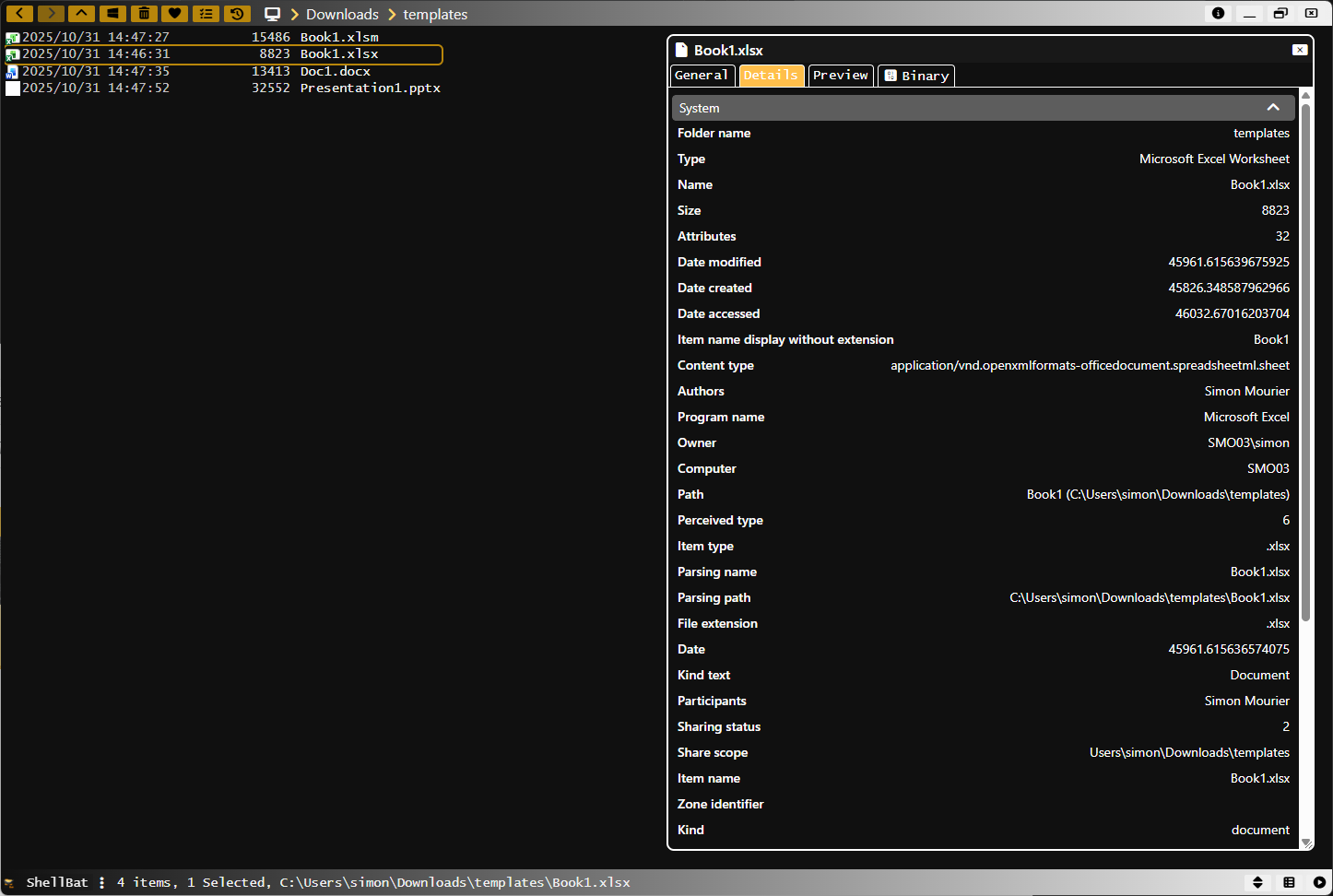
Displays detailed item properties (aka PROPERTYKEYs) using Windows Shell APIs. This includes standard properties (name, size, dates, attributes) as well as extended properties (Office information, EXIF data for images, audio metadata, etc.).
Supports previewing PDFs pages as images in Images view.
PDF viewer with next and previous page navigation.
Supports exporting each page as an image, or all pages as a list of images in a given directory.
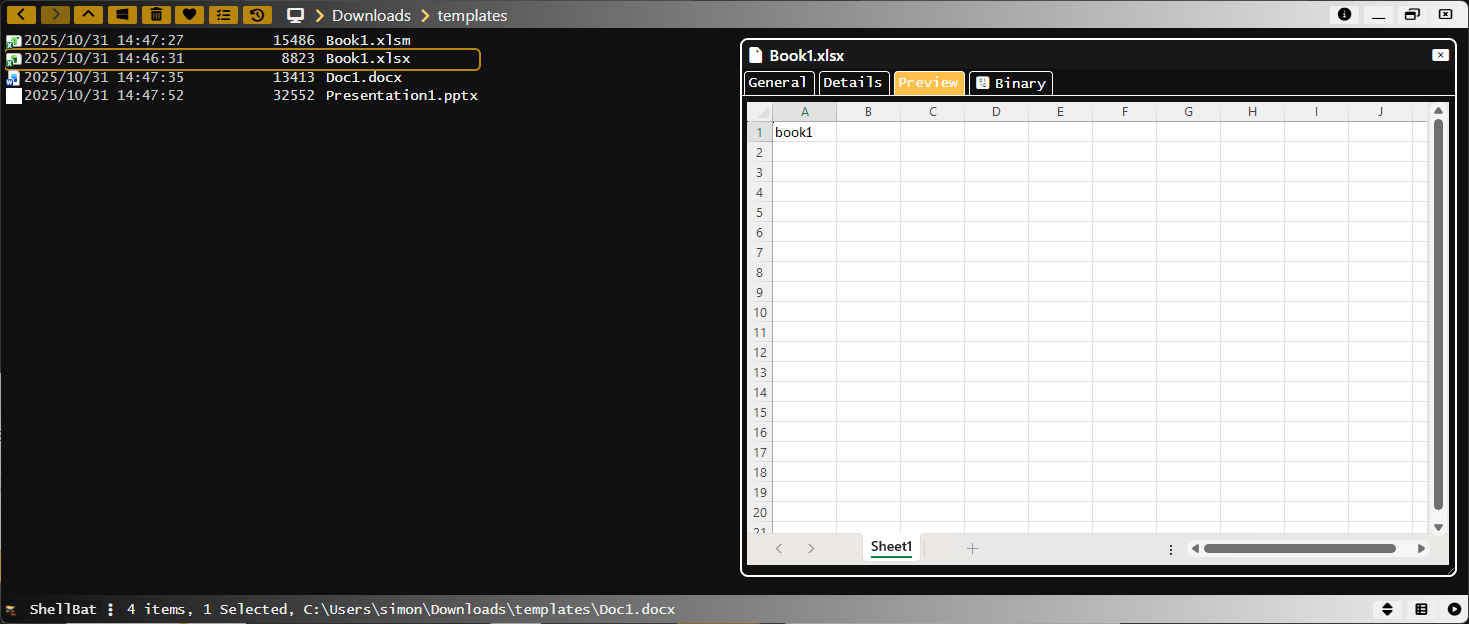
Office files (here Excel) and other supported document types can be previewed directly inside ShellBat, using system handlers when available.
This uses the same preview handlers as Windows Explorer, so any file type supported by Windows should be previewed here.
Displays images using WebView2 or Windows Imaging Component (WIC) depending on item type. Users can configure if the image is resized by width or height.
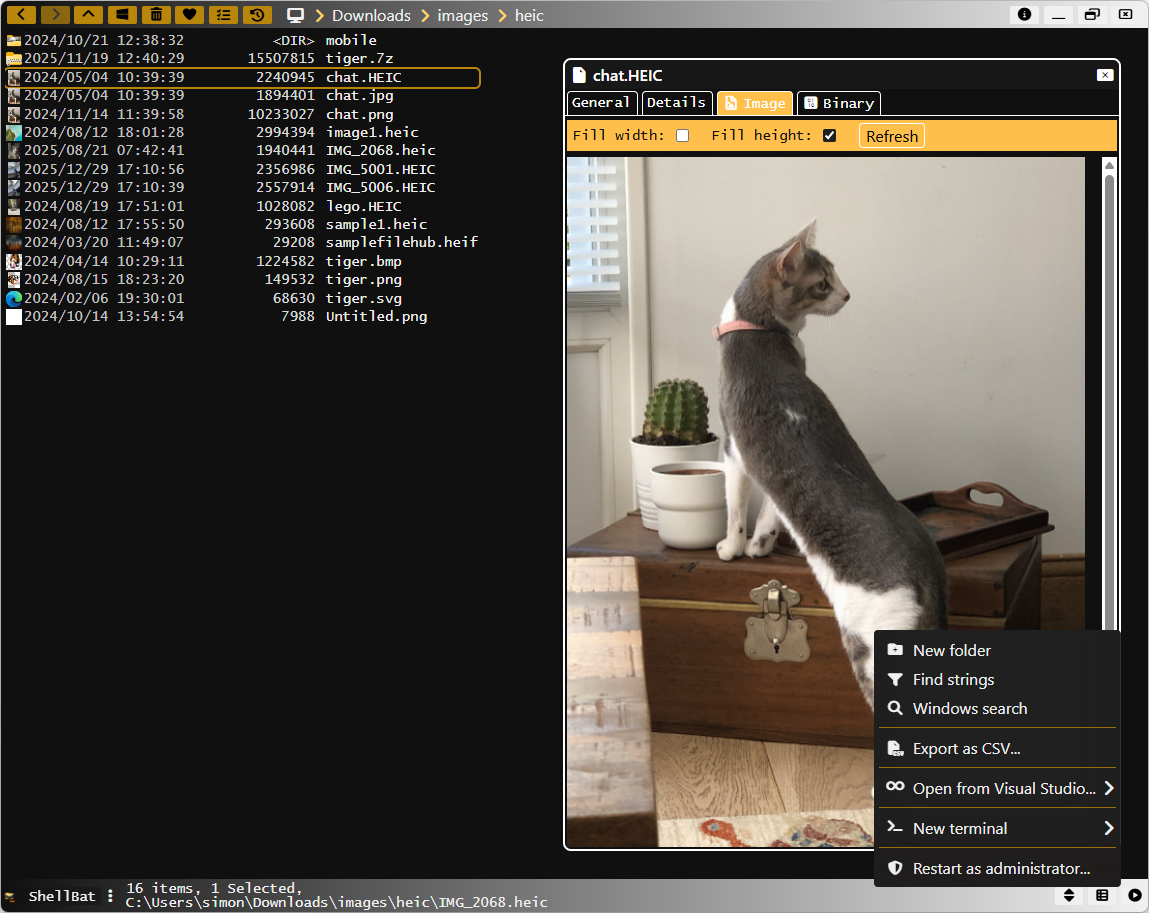
Includes metadata display, detail panes, and responsive playback UI.
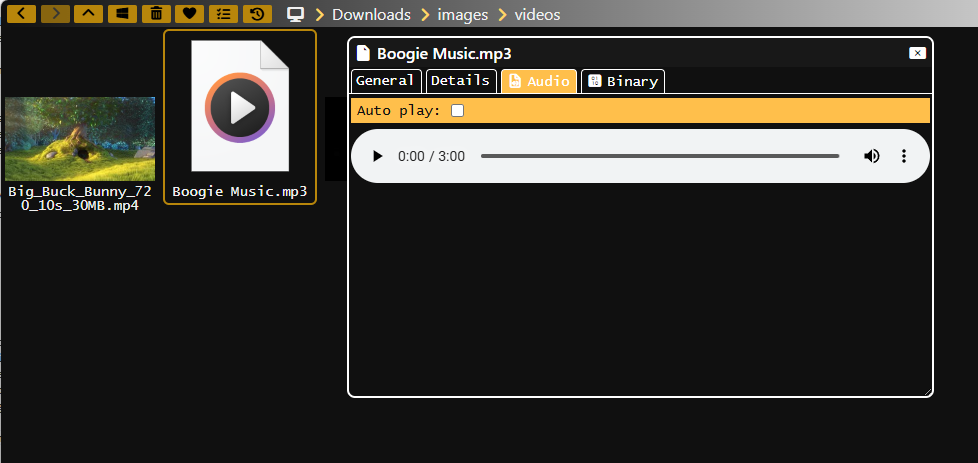
Supports playback and metadata visualization for common audio formats.
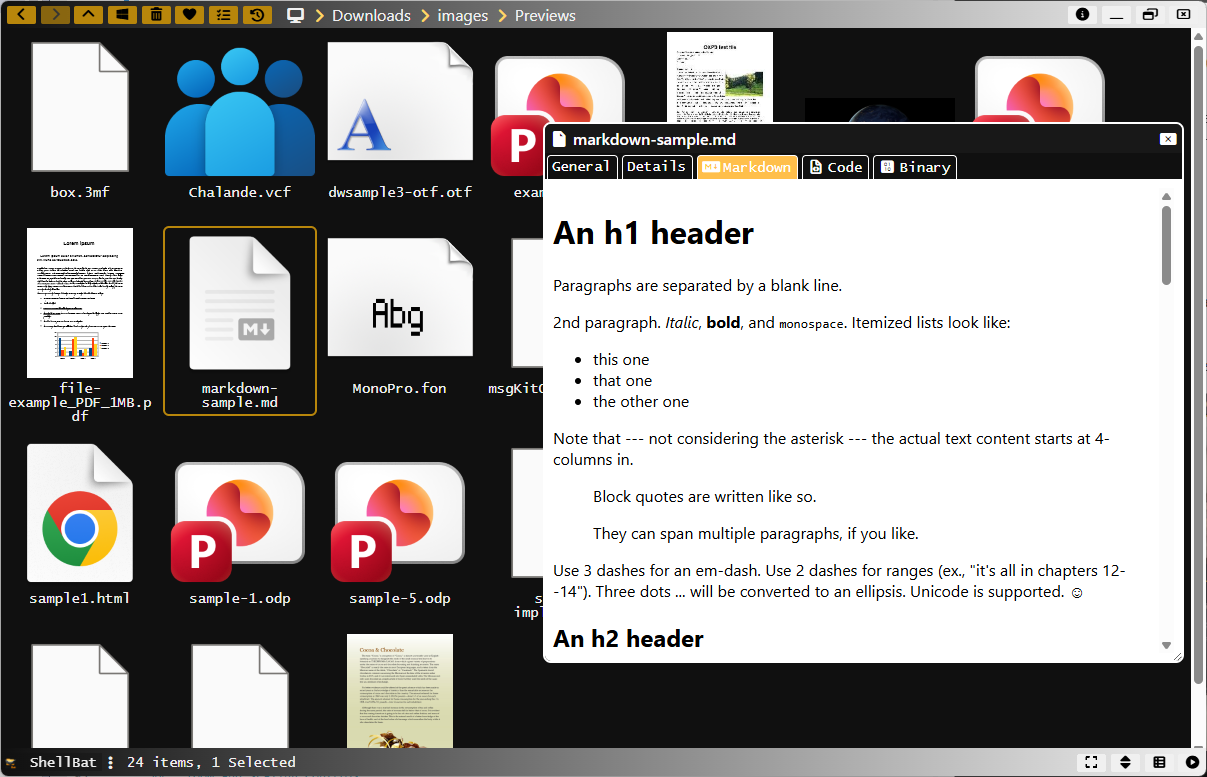
Renders .md files with full support.
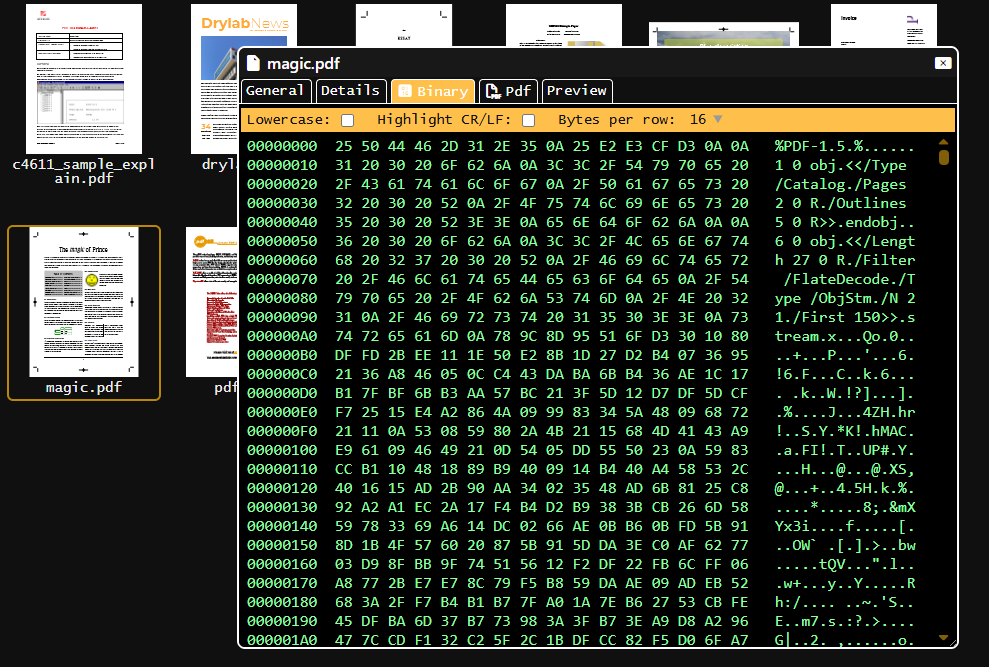
Displays raw binary data in hexadecimal and ASCII formats with offset information. The scrollbar allows navigation through large files.
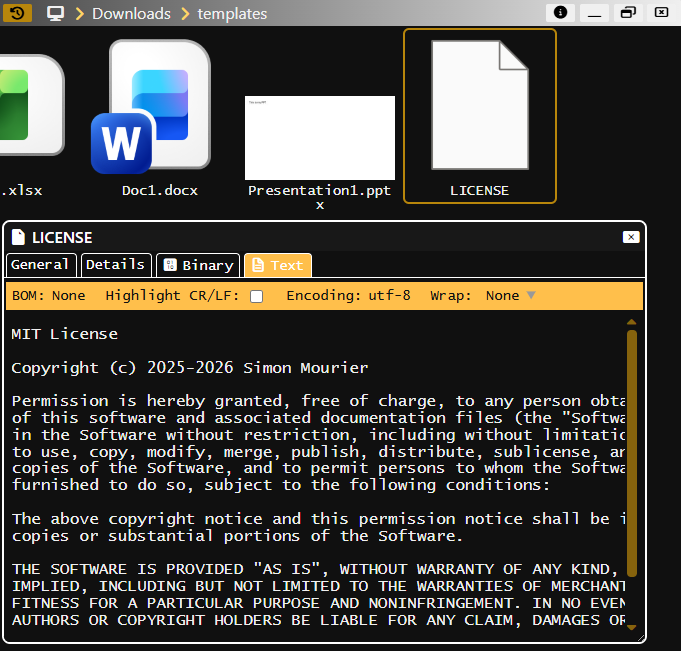
Renders plain text files with proper encoding detection (UTF-8, UTF-16, ANSI, etc.). The scrollbar allows navigation through large files.
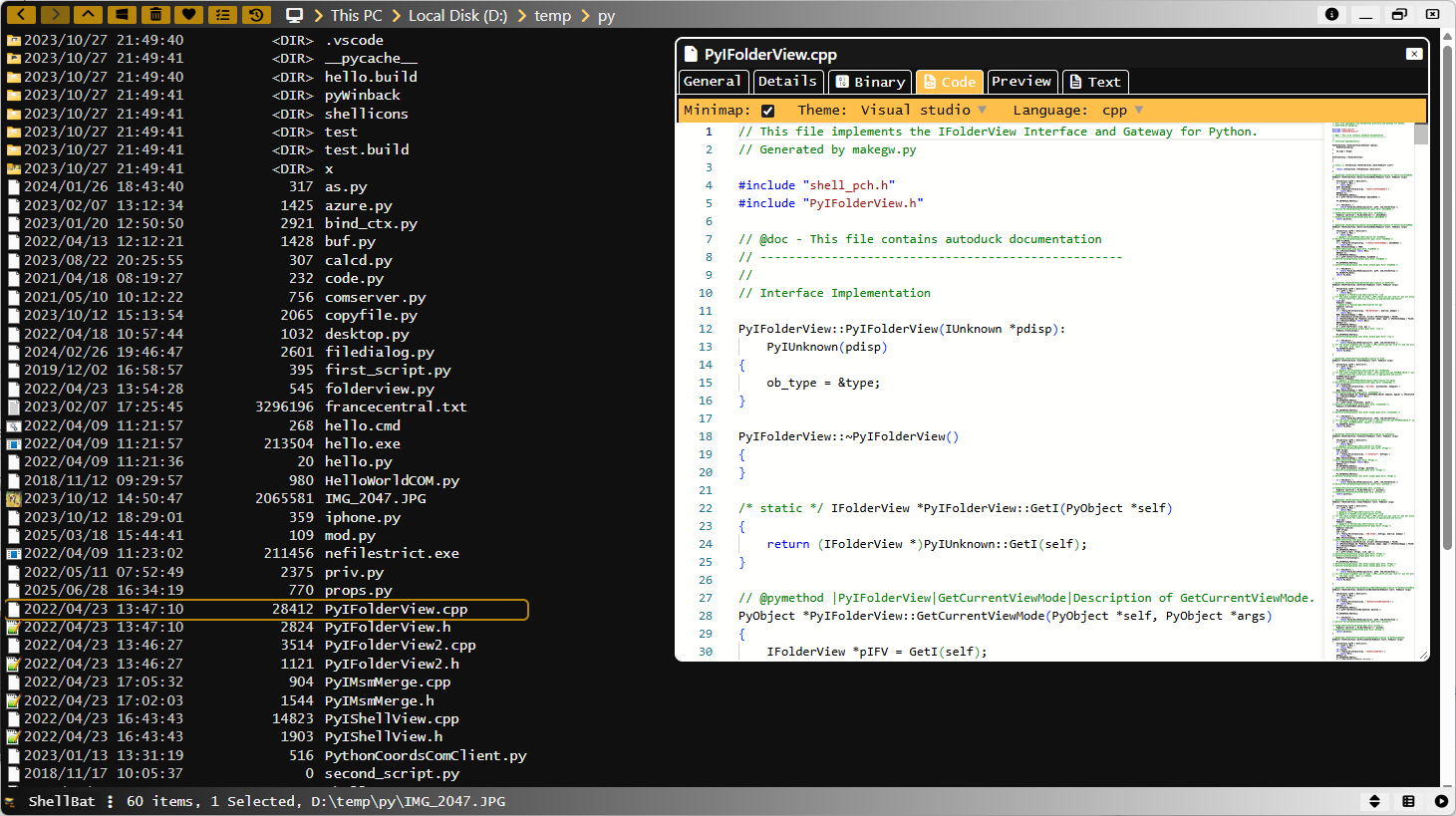
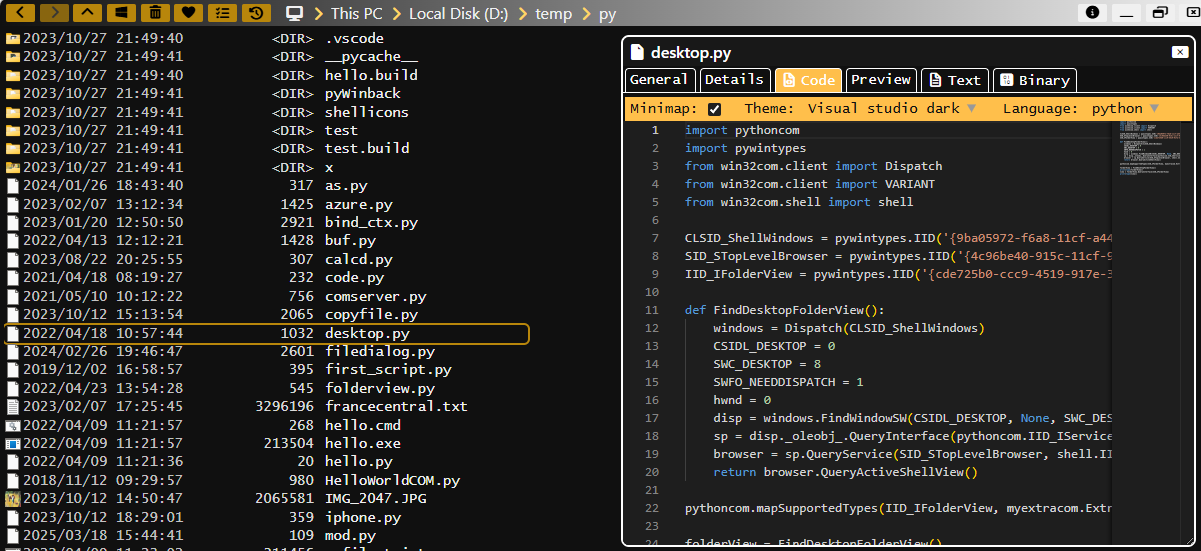
This is based on the Monaco Editor (the same editor that powers VS Code) and provides syntax highlighting, minimap, etc. for many programming languages. The theme can be changed and the language is auto-detected based on file extension, or can be set manually.
Here is a C++ file opened in ShellBat's code viewer in light mode:
Here is a Python file opened in ShellBat's code viewer in dark mode:
ShellBat supports multiple instances. A ShellBat instance is a Windows process. Each instance operates independently but they commmunicate to provide advanced window management features.
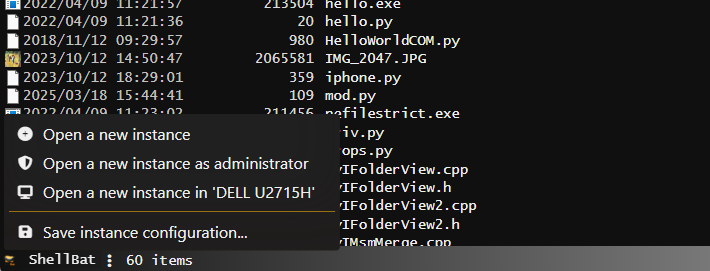
A user can open a new instance using the "Open New Instance" menu item in the upper right context menu.
[!NOTE]
- It's very possible to run a ShellBat instance as x64 (ShellBat.x64.exe) and another one as x86 (ShellBat.x86.exe) for example, on the same machine at the same time.
- Administrator instances can be run alongside non-administrator instances but they cannot communicate for security reasons.
- x86 instances don't support x86 terminals when ran on x64 Windows.
Instances may have a defined name or not. A named instance can only be opened (by double-clicking it) using a .ShellBat file that contains the instance name (by default, the name is the name of the file), otherwise its name is "unspecified".
Only named instances can keep their own history, if configured to do so.
A new instance's name is always "unspecified". To create a named instance, use the "Save instance configuration" menu item in the lower right context menu.
This will create a .ShellBat file and the file's name will be used as the instance name.
A .ShellBat file is a simple JSON file that contains the instance name and settings. It can be double-clicked from Windows Explorer to open the corresponding named instance.
[!NOTE] This requires you to register ShellBat with the Windows Shell. See above in the Context Menu & Shell Integration chapter.
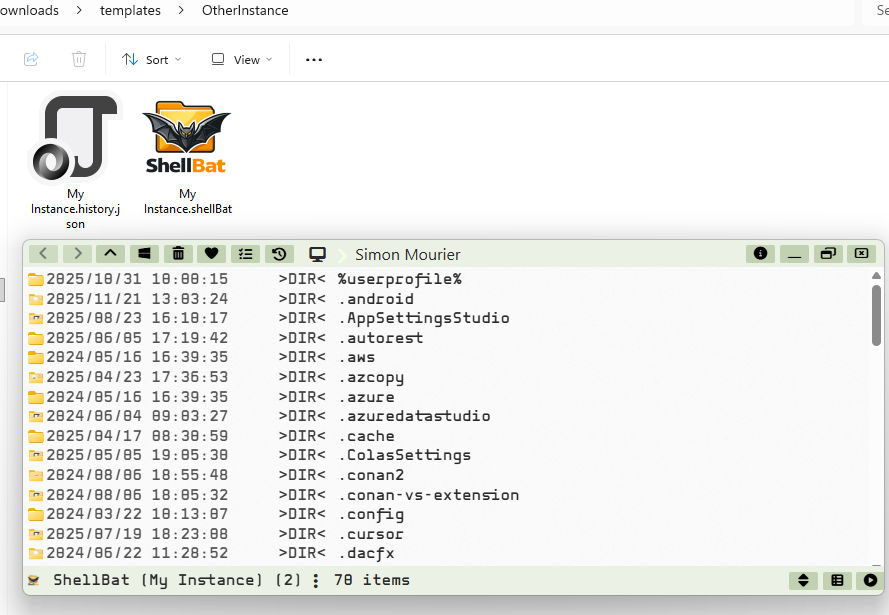
Here is an example of an instance named "My Instance" opened from a My Instance.ShellBat file, using the Almond theme:
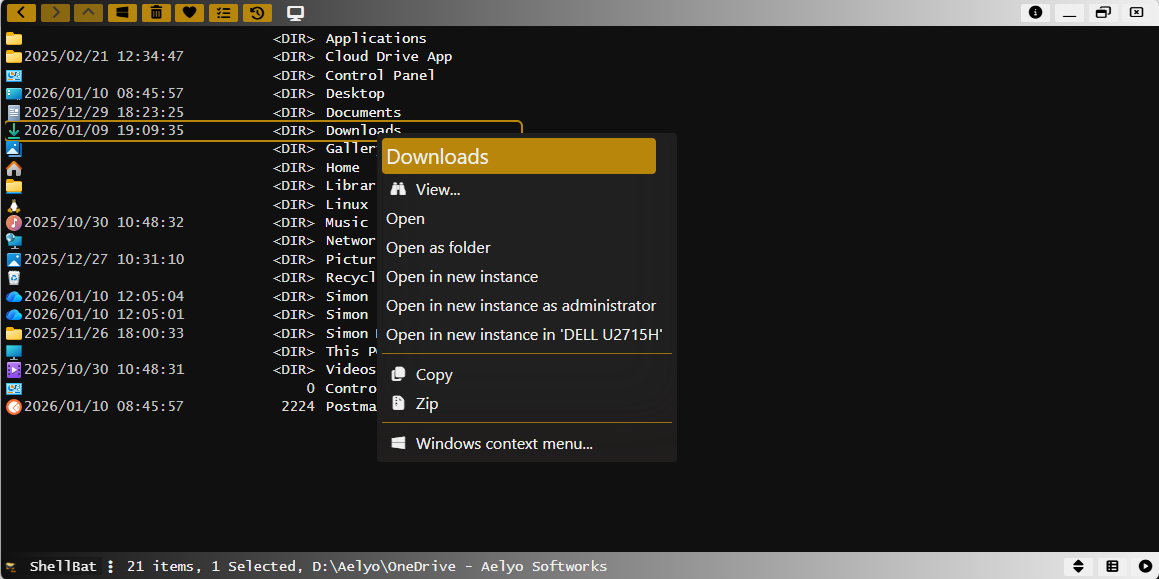
When navigating with ShellBat, users can open a folder in a new unspecified/unnamed instance, possibly in another screen, or as an administrator.
Instances can be tiled vertically, horizontally on the same screen, or across screen (if multiple monitors are connected).
The properties / viewers window can be opened in another instance using the "View in..." menu item of the context menu. Selecting items on the main instance will update the viewers in the target instance. This is useful for dual-monitor setups, side-by-side comparisons, etc.
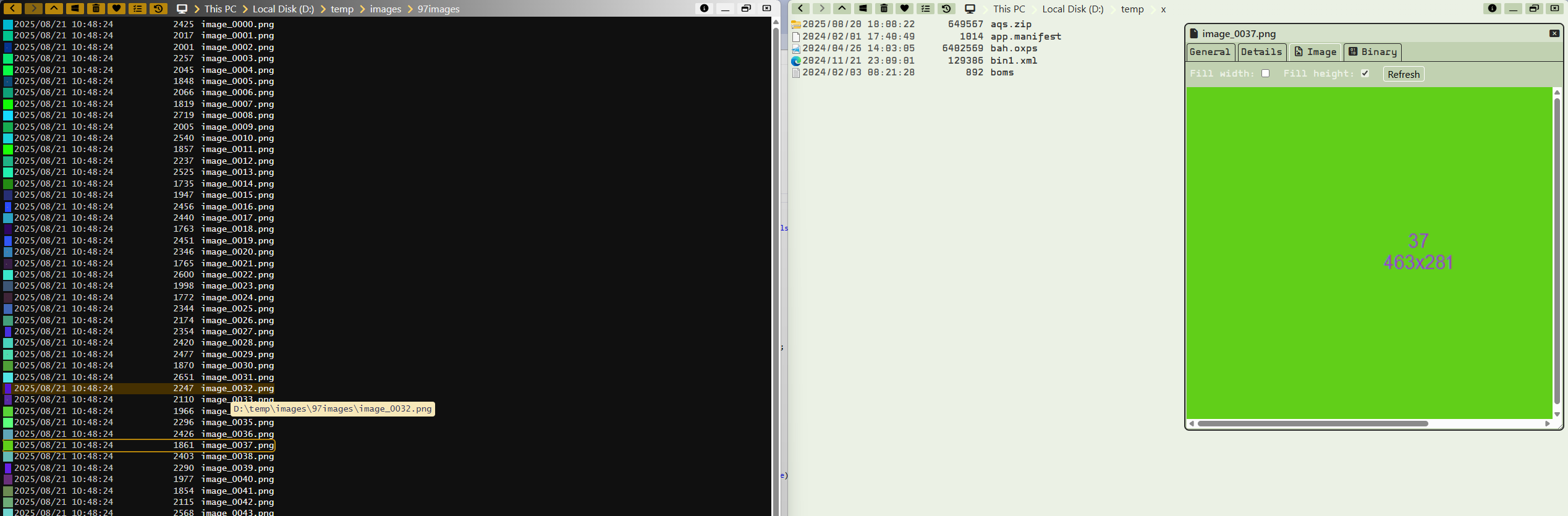
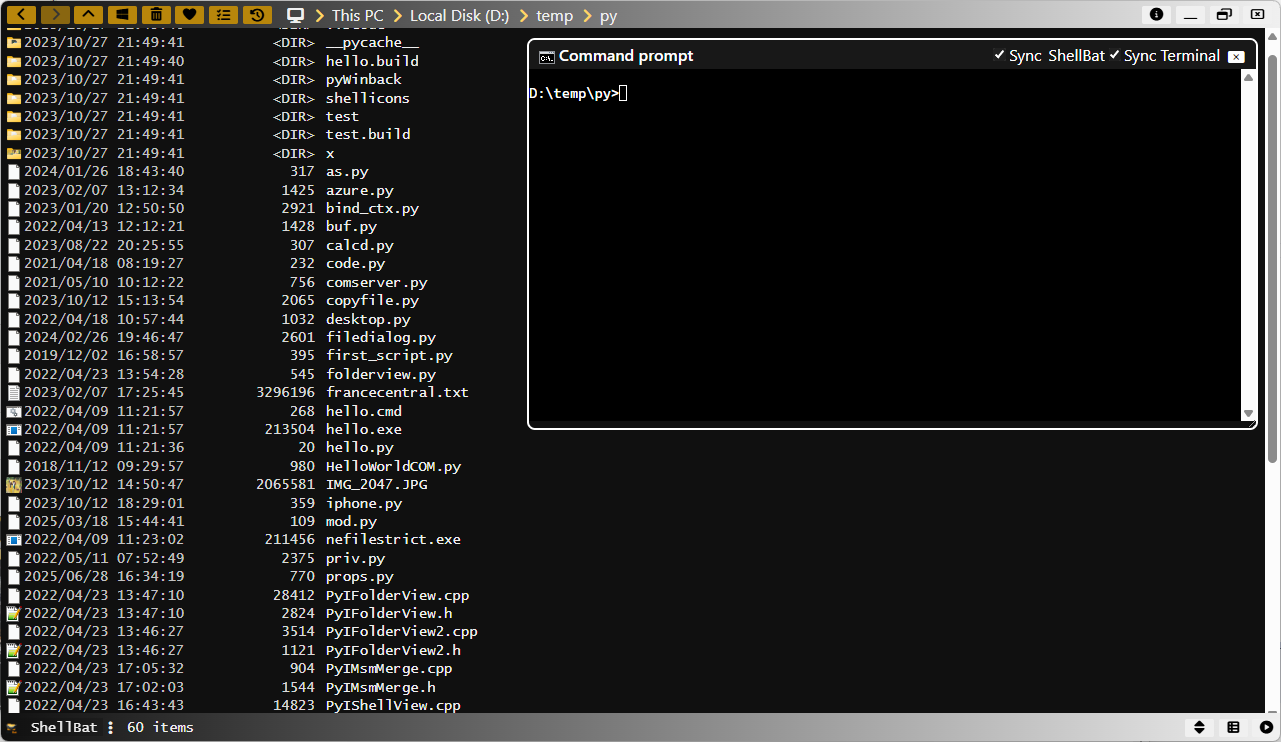
ShellBat includes integrated terminal support.
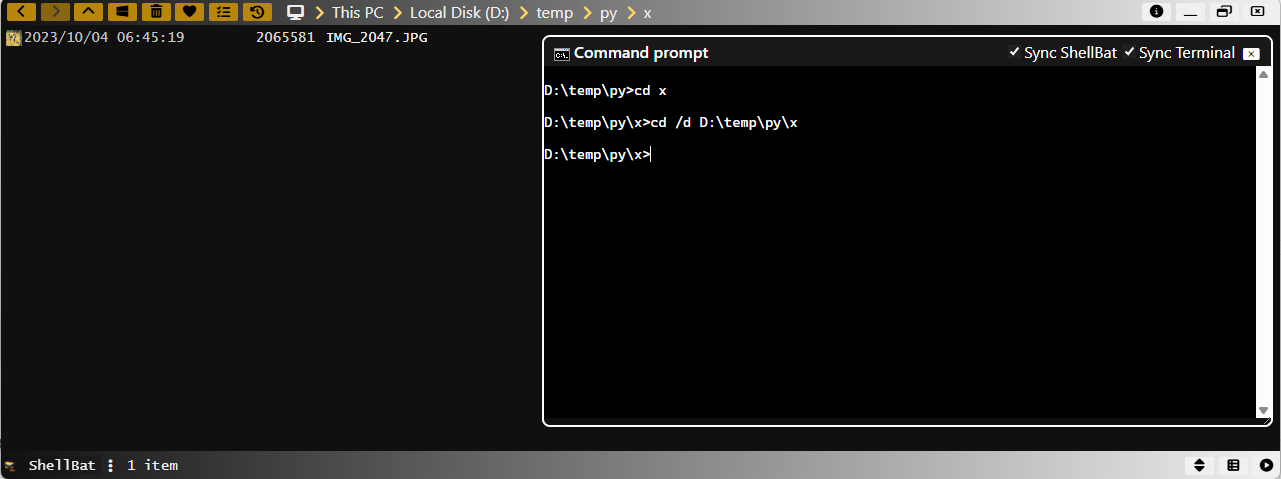
cmd.exe, it can automatically sync to the current directory of the instance both ways (from ShellBat to cmd.exe and from cmd.exe to ShellBat)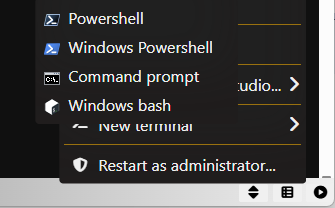
Here a CD command is issued in cmd.exe which causes the main ShellBat instance to navigate to the same directory: The other way works also, navigating in ShellBat updates the cmd.exe prompt automatically.
ShellBat can run commands from .cmd, .bat and .exe console app directly from the context menu using the "Run in Terminal" menu item:
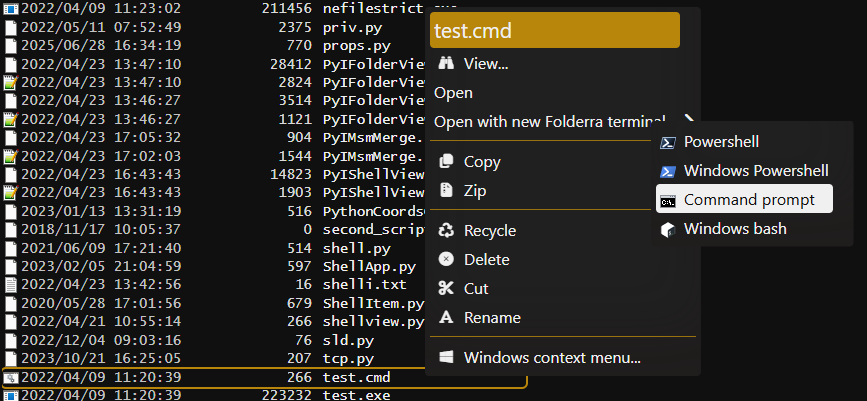
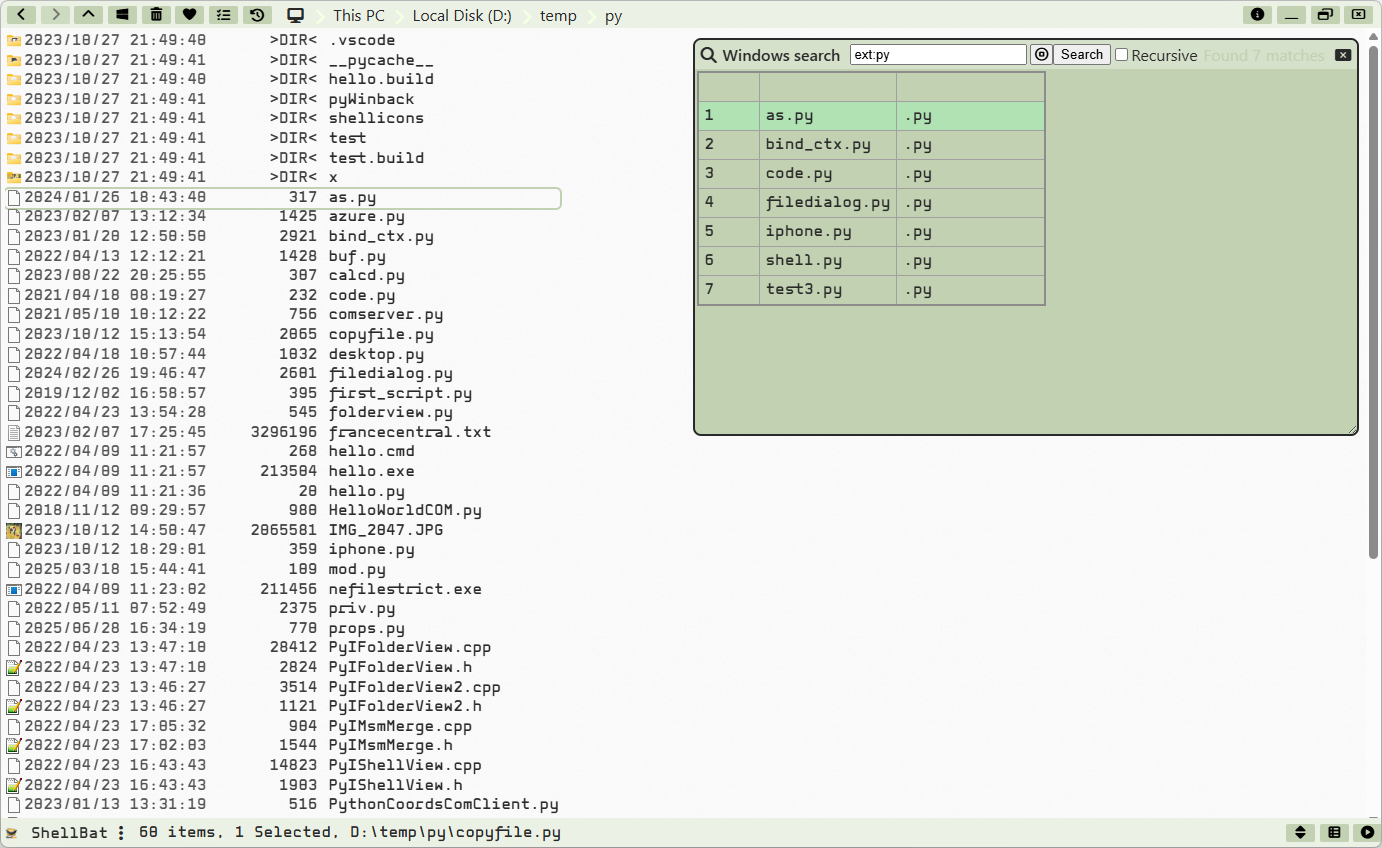
ShellBat offers two search systems:
 ShellBat watches directory changes and provides optional alerts when items are created, removed, or modified.
Settings are split into:
Global Settings shared across all instances..
Instance Settings specific per instance (named instances only).
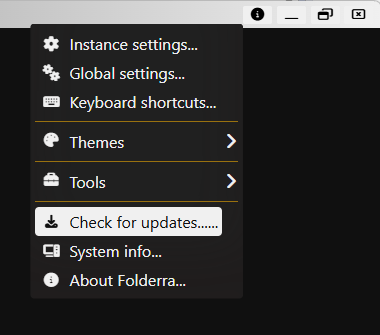
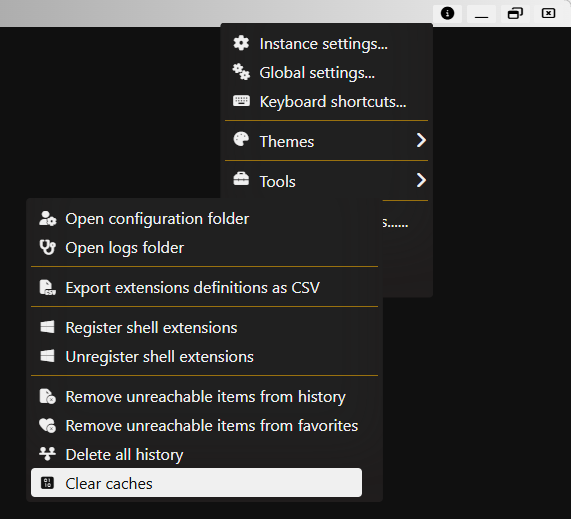
Tools ShellBat includes several maintenance and utility tools accessible from the upper right context menu under Tools:
Themes are CSS-based and can dramatically change ShellBat’s UI. Custom themes can be loaded from anywhere on disk.
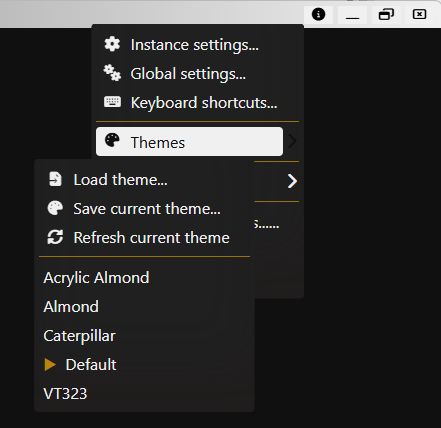
Built-in themes definition can be found in the GitHub Themes subfolder.
To author a custom theme, you need to create a .shellBatTheme file. The file's name will be the theme's name.
The file is a JSON file wich contains CSS variables override. The list of available CSS variables can be found in the Variable.css file on GitHub.
A .css can accompany the .shellBatTheme file to provide additional CSS rules. You should look at existing themes for reference and avoid putting too many rules in the CSS file to support future ShellBat UI changes.
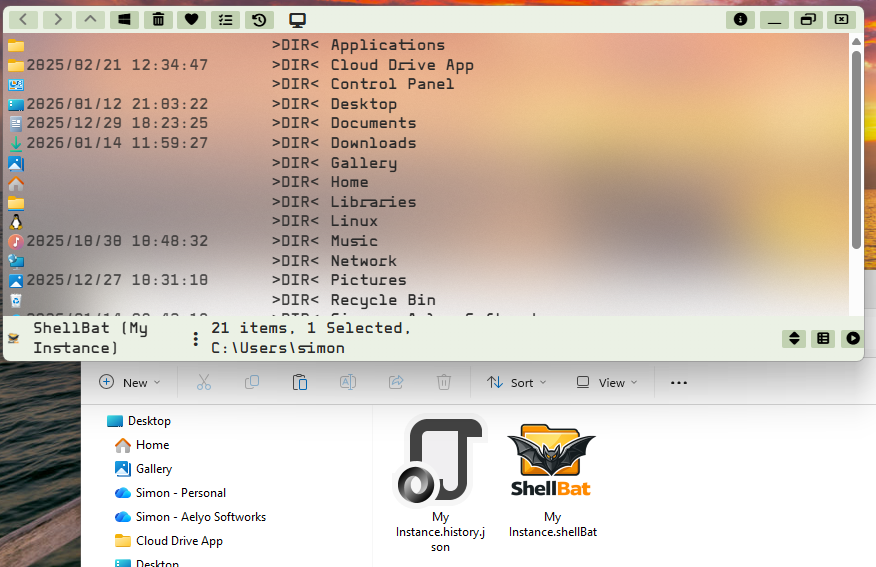
ShellBat supports background window transparency and a built-in acrylic effect.
This can be enabled from the .shellBatTheme file like this:
  ...
  "main-background-color": "Transparent",
  "acrylic-tint-color": "white",
  ...
The Acrylic Almond" built-in theme demonstrates this feature:
npm install from the ShellBat's WebRoot folder.ShellBat.exe.ShellBat is an hybrid .NET + JS application combining native Windows APIs with modern web technologies via WebView2. This allows for a rich UI while maintaining deep integration with the Windows Shell.
It's similar in concept to frameworks such as Electron or others, but without the overhead of all the dependencies libraries.
It supports full AOT-publishing to a single executable file, around 30M, that supports UPX for a final size of around 13M.
The following technologies are used on the Windows side (100% C# interop code):
The following technologies are used on the webview side (100% JS and CSS):
ShellBat doesn't use any Javascript framework because it doesn't need one. The entire UI is built using vanilla JS and CSS only.
smourier/ShellBat is a public repo on GitHub by smourier. A one-exe file modern Windows file explorer with file viewers, multi-instance workflows, terminal integration, search capabilities, and deep Windows Shell interoperability.
It declares the MIT license on GitHub.
Its maker tagged it for Windows. That is declared by the maker; Take My Repo has not tested it.
Open "Take it" on its page: Take My Repo writes an install plan for your machine and hands it to your AI agent (Claude Code, Codex or Cursor), which asks you before each step. Take My Repo has not tested it on any machine.
Its last change on GitHub was on 2026-11-07. Take My Repo does not judge from that whether it is maintained.
Nobody has reviewed it on Take My Repo yet, which says nothing about its quality.
Windows Interface Composition Engine is a .NET C# UI engine for creating Windows application.
A fast Windows file manager written in C#, rendered with Direct2D and compiled with NativeAOT. GPU drawn, fully virtualized and allocation free on the hot path, so folders with thousands of files open and scroll instantly.
An AI skill that provides design intelligence for building professional UI/UX across multiple platforms.
The agent harness performance optimization system. Skills, instincts, memory, security, and research-first development for Claude Code, Codex, Opencode, Cursor and beyond.
Reverse engineer anything with agents, from app behavior down to native binaries.
Direct interop Code for .NET Framework, .NET Core and .NET 5+ : DXGI, WIC, DirectX 9 to 12, Direct2D, Direct Write, Direct Composition, Media Foundation, WASAPI, CodecAPI, GDI, Spatial Audio, DVD, Windows Media Player, UWP DXInterop, WinUI3, etc.
TraceSpy is a pure .NET, 100% free and open source, alternative to the very popular SysInternals DebugView tool.
DirectN AOT compatible version. Only for .NET Core 10 and beyond. Interop Code for : DXGI, WIC, DirectX 9 to 12, Direct2D, Direct Write, Direct Composition, Media Foundation, WASAPI, CodecAPI, GDI, Spatial Audio, DVD, Windows Media Player, UWP DXInterop, WinUI3, etc.
WebView2 .NET AOT-compatible bindings independent from WinForms, WPF, WinUI or even WinRT.
Windows 11 Virtual Camera sample .NET code, including .NET 10 AOT version.