
FallDesktop
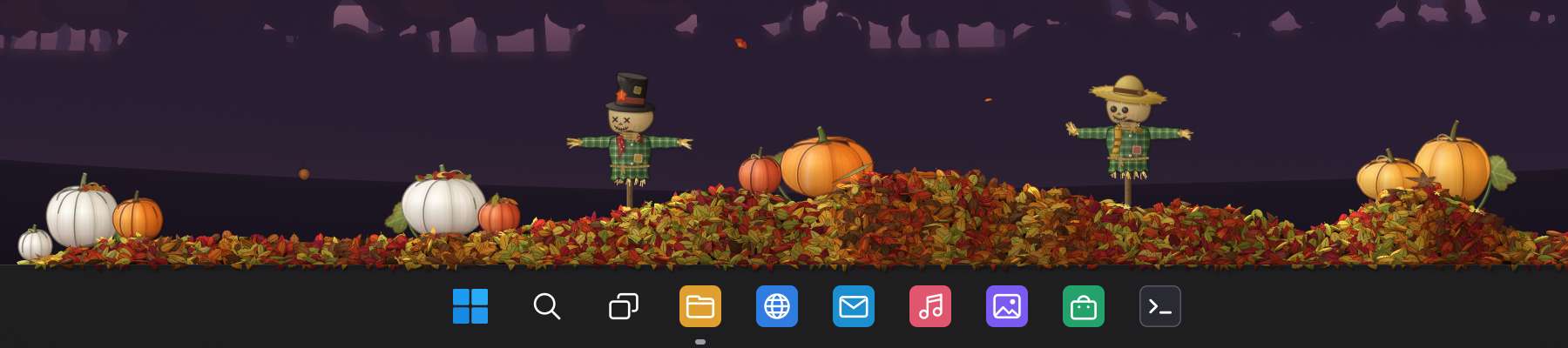
Autumn for your Windows desktop: leaves drift across every monitor and pile up on the taskbar, with pumpkins, scarecrows and cobwebs.
- 6
- 4 wk ago
Repo starrlord/FallDesktop, read from GitHub 15 min ago. starrlord has not joined Take My Repo.
In short
starrlord/FallDesktop is a public repo on GitHub by starrlord. Autumn for your Windows desktop: leaves drift across every monitor and pile up on the taskbar, with pumpkins, scarecrows and cobwebs. It declares no license on GitHub. Public does not mean open source: without a license, nobody is granted the right to reuse it. It is written mainly in C++, has 6 stars and last changed on 2026-10-24. Nobody has reviewed it on Take My Repo yet, which says nothing about its quality. Read from GitHub on 2026-11-24.
Fall Desktop
Autumn for your Windows desktop. Leaves float down across every monitor, tumble and spin in gusty wind, and settle into leaf piles along the top of the taskbar. Pumpkins and scarecrows stand in the piles, and cobwebs hang across the corners of the screen. At Halloween the pumpkins become candle-lit jack-o'-lanterns, spiders keep the webs and now and then a bat flits past; switch Halloween off for a plain, cozy autumn. Rake the leaves with your mouse and push through the cobwebs.
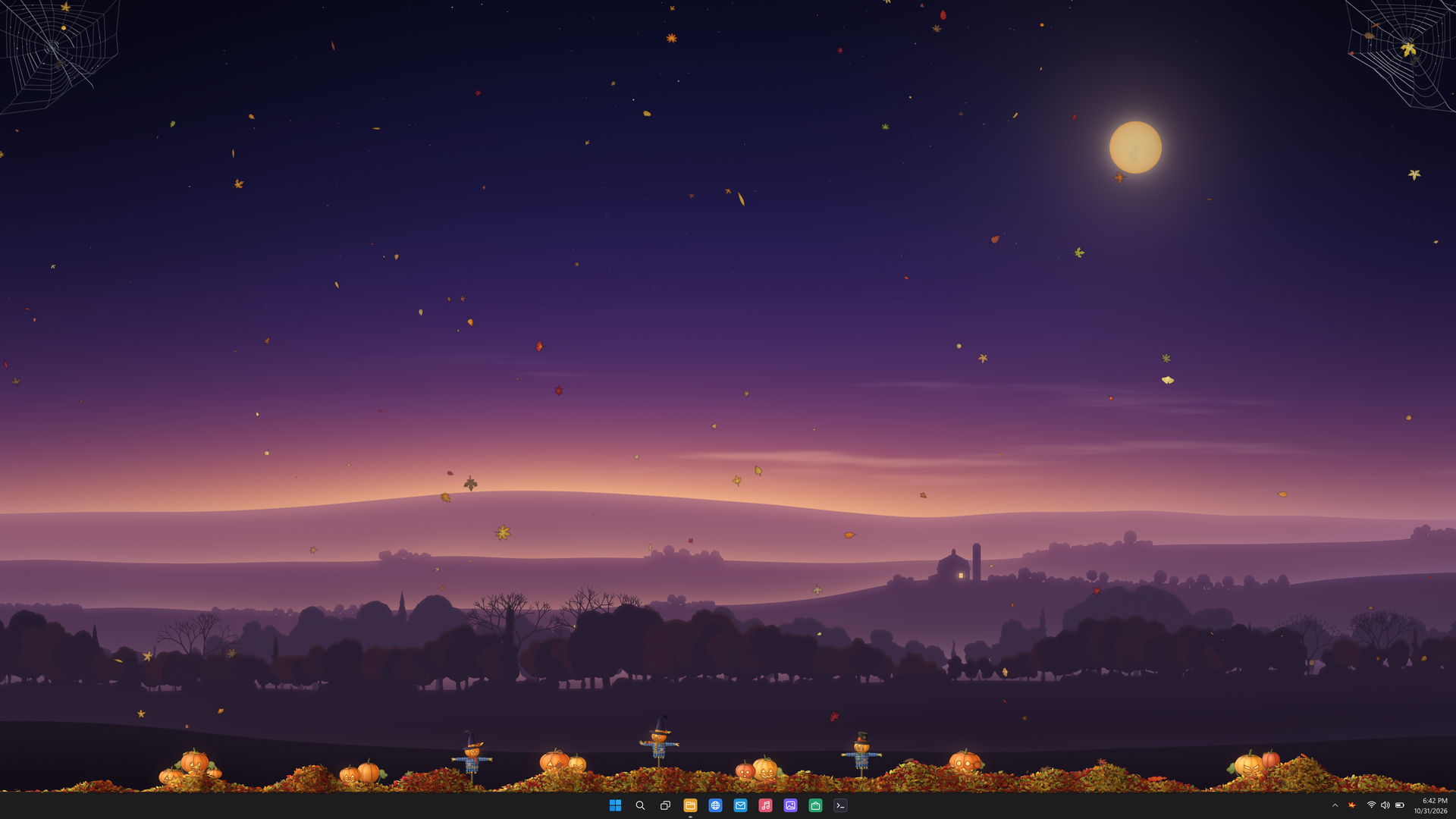
Fall Desktop is a small native Windows 10/11 app written in C++ with Direct2D and
DirectComposition. It is a single small .exe that lives in the notification area,
and clicks pass straight through the leaves to whatever is underneath.
Falling leaves
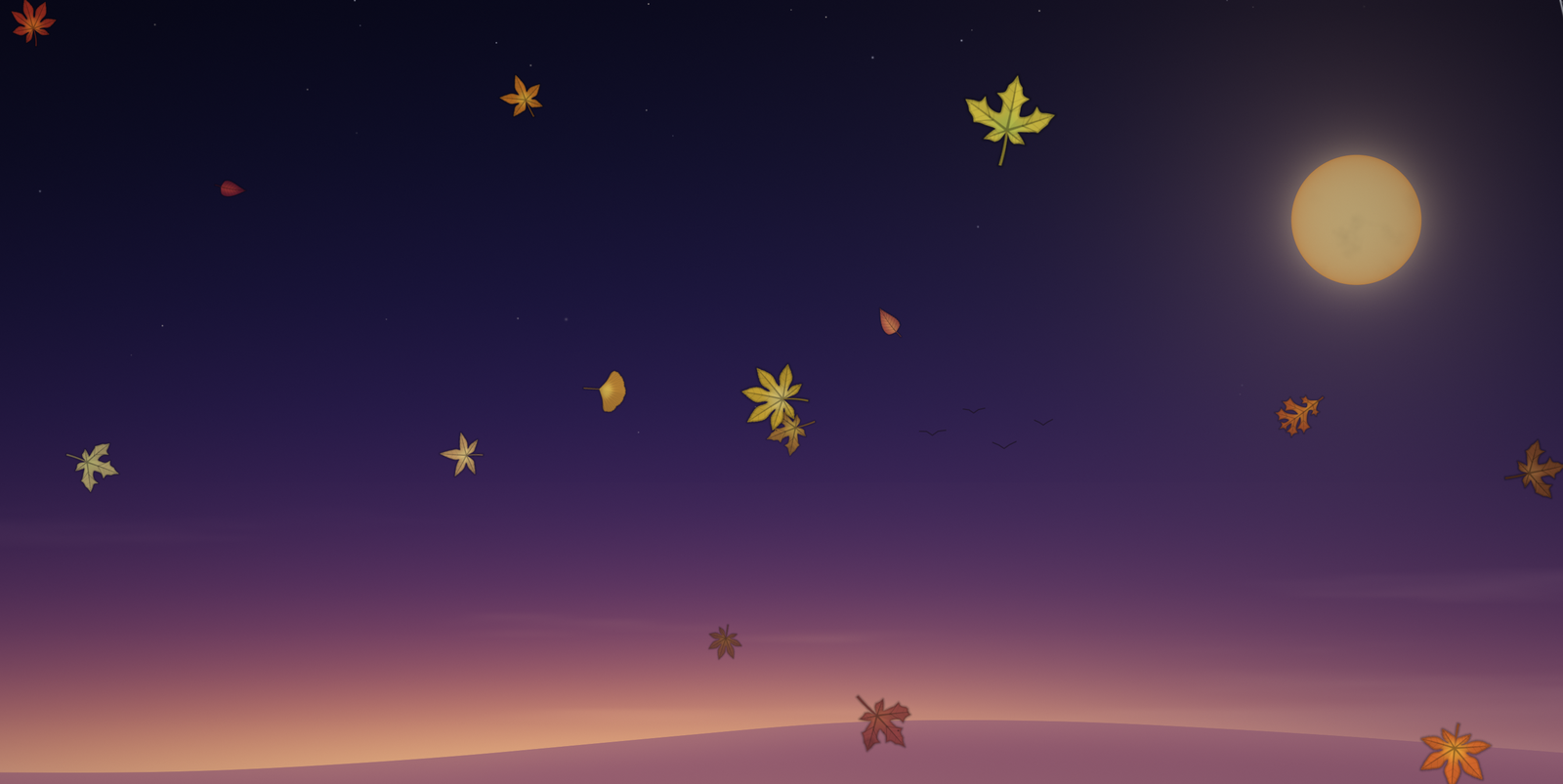
- Twenty designs, each switched on or off individually:
- tree leaves: sugar maple, oak, birch, ginkgo, sweetgum, willow and Japanese maple, and small round aspen leaves that quake and flicker as they fall;
- maple keys that whirl down like little helicopters, and acorns that drop nearly straight down;
- tiny flecks of leaf, and soft out-of-focus leaves wafting past close up;
- eight pixel-art leaves.
- Autumn colors: the natural mix of scarlet, crimson, orange, amber, gold, russet and a few leaves still turning from green, or just the golds, just the reds, or shades of any color you like. Many leaves are two-toned, their hearts turned a different color from their edges. Acorns keep their own colors.
- Leaves flutter, tumble and spin as they fall, with depth (parallax, size and opacity), and the wind's gusts sweep across the desktop from one monitor to the next.
Leaf piles
Leaves that reach the taskbar settle into heaps of leaf litter along its top edge. The piles build up, tumble when they get too steep, are blown about by the wind, which lifts leaves off the crests and drops them in the lee, and slowly crumble and blow away, so they keep changing shape. The leaves in a pile stay put as the heap grows and slumps around them, and some hang over the edge of the taskbar.
Sweep the mouse through a pile to rake it, and the leaves fly up. Turn the Leaf piles slider all the way up for great heaps more than twice as deep as Deep, or right down to switch the piles off. Clear leaf piles blows them all away. On a high-resolution screen, Scenery size makes the piles and the leaves in them up to three times bigger.

Pumpkins and scarecrows
Pumpkins stand in patches in the leaf piles on each monitor, always in the same spots, with scarecrows in the open stretches between them, facing the pumpkins.
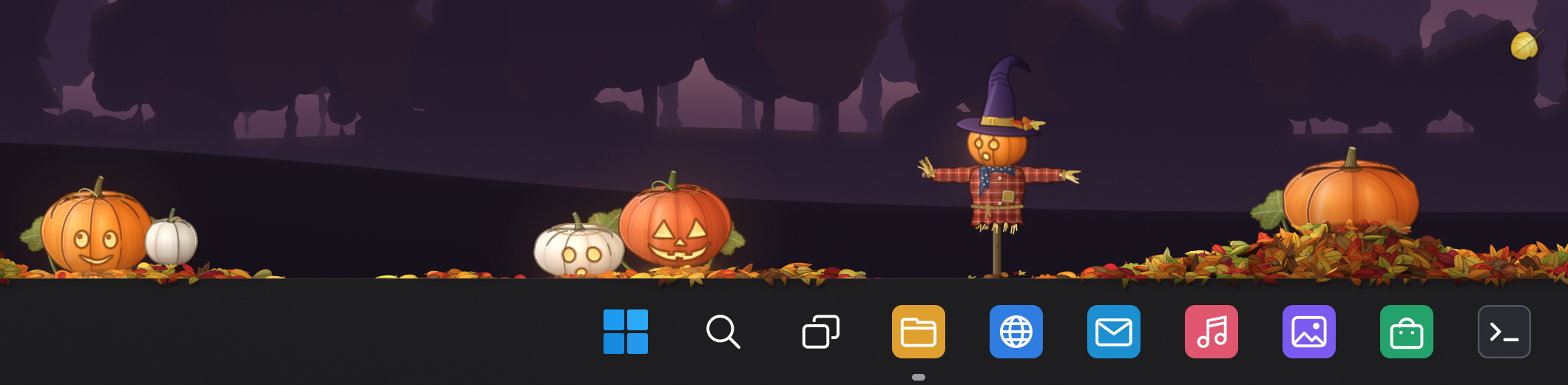
- At Halloween, many of the pumpkins are carved jack-o'-lanterns lit by flickering candles, whose glow adds light to the desktop (on HDR and Auto Color Management displays, where Windows would clamp that, they glow as soft color instead). The scarecrows wear glowing jack-o'-lantern heads under witch hats or battered top hats.
- Without Halloween, the pumpkins are plain and the scarecrows have burlap-sack heads with stitched faces, under straw hats or battered top hats.
- Scarecrows' scarves and straw flutter in the wind. Bump one with the mouse and it rocks on its post and its hat wobbles; pumpkins rock a little. Leaves settle on the pumpkins, the hats and the shoulders, and get knocked off again. Pumpkins and scarecrows always stay put.
- They stand in the pile and rise and settle as it changes around them. When the leaves are drawn over windows, they step aside where a window covers them.
- The Pumpkins and Scarecrows sliders choose how many, from a few up to a pumpkin patch and a field of scarecrows; Show pumpkins and Show scarecrows turn them off (also in the right-click menu).
- Scenery size makes them up to three times bigger for high-resolution screens (spaced out to match, so fewer fit).
Cobwebs
Cobwebs are strung across the corners of the screen: frame and radial threads from anchors on the screen edges, with a spiral of capture silk across them. Every knot is a little mass on springs, so the webs breathe in the breeze.
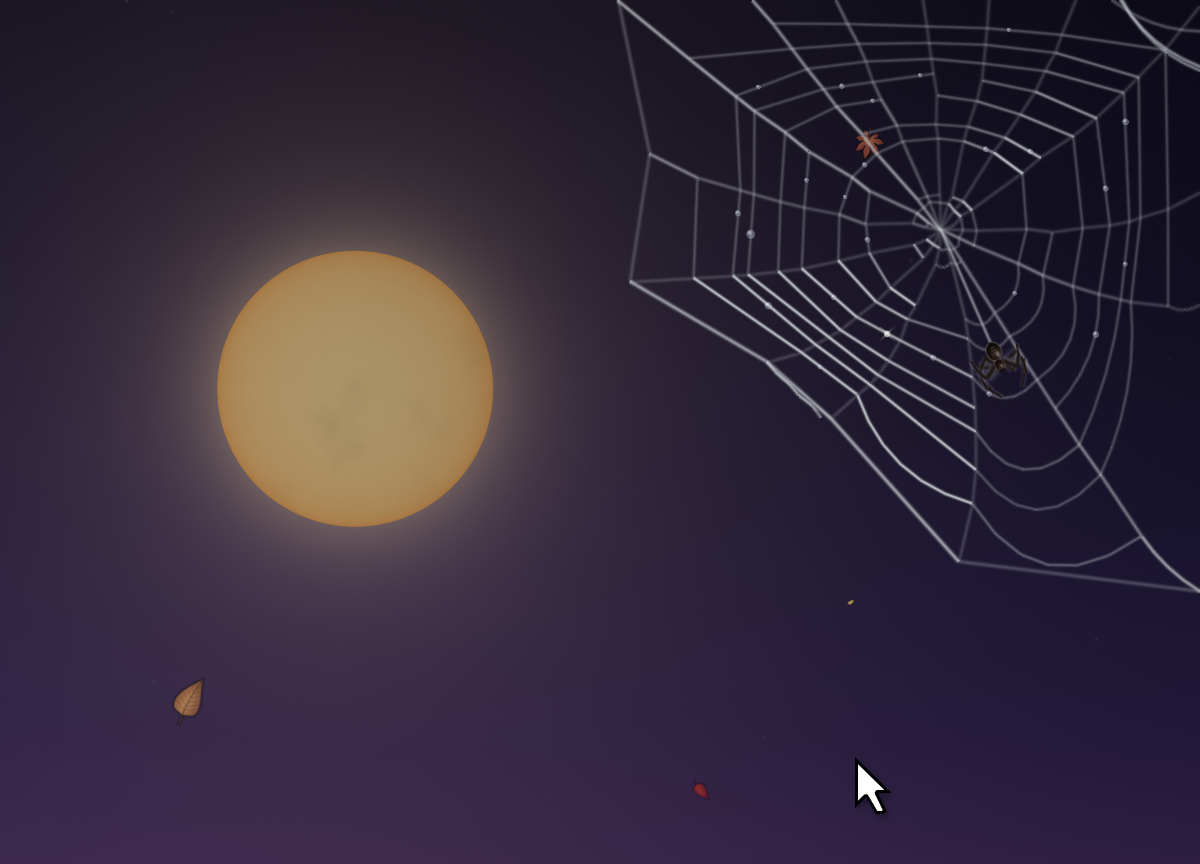
- Push the pointer through a web and its threads stretch and spring back, and the web trembles for a while. Swipe fast and threads snap; their loose ends curl and dangle until they are mended.
- Leaves that blow into a web may stick there and sway with it, until the web is disturbed and shakes them loose.
- At Halloween, a spider keeps every web, sitting at the hub or hanging on a dragline below it. It scurries back up when the pointer comes near, and mends the threads you tear. Now and then a bat flits past.
- Like the pumpkins and scarecrows, the webs step aside where a window covers their corner, and Scenery size makes them bigger (the spiders and bats too). Cobwebs in the corners turns them off.
The Halloween switch
Halloween is on by default, and one switch (in the settings and at the top of the right-click menu) turns all the spooky touches on or off together: the carved jack-o'-lanterns, the pumpkin-headed scarecrows in witch hats, the spiders on the webs and the bats. With it off, Fall Desktop is a plain autumn scene: leaves, leaf piles, plain pumpkins, burlap scarecrows and empty cobwebs.
Settings
Click the leaf in the notification area to open the settings. The live preview at the top shows your choices immediately, and you can play with the leaves there using the mouse.
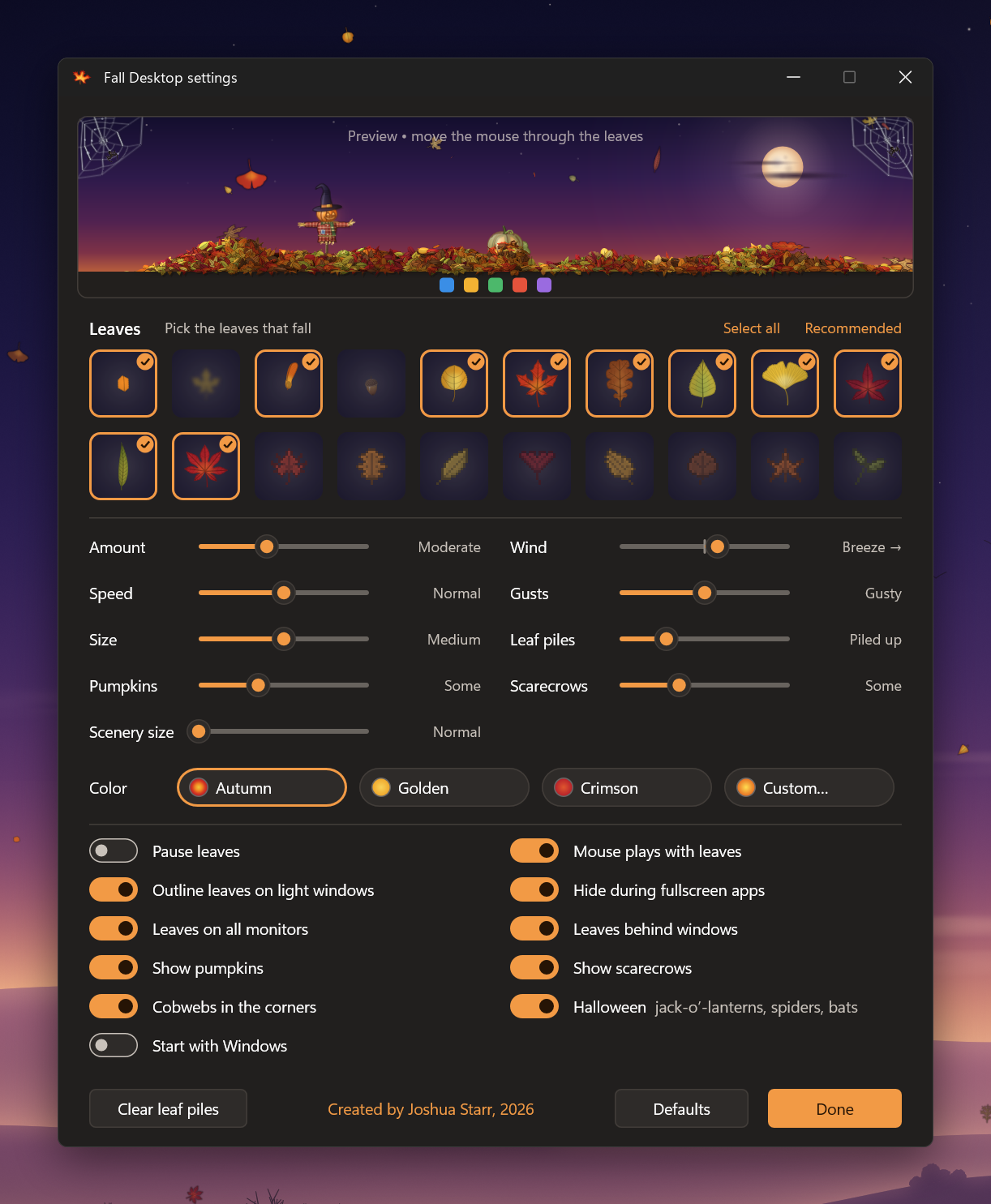
- Leaves: the twenty designs above, each on or off.
- Amount, speed, leaf size, wind, gusts and leaf pile depth sliders, and how many pumpkins and scarecrows.
- Scenery size: the leaf piles, pumpkins, scarecrows and cobwebs (with their spiders and bats) up to three times bigger, for high-resolution screens. It shows on the desktop rather than in the preview.
- Color: Autumn, Golden, Crimson, or any custom color.
- Switches:
- pause;
- Halloween;
- cobwebs in the corners;
- mouse play;
- outlines that keep leaves visible over white windows;
- hide during fullscreen apps;
- leaves on all monitors;
- leaves behind windows, so they only show where the desktop does;
- show pumpkins and show scarecrows;
- start with Windows.
Right-click the leaf for a quick menu with presets for most of the above.
Images: rendered by Fall Desktop's own engine and settings window on a staged 4K Windows 11 desktop at 150% scaling (the close-ups at 200% to 300%), cropped from the Microsoft Store screenshots (see Developer previews).
Features
- Every monitor: each display gets its own overlay at its own resolution, DPI and refresh rate. A 60 Hz screen next to a 144 Hz one stays smooth, and the leaf piles continue across monitors that sit side by side.
- Fluid animation:
- GPU rendering paced to each display's vertical blank;
- depth (parallax, size and opacity);
- fluttering, tumbling, whirling and quaking leaves;
- turbulent wind whose gusts sweep across the desktop.
- Stays out of the way:
- clicks pass through;
- it hides during fullscreen games and videos, on the lock screen, under the screen saver and while the display is off;
- it doesn't make Windows think a fullscreen app is running;
- with Leaves behind windows, the leaves, piles and cobwebs stay on the desktop: windows cover them, and a monitor with nothing open keeps its autumn.
- Light on power:
- about 0.3 ms of CPU per frame at the usual scenery size;
- capped at 60 fps on battery and 30 fps with battery saver or over Remote Desktop.
Install
Download FallDesktop-<version>-setup.exe from the
latest release and run it.
- It installs for the current user without admin rights. An "install for all users" option is still available.
- It can start Fall Desktop when you sign in.
- It adds a Start menu entry and uninstalls cleanly from Settings → Apps.
There is also a portable zip containing just falldesktop.exe.
The installer is not code-signed yet, so Windows SmartScreen may warn on first run. Choose More info → Run anyway.
Requires Windows 10 (1809 or later) or Windows 11, x64.
Build from source
Requirements:
- Visual Studio 2022 with Desktop development with C++, or the Build Tools;
- the Windows 10/11 SDK;
- CMake 3.20+;
- for the installer, Inno Setup 6 (
winget install JRSoftware.InnoSetup).
.\build.ps1                          # build\Release\falldesktop.exe
.\build.ps1 -Installer               # ...plus dist\FallDesktop-<version>-setup.exe
.\build.ps1 -Msix                    # ...plus dist-store\FallDesktop-<version>-x64.msix (Microsoft Store)
.\build.ps1 -Version 1.2.0 -Installer
tools/make_icon.py draws the maple-leaf icons in res/ (the app icon and the
greyed-out paused tray icon) and the Store logos in installer/msix/Assets/; it
needs Python 3 with NumPy and Pillow. --preview sheet.png also saves every size on
a dark and a light background for checking.
For frame-timing diagnostics, set FALLDESKTOP_DEBUG=1 before starting. Each monitor
then logs its frame pacing to %TEMP%\falldesktop.log.
Developer previews
A build configured with -DFALLDESKTOP_DEV_TOOLS=ON can render the artwork and the
simulation offscreen to PNG files, without windows, a tray icon or saved settings:
cmake -S . -B build-dev -G "Visual Studio 17 2022" -A x64 -DFALLDESKTOP_DEV_TOOLS=ON
cmake --build build-dev --config Debug
.\build-dev\Debug\falldesktop.exe --render autumn.png --seconds 12 --halloween 1 --bg dusk
.\build-dev\Debug\falldesktop.exe --atlas leaves.png       # every leaf sprite, plain and tinted
.\build-dev\Debug\falldesktop.exe --settings settings.png  # the settings window
--render simulates a desktop's worth of autumn and saves the last frame (or the
moments given by --shots 2,4,6). Its options follow the settings: --width and
--height (px), --scale (px per DIP), --amount, --speed, --wind, --gusts,
--size, --piles, --pumpkins n and --scarecrows n (-1 hides them),
--scenery-size (percent, 100 to 300), --cobwebs 0|1,
--halloween 0|1, --color autumn|golden|crimson|custom with --custom RRGGBB,
--mask (leaf kinds, hex), --boost (how much faster the piles build), --bg dusk|light|dark,
--cursor x0,y0,x1,y1,t0,t1 to sweep the pointer across the scene, and --clear t to
blow the leaf piles away at t seconds. Errors and a summary go to <out>.log; see
src/DevPreview.cpp for the details. For --settings, FALLDESKTOP_THEME=light|dark
forces the window's theme and FALLDESKTOP_UI_SCALE=<px per DIP> its scale.
The Microsoft Store screenshots, art and trailer in dist-store\listing are made the same
way, composited onto a staged Windows 11 desktop (tools/store/storekit.py; needs Python
with numpy and Pillow, and ffmpeg for the trailer):
cmake -S . -B build\media -G "Visual Studio 17 2022" -A x64 -DFALLDESKTOP_DEV_TOOLS=ON
cmake --build build\media --config Release
python tools\store\make_screenshots.py   # screenshots, super hero art, box/poster art, tiles
python tools\store\make_trailer.py       # trailer\trailer-1920x1080.mp4 and its thumbnail
Releasing
GitHub Actions (.github/workflows/build.yml) builds the app and the installer on
every push and pull request, and uploads them as workflow artifacts. To publish a
release, push a version tag:
git tag v1.0.0
git push origin v1.0.0
The workflow stamps that version into the exe and the installer, then creates a GitHub release with the setup exe and a portable zip.
Microsoft Store
The Store gets an MSIX package instead of the installer. CI uploads it with every
build as the FallDesktop-<version>-store artifact; upload the .msix from the
v<version> tag's run to the submission in Partner Center (other runs are stamped
with the version in CMakeLists.txt). Locally: .\build.ps1 -Version 1.2.3 -Msix.
The package is unsigned because the Store signs it, which is also why it is not
attached to GitHub releases.
- The package identity comes from
installer/msix/identity.psd1(Partner Center → Fall Desktop → Product identity:darkskies.ai.FallDesktop). Without it, packages get a test identity (FallDesktop.Test) that the Store rejects.
Questions
What is FallDesktop?
starrlord/FallDesktop is a public repo on GitHub by starrlord. Autumn for your Windows desktop: leaves drift across every monitor and pile up on the taskbar, with pumpkins, scarecrows and cobwebs.
Is FallDesktop open source?
It declares no license on GitHub. Public does not mean open source: without a license, nobody is granted the right to reuse it.
Does FallDesktop run on macOS, Windows or Linux?
Its maker has not tagged a system, so it is unknown here. Its README says what it needs.