Filee
Free, open-source file converter. Convert 263 formats offline by drag & drop — images, PDF, Word, Excel, PowerPoint, HWP/HWPX, video, audio, e-books and archives. No upload, no Office needed.
- 31k
- C#
- MIT
- 1 d ago
Fast audio player, recorder, converter for Linux, macOS, Windows, and Android
Repo stsaz/phiola, read from GitHub 1 d ago. stsaz has not joined Take My Repo.
stsaz/phiola is a public repo on GitHub by stsaz. Fast audio player, recorder, converter for Linux, macOS, Windows, and Android. It declares the BSD-2-Clause license on GitHub. It is written mainly in C, has 269 stars and last changed on 2026-11-21. Nobody has reviewed it on Take My Repo yet, which says nothing about its quality. Read from GitHub on 2026-11-24.
Free, open-source file converter. Convert 263 formats offline by drag & drop — images, PDF, Word, Excel, PowerPoint, HWP/HWPX, video, audio, e-books and archives. No upload, no Office needed.

phiola is a fast audio player, recorder, converter, and streaming server for Linux, macOS, Windows, and Android. It can play audio files from your device or a remote server, record audio from your microphone or an internet radio stream, and convert audio into various formats. Its low CPU consumption helps extend the battery life of laptops and phones. You can control phiola via CLI, TUI, GUI, IPC socket (UNIX socket / named pipe), or its API (C / Java). Its fast startup time makes it ideal for custom scripts used on a "play-and-exit" or "record-and-exit" basis.
It is completely portable (all codecs are bundled), meaning you can run it directly from a read-only flash drive. phiola is free and open-source; use it as a standalone application or integrate it as a library into your own software.
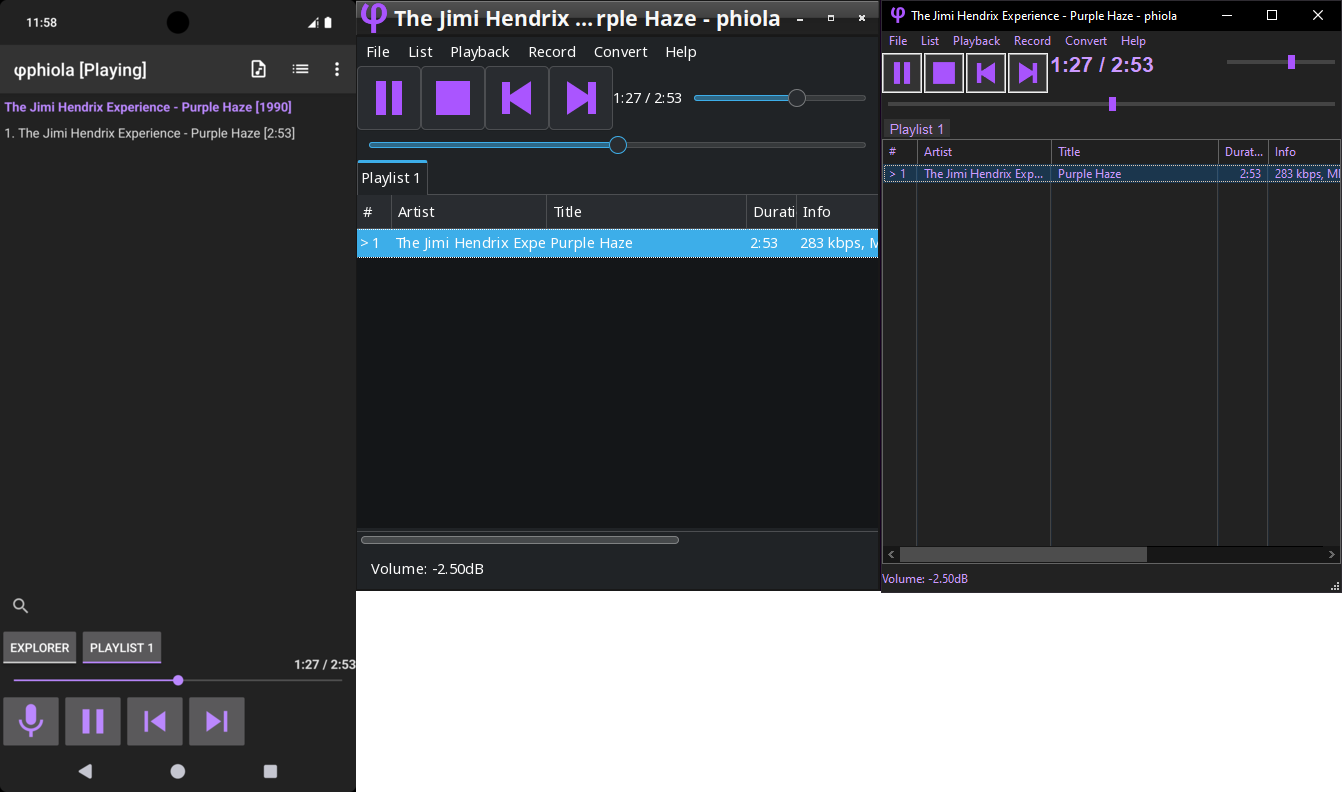
Screenshots of phiola GUI on Android, KDE/Linux and Windows 10:
Contents:
.mp3, .ogg(Vorbis/Opus), .mp4/.mov(AAC/ALAC/MP3), .mkv/.webm(AAC/ALAC/MP3/Vorbis/Opus/PCM), .caf(AAC/ALAC/PCM), .avi(AAC/MP3/PCM), .ts(AAC/MP3), .aac, .mpc; .flac, .ape, .wv, .wav..m4a(AAC), .aac(AAC-LC), .mp3, .ogg(Vorbis), .opus; .flac, .wav.mp3, .ogg/.opus, .flac).m3u, .pls, .cue~25ms, GUI: ~50ms)Bonus: Convenient API with plugin support which allows using all the above features from any C/C++/Java app!
Features and notes by platform:
| Feature | Linux | macOS | Windows | Android |
|---|---|---|---|---|
| Dark themed GUI | ✅ (GTK default) | ❌ | ✅ | ✅ |
| File formats | ✅ all supported | ✅ | ✅ | except .mpc, .ape, .wv |
| Record what you hear | ✅ (PulseAudio) | ❌ | ✅ | ❌ |
| Audio Streaming Server | ✅ (AAC,Opus) | ✅ (AAC,Opus) | ✅ (AAC,Opus) | ❌ |
| Requirements | glibc-2.41 | macOS 14 | Windows 7 | Android 8 (ARM64) |
| HW Requirements | AMD64, ARM64 | ARM64 | AMD64 | ARM64 |
Important: the ALAC decoder is disabled by default because of potential security issues (see https://github.com/macosforge/alac). You can still enable it on Android via
Settings -> Enable Deprecated Modules (ALAC); on desktop — by addingDeprecatedModstophiola.conf.
Download the latest package for your OS and CPU from phiola Releases
Note: phiola is no longer built for Android 6 (ARM) or Windows XP (x86). If you need one, look for an older release.
Debian/Ubuntu:
sudo dpkg -i phiola_....deb
Fedora/RHEL:
sudo dnf install phiola-....rpm
Or if you want the portable version (tar.zst):
VER=...
mkdir -p ~/bin
curl -L "https://github.com/stsaz/phiola/releases/download/v$VER/phiola-$VER-linux-amd64.tar.zst" | tar -x --zstd -f - -C ~/bin
ln -s ~/bin/phiola-2/phiola ~/bin/phiola
cp ~/bin/phiola-2/mod/gui/phiola.desktop ~/.local/share/applications
If you choose another directory rather than ~/bin, then you should also edit Icon= value in ~/.local/share/applications/phiola.desktop.
VER=...
mkdir -p ~/bin
curl -L "https://github.com/stsaz/phiola/releases/download/v$VER/phiola-$VER-macos-arm64.tar.gz" | tar -x -f - -C ~/bin
ln -s ~/bin/phiola-2/phiola ~/bin/phiola
The easiest way to install phiola on Windows is to execute phiola-...-windows-x64-setup.exe and specify the installation directory.
It is also the only way to register file associations (so you can open or enqueue audio files from Windows Explorer).
Another option is to manually unpack phiola-...-windows-x64.zip and add the phiola directory to your PATH environment.
Install from IzzyOnDroid:

Or install .apk manually:
Or you can install an .apk file from the PC connected to your phone with adb install.
Important: enclose file names containing spaces or special characters in quotes, e.g.:
phiola play "My Music";phiola play "My Recordings" -include "*.wav".
Play:
# Play files, directories and URLs
phiola play file.mp3 *.flac "My Music" http://server/music.m3u
# or just
phiola file.mp3 *.flac "My Music" http://server/music.m3u

# Play all files within a directory in random order and auto-skip the first 20 seconds from each track
phiola "My Music" -random -seek 0:20

# Play on Linux directly via ALSA (and not PulseAudio)
phiola file.mp3 -audio alsa

# Play audio with 3-band Equalizer:
#  (low-shelf +3 dB; 600Hz band, 1.5 Q-factor width, -6 dB gain; high-shelf +3 dB)
phiola file.mp3 -equalizer "t bass g 3, f 600 w 1.5q g -6, t treble g 3"

# Play audio with ncurses TUI interface
phiola -tui2 "My Music"
While audio is playing, you can control phiola via the keyboard. The most commonly used commands are:
| Key | Action |
|---|---|
Space |
Play/Pause |
Right Arrow |
Seek forward |
n |
Play next track |
p |
Play previous track |
q |
Quit |
h |
Show all supported commands |
Record:
# Record from the default audio device until stopped
phiola record -o audio.flac

# Record for 1 minute, then stop automatically
phiola record -o audio.flac -until 1:0

# Record and set meta data
phiola record -meta "artist=Great Artist" -o audio.flac

# Record to the automatically named output file
phiola record -o @nowdate-@nowtime.flac

# Record with a specific audio format
phiola record -aformat int16 -rate 48000 -channels 2 -o audio.flac

# Record what is currently playing on your system ("what you hear")
# * WASAPI:
phiola record -loopback -o audio.flac
# * PulseAudio:
phiola record -dev $(phiola dev list -f Monitor -n) -o audio.flac

# Start recording in background, controllable from another terminal:
#   Step 1: start background recording with remote control enabled
phiola -Background record -o audio.flac -remote
#   Step 2: stop it from another terminal
phiola remote stop

# Record and split the output files by 1 hour
phiola record -split 1:00:00 -o @nowdate-@nowtime.flac

# Record and pass the audio through Dynamic Audio Normalizer filter
phiola record -danorm 'frame 500 size 15' -o audio.flac

# Record and pass the audio to another program
phiola record -o @stdout.wav | your_program
Note: the output audio format is chosen automatically by the file extension you specify.
Note: it's not required to always type the whole name of a command or an option - you may type just its prefix (enough for phiola to recognize it), e.g. instead of
phiola record -aformat int16you may typephiola rec -af int16.
For more advanced recording workflows (background recording, remote stop), see the Recording Tutorial.
Convert:
# Convert
phiola convert audio.flac -o audio.m4a

# Convert with parameters
phiola convert file.mp3 -aformat int16 -o file.wav
phiola convert file.wav -vorbis_q 7 -o file.ogg
phiola convert file.wav -rate 48000 -aac_q 5 -o file.m4a

# Convert multiple files from .wav to .flac
phiola convert *.wav -o .flac

# Convert all .wav files inside a directory,
#  preserving the original file names and file modification time
phiola convert "My Recordings" -include "*.wav" -o @filepath/@filename.flac -preserve_date

# Copy (without re-encoding) MP3 audio region from 1:00 to 2:00 to another file
phiola convert -copy -seek 1:0 -until 2:0 input.mp3 -o output.mp3

# Extract (100% accurately) several tracks from a .cue file
phiola convert input.cue -tracks 3,5-7,13 -o "@tracknumber. @artist - @title.flac"

# Increase .wav file's volume by 6 dB
phiola convert file.wav -gain 6 -o file-louder.wav
Note: the output audio format is chosen automatically by the file extension you specify.
Show file info:
# Show meta info on all .wav files inside a directory
phiola info "My Recordings" -include "*.wav"

# Show meta info including all tags
phiola info -tags file.mp3

# Search for the .mp3 files containing a specific tag
phiola info -tags -inc "*.mp3" . | grep -B10 "Purple Haze"

# Analyze and show PCM info
phiola info -peaks file.mp3

# Analyze audio loudness
phiola info -loudness file.mp3
Edit file tags:
# Replace/add MP3 tags in-place
# WARNING: please test this first before using it on real files (or at least make backups)!
phiola tag -m "artist=Great Artist" -m "title=Cool Song" file.mp3

# Remove all existing tags; add new tags
phiola tag -clear -m "artist=Great Artist" -m "title=Cool Song" file.mp3

# Write ReplayGain tag for all .mp3 & .flac files in the directory
phiola tag -rg track_gain "My Music" -include "*.mp3" -include "*.flac"
Create/edit playlist files:
# Create a playlist from all .mp3 files in the directory
phiola list create "My Music" -include "*.mp3" -o my-music.m3u

# Sort entries (by file name) in all playlists in the current directory
phiola list sort *.m3u

# Automatically correct the file paths inside playlist (e.g. after some files were moved)
phiola list heal Music/playlist.m3u
Other use-cases:
# List all available audio playback and recording devices
phiola device list

# Auto-rename all .opus files according to a pattern
phiola rename *.opus -o "@tracknumber. @artist - @title"
Currently supported commands:
| Command | Description |
|---|---|
| convert | Convert audio |
| device | List audio devices |
| gui | Start graphical interface |
| info | Analyze audio files |
| list | Process playlist files |
| play | Play audio |
| record | Record audio |
| remote | Send remote command |
| rename | Auto-rename files |
| server | Start audio streaming server |
| tag | Edit file tags |
stsaz/phiola is a public repo on GitHub by stsaz. Fast audio player, recorder, converter for Linux, macOS, Windows, and Android.
It declares the BSD-2-Clause license on GitHub.
Its maker tagged it for macOS, Windows and Linux, or as Docker or cross-platform. That is declared by the maker; Take My Repo has not tested it.
Open "Take it" on its page: Take My Repo writes an install plan for your machine and hands it to your AI agent (Claude Code, Codex or Cursor), which asks you before each step. Take My Repo has not tested it on any machine.
Synchronous multiroom audio player
Cross-platform, customizable ML solutions for live and streaming media.
react-native native module for audio recorder and player with nitromodule!
Local Android file converter built with Kotlin and Jetpack Compose. Convert files on device, with no ads, accounts, or upload-based fallback.
A Beautiful and Feature-rich Music & Video Player with Youtube Support, Built in Flutter
Its last change on GitHub was on 2026-11-21. GitHub counts 19 open issues and pull requests. Take My Repo does not judge from that whether it is maintained.
Nobody has reviewed it on Take My Repo yet, which says nothing about its quality.
Take My Repo cannot say: it does not audit code and has not run phiola. What is known comes from GitHub. It declares the BSD-2-Clause license on GitHub. Its last change was on 2026-11-21. It has 269 stars, which measure popularity, not safety. Nobody has reviewed it on Take My Repo yet, which says nothing about its quality. Read the source before you run it. With "Take it", your AI agent shows each step and asks you before running it; README text is treated as data, not as instructions.