
java-reporter
Java Reporter for Testomat.io
- 3
- 2 d ago
Repo testomatio/java-reporter, read from GitHub 13 min ago. testomatio has not joined Take My Repo.
In short
testomatio/java-reporter is a public repo on GitHub by testomatio. Java Reporter for Testomat.io. It declares no license on GitHub. Public does not mean open source: without a license, nobody is granted the right to reuse it. It is written mainly in Java, has 3 stars and last changed on 2026-11-22. Nobody has reviewed it on Take My Repo yet, which says nothing about its quality. Read from GitHub on 2026-11-24.
Testomat.io Java Reporter
Run tests with JUnit, TestNG, Cucumber, Karate and automatically publish results, steps, artifacts and metadata to Testomat.
Features
- Automatic test result reporting
- TestId synchronization with Testomat.io
- Test filtering by IDs
- Step-by-step execution reporting
- Artifact uploads (screenshots, logs, videos)
- Shared and public test runs
- Allure integration (via Testomat Allure Adapter)
Supported Frameworks
| Framework | Supported Version | Java Version |
|---|---|---|
| JUnit | 5.x | 11+ |
| TestNG | 7.x | 11+ |
| Cucumber | 7.x | 11+ |
| Karate | 1.x | 17+ |
Quick Start
1. Install Reporter
Add the Testomat reporter dependency that matches your test framework. Detailed setup instructions for JUnit, TestNG, Cucumber, and Karate are provided below.
JUnit 5
<dependency>
    <groupId>io.testomat</groupId>
    <artifactId>java-reporter-junit</artifactId>
    <version><LATEST_STABLE_VERSION></version>
</dependency>
TestNG
<dependency>
    <groupId>io.testomat</groupId>
    <artifactId>java-reporter-testng</artifactId>
    <version><LATEST_STABLE_VERSION></version>
</dependency>
Cucumber
<dependency>
    <groupId>io.testomat</groupId>
    <artifactId>java-reporter-cucumber</artifactId>
    <version><LATEST_STABLE_VERSION></version>
</dependency>
Karate
<dependency>
    <groupId>io.testomat</groupId>
    <artifactId>java-reporter-karate</artifactId>
    <version><LATEST_STABLE_VERSION></version>
</dependency>
Choose only one dependency corresponding to your test framework.
After adding the dependency continue with the framework-specific setup instructions below.
2. Configure API Key
Using environment variables:
export testomatio=tstmt_your_project_api_key
Or using testomatio.properties:
testomatio=tstmt_your_project_api_key
testomatio.run.title=Nightly Regression
Or pass properties via JVM arguments:
mvn test \
  -Dtestomatio=tstmt_your_project_api_key \
  -Dtestomatio.run.title="Nightly Regression"
3. Run Tests
mvn test
If a valid API key is provided reporting starts automatically.
Disable Reporting
testomatio.reporting.disable=1
Framework Setup
JUnit
Create:
src/main/resources/junit-platform.properties
Add:
junit.jupiter.extensions.autodetection.enabled=true
TestNG
No additional setup required.
Cucumber
Register the listener:
@ConfigurationParameter(
    key = PLUGIN_PROPERTY_NAME,
    value = "pretty, io.testomat.cucumber.listener.CucumberListener"
)
Karate
Register the hook factory:
.hookFactory(KarateHookFactory.create())
Test Code Synchronization
Keeping Test IDs synchronized between your codebase and Testomat.io is strongly recommended.
Use Java Check Tests CLI to:
- Import tests into Testomat.io
- Synchronize Test IDs
- Update existing IDs
- Remove obsolete IDs
Download and Update IDs
UNIX / macOS:
export TESTOMATIO_URL=...
export TESTOMATIO=...

curl -L -O \
https://github.com/testomatio/java-check-tests/releases/latest/download/java-check-tests.jar

java -jar java-check-tests.jar update-ids
Windows:
set TESTOMATIO_URL=...
set TESTOMATIO=...

curl -L -O https://github.com/testomatio/java-check-tests/releases/latest/download/java-check-tests.jar

java -jar java-check-tests.jar update-ids
Configuration Options
Required Settings
 # Your Testomat.io project API key (find it in your project settings)
testomatio=tstmt_your_key_here
Or provide it as JVM property or ENV variable.
IMPORTANT: The reporter runs automatically when the testomatio API key is configured.
Customization
Here are the options to customize the reporting in the way you need:
| Setting | What it does | Default | Example |
|---|---|---|---|
testomatio.reporting.disable |
Disables reporting | none | true / 1 |
testomatio.run.title |
Custom name for your test run | default_run_title |
"Nightly Regression Tests" |
testomatio.env |
Environment name (dev, staging, prod) | (none) | "staging" |
testomatio.run.group |
Group related runs together | (none) | "sprint-23" |
testomatio.publish |
Make results publicly shareable | (private) | Any not null/empty/"0" string, "0" to disable |
Advanced Integration
| Setting | What it does | Example |
|---|---|---|
testomatio.url |
Custom Testomat.io URL (for enterprise) | https://app.testomat.io/ |
testomatio.run.id |
Add results to existing run | "run_abc123" |
testomatio.create |
Auto-create missing tests in Testomat.io | true / 1 |
testomatio.shared.run |
Shared run name for team collaboration | any_name |
testomatio.shared.run.timeout |
How long to wait for shared run | 3600 / 1 |
testomatio.export.required |
Exports your tests code to Testomat.io | true / 1 |
Test Identification & Titles
Connect your code tests directly to your Testomat.io test cases using simple annotations! As mentioned above test IDs are recommended to be synced with Java-Check-Tests CLI. But @Title usage is up to you.
For JUnit & TestNG
Use @TestId and @Title annotations to make your tests perfectly trackable:
Tip: With
@TestIdannotations in place you can filter and run specific tests by their IDs see Test Filtering by ID below.
import com.testomatio.reporter.annotation.TestId;
import com.testomatio.reporter.annotation.Title;

public class LoginTests {

    @Test
    @TestId("auth-001")
    @Title("User can login with valid credentials")
    public void testValidLogin() {
        // Your test code here
    }

    @Test
    @TestId("auth-002")
    @Title("Login fails with invalid password")
    public void testInvalidPassword() {
        // Your test code here
    }

    @Test
    @Title("User sees helpful error message")  // Just title, auto generated ID
    public void testErrorMessage() {
        // Your test code here
    }
}
Linking Multiple Test Cases
Links test IDs to the current test in the report. This allows you to associate multiple test cases with the current test execution.
    @TestId("aba4b142")
    @LinkTest({"aba4b143", "aba4b144"})
    @Test
    public void test() {
        // Your test code here
    }
For Cucumber
Feature: User Authentication

  @TestId:auth-001
  Scenario: Valid user login
    Given user is on login page
    When user enters valid credentials
    Then user should be logged in successfully

  @TestId:auth-002
  Scenario: Invalid password login
    Given user is on login page
    When user enters invalid password
    Then login should fail

  @TestId:auth-003
  Scenario: Error message display
    Given user is on login page
    When login fails
    Then error message should be displayed
For Karate
Feature: Posts API

  Background:
    * url 'https://jsonplaceholder.typicode.com'
    * def assertStatus = Java.type('helpers.AssertStatus')

  @Title:Get_all_posts @Tpost0001 @Attachments:logs/karate.log
  Scenario: Get all posts
    Given path 'posts'
    When method get
    Then eval assertStatus.checkStatusCode(responseStatus, 200)
    And match response[0].id != null

  @Title:Get_single_post @Tpost0002
  Scenario: Get single post
    Given path 'posts', 1
    When method get
    Then eval assertStatus.checkStatusCode(responseStatus, 200)
    And match response.id == 1

  @Title:Get_comments_for_post @Tpost0003
  Scenario: Get comments for post
    Given path 'posts', 1, 'comments'
    When method get
    Then eval assertStatus.checkStatusCode(responseStatus, 200)
    And match response[0].postId == 1

  @Title:Validate_post_titles @Tpost0004
  Scenario Outline: Validate post titles
    Given path 'posts', <id>
    When method get
    Then eval assertStatus.checkStatusCode(responseStatus, 200)
    And match response.title != null

    Examples:
      | id |
      | 1  |
      | 2  |
      | 3  |

  @Title:Create_post @Tpost0005
  Scenario: Create post
    Given path 'posts'
    And request { title: 'foo', body: 'bar', userId: 1 }
    When method post
    Then eval assertStatus.checkStatusCode(responseStatus, 200)
    And match response.id != null
Test Artifacts Support
The Java Reporter supports attaching files (screenshots, logs, videos etc.) to your test results and uploading them to
S3 compatible storage.
Artifacts handling is enabled by default but it won't affect the run if there are no artifacts provided (see options
below).
Configuration
Artifacts are stored in external S3 buckets. S3 Access can be configured in two different ways:
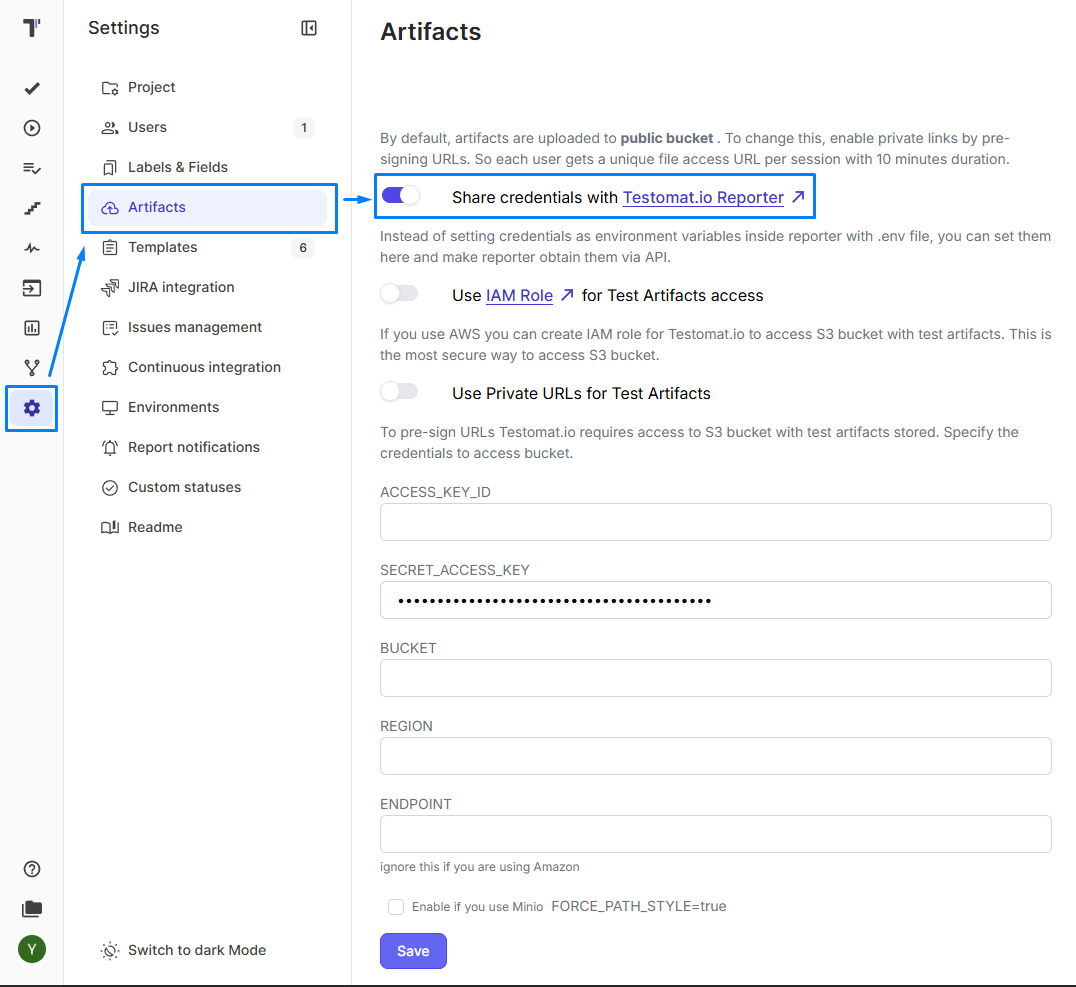
Make configurations on the Testomat.io:
Choose your project -> click Settings button on the left panel -> click Artifacts -> Toggle "Share credentials..."Provide options as environment variables/jvm property/testomatio.properties file.
NOTE: Environment variables(env/jvm/testomatio.properties) take precedence over server provided credentials.
| Setting | Description | Default |
|---|---|---|
testomatio.artifact.disable |
Completely disable artifact uploading | false |
testomatio.artifact.private |
Keep artifacts private (no public URLs) | false |
testomatio.artifact.sending.delay |
Wait time before uploading test artifacts | 10000 msec |
testomatio.step.artifacts.enabled |
Enables uploading artifacts for test steps | false |
s3.force-path-style |
Use path-style URLs for S3-compatible storage | false |
s3.endpoint |
Custom endpoint to be used with force-path-style | false |
s3.bucket |
Provides bucket name for configuration | |
s3.access-key-id |
Access key for the bucket | |
s3.secret.access-key-id |
Secret access key for the bucket | |
s3.region |
Bucket region | us-west-1 |
s3.assume.role.arn |
AWS IAM role ARN used for AssumeRole authentication | |
s3.assume.role.external.id |
External ID for AssumeRole authentication | |
testomatio.artifact.json.path |
Custom path to the JSONL export file | target/testomat/testomat-artifacts.json |
testomatio.artifact.json.disable |
Disable JSONL artifact export | false |
Note: S3 credentials can be configured either in properties file or provided automatically on Testomat.io UI. Environment variables take precedence over server-provided credentials.
Usage
Use the Testomatio facade to attach files to your tests.
Multiple files can be provided to the Testomatio.artifact(String ...) method.
import io.testomat.core.facade.Testomatio;

public class MyTest {

    @Test
    public void testWithScreenshot() {
        // Your test logic

        // Attach artifacts (screenshots, logs etc.)
        Testomatio.artifact(
                "/path/to/screenshot.png",
                "/path/to/test.log"
        );
    }
}
Karate
  @Attachments:logs/karate.log
  Scenario: Get all posts
    Given path 'posts'
    When method get
    Then eval assertStatus.checkStatusCode(responseStatus, 200)
    And match response[0].id != null
Please make sure you provide the path to the artifact file including its extension.
Using @Artifact
This provides a declarative alternative to Testomatio.artifact(...).
Artifacts can also be attached automatically by annotating a method with @Artifact.
Supported return types:
String– file pathPathFile
Example:
import io.testomat.core.annotation.Artifact;

@Artifact
public Path screenshot(Path file) {
    return file;
}
When the annotated method completes successfully the returned file is automatically collected and uploaded as an artifact.
@Artifact can be used:
- At the test level – the artifact is attached to the current test
- Inside a
@Stepmethod or an active step the artifact is attached to the current step
Example:
@Test
public void loginTest() {
    Path screenshot = takeScreenshot();

    attachTestomatScreenshot(screenshot);
}
Step level example:
Questions
What is java-reporter?
testomatio/java-reporter is a public repo on GitHub by testomatio. Java Reporter for Testomat.io.
Is java-reporter open source?
It declares no license on GitHub. Public does not mean open source: without a license, nobody is granted the right to reuse it.
Does java-reporter run on macOS, Windows or Linux?
Its maker has not tagged a system, so it is unknown here. Its README says what it needs.
How do I install java-reporter?
Open "Take it" on its page: Take My Repo writes an install plan for your machine and hands it to your AI agent (Claude Code, Codex or Cursor), which asks you before each step. Take My Repo has not tested it on any machine.