🎮 emulate / playlist for RetroArch
RetroArch run script and playlist extractor on Linux
                          ___             __
                         /\_ \           /\ \__
   __    ___ ___   __  __\//\ \      __  \ \ ,_\    __
 /'__`\/' __` __`\/\ \/\ \ \ \ \   /'__`\ \ \ \/  /'__`\
/\  __//\ \/\ \/\ \ \ \_\ \ \_\ \_/\ \L\.\_\ \ \_/\  __/
\ \____\ \_\ \_\ \_\ \____/ /\____\ \__/.\_\\ \__\ \____\
 \/____/\/_/\/_/\/_/\/___/  \/____/\/__/\/_/ \/__/\/____/
Note
I took the idea of the script emulate and wrote an entire program in Rust
that is compiled. It is faster and more feature complete, supporting an external
configuration file. Have a look, if you are interested into it:
https://github.com/thingsiplay/enjoy
Introduction
Two little helper scripts, with the focus to run games from your RetroArch
installation in Linux without using the RetroArch GUI. A working
environment is required, as these scripts just work on top of RetroArch.
The script "emulate" will run a ROM file associated to its core. Manual editing
of the script is most likely required, if your setup differs from mine. The
script "playlist" on the other hand is a good companion for extracting paths
from RetroArch playlists. It can deliver a list of all paths, or just the last
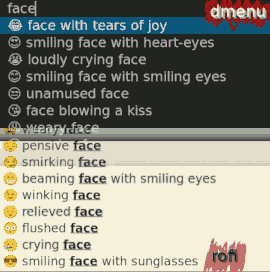
played game or offer a dmenu/rofi GUI menu to select a game.
Both scripts can be combined like this:
playlist last | emulate
"emulate" - Usage
This script will run a ROM file with a RetroArch core.
There are two main ways of usage: 1. registering filetypes on system level to
this script and 2. explicit commandline call
File extension registering ("emulate")
To associate the file extension to the script, right mouse click on the ROM
file, select "open with..." and choose the script ("emulate"). The script will
run the associated emulator core from RetroArch. From now on, you should be
able to play the games by double clicking the files in your favorite graphical
file manager. This step is not required, but it is the entire reason why I
even wrote this script.
Commandline ("emulate")
Alternatively you can also run the script from commandline without registering
file extensions at system level. When run through commandline, at least the
path to the ROM file is required, which can be relative or include "~" for HOME
as well. No wildcards are supported, make sure to resolve links to a single
file. An optional system name as the second argument can be given, which will
resolve to the core path. This can be useful for file extensions, which are not
associated to a single core, like "bin" or "chd".
It will also read from stdin, if something is there and no argument is
specified.
emulate ROM [SYSTEM]
emulate "Pinball Dreams (U).smc"
emulate "~/Emulator/roms/gb/Super Mario Land (W) (V1.1) [!].gb" gb
playlist last | emulate
Configuration ("emulate")
The configuration is done through editing the script files itself.
- Set variable
config_file to your actual "retroarch.cfg" file.
- Change or add new cores to the list of cores.
- Associate file extensions to the cores.
"playlist" - Usage
This script will extract all game "path" from a RetroArch playlist file with
the ending ".lpl" in json format and output to stdout.
There are two ways of usage: 1. dmenu/rofi GUI menu to select a game and output
to stdout (usually terminal) and 2. without GUI menu, but output of all or
first entry from given playlist. In both cases a RetroArch ".lpl" playlist can
be given, otherwise it will default to history of played games.
dmenu/rofi GUI menu ("playlist")
These programs are not required, but allow for a selection of an entry via a
dynamically created menu. The selected game will then be used as input and
output for the script.
Commandline ("playlist")
playlist [mode] [list]
playlist
playlist rofi
playlist nofilter "Nintendo - Game Boy"
playlist dmenu "/home/tuncay/.config/retroarch/playlists/Atari - 2600.lpl"
Available modes are
nofilter: do not filter the list, output every gamelast: get top most single entry, useful in combination with historydmenu: use dmenu program to create a gui and select one gamerofi: similar and an alternative program to dmenu
Configuration ("playlist")
The configuration is done through editing the script files itself.
- Set variable
retroarch_dir to your actual config folder of retroarch.
- Change the fallback option of
default_mode, in case no mode was specified
at scripts second argument.
How it works
The "emulate" script
The file extension of the input file will be compared against a set of
configured extensions. Then it looks up which configured emulator core is set
to this extension and chooses it. To find the location of the cores, the
variable libretro_directory from the retroarch.cfg file will be extracted
automatically. If everything went fine, then "retroarch" is executed finally.
The "playlist" script
Depending on the arguments, it will read the history playlist of RetroArch or
any other playlist as input. All path of each game is extracted. And
depending on the settings again, either all entries are output to stdout, or
the last/first entry or even a menu will be launched for selecting an entry
manually. In all cases the file is output to stdout, ready to be piped into
another program.
Installation and Requirements
There is not much going on here for the installation. There are only two
scripts, which are expected to be in "PATH", but it is not required. Just copy
the scripts "emulate" and "playlist" and that's it. These scripts are running
RetroArch, so make sure RetroArch is fully installed and configured and works
already. Also if you want to use "dmenu" or "rofi", you have to install them
too, but they are not required.
Known bugs, limitations and quirks
The "emulate" script runs another instance of RetroArch and I have no clue if
this can lead to any conflict while another RetroArch GUI is open. I generally
recommend to close any RetroArch GUI before playing this way. Or at least
immadiately close the RetroArch GUI when running from script.
Feedback
If you want report a bug or have any questions, then leave me a message on my contact page.