
SwiftSCAD
Swift preprocessor for OpenSCAD
- 12
- MIT
- 17 mo ago
Repo tomasf/SwiftSCAD, read from GitHub 2 h ago. tomasf has not joined Take My Repo.
In short
tomasf/SwiftSCAD is a public repo on GitHub by tomasf. Swift preprocessor for OpenSCAD. It declares the MIT license on GitHub. It is written mainly in OpenSCAD, has 12 stars and last changed on 2025-07-11. It is archived: its maker no longer maintains it. Nobody has reviewed it on Take My Repo yet, which says nothing about its quality. Read from GitHub on 2026-11-25.
As of July 2025, SwiftSCAD has been replaced by Cadova. Cadova is similar to SwiftSCAD, but generates its own meshes and operates independently of OpenSCAD.
SwiftSCAD
SwiftSCAD is a library that allows you to create 3D and 2D CAD models in Swift. It acts as a preprocessor for OpenSCAD, generating .scad files that can be previewed and rendered using the OpenSCAD application. This offers a more convenient API, breaking away from the limitations of the OpenSCAD language.
SwiftSCAD runs on macOS, Windows and Linux.
Getting Started
tl;dr: Create a new executable Swift package, add SwiftSCAD as a dependency, import it in your code, create geometry and use the
save(to:)method to save it to disk as an OpenSCAD file.
1. Install OpenSCAD
Install OpenSCAD in order to preview and render your models. Use a development snapshot version because the stable releases are usually very old.
2. Install Swift
If you're using macOS, it's easiest to install the latest version of Xcode.
For Windows and Linux, install Swift directly. I also recommend installing VS Code with the Swift extension to make development easier.
3. Create a new Swift executable package:
$ mkdir thingamajig
$ cd thingamajig
$ swift package init --type executable
4. Add SwiftSCAD as a dependency for your package in Package.swift:
let package = Package(
    name: "thingamajig",
    dependencies: [
        .package(url: "https://github.com/tomasf/SwiftSCAD.git", upToNextMinor(from: "0.9.0")),
    ],
    targets: [
        .executableTarget(name: "thingamajig", dependencies: ["SwiftSCAD"])
    ]
)
5. Use SwiftSCAD
In main.swift, import SwiftSCAD, create geometry and save it:
import SwiftSCAD

Box([10, 10, 5])
    .subtracting {
        Sphere(diameter: 10)
            .translated(z: 5)
    }
    .save(to: "gadget.scad")
Run your code using swift run (or using Xcode/VS Code) to generate the .scad file. By default, the files are saved to the current working directory. The full path will be printed in the console.
Open it in OpenSCAD to preview your model. For the best experience, hide the editor view using View > Hide Editor and enable Design > Automatic Reload and Preview. With this in place, OpenSCAD will reload automatically every time you run your code after making changes to the model.
Libraries
- Helical - A SwiftSCAD library providing customizable threads, screws, bolts, nuts and related parts.
- RichText - TextKit-based companion library for SwiftSCAD (macOS only)
Examples
Rotated box
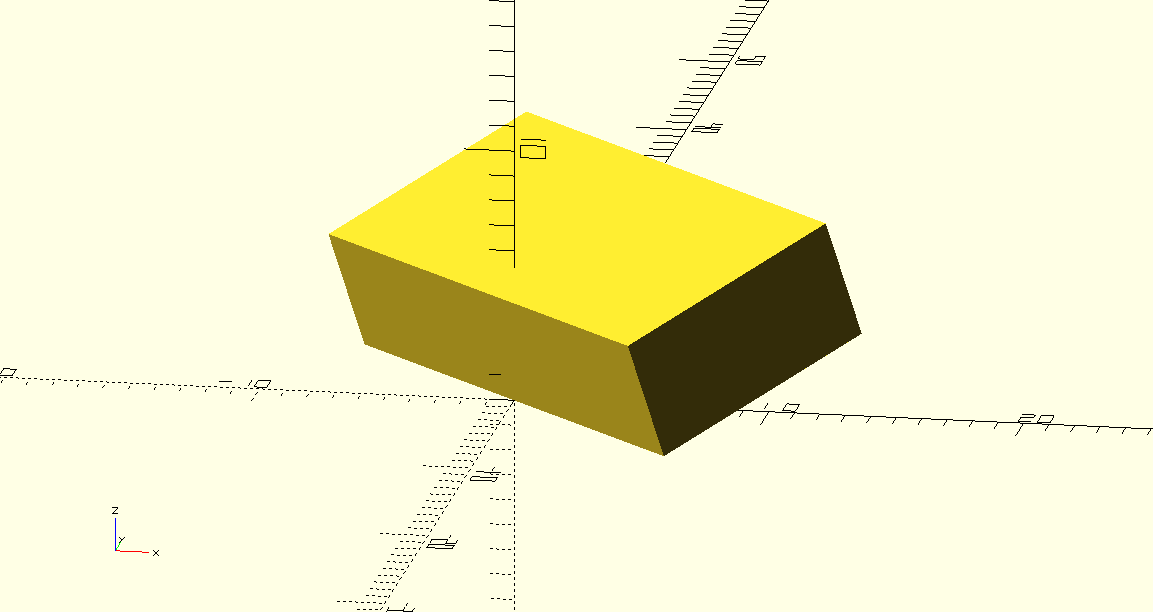
Box(x: 10, y: 20, z: 5)
    .aligned(at: .centerY)
    .rotated(y: -20°, z: 45°)
    .save(to: "example1.scad")
Extruded star with subtraction
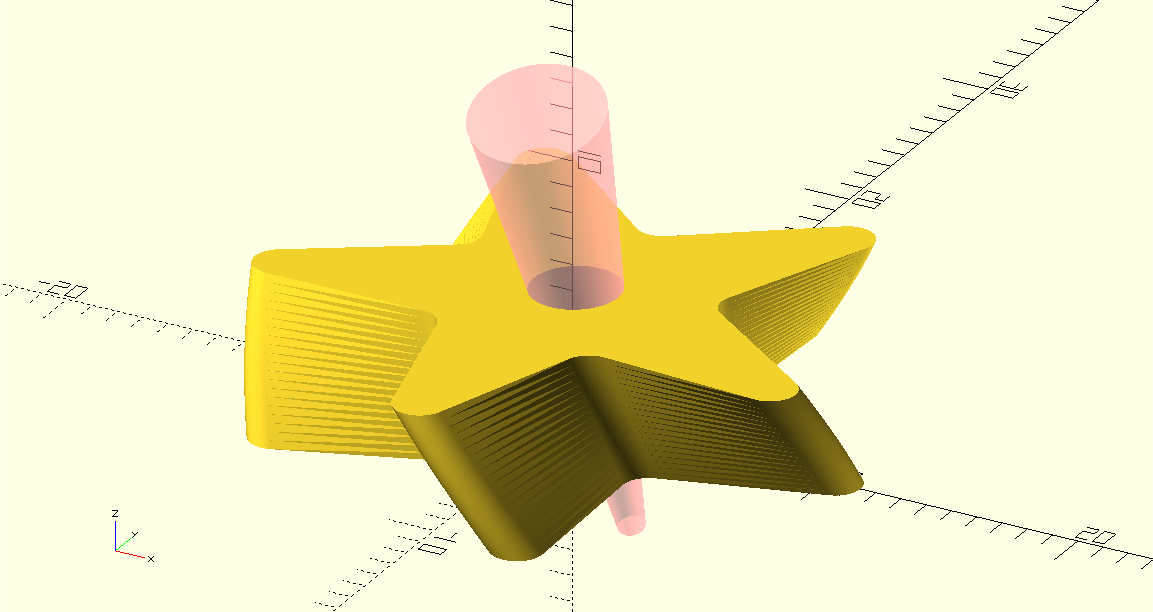
Circle(diameter: 10)
    .withFacets(count: 3)
    .translated(x: 2)
    .scaled(x: 2)
    .repeated(in: 0°..<360°, count: 5)
    .rounded(amount: 1)
    .extruded(height: 5, twist: -20°)
    .subtracting {
        Cylinder(bottomDiameter: 1, topDiameter: 5, height: 20)
            .translated(y: 2, z: -7)
            .rotated(x: 20°)
            .highlighted()
    }
    .save(to: "example2")
Reusable star shape
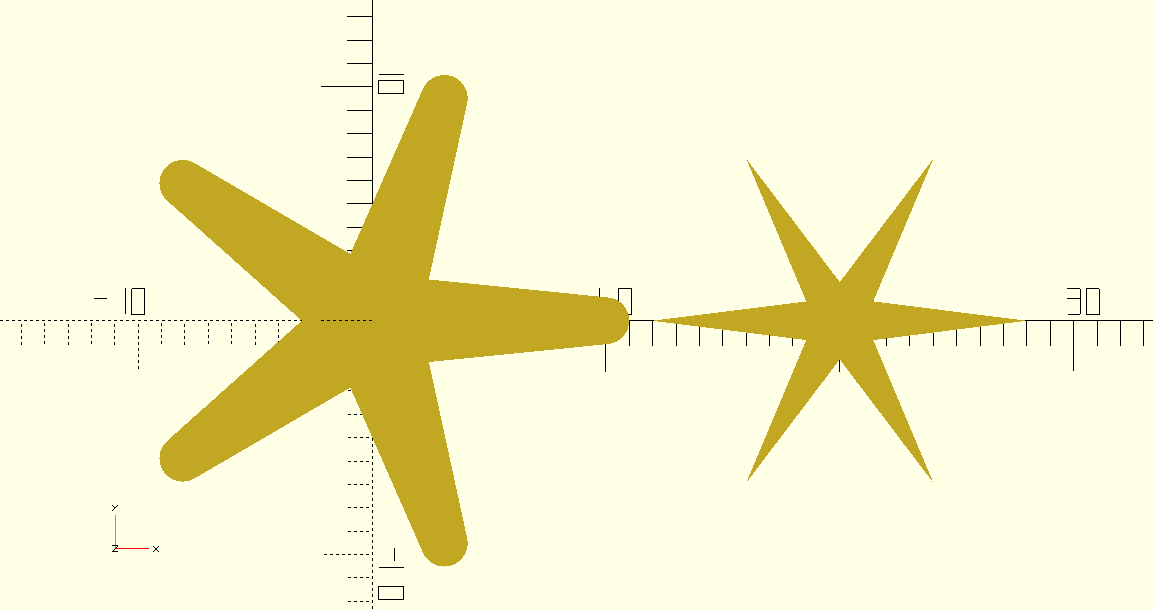
struct Star: Shape2D {
    let pointCount: Int
    let radius: Double
    let pointRadius: Double
    let centerSize: Double

    var body: any Geometry2D {
        Circle(diameter: centerSize)
            .adding {
                Circle(radius: max(pointRadius, 0.001))
                    .translated(x: radius)
            }
            .convexHull()
            .repeated(in: 0°..<360°, count: pointCount)
    }
}

save {
    Stack(.x, spacing: 1, alignment: .centerY) {
        Star(pointCount: 5, radius: 10, pointRadius: 1, centerSize: 4)
        Star(pointCount: 6, radius: 8, pointRadius: 0, centerSize: 2)
    }
    .named("example3")
}
Extruding along a Bezier path
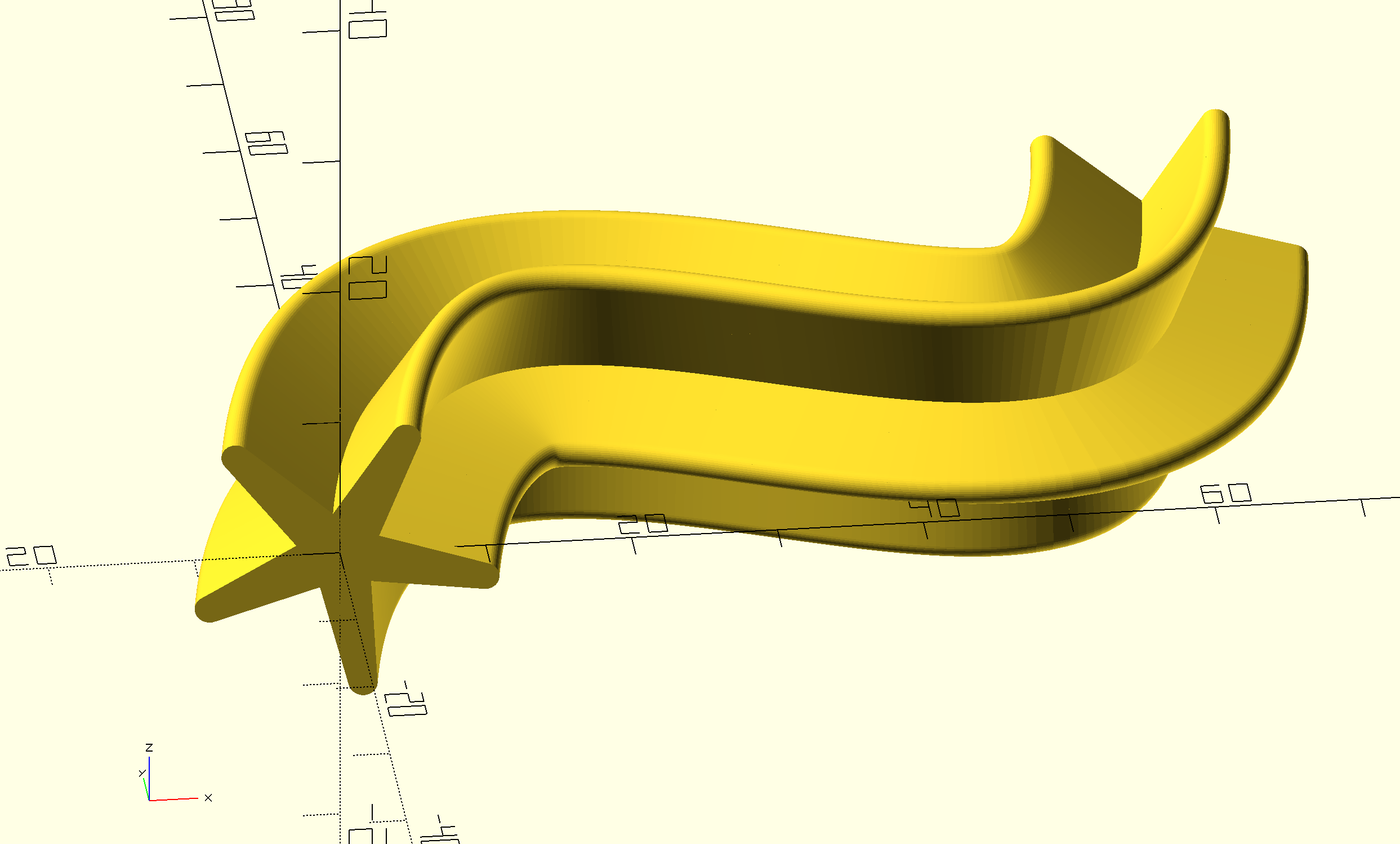
let path = BezierPath2D(startPoint: .zero)
    .addingCubicCurve(
        controlPoint1: [10, 65],
        controlPoint2: [55, -20],
        end: [60, 40]
    )

save {
    Star(pointCount: 5, radius: 10, pointRadius: 1, centerSize: 4)
        .usingDefaultFacets()
        .extruded(along: path)
        .withPreviewConvexity(4)
        .usingFacets(minAngle: 5°, minSize: 1)
        .named("example4")
}
Questions
What is SwiftSCAD?
tomasf/SwiftSCAD is a public repo on GitHub by tomasf. Swift preprocessor for OpenSCAD.
Is SwiftSCAD open source?
It declares the MIT license on GitHub.
Does SwiftSCAD run on macOS, Windows or Linux?
Its maker has not tagged a system, so it is unknown here. Its README says what it needs.
How do I install SwiftSCAD?
Open "Take it" on its page: Take My Repo writes an install plan for your machine and hands it to your AI agent (Claude Code, Codex or Cursor), which asks you before each step. Take My Repo has not tested it on any machine.
Is SwiftSCAD still maintained?
No. It is archived on GitHub: its maker no longer maintains it.