redis-cluster-operator
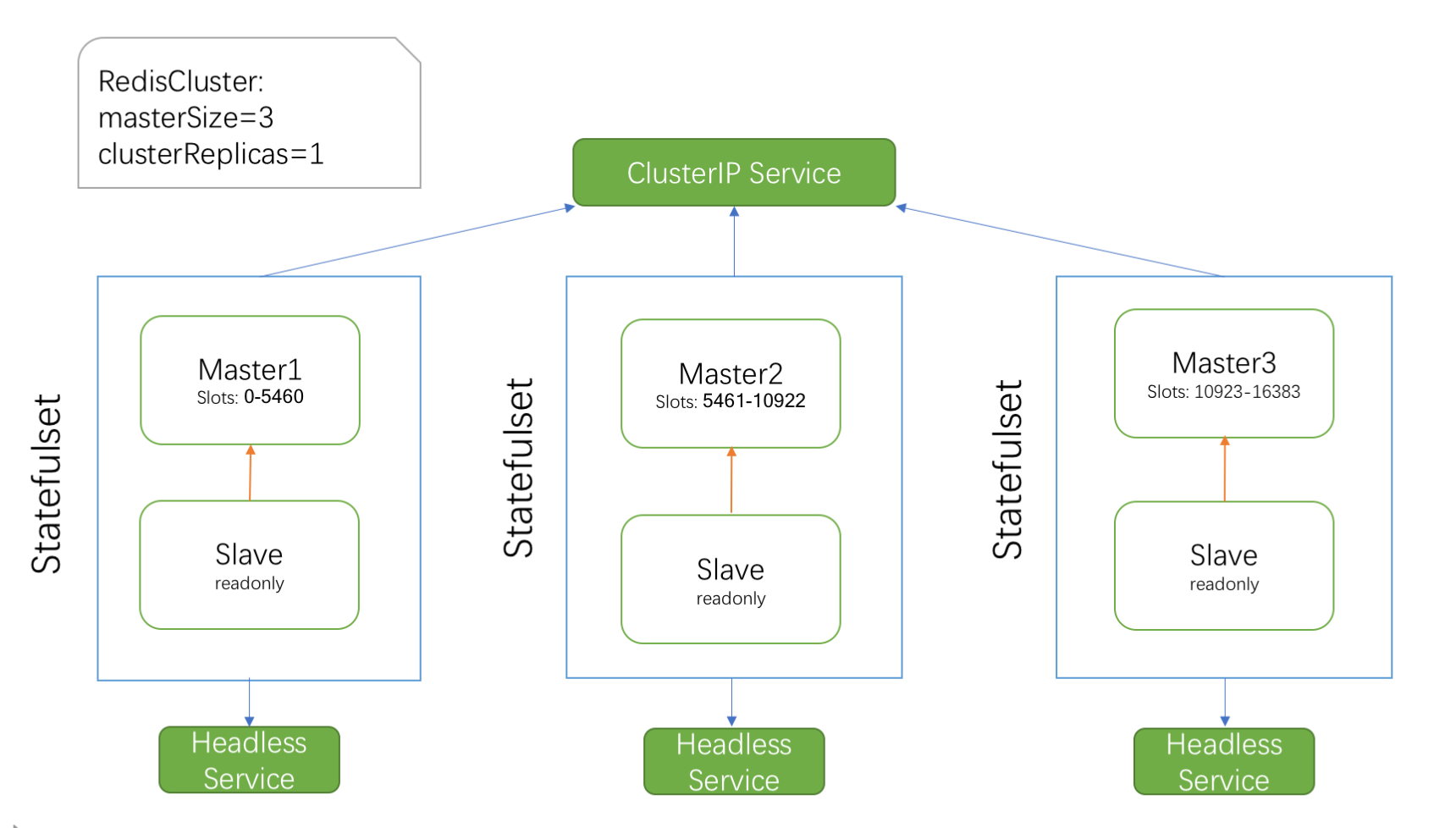
Redis Cluster Operator creates and manages Redis Clusters atop Kubernetes.
- 395
- Go
- Apache-2.0
- 3 y ago

UCloud Command Line Interface
Repo ucloud/ucloud-cli, read from GitHub 1 min ago. ucloud has not joined Take My Repo.
ucloud/ucloud-cli is a public repo on GitHub by ucloud. UCloud Command Line Interface. It declares the Apache-2.0 license on GitHub. It is written mainly in Go, has 105 stars and last changed on 2026-07-22. Nobody has reviewed it on Take My Repo yet, which says nothing about its quality. Read from GitHub on 2026-11-22.
English | 简体中文

The UCloud CLI provides a unified command line interface to UCloud services. It works on ucloud-sdk-go based on UCloud OpenAPI and supports Linux, macOS and Windows. https://docs.ucloud.cn/developer/cli/index
Using Homebrew(Recommended on macOS)
The Homebrew package manager may be used on macOS and Linux. It could install ucloud-cli and its dependencies automatically by running command below.
brew install ucloud
If you have installed ucloud-cli already and want to upgrade to the latest version, just run:
brew upgrade ucloud
If you come across some errors during the installation via homebrew, please update the homebrew first and try again.
brew update
If the error is still unresolved, try the following command for help.
brew doctor
Building from source(Recommended if you have golang installed)
If you have installed git and golang on your platform, you can fetch the source code of ucloud cli from github and complie it by yourself.
git clone https://github.com/ucloud/ucloud-cli.git
cd ucloud-cli
make install
Upgrade to latest version
cd ucloud-cli
git pull
make install
Downloading binary release(Recommended on Linux)
Visit the releases page of ucloud cli, and find the appropriate archive for your operating system and architecture. Download the archive , check the shasum256 hashcode and extract it to your $PATH
For example
curl -OL https://github.com/ucloud/ucloud-cli/releases/download/0.1.22/ucloud-cli-linux-0.1.22-amd64.tgz
echo "efbfb6d36d99f692b1f9cc7c9e3858047bb7b4fca6205c454098267e660b41d9 *ucloud-cli-linux-0.1.22-amd64.tgz" | shasum -c //check shasum to verify whether the downloaded tarball was hijacked. get the shasum from release page
tar zxf ucloud-cli-linux-0.1.22-amd64.tgz -C /usr/local/bin/
Building from source
Download the source code of ucloud cli from releases page and extract it. You can also download it by running git clone https://github.com/ucloud/ucloud-cli.git
Go to the directory of the source code, and then compile the source code by running go build -mod=vendor -o ucloud.exe
After that add ucloud.exe to your environment variable PATH. You could follow this document if you don't know how to do.
Open CMD Terminal and run ucloud --version to test installation.
Downloading binary release
Vist the releases page of ucloud cli, and find the appropriate archive for your operating system and architecture. Download the archive , and extract it. Add binary file ucloud.exe to your environment variable PATH following this document
If you have installed docker on your platform, pull the docker image embedded ucloud cli by follow command. Lookup Dockerfile from here
docker pull uhub.service.ucloud.cn/ucloudcli/ucloud-cli:source-code
Create a docker container named ucloud-cli using the docker image your have pulled by following command.
docker run --name ucloud-cli -it -d uhub.service.ucloud.cn/ucloudcli/ucloud-cli:source-code
Run bash command in ucloud-cli container, and then you could play with ucloud cli.
docker exec -it ucloud-cli zsh
UCloud CLI also has auto-completion support. It can be set up so that if you partially type a command and then press TAB, the rest of the command is automatically filled in.
Bash shell
Add following scripts to ~/.bash_profile or ~/.bashrc and then restart your terminal or run source <~/.bash_profile|~/.bashrc>
complete -C $(which ucloud) ucloud
Zsh shell
Add following scripts to ~/.zshrc and then restart your terminal or run source ~/.zshrc
autoload -U +X bashcompinit && bashcompinit
complete -F $(which ucloud) ucloud
Zsh builtin command bashcompinit may not work on some platform. If the scripts don't work on your OS, try following scripts
_ucloud() {
        read -l;
        local cl="$REPLY";
        read -ln;
        local cp="$REPLY";
        reply=(`COMP_SHELL=zsh COMP_LINE="$cl" COMP_POINT="$cp" ucloud`)
}

compctl -K _ucloud ucloud
The UCloud CLI supports using any of multiple named profiles that are stored in config.json and credential.json files which located in ~/.ucloud.
You can configure additional profiles by using ucloud config add with the --profile flag, or by adding entries to the config.json and credential.json files.
ucloud init will add profile named default if you do not have an active profile, and it does its best to reduce configuration items for first-time use of ucloud-cli.
There are 10 configuration items
Run the command below to get started and configure ucloud-cli.
$ ucloud init
List all profiles (for example)
$ ucloud config list

Profile  Active  ProjectID   Region  Zone       BaseURL                 Timeout  PublicKey           PrivateKey          MaxRetryTimes
default  true    org-oxjwoi  cn-bj2  cn-bj2-05  https://api.ucloud.cn/  15       YSQGIZrL*****nCRQ=  jtma2eqQ*****+Avms  3
uweb     false   org-bdks4e  cn-bj2  cn-bj2-05  https://api.ucloud.cn/  15       4E9UU0Vh*****PWQ==  694581ea*****a0d45  3
Add additional profiles
$ ucloud config add --profile <new-profie-name> --public-key xxx --private-key xxx
To change configuration items of specified profile, run:
$ ucloud config update --profile xxx --region cn-sh2
For more information, run:
$ ucloud config --help
The UCloud CLI supports two ways to authenticate. Pick one based on how you use the CLI:
| You are | Use |
|---|---|
| A human at an interactive terminal | OAuth browser login: ucloud auth login (recommended) |
| Scripts, CI/CD or other unattended automation | AK/SK profile: ucloud init or ucloud config |
$ ucloud auth login
What happens:
http://localhost:<port>/authorization, where the CLI captures the authorization code automatically and shows a "Login successful" page — no copy-paste needed. Just close the tab and return to the terminal.Configured default region:cn-bj2 zone:cn-bj2-02
Configured default project:org-xxxxxx Default
Logged in as you@example.com, token valid until 18:30
For SSH sessions or headless machines, pass --no-browser:
$ ucloud auth login --no-browser
The CLI prints the authorization URL instead of opening a browser. Open it on any device, log in and approve. The browser will then be redirected to a http://localhost:<port>/authorization?... page that cannot open — this is expected. Copy the FULL URL from the address bar and paste it back into the terminal.
The same paste prompt is also used as a fallback in the default mode: if the automatic capture does not receive the callback within 3 minutes, the CLI prints "Automatic capture timed out. Paste the callback URL here as a fallback:" and waits for the pasted URL.
For non-default environments, pass --oauth-base-url <url> to override the OAuth authorization server URL. It works with no prior config and is saved to the profile, so later token refreshes reuse it.
~/.ucloud/credential.json with file mode 0600.ucloud auth login again.ucloud auth logout. Logout only removes the locally stored tokens of the current profile; it does not touch any stored AK/SK keys. Logging out of the UCloud web console does not affect CLI sessions.AuthMode column of ucloud config list (oauth for browser login, empty for AK/SK signing).ucloud auth login switches the current profile to OAuth. Existing AK/SK keys are kept stored but no longer used for signing.ucloud init on an OAuth profile asks for confirmation before switching the profile back to AK/SK.--public-key and --private-key flags on a command always takes precedence: that invocation uses AK/SK signing regardless of the profile's auth mode.OAuth token requests honor the standard HTTPS_PROXY / HTTP_PROXY / NO_PROXY environment variables.
~/.ucloud across machines: the refresh token rotates on every renewal, so a renewal on one machine logs the other machine out. For multi-machine or shared setups, use an AK/SK profile.ucloud auth login again.| Symptom / message | What to do |
|---|---|
authorization code or refresh token expired or already used (each code works only once) |
Each authorization code works only once and expires quickly. Run ucloud auth login again and complete the flow promptly. |
state mismatch: the pasted URL likely comes from a previous login attempt |
You pasted a callback URL from an earlier attempt. Run ucloud auth login again and paste the URL from THIS attempt. |
Login expired for profile '<name>' |
The refresh token is no longer valid. Run ucloud auth login again. |
cannot reach oauth server ... (check network or proxy settings) |
Network or proxy issue. Check connectivity and your HTTPS_PROXY / HTTP_PROXY / NO_PROXY settings. |
'ucloud auth login' requires an interactive terminal |
You are in CI or piping stdin. OAuth login is for interactive humans; use an AK/SK profile instead. |
| Browser did not open | Copy the URL printed in the terminal and open it manually, or use --no-browser. |
| (manual mode) browser shows the localhost page cannot open | Expected — the CLI is not listening in manual mode. Copy the full URL from the address bar and paste it into the terminal. |
| (manual mode) the localhost page shows unexpected content from another local program | Harmless — something else happens to listen on that port. Only the URL in the address bar matters; copy and paste it. |
I want to create a uhost in Nigeria (region: air-nigeria) and bind a public IP, and then configure GlobalSSH to accelerate efficiency of SSH service beyond China mainland.
Firstly, create an uhost instance:
$ ucloud uhost create --cpu 1 --memory-gb 1 --password **** --image-id uimage-fya3qr

uhost[uhost-zbuxxxx] is initializing...done
Note
Run command below to get details about the parameters of creating new uhost instance.
$ ucloud uhost create --help
Secondly, we're going to allocate an EIP and then bind it to the uhost created above.
$ ucloud eip allocate --bandwidth-mb 1
allocate EIP[eip-xxx] IP:106.75.xx.xx  Line:BGP

$ ucloud eip bind --eip-id eip-xxx --resource-id uhost-xxx
bind EIP[eip-xxx] with uhost[uhost-xxx]
The operations above also can be done by one command
$ ucloud uhost create --cpu 1 --memory-gb 1 --password **** --image-id uimage-fya3qr --create-eip-bandwidth-mb 1
Configure the GlobalSSH to the uhost instance and login the instance via GlobalSSH
$ ucloud gssh create --location Washington --target-ip 152.32.140.92
gssh[uga-0psxxx] created

$ ssh root@152.32.140.92.ipssh.net
root@152.32.140.92.ipssh.net's password: password of the uhost instance
Using command "ucloud api" to call any API.Fill in the parameters of an API in sequence according to the API documentation. This command is quite special, and public parameters such as --public-key,--private-key,--debug,--profile,--timeout-sec are not supported. If you want to tune on debug mode, set environment variable $UCLOUD_CLI_DEBUG=on
$ ucloud api --Action <APIName> --Param1 <value> --Param2 <value> ...
You can also put those API parameters into a json file, like this.
$ ucloud api --local-file ./create_uhost.json

//content of file create_uhost.json
{
    "Action":"CreateUHostInstance",
    "Region":"cn-bj2",
    "Zone":"cn-bj2-02",
    "ImageId":"uimage-gk2x3x",
    "NetworkInterface": [{
        "EIP":{
            "Bandwidth":1,
            "OperatorName":"Bgp",
            "PayMode": "Bandwidth"
        }
    }],
    "LoginMode":"Password",
    "Password":"dGVzdGx4ajEy",
    "CPU":1,
    "Memory":2048,
    "Disks":[
        {
            "Size":20,
            "Type":"LOCAL_NORMAL",
            "IsBoot":"true"
        }
    ]
}
ucloud/ucloud-cli is a public repo on GitHub by ucloud. UCloud Command Line Interface.
It declares the Apache-2.0 license on GitHub.
Its maker tagged it for macOS, Windows and Linux, or as Docker or cross-platform. That is declared by the maker; Take My Repo has not tested it.
Open "Take it" on its page: Take My Repo writes an install plan for your machine and hands it to your AI agent (Claude Code, Codex or Cursor), which asks you before each step. Take My Repo has not tested it on any machine.
Its last change on GitHub was on 2026-07-22. GitHub counts 3 open issues and pull requests. Take My Repo does not judge from that whether it is maintained.
Nobody has reviewed it on Take My Repo yet, which says nothing about its quality.
Redis Cluster Operator creates and manages Redis Clusters atop Kubernetes.
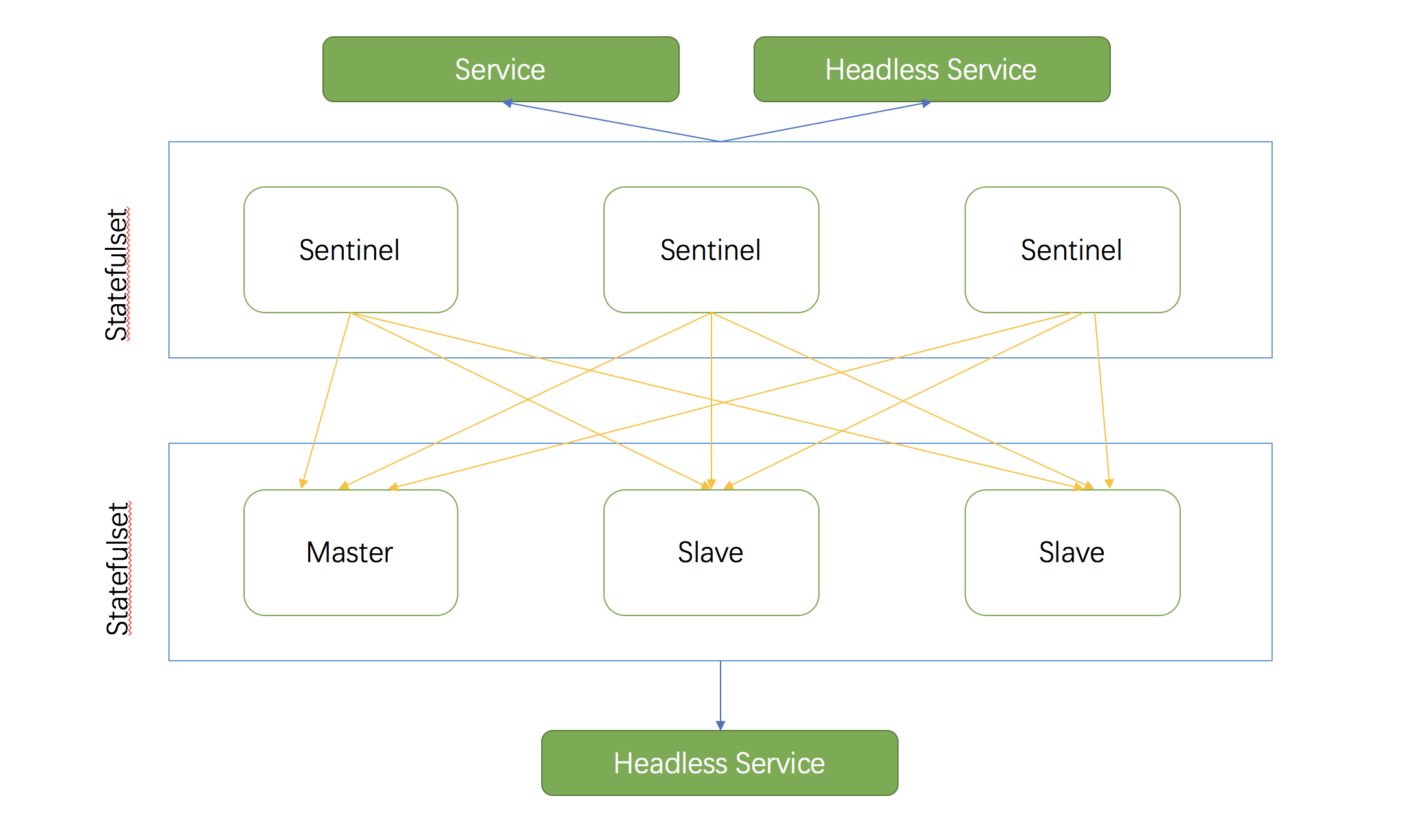
Redis operator build a Highly Available Redis cluster with Sentinel atop Kubernetes
Terraform is an awesome tool to implement Infrastructure as Code and GitOps
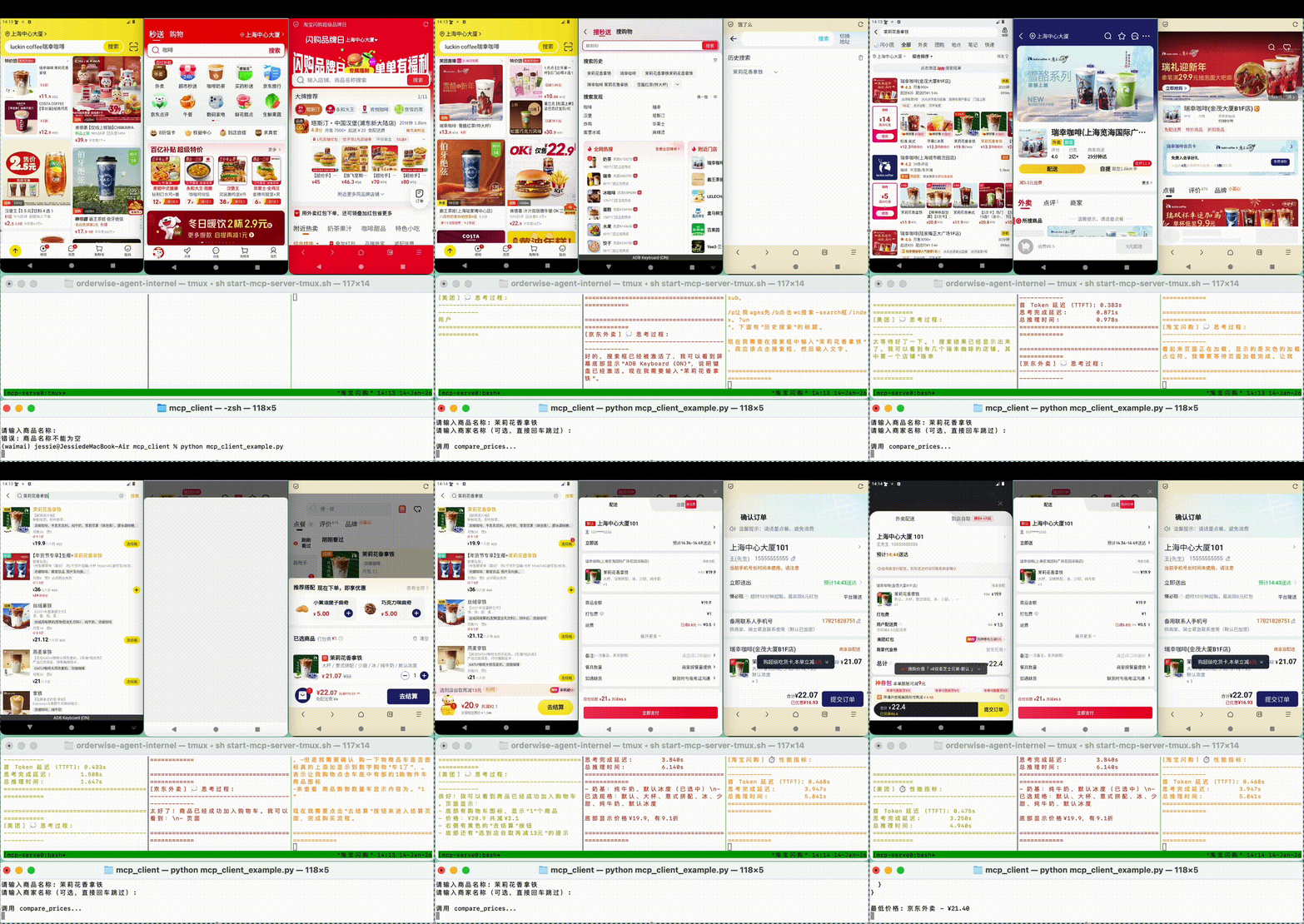
OrderWise-Agent: An Intelligent Multi-Platform Food Delivery Price Comparison Agent