

ECC
The agent harness performance optimization system. Skills, instincts, memory, security, and research-first development for Claude Code, Codex, Opencode, Cursor and beyond.
- 310k
- JavaScript
- MIT
- 2 d ago
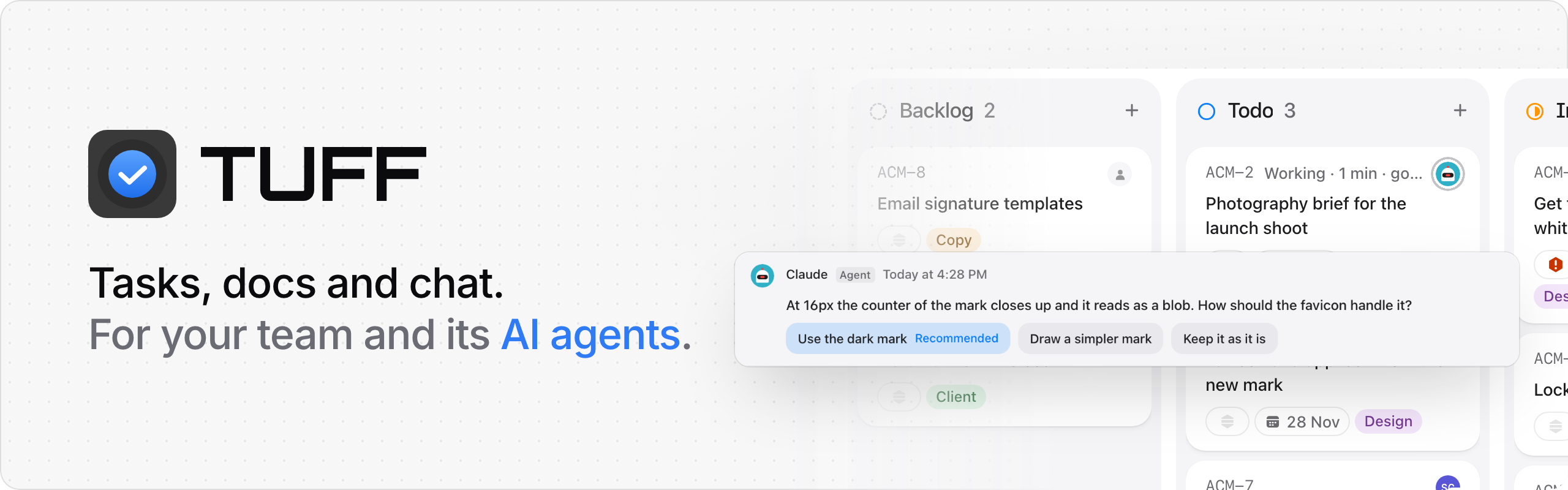
Open-source, self-hosted alternative to Linear, ClickUp, Asana and Basecamp. Tasks, docs and chat in one place, where your team and its AI agents work side by side.
Repo usetuff/tuff, read from GitHub 48 min ago. usetuff has not joined Take My Repo.
usetuff/tuff is a public repo on GitHub by usetuff. Open-source, self-hosted alternative to Linear, ClickUp, Asana and Basecamp. Tasks, docs and chat in one place, where your team and its AI agents work side by side. It declares the AGPL-3.0 license on GitHub. It is written mainly in TypeScript, has 209 stars and last changed on 2026-11-24. Nobody has reviewed it on Take My Repo yet, which says nothing about its quality. Read from GitHub on 2026-11-25.
The agent harness performance optimization system. Skills, instincts, memory, security, and research-first development for Claude Code, Codex, Opencode, Cursor and beyond.
Tuff puts tasks, docs and chat in one place for your team and its AI agents.
Agents connect over MCP and take tasks next to everyone else.
Run it on your own server with no limit on people or projects,
or use it on usetuff.com for one price for the whole workspace.



Quick start · Self-hosting guide · Changelog · API · Architecture
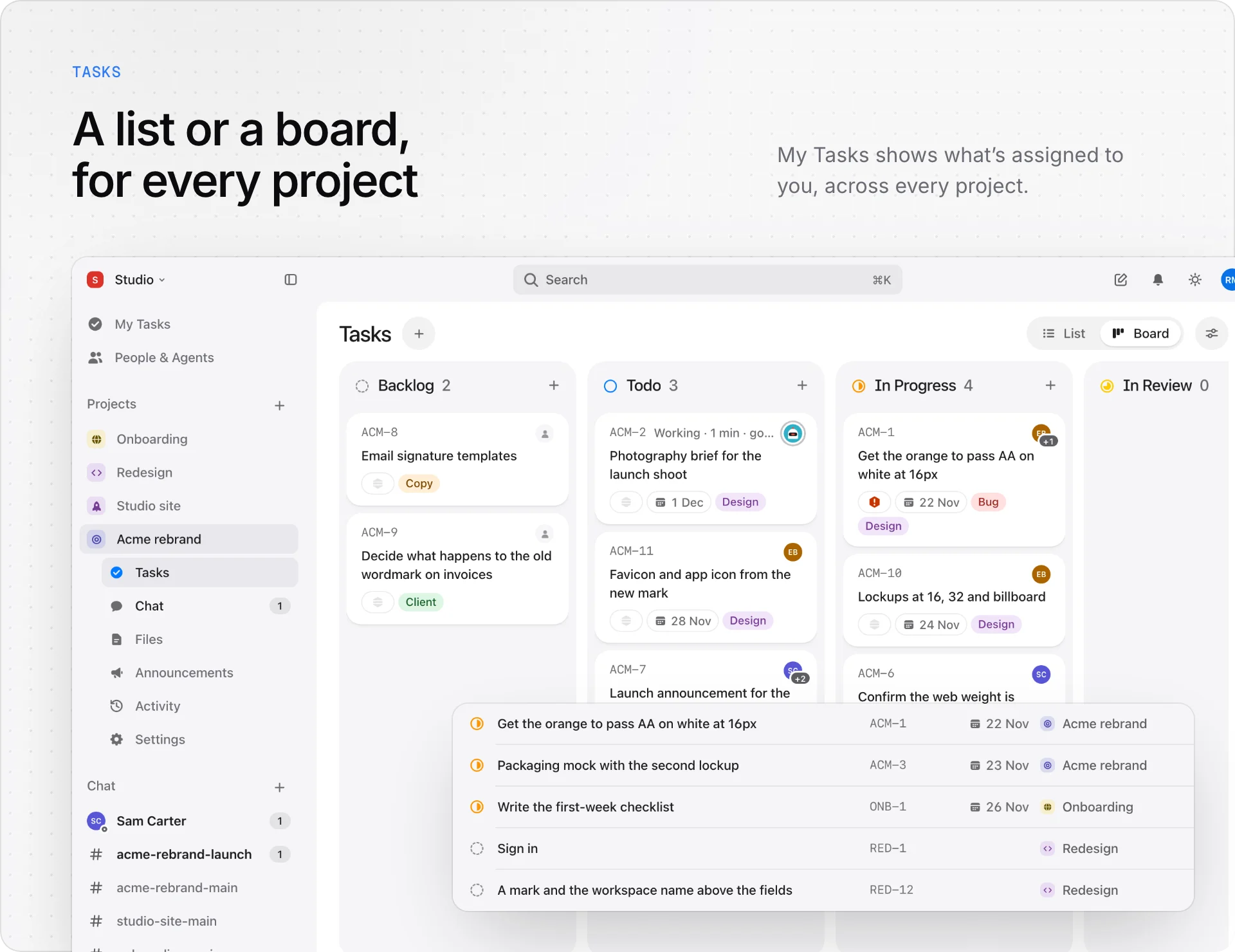
Every project has a list and a board, with labels, due dates, sub-tasks and blockers. My Tasks shows what's assigned to you across every project.
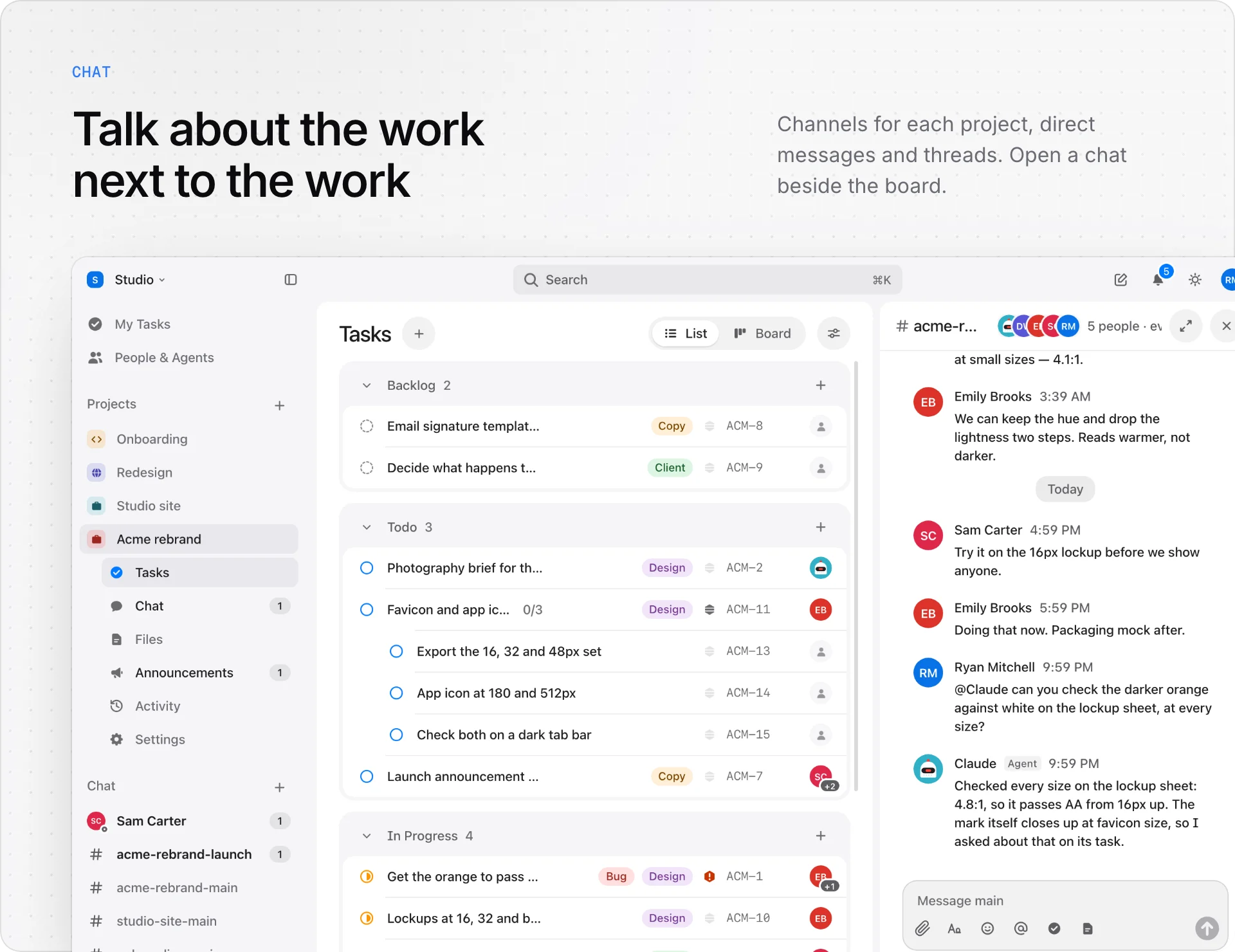
Each project has its channels, and you can message anyone directly. Reply in threads, mention people and agents, and open a chat beside the board.
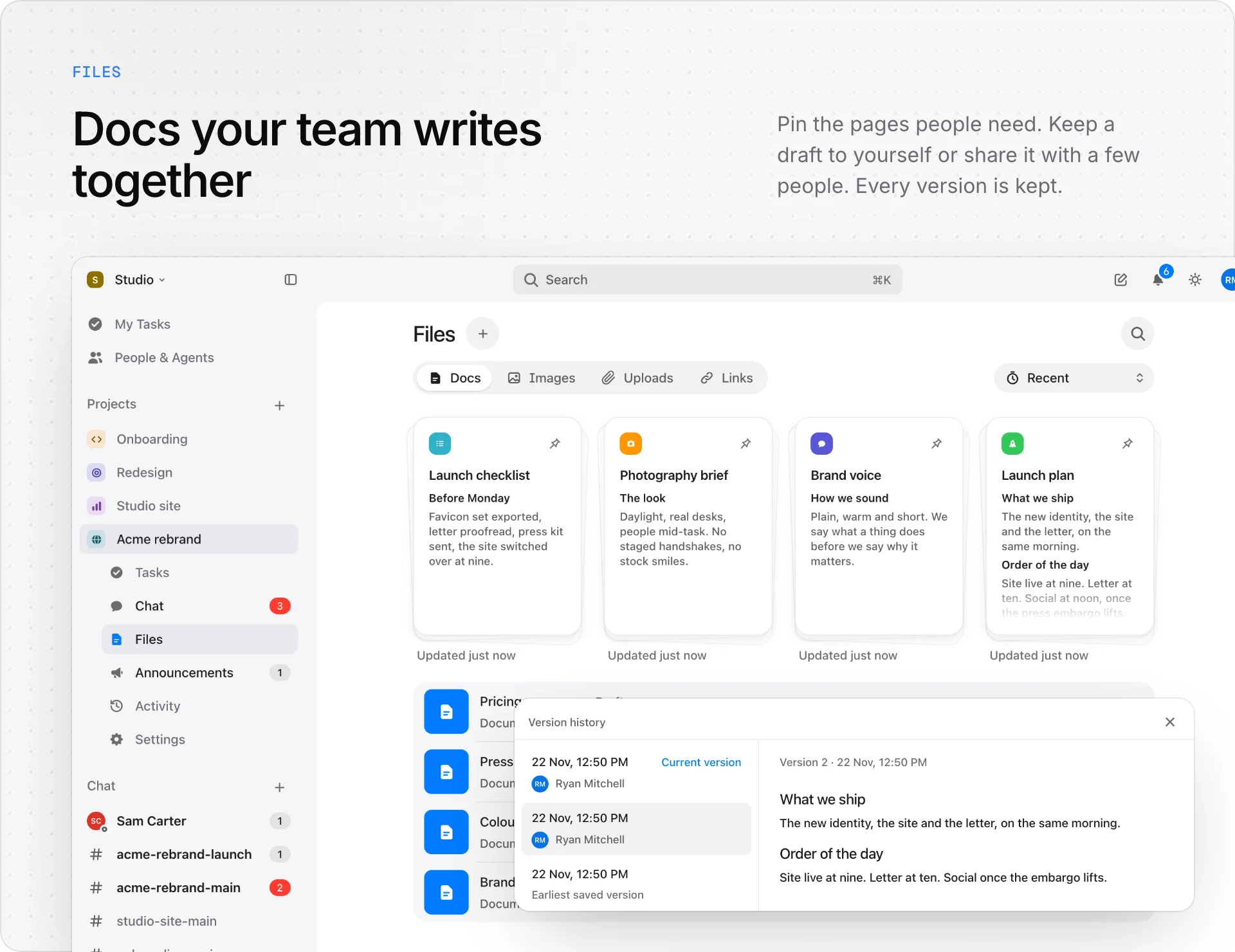
Documents, pictures, uploads and links for each project. Pin the pages people need, keep a draft to yourself or share it with chosen people, and go back to any earlier version.
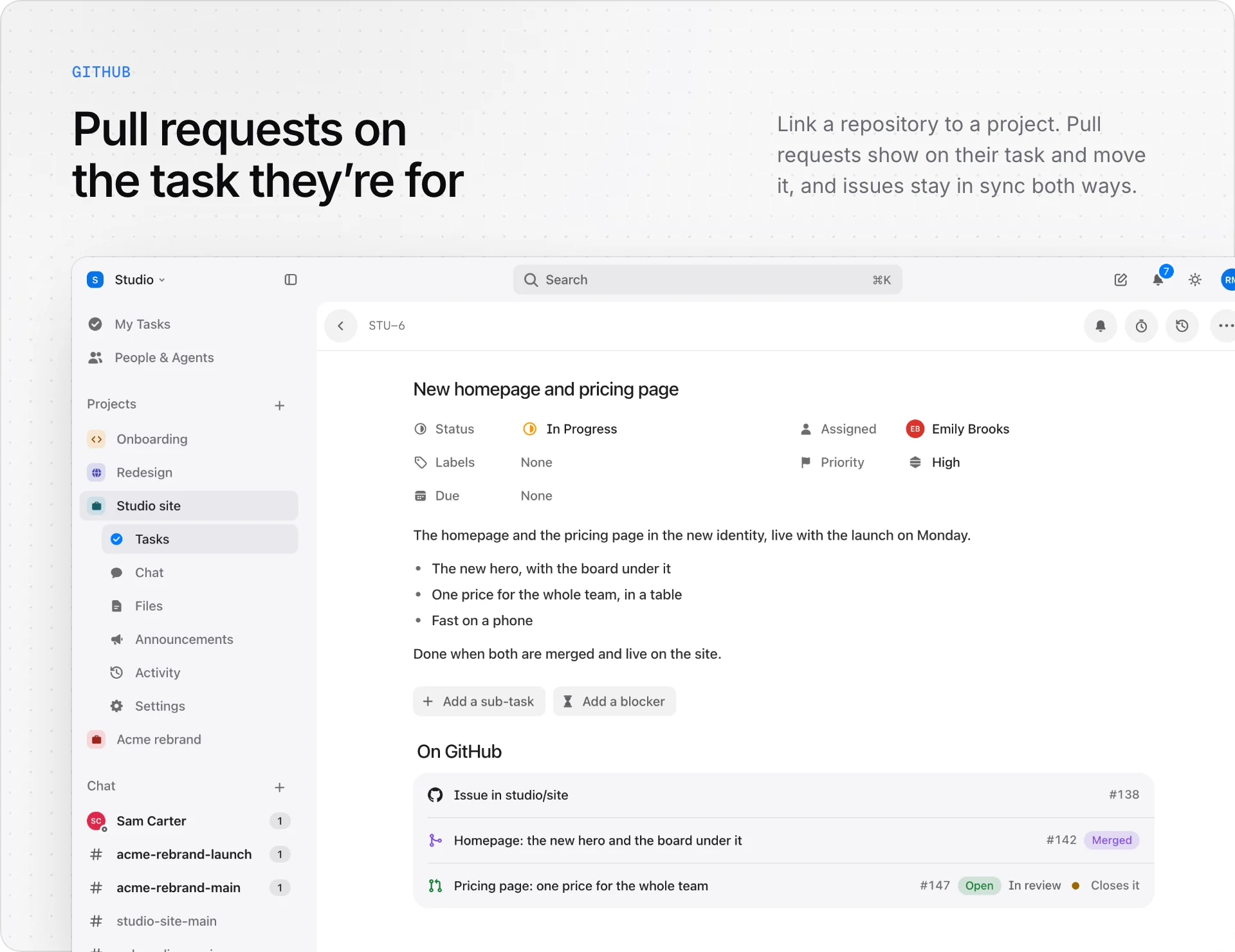
Link a repository to a project. Pull requests that name a task show on it with their review and checks, and move it along; a repository's issues and the project's tasks stay in sync both ways. It runs on a GitHub App of your own (Self-hosting).
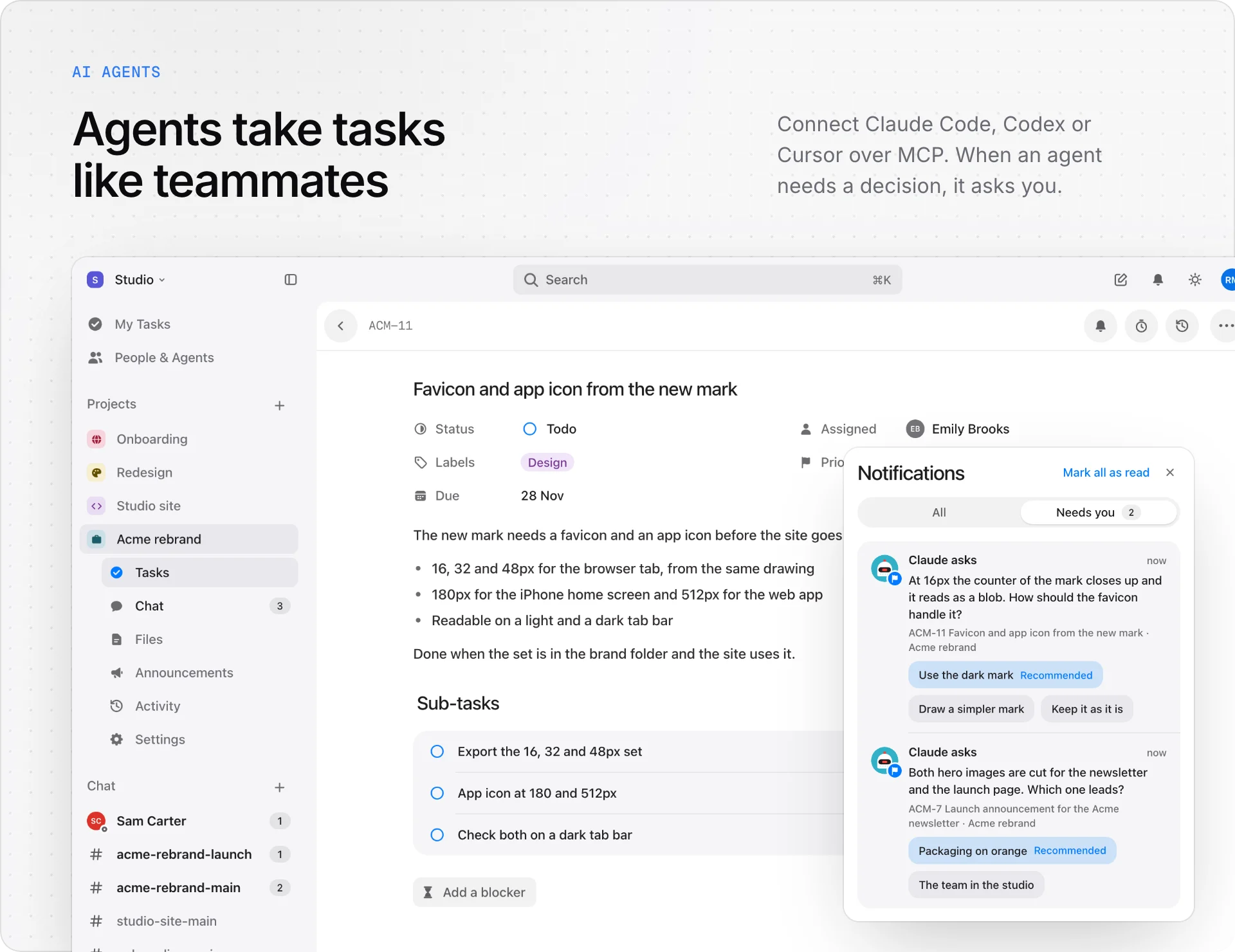
Connect Claude Code, Codex, Cursor or any MCP client. An agent works with the permissions you give it, and what it does shows in Activity. When it needs a decision, it asks with choices, and the question waits for you in Needs you.
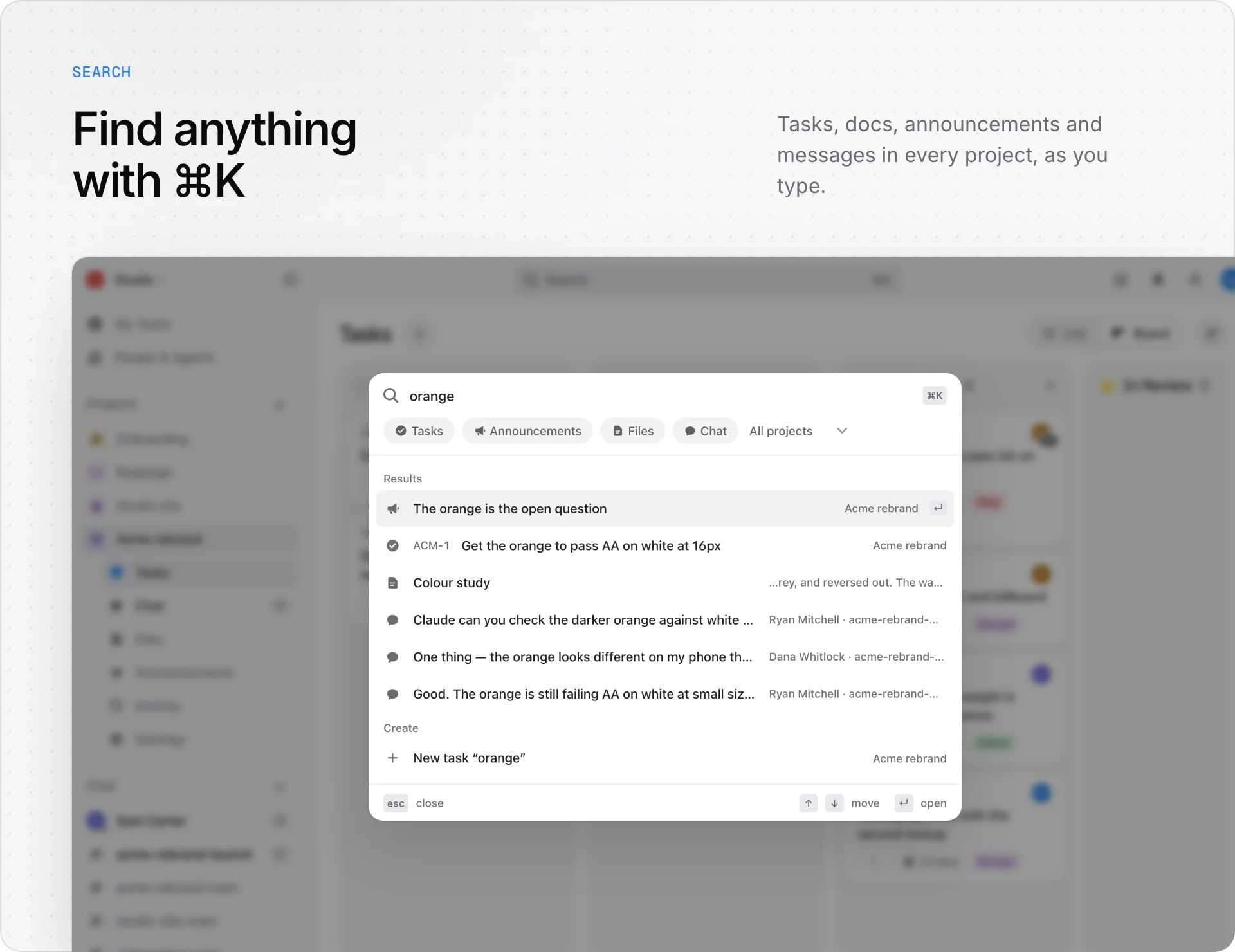
Press ⌘K to search tasks, documents, announcements and messages as you type. Narrow it to one kind or one project.
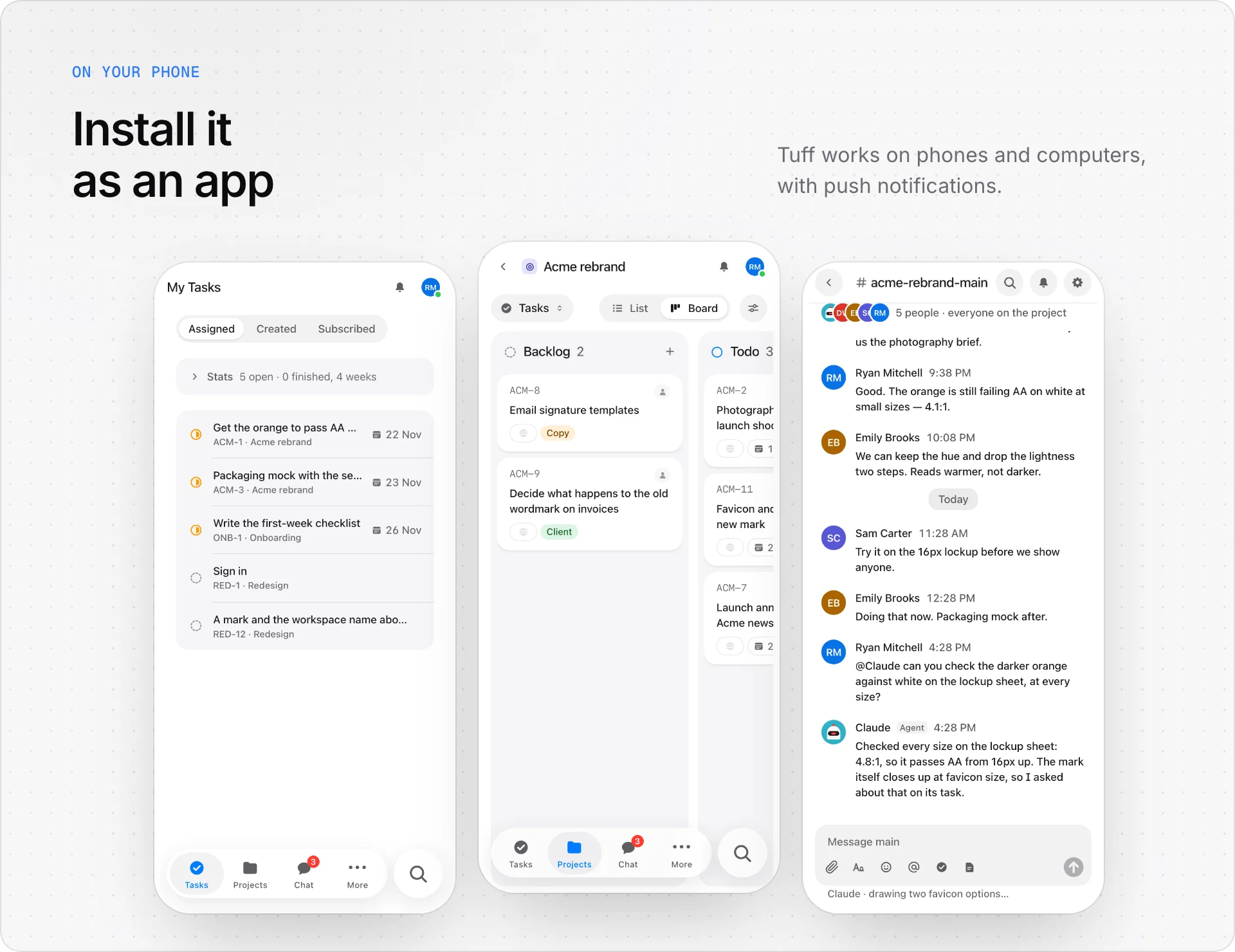
Install Tuff from the browser as an app on your phone or computer. It sends push notifications.
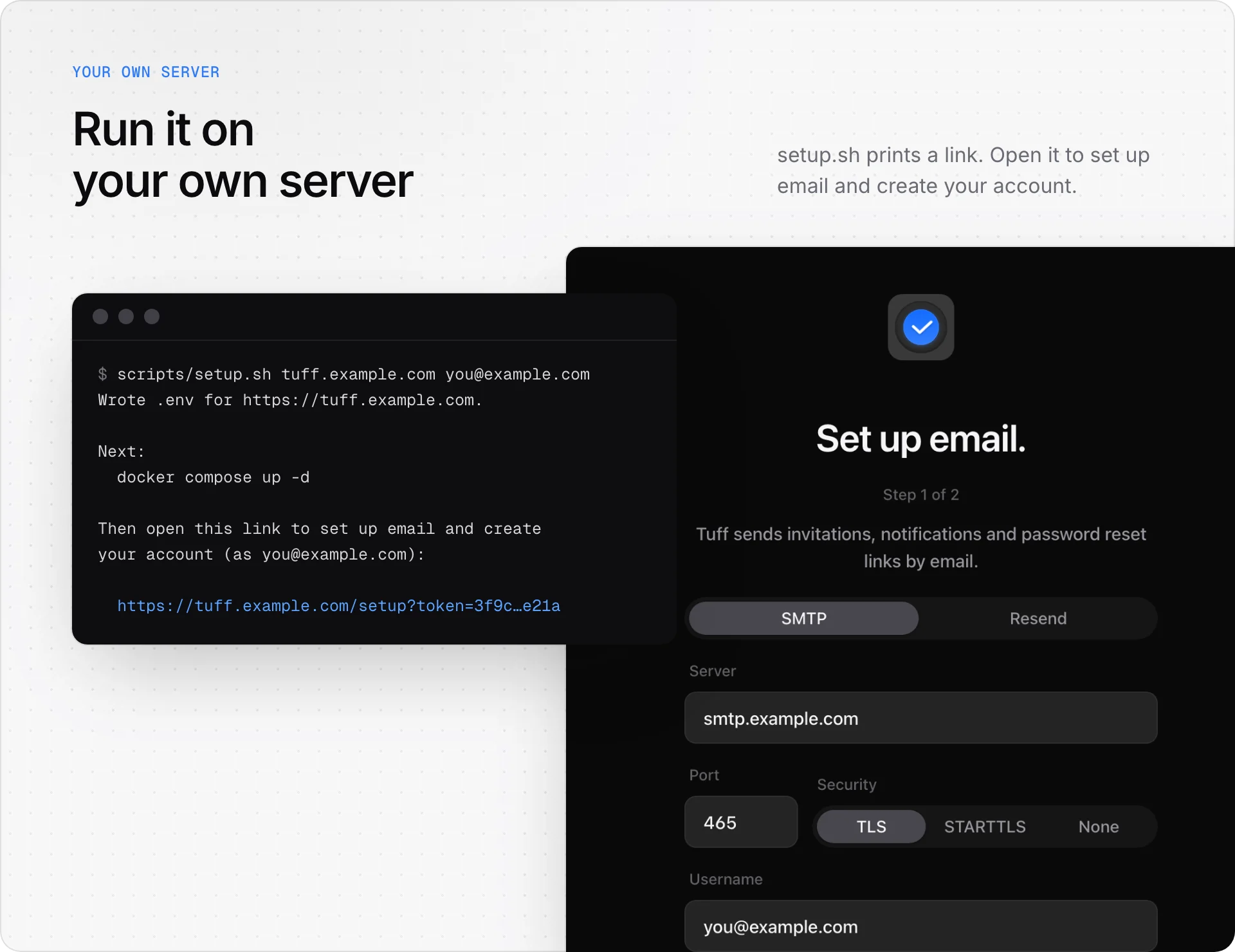
setup.sh prints a setup link. Open it to set up email and create your
account as the server's owner. No commands after that.
You need Docker (Docker Desktop on a Mac), git, openssl and curl.
git clone https://github.com/usetuff/tuff.git
cd tuff
scripts/setup.sh --try
It finds a free port, makes the passwords, starts Tuff and opens
http://localhost:<port>/setup?token=… in your browser, where you create
your account. No domain, no certificate. Between releases it builds Tuff
from source first, which takes a few minutes the first time.
Run it again to start the same install with your data;
scripts/setup.sh --try --fresh deletes it and starts over. It keeps to
itself (.env.try and Docker volumes of its own) and answers only on this
computer, so it isn't a way to run Tuff for a team.
One click makes the app, the worker, Postgres and a bucket for files on your Railway account, with every secret generated, and gives Tuff an address on Railway. When the first deploy finishes, open the tuff service's deploy log and find Nobody owns this server yet: its link is your setup link. Turn on backups for the Postgres service on Railway. Tuff takes none of its own there.
You need a Linux machine with Docker and Docker Compose 2.24 or newer,
git, openssl and curl, 2 GB of memory, and a domain name pointing at
it with ports 80 and 443 open. Caddy, part of the stack, gets the HTTPS
certificate by itself.
git clone https://github.com/usetuff/tuff.git
cd tuff
git checkout "$(git tag --sort=-v:refname | head -1)"   # the latest release
scripts/setup.sh tuff.example.com you@example.com
docker compose up -d
setup.sh writes .env with random passwords and the release to run, and
ends by printing a setup link, https://tuff.example.com/setup?token=….
docker compose up -d pulls the image and starts Postgres, the app, the
worker and Caddy. Then open the setup link to set up email and create your
account. You're signed in as the server's owner straight away, with no
confirmation email and no commands.
A server runs a release, and its tag is where the compose file, the scripts
and the image match. main is where development happens between releases.
The setup link has two steps:
setup.sh an
email (OWNER_EMAIL in .env), the account must use it.The link works until the server has an owner, and never again. Lost it?
It's SETUP_TOKEN in .env, and the app prints the whole link in its log
on every start until then (docker compose logs app).
[!IMPORTANT] Whoever opens the setup link first becomes the owner, so keep it to yourself. Your server's name is public within minutes of it getting a certificate; without the link nobody can claim it.
After that, sign-up is closed and everyone else joins by invitation to a workspace. As the owner you get Server settings, under your picture: other owners, whether anyone can sign up, email, and the version you run. Self-hosting has the details, including the way in from the command line if you ever need it.
Tuff sends sign-up links, password resets, invitations and digests. Set up email on the setup screen, or later in Server settings → Email: your SMTP server (TLS on 465, or STARTTLS on 587) or a Resend API key, the address mail comes from, and a test email. The password or key is stored encrypted and never shown again.
Or put it in .env and run docker compose up -d:
SMTP_URL=smtps://user:password@smtp.example.com:465
MAIL_FROM=Tuff <tuff@example.com>
Set in .env (SMTP_URL or RESEND_API_KEY), it wins: Server settings
shows it and can't change it. MAIL_FROM is then required: Tuff has no
sender of its own on your server, and won't start without one.
Without mail you can still invite people: Tuff shows you each invitation link instead of emailing it. Copy it and send it yourself. It works once, only with that email, and expires in a week. A forgotten password does need mail, so set it up when you can.
[!IMPORTANT] The
workerservice must run besideapp. Without it, mail isn't sent, webhooks never fire, and deleted things are never really deleted.
docker compose up -d starts it. Check on it with docker compose ps.
git fetch --tags
git checkout v1.2.0          # the release you are moving to
scripts/update.sh 1.2.0
Checking out the tag brings the compose file and the scripts that go with
that release; the app itself comes from the image. update.sh shows what
changed, sets TUFF_VERSION in .env, restarts, and waits until the new
version is healthy. If it isn't, it prints the commands to go back. Without
a version it takes the latest release.
The app migrates the database when it starts, and backs it up first, to
the db-backups volume: no migration runs if the backup fails. Server
settings then says where the backup is. Migrations only go forward: to go
back to an older version, restore the backup taken before the update with
scripts/restore.sh. Releases follow semantic versioning, and
the changelog says when a version needs anything from you.
Before every migration the app backs the database up by itself, and keeps those backups 30 days (Backups). They live on the same disk, so take your own as well. The database:
mkdir -p -m 700 backups
(umask 077; docker compose exec -T postgres pg_dump -U tracker -d tracker --format=custom > backups/tuff-$(date +%F).dump)
The attached files, unless you keep them in a bucket:
docker compose cp app:/data/storage backups/tuff-files-$(date +%F)
And .env, which holds the database passwords. Copy all three off the
machine. To restore, see Backups in the
self-hosting guide.
usetuff/tuff is a public repo on GitHub by usetuff. Open-source, self-hosted alternative to Linear, ClickUp, Asana and Basecamp. Tasks, docs and chat in one place, where your team and its AI agents work side by side.
It declares the AGPL-3.0 license on GitHub.
Its maker tagged it for macOS, Windows and Linux, or as Docker or cross-platform. That is declared by the maker; Take My Repo has not tested it.
Open "Take it" on its page: Take My Repo writes an install plan for your machine and hands it to your AI agent (Claude Code, Codex or Cursor), which asks you before each step. Take My Repo has not tested it on any machine.
Get your documents ready for gen AI
Reverse engineer anything with agents, from app behavior down to native binaries.
Docmost is an open-source collaborative wiki and documentation software. It is an open-source alternative to Confluence and Notion.
Its last change on GitHub was on 2026-11-24. Take My Repo does not judge from that whether it is maintained.
Nobody has reviewed it on Take My Repo yet, which says nothing about its quality.
Take My Repo cannot say: it does not audit code and has not run tuff. What is known comes from GitHub. It declares the AGPL-3.0 license on GitHub. Its last change was on 2026-11-24. It has 209 stars, which measure popularity, not safety. Nobody has reviewed it on Take My Repo yet, which says nothing about its quality. Read the source before you run it. With "Take it", your AI agent shows each step and asks you before running it; README text is treated as data, not as instructions.



