
pg0
pg0 - Zero-config PostgreSQL with pgvector
- 181
- 7 d ago
Repo vectorize-io/pg0, read from GitHub 16 h ago. vectorize-io has not joined Take My Repo.
In short
vectorize-io/pg0 is a public repo on GitHub by vectorize-io. pg0 - Zero-config PostgreSQL with pgvector. It declares no license on GitHub. Public does not mean open source: without a license, nobody is granted the right to reuse it. It is written mainly in Rust, has 181 stars and last changed on 2026-11-17. Nobody has reviewed it on Take My Repo yet, which says nothing about its quality. Read from GitHub on 2026-11-23.
Similar repos

pg0
Zero-config PostgreSQL with pgvector.
A single binary that runs PostgreSQL locally - no installation, no configuration, no Docker required. Includes pgvector for AI/vector workloads out of the box.
Why pg0?
PostgreSQL setup is painful. Docker adds complexity. Local installs conflict with system packages. pg0 gives you a real PostgreSQL server with zero friction:
- No installation - download a single binary and run
pg0 start - No Docker - no containers, no daemon, no complexity
- No configuration - sensible defaults, just works
- Production parity - develop with the same database you'll deploy
- Full PostgreSQL - JSON, arrays, CTEs, window functions, extensions, pgvector - everything works
Use pg0 for local development, testing, CI/CD pipelines, or any scenario where you want PostgreSQL without the setup overhead.
Supported Platforms
This table describes which binaries we publish. Whether a binary actually runs on a given OS release depends on the libraries that distro ships - see Tested and Supported Platforms for the per-distribution story (e.g. Alpine 3.20-3.21 work, Alpine 3.22+ does not).
| Platform | Architecture | Binary |
|---|---|---|
| macOS | Apple Silicon (M1/M2/M3) | pg0-darwin-aarch64 |
| macOS | Intel | pg0-darwin-x86_64 |
| Linux | x86_64 (glibc, e.g. Debian/Ubuntu) | pg0-linux-x86_64-gnu |
| Linux | x86_64 (musl, e.g. Alpine) | pg0-linux-x86_64-musl |
| Linux | ARM64 (glibc) | pg0-linux-aarch64-gnu |
| Linux | ARM64 (musl) | pg0-linux-aarch64-musl |
| Windows | x64 | pg0-windows-x86_64.exe |
Features
- Zero dependencies - single binary, works offline
- PostgreSQL 18 with pgvector 0.8.5 bundled
- Multiple instances - run multiple PostgreSQL servers simultaneously
- Cross-platform - macOS (Apple Silicon), Linux (x86_64 & ARM64), Windows (x64)
- Python SDK - programmatic control from Python
- Bundled psql - no separate client installation needed
- Persistent data - survives restarts, stored in
~/.pg0/
Installation
CLI Binary
The install script automatically detects your platform and downloads the correct binary:
curl -fsSL https://raw.githubusercontent.com/vectorize-io/pg0/main/install.sh | bash
Or with a custom install directory:
INSTALL_DIR=/usr/local/bin curl -fsSL https://raw.githubusercontent.com/vectorize-io/pg0/main/install.sh | bash
Python SDK
Install via pip:
pip install pg0-embedded
Quick start:
from pg0 import Pg0

# Start PostgreSQL
pg = Pg0()
pg.start()
print(pg.uri)  # postgresql://postgres:postgres@127.0.0.1:5432/postgres

# Or use context manager
with Pg0() as pg:
    result = pg.execute("SELECT version();")
    print(result)
See PyPI package for more details.
Linux Distributions
pg0 provides separate binaries optimized for different Linux distributions:
- Debian/Ubuntu/RHEL (glibc-based): Uses
pg0-linux-{arch}-gnu - Alpine (musl-based): Uses
pg0-linux-{arch}-musl
The install script automatically detects your distribution and downloads the correct binary.
Docker
pg0 works in Docker containers. Here are the minimal setup steps for each supported image type:
Debian/Ubuntu (glibc-based)
FROM debian:bookworm-slim
# or: python:3.11-slim, ubuntu:22.04, ubuntu:24.04, ubuntu:25.10, etc.

# Install required dependencies. libxml2 and ICU are bundled into the pg0
# binary so they do not need to be installed - this means pg0 works on
# Ubuntu 25.10+ where libxml2.so.2 has been replaced by libxml2.so.16.
# tzdata is needed because PostgreSQL reads /usr/share/zoneinfo at startup,
# and libreadline is needed by `pg0 psql`.
RUN apt-get update && apt-get install -y \
    curl \
    libssl3 \
    libgssapi-krb5-2 \
    tzdata \
    libreadline8 \
    && rm -rf /var/lib/apt/lists/*

# Create non-root user (PostgreSQL cannot run as root)
RUN useradd -m -s /bin/bash pguser
USER pguser

# Install pg0
RUN curl -fsSL https://raw.githubusercontent.com/vectorize-io/pg0/main/install.sh | bash
ENV PATH="/home/pguser/.local/bin:${PATH}"

# Start PostgreSQL when container runs
CMD ["bash", "-c", "pg0 start && tail -f /dev/null"]
Or start it with your application:
docker run -d myimage bash -c "pg0 start && exec your-application"
Alpine (musl-based)
Note: The musl binary requires ICU 74. Use Alpine 3.20 (not 3.22+) as newer versions have ICU 76.
FROM alpine:3.20
# or: python:3.12-alpine3.20

# Install required dependencies
RUN apk add --no-cache curl bash shadow icu-libs lz4-libs libxml2

# Create non-root user (PostgreSQL cannot run as root)
RUN adduser -D -s /bin/bash pguser
USER pguser

# Install pg0
RUN curl -fsSL https://raw.githubusercontent.com/vectorize-io/pg0/main/install.sh | bash
ENV PATH="/home/pguser/.local/bin:${PATH}"

# Start PostgreSQL when container runs
CMD ["sh", "-c", "pg0 start && tail -f /dev/null"]
Or start it with your application:
docker run -d myimage sh -c "pg0 start && exec your-application"
Quick Test
Run pg0 in a Docker container with a single command:
# Debian/Ubuntu (works on 22.04, 24.04, 25.10, 26.04, ...)
docker run --rm -it python:3.11-slim bash -c '
  apt-get update -qq &&
  apt-get install -y curl libssl3 libgssapi-krb5-2 tzdata libreadline8 &&
  useradd -m pguser &&
  su - pguser -c "curl -fsSL https://raw.githubusercontent.com/vectorize-io/pg0/main/install.sh | bash &&
    export PATH=\"\$HOME/.local/bin:\$PATH\" &&
    pg0 start &&
    sleep 3 &&
    pg0 psql -c \"SELECT version();\""
'

# Alpine (use 3.20 for ICU 74 compatibility)
docker run --rm -it python:3.12-alpine3.20 sh -c '
  apk add --no-cache curl bash shadow icu-libs lz4-libs libxml2 &&
  adduser -D pguser &&
  su - pguser -c "curl -fsSL https://raw.githubusercontent.com/vectorize-io/pg0/main/install.sh | bash &&
    export PATH=\"\$HOME/.local/bin:\$PATH\" &&
    pg0 start &&
    sleep 3 &&
    pg0 psql -c \"SELECT version();\""
'
Note: PostgreSQL requires a non-root user for security. The examples above create a pguser for this purpose.
Quick Start
# Start PostgreSQL
pg0 start

# Connect with psql
pg0 psql

# Use pgvector
pg0 psql -c "CREATE EXTENSION IF NOT EXISTS vector;"
pg0 psql -c "CREATE TABLE items (embedding vector(3));"
pg0 psql -c "INSERT INTO items VALUES ('[1,2,3]');"

# Stop when done
pg0 stop
Usage
Commands
pg0 provides the following commands:
- start - Start a PostgreSQL server instance
- stop - Stop a running PostgreSQL server instance
- drop - Stop and permanently delete an instance (removes all data)
- info - Display instance information (status, connection URI, etc.)
- list - List all PostgreSQL instances
- psql - Open an interactive psql shell connected to an instance
- logs - View PostgreSQL logs for debugging
- ui - Browse all instances in a read-only web UI
Start PostgreSQL
# Start with defaults (port 5432)
pg0 start

# Start with custom options
pg0 start --port 5433 --username myuser --password mypass --database myapp
Stop PostgreSQL
pg0 stop
Drop Instance
Permanently delete an instance and all its data:
# Drop the default instance
pg0 drop

# Drop a named instance
pg0 drop --name myapp
Warning: This command will stop the instance if running and delete all data. This action cannot be undone.
Get Server Info
# Human-readable format
pg0 info

# JSON output
pg0 info -o json

# Info for a specific instance
pg0 info --name myapp
List Instances
# List all instances
pg0 list

# JSON output
pg0 list -o json
Open psql Shell
# Interactive shell
pg0 psql

# Run a single command
pg0 psql -c "SELECT version();"

# Run a SQL file
pg0 psql -f schema.sql
View Logs
View PostgreSQL logs for debugging startup issues or errors:
# View all logs
pg0 logs

# View last 50 lines
pg0 logs -n 50

# Follow logs in real-time (like tail -f)
pg0 logs --follow

# Logs for a specific instance
pg0 logs --name myapp
Logs are stored in ~/.pg0/instances/<name>/data/log/.
Web UI (read-only)
pg0 ui                    # http://<this machine>:5050, opens your browser
pg0 ui --port 8080
pg0 ui --host 127.0.0.1   # this machine only
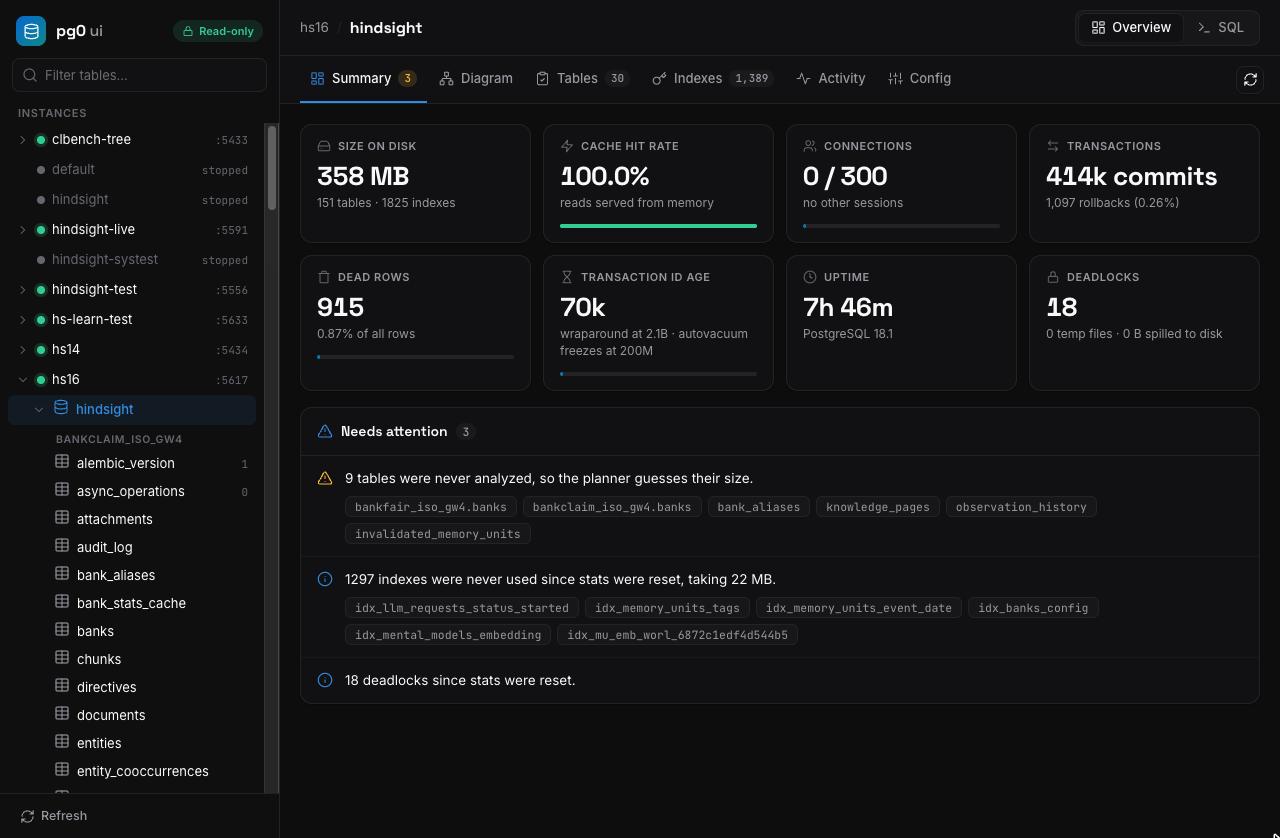
Browse every pg0 instance, database and table, look at table structure, and run SQL, all from the browser. Each database also gets an overview: size on disk, cache hit rate, vacuum and analyze state, unused indexes, a schema diagram, running queries and key settings. Press Ctrl+C to stop it.
It cannot change data. Each query runs as a temporary database user that has
read access only, inside a read-only transaction that is always rolled back,
and only one statement is allowed per query. The temporary user is removed
when the UI stops. By default the UI listens on all network interfaces
(0.0.0.0) on port 5050 and needs the secret link printed in the terminal.
Anyone with that link can read all your data, including system tables, so
don't share it; it is plain HTTP, so use --host 127.0.0.1 on networks you
don't trust. Open it by IP address or localhost (host names are refused, to
block DNS rebinding). Custom SQL is turned off in
databases with the dblink extension.
Using pgvector
pgvector is pre-installed. Just enable it:
pg0 psql -c "CREATE EXTENSION IF NOT EXISTS vector;"
Then use it for vector similarity search:
-- Create a table with vector column
CREATE TABLE items (id serial PRIMARY KEY, embedding vector(1536));

-- Insert vectors
INSERT INTO items (embedding) VALUES ('[0.1, 0.2, ...]');

-- Find similar vectors
SELECT * FROM items ORDER BY embedding <-> '[0.1, 0.2, ...]' LIMIT 5;
Multiple Instances
Run multiple PostgreSQL servers simultaneously using named instances:
# Start multiple instances on different ports
pg0 start --name app1 --port 5432
pg0 start --name app2 --port 5433
pg0 start --name test --port 5434

# List all instances
pg0 list

# Get info for a specific instance
pg0 info --name app1

# Connect to a specific instance
pg0 psql --name app2

# Stop a specific instance
pg0 stop --name test

# Stop all (one by one)
pg0 stop --name app1
pg0 stop --name app2
Each instance has its own data directory at ~/.pg0/instances/<name>/data/.
Options
Global Options
-v, --verbose Enable verbose logging
Start Options
pg0 start [OPTIONS]

Options:
      --name <NAME>           Instance name [default: default]
  -p, --port <PORT>           Port to listen on [default: 5432]
  -d, --data-dir <DATA_DIR>   Data directory [default: ~/.pg0/instances/<name>/data]
  -u, --username <USERNAME>   Username [default: postgres]
  -P, --password <PASSWORD>   Password [default: postgres]
  -n, --database <DATABASE>   Database name [default: postgres]
  -c, --config <KEY=VALUE>    PostgreSQL config option (can repeat)
PostgreSQL Configuration
pg0 applies optimized defaults for vector/AI workloads:
shared_buffers=256MBmaintenance_work_mem=512MB(faster index builds)effective_cache_size=1GBmax_parallel_maintenance_workers=4work_mem=64MB
Override any setting with -c:
# Custom memory settings
pg0 start -c shared_buffers=512MB -c work_mem=128MB

# For larger workloads
pg0 start -c shared_buffers=1GB -c maintenance_work_mem=2GB
Runtime directories
The following environment variables allow deployments to keep executables in an approved location and writable instance data in a separate directory:
| Variable | Purpose | Default |
|---|---|---|
PG0_HOME |
Instance metadata and default data directories | ~/.pg0 |
PG0_INSTALLATION_DIR |
Root for extracted PostgreSQL and extension files; contains a version subdirectory such as 18.1.0 |
$PG0_HOME/installation |
PG0_EXECUTABLE |
Python SDK only: full path to the pg0 executable, taking precedence over the wheel's bundled binary | Automatic binary discovery |
All overrides must be non-empty absolute paths. An invalid override fails with
an error instead of falling back to the user profile. --data-dir continues to
override the data directory for an individual instance. Keep PG0_HOME set to
the same value for subsequent info, stop, drop, and other commands.
For example, in PowerShell:
$env:PG0_HOME = Join-Path $env:LOCALAPPDATA 'pg0-state'
$env:PG0_INSTALLATION_DIR = 'C:\ProgramData\pg0\installation'
$env:PG0_EXECUTABLE = 'C:\Program Files\pg0\pg0.exe'
& $env:PG0_EXECUTABLE start --name example
Provision the executable at PG0_EXECUTABLE separately. The first start needs
write access to PG0_INSTALLATION_DIR to extract PostgreSQL and pgvector.
On Windows, a complete installation can subsequently be used with read and
execute access while PG0_HOME remains writable. Installing or upgrading
extensions still requires write access to the installation. These settings
select locations; the applicable execution policy must allow those locations.
No symbolic links are needed on Windows.
PG0_EXECUTABLE is a runtime setting. The existing PG0_BINARY_PATH setting is
used only when building a Python wheel.
Questions
What is pg0?
vectorize-io/pg0 is a public repo on GitHub by vectorize-io. pg0 - Zero-config PostgreSQL with pgvector.
Is pg0 open source?
It declares no license on GitHub. Public does not mean open source: without a license, nobody is granted the right to reuse it.
Does pg0 run on macOS, Windows or Linux?
Its maker tagged it for macOS, Windows and Linux, or as Docker or cross-platform. That is declared by the maker; Take My Repo has not tested it.
How do I install pg0?
Open "Take it" on its page: Take My Repo writes an install plan for your machine and hands it to your AI agent (Claude Code, Codex or Cursor), which asks you before each step. Take My Repo has not tested it on any machine.


