
V-Notch
MacOS notch on Windows.
- 124
- Apache-2.0
- 2 d ago
Repo w0otdev/V-Notch, read from GitHub 3 min ago. w0otdev has not joined Take My Repo.
In short
w0otdev/V-Notch is a public repo on GitHub by w0otdev. MacOS notch on Windows. It declares the Apache-2.0 license on GitHub. It is written mainly in C#, has 124 stars and last changed on 2026-11-21. Nobody has reviewed it on Take My Repo yet, which says nothing about its quality. Read from GitHub on 2026-11-23.
Similar repos
cyclop
The MacBook notch as a working tool — media controls, file shelf, clipboard history, snippets, calendar, offline translation and a teleprompter. Native SwiftUI, zero dependencies, no permissions. Free and open source.

V-Notch
A desktop status and media companion for Windows
Download · Usage · Installation · Changelog · Privacy · Website
V-Notch adds media controls, synced lyrics, ambient white noise, clipboard history, live translation, system stats, privacy indicators, and a Spotlight launcher to the top of your screen. Use it as a compact pill or expand it into a floating Dynamic Island. It works with MyDockFinder.
Free and open source forever.
V-Notch is an independent project.
If you use it regularly, you can support development via PayPal.
 Dynamic Island mode A floating pill with spring animations and Liquid Glass refraction. |
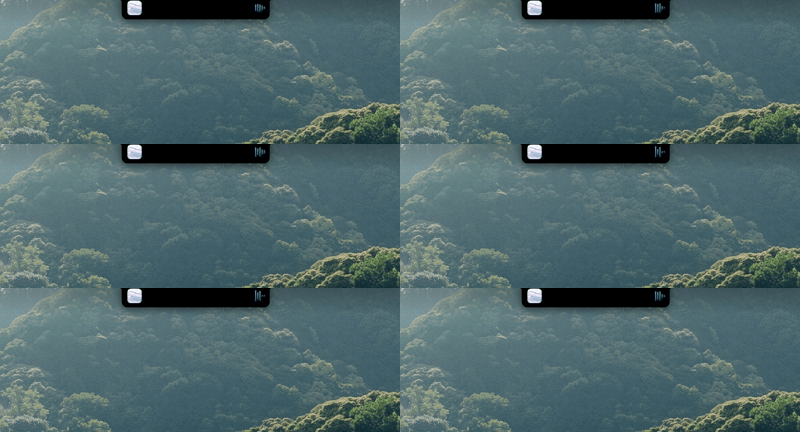 Media controls Control playback and volume, view album art, and seek through the current track. |
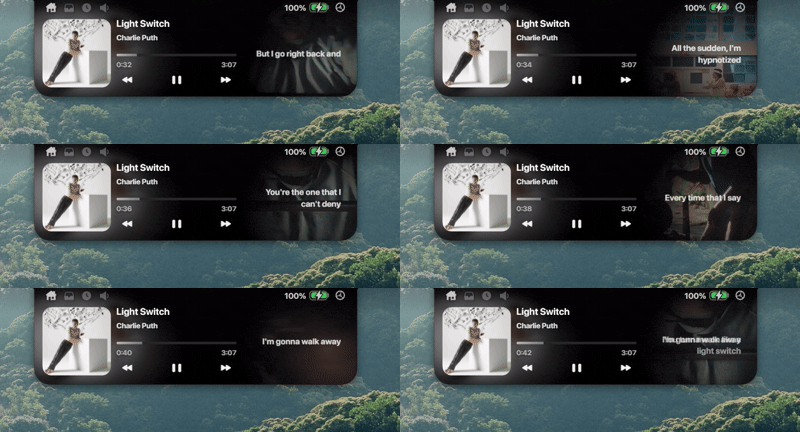 Spotify & synced lyrics Follow synced lyrics over changing color gradients or Canvas backgrounds. |
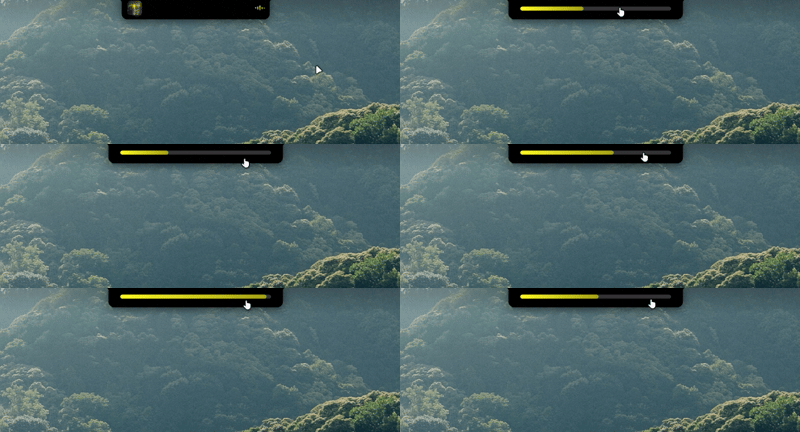 Volume & audio mixer Adjust each app’s volume or use the master slider, styled to match the album art. |
 File shelf Drop files onto the notch, then drag them into another app when you need them. |
 Gestures Swipe left or right to change tracks. Scroll to switch views, or swipe down to open the shelf. |
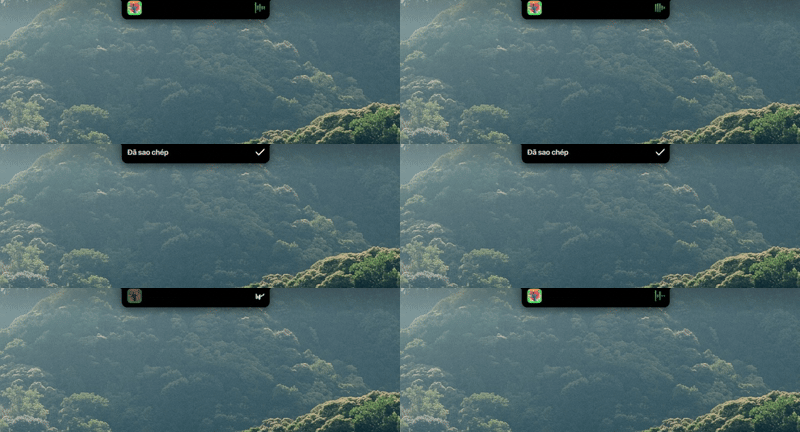 Clipboard notification See a notification and preview when you copy text or images. |
|
 Liquid Glass optics Glass rendered with DirectX 11, including chromatic aberration and refraction at the edges. |
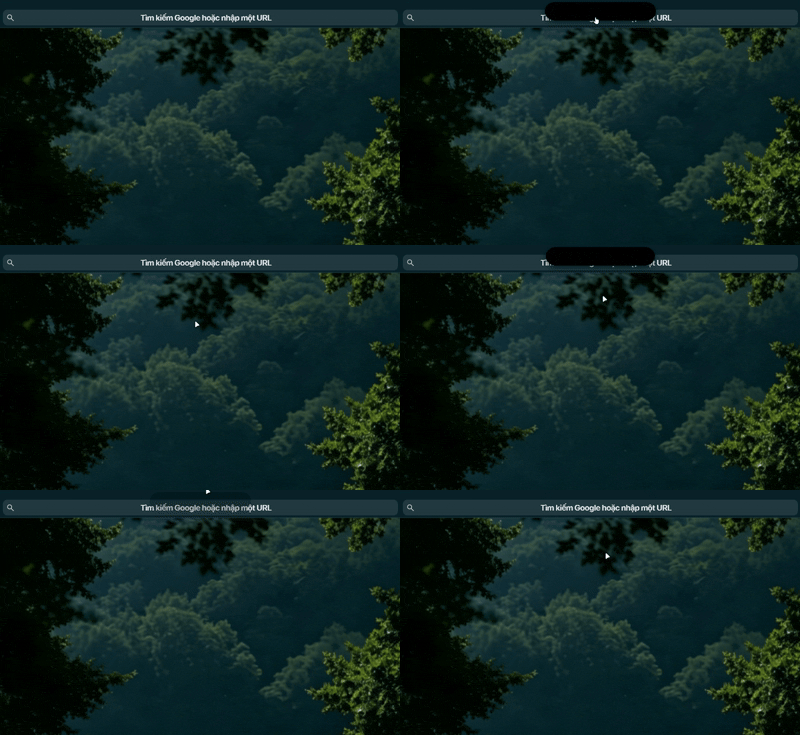 Stay behind windows Keep the notch on the desktop layer, below maximized apps. |
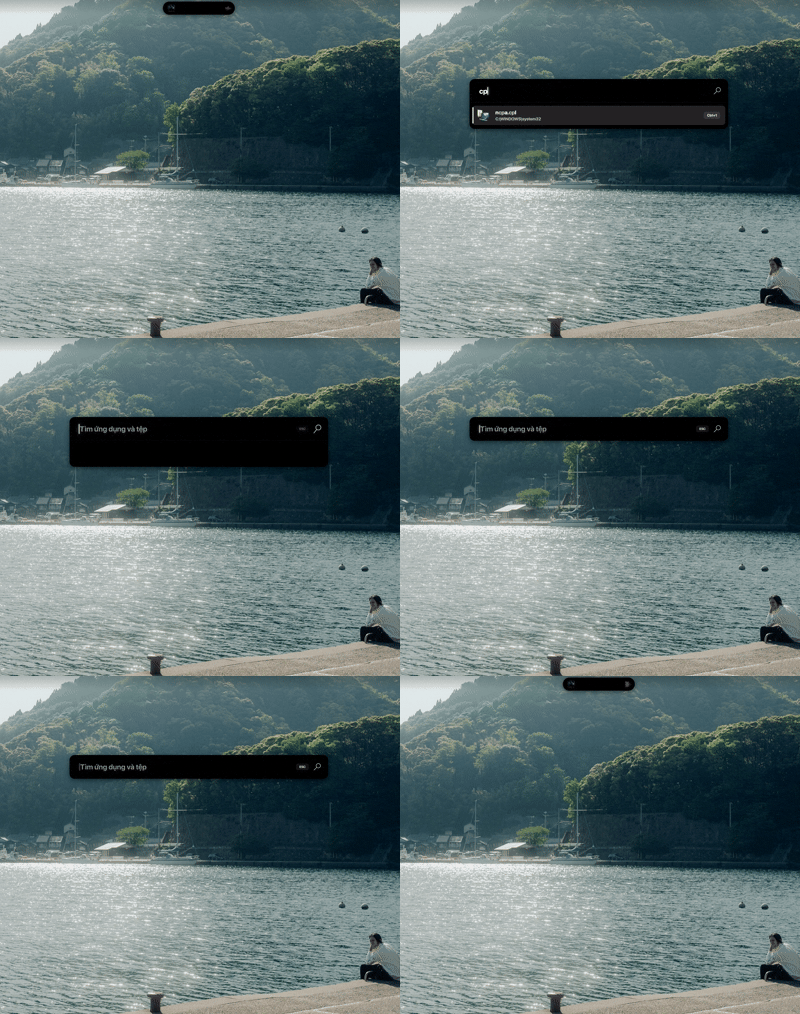 Spotlight search Press Alt+Space to find apps and files or calculate an expression. |
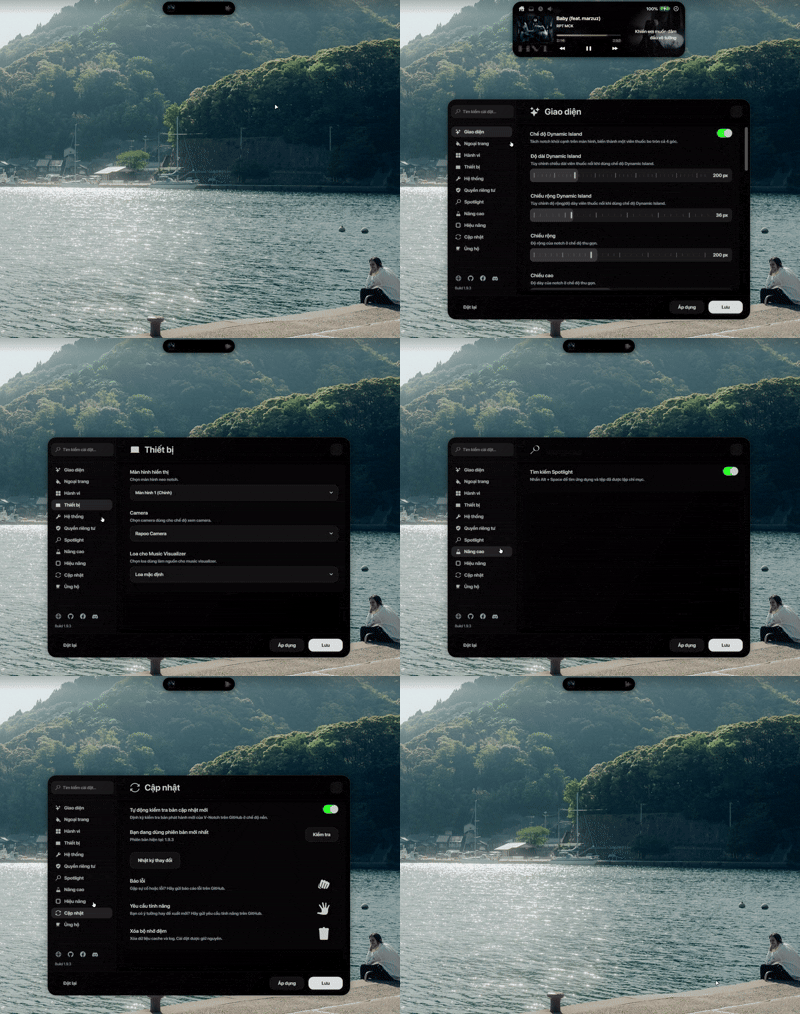 Settings Adjust the notch’s appearance and behavior in Settings. |
Usage
| Action | Result |
|---|---|
| Hover | Expand the notch |
| Click | Toggle pill / expanded view |
| Middle click | Play / pause media |
| Scroll down | Switch to file shelf |
| Scroll up | Switch back to media controls |
| Swipe left / right | Previous / next track |
| Swipe down | Open file shelf |
Alt + Space |
Open or close Spotlight |
Up / Down in Spotlight |
Move through results |
Tab in Spotlight |
Switch between Search and AI |
Enter |
Launch selected item or send an AI message |
Esc |
Stop an AI response, leave AI mode, or close Search |
File shelf actions
| Action | Result |
|---|---|
| Drag onto notch | Stage files |
| Lasso drag | Select multiple staged files |
Ctrl + Click |
Toggle selection |
| Drag out | Move to any target |
Delete |
Remove selected files |
Spotlight AI
In Settings → Spotlight, choose a default opening mode (Search or AI). Press Alt + Space to open Spotlight and Tab to switch modes.
Opening AI mode does not send a request; sending a message transmits it and recent conversation context directly to the selected provider.
API keys are encrypted in local settings with Windows DPAPI and excluded from settings exports. AI conversations are also encrypted locally; see the Privacy Policy for storage, recipients, and deletion details.
AI account limits
In Settings → Appearance, enable account-limit tracking and choose AI account limits as the expanded widget. View remaining Codex and Claude Code allowances and their reset times directly in the notch. Codex uses your existing CLI sign-in; Claude Code connects through a local status-line bridge. See the setup guide for supported sources, privacy controls, and stale-data behavior.
Installation
V-Notch runs on 64-bit Windows 10 build 19041 or later, or Windows 11. It requires .NET 10 Desktop Runtime. The self-contained installer includes the runtime. A dedicated GPU is recommended for Liquid Glass at 60-120 FPS.
- Download
V-Notch-Setup.exefrom Releases. UseV-Notch-Setup-SelfContained.exeto skip the .NET install. - Run the installer.
- Launch V-Notch from the Start Menu or desktop shortcut.
- Optionally enable "Start with Windows" in Settings.
Build with GitHub Actions
The Release Installer workflow runs automatically via workflow_run after CI succeeds on main (or master and v* release branches). For main pushes, it publishes a beta release tag v<version>-beta.<run>.<attempt> containing both V-Notch-Setup.exe (framework-dependent) and V-Notch-Setup-SelfContained.exe (self-contained), plus .sha256, .manifest.json, .sig, and checksums.txt.
Stable and beta installers published by GitHub Actions require a publicly trusted Authenticode code-signing certificate. Configure VNOTCH_CODE_SIGNING_PFX_BASE64, VNOTCH_CODE_SIGNING_PASSWORD, and VNOTCH_CODE_SIGNING_THUMBPRINT in the GitHub code-signing environment. Both the build job and the update-manifest job extract VNotch.Native.dll from each installer and verify that the installer and DLL have valid, timestamped signatures from the same certificate.
From scripts, run ./b to build the stable version in V-Notch.csproj. The output is installers\V-Notch-Setup.exe. The builder uses the installed NSIS compiler or downloads the same checksum-verified version used by CI. For signed update manifests, keep the existing key at ..\VNotchReleaseKeys\update-2026-09-private.pem relative to the repository root, or set VNOTCH_UPDATE_SIGNING_KEY_PEM_PATH to its location.
Authenticode is optional for local builds. Windows Smart App Control can block an unsigned VNotch.Native.dll even when the update manifest is signed. To sign the Windows binaries locally, configure VNOTCH_CODE_SIGNING_THUMBPRINT for a publisher certificate in the current user's Personal store, or pass -CertificatePath.
Liquid Glass GPU pipeline and validation
The notch is included in screenshots and recordings in every theme and view. Ghost (Invisible) mode is the only setting that excludes app windows from supported Windows capture paths. Liquid Glass uses a private window-exclusion list for its own backdrop sampling, so screenshot visibility does not depend on hotkeys or detecting a capture utility. If that backdrop source is unavailable, glass uses a plain material while it recovers. See screen capture validation for coverage and the remaining desktop verification matrix.
Outside Ghost mode, GPU glass uploads the exact Magnifier backdrop crop into a pooled D3D11 texture for blur and refraction. In Ghost mode, GPU glass uses DXGI Desktop Duplication with Windows.Graphics.Capture fallback, D3D11 Dual-Kawase blur, and the existing refraction/RGB dispersion shader compiled for D3D11. Blur works in linear light with FP16 intermediate textures, blends between pyramid levels, then resolves to BGRA with stable sub-LSB dither. Working textures grow to a bounded peak capacity and are reused across view transitions; samplers clamp to the active rectangle so smaller views cannot read stale pixels from unused capacity. Only the blur levels in use are allocated. The Ghost-mode capture path keeps desktop pixels in GPU textures throughout processing. When rendering and presentation use the same adapter, shared D3D9Ex textures feed one persistent WPF D3DImage back buffer through GPU copies. D3D11 completion queries and D3D9 consumer fences protect in-flight frames. Hardware presentation needs no WriteableBitmap or CPU blur. WPF software fallback remains enabled for explicit snapshots and software composition. The legacy CPU capture/render path remains available as a fallback.
The renderer normally selects the window's monitor adapter. Ultimate GPU mode prefers a discrete adapter for blur and refraction, using DXCore to identify integrated GPUs and DXGI to rank hardware by performance. If D3D9 only exposes the display GPU, the renderer transfers the finished glass region through system memory to the WPF presentation surface. The Liquid Glass diagnostics identify the shader adapter by name in renderGpu. If a hybrid GPU preference redirects D3D9 to a discrete GPU that cannot duplicate the display, Windows.Graphics.Capture supplies textures on that device instead. WGC requests borderless-capture access once per process and sets IsBorderRequired(false) before starting capture on supported Windows versions. Windows policy or denied consent can still require the border. Target FPS caps capture attempts even during interaction wake-ups and updates WGC's MinUpdateInterval live when supported. Actual submissions depend on GPU load and WPF/DWM composition; static scenes can reuse a cached frame. Logs distinguish the target, worker loops, captured frames, and WPF submissions. Global capture exclusion is applied only in Ghost mode. Ordinary GPU glass avoids feedback through Magnifier's private exclusion list, including during screenshots and continuous recording. The legacy Liquid Glass capture-hiding value is retained for settings compatibility and does not override Ghost mode. Sampling outside the selected monitor extends its edge pixels. Desktop switches and duplication access loss discard the cached desktop and retry capture; device/adapter failures and a five-second wait without a usable capture use the existing fallback and retry flow. Diagnostic logs identify DXGI or WGC, the last capture HRESULT, and borderless-access status.
Build with the Visual Studio x64 C++ tools installed. The native build embeds both HLSL sources automatically. Run powershell -NoProfile -File scripts/Test-GlassGpu.ps1 for synthetic hardware checks of blur, refraction, alpha, dispersion, shared textures, and capture timeout. Add -Ultimate to verify the physical shader adapter and presented pixels. Add -LiveCapture to smoke-test Desktop Duplication or -WindowsGraphicsCapture
Questions
What is V-Notch?
w0otdev/V-Notch is a public repo on GitHub by w0otdev. MacOS notch on Windows.
Is V-Notch open source?
It declares the Apache-2.0 license on GitHub.
Does V-Notch run on macOS, Windows or Linux?
Its maker has not tagged a system, so it is unknown here. Its README says what it needs.
How do I install V-Notch?
Open "Take it" on its page: Take My Repo writes an install plan for your machine and hands it to your AI agent (Claude Code, Codex or Cursor), which asks you before each step. Take My Repo has not tested it on any machine.
Is V-Notch still maintained?
Its last change on GitHub was on 2026-11-21. Take My Repo does not judge from that whether it is maintained.


