
dotfiles
My dotfiles (.zshrc, .vimrc, .tmux.conf)
- 3
- MIT
- 4 wk ago
Repo wesleyegberto/dotfiles, read from GitHub 1 min ago. wesleyegberto has not joined Take My Repo.
In short
wesleyegberto/dotfiles is a public repo on GitHub by wesleyegberto. My dotfiles (.zshrc, .vimrc, .tmux.conf). It declares the MIT license on GitHub. It is written mainly in Lua, has 3 stars and last changed on 2026-10-28. Nobody has reviewed it on Take My Repo yet, which says nothing about its quality. Read from GitHub on 2026-11-24.
Similar repos
fzf
:cherry_blossom: A command-line fuzzy finder

My Dotfiles
##########################################################
#   __          __       ___      ___                    #
#  /\ \        /\ \__  /'___\ __ /\_ \                   #
#  \_\ \    ___\ \ ,_\/\ \__//\_\\//\ \      __    ____  #
#  /'_` \  / __`\ \ \/\ \ ,__\/\ \ \ \ \   /'__`\ /',__\ #
# /\ \_\ \/\ \_\ \ \ \_\ \ \_/\ \ \ \_\ \_/\  __//\__, `\#
# \ \___,_\ \____/\ \__\\ \_\  \ \_\/\____\ \____\/\____/#
#  \/__,_ /\/___/  \/__/ \/_/   \/_/\/____/\/____/\/___/ #
#                                                        #
##########################################################
This repository contains my personal dotfiles, configuration scripts, and custom settings for a streamlined development environment across multiple tools and operating systems.

Setup Overview
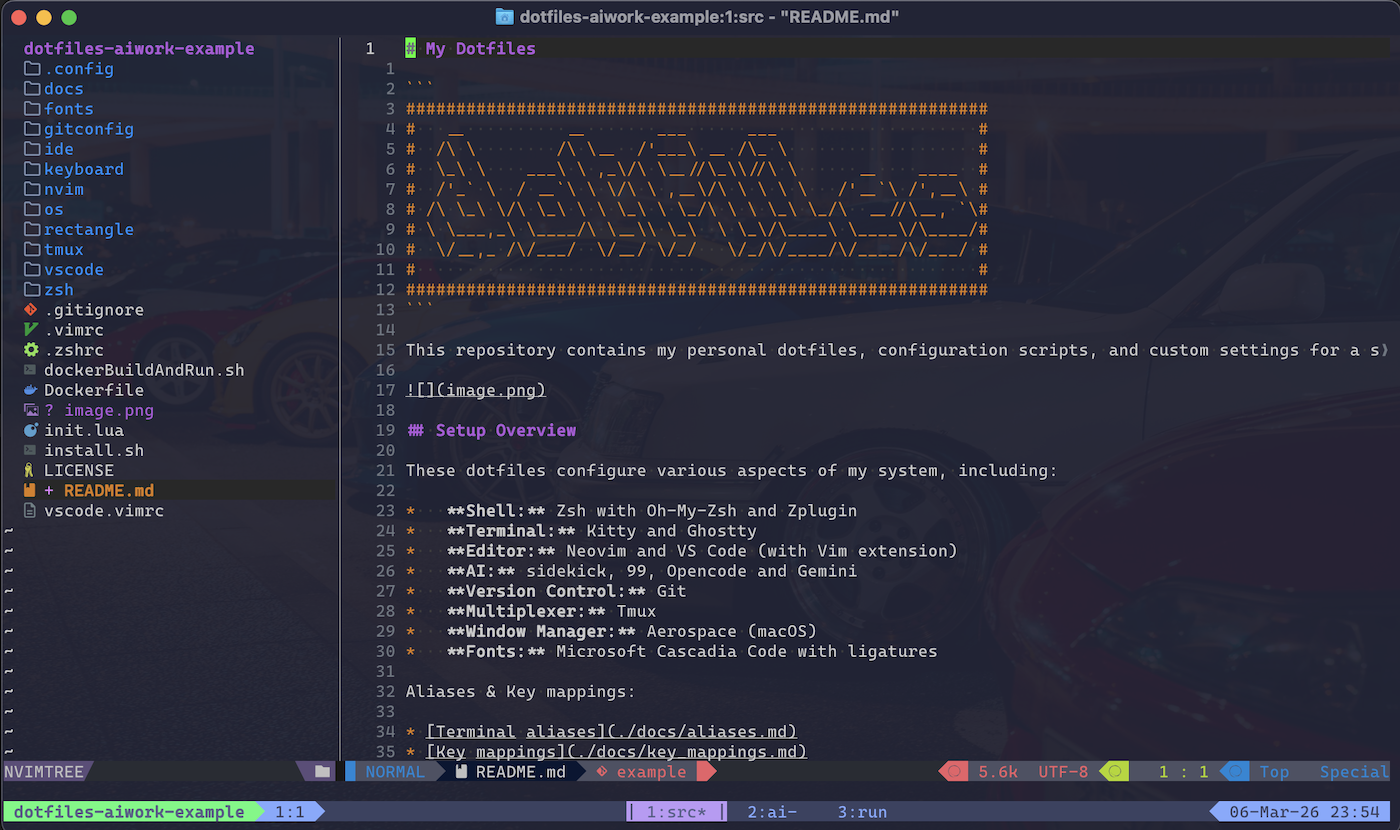
These dotfiles configure various aspects of my system, including:
- Shell: Zsh with Oh-My-Zsh and Zplugin
- Terminal: Kitty and Ghostty
- Editor: Neovim and VS Code (with Vim extension)
- AI: sidekick, 99, Opencode and Gemini
- Version Control: Git
- Multiplexer: Tmux
- Window Manager: Aerospace (macOS)
- Fonts: Microsoft Cascadia Code with ligatures
Keybindings and aliases is documented here.
Quick Installation
The install.sh script automates the symlinking of configuration files and the installation of Neovim plugins.
Prerequisites:
- Xcode Command Line Tools:
xcode-select --install - Homebrew (for macOS):
/bin/bash -c "$(curl -fsSL https://raw.githubusercontent.com/Homebrew/install/HEAD/install.sh)" - FZF:
brew install fd fzf the_silver_searcher ripgrep
- Python deps and Pylint:
pip install --user pynvimpip3 install --user pynvimpip3 install neovim-remote
Steps:
- Clone the repository:
git clone https://github.com/wesleyegberto/dotfiles.git ~/.dotfiles - Run the installation script:
This script will:
cd ~/.dotfiles
./install.sh
- Create symlinks for
.gitconfig,.zshrc,.tmux.conf, Kitty, Ghostty, and Neovim configurations. - Backup existing configuration files before creating symlinks.
- Run macOS-specific setup scripts, if on a Darwin system, to install all tools needed.
- Bootstrap lazy.nvim (auto-installed on first launch) and sync all Neovim plugins.
- Create symlinks for
Neovim Configuration (Lua-based)
My Neovim setup (version 0.11+) is entirely configured with Lua, emphasizing modularity and ease of maintenance.
Key Features & Plugins:
- LSP Integration:
nvim-lspconfig,mason.nvimfor language server management, enhanced UI withnavbuddy,lspkind,lsp_signature,lsp-lens,fidget.nvim,trouble.nvim. - Fuzzy Finding:
telescope.nvimfor efficient file, buffer, and command searching, with custom extensions for Git and language-specific tools. - Syntax & Editing: Advanced syntax highlighting (
nvim-treesitter), automatic pairing (nvim-autopairs), text objects (nvim-surround), and commenting (Comment.nvim). - Debugging: Integrated debugging with
nvim-dapandnvim-dap-ui. - AI Integration:
sidekickfor CLI AI interaction. - Filetype-Specific Configs: Custom settings for Java, C#, Python, TypeScript in
nvim/ftplugin. - Custom Snippets: Personal code snippets for various languages.
Configuration Structure:
The nvim/ directory is structured as follows:
init.lua: Main entry point — bootstraps lazy.nvim and loads all plugin specs.lua/: Core Lua configurations.plugins/: Plugin specs organized by domain (ui, navigation, editor, git, lsp, completion, treesitter, dap, languages, tmux, ai, tools).config/: Base settings (options, keybindings, colorscheme).plug-config/: Specific plugin configurations (telescope, treesitter, lsp, completion).custom/: Utility functions and buffer hooks.telescope/: Custom Telescope extensions.
ftplugin/: Filetype-specific settings (e.g.,java.lua,typescript.lua).keybindings.vim&options.vim: Legacy Vimscript for broader compatibility. Used in others softwares that support Neovim-like configuration.snippets/: JSON-defined code snippets.
VS Code
VS Code is configured with the Vim extension, mirroring many Neovim keybindings and features for a consistent editing experience. Custom settings and key mappings are available in the linked Gist in the original README.
VS Code config files:
- Settings: configuration to enable the same behavior (configs with prefix
vim.). - Keybindings: key mappings to navigate between panes, double
jon insert mode, go to definition and implementation, so on.
Useful Resources
- Oh-My-Zsh
- Tmux
- Kitty Terminal
- Ghostty Terminal
- Neovim
- Microsoft Cascadia Code Font
- Aerospace (macOS Window Manager)
- Inspirations:
- Tutorials:
Questions
What is dotfiles?
wesleyegberto/dotfiles is a public repo on GitHub by wesleyegberto. My dotfiles (.zshrc, .vimrc, .tmux.conf).
Is dotfiles open source?
It declares the MIT license on GitHub.
Does dotfiles run on macOS, Windows or Linux?
Its maker tagged it for macOS. That is declared by the maker; Take My Repo has not tested it.
How do I install dotfiles?
Open "Take it" on its page: Take My Repo writes an install plan for your machine and hands it to your AI agent (Claude Code, Codex or Cursor), which asks you before each step. Take My Repo has not tested it on any machine.