Fuobe Connect
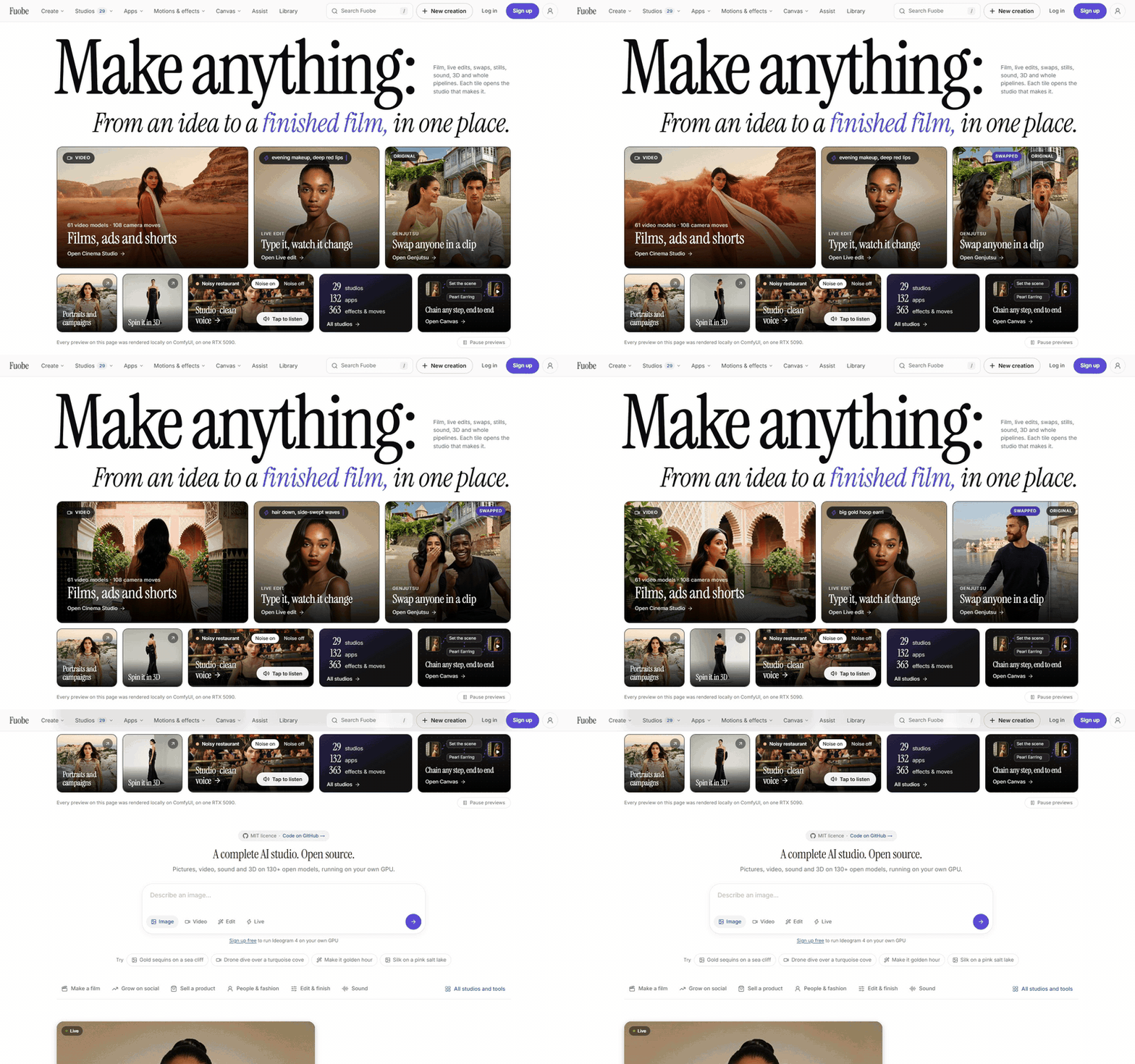
A ComfyUI custom node pack. It lets Fuobe, an open creative studio, use the ComfyUI on your own
computer, the way ComfyUI's own page uses it at http://127.0.0.1:8188. You do not need a start flag, a second file
or a changed start file. It adds no nodes. It is optional: Fuobe also runs without it.
The source of this pack is the integrations/fuobe-connect folder of the Fuobe repository:
https://github.com/workingprototype/Fuobe/tree/main/integrations/fuobe-connect. Every change is made there first,
and each release is published from that folder.
Two modes
Fuobe Connect works in two ways. You can use one, both or neither.
- Direct mode (on when you install it). A Fuobe page that is open in your browser sends its runs to the ComfyUI on
this computer. ComfyUI still turns away every other website. Fuobe Connect checks each request of the studio before
ComfyUI sees it.
- Pairing (off until you pair). You approve a short code with your Fuobe account. ComfyUI then gets your Fuobe jobs
from the studio over HTTPS and runs them with no Fuobe tab open. Use it for Safari, phones and PCs with no screen.
It opens no port. Every job gets the same checks as in direct mode.
Install
Use one of these three ways. Then restart ComfyUI.
ComfyUI-Manager: open the Manager, choose Custom Nodes Manager, search for Fuobe Connect and press
Install. The Manager gets Fuobe Connect from the Comfy Registry. If it doesn't
show Fuobe Connect, or shows no version that you can install, use one of the two other ways.
ComfyUI-Manager's Install via Git URL: enter https://github.com/workingprototype/ComfyUI-Fuobe-Connect.
Recent versions of the Manager allow this only when two things are true: its config.ini has
allow_git_url_install = true in the [default] section, and ComfyUI listens only on this computer. Older versions
need security_level = weak in the same file.
Git: in a terminal, in ComfyUI's custom_nodes folder, run:
git clone https://github.com/workingprototype/ComfyUI-Fuobe-Connect
Fuobe Connect installs no Python packages. It uses the aiohttp that comes with ComfyUI.
Connect in direct mode
Open Fuobe and choose Connect your GPU. Chrome and Edge ask once to let the page reach apps on this computer.
Press Allow. Fuobe finds ComfyUI and connects. If your browser can't reach this computer from a website (Safari,
phones, some other browsers), use pairing (below).
What a trusted studio can do, and what it can't
ComfyUI turns away requests from every other website. Fuobe Connect adds one exception: the Fuobe studios you trust.
By default these are https://fuobe.com and https://www.fuobe.com. A studio's address must start with https://
(http:// only for a studio on this computer, such as http://localhost:3000).
A trusted studio reaches this ComfyUI only at 127.0.0.1, ::1 or localhost, or at a network address when you
allow that (below). Its page can:
read ComfyUI's facts (/system_stats: version, GPU, memory, start options), its node list and the file lists of its
model folders, with each folder's place on disk (every folder ComfyUI lists, except custom_nodes and configs). In
the node list, the loaders show only Fuobe's own input files, not your file names;
upload a run's input into the input folder, only under a name Fuobe gives (fuobe_<id>.png and similar), only as a
picture, clip, sound, 3D scene, array (.npy, .npz) or subtitle file (.srt, .vtt). It can replace an
earlier Fuobe input, never a file of yours;
queue a workflow that passes Fuobe Connect's checks. Fuobe Connect checks every workflow here, in Python, before
ComfyUI sees it:
- every node type must be on the list this pack ships (
fuobe_connect/allowed_nodes.json: the nodes Fuobe's own
workflows use), or on your own list (below). A studio can't add to either list;
- no text may name a place on a disk or on the network: a path, a
.. step, a home folder, an environment variable,
a URL or a ComfyUI folder tag such as name [output];
- an input that a listed node reads as a file or a folder, or a name that it downloads, takes only the value or form
that Fuobe's own workflows use, written in the workflow itself. For example, the model of
DownloadAndLoadWav2VecModel must be one of its two models, and the format of VHS_VideoCombine must be a plain
name such as video/h264-mp4. PATH_INPUTS in fuobe_connect/graph.py lists every one;
- every file loader must read a Fuobe input (
fuobe_<id>.<ext>), never a file of yours;
- a link into a dropdown (a model name, a format, any list of choices), or from a loosely typed output such as
GetItemFromList or ComfySwitchNode, goes only where Fuobe's own workflows put one (loose and links in
fuobe_connect/allowed_nodes.json);
- a link has the form that ComfyUI's page writes: a node's id and an output number from 0 (
["4", 0]). A value
written in the workflow is a text, a number, true, false or null. A 3D view's entries have the form of
ComfyUI's own 3D nodes;
- a node holds only its type, its inputs and its title. A link goes only into an input that the node lists, and in
a workflow with a loop, every node feeds an output node.
Its workflows save their results into your output folder, as ComfyUI's own page does;
see, follow, cancel, stop and remove only the prompts it queued (and a batch's later passes, which save under
fuobe/<id>). In the queue, your own prompts show only as places in the line. It can't clear the queue or stop
your own work;
download only the results that its own prompts' history lists;
open ComfyUI's live socket only under a Fuobe client id (fuobe-…), never your own ComfyUI tab's.
A trusted studio can't reach the Manager's install calls, your user files or your settings: Fuobe Connect turns away
every request of a trusted studio outside the list above itself, whatever ComfyUI's start options say. It can't read a
file of yours in the input folder or download a result of yours, and its workflows can't name a file of yours by its
path. Every other website still meets ComfyUI's own check, unchanged. Nothing in ComfyUI's own files changes.
An older Fuobe setup. Fuobe Connect doesn't need --enable-cors-header or Fuobe's guard file. You can delete
fuobe_guard.py from custom_nodes and start ComfyUI without --enable-cors-header. While ComfyUI still starts
with --enable-cors-header and a site's address, Fuobe Connect lets in only ComfyUI's own page, that site and the
trusted studios, as the guard file did. A trusted studio gets only the checked requests above.
Choose your studios, or none
Open ComfyUI's Settings → Fuobe Connect and enter the studios that may use this ComfyUI, separated by commas, for
example https://studio.example.com. Type none to let no website use this ComfyUI from the browser. Pairing still
works.
You can also set the environment variable FUOBE_CONNECT_ORIGINS before you start ComfyUI (none works there too).
When it is set, it wins over the setting, and ComfyUI shows a note about it.
Your own node list. If your studio uses a node type that isn't on the shipped list, add it to
fuobe-connect-nodes.json in ComfyUI's user folder: {"nodes": ["MyNode"]}. Only you can change this file. A
studio can't. Every check above applies to your nodes too, including the rules for links from loosely typed outputs
and into dropdowns.
A network address. A trusted studio reaches this ComfyUI only on this computer. To let it reach a ComfyUI that
runs with --listen at a network address, start ComfyUI with FUOBE_CONNECT_LAN=1. Its requests get the same checks
there.
A name for ComfyUI's page. Fuobe Connect's own window works when you open ComfyUI at 127.0.0.1, localhost or
an IP address. If you open it by a name (for example comfy.local, or a domain in front of it), set
FUOBE_CONNECT_HOSTS=comfy.local before you start ComfyUI, so that the window works under that name too.
Pairing (for Safari, phones and PCs with no screen)
In ComfyUI, open Extensions → Connect to Fuobe. You can give this computer a name. Press Connect. ComfyUI
shows a short code. Open the link on any device, sign in to Fuobe and approve the code. Approve only a code that you
see in your own ComfyUI. From then on, ComfyUI gets that one person's jobs from the studio over HTTPS, and it runs them
with no Fuobe tab open. It opens no port. The token belongs to you alone, so another person's jobs never reach your PC.
Pairing works only with a studio you trust, or with https://fuobe.com. Every job gets the same checks as in direct
mode, before it reaches ComfyUI. The job's inputs leave the input folder when the job is done.
The Connect to Fuobe window shows the studio, the account that approved the code (masked, for example
a•••@example.com, when the studio says), and the last jobs with their node types and times. In Fuobe, you type the
code that your own ComfyUI shows: Fuobe doesn't fill it in from a link. Pause jobs and Disconnect stop the
jobs (see the next section).
On a PC with no screen, start ComfyUI with FUOBE_CONNECT_PAIR=1. The code and the link then appear in ComfyUI's
console. FUOBE_CONNECT_SITE=https://studio.example.com chooses the studio for that.
What pairing sends to the studio
When you press Connect: this computer's name (the one you typed, else its network name), the GPU's name, its memory
and ComfyUI's version. While paired, about every minute: the GPU's name and memory, the computer's memory, the
operating system, ComfyUI's version, whether ComfyUI is the portable build, and the progress of a running job. Every
five minutes: the file names in your loras folder (up to 20,000), so Fuobe can use your LoRAs. To stop sending the
LoRA names, start ComfyUI with FUOBE_CONNECT_LORAS=0. After a job: its results, and for a failed job the error type
and message, without the folders on this computer.
Stop unattended jobs
Fuobe Connect runs jobs with no Fuobe tab open only after you pair. If you never press Connect (and never start
ComfyUI with FUOBE_CONNECT_PAIR=1), it runs none. To stop them after you paired:
- To stop for a time, open Extensions → Connect to Fuobe and press Pause jobs. ComfyUI then takes no new
Fuobe job until you press Resume jobs. The pause stays after a restart of ComfyUI. A job that already runs goes
on to its end. While paused, ComfyUI still sends the studio its status (see "What pairing sends to the studio" above).
- To stop for good, press Disconnect in the same window. Fuobe Connect stops at once: it takes no more jobs and
sends nothing more about the jobs that it ran. It then tells the studio to forget this computer and deletes the
token here. If the studio can't be reached, Fuobe Connect keeps the token unused and tries again every minute. A
prompt that ComfyUI already runs stays in ComfyUI's queue. Cancel it in ComfyUI if you want it to stop.
- You can also remove the computer in Fuobe's settings. The studio then refuses the token, and Fuobe Connect deletes it
the next time it calls the studio (within about a minute).
On a PC with no screen, a program on that computer can do steps 1 and 2. ComfyUI must run at 127.0.0.1:8188 for
these commands (change the port if yours is different). On Windows, run them in Command Prompt, not PowerShell.
curl -X POST -H "Content-Type: application/json" -d "{\"paused\": true}" http://127.0.0.1:8188/fuobe/connect/jobs
curl -X POST -H "Content-Type: application/json" -d "{}" http://127.0.0.1:8188/fuobe/connect/unpair
To remove Fuobe Connect, press Disconnect first. Then delete the ComfyUI-Fuobe-Connect folder from
custom_nodes (or uninstall it in ComfyUI-Manager) and restart ComfyUI.
Files
Fuobe Connect keeps one file, fuobe-connect.json, in ComfyUI's user folder. The file holds the studios that you
trust and, after pairing, the studio's address, the account and the token. Only your user account can read the file:
mode 0600 on Linux and macOS, and on Windows an access list with only your account. ComfyUI does not serve this file to
web pages.
Tests
python -m unittest discover -s tests
The tests load ComfyUI's own origin check and run it behind Fuobe Connect over real HTTP on ports 3360, 3364, 3365
and 3366. Set FUOBE_CONNECT_TEST_PORT to move them (the tests use that port and the three after it, +4 to +6). Set
COMFYUI_DIR to a ComfyUI folder to read the middleware from that copy of ComfyUI. Run them with ComfyUI's own Python
as well, and tests/test_comfy_kinds.py also checks workflows with that ComfyUI's own node classes, on the CPU. The
other tests need only aiohttp. No test needs models, a GPU or a running ComfyUI. The tests folder is not part of
the published pack.
Releases
Each version is published to the Comfy Registry, which ComfyUI-Manager searches. To
publish a version:
- In the Fuobe repository, set the new version in
pyproject.toml and in fuobe_connect/__init__.py. The tests
check that the two are the same.
- Bring that folder into this repository as one new commit.
- Push a tag with the same version and a
v in front, for example v1.0.2.
The tag starts the workflow .github/workflows/publish.yml. The workflow publishes nothing when the tag and the
version in pyproject.toml are different, or when the repository has no publishing key (the secret
REGISTRY_ACCESS_TOKEN).
Licence
MIT