

AdaptiveCards
A new way for developers to exchange card content in a common and consistent way.
- 2k
- C#
- MIT
- 2 d ago
Create native settings for Flutter app in a minutes.
Repo yako-dev/flutter-settings-ui, read from GitHub 12 h ago. yako-dev has not joined Take My Repo.
yako-dev/flutter-settings-ui is a public repo on GitHub by yako-dev. Create native settings for Flutter app in a minutes. It declares the Apache-2.0 license on GitHub. It is written mainly in Dart, has 967 stars and last changed on 2026-10-08. Nobody has reviewed it on Take My Repo yet, which says nothing about its quality. Read from GitHub on 2026-11-24.
A new way for developers to exchange card content in a common and consistent way.
Paste this into Claude Code, Codex, Cursor or another coding agent, from your app's root folder. The agent reads the package's recipe in llms.txt, looks at your app, asks before big changes, and builds a settings screen wired to real, saved state.
Add a settings screen to this Flutter app with the settings_ui package.
Read the section "Recipe: build a settings screen for an app" in
https://raw.githubusercontent.com/yako-dev/flutter-settings-ui/master/llms.txt
and follow it step by step. If you can't open the link, tell me.

Always:
- Pick the version by the app's imports: package:material_ui or package:cupertino_ui
  -> settings_ui: ^4.0.0; package:flutter/material.dart -> settings_ui: ^3.0.1.
- Show me your plan and wait for my OK before adding dependencies or screens.
- Never invent URLs or email addresses (privacy policy, terms, support). Ask me.
Build a store-ready Settings screen for this Flutter app with the settings_ui package.
First read https://raw.githubusercontent.com/yako-dev/flutter-settings-ui/master/llms.txt (API,
platform differences and mistakes to avoid). If you can't fetch it, read the package source after
`flutter pub get`.

1. Inspect the app before changing anything, and tell me what you found:
   - Flutter version and UI imports. package:material_ui / package:cupertino_ui -> settings_ui: ^4.0.0.
     package:flutter/material.dart -> settings_ui: ^3.0.1. Don't migrate the app unless I ask.
   - The platforms it ships (ios/, android/, macos/, windows/, linux/, web/), and tablet support.
   - State management, persistence (shared_preferences, Hive, secure storage...), localization,
     routing, and whether the app supports light/dark/system theme modes.
   - Existing preferences and feature flags, sign-up/sign-in, in-app purchases, permissions in
     ios/Runner/Info.plist and android/app/src/main/AndroidManifest.xml, and any existing settings UI.
2. Propose grouped sections that follow Apple HIG and Material conventions (for example: account,
   appearance, notifications, privacy, support, about; destructive actions last). For each row give
   the tile type, the state behind it and where it is stored. If the app runs on tablets, desktop or
   the web, propose SettingsSplitView (list and page side by side). Wait for my OK before adding
   dependencies, adding screens or moving existing code.
3. Build it with settings_ui, following the app's existing patterns:
   - SettingsTile.switchTile for on/off, SettingsTile.navigation for rows that open a page or
     picker, plain SettingsTile for values and actions (no chevron). Section titles in sentence case.
   - Settings sub-pages: `destination: SettingsDestination(id: ..., builder: ...)` on the navigation
     tile. The builder returns only the body; the package draws the header and back button.
   - Wire every row to real state that survives a restart. No placeholder rows, empty handlers or
     TODOs. Permission rows show the real OS status and open system settings when denied.
   - Use the app's localization for strings and its router for other screens. Leave `platform`
     unset, so iOS, Android, macOS, Windows, Linux and the web each get their own style.
4. Add these rows when they apply. Ask me for URLs and emails; never invent them.
   - Version and build number (package_info_plus). Open-source licenses (showLicensePage).
   - Privacy policy, terms of use and contact support (url_launcher).
   - Restore purchases, if the app sells subscriptions or non-consumable purchases.
   - Sign out and Delete account, if users can create accounts. Deletion starts in the app, asks for
     confirmation and calls the real backend (App Store Review Guideline 5.1.1(v); Google Play has a
     similar rule).
5. Add widget tests: the screen renders in the style of every platform the app ships
   (TargetPlatformVariant), every toggle persists, links and actions fire, and a split view shows
   one pane at 402x874 and two at 1210x834 (tester.view.physicalSize).
6. Run `flutter analyze` and `flutter test`. Then run the app on an iOS simulator and an Android
   emulator, plus iPad, desktop or web if the app ships there, in light and dark mode
   (`xcrun simctl ui booted appearance dark`, `adb shell cmd uimode night yes`), and screenshot
   the settings screen each time (`xcrun simctl io booted screenshot`,
   `adb exec-out screencap -p`). Fix anything clipped, misaligned or hard to read. If you can't
   launch a device, tell me what to run.
7. Summarize: files changed, dependencies added, each row with its state and storage key, tests
   added, screenshot paths, and anything I still need to provide.
More prompts, to upgrade from 3.x, replace a hand-built settings screen, add one setting end to end, add a split view, or audit a screen: see agent prompts.
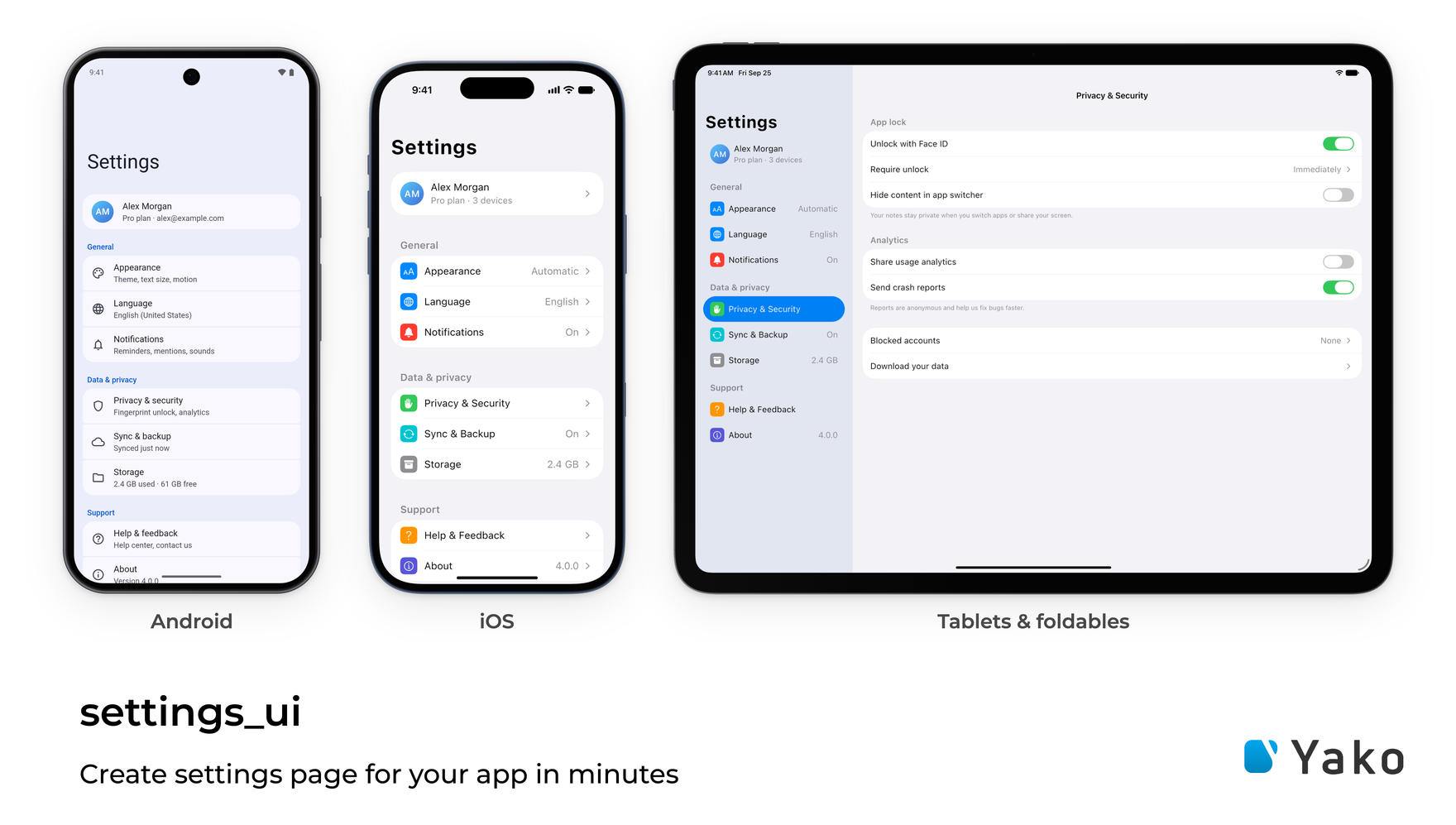
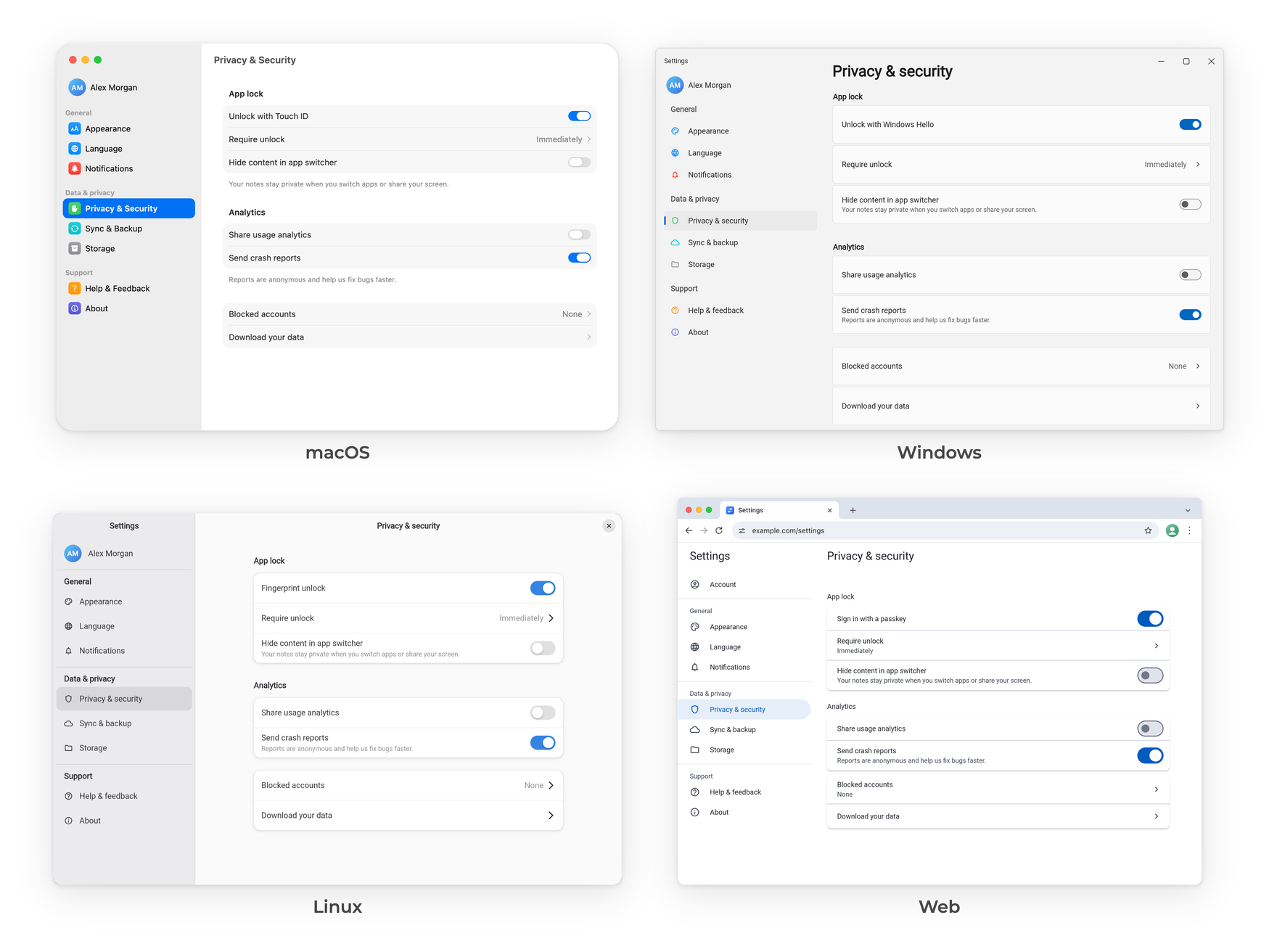
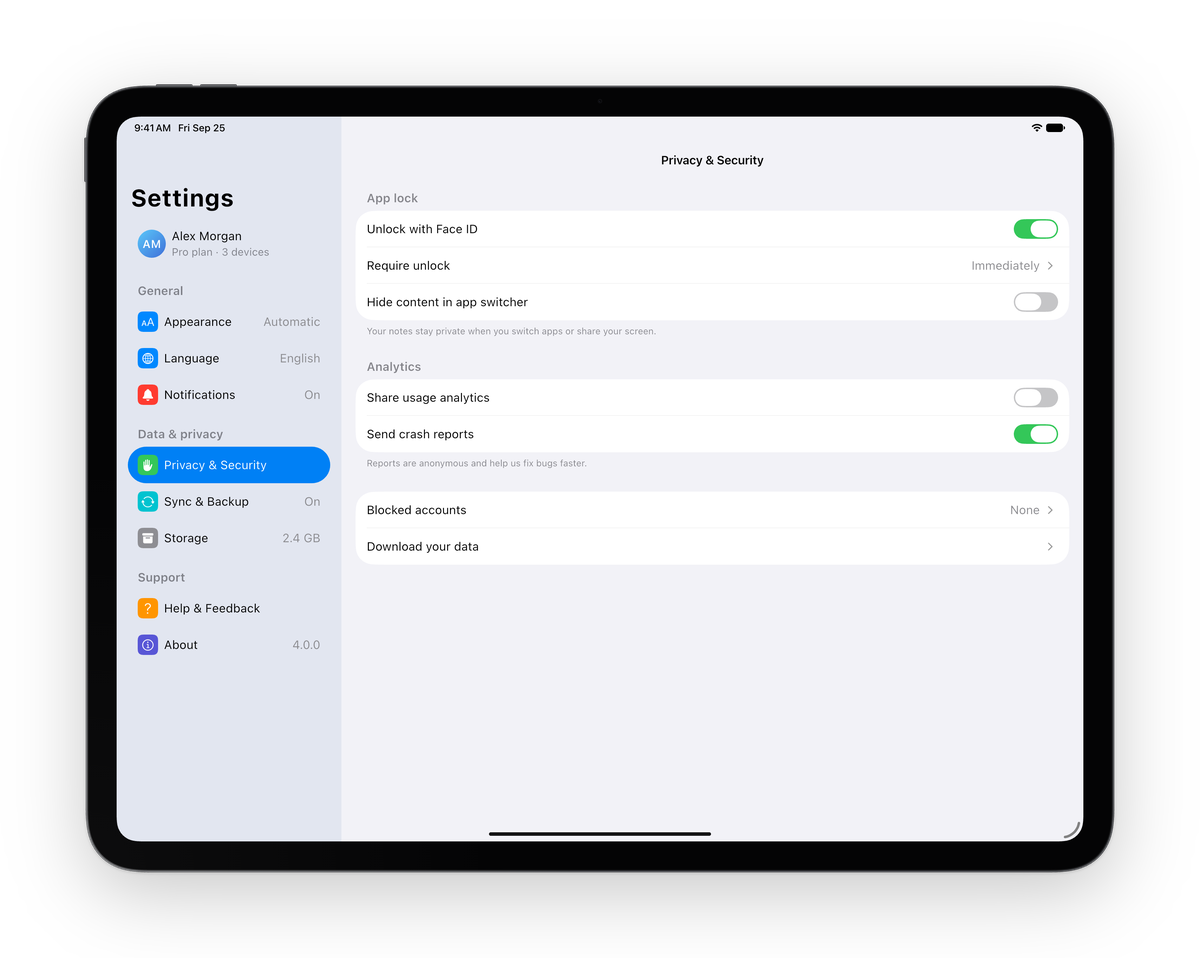
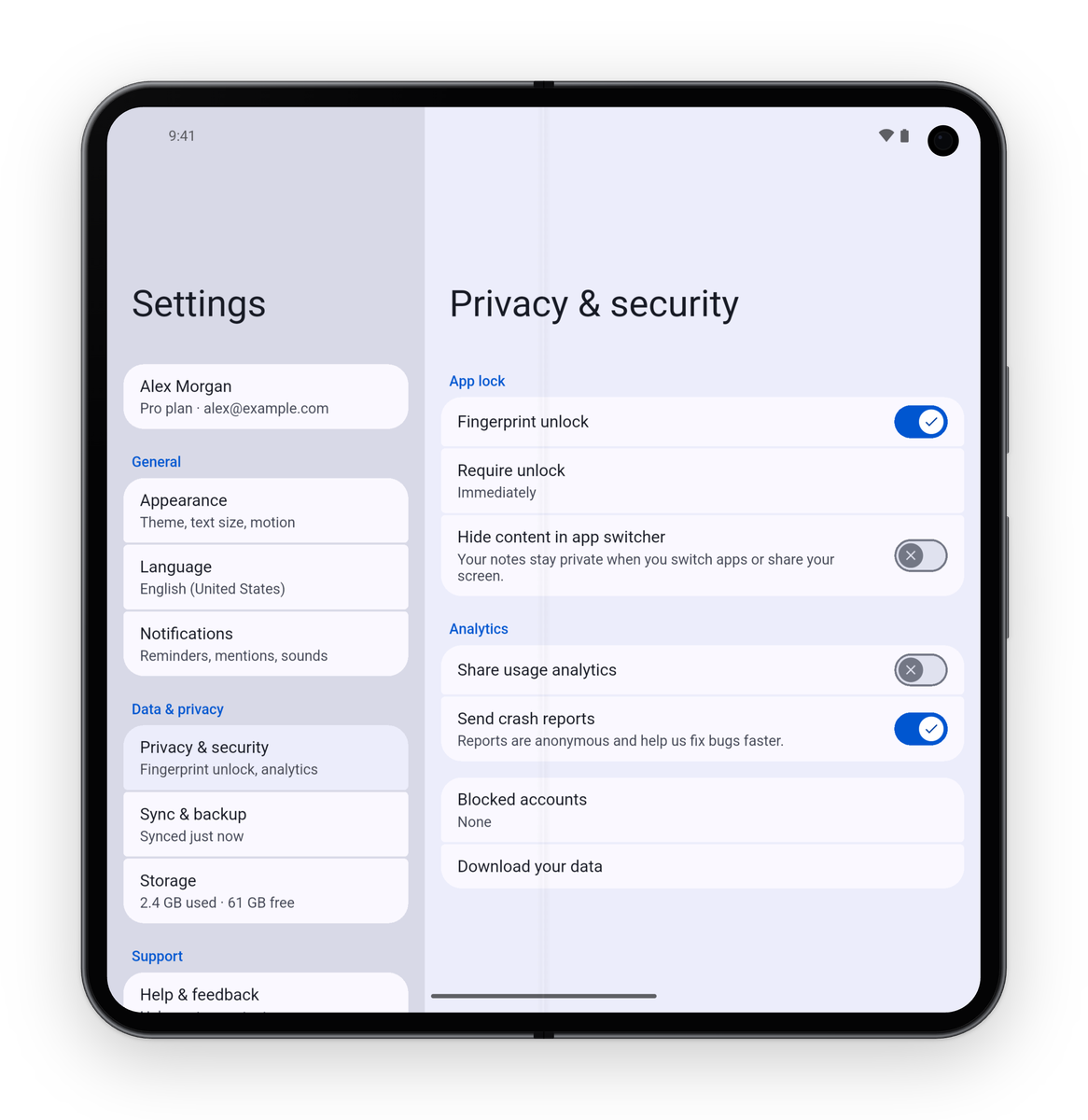
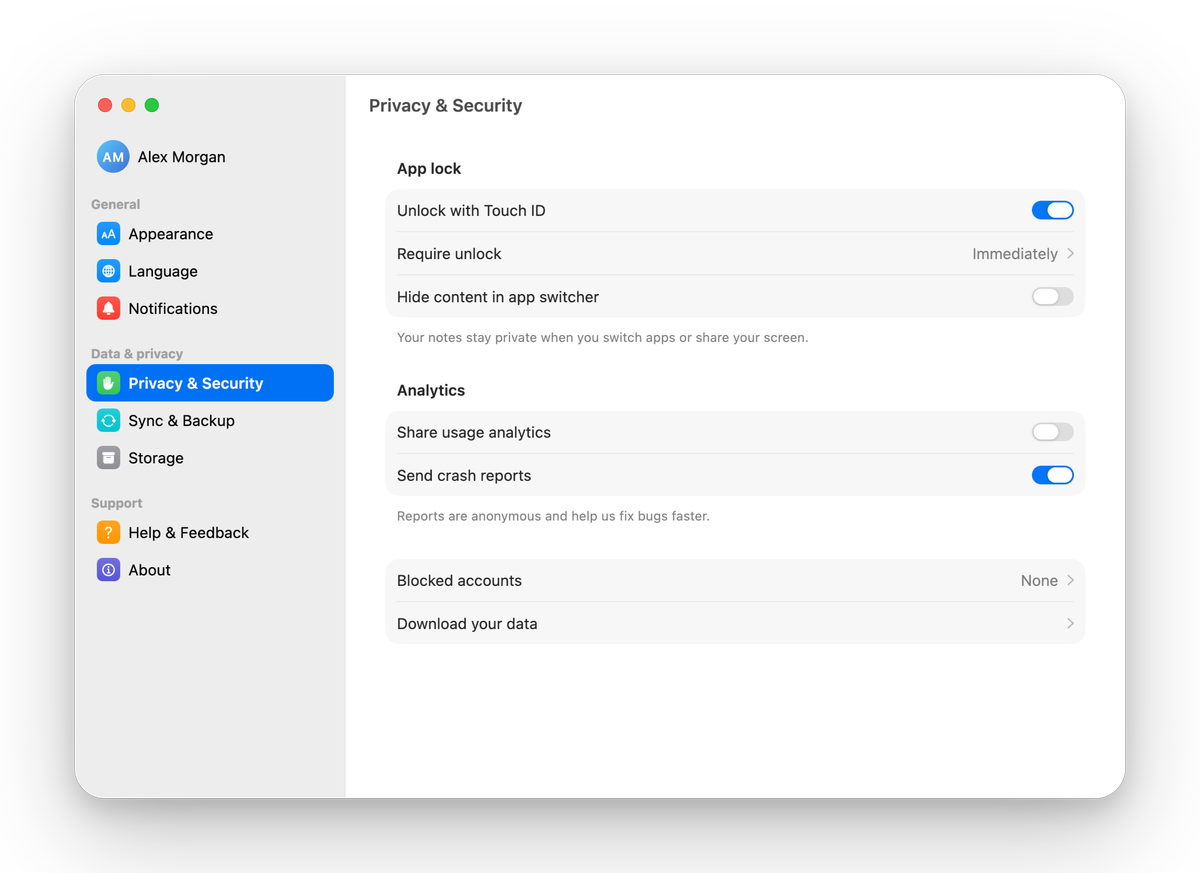
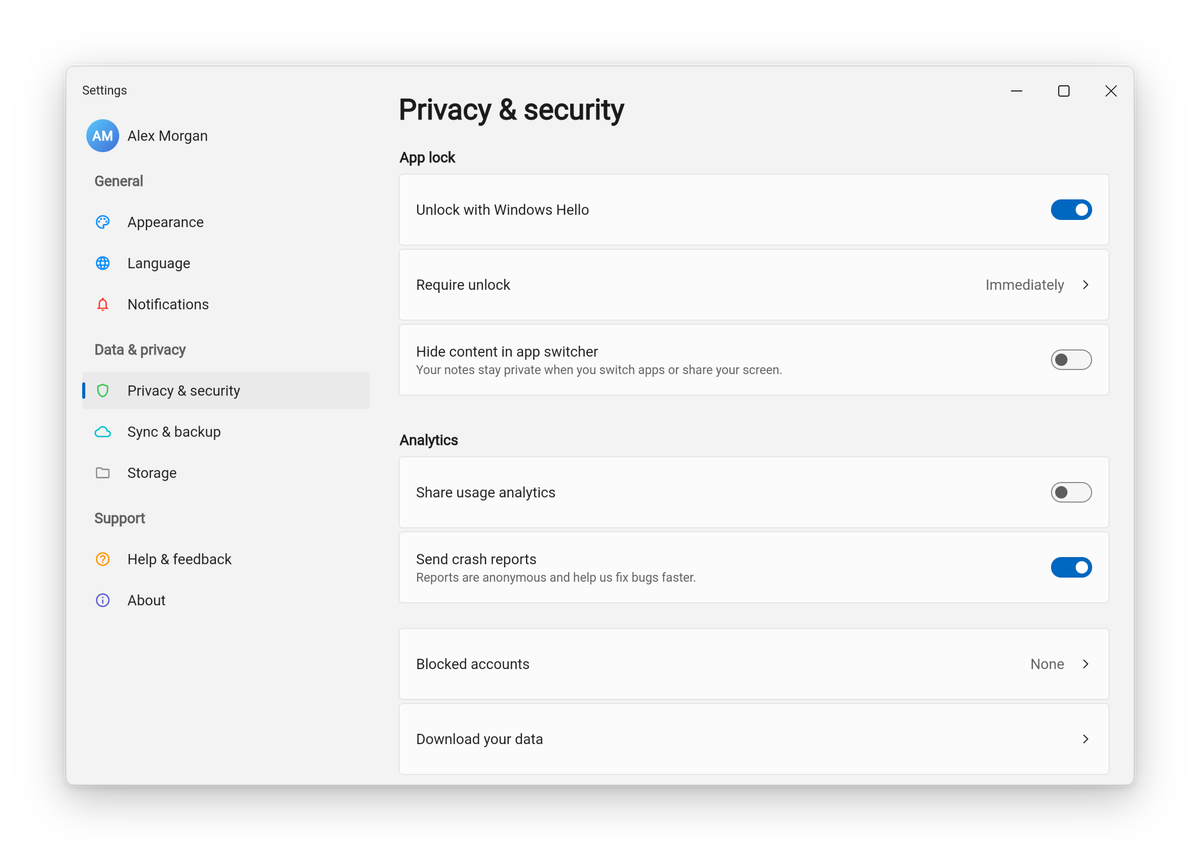
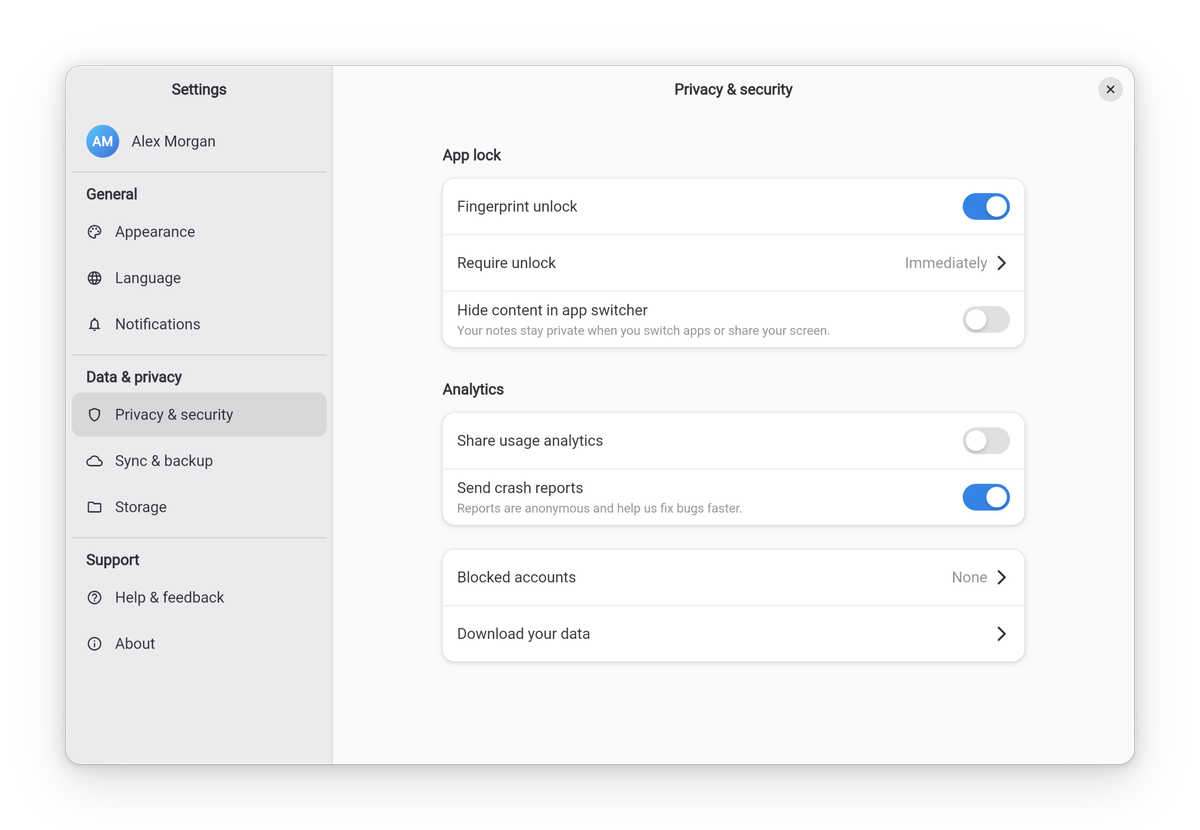
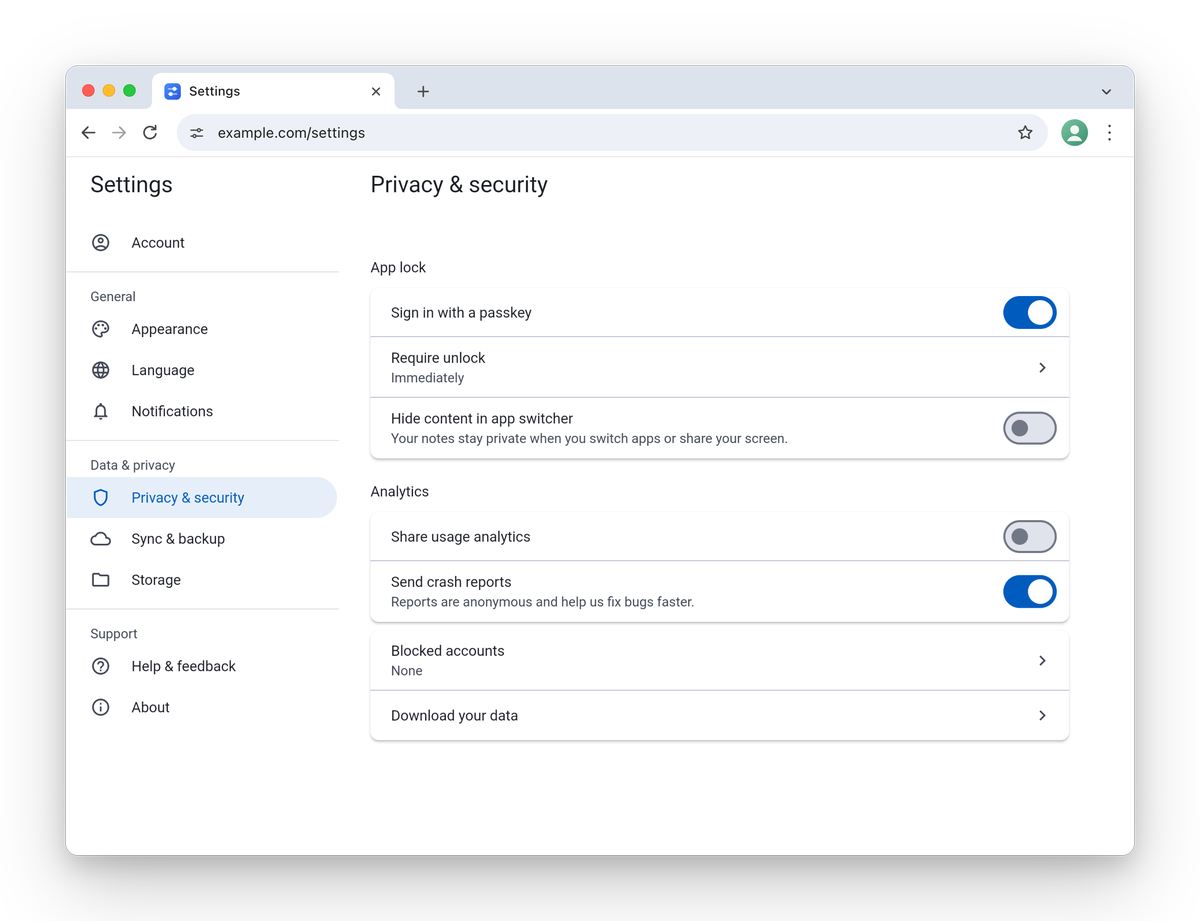
settings_ui draws iOS 26 and Android 16 settings on phones, macOS System Settings, Windows 11 and GNOME on the desktop, and Chrome's settings page on the web, and picks the style at runtime. Version 4.0.0 adds a split view for iPad, tablets, foldables, desktop and the web, and its own switches for iOS 26 (Liquid Glass), macOS, Windows 11 and GNOME. It is built on material_ui and cupertino_ui and needs Flutter 3.44+. See the changelog.
dependencies:
  settings_ui: ^4.0.0
Version 4 needs Flutter 3.44+ and an app built on material_ui and cupertino_ui (import 'package:material_ui/material_ui.dart', not package:flutter/material.dart). If your code imports them, add them to your own pubspec.yaml too: flutter pub add material_ui cupertino_ui. Apps still on package:flutter/material.dart stay on settings_ui: ^3.0.1, or see Migrating from 3.x.
import 'package:material_ui/material_ui.dart';
import 'package:settings_ui/settings_ui.dart';

class SettingsScreen extends StatefulWidget {
  const SettingsScreen({super.key});

  @override
  State<SettingsScreen> createState() => _SettingsScreenState();
}

class _SettingsScreenState extends State<SettingsScreen> {
  bool _notifications = true; // load from and save to your store

  @override
  Widget build(BuildContext context) {
    return Scaffold(
      appBar: AppBar(title: const Text('Settings')),
      body: SettingsList(
        sections: [
          SettingsSection(
            title: const Text('General'),
            tiles: [
              SettingsTile.navigation(
                leading: const Icon(Icons.language),
                title: const Text('Language'),
                value: const Text('English'),
                onPressed: (context) {/* open a language picker */},
              ),
              SettingsTile.switchTile(
                leading: const Icon(Icons.notifications),
                title: const Text('Notifications'),
                initialValue: _notifications,
                onToggle: (value) => setState(() => _notifications = value),
              ),
            ],
          ),
          SettingsSection(
            title: const Text('About'),
            tiles: [
              SettingsTile(
                title: const Text('Version'),
                value: const Text('1.4.0 (57)'),
              ),
              SettingsTile.navigation(
                title: const Text('Open-source licenses'),
                onPressed: (context) => showLicensePage(context: context),
              ),
            ],
          ),
        ],
      ),
    );
  }
}
SettingsTile.switchTile for on/off. It is controlled: initialValue is the current value and onToggle gets the new one. Screen readers announce the switch with the tile's title.SettingsTile.navigation for rows that open a page or a picker. It shows a chevron in the iOS, macOS, Windows and web styles.SettingsTile for a value or an action, with no chevron.CustomSettingsTile and CustomSettingsSection for any other widget. Write section titles in sentence case.enabled: false greys out any tile, and it ignores taps and the keyboard.On iPad, tablets, foldables, desktop and the web, use SettingsSplitView as the whole screen (no app bar above it) and give each navigation tile a SettingsDestination. Wide windows show the list and the page side by side; phones push the page over the list. The package draws each platform's page header and back button, so builder returns only the body.
SettingsSplitView(
  title: const Text('Settings'),
  sections: [
    SettingsSection(
      tiles: [
        SettingsTile.navigation(
          leading: const Icon(Icons.wifi),
          title: const Text('Network & internet'),
          destination: SettingsDestination(
            id: 'network',
            builder: (context) => const NetworkSettings(),
          ),
        ),
        SettingsTile.navigation(
          leading: const Icon(Icons.brightness_medium),
          title: const Text('Display'),
          destination: SettingsDestination(
            id: 'display',
            builder: (context) => const DisplaySettings(),
          ),
        ),
      ],
    ),
  ],
)
Each style follows its platform's Settings app: two panes on iPads in both orientations, on Android tablets and unfolded foldables, and above 980px on the web; on the desktop, the sidebars of System Settings, Windows 11 Settings and GNOME Settings. Pages keep their state when a device folds, unfolds or rotates; system back, Android predictive back and the iOS back swipe work; hinges and right-to-left layouts are handled. A destination works in a plain SettingsList too: the tile pushes its page. For deep links and URL sync, see SettingsSplitController and onDestinationChanged in the API reference.
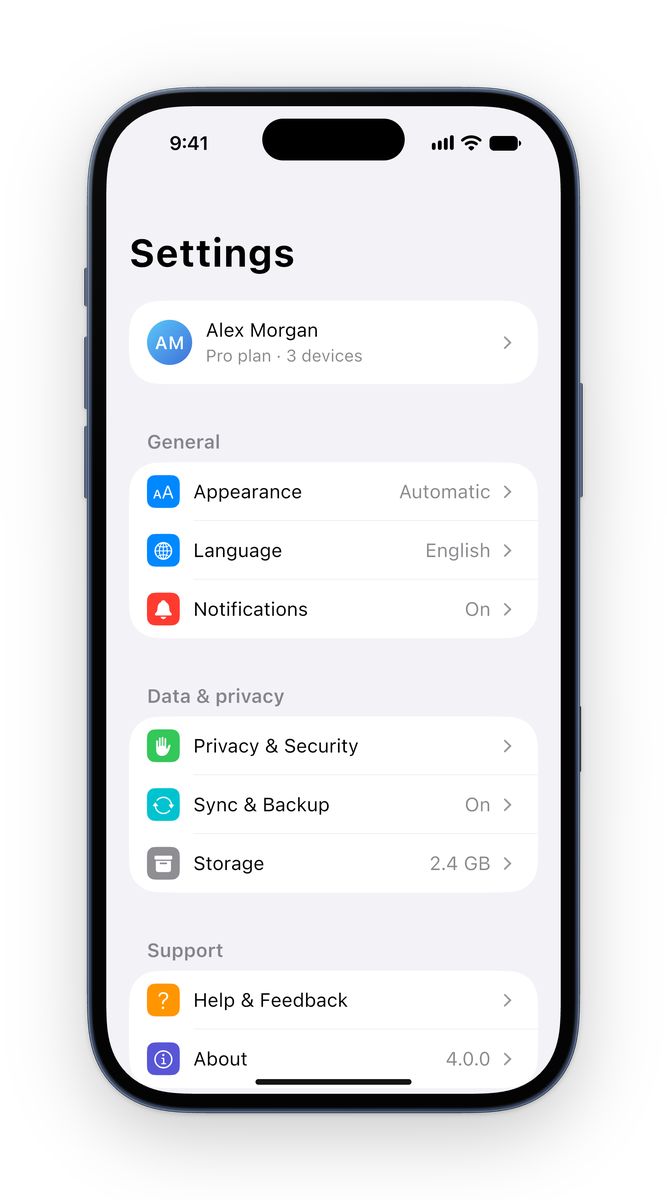 |
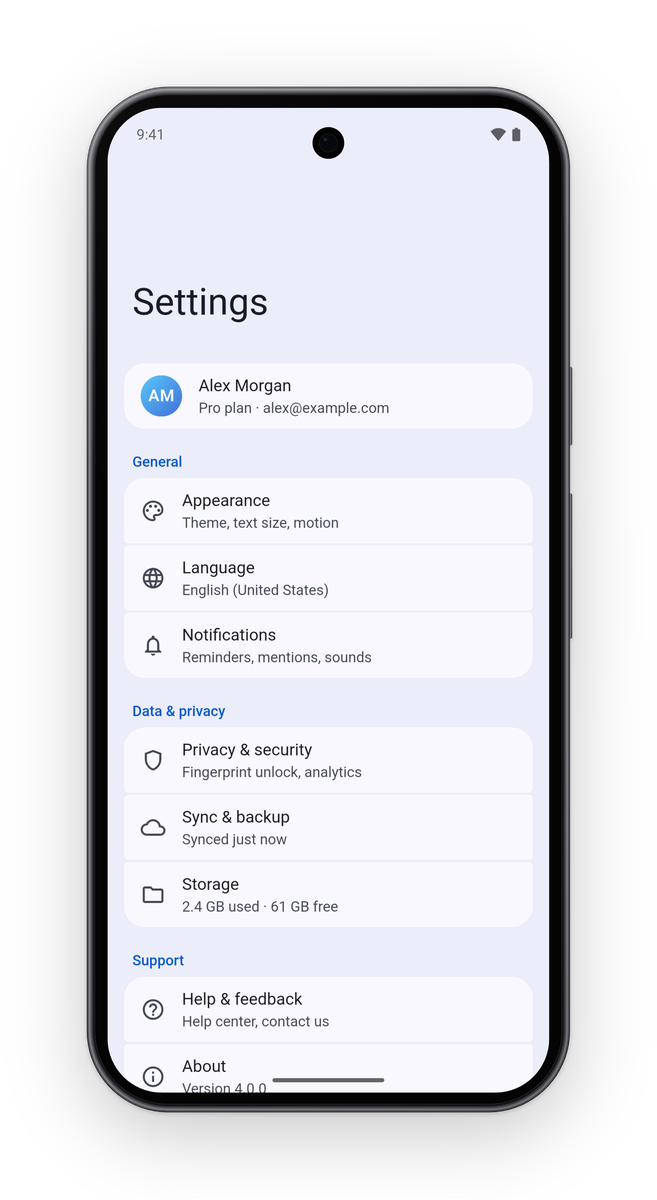 |
| iOS 26 | Android 16 |
 |
 |
| iPad, split view | Foldable, split view |
 |
 |
| macOS System Settings | Windows 11 |
 |
 |
| Linux (GNOME) | Web (Chrome) |
The style follows the platform the app runs on, and every browser gets the web style. To use one style everywhere, set platform, for example SettingsList(platform: DevicePlatform.iOS, ...).
| Class | What it is |
|---|---|
SettingsList |
The scrolling list of sections. Optional: platform, brightness, applicationType, lightTheme and darkTheme, contentPadding, crossAxisAlignment, scrollController, shrinkWrap, physics |
SettingsSection |
A group of tiles with an optional title. CustomSettingsSection takes any widget |
SettingsTile |
SettingsTile(), .navigation() and .switchTile(), with title, leading, trailing, value, description, titleDescription, onPressed, enabled, compact. CustomSettingsTile takes any widget |
SettingsDestination |
The page a navigation tile opens: id, builder, title, actions |
SettingsSplitView |
The list and the selected page side by side. SettingsSplitController selects pages from code |
yako-dev/flutter-settings-ui is a public repo on GitHub by yako-dev. Create native settings for Flutter app in a minutes.
It declares the Apache-2.0 license on GitHub.
Its maker tagged it for macOS, Windows and Linux, or as Docker or cross-platform. That is declared by the maker; Take My Repo has not tested it.
Open "Take it" on its page: Take My Repo writes an install plan for your machine and hands it to your AI agent (Claude Code, Codex or Cursor), which asks you before each step. Take My Repo has not tested it on any machine.
Reverse engineer anything with agents, from app behavior down to native binaries.
Flutter makes it easy and fast to build beautiful apps for mobile and beyond
f.k.a. Awesome ChatGPT Prompts. Share, discover, and collect prompts from the community. Free and open source — self-host for your organization with complete privacy.
:chart_with_upwards_trend: Adaptive: parallel active learning of mathematical functions
An open-source remote desktop application designed for self-hosting, as an alternative to TeamViewer.
Its last change on GitHub was on 2026-10-08. GitHub counts 0 open issues and pull requests. Take My Repo does not judge from that whether it is maintained.
Nobody has reviewed it on Take My Repo yet, which says nothing about its quality.
Take My Repo cannot say: it does not audit code and has not run flutter-settings-ui. What is known comes from GitHub. It declares the Apache-2.0 license on GitHub. Its last change was on 2026-10-08. It has 967 stars, which measure popularity, not safety. Nobody has reviewed it on Take My Repo yet, which says nothing about its quality. Read the source before you run it. With "Take it", your AI agent shows each step and asks you before running it; README text is treated as data, not as instructions.


