rea
Reverse engineer anything with agents, from app behavior down to native binaries.
- 476k
- TypeScript
- MIT
- 54 min ago
💠Android Material's motion system animations.
Repo AndroidPoet/Metaphor, read from GitHub 1 min ago. AndroidPoet has not joined Take My Repo.
AndroidPoet/Metaphor is a public repo on GitHub by AndroidPoet. 💠Android Material's motion system animations. It declares the Apache-2.0 license on GitHub. It is written mainly in Kotlin, has 147 stars and last changed on 2026-09-03. Nobody has reviewed it on Take My Repo yet, which says nothing about its quality. Read from GitHub on 2026-11-24.
Reverse engineer anything with agents, from app behavior down to native binaries.
💠Android Material's motion system animations.


👉 Check out who's using Metaphor
Add the dependency below to your module's build.gradle file:
dependencies {
    implementation("io.github.androidpoet:metaphor:2.0.0")
}
Metaphor provides support for all four motion patterns defined in the Material spec, plus elevation scale and hold.
Metaphor separates what animates from where it animates.
Motion is one Material pattern as plain data: Motion.Fade(), Motion.SharedAxis.x(),
Motion.ContainerTransform() and so on. Each carries only its own parameters and defaults
to the duration the Material spec recommends.MotionSpec is the set of motions for one screen: enter, exit, popEnter, popExit
and an optional sharedElement. It holds no reference to a Fragment or Activity, so it can
be declared once and reused anywhere.applyMotion(...) is the only thing a target needs to call. It exists for Fragment,
Activity and PopupWindow. Views use morphInto, animateVisibility and animateChanges.object Motions { val listOrigin = motionSpec { exit = Motion.ElevationScale.shrink() popEnter = Motion.ElevationScale.grow() } val detail = motionSpec { sharedElement = Motion.ContainerTransform() } }

The origin screen holds a list. The destination screen grows out of the tapped item and shrinks back into it on return.
// Origin fragment (the list)
class ArtistListFragment : Fragment() {

  override fun onCreate(savedInstanceState: Bundle?) {
    super.onCreate(savedInstanceState)
    applyMotion {
      exit = Motion.ElevationScale.shrink()   // list fades back while the detail grows
      popEnter = Motion.ElevationScale.grow() // list comes forward again on return
    }
  }

  override fun onViewCreated(view: View, savedInstanceState: Bundle?) {
    super.onViewCreated(view, savedInstanceState)
    // Wait for the list to lay out so the return transform can find the item view.
    postponeEnterUntilDrawn()
  }

  private fun openDetail(itemView: View, item: Artist) {
    val extras = FragmentNavigatorExtras(itemView to item.id)
    findNavController().navigate(ArtistListFragmentDirections.toDetail(item), extras)
  }
}

// Destination fragment (the detail)
class ArtistDetailFragment : Fragment() {

  private val args: ArtistDetailFragmentArgs by navArgs()

  override fun onViewCreated(view: View, savedInstanceState: Bundle?) {
    super.onViewCreated(view, savedInstanceState)
    applyMotion(
      spec = motionSpec {
        sharedElement = Motion.ContainerTransform(
          duration = 300,
          scrimColor = Color.TRANSPARENT,
          containerColor = Color.WHITE,
          path = MotionPath.Arc,
        )
      },
      sharedElement = SharedElement.Destination(view, args.item.id),
    )
  }
}
Motion.ContainerTransform takes scrimColor, containerColor, path (MotionPath.Arc or
MotionPath.Linear), fadeMode (In, Out, Cross, Through) and duration.
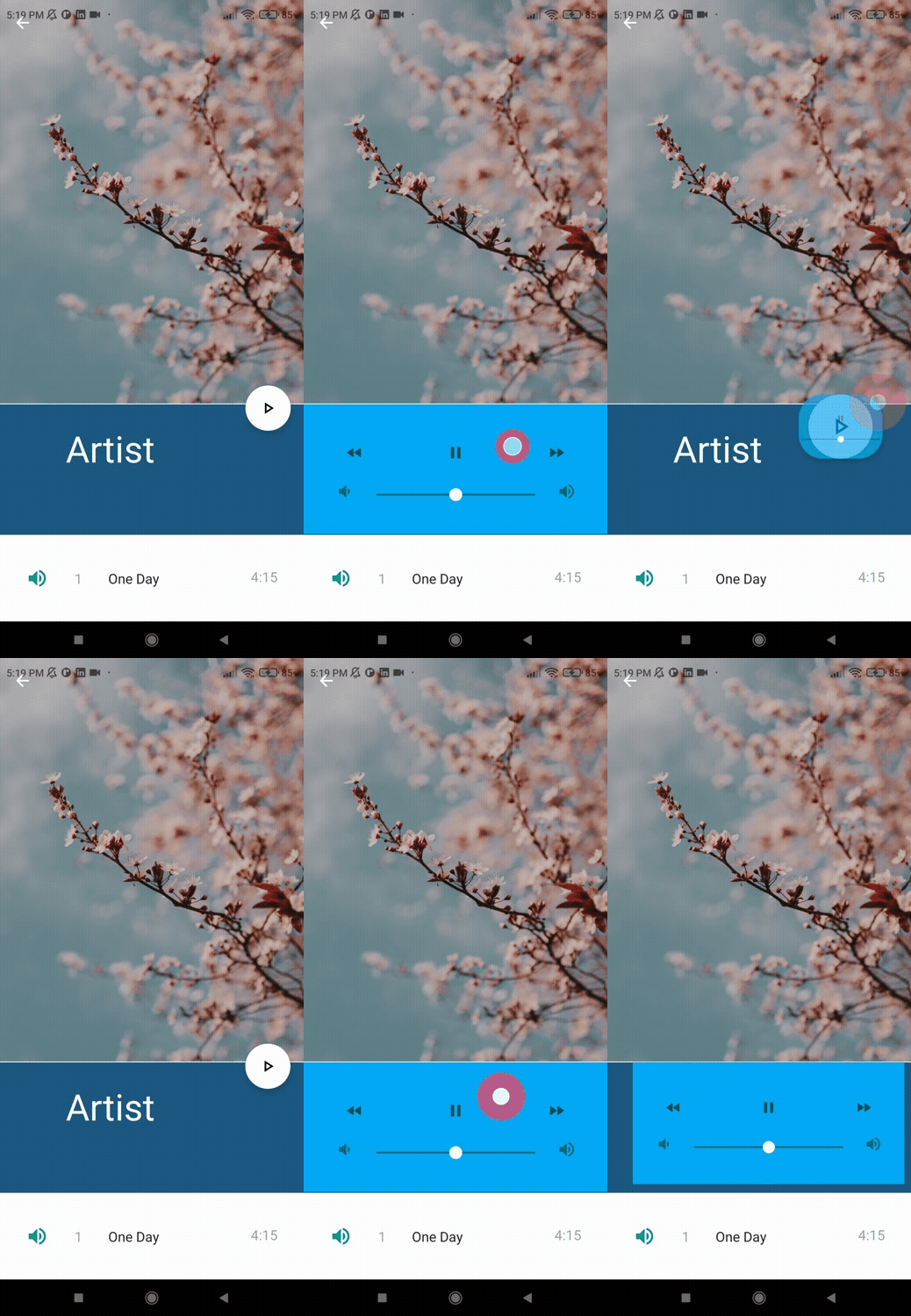
Morph one view into a sibling. The first view is hidden and the target is shown when the transition starts. Both views must share the same parent.
viewBinding.fabDetail.setOnClickListener {
  viewBinding.fabDetail.morphInto(viewBinding.controls, Motion.ContainerTransform(duration = 300))
}

viewBinding.controls.setOnClickListener {
  viewBinding.controls.morphInto(viewBinding.fabDetail)
}// Origin activity class ArtistListActivity : AppCompatActivity() { override fun onCreate(savedInstanceState: Bundle?) { super.onCreate(savedInstanceState) setContentView(binding.root) applyMotion(SharedElement.Origin) { sharedElement = Motion.ContainerTransform() exit = Motion.Hold() } } private fun openDetail(card: View) { card.transitionName = "card" val options = ActivityOptions.makeSceneTransitionAnimation(this, card, "card") startActivity(Intent(this, ArtistDetailActivity::class.java), options.toBundle()) } } // Destination activity class ArtistDetailActivity : AppCompatActivity() { override fun onCreate(savedInstanceState: Bundle?) { super.onCreate(savedInstanceState) setContentView(binding.root) applyMotion(SharedElement.Destination(binding.root, "card")) { sharedElement = Motion.ContainerTransform() } } }
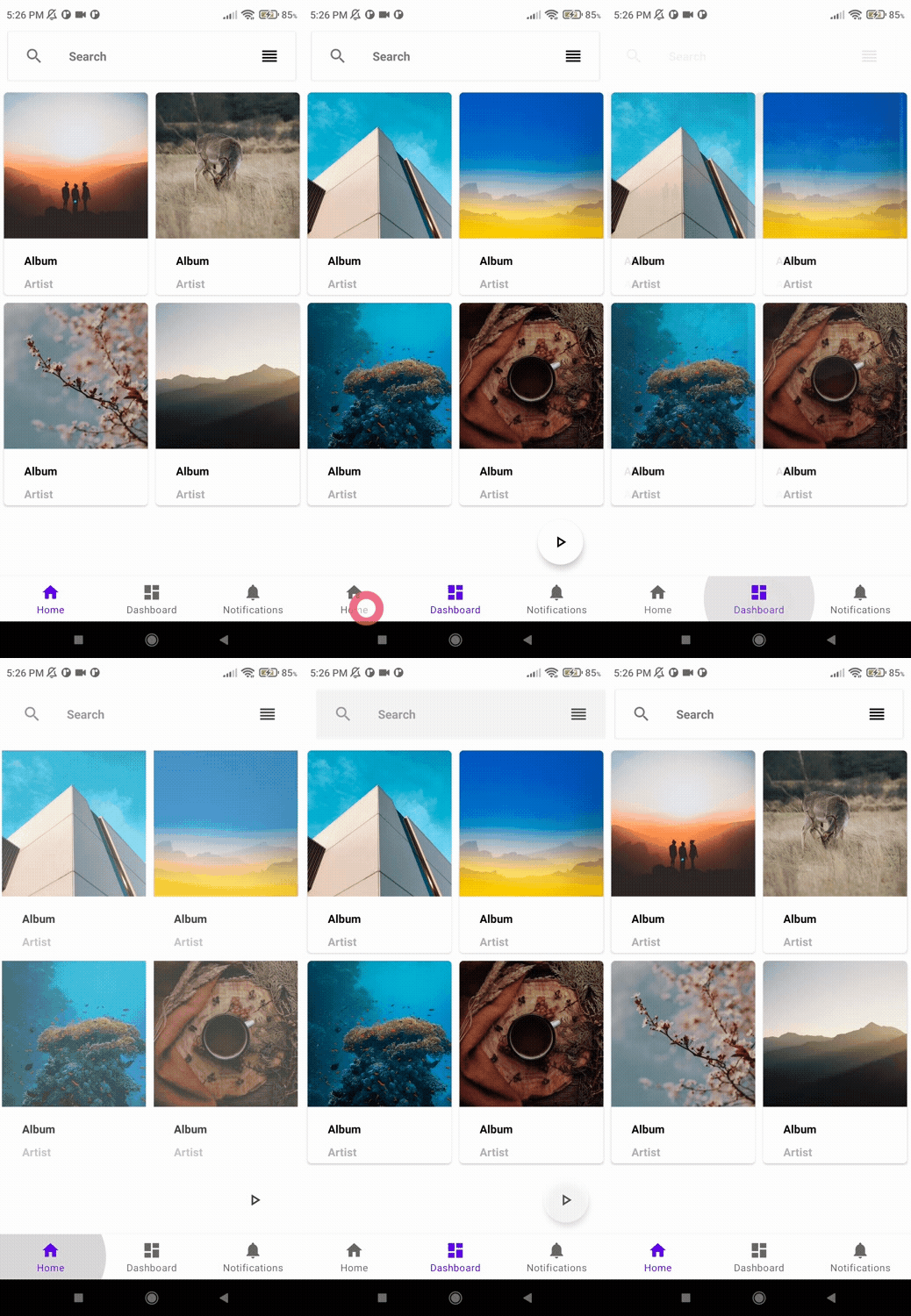
Both screens set the same axis. forward = true plays when moving deeper, forward = false
plays when popping back.
// Origin fragment
class SettingsFragment : Fragment() {

  override fun onCreate(savedInstanceState: Bundle?) {
    super.onCreate(savedInstanceState)
    applyMotion {
      exit = Motion.SharedAxis.x(forward = true)
      popEnter = Motion.SharedAxis.x(forward = false)
    }
  }
}

// Destination fragment
class AccountFragment : Fragment() {

  override fun onCreate(savedInstanceState: Bundle?) {
    super.onCreate(savedInstanceState)
    applyMotion {
      enter = Motion.SharedAxis.x(forward = true)
      popExit = Motion.SharedAxis.x(forward = false)
    }
  }
}
Motion.SharedAxis.y() and Motion.SharedAxis.z() work the same way, or build one directly:
Motion.SharedAxis(axis = Motion.SharedAxis.Axis.Z, forward = true, duration = 400)
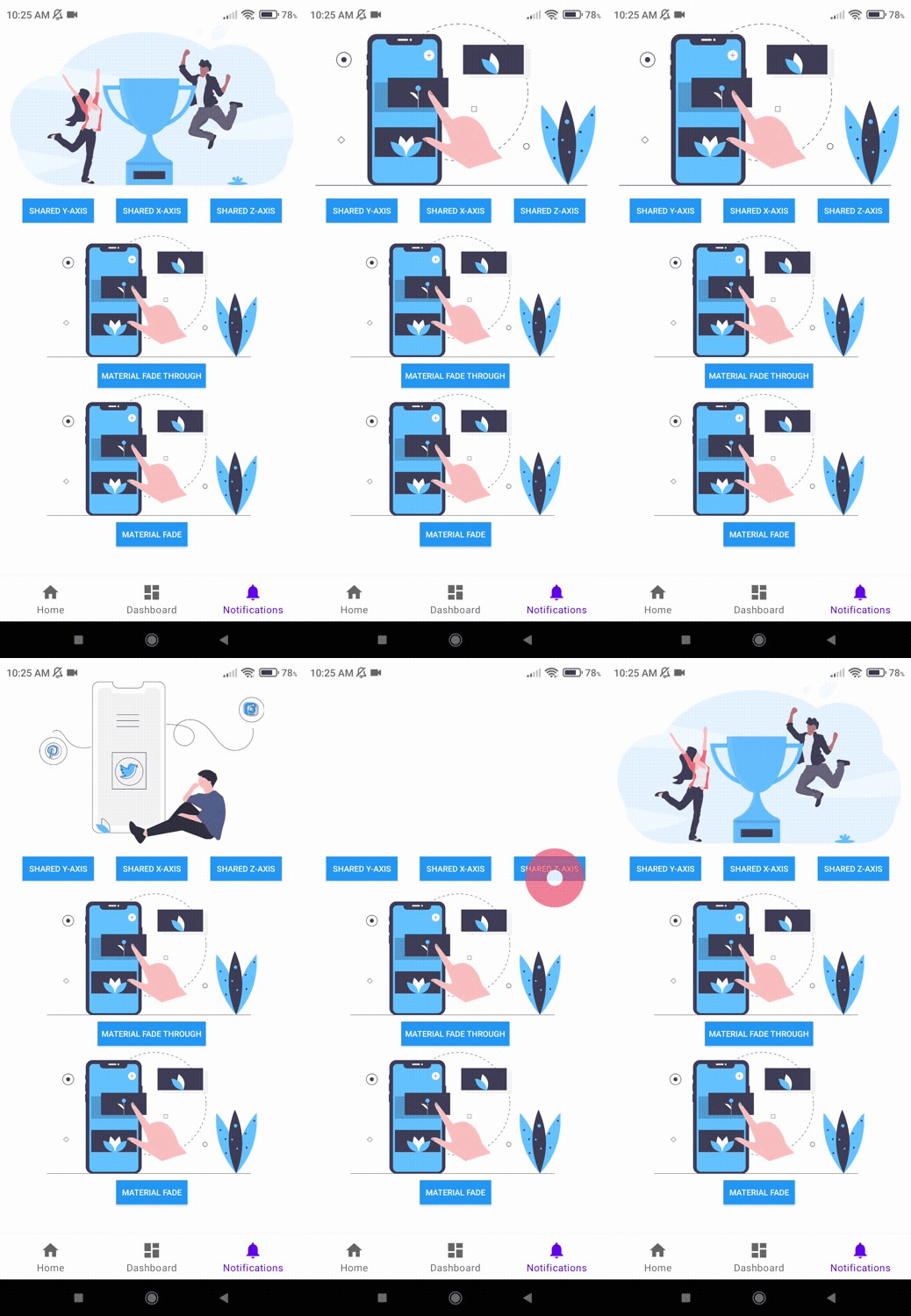
viewBinding.sharedX.setOnClickListener {
  viewBinding.img.toggleVisibility(Motion.SharedAxis.x(forward = true, duration = 1000))
}

viewBinding.sharedY.setOnClickListener {
  viewBinding.img.toggleVisibility(Motion.SharedAxis.y(forward = true))
}

viewBinding.sharedZ.setOnClickListener {
  viewBinding.img.toggleVisibility(Motion.SharedAxis.z(forward = true))
}// Origin activity, in onCreate applyMotion { exit = Motion.SharedAxis.x(forward = true) popEnter = Motion.SharedAxis.x(forward = false) } // Destination activity, in onCreate applyMotion { enter = Motion.SharedAxis.x(forward = true) popExit = Motion.SharedAxis.x(forward = false) }
Fade through suits screens that are not related, such as bottom navigation tabs.
// Origin fragment
class HomeFragment : Fragment() {

  override fun onCreate(savedInstanceState: Bundle?) {
    super.onCreate(savedInstanceState)
    applyMotion {
      enter = Motion.FadeThrough()
      exit = Motion.FadeThrough()
    }
  }
}

// Destination fragment
class DashboardFragment : Fragment() {

  override fun onCreate(savedInstanceState: Bundle?) {
    super.onCreate(savedInstanceState)
    applyMotion {
      enter = Motion.FadeThrough(duration = 300)
      exit = Motion.FadeThrough(duration = 300)
    }
  }
}

AndroidPoet/Metaphor is a public repo on GitHub by AndroidPoet. 💠Android Material's motion system animations.
It declares the Apache-2.0 license on GitHub.
Its maker has not tagged a system, so it is unknown here. Its README says what it needs.
Open "Take it" on its page: Take My Repo writes an install plan for your machine and hands it to your AI agent (Claude Code, Codex or Cursor), which asks you before each step. Take My Repo has not tested it on any machine.
BRVAH:Powerful and flexible RecyclerAdapter
Flutter makes it easy and fast to build beautiful apps for mobile and beyond
f.k.a. Awesome ChatGPT Prompts. Share, discover, and collect prompts from the community. Free and open source — self-host for your organization with complete privacy.
Its last change on GitHub was on 2026-09-03. GitHub counts 0 open issues and pull requests. Take My Repo does not judge from that whether it is maintained.
Nobody has reviewed it on Take My Repo yet, which says nothing about its quality.
Take My Repo cannot say: it does not audit code and has not run Metaphor. What is known comes from GitHub. It declares the Apache-2.0 license on GitHub. Its last change was on 2026-09-03. It has 147 stars, which measure popularity, not safety. Nobody has reviewed it on Take My Repo yet, which says nothing about its quality. Read the source before you run it. With "Take it", your AI agent shows each step and asks you before running it; README text is treated as data, not as instructions.