Sortable
Reorderable drag-and-drop lists for modern browsers and touch devices. No jQuery or framework required.
- 31k
- JavaScript
- MIT
- 8 mo ago
A slot-based inventory for Godot 4 with stacking, drag and drop, tooltips, item use and save data, with the logic and UI kept separate.
Repo CodingQuests/godot-inventory-system, read from GitHub 1 d ago. CodingQuests has not joined Take My Repo.
CodingQuests/godot-inventory-system is a public repo on GitHub by CodingQuests. A slot-based inventory for Godot 4 with stacking, drag and drop, tooltips, item use and save data, with the logic and UI kept separate. It declares the MIT license on GitHub. It is written mainly in GDScript, has 0 stars and last changed on 2026-10-09. Nobody has reviewed it on Take My Repo yet, which says nothing about its quality. Read from GitHub on 2026-11-24.
Reorderable drag-and-drop lists for modern browsers and touch devices. No jQuery or framework required.
A slot-based inventory for Godot 4 with stacking, drag and drop, item tooltips, using items, and save data. The data and the UI are separate, so you can keep the logic and restyle the window.
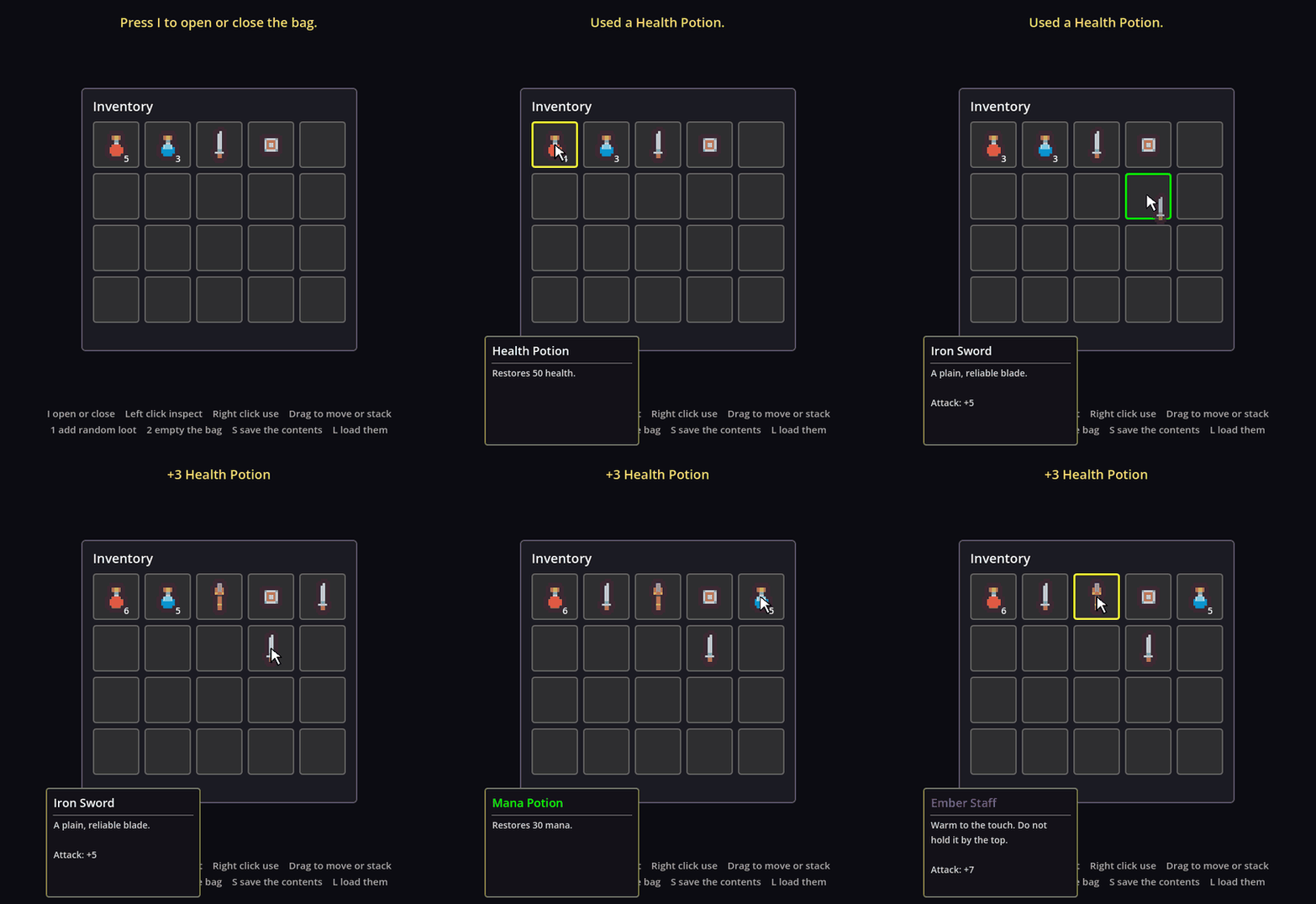
Item resources. One .tres file per item, with a name, icon,
description, stack limit, rarity, value, type and optional equipment stats.max_stack, then spill into the next free
slot. Non-stackable gear takes one slot each.add_item() returns how many did not fit, so you can
leave the rest on the ground or show "bag full".item_used so your game can react.save_data() returns a plain dictionary that refers to items
by resource path, and load_data() puts it back.Inventory is a plain node with signals.
InventoryUI listens and redraws, so any number of windows can show one bag.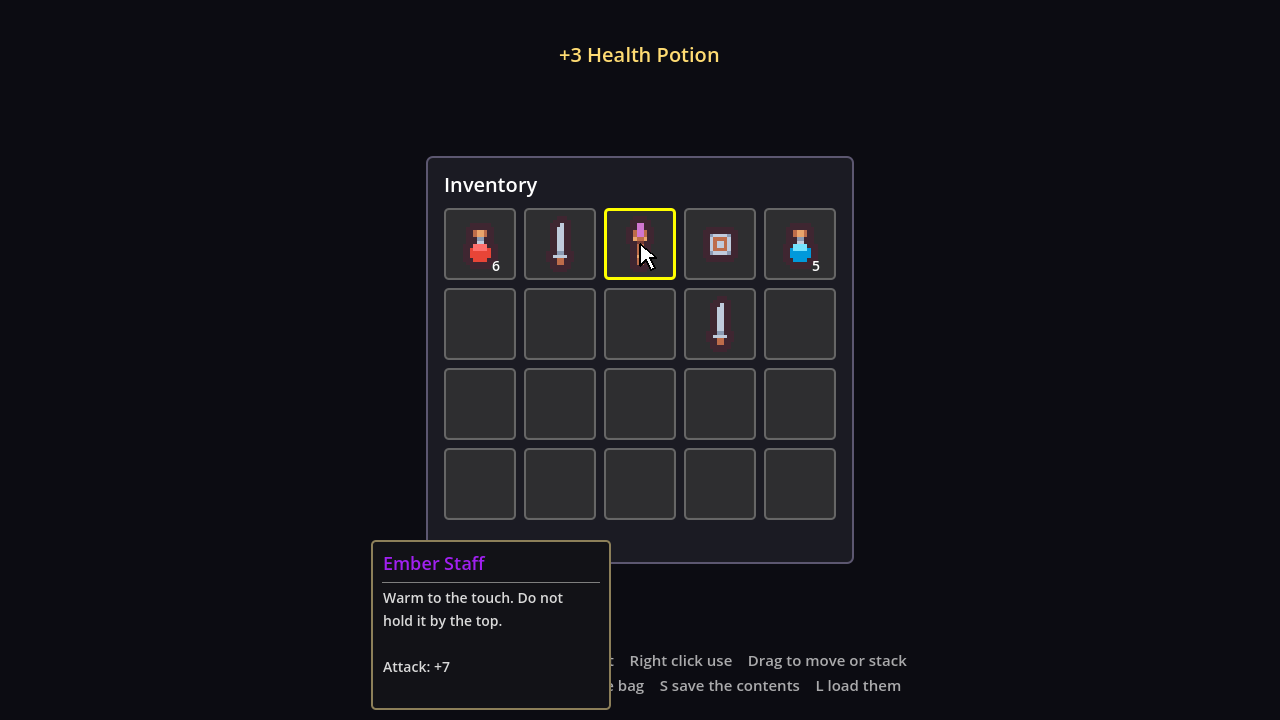
demo/InventoryDemo.tscn starts with a small kit: potions, a sword and a shield.
Press I to open and close the bag, click items, drag them around, and press
1 to add random loot.
Clone the repository:
git clone https://github.com/CodingQuests/godot-inventory-system.git
Or download it with Code > Download ZIP and unzip it.
Then open Godot, click Import, pick the project.godot file inside the folder,
and click Import & Edit.
Item (a Resource) is what an item is. The same resource is shared by
every slot that holds it, so two slots hold the same item when
slot_a.item == slot_b.item.InventorySlot (a Resource) is one cell: an item and a quantity. It emits
item_changed whenever either changes.Inventory (a Node) owns the slots and the rules: add, remove, count,
stack, save.Adding stacks onto matching slots first, then fills empty ones, and hands back whatever is left:
var overflow := inventory.add_item(health_potion, 30)
if overflow > 0:
	drop_on_ground(health_potion, overflow)
InventoryUI builds one InventoryUISlot per inventory slot and listens for
inventory_changed. It never decides anything itself: a drop calls the slots'
merge_with() or swaps their contents, and the display updates from the signals.
Each InventoryUISlot uses Godot's own drag and drop callbacks:
| Callback | What it does here |
|---|---|
_get_drag_data() |
Returns {slot_index, item, quantity} and a preview of the icon |
_can_drop_data() |
Accepts any slot data and highlights the slot green |
_drop_data() |
Emits slot_dropped(from, to); InventoryUI stacks or swaps |
var data := inventory.save_data()   # {"size": 20, "slots": [{"item_path": "res://items/iron_sword.tres", "quantity": 1}, null, ...]}
inventory.load_data(data)
Items are stored by resource path, so the save stays small and picks up any changes you make to an item's stats later.
project.godot                        Project file and the toggle_inventory action
inventory/Item.gd                    An item definition (Resource)
inventory/InventorySlot.gd           One slot: item and quantity (Resource)
inventory/Inventory.gd               The bag: slots, stacking, add, remove, save
inventory/GUI/InventoryUI.tscn       The inventory window: grid plus info panel
inventory/GUI/InventoryUI.gd         Builds the grid, handles clicks, drops and tooltips
inventory/GUI/InventoryUISlot.tscn   One cell: icon and quantity
inventory/GUI/InventoryUISlot.gd     Drawing a slot and drag and drop
items/                               Six example items (.tres)
demo/InventoryDemo.tscn              The demo scene
demo/inventory_demo.gd               Demo only: starting kit, loot keys, messages
assets/kenney_tiny-dungeon/          Kenney Tiny Dungeon item icons (CC0) and their license
Copy the inventory/ folder into your project.
Add an input action named toggle_inventory (Project > Project Settings >
Input Map) and bind a key to it.
Add an Inventory node to your player.
Instance inventory/GUI/InventoryUI.tscn under a CanvasLayer and set its
inventory property to that node.
Make your items: right click in the FileSystem dock, New Resource, pick
Item, fill it in, and save it as a .tres.
Add items from gameplay:
@export var potion: Item

func _on_pickup(body: Node) -> void:
    var left: int = body.get_node("Inventory").add_item(potion, 1)
    if left == 0:
        queue_free()
React to use: connect InventoryUI.item_used, or extend Item and override
use().
inventory_size on the Inventory node (20 by default).columns, slot_size and slot_spacing on InventoryUI.StyleBoxFlat resources in InventoryUI.tscn, and
create_slot_style() in InventoryUISlot.gd.get_rarity_color() in Item.gd.extends Item, override use(), and
use it for those items' resources.item_used up to your own equipment or stats system.use() only removes one of an item when its type is Consumable. Other types
are left in the bag for your game to handle..tres file
breaks old saves unless you migrate them.MIT for the code. See LICENSE.
The item icons are from Tiny Dungeon by
Kenney, released under CC0 1.0. Details in
THIRD_PARTY_ASSETS.md, and the pack's original license is
in assets/kenney_tiny-dungeon/License.txt.
Want to understand how this works instead of just copying it?
CodingQuests teaches you how to build systems like this step by step in Godot, with interactive lessons and real projects.
Other free, MIT-licensed Godot 4 projects that work well next to this one:
All twelve are listed on the CodingQuests GitHub profile.
Made by CodingQuests.
CodingQuests/godot-inventory-system is a public repo on GitHub by CodingQuests. A slot-based inventory for Godot 4 with stacking, drag and drop, tooltips, item use and save data, with the logic and UI kept separate.
It declares the MIT license on GitHub.
Its maker has not tagged a system, so it is unknown here. Its README says what it needs.
Godot Engine – Multi-platform 2D and 3D game engine
Unleash your creativity with Pixelorama, a powerful and accessible open-source pixel art multitool. Whether you want to create sprites, tiles, animations, or just express yourself in the language of pixel art, this software will realize your pixel-perfect dreams with a vast toolbox of features. Available on Windows, Linux, macOS and the Web!
Community-built comprehensive 2D content creation appplication for graphic design, digital art, and interactive real-time motion graphics powered by a node-based procedural graphics engine
Free, open-source file converter. Convert 263 formats offline by drag & drop — images, PDF, Word, Excel, PowerPoint, HWP/HWPX, video, audio, e-books and archives. No upload, no Office needed.
Dear ImGui: Bloat-free Graphical User interface for C++ with minimal dependencies
Open "Take it" on its page: Take My Repo writes an install plan for your machine and hands it to your AI agent (Claude Code, Codex or Cursor), which asks you before each step. Take My Repo has not tested it on any machine.
Its last change on GitHub was on 2026-10-09. Take My Repo does not judge from that whether it is maintained.
Nobody has reviewed it on Take My Repo yet, which says nothing about its quality.
Take My Repo cannot say: it does not audit code and has not run godot-inventory-system. What is known comes from GitHub. It declares the MIT license on GitHub. Its last change was on 2026-10-09. It has 0 stars, which measure popularity, not safety. Nobody has reviewed it on Take My Repo yet, which says nothing about its quality. Read the source before you run it. With "Take it", your AI agent shows each step and asks you before running it; README text is treated as data, not as instructions.