godot-menu-system
Main menu, pause menu and options menu for Godot 4, with saved settings (volume, fullscreen, vsync), fade scene transitions and keyboard and gamepad navigation.
- 0
- MIT
- 7 wk ago
Repo CodingQuests/godot-menu-system, read from GitHub 2 h ago. CodingQuests has not joined Take My Repo.
In short
CodingQuests/godot-menu-system is a public repo on GitHub by CodingQuests. Main menu, pause menu and options menu for Godot 4, with saved settings (volume, fullscreen, vsync), fade scene transitions and keyboard and gamepad navigation. It declares the MIT license on GitHub. It is written mainly in GDScript, has 0 stars and last changed on 2026-10-09. Nobody has reviewed it on Take My Repo yet, which says nothing about its quality. Read from GitHub on 2026-11-25.
Similar repos

Godot Menu System
A main menu, pause menu and options menu for Godot 4, with settings that are saved to disk (volume per audio bus, fullscreen, vsync) and fade transitions between scenes. Keyboard, mouse and gamepad all work.

Features
- Title screen with Play, Options and Quit. Set the title and the scene Play opens in the Inspector.
- Pause menu with Resume, Restart, Options and Quit to Title. Esc, P or a gamepad's Start toggles it, and it pauses on its own when the window loses focus.
- Options menu with a volume slider per audio bus, plus fullscreen and vsync toggles. One scene, used by both the title screen and the pause menu.
- Saved settings. Everything is written to
user://settings.cfgand applied again on the next launch. - Fade transitions for every scene change, including Restart and Quit. They keep running while the game is paused or in slow motion, reset both when the new scene opens, and ignore a second request while a fade is running.
- Keyboard and gamepad navigation. Every menu focuses its first control when it opens, and focus goes back to where you were when a submenu closes.
- Esc does the right thing. Inside Options it closes Options; otherwise it toggles the pause.
- One theme file (
menus/menu_theme.tres) styles every menu, with a crisp pixel font.
Demo
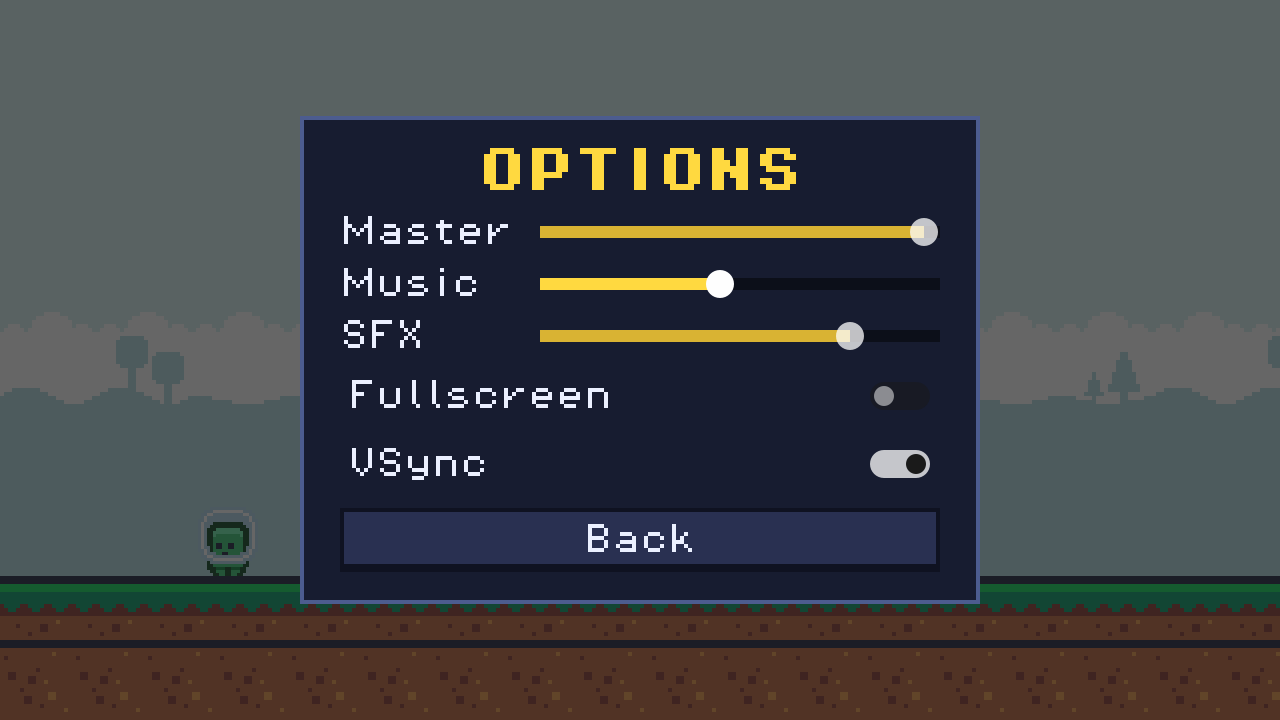
The demo game is a character pacing back and forth and a clock counting up, so
you can see both freeze when you pause and start over when you restart. The music
and the click sound are made in code (demo/demo_audio.gd), so the sliders have
something to control without any audio files.
Requirements
- Godot 4.7 or later, standard build (GDScript only, no .NET needed).
- Tested on Godot 4.7.2 stable on Windows.
Transitionwaits for thescene_changedsignal, which needs Godot 4.5 or later; earlier versions are untested. - Uses the Compatibility renderer, so it runs on older GPUs too.
Installation
Clone the repository:
git clone https://github.com/CodingQuests/godot-menu-system.git
Or download it with Code > Download ZIP and unzip it.
Then open Godot, click Import, pick the project.godot file inside the folder,
and click Import & Edit.
Quick Start
- Press F5. The title screen fades in with Play selected.
- Use the arrow keys (or a gamepad) and Enter, or the mouse.
- Open Options, drag the Music slider, and press Esc to go back.
- Press Play, then Esc or P in the game to pause.
- Close the game and start it again: your volumes are still there.
How It Works
Two autoloads
| Autoload | Script | Job |
|---|---|---|
Settings |
menus/settings.gd |
Loads user://settings.cfg, applies it, saves it, and is where every menu reads and writes a setting |
Transition |
menus/transition.gd |
A full-screen fade on its own top layer: change_scene(path), reload(), quit() |
The demo adds a third, DemoAudio, which you will not need.
Settings
Volumes are stored as 0.0 to 1.0, because that is what a slider gives you, and converted to decibels for the mixer:
func set_volume(bus: String, linear: float) -> void:
	linear = clampf(linear, 0.0, 1.0)
	_config.set_value("audio", bus, linear)
	_apply_volume(bus, linear)   # AudioServer.set_bus_volume_db(idx, linear_to_db(linear))
	changed.emit()
ConfigFile writes a small text file you can open and read:
[audio]

Master=1.0
Music=0.5
SFX=0.8

[video]

fullscreen=false
vsync=true
Anything missing from the file (like on the very first launch) falls back to the
defaults at the top of settings.gd, and the next save writes every setting out.
Pausing
get_tree().paused = true freezes every node whose process mode is the default,
Inherit. The pause menu, the options menu, and Transition set their process
mode to Always, so they keep running while everything else stops. Nothing in your
game needs to know the pause menu exists.
Transitions
Trimmed a little (the error check is left out):
func change_scene(path: String) -> void:
	if _busy:
		return
	_begin()
	await _fade(1.0).finished        # cover the screen
	Engine.time_scale = 1.0          # don't carry slow motion or the pause along
	get_tree().paused = false
	get_tree().change_scene_to_file(path)
	await get_tree().scene_changed
	await _fade(0.0).finished        # reveal the new scene
	_end()
The fade's tween ignores the time scale, and the layer blocks mouse clicks while it is covering the screen, so nothing can be pressed twice mid-fade.
Project Structure
project.godot                 Project file, autoloads, the "pause" input action
default_bus_layout.tres       Master, Music and SFX audio buses
menus/settings.gd             Settings autoload: load, apply, save
menus/transition.gd           Transition autoload: fades between scenes
menus/main_menu.tscn/.gd      Title screen
menus/pause_menu.tscn/.gd     Pause menu
menus/options_menu.tscn/.gd   Options overlay, used by both menus
menus/menu_theme.tres         The look of every menu
demo/game.tscn/.gd            Demo only: a stand-in game with a pause menu in it
demo/backdrop.gd              Demo only: draws the sky and ground
demo/demo_audio.gd            Demo only: music and a click made in code
assets/fonts/                 Pixel Operator 8 (CC0)
assets/kenney_pixel-platformer/  Kenney Pixel Platformer art (CC0) and its license
Using It In Your Own Game
- Copy
menus/andassets/fonts/into your project. - In Project > Project Settings > Globals > Autoload, add
menus/settings.gdasSettingsandmenus/transition.gdasTransition. - Make sure your audio buses match
Settings.BUSES(Master,Music,SFX), or edit the list. Copydefault_bus_layout.tresif you have no buses yet. - Add a
pauseinput action (this project maps Esc, P and gamepad Start). - Set
menus/main_menu.tscnas the main scene, and set itstitleandplay_scenein the Inspector. Replace itsBackgroundnode with your art. - Instance
menus/pause_menu.tscnin every scene that should be pausable. - Use
Transition.change_scene("res://...")instead ofget_tree().change_scene_to_file()anywhere you want a fade.
Customizing It
- Look: open
menus/menu_theme.tresto change fonts, sizes, colors and the button styles for every menu at once. To style your whole game the same way, set it in Project Settings > GUI > Theme > Custom. - Buttons: the menus build their buttons in
_build(). Add a line likevbox.add_child(_button("Credits", _show_credits))for a new one. - More settings: add a getter and setter to
settings.gd(copyis_vsyncandset_vsync), and a row inoptions_menu.gd's_build(). - A new volume slider: add the bus in the Audio tab, then add its name to
Settings.BUSESandDEFAULT_VOLUME. - The fade: set
coloranddurationontransition.gd.
Known Limitations
- No key rebinding, resolution picker or language setting. The settings file and
Settingsare easy to extend for them. - Fullscreen and vsync can do nothing while the game runs inside the editor's embedded game window. Run it in its own window (or export it) to see them.
- Settings save when Options closes, not while a slider is dragging. Quitting with Options open (with Alt+F4, say) loses the changes made in it.
- On the web, Quit is hidden and fullscreen depends on the browser.
- Running headless (for example in CI), Godot's dummy audio driver reports two leaked audio objects at exit because the demo music is still playing. A normal run does not.
- Tested on Godot 4.7.2 on Windows only.
License
MIT for the code. See LICENSE.
Third-Party Assets
- The font is Pixel Operator 8 by Jayvee Enaguas, released under CC0 1.0.
- The character, ground tiles and sky are from Pixel Platformer by Kenney, released under CC0 1.0.
Details are in THIRD_PARTY_ASSETS.md.
Learn How It Works
Want to understand how this works instead of just copying it?
CodingQuests teaches you how to build systems like this step by step in Godot, with interactive lessons and real projects.
- 2D Roguelike: Capstone builds a title screen, faded scene transitions and a pause menu, then wires the whole game loop together. The first 3 lessons are free.
- Capstone: Build the Whole Game finishes a platformer with a music autoload, screen transitions, and a main menu, options and pause, including the three volume sliders. The first lesson is free.
More Free Godot Resources from CodingQuests
Other free, MIT-licensed Godot 4 projects that work well next to this one:
- Save System: Save slots where picked-up items stay picked up and opened chests stay open.
- Platformer Controller: Coyote time, jump buffering, variable jump height, double jump, air dash and wall jump.
- Multiplayer Starter: Online co-op with a ready-up lobby, chat and server-checked movement that still feels instant.
- Inventory System: A slot inventory with stacking, drag and drop, tooltips, item use and save data.
All twelve are listed on the CodingQuests GitHub profile.
Made by CodingQuests.
Questions
What is godot-menu-system?
CodingQuests/godot-menu-system is a public repo on GitHub by CodingQuests. Main menu, pause menu and options menu for Godot 4, with saved settings (volume, fullscreen, vsync), fade scene transitions and keyboard and gamepad navigation.
Is godot-menu-system open source?
It declares the MIT license on GitHub.
Does godot-menu-system run on macOS, Windows or Linux?
Its maker has not tagged a system, so it is unknown here. Its README says what it needs.