Filee
Free, open-source file converter. Convert 263 formats offline by drag & drop — images, PDF, Word, Excel, PowerPoint, HWP/HWPX, video, audio, e-books and archives. No upload, no Office needed.
- 30k
- C#
- MIT
- 21 h ago
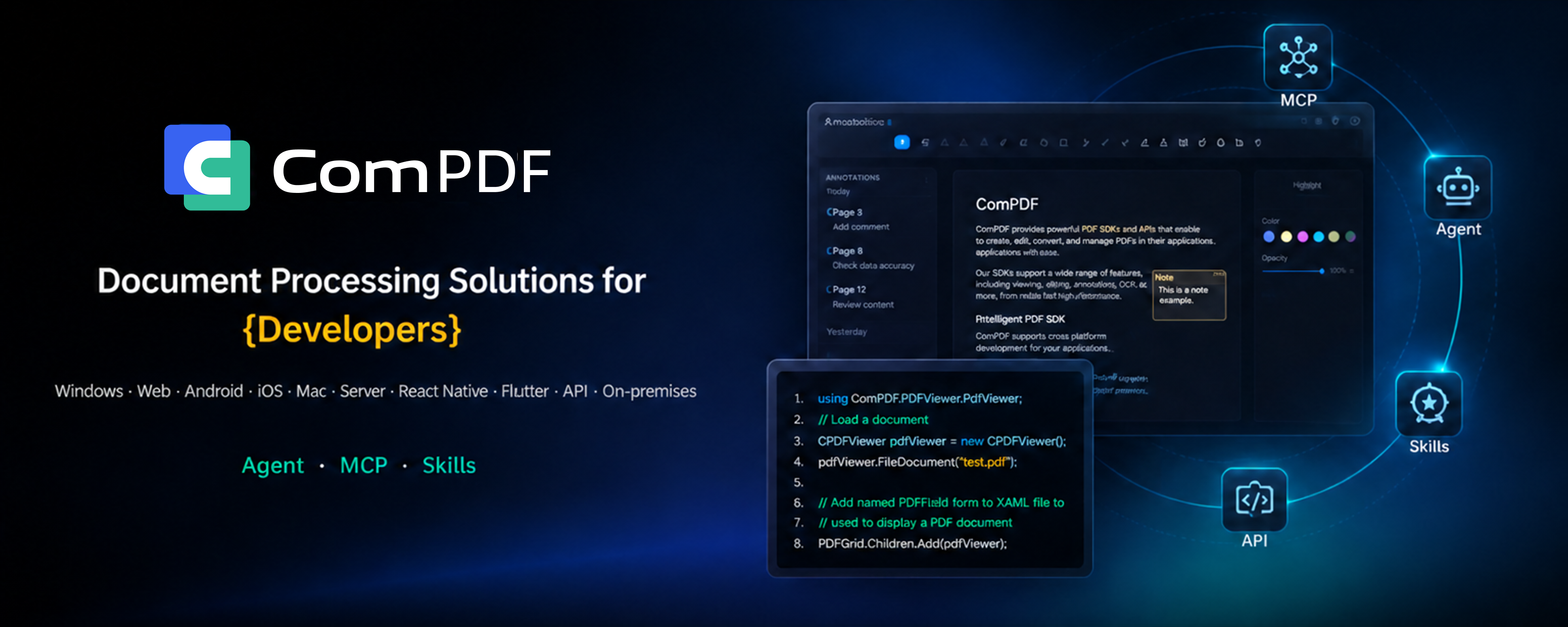
Edit, convert, and transform documents across PDFs, Office formats, HTML, TXT, CSV, RTF, JSON, and images with ComPDF Self-hosted, an open-source PDF platform.
Repo ComPDFKit/compdf-self-hosted, read from GitHub 2 d ago. ComPDFKit has not joined Take My Repo.
ComPDFKit/compdf-self-hosted is a public repo on GitHub by ComPDFKit. Edit, convert, and transform documents across PDFs, Office formats, HTML, TXT, CSV, RTF, JSON, and images with ComPDF Self-hosted, an open-source PDF platform. It declares the MIT license on GitHub. It is written mainly in TypeScript, has 150 stars and last changed on 2026-11-09. Nobody has reviewed it on Take My Repo yet, which says nothing about its quality. Read from GitHub on 2026-11-21.
Free, open-source file converter. Convert 263 formats offline by drag & drop — images, PDF, Word, Excel, PowerPoint, HWP/HWPX, video, audio, e-books and archives. No upload, no Office needed.
Part of the KDAN ecosystem, ComPDF Self-Hosted offers PDF editing and document conversion, helping teams process PDFs, Office files, and images securely in private Docker deployments.
- If you find ComPDF Self-Hosted useful, please consider giving us a ⭐ Star on GitHub. It helps us grow and improve.
- Got questions or ideas? Join the conversation in our Discussions.
Features • Quick Start • Architecture • Upgrade to Enterprise • Documentation • Support • License
Unlike traditional SDKs that require deep integration, ComPDF Self-Hosted is a ready-to-deploy open-source PDF processing platform. It combines PDF editing and conversion capabilities, while also supporting image format conversion—covering the full spectrum from documents to images. This enables enterprises to quickly establish a fully controllable, self-owned document center.
Whether you're building an internal document platform, document automation workflow, or enterprise PDF service, ComPDF Self-Hosted helps you get started in minutes.
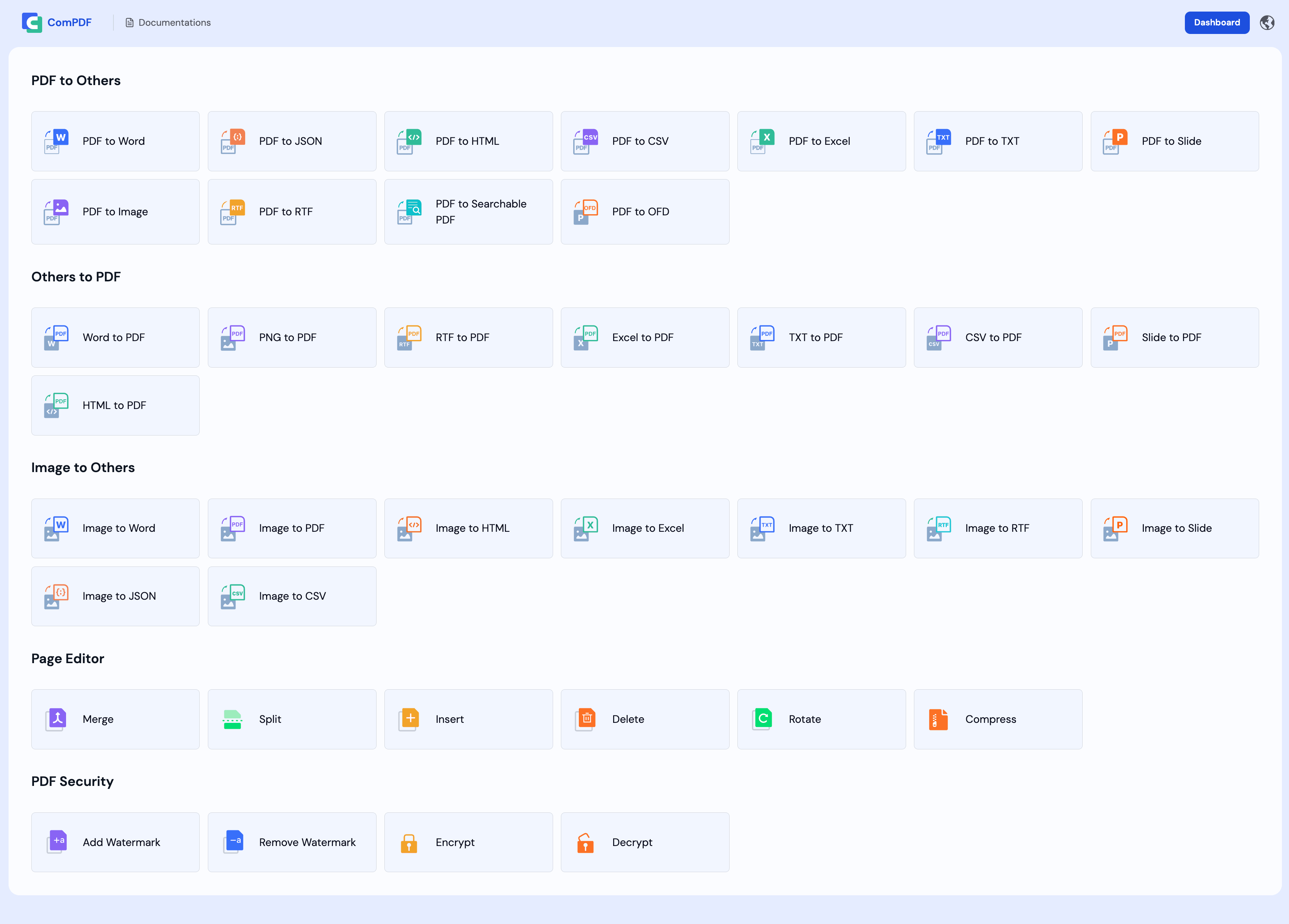
ComPDF Self-Hosted provides a ready-to-use open source PDF editor, open source PDF converter, and open source image converter center directly accessible through a browser.
| Category | Features |
|---|---|
| Batch Processing | Batch upload and processing of files |
| MCP Server | Connect Agent platforms through MCP for file processing |
| PDF Editing | Merge, split, rotate, insert, delete, extract PDF pages, compress PDF files |
| PDF Security | Add watermark, remove watermark, encrypt, decrypt, add header and footer, remove header and footer, add bates numbers, remove bates numbers |
| PDF to Others | Word, Excel, PowerPoint, images, HTML, TXT, CSV, RTF, JSON, searchable PDF, OFD, Markdown and PDF/A |
| Others to PDF | Word, Excel, PowerPoint, HTML, TXT, CSV, RTF and PNG |
| Image to Others | Word, Excel, PowerPoint, HTML, CSV, TXT, RTF, JSON and PDF |
Available formats and processing limits depend on the deployed App image and SDK license. Repository code is open source; commercial PDF/Conversion SDKs and valid runtime licenses are provided separately.
ComPDF Self-Hosted provides a unified management console for viewing API Key details, API usage, and License status, as well as supporting operation log auditing, account management, and core system configuration.
Log in to the Dashboard with the initial account and password, then change the username and password before use.
Initial account: admin
Initial password: admin
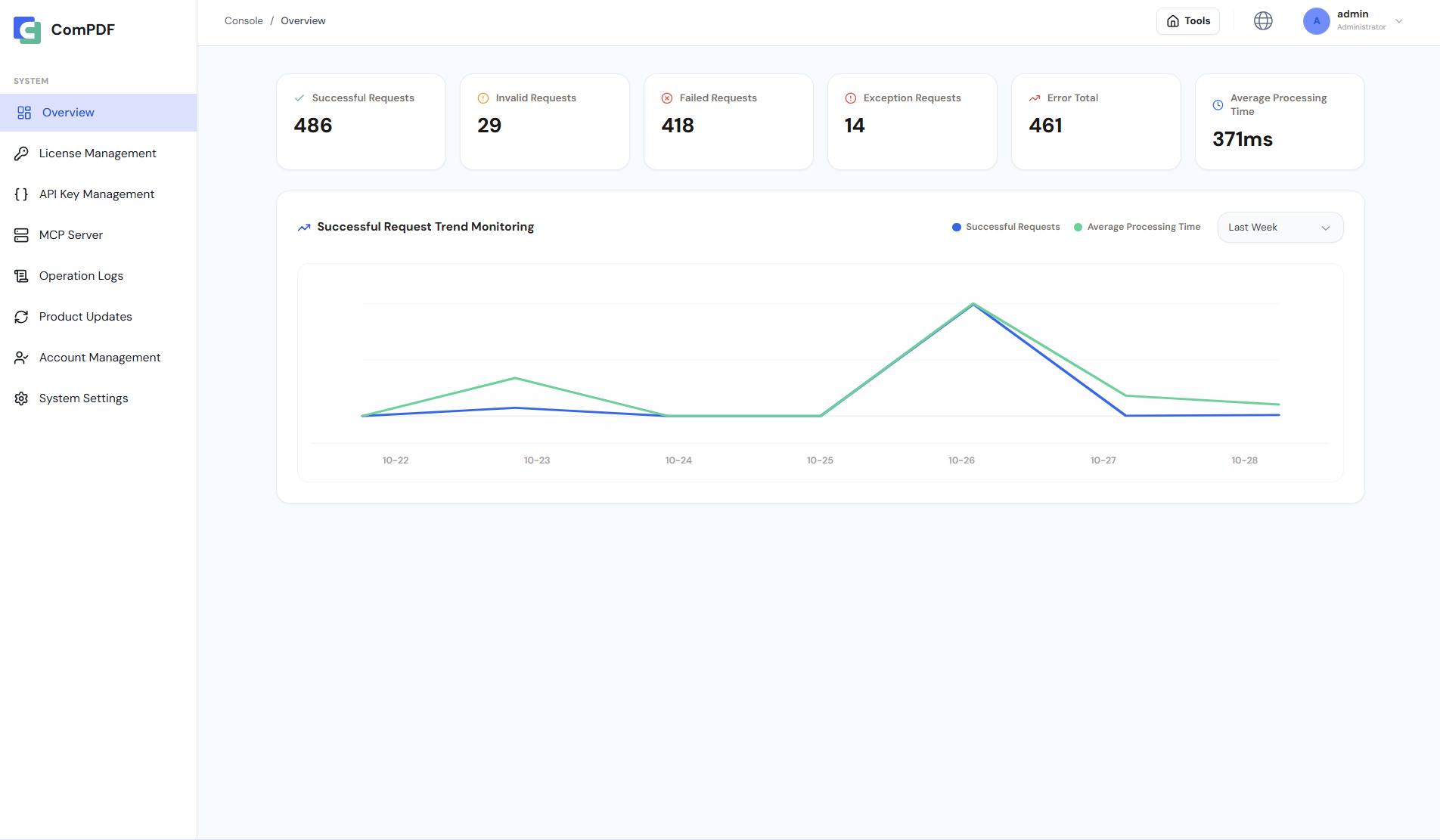
Overview Panel: Displays API Key details, API usage statistics, License scope, and usage status.
License Management: View the product's License file, running status, and version permissions; supports one-click replacement of the License file and product upgrades.
API Key Management: View and copy your API Key and its running status to authorize third-party systems, services, or Agents to call the API for document processing.
MCP Server: Obtain configuration code and API Keys for Agent platforms to connect them and enable professional PDF processing capabilities for AI.
Operation Logs: Track, search, and export all the operation logs.
Product updates: Check the latest version details, download the new version, and enable it.
Account Management: Set the username and password.
System Settings: Set the name, logo, and theme color of the system.
All three methods below are supported. Reserve storage for images, data and backups.
Default Infra/App images target linux/amd64.
Docker methods require Docker Engine/Desktop in Linux container mode and
Compose v2 supporting up --wait --wait-timeout.
A License will be generated automatically during deployment, so you do not need to provide one. To upgrade to a paid version, contact Sales and replace it in the Dashboard License management module.
On Linux, WSL or macOS, run in a writable directory. Bash, curl and Docker must
already be installed; Git and Node.js are not required. The default directory is
./compdf-self-hosted:
curl -fsSL https://raw.githubusercontent.com/ComPDFKit/compdf-self-hosted/main/deploy/install.sh | bash -s -- --prepare-only
To review the script first or choose an installation directory:
curl -fsSL https://raw.githubusercontent.com/ComPDFKit/compdf-self-hosted/main/deploy/install.sh -o compdf-install.sh
# Review the script; the current user needs write permission to /opt.
bash compdf-install.sh --dir /opt/compdf --prepare-only
The installer resolves one source commit, downloads minimal deployment assets
and creates configuration, font and data directories. --prepare-only prepares
files for configuration without starting services; --dry-run prints the plan.
Use --ref to select an existing release tag or source commit. Image tags come from the
configuration; controlled deployments should use verified digests.
Place the issued trial or production license at
configs/app-license/license.xml inside the installation directory before
starting services. The directory is mounted into App automatically; the repository
does not include a valid SDK license. Put authorized fonts in fonts/windows/.
Fresh installs can import the directory containing license.xml with
--sdk-license-dir; use --fonts-dir for fonts.
From the parent of the default installation directory, run:
# Start services or apply the configured environment.
bash ./compdf-self-hosted/install.sh install --dir ./compdf-self-hosted
bash ./compdf-self-hosted/install.sh status --dir ./compdf-self-hosted
bash ./compdf-self-hosted/install.sh logs --dir ./compdf-self-hosted
# Stop services while preserving configuration and data.
bash ./compdf-self-hosted/install.sh stop --dir ./compdf-self-hosted
For /opt/compdf, use /opt/compdf/install.sh and --dir /opt/compdf.
Repeated installation preserves existing files/data and pulls configured images;
it does not update deployment scripts or roll back the database. Use the saved
installer commands to retain its Compose project identity. Back up the database,
storage, configuration and licenses together before changing versions.
Requires Apple Silicon, macOS 26+, Apple container 1.5.0, jq and curl. Default
amd64 images require Rosetta. Select the Apple runtime in the same installer:
curl -fsSL https://raw.githubusercontent.com/ComPDFKit/compdf-self-hosted/main/deploy/install.sh | bash -s -- --runtime apple --prepare-only
Place the issued license at configs/app-license/license.xml in the prepared
directory, then run the install command below. The installer starts
Infra → App → Server, checks health and injects dependency IP addresses.
Configuration is saved in .apple.env; the default published endpoint is local
http://localhost:8080. Later commands must include --runtime apple:
bash ./compdf-self-hosted/install.sh install --runtime apple --dir ./compdf-self-hosted
bash ./compdf-self-hosted/install.sh status --runtime apple --dir ./compdf-self-hosted
bash ./compdf-self-hosted/install.sh logs --runtime apple --dir ./compdf-self-hosted
bash ./compdf-self-hosted/install.sh stop --runtime apple --dir ./compdf-self-hosted
Existing containers are not overwritten. Recreating them requires refreshing
dependency IPs and preserving persistent volumes. This mode does not integrate
the Docker Updater or supply an automatic restart daemon. After stopping services,
recreate all three containers in dependency order to refresh their IPs. Read
PROJECT from .apple.env, remove only that project's stopped containers with
container delete, then run the saved install command again. Retain the network,
named volumes and mounted configuration/storage directories.
For a complete checkout or custom Compose configuration:
git clone https://github.com/ComPDFKit/compdf-self-hosted.git
cd compdf-self-hosted
cp .env.example .env
mkdir -p configs/app-license fonts/windows data/server-storage
Configure .env, image versions, issued licenses and fonts as described in
Method 1, then start:
docker compose --env-file .env config --quiet
docker compose --env-file .env pull
docker compose --env-file .env up -d --wait --wait-timeout 600
docker compose --env-file .env ps
Environment changes require docker compose up -d to recreate affected containers.
Retain the original project name and persistent volumes. The base Compose publishes
port 8080; it may listen on all host interfaces. Use up to create containers;
start only resumes containers that already exist.
| Entry | Default address |
|---|---|
| ComPDF Web | http://localhost:8080/ |
| Dashboard | http://localhost:8080/admin |
| Health | http://localhost:8080/api/v1/status |
For a remote Docker host, replace localhost with its controlled endpoint.
First initialization creates admin / admin; change the password after login.
Configure HTTPS, CORS and access controls before external use. Keep issued
credentials, fonts and runtime data out of Git.
Clients check this repository's signed stable channel. A higher published product version offers an update; an arbitrary source commit does not. After verification and administrator approval, Updater pulls immutable App/Server images from Docker Hub, backs up data, applies any declared migration, restarts services and verifies real PDF processing.
Missing/unreachable or expired metadata does not confirm a successful latest-version check. Updater independently verifies signatures before installation.
Dashboard product installation and online runtime XML License updates use the
containerized Updater included in the default Compose file. Copy .env.example
to .env; it already contains the current stable feed's
COMPDF_UPDATE_KEY_ID and Base64 Ed25519 COMPDF_UPDATE_PUBLIC_KEY. Replace
them only when the signing key changes. The default feed is this repository's
updates branch. From a complete checkout, start all published services with:
docker compose --env-file .env pull
docker compose --env-file .env up -d --wait --wait-timeout 600
Minimal Docker installations can continue using the recorded overlay and saved
project name from .compdf-install. New full checkouts do not need the overlay;
the older docker-compose.updater-container.yml remains for compatibility.
To build local source, use
docker compose -f docker-compose.full.yml up -d --build --wait --wait-timeout 600.
Installation always needs administrator confirmation. The default Compose command
starts the application, Updater and Infra together.
Back up the database, storage, configuration and licenses before an upgrade.
Do not delete persistent volumes or relabel an existing database's schema history.
After an update, use docker compose -f tmp/runtime-updater/docker-compose.json up -d
to restart business services with their installed versions; manage Updater with
its original Compose configuration. Rebuilding older source can replace an
installed update.
Maintainers publish images and signed metadata using the manual Publish release
workflow in .github/workflows/release.yml.
Configure its release environment with secrets DOCKERHUB_USERNAME,
DOCKERHUB_TOKEN, RELEASE_SIGNING_PRIVATE_KEY (Base64-encoded 64-byte Ed25519
private key), and variable RELEASE_SIGNING_KEY_ID
ComPDFKit/compdf-self-hosted is a public repo on GitHub by ComPDFKit. Edit, convert, and transform documents across PDFs, Office formats, HTML, TXT, CSV, RTF, JSON, and images with ComPDF Self-hosted, an open-source PDF platform.
It declares the MIT license on GitHub.
Its maker tagged it for macOS, Windows and Linux, or as Docker or cross-platform. That is declared by the maker; Take My Repo has not tested it.
Turn any PDF or image document into structured data for your AI. A powerful, lightweight OCR toolkit that bridges the gap between images/PDFs and LLMs. Supports 100+ languages.
Easily deployable and scalable backend server that efficiently converts various document formats (pdf, docx, pptx, html, images, etc) into Markdown. With support for both CPU and GPU processing, it is Ideal for large-scale workflows, it offers text/table extraction, OCR, and batch processing with sync/async endpoints.
🤗 Transformers: the model-definition framework for state-of-the-art machine learning models in text, vision, audio, and multimodal models, for both inference and training.
Open "Take it" on its page: Take My Repo writes an install plan for your machine and hands it to your AI agent (Claude Code, Codex or Cursor), which asks you before each step. Take My Repo has not tested it on any machine.
Its last change on GitHub was on 2026-11-09. GitHub counts 0 open issues and pull requests. Take My Repo does not judge from that whether it is maintained.
Nobody has reviewed it on Take My Repo yet, which says nothing about its quality.
Take My Repo cannot say: it does not audit code and has not run compdf-self-hosted. What is known comes from GitHub. It declares the MIT license on GitHub. Its last change was on 2026-11-09. It has 150 stars, which measure popularity, not safety. Nobody has reviewed it on Take My Repo yet, which says nothing about its quality. Read the source before you run it. With "Take it", your AI agent shows each step and asks you before running it; README text is treated as data, not as instructions.