rea
Reverse engineer anything with agents, from app behavior down to native binaries.
- 474k
- TypeScript
- MIT
- 52 min ago
ComPDF SDK for Android — a full-featured PDF library offering comprehensive code samples and integration guides. Build robust PDF viewers and editors on Android with support for document viewing, annotations, form filling, digital signatures, text editing, and redaction.
Repo ComPDFKit/compdfkit-pdf-sdk-android, read from GitHub 7 h ago. ComPDFKit has not joined Take My Repo.
ComPDFKit/compdfkit-pdf-sdk-android is a public repo on GitHub by ComPDFKit. ComPDF SDK for Android — a full-featured PDF library offering comprehensive code samples and integration guides. Build robust PDF viewers and editors on Android with support for document viewing, annotations, form filling, digital signatures, text editing, and redaction. It declares no license on GitHub. Public does not mean open source: without a license, nobody is granted the right to reuse it. It is written mainly in Java, has 143 stars and last changed on 2026-10-29. Nobody has reviewed it on Take My Repo yet, which says nothing about its quality. Read from GitHub on 2026-11-22.
As part of the KDAN ecosystem, ComPDF SDK for Android enables developers to quickly and seamlessly integrate advanced PDF functionalities—such as PDF generating viewing, editing, annotating, and signing—into any Android application.
The ComPDF Android PDF Library provides an easy-to-use Java API that allows direct access to a wide range of PDF features without the need for complex configurations.
If you find ComPDF SDK useful, please consider giving us a ⭐ Star on GitHub — it helps us grow and improve! Got questions or ideas? Join the conversation in our Discussions.
Why ComPDF SDK for Android?
Easy to Integrate: Integrate PDF functionalities easily with our powerful SDK and clear documentation and guides with few lines of code.
Fully Customizable UI: Design a unique interface for your products with fully customizable UI source code by a high-performing SDK.
Comprehensive PDF Features: Supports generation, viewing, annotation, page editing, content editing, conversion, OCR, redaction, signing, forms, parsing, measurement, compression, comparison, color separation, batch processing, and more.
Faster Time-to-Market: Comprehensive SDK libraries save your time and expenses and roll out your applications and projects.
High-quality Service: We provide 24/7 professional one-to-one technical support, including onsite service and remote assistance via phone and email.
Viewer: Fast and smooth PDF rendering and viewing
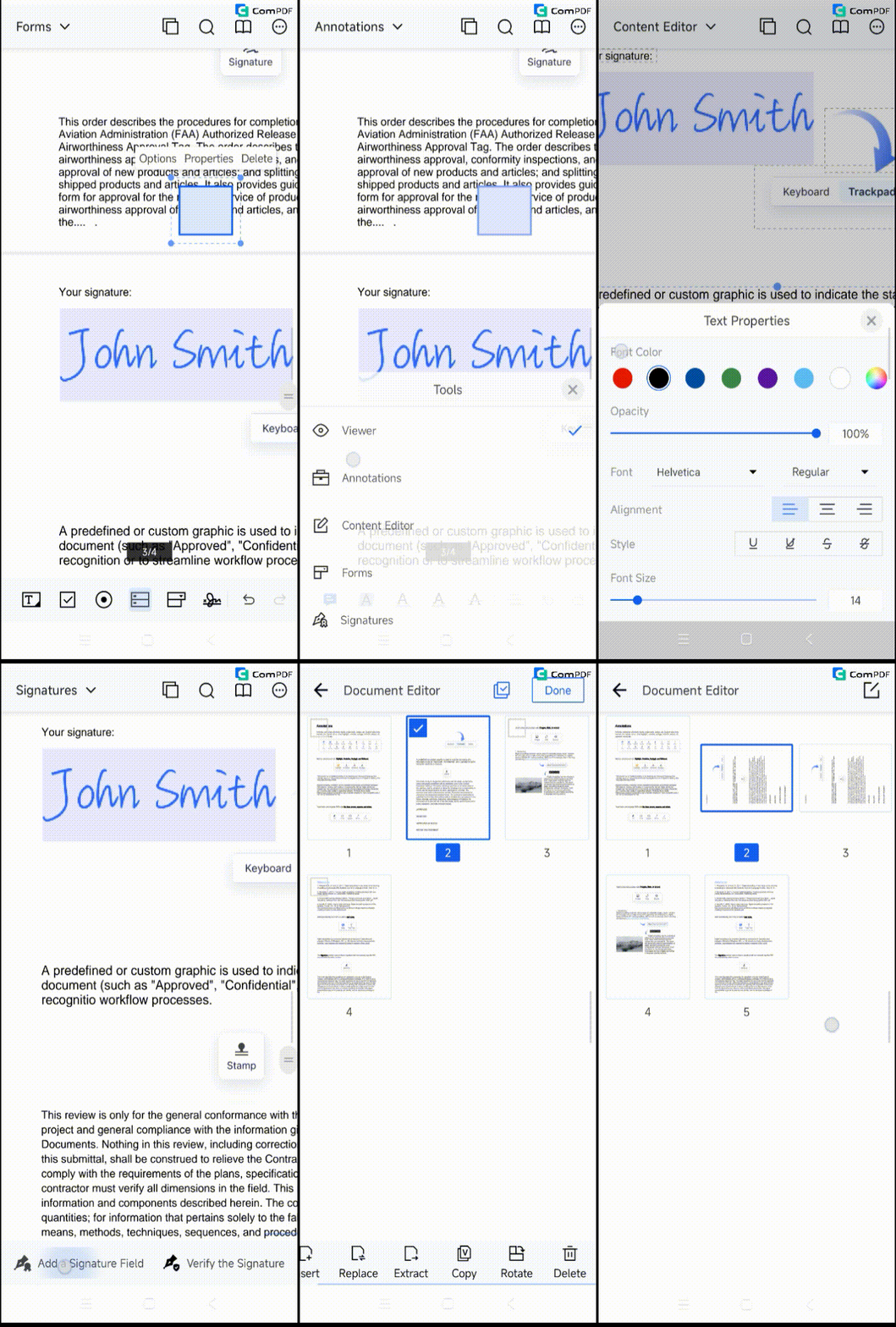
Annotations:
Notes - add longer comments with adjustable icon shape and color
Ink - freehand drawing with customizable color, opacity, line thickness
Text - add, move, resize text directly on page
Inspector - adjust annotation looks (line styles, borders, colors, opacity, font)
Comment on Annotations and Update Status
Import & Export & Flatten Annotations (XFDF, FDF, JSON)
Highlight, Underline, Strikeout, Squiggly
Shapes - Rectangle, Oval, Line, Arrow, Polygon, Polyline, Cloud
Stamps, Sound, Movie, File Attachment, Link, Distance, Perimeter, Area
Forms:
Process fillable and static PDF forms
Form filling, form creation, form flattening
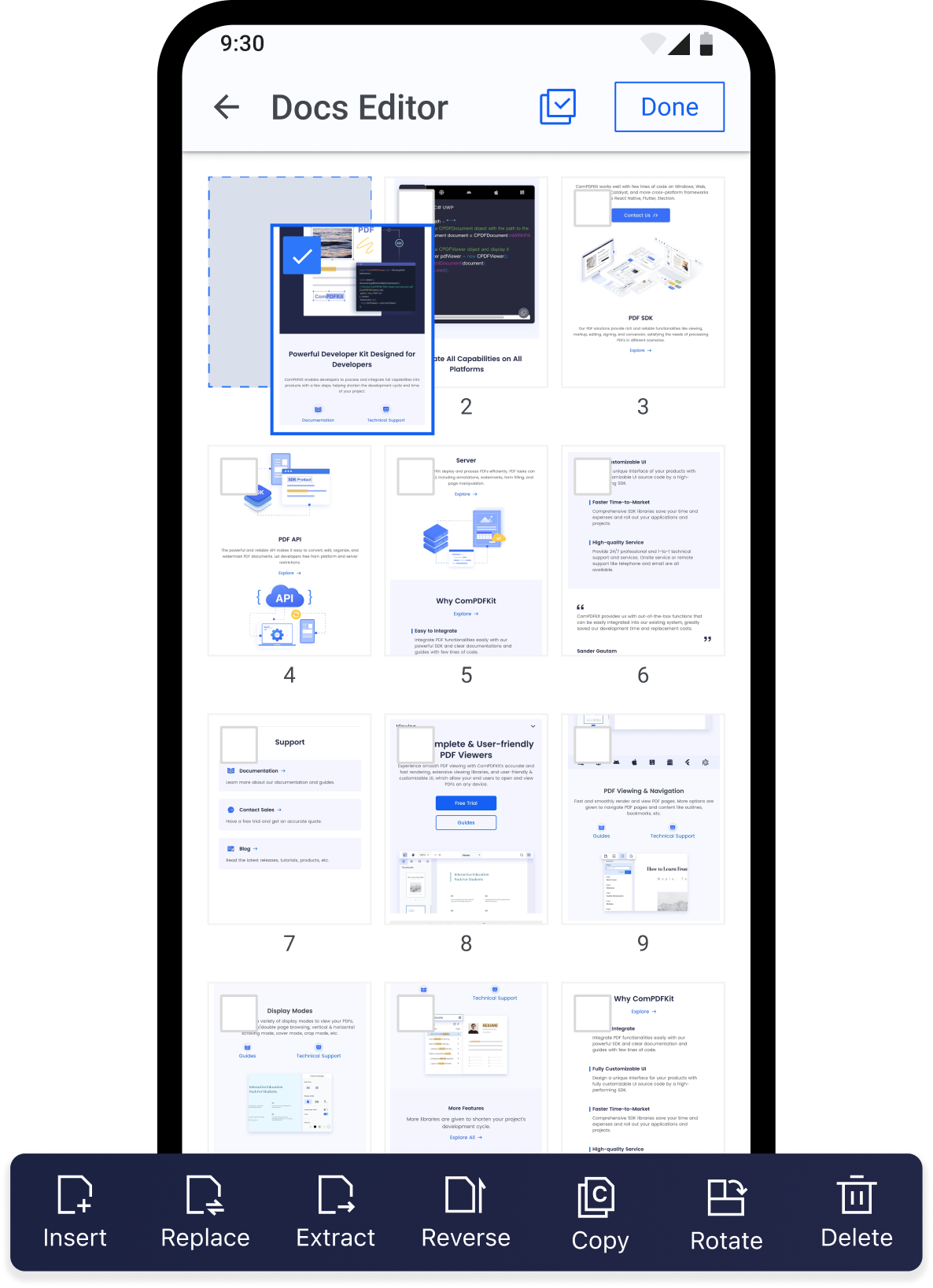
Document Editor:
Page manipulation - insert, delete, rotate, reorder, extract, crop
Split PDF, Merge PDF
Content Editor: Edit PDF text and images directly like in Word
Security:
Encryption - set open password, permission password
Restrict printing, copying, editing
Signatures:
Electronic Signatures - draw, type, image signatures
Digital Signatures - certificate-based signature validation
Watermark:
Add Text or Image Watermarks
Delete Watermarks
Customize Watermarks
OCR:
AI OCR
Recognize Tables, Graphics, Images
Support recognition in 80+ Languages
Compare Documents: Side-by-side document comparison to highlight differences
Redaction: Permanently remove sensitive content from PDFs
Measurement: Distance, area, perimeter measurement tools
Compress: Optimize and reduce PDF file size
Convert Files:
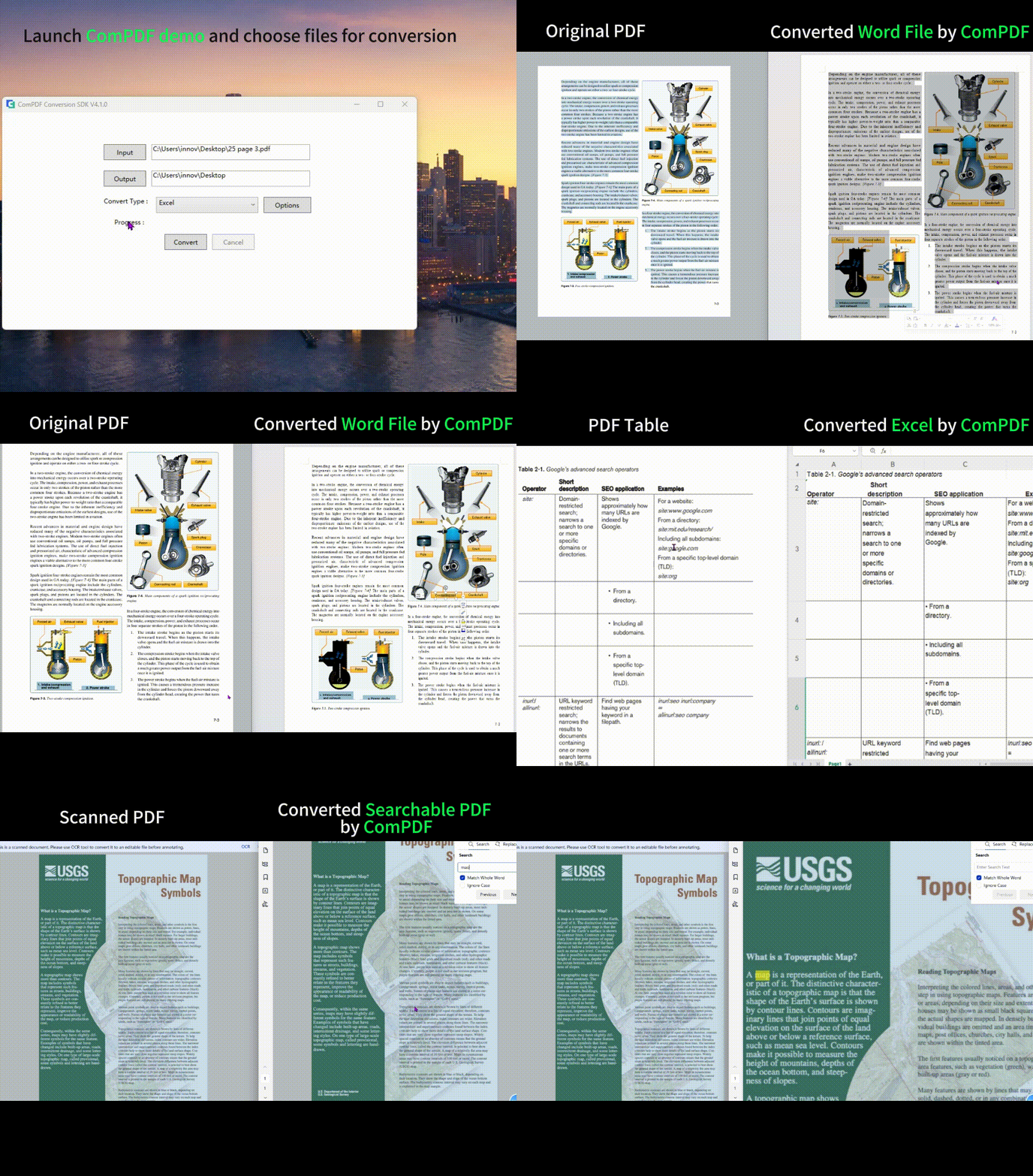
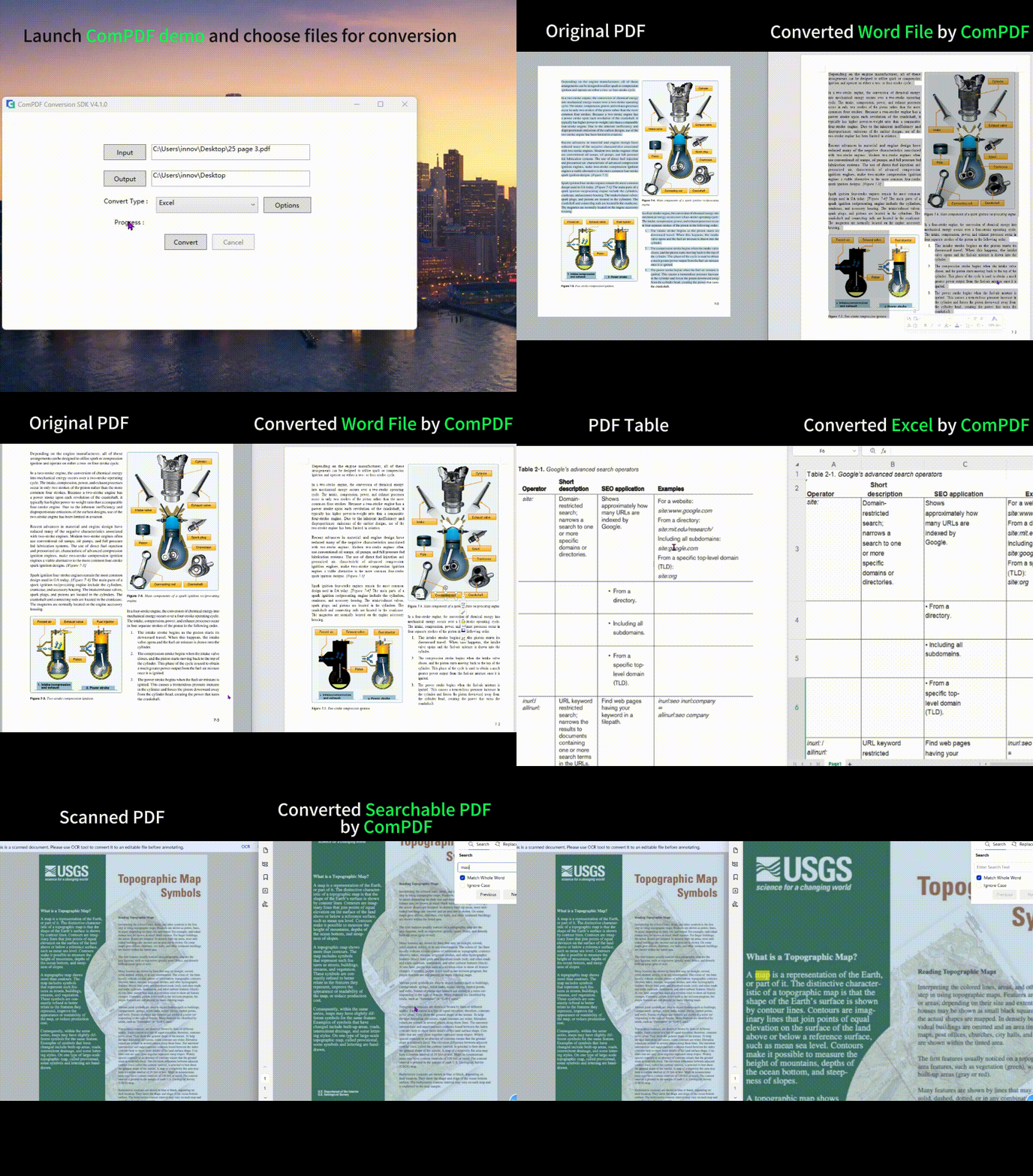
Convert PDF to Word, Excel, PPT, HTML, CSV, images (PNG,JPEG, JPEG, JPEG2000, BMP, TIFF, TGA, GIF), RTF, TXT, JSON, XML, markdown, searchable PDF, searchable OFD.
Convert images (PNG,JPEG, JPEG, JPEG2000, BMP, TIFF, TGA, GIF) to Word, Excel, PPT, HTML, CSV, RTF, TXT, JSON, XML.
Convert Word, Excel, PPT, HTML, CSV, PNG, RTF, TXT to PDF
UI Customization:
Toolbar Customization
UI Personalization
Ready-Made UI Options
Out-of-the-box Source Code
ComPDF SDK for Android delivers a smooth, feature-rich PDF experience on mobile devices.
ComPDF SDK for Android supports Android devices running API level 19 or newer and targets the latest stable Android 4.4 or later. In addition, it requires applications to be built with Java 8 language features enabled.
minSdkVersion of 23 or higher.compileSdkVersion of 30 or higher.targetSdkVersion of 34 or higher.This section will help you quickly get started with ComPDF SDK to make an Android app in Java with step-by-step instructions. Through the following steps, you will get a simple application that can display the contents of a specified PDF file.
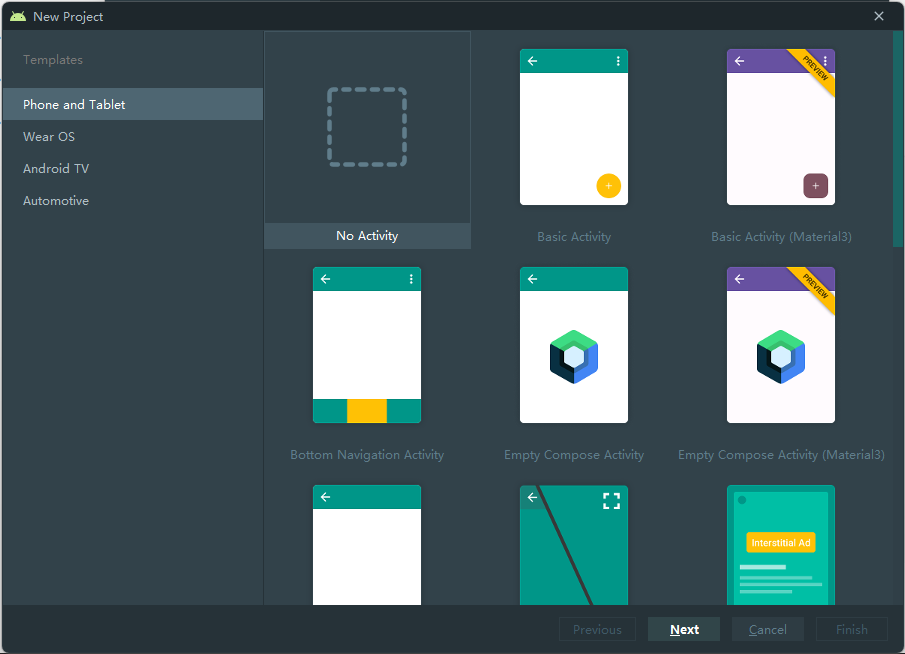
settings.gradle file located in your project's root directory and add the mavenCentral repository:dependencyResolutionManagement {
repositoriesMode.set(RepositoriesMode.FAIL_ON_PROJECT_REPOS)
repositories {
google()
+ mavenCentral()
}
}
build.gradle file in the application module directory: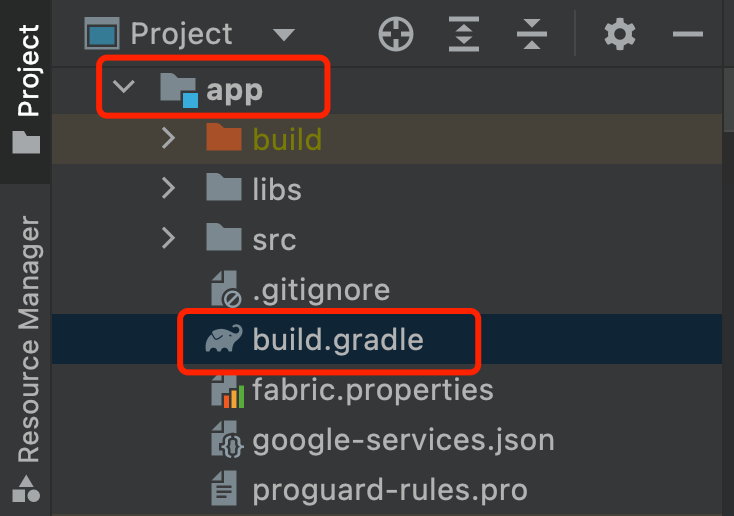
Edit it and add the complete ComPDF SDK dependency:
    dependencies {
      implementation 'com.compdf:compdfkit:3.0.2'
      implementation 'com.compdf:compdfkit-ui:3.0.2'
    }
AndroidManifest.xml: <uses-permission android:name="android.permission.WRITE_EXTERNAL_STORAGE"/>
<uses-permission android:name="android.permission.READ_EXTERNAL_STORAGE"/>
Note: On your apps that target Android 6.0 or higher, make sure to check for and request read and write permissions to external storage at runtime.
AndroidManifest.xml: <uses-permission android:name="android.permission.INTERNET"/>
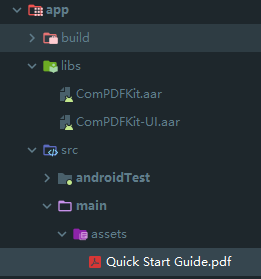
Add the following code into the app dictionary's "build.gradle" file:
...
dependencies {
/*ComPDF SDK*/
implementation(fileTree('libs'))
...
}
...
Add ComPDF SDK for Android as a dependency to the project. Inside the app dictionary's "build.gradle", add "ComPDFKit.aar", "ComPDFKit-UI.aar", and the related support libraries to the dependencies. For simplicity, update the dependencies as follows:
dependencies {
...
//glide
implementation 'com.github.bumptech.glide:glide:4.12.0'
annotationProcessor 'com.github.bumptech.glide:compiler:4.12.0'
implementation 'androidx.documentfile:documentfile:1.0.1'
}
Apply for read and write permissions in AndroidManifest.xml:
    <uses-permission android:name="android.permission.WRITE_EXTERNAL_STORAGE"/>
    <uses-permission android:name="android.permission.READ_EXTERNAL_STORAGE"/>
Note: On your apps that target Android 6.0 or higher, make sure to check for and request read and write permissions to external storage at runtime.
If you use an online license, please add network access permissions in AndroidManifest.xml:
<uses-permission android:name="android.permission.INTERNET"/>
Add this license in the AndroidManifest.xml of the main module. In version 1.13.0, we introduced a brand-new online authentication license scheme for ComPDF SDK. By default, the SDK performs online authentication. If you are using a version prior to 1.13.0, please refer to the following example to configure the SDK for offline authentication mode:
Online license
<!-- Each ComPDF license is bound to a specific applicationId -->
<!-- For example: com.compdfkit.pdfviewer -->
<meta-data
    android:name="compdfkit_key_online"
    android:value="Your ComPDF Key" />
You can also initialize ComPDF SDK in code using:
CPDFSdk.init(context, "your compdfkit license", false);
Offline license
<!-- Each ComPDF license is bound to a specific applicationId -->
<!-- For example: com.compdfkit.pdfviewer -->
<meta-data
    android:name="compdfkit_key"
    android:value="Your ComPDF Key" />
You can also initialize ComPDF SDK in code using:
CPDFSdk.init(context, "your compdfkit license");
In the proguard-rules.pro file, please add the obfuscation configuration information for compdfkit as follows:
-keep class com.compdfkit.ui.** {*;}
-keep class com.compdfkit.core.** {*;}
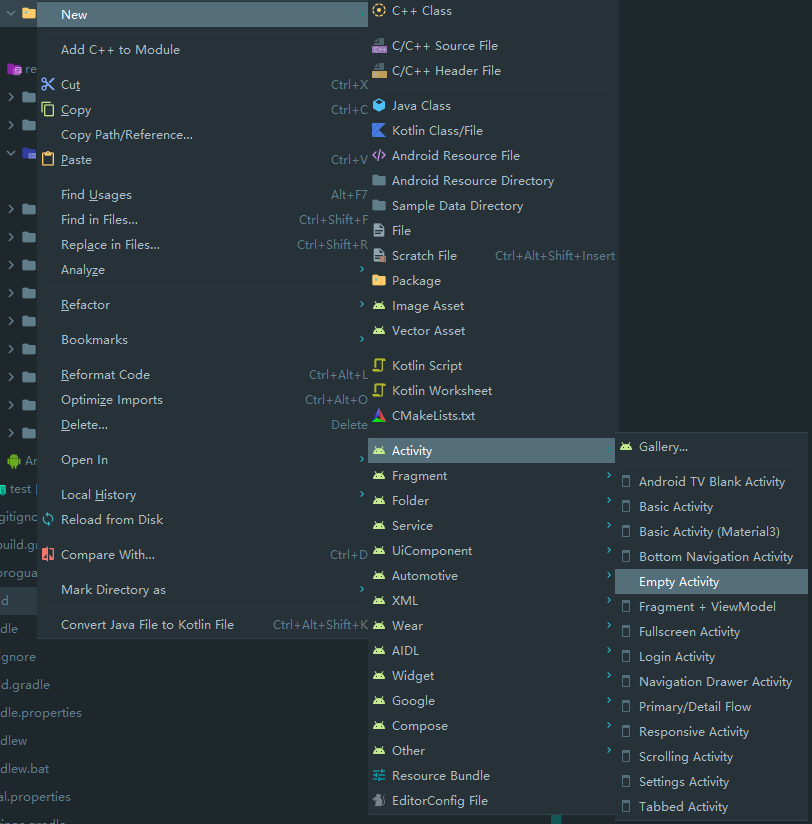
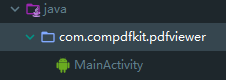
Android Studio will automatically generate a source file called "MainActivity.java" and a layout file called "activity_main.xml".
The source file:
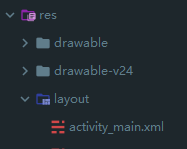
The layout file:
CPDFReaderView in your "activity_main.xml" to display the contents of the PDF document:<!-- Your activity_main.xml file -->
<?xml version="1.0" encoding="utf-8"?>
<androidx.constraintlayout.widget.ConstraintLayout xmlns:android="http://schemas.android.com/apk/res/android"
xmlns:app="http://schemas.android.com/apk/res-auto"
xmlns:tools="http://schemas.android.com/tools"
android:layout_width="match_parent"
android:layout_height="match_parent"
tools:context=".MainActivity">
<!-- Create a CPDFReaderView -->
<com.compdfkit.ui.reader.CPDFReaderView
android:id="@+id/readerview"
android:layout_width="match_parent"
android:layout_height="match_parent" />
</androidx.constraintlayout.widget.ConstraintLayout>
Get the CPDFReaderView from the layout or create a CPDFReaderView directly in the code in the corresponding MainActivity.java file:
// Your MainActivity.java file

package com.compdfkit.pdfviewer;

import androidx.appcompat.app.AppCompatActivity;

import android.os.Bundle;
import com.compdfkit.ui.reader.CPDFReaderView;

public class MainActivity extends AppCompatActivity {

    @Override
    protected void onCreate(Bundle savedInstanceState) {
        super.onCreate(savedInstanceState);
        setContentView(R.layout.activity_main);

        // Get CPDFReaderView from xml.
        CPDFReaderView readerView = findViewById(R.id.readerview);
        // Code to create CPDFReaderView.
        // CPDFDocument readerView = new CPDFReaderView(content);
    }
}
// Your MainActivity.java file

... //imports

public class MainActivity extends AppCompatActivity {

    // Copy the PDF file from the assets folder to the cache folder.
    private void copyPdfFromAssetsToCache(String fileName) {
        try {
            InputStream inputStream = getAssets().open(fileName);
            File outputFile = new File(getCacheDir(), fileName);
            FileOutputStream outputStream = new FileOutputStream(outputFile);

            byte[] buffer = new byte[1024];
            int bytesRead;
            while ((bytesRead = inputStream.read(buffer)) != -1) {
                outputStream.write(buffer, 0, bytesRead);
            }

            inputStream.close();
            outputStream.flush();
            outputStream.close();
        } catch (IOException e) {
            e.printStackTrace();
        }
    }

    @Override
    protected void onCreate(Bundle savedInstanceState) {
        super.onCreate(savedInstanceState);
        setContentView(R.layout.activity_main);

        CPDFReaderView readerView = findViewById(R.id.readerview);
        // Code to create CPDFReaderView.
        // CPDFDocument readerView = new CPDFReaderView(content);

        //Create a document object.
        CPDFDocument document = new CPDFDocument(this);


        new Thread(() -> {
            String fileName = "Quick Start Guide.pdf";
            copyPdfFromAssetsToCache(fileName);

            File file = new File(getCacheDir(), fileName);
            String filePath = file.getAbsolutePath();

            //Open document.
            CPDFDocument.PDFDocumentError error = document.open(filePath);
            if (error == CPDFDocument.PDFDocumentError.PDFDocumentErrorPassword) {
                //The document is encrypted and requires a password to open.
                error = document.open(filePath, "password");
            }

            if (error == CPDFDocument.PDFDocumentError.PDFDocumentErrorSuccess) {
                //The document is opened successfully and data can be parsed and manipulated.
            } else {
                //The PDF file failed to open. You can refer to the API file for specific error
            }
        }).start();
    }
}
CPDFReaderView:// Your MainActivity.java file
... // imports
public class MainActivity extends AppCompatActivity {
// Create a handler to run the code on the main thread.
private Handler mainThreadHandler = new Handler(Looper.getMainLooper());
...
if (error == CPDFDocument.PDFDocumentError.PDFDocumentErrorSuccess) {
// The document is opened successfully and data can be parsed and manipulated.
mainThreadHandler.post(() -> {
// Set the document content for UI.
readerView.setPDFDocument(document);
});
} else {
// The PDF file failed to open. You can refer to the API file for specific error
}
...
}
// Your MainActivity.java file

... // imports

public class MainActivity extends AppCompatActivity {
    // Create a handler to run the code on the main thread.
    private Handler mainThreadHandler = new Handler(Looper.getMainLooper());
    // Copy the PDF file from the assets folder to the cache folder.
    private void copyPdfFromAssetsToCache(String fileName) {
        try {
            InputStream inputStream = getAssets().open(fileName);
            File outputFile = new File(getCacheDir(), fileName);
            FileOutputStream outputStream = new FileOutputStream(outputFile);

            byte[] buffer = new byte[1024];
            int bytesRead;
            while ((bytesRead = inputStream.read(buffer)) != -1) {
                outputStream.write(buffer, 0, bytesRead);
            }

            inputStream.close();
            outputStream.flush();
            outputStream.close();
        } catch (IOException e) {
            e.printStackTrace();
        }
    }

    @Override
    protected void onCreate(Bundle savedInstanceState) {
        super.onCreate(savedInstanceState);
        setContentView(R.layout.activity_main);

        CPDFReaderView readerView = findViewById(R.id.readerview);

        //Create a document object.
        CPDFDocument document = new CPDFDocument(this);

        new Thread(() -> {
            String fileName = "Quick Start Guide.pdf";
            copyPdfFromAssetsToCache(fileName);

            File file = new File(getCacheDir(), fileName);
            String filePath = file.getAbsolutePath();

            //Open document.
            CPDFDocument.PDFDocumentError error = document.open(filePath);
            if (error == CPDFDocument.PDFDocumentError.PDFDocumentErrorPassword) {
                //The document is encrypted and requires a password to open.
                error = document.open(filePath, "password");
            }

            if (error == CPDFDocument.PDFDocumentError.PDFDocumentErrorSuccess) {
                //The document is opened successfully and data can be parsed and manipulated.
                mainThreadHandler.post(() -> {
                    //Set the document to the reader view.
                    readerView.setPDFDocument(document);
                });
            } else {
                //The PDF file failed to open. You can refer to the API file for specific error
            }
        }).start();
    }
}
<!-- Your activity_main.xml file -->
<?xml version="1.0" encoding="utf-8"?>
<androidx.constraintlayout.widget.ConstraintLayout xmlns:android="http://schemas.android.com/apk/res/android"
    xmlns:app="http://schemas.android.com/apk/res-auto"
    xmlns:tools="http://schemas.android.com/tools"
    android:layout_width="match_parent"
    android:layout_height="match_parent"
    tools:context=".MainActivity">

    <com.compdfkit.ui.reader.CPDFReaderView
        android:id="@+id/readerview"
        android:layout_width="match_parent"
        android:layout_height="match_parent" />

</androidx.constraintlayout.widget.ConstraintLayout>
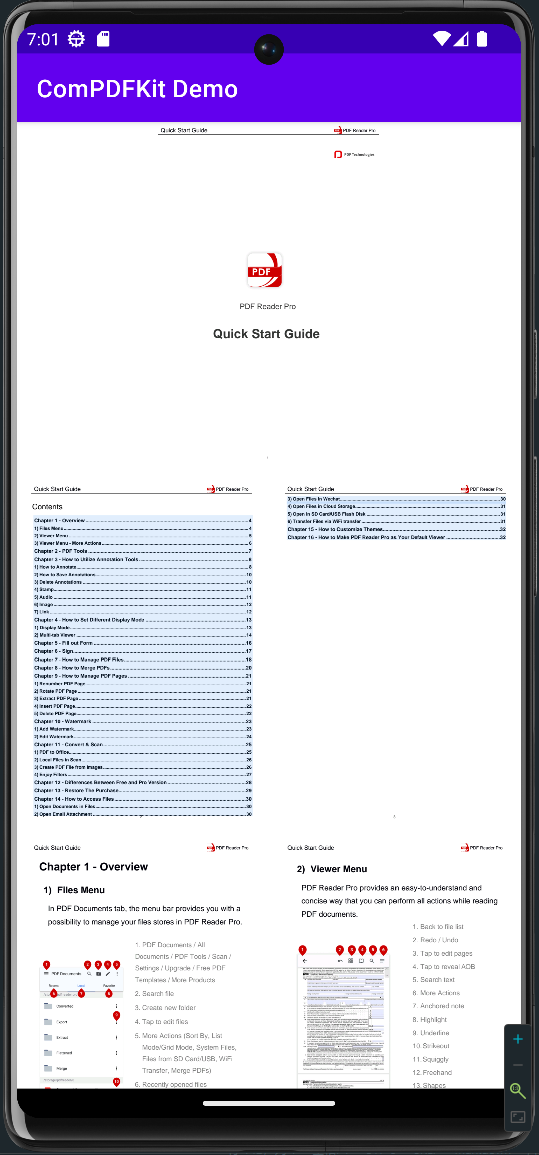
Now, with the help of ComPDF SDK, you can get a simple application to display a PDF file.
ComPDF SDK offers a 30-day free trial so you can evaluate core PDF capabilities in your own application.
To get started:
For custom deployments, advanced features, or volume licensing, please contact our sales team
ComPDF offers professional technical support and 5×24 responsive service.
Keep up with the latest updates, improvements, and bug fixes for ComPDF SDK for Android: View Android Changelog.
More Guides:
More Platforms and Frameworks: ComPDF SDK seamlessly operates on Web, Windows, Android, iOS, Mac, and Server, with support for cross-platform frameworks such as React Native, Flutter, etc.
ComPDF Cloud: We also provide Open API for developers. You can register a free API account to get up to 200+ API calls monthly for free.
ComPDFKit/compdfkit-pdf-sdk-android is a public repo on GitHub by ComPDFKit. ComPDF SDK for Android — a full-featured PDF library offering comprehensive code samples and integration guides. Build robust PDF viewers and editors on Android with support for document viewing, annotations, form filling, digital signatures, text editing, and redaction.
It declares no license on GitHub. Public does not mean open source: without a license, nobody is granted the right to reuse it.
Its maker tagged it for Windows. That is declared by the maker; Take My Repo has not tested it.
Open "Take it" on its page: Take My Repo writes an install plan for your machine and hands it to your AI agent (Claude Code, Codex or Cursor), which asks you before each step. Take My Repo has not tested it on any machine.
Reverse engineer anything with agents, from app behavior down to native binaries.
Its last change on GitHub was on 2026-10-29. GitHub counts 5 open issues and pull requests. Take My Repo does not judge from that whether it is maintained.
Nobody has reviewed it on Take My Repo yet, which says nothing about its quality.
Flutter makes it easy and fast to build beautiful apps for mobile and beyond
f.k.a. Awesome ChatGPT Prompts. Share, discover, and collect prompts from the community. Free and open source — self-host for your organization with complete privacy.
Generate PDFs effortlessly with the open-source ComPDF Generation SDK. Design HTML-based templates to produce business-critical documents, such as contracts, invoices, reports, and certificates with ease.
Edit, convert, and transform documents across PDFs, Office formats, HTML, TXT, CSV, RTF, JSON, and images with ComPDF Self-hosted, an open-source PDF platform.
With DocSlight, precisely parse and extract data from any document, including PDFs, scans, images, and Office files. It is an open-source AI project from ComPDF (KDAN ecosystem).
High-performance PDF conversion library for Android mobile apps. Convert PDF to Word, Excel, PPT, HTML, CSV, images, text, RTF, searchable PDF, JSON, Markdown, and OFD on Android devices while preserving original layout. Support OCR and AI table recognition.
High-performance PDF conversion library for macOS desktop apps. Convert PDF to Word, Excel, PPT, HTML, CSV, images, text, RTF, searchable PDF, JSON, Markdown, and OFD with native Mac integration. Support OCR and AI table recognition for intelligent document processing.
Swift Package Manager integration for ComPDF SDK on iOS and macOS. Add production-grade PDF viewing, editing, annotations, form filling, and document management to your Swift projects with a single SPM dependency.