rea
Reverse engineer anything with agents, from app behavior down to native binaries.
- 477k
- TypeScript
- MIT
- 31 min ago
Morphe patches for Facebook Messenger. Privacy switches and fewer promotions.
Repo SysAdminDoc/HushMessenger, read from GitHub 1 d ago. SysAdminDoc has not joined Take My Repo.
SysAdminDoc/HushMessenger is a public repo on GitHub by SysAdminDoc. Morphe patches for Facebook Messenger. Privacy switches and fewer promotions. It declares the GPL-3.0 license on GitHub. It is written mainly in Java, has 231 stars and last changed on 2026-11-19. Nobody has reviewed it on Take My Repo yet, which says nothing about its quality. Read from GitHub on 2026-11-23.


If HushMessenger makes Messenger better for you, a coffee helps me keep testing patches and maintaining them as Messenger changes.
HushMessenger is a set of Morphe patches for Facebook Messenger. You bring the Messenger APK, Morphe patches it on your phone, and you get a Messenger with a settings screen full of switches that stock Messenger doesn't have. Hide the ads, the suggested people, the stories row and Meta AI. Stop sending read receipts and typing indicators. Watch stories without showing up in the viewer list. Keep a log of messages so an unsend can't take them back. Send photos at their real quality, use your own font, let Material You color the app, and more.
Every switch starts off, so a freshly patched Messenger behaves like stock until you turn something on. The current release has 98 patches. What changed in each version is in the changelog.
Add HushMessenger to Morphe Manager
[!IMPORTANT] Keep your signing key. A patched update only installs over your copy when it's signed with the same key, and with the same key your sign-in and chats survive each update. See Morphe's backup and keystore guide.
nodpi one, 347415280, 347415333 or 347415350. A 32-bit (armv7) phone takes 347415262, 347415295 or 347415348.github.com/SysAdminDoc/HushMessenger. The card should show 98 patches and Signed by 4d8d c2b3 fbcd 3ab6, which is this project's key. If it shows an older version, tap its refresh button.Prefer a local source? Download patches-0.30.0.mpp and add it through Sources > + > Local. It won't update itself. The .mpp file is a patch bundle, not a Messenger APK. Morphe Desktop 2.1.0 or newer can load the same source too.
There are Hush patch sources for other apps too: Hushfacebook for Facebook, HushGram for Instagram, HushPine for PineDrama, HushPinterest for Pinterest, HushTelegram for Telegram, HushThreads for Threads, Hushfeed for TikTok and HushTumblr for Tumblr. Each one is a separate source in Manager, so add only the ones for apps you patch.
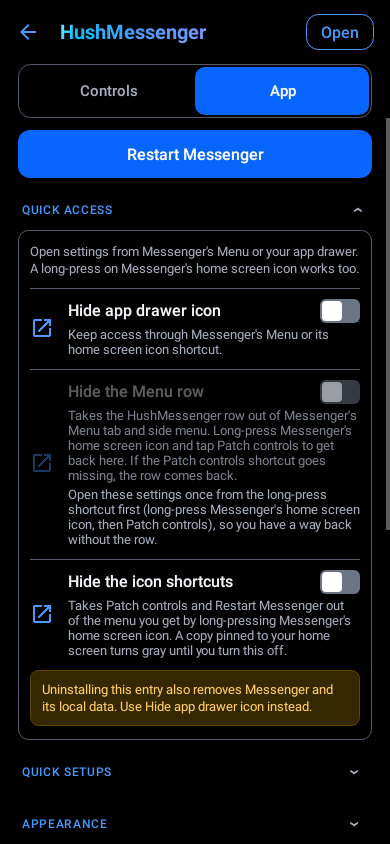
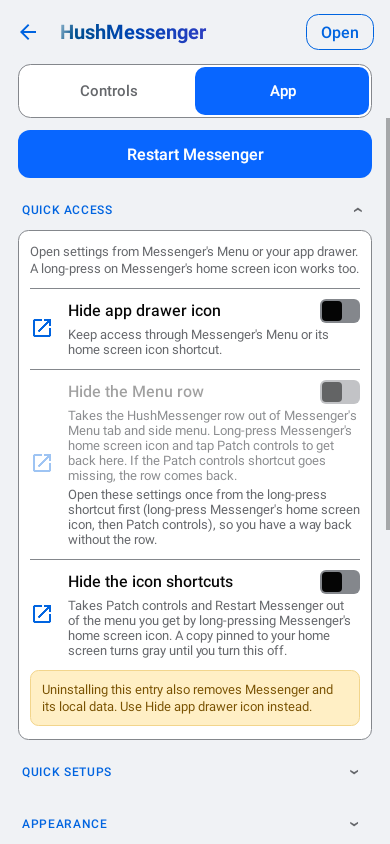
Long-press Messenger's icon on your home screen and tap Patch controls. The HushMessenger row in Messenger's Menu tab opens the same screen, and so does a long press on the Messenger logo at the top of Chats or the HushMessenger settings icon in your app drawer. The App tab can turn any of those ways in off, as long as one stays on.
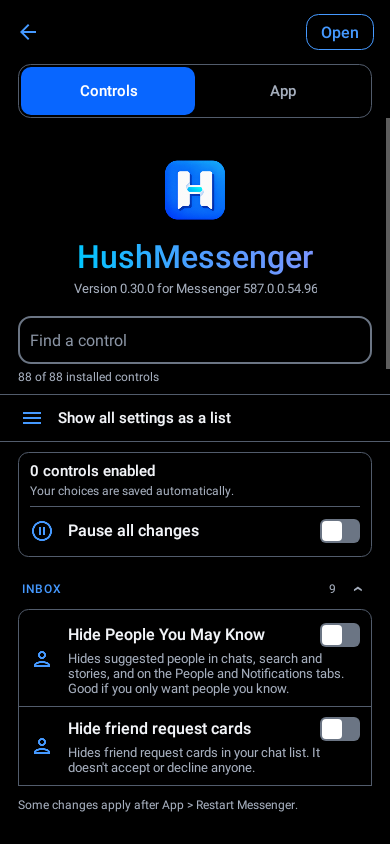
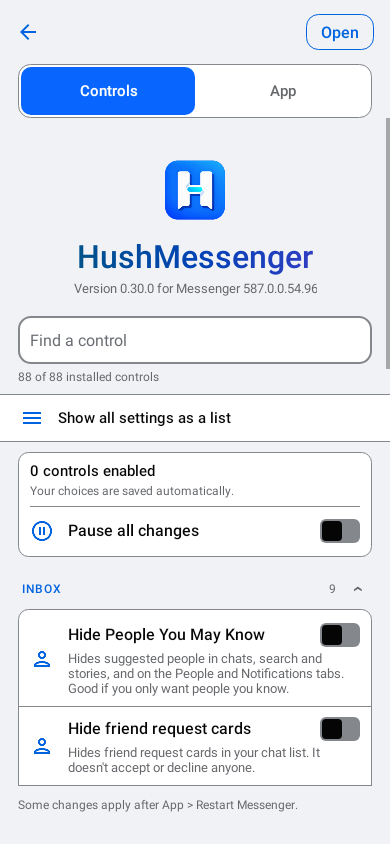
Each switch says what it does right under its name, and the search box at the top finds it by any word in that text. Some switches need Restart Messenger, and a bar at the top of settings has the button when one is waiting. Pause all changes turns everything off at once without forgetting your choices. If Messenger crashes three times near startup, safe mode pauses the controls until you open settings and tap Resume.
The App tab has Quick setups (Quiet, Privacy, iPhone look or Back to defaults in one tap), Save choices to a file and Restore choices from a file for moving your setup to a new install, and Report a problem, which opens a GitHub issue with your versions, phone model and the switches that are on already filled in. Issues are public, so look it over before you send it. Check for updates is off by default.
These screenshots come from the code on this page, so they can be a step ahead of the release you have installed.
These are always in the default selection:
These start unselected:
com.facebook.orca.hush by default). Push notifications may not reach the copy, and Root Mount can't use it..mpp added by hand.4d8d c2b3 fbcd 3ab6. A different one means the bundle came from somewhere else, like a fork or a mirror, so don't tap Trust. Remove that source and add github.com/SysAdminDoc/HushMessenger again. If this key ever has to change, the release notes will say so first.signatures do not match even though you uninstalled Messenger. Messenger is probably still installed somewhere else on the phone, like Samsung's Secure Folder, a work profile or a second user. Look there first. Clone install under another package name gets around it without touching that copy.INSTALL_FAILED_DUPLICATE_PERMISSION. Another app, usually a Facebook patched with a different key, owns a permission Messenger declares too. Leave Messenger installed and patch with the same key as that app.INSTALL_FAILED_VERSION_DOWNGRADE ... older than current 2147483647. Another patch set raised Messenger's version code to Android's maximum. Don't uninstall or clear data to get past it. Patch with Spoof package version selected at that number and the same signing key.INSTALL_FAILED_VERSION_DOWNGRADE: Downgrade detected on app uninstalled with DELETE_KEEP_DATA. A Messenger was uninstalled with its data kept (or Android archived it), and Android won't put a lower version or another key over it. Select Clone install under another package name to install next to it. If you don't need what that copy kept, uninstall it in Settings > Apps or with adb uninstall com.facebook.orca first.Quiet incoming calls is off and Allow chat bubbles is on Stock. A reinstall resets Android's notification permissions, and Xiaomi, Redmi and POCO phones also want Floating notifications on for each Messenger category. App > Report a problem lists any notification channel that still can't pop up.| Field | Value |
|---|---|
| Package | com.facebook.orca |
| Version | 587.0.0.54.96 |
SysAdminDoc/HushMessenger is a public repo on GitHub by SysAdminDoc. Morphe patches for Facebook Messenger. Privacy switches and fewer promotions.
It declares the GPL-3.0 license on GitHub.
Its maker tagged it for Windows. That is declared by the maker; Take My Repo has not tested it.
Open "Take it" on its page: Take My Repo writes an install plan for your machine and hands it to your AI agent (Claude Code, Codex or Cursor), which asks you before each step. Take My Repo has not tested it on any machine.
Flutter makes it easy and fast to build beautiful apps for mobile and beyond
f.k.a. Awesome ChatGPT Prompts. Share, discover, and collect prompts from the community. Free and open source — self-host for your organization with complete privacy.
Its last change on GitHub was on 2026-11-19. GitHub counts 74 open issues and pull requests. Take My Repo does not judge from that whether it is maintained.
Nobody has reviewed it on Take My Repo yet, which says nothing about its quality.
Take My Repo cannot say: it does not audit code and has not run HushMessenger. What is known comes from GitHub. It declares the GPL-3.0 license on GitHub. Its last change was on 2026-11-19. It has 231 stars, which measure popularity, not safety. Nobody has reviewed it on Take My Repo yet, which says nothing about its quality. Read the source before you run it. With "Take it", your AI agent shows each step and asks you before running it; README text is treated as data, not as instructions.