rea
Reverse engineer anything with agents, from app behavior down to native binaries.
- 476k
- TypeScript
- MIT
- 13 min ago
Crisp HiDPI scaling and brightness for external displays on macOS: a menu-bar app and CLI, free and open source.
Repo acking-you/FreeDisplay, read from GitHub 1 h ago. acking-you has not joined Take My Repo.
acking-you/FreeDisplay is a public repo on GitHub by acking-you. Crisp HiDPI scaling and brightness for external displays on macOS: a menu-bar app and CLI, free and open source. It declares the MIT license on GitHub. It is written mainly in Swift, has 3 stars and last changed on 2026-11-23. Nobody has reviewed it on Take My Repo yet, which says nothing about its quality. Read from GitHub on 2026-11-24.
Bigger text on your external display, still pixel-sharp. One click, free and open source.
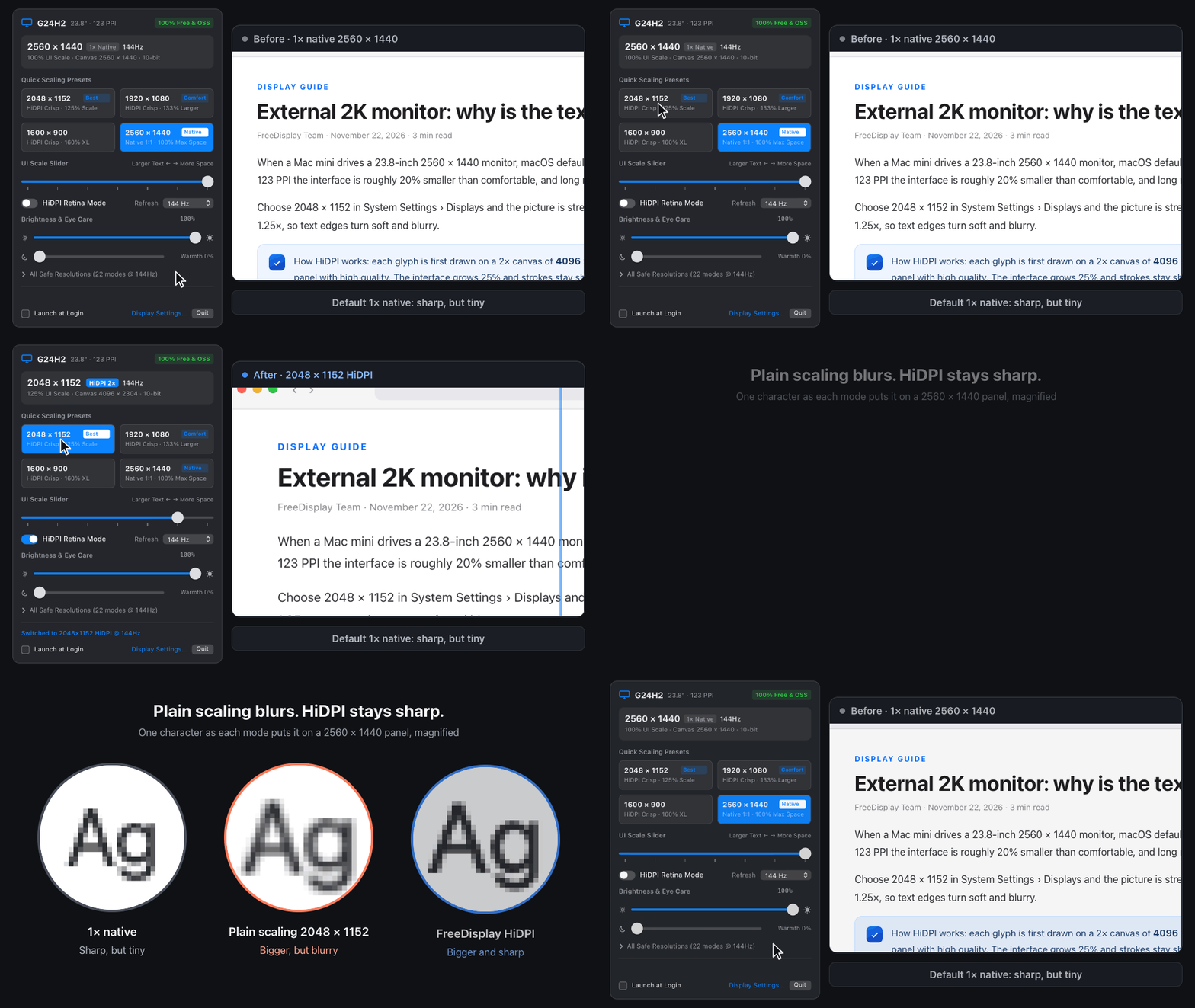
Illustration: the popover is redrawn from the app's layout; the screen patches are one page rendered each way and scaled onto a 2560 × 1440 panel the way macOS does it.
FreeDisplay makes everything on an external monitor bigger without making it blurry. A 2560 × 1440 monitor runs at 1× by default: sharp, but small. When System Settings offers only the 1× version of a smaller mode such as 2048 × 1152, choosing it stretches a smaller picture onto the panel and text goes soft. FreeDisplay switches to the HiDPI version of that mode instead: macOS draws on a canvas twice as wide and twice as tall, then scales it down to the panel, so text and controls grow and stay sharp.
| Mode | macOS draws on | Reaches the 2560 × 1440 panel | Result |
|---|---|---|---|
| 1× native | 2560 × 1440 | pixel for pixel | sharp, but small |
| 1× 2048 × 1152 | 2048 × 1152 | stretched ×1.25 | bigger, but soft |
| HiDPI 2048 × 1152 | 4096 × 2304 | scaled down ×0.625 | bigger and sharp |
It lives in the menu bar, has a command line, keeps your refresh rate, and the whole app is about 1.5 MB.
freedisplay list adds the other refresh
rates and the color depth).freedisplay status | list | preset | set | brightness | reset, for scripts and shortcuts.--lang en or --lang zh overrides it.macOS keeps a list of display modes for every monitor. Each entry has a
logical size (what apps lay out in), a backing size in pixels, a refresh rate
and flags; a HiDPI entry has twice the pixels of its logical size in each
direction, and WindowServer fits that canvas to the panel. System Settings
shows only part of the list. FreeDisplay reads all of it through SkyLight, the
private framework under CoreGraphics (CGSGetNumberOfDisplayModes,
CGSGetDisplayModeDescriptionOfLength), keeps the modes macOS marks as safe,
and applies one with CGSConfigureDisplayMode inside a CoreGraphics
display-configuration transaction. SkyLight is loaded with dlopen at run
time: no kernel extension, no driver, no SIP change.
Worth knowing:
freedisplay list --hidpi prints nothing for a monitor, macOS offers it no
HiDPI mode and FreeDisplay cannot create one.status lists every display, and the
popover has a display picker when more than one is connected.IOAVService, the route Apple
silicon Macs use to talk to a monitor. Otherwise, and whenever warmth is on,
brightness is a gamma table: it dims the picture, not the backlight, and
other apps that write gamma tables (f.lux, calibration tools) can override
it.Download FreeDisplay-<version>.dmg from
Releases, open it
and drag FreeDisplay to Applications. It is one app for Apple silicon and Intel
Macs with macOS 13 or later, signed with a Developer ID and notarized by Apple.
Start it, click the display icon in the menu bar, then a preset. For the
command line, link the app's binary onto your PATH:
ln -sf /Applications/FreeDisplay.app/Contents/MacOS/FreeDisplay /opt/homebrew/bin/freedisplay
Or build it with Swift 5.9 or later (Xcode 15, or the Command Line Tools):
git clone https://github.com/acking-you/FreeDisplay.git
cd FreeDisplay
./build.sh
build.sh builds a release binary, wraps it in FreeDisplay.app with a
generated icon, signs it ad hoc for this Mac, replaces
/Applications/FreeDisplay.app (quitting a running copy first), links the CLI
to /opt/homebrew/bin/freedisplay when that directory exists, and starts the
app. ./build.sh --universal --no-install only packages a universal
dist/FreeDisplay.app.
From the terminal:
freedisplay status                         # displays, current mode, HiDPI canvas, refresh rate
freedisplay list --hidpi                   # HiDPI modes macOS offers for the main display
freedisplay preset 125                     # 125 | 133 | 160 | 100
freedisplay set 2048x1152 --hidpi --hz 144
freedisplay brightness 80                  # 20–100
freedisplay reset                          # brightness back to 100%, warmth off
freedisplay with no command opens the app; --silent starts it in the menu
bar without the window.
All of the app is in Sources/FreeDisplay/: SkyLightEngine.swift reads and
applies display modes and works out the presets, DisplayViewModel.swift
holds the app state and the refresh-rate safety net, MenuBarPopoverView.swift
is the SwiftUI panel shared by the popover and the window,
BrightnessController.swift handles DDC/CI and the gamma table, and
CLI.swift, Localization.swift and main.swift cover the command line, the
two languages and startup. build.sh packages and installs the app. CI builds
every push and pull request, and a vX.Y.Z tag publishes a signed, notarized
DMG through scripts/release/macos_package.py (changelog). The
rules a change must keep are in AGENTS.md.
swift build -c release
.build/release/FreeDisplay status
acking-you/FreeDisplay is a public repo on GitHub by acking-you. Crisp HiDPI scaling and brightness for external displays on macOS: a menu-bar app and CLI, free and open source.
It declares the MIT license on GitHub.
Its maker tagged it for macOS. That is declared by the maker; Take My Repo has not tested it.
Open "Take it" on its page: Take My Repo writes an install plan for your machine and hands it to your AI agent (Claude Code, Codex or Cursor), which asks you before each step. Take My Repo has not tested it on any machine.
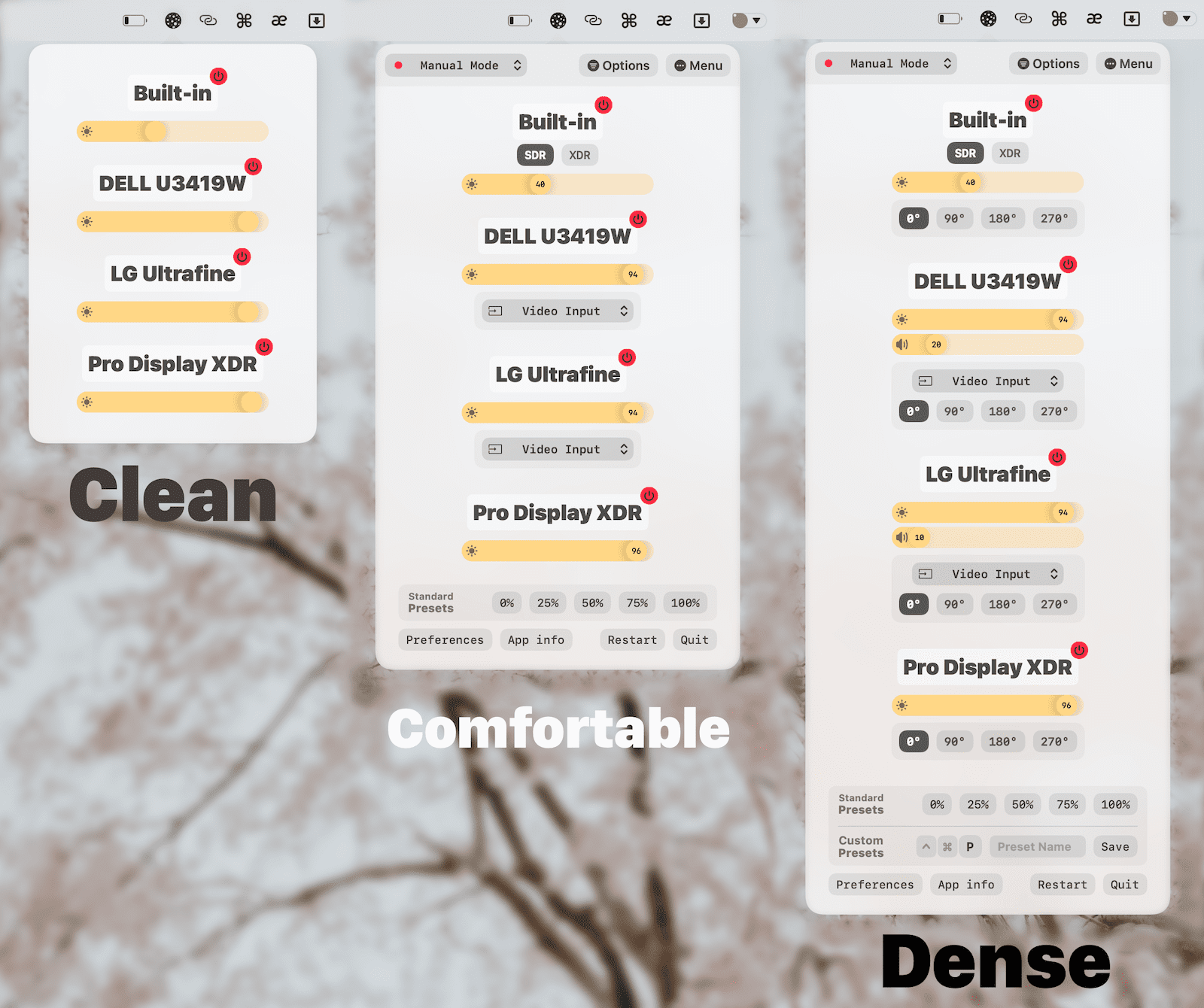
🖥 Control your display's brightness & volume on your Mac as if it was a native Apple Display. Use Apple Keyboard keys or custom shortcuts. Shows the native macOS OSDs.
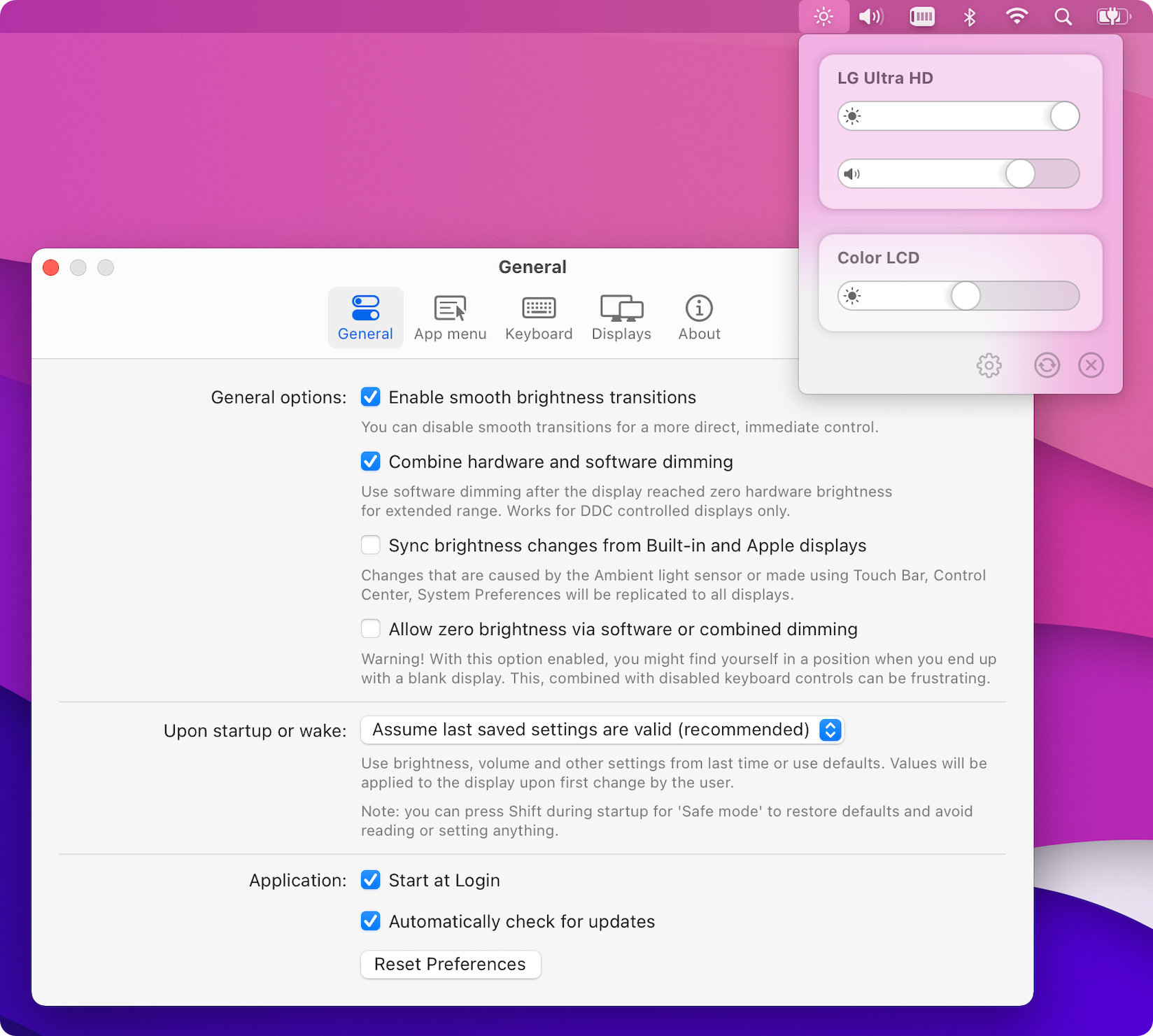
Use an iPhone, iPad, or spare Mac as a true second display for your Mac without restrictions.
The agent harness performance optimization system. Skills, instincts, memory, security, and research-first development for Claude Code, Codex, Opencode, Cursor and beyond.
Fair-code workflow automation platform with native AI capabilities. Combine visual building with custom code, self-host or cloud, 400+ integrations.
Its last change on GitHub was on 2026-11-23. Take My Repo does not judge from that whether it is maintained.
Nobody has reviewed it on Take My Repo yet, which says nothing about its quality.
Take My Repo cannot say: it does not audit code and has not run FreeDisplay. What is known comes from GitHub. It declares the MIT license on GitHub. Its last change was on 2026-11-23. It has 3 stars, which measure popularity, not safety. Nobody has reviewed it on Take My Repo yet, which says nothing about its quality. Read the source before you run it. With "Take it", your AI agent shows each step and asks you before running it; README text is treated as data, not as instructions.