
rea
Reverse engineer anything with agents, from app behavior down to native binaries.
- 479k
- TypeScript
- MIT
- 33 min ago
⚛ A zoomable, blazing fast, zero dependencies, pure native, typed PDF Renderer for Android and iOS.
Repo douglasjunior/react-native-pdf-renderer, read from GitHub 12 min ago. douglasjunior has not joined Take My Repo.
douglasjunior/react-native-pdf-renderer is a public repo on GitHub by douglasjunior. ⚛ A zoomable, blazing fast, zero dependencies, pure native, typed PDF Renderer for Android and iOS. It declares the MIT license on GitHub. It is written mainly in Java, has 300 stars and last changed on 2026-11-26. Nobody has reviewed it on Take My Repo yet, which says nothing about its quality. Read from GitHub on 2026-11-26.
Reverse engineer anything with agents, from app behavior down to native binaries.
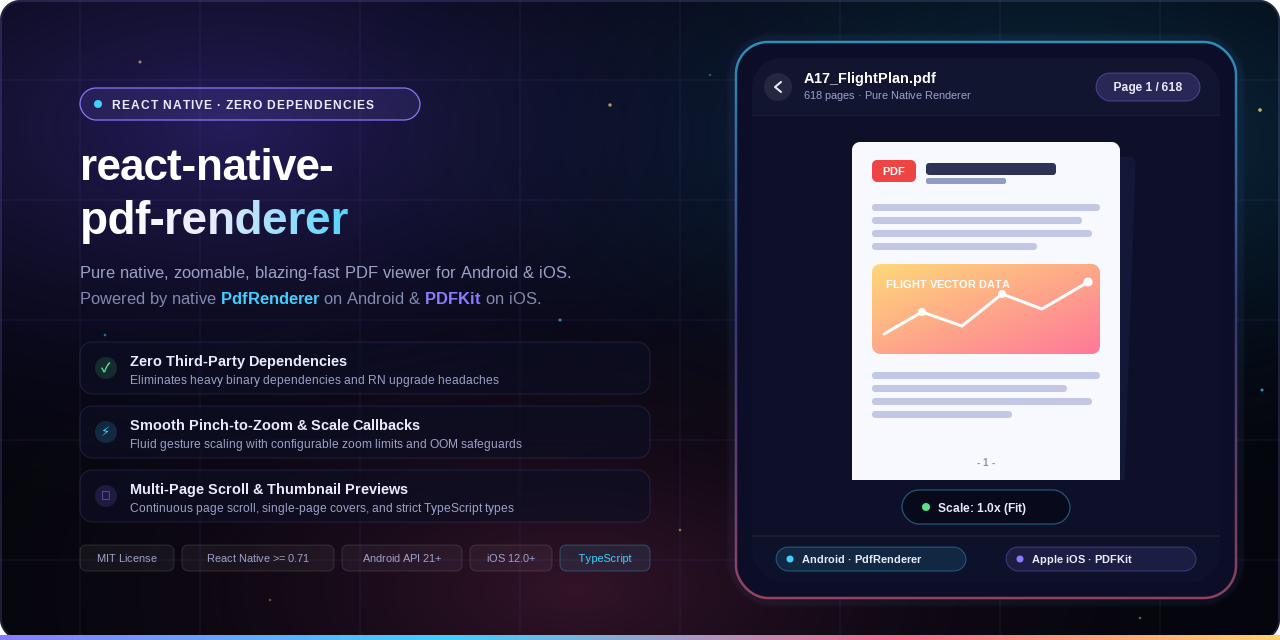
A zoomable, blazing fast, zero dependencies, pure native, typed PDF Renderer for Android and iOS.
React Native PDF Renderer provides high-performance, dependency-free native PDF rendering for React Native by directly utilizing Android's PdfRenderer and Apple's PDFKit. Enjoy smooth multi-page scrolling, fluid pinch-to-zoom, thumbnail previews, and comprehensive scale events without the maintenance burden of third-party native binaries.
Quick Start · Why · Previews · Requirements · Installation · Usage · API Reference · Limitations · Testing · Contributing
# 1. Install package
yarn add react-native-pdf-renderer
# or: npm i -S react-native-pdf-renderer

# 2. Install CocoaPods dependencies for iOS
cd ios && pod install
import React from 'react';
import { SafeAreaView } from 'react-native-safe-area-context';
import PdfRendererView from 'react-native-pdf-renderer';

export default function App() {
  return (
    <SafeAreaView style={{ flex: 1 }}>
      <PdfRendererView
        style={{ flex: 1, backgroundColor: '#000000' }}
        source="file:///path/to/local/file.pdf"
        distanceBetweenPages={16}
        maxZoom={5}
        onPageChange={(current, total) => {
          console.log(`Page: ${current + 1} of ${total}`);
        }}
      />
    </SafeAreaView>
  );
}
The main reason why this library was created is to avoid using third-party native dependencies, such as com.github.TalbotGooday:AndroidPdfViewer, com.github.mhiew:android-pdf-viewer, react-native-blob-util, or react-native-webview.
Every React Native developer knows (or will discover soon) the pain of updating the React Native ecosystem whenever a new major Android or iOS version comes out. Third-party native wrappers often become abandoned, break during Gradle or Xcode updates, or introduce incompatible native architectures.
Here, we eliminate this friction entirely:
maxPageResolution safeguards on Android prevent out-of-memory bitmap allocations during deep zooms.| Android | iOS |
|---|---|
 |
 |
| Platform / Tool | Minimum Version | Notes |
|---|---|---|
| React Native | >= 0.80.0 |
Old & New Architecture support |
| iOS | >= 12.0 |
Uses native PDFKit |
| Android | API 21+ (Android 5.0+) |
Uses native android.graphics.pdf.PdfRenderer |
Using yarn:
yarn add react-native-pdf-renderer
Using npm:
npm i -S react-native-pdf-renderer
Navigate to your ios folder and run pod install:
cd ios && pod install
You can customize the androidx.recyclerview:recyclerview version by configuring ext inside your root android/build.gradle file (defaults to 1.4.0):
buildscript {
  ext {
    recyclerViewVersion = "1.4.0"
  }
  ...
}
There is only one primary component that you need to render PDF documents: <PdfRendererView />.
import React from 'react';
import { View, StyleSheet } from 'react-native';
import { SafeAreaView } from 'react-native-safe-area-context';
import PdfRendererView from 'react-native-pdf-renderer';

const App = () => {
  return (
    <SafeAreaView style={styles.container}>
      <PdfRendererView
        style={styles.pdf}
        source="file:///path/to/local/file.pdf"
        distanceBetweenPages={16}
        maxZoom={5}
        onPageChange={(current, total) => {
          console.log(`Current page: ${current + 1} / ${total}`);
        }}
        onError={() => {
          console.warn('Failed to load PDF');
        }}
      />
    </SafeAreaView>
  );
};

const styles = StyleSheet.create({
  container: {
    flex: 1,
  },
  pdf: {
    flex: 1,
    backgroundColor: '#1e1e1e',
  },
});

export default App;
[!IMPORTANT] The
sourceprop must point to a local file stored inside the device's storage (e.g.,file:///data/user/0/...orfile:///var/mobile/...).
If your PDF file is hosted on a remote server, download it to device storage first using a file system library such as expo-file-system (use expo-file-system/legacy on Expo SDK 54+), react-native-blob-util, or rn-fetch-blob:
import React, { useState, useEffect } from 'react';
import { ActivityIndicator, StyleSheet, Text, View } from 'react-native';
// Note: expo-file-system/legacy is used on Expo SDK 54+; earlier SDKs import from 'expo-file-system'
import * as FileSystem from 'expo-file-system/legacy';
import PdfRendererView from 'react-native-pdf-renderer';

export function RemotePdfViewer({ url }: { url: string }) {
  const [localUri, setLocalUri] = useState<string | null>(null);
  const [error, setError] = useState<string | null>(null);

  useEffect(() => {
    let isMounted = true;

    async function downloadPdf() {
      try {
        setError(null);
        const fileUri = `${FileSystem.documentDirectory}document.pdf`;
        const result = await FileSystem.downloadAsync(url, fileUri);
        if (result.status < 200 || result.status >= 300) {
          throw new Error(`Download failed (HTTP ${result.status})`);
        }
        if (isMounted) {
          setLocalUri(result.uri);
        }
      } catch (err) {
        if (isMounted) {
          setError(err instanceof Error ? err.message : 'Failed to download PDF');
        }
      }
    }

    downloadPdf();
    return () => {
      isMounted = false;
    };
  }, [url]);

  if (error) {
    return (
      <View style={styles.center}>
        <Text style={styles.errorText}>{error}</Text>
      </View>
    );
  }

  if (!localUri) {
    return (
      <View style={styles.center}>
        <ActivityIndicator size="large" color="#3fd0ff" />
      </View>
    );
  }

  return (
    <PdfRendererView
      style={{ flex: 1 }}
      source={localUri}
      distanceBetweenPages={16}
      maxZoom={5}
    />
  );
}

const styles = StyleSheet.create({
  center: {
    flex: 1,
    justifyContent: 'center',
    alignItems: 'center',
  },
  errorText: {
    color: '#ef4444',
    fontSize: 14,
  },
});
For a comprehensive real-world example featuring scale indicators, full-screen toggles, and modal dialogues, see the Sample Project.
<PdfRendererView /> Props| Prop | Type | Default | Description |
|---|---|---|---|
source |
string |
— | Path to a local file stored on the device (e.g. file:///path/to/file.pdf). |
initialPageIndex |
number |
0 |
Zero-based page index shown when the document opens. It is read when source changes; changing only initialPageIndex does nothing. Changing singlePage or maxZoom reloads the document, which opens on this page again. Out-of-range values and singlePage open the first page. Use scrollToIndex to navigate in an already open document. |
distanceBetweenPages |
number |
16 |
Vertical spacing in DPI between rendered pages. |
maxZoom |
number |
5 |
Maximum allowable zoom scale factor. |
maxPageResolution |
number |
2048 |
(Android only) Maximum page resolution (width/height) in pixels when zooming. Designed to prevent Android OOM / Canvas crashes when zooming deeply (#26). |
singlePage |
boolean |
false |
Renders only the first page without scrolling. Ideal for displaying document thumbnails. |
onPageChange |
(current: number, total: number) => void |
— | Callback invoked when the user scrolls between pages. current is zero-indexed. |
onScaleChange |
(scale: number) => void |
— | Invoked when the zoom scale changes: continuously during pinch gestures and on double-tap zoom on both platforms. On iOS, zoom animations can also report intermediate values; on Android, double-tap zoom reports the final value at once. 1 is the unzoomed baseline: fit-to-width in multi-page mode and fit-to-center in single-page mode on Android, or the fitted size provided by PDFKit on iOS. The value never exceeds maxZoom. |
onError |
() => void |
— | Callback invoked when an error occurs while rendering the PDF. |
style |
StyleProp<ViewStyle> |
— | Styles applied to the native view container. (Note: border radius is not directly supported; see Limitations). |
testID |
string |
— | Optional identifier used to locate this view in automated end-to-end testing. |
<PdfRendererView /> MethodsMethods are called through a ref, typed with PdfRendererViewRefType:
import React, { useRef } from 'react';
import { Button } from 'react-native';
import PdfRendererView, { PdfRendererViewRefType } from 'react-native-pdf-renderer';

const App = () => {
  const pdfRef = useRef<PdfRendererViewRefType>(null);

  return (
    <>
      <Button
        title="Go to page 10"
        onPress={() => pdfRef.current?.scrollToIndex(9)}
      />
      <PdfRendererView
        ref={pdfRef}
        source="file:///path/to/file.pdf"
      />
    </>
  );
};

export default App;
| Method | Type | Description |
|---|---|---|
scrollToIndex |
(index: number) => void |
Scrolls to the page at index, resetting the zoom first. The index is zero-based, the same current value reported by onPageChange: 0 is the first page and total - 1 is the last one. Out-of-range indexes are silently ignored, and so is any call while singlePage is enabled. When called before the document finishes loading (e.g. in a useEffect right after mount), the scroll is applied as soon as it loads. |
Because Android renders PDF pages as full bitmap images via android.graphics.pdf.PdfRenderer, native text selection, screen reader accessibility for PDF contents, and hyperlink clicks within the PDF are not supported on Android.
[!TIP] If text selection or interactive document links are critical for your use case, we recommend adding an action button to open the PDF in the platform's external system viewer.
PdfRendererView has flex: 1
douglasjunior/react-native-pdf-renderer is a public repo on GitHub by douglasjunior. ⚛ A zoomable, blazing fast, zero dependencies, pure native, typed PDF Renderer for Android and iOS.
It declares the MIT license on GitHub.
Its maker has not tagged a system, so it is unknown here. Its README says what it needs.
Flutter makes it easy and fast to build beautiful apps for mobile and beyond
A Ruby gem to transform HTML + CSS into PDFs using the command-line utility wkhtmltopdf
f.k.a. Awesome ChatGPT Prompts. Share, discover, and collect prompts from the community. Free and open source — self-host for your organization with complete privacy.
An open-source remote desktop application designed for self-hosting, as an alternative to TeamViewer.
Open "Take it" on its page: Take My Repo writes an install plan for your machine and hands it to your AI agent (Claude Code, Codex or Cursor), which asks you before each step. Take My Repo has not tested it on any machine.
Its last change on GitHub was on 2026-11-26. Take My Repo does not judge from that whether it is maintained.
Nobody has reviewed it on Take My Repo yet, which says nothing about its quality.
Take My Repo cannot say: it does not audit code and has not run react-native-pdf-renderer. What is known comes from GitHub. It declares the MIT license on GitHub. Its last change was on 2026-11-26. It has 300 stars, which measure popularity, not safety. Nobody has reviewed it on Take My Repo yet, which says nothing about its quality. Read the source before you run it. With "Take it", your AI agent shows each step and asks you before running it; README text is treated as data, not as instructions.


