cc-switch
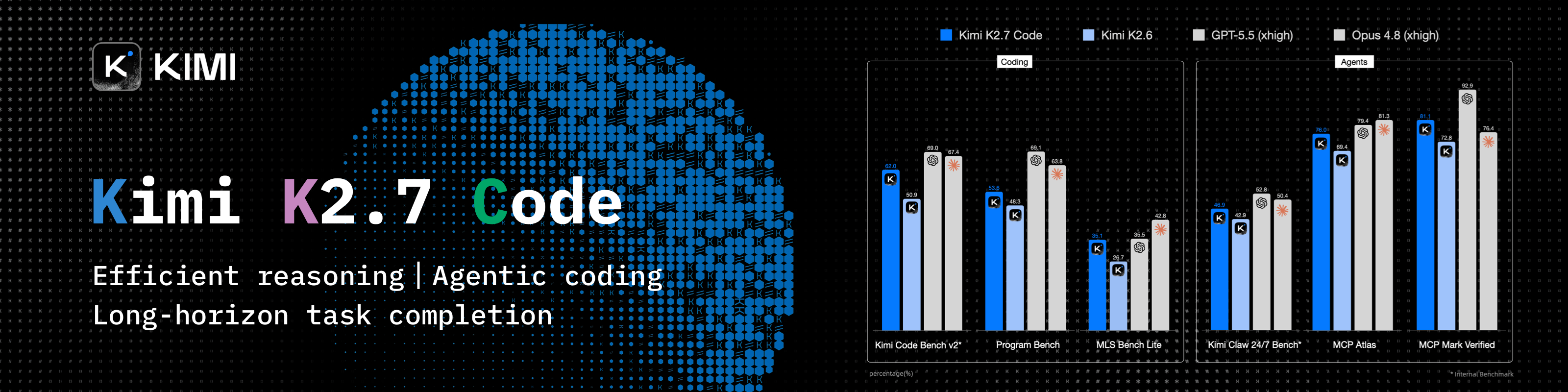
A cross-platform desktop All-in-One assistant for Claude Code, Codex, OpenCode,DeepSeek Harness and more. Only official website: ccswitch.io
- 157k
- Rust
- MIT
- 17 h ago
A distraction-free markdown writer that reads and writes plain .md files on your own disk. Built for long-form work: manifestos, essays, notes, drafts.
Repo infinition/scriptorium, read from GitHub 7 h ago. infinition has not joined Take My Repo.
infinition/scriptorium is a public repo on GitHub by infinition. A distraction-free markdown writer that reads and writes plain .md files on your own disk. Built for long-form work: manifestos, essays, notes, drafts. It declares no license on GitHub. Public does not mean open source: without a license, nobody is granted the right to reuse it. It is written mainly in JavaScript, has 6 stars and last changed on 2026-08-26. Nobody has reviewed it on Take My Repo yet, which says nothing about its quality. Read from GitHub on 2026-11-25.
A cross-platform desktop All-in-One assistant for Claude Code, Codex, OpenCode,DeepSeek Harness and more. Only official website: ccswitch.io

A distraction-free markdown writer that reads and writes plain .md files on
your own disk. Built for long-form work: manifestos, essays, notes, drafts.
infinition.github.io/scriptorium/
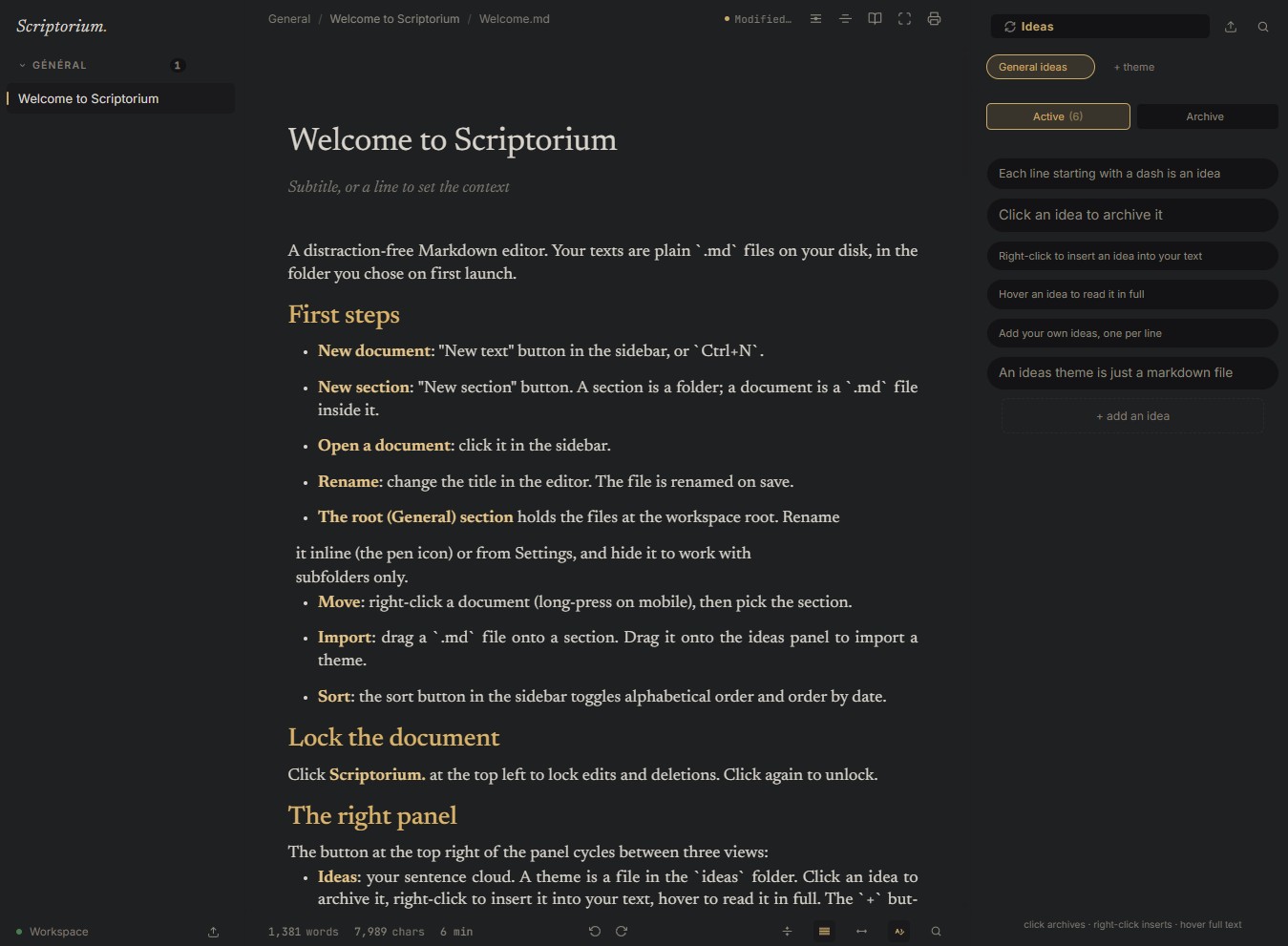
The editor stays out of your way. Headings, lists, code blocks and math render in place; the line under your cursor switches to raw markdown so you can edit it like a regular text file. Nothing leaves your machine.
Alongside the editor sits the thing the app is arranged around: Ideas. A
sentence you think of now rarely belongs where you are writing now, so it goes
into a cloud beside your text instead of interrupting it. Ideas are grouped
into themes, one plain .md file per theme, and everything about them is drag
and drop: reorder one inside its theme, drop it on another theme's tab to move
it there, or drag it into the document to insert it as a block exactly where
you let go.
Scriptorium runs two ways, from the same codebase:
node server.js, open http://localhost:3000. Works in
any browser, including on a phone or tablet on your local network.npm install
npm start
Then open http://localhost:3000.
The server binds to 127.0.0.1 by default. To reach it from another device on
your network, run HOST=0.0.0.0 npm start; it then prints a URL with an access
token.
npm install
npm run tauri:dev
The native window starts the same Node server and shows the app. Node must be
available in the PATH.
A build pipeline (GitHub Actions) produces installers for Windows, Linux and
macOS on every v* version tag. Binaries are on the releases page:
https://github.com/infinition/scriptorium/releases
Prebuilt installers are attached to every v* release on the releases page.
Replace <version> below with the version you downloaded, for example
1.3.1.
Windows
Run Scriptorium_<version>_x64-setup.exe. There is also a portable single file,
Scriptorium_<version>_x64.exe, which needs no installer: on first run it
unpacks its server and Node runtime into %APPDATA%\Scriptorium\portable and
keeps its config.json there, so the exe travels but the workspace setting
stays on the machine that ran it.
macOS (Apple Silicon)
Open Scriptorium_<version>_aarch64.dmg and drag Scriptorium into Applications.
The app is not signed with an Apple developer certificate, so Gatekeeper refuses
to open it and reports it as damaged. Clear the quarantine flag once, then the
app opens normally:
xattr -cr /Applications/Scriptorium.app
Linux (AppImage)
The AppImage needs the executable bit before it can run:
chmod +x Scriptorium_<version>_amd64.AppImage
./Scriptorium_<version>_amd64.AppImage
If your distribution ships FUSE 3 only, install libfuse2 (on Debian and
Ubuntu: sudo apt install libfuse2), or extract the image and run it from
there with --appimage-extract.
Linux (.deb)
sudo dpkg -i Scriptorium_<version>_amd64.deb
Then launch Scriptorium from the applications menu, or run scriptorium from a
terminal.
The .deb is the one format that does not update itself. A package installed
system-wide belongs to the package manager, not to the application, so
Scriptorium tells you when a new version is out and leaves the install to
dpkg. Every other format updates in place from the app.
The AppImage, the .deb, the macOS app and the portable Windows exe all carry
their own Node runtime and the server, so Node does not need to be installed on
the target machine.
On first launch, when no working folder has been configured yet, the app asks
you to pick an existing folder or create one, and to choose the interface
language (English by default, French available). The choices are saved in
config.json, next to server.js. Change the folder later from the gear icon
in the sidebar, or edit config.json directly.
A fresh empty workspace is seeded with a bilingual guide (French and English) describing every feature, plus two general ideas themes, one per language.
Scriptorium mirrors a folder you own, structure for structure:
workspace/
  Manifestos/                      <- a section (sidebar group)
    my-document.md                 <- a document
  Essays/
    welcome.md
  ideas/                           <- the sentence-cloud source
    general.md                     <- one theme per file
  .scriptorium/                    <- app-managed: settings, themes, fonts,
  |                                  backgrounds, icons, snapshots (per workspace)
  .medias/                         <- images inserted in documents
  assets/                          <- legacy image folder, kept for old documents
.md at the root lands in the implicit "General" section, which you can
rename or hide from Settings..md onto a section to import it.ideas/*.md files feed the ideas panel. Each line starting with - is an
idea; - [x] ... means archived. The files are rewritten in place when you
click an idea, so editing them from another editor works too..scriptorium/ keeps every preference of this workspace (theme, fonts,
backgrounds, icons, spacing, language). Copy the workspace folder and the
whole setup follows..medias/ holds the images you paste, drop or drag into documents.Filenames are derived from the title (slugified, ASCII). Change the title and the file is renamed on save.
@@ in any text field (editor, titles, ideas) to open
a searchable emoji palette..icons folder and replace any UI icon, per theme..themes, with clone, reset
and per-color alpha. Each theme carries its own UI font, editor font (custom
fonts from .fonts) and a background image or video (opacity slider,
seamless mosaic). Adjustable space between blocks and line height.F), typewriter (T), paragraph focus (P),
reading mode (R or Tab), auto-scroll (A), readable line
length (full-width toggle).Ctrl+P): full text across documents and ideas.Ctrl+F): on the raw markdown source..medias/ folder and inserted as a markdown reference; the
drop target is shown with the same insertion line as an idea drag. Type %%
in any text field to open a media gallery (thumbnails, scroll), insert one
instead of %%, delete one directly, or import more. In Settings > Appearance
you can align images (left, center, right) and cap their width.A plugin API roadmap is drafted in docs/plugin-api-roadmap.md.
| Shortcut | Action |
|---|---|
Ctrl+N |
New document |
Ctrl+S |
Save |
Ctrl+P |
Search |
Ctrl+F |
Find / Replace |
Ctrl+G or Ctrl+B |
Bold |
Ctrl+I |
Italic |
Ctrl+K then C |
Change heading level |
Ctrl+K then Q |
Quote |
Ctrl+K then L |
List |
Ctrl+K then U |
Underline |
Ctrl+K then D |
Inline code |
Ctrl+Z / Ctrl+Shift+Z |
Undo / Redo |
T |
Typewriter |
P |
Paragraph focus |
R or Tab |
Reading mode |
A |
Auto-scroll |
F |
Focus mode |
CommonMark plus a few extensions used by Obsidian and GitHub:
- [ ] / - [x])<u>), inline code, highlight (==text==)[[name]]), images> [!info] Title)highlight.js)$x^2$) and display LaTeX ($$ ... $$) via KaTeX[^1])server.js.public/{index.html, app.js, style.css}.highlight.js and KaTeX are installed as dependencies and served from
node_modules under /vendor. No CDN, everything works offline.src-tauri/src/lib.rs launches node server.js and opens the window on its
URL.docs/ and is published on GitHub Pages.ISC. See package.json.
infinition/scriptorium is a public repo on GitHub by infinition. A distraction-free markdown writer that reads and writes plain .md files on your own disk. Built for long-form work: manifestos, essays, notes, drafts.
It declares no license on GitHub. Public does not mean open source: without a license, nobody is granted the right to reuse it.
Its maker has not tagged a system, so it is unknown here. Its README says what it needs.
MyPaint is a simple drawing and painting program that works well with Wacom-style graphics tablets.
VoiceStudio is the open-source, fully-local ElevenLabs alternative — voice cloning, voice design, video dubbing, dictation, transcription & audiobook creation in 646 languages.
Bring projects, wikis, and teams together with AI. AppFlowy is the AI collaborative workspace where you achieve more without losing control of your data. The leading open source Notion alternative.
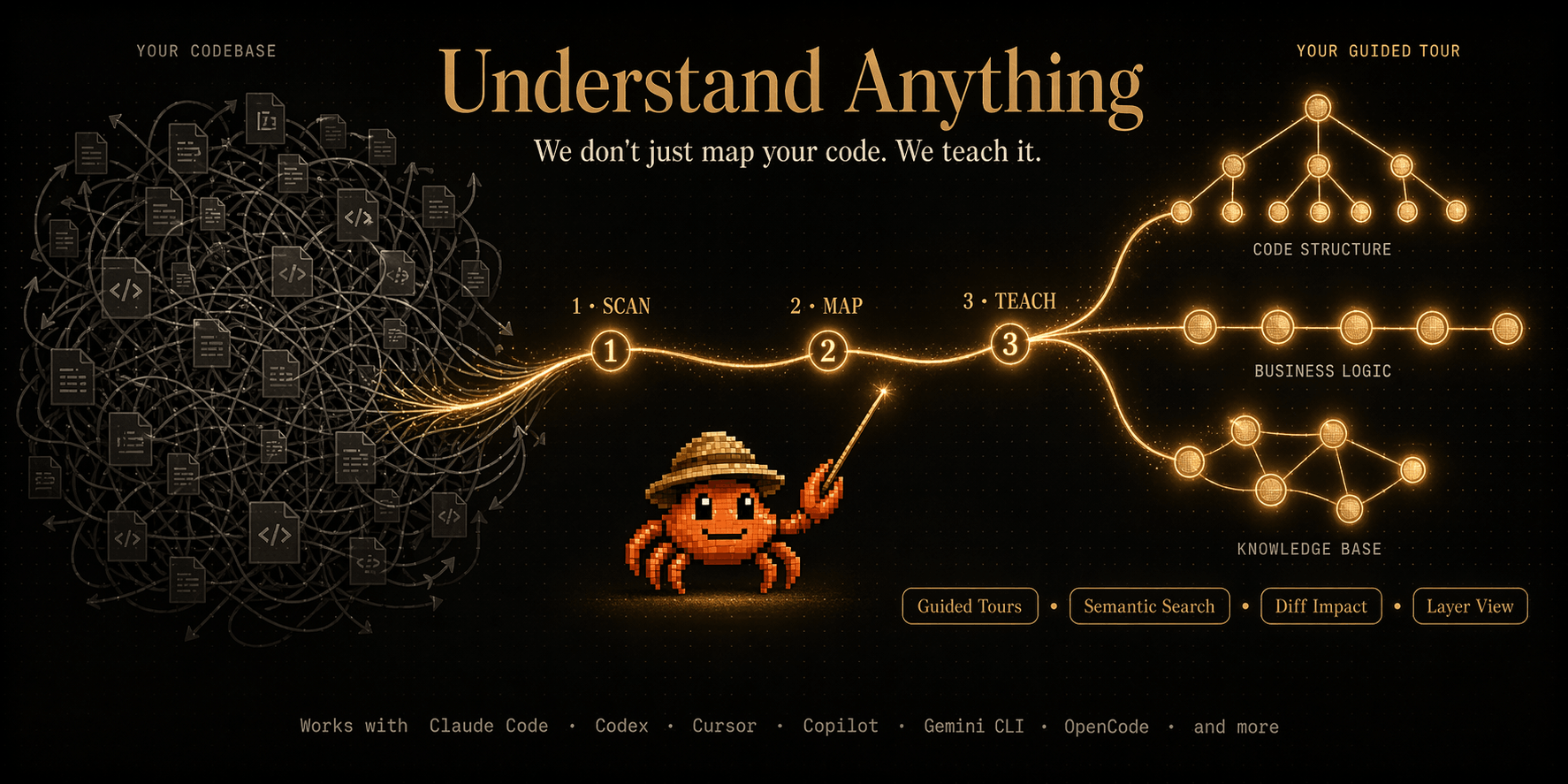
Graphs that teach > graphs that impress. Turn any code into an interactive knowledge graph you can explore, search, and ask questions about. Works with Claude Code, Codex, Cursor, Copilot, Gemini CLI, and more.
This project is dedicated to collecting high-quality macOS software and organizing them systematically by different categories for easy search and use.
Open "Take it" on its page: Take My Repo writes an install plan for your machine and hands it to your AI agent (Claude Code, Codex or Cursor), which asks you before each step. Take My Repo has not tested it on any machine.
Its last change on GitHub was on 2026-08-26. Take My Repo does not judge from that whether it is maintained.
Nobody has reviewed it on Take My Repo yet, which says nothing about its quality.
Take My Repo cannot say: it does not audit code and has not run scriptorium. What is known comes from GitHub. It declares no license on GitHub. Public does not mean open source: without a license, nobody is granted the right to reuse it. Its last change was on 2026-08-26. It has 6 stars, which measure popularity, not safety. Nobody has reviewed it on Take My Repo yet, which says nothing about its quality. Read the source before you run it. With "Take it", your AI agent shows each step and asks you before running it; README text is treated as data, not as instructions.