
teleport
The easiest, and most secure way to access and protect all of your infrastructure.
- 21k
- Go
- AGPL-3.0
- 3 d ago
The goal of this project is to play with HTTPS and enable it in Spring Boot applications. For it, we will implement a Spring Boot Rest API that will have its endpoints ready to accept and server over HTTPS. Furthermore, a Spring Boot Shell Java application and a Frontend React application will be implemented to consume movies-api.
Repo ivangfr/https-springboot-react, read from GitHub 1 min ago. ivangfr has not joined Take My Repo.
ivangfr/https-springboot-react is a public repo on GitHub by ivangfr. The goal of this project is to play with HTTPS and enable it in Spring Boot applications. For it, we will implement a Spring Boot Rest API that will have its endpoints ready to accept and server over HTTPS. Furthermore, a Spring Boot Shell Java application and a Frontend React application will be implemented to consume movies-api. It declares the MIT license on GitHub. It is written mainly in Java, has 20 stars and last changed on 2026-07-25. Nobody has reviewed it on Take My Repo yet, which says nothing about its quality. Read from GitHub on 2026-11-20.
The goal of this project is to play with HTTPS and enable it in Spring Boot applications. For it, we will implement a Spring Boot REST API, called movies-api that will have its endpoints ready to accept and server over HTTPS. Furthermore, a Spring Boot Shell Java application, called movies-shell, and a Frontend React application, called movies-ui, will be implemented to consume movies-api.
On ivangfr.github.io, I have compiled my Proof-of-Concepts (PoCs) and articles. You can easily search for the technology you are interested in by using the filter. Who knows, perhaps I have already implemented a PoC or written an article about what you are looking for.
flowchart TB
    subgraph users ["Users"]
        HTTP["REST Clients"]
        Browser["Browser"]
    end

    subgraph movies-ui ["movies-ui:3443\n(React)"]
        UI["movies-ui"]
    end

    subgraph movies-api ["movies-api:8443\n(Spring Boot)"]
        RestCtrl["MoviesController"]
        SwaggerUI["Swagger UI"]

        subgraph h2 ["H2"]
            db[("movies")]
        end
    end

    subgraph movies-shell ["movies-shell\n(Spring Boot)"]
        Shell["movies-shell"]
    end

    Browser -->|"HTTPS :3443"| UI
    Browser -->|"HTTPS :8443"| SwaggerUI
    HTTP -->|"HTTPS"| RestCtrl
    UI -->|"HTTPS"| RestCtrl
    Shell -->|"HTTPS"| RestCtrl
    RestCtrl -->|"JDBC"| db
    SwaggerUI --> RestCtrl
Spring Boot Web Java application that exposes a REST API to manage movies. Its endpoints are ready to accept and serve over HTTPS. movies-api stores its data in H2 memory database.
Endpoints:
   GET /api/movies
   GET /api/movies/{imdbId}
  POST /api/movies -d {"imdbId": "...", "title": "...", "director": "...", "releaseYear": ...}
DELETE /api/movies/{imdbId}
Spring Boot Shell Java application that uses movies-api to get information about a movie or to even add/delete a movie. All communication with movies-api is over HTTPS.
React frontend application where users can manage movies. All the communication with movies-api is over HTTPS. It uses MUI as UI component library.
movies-api
Open a terminal and, inside the https-springboot-react/movies-api folder, run the command below:
./mvnw clean spring-boot:run
Access Swagger website at https://localhost:8443/swagger-ui.html
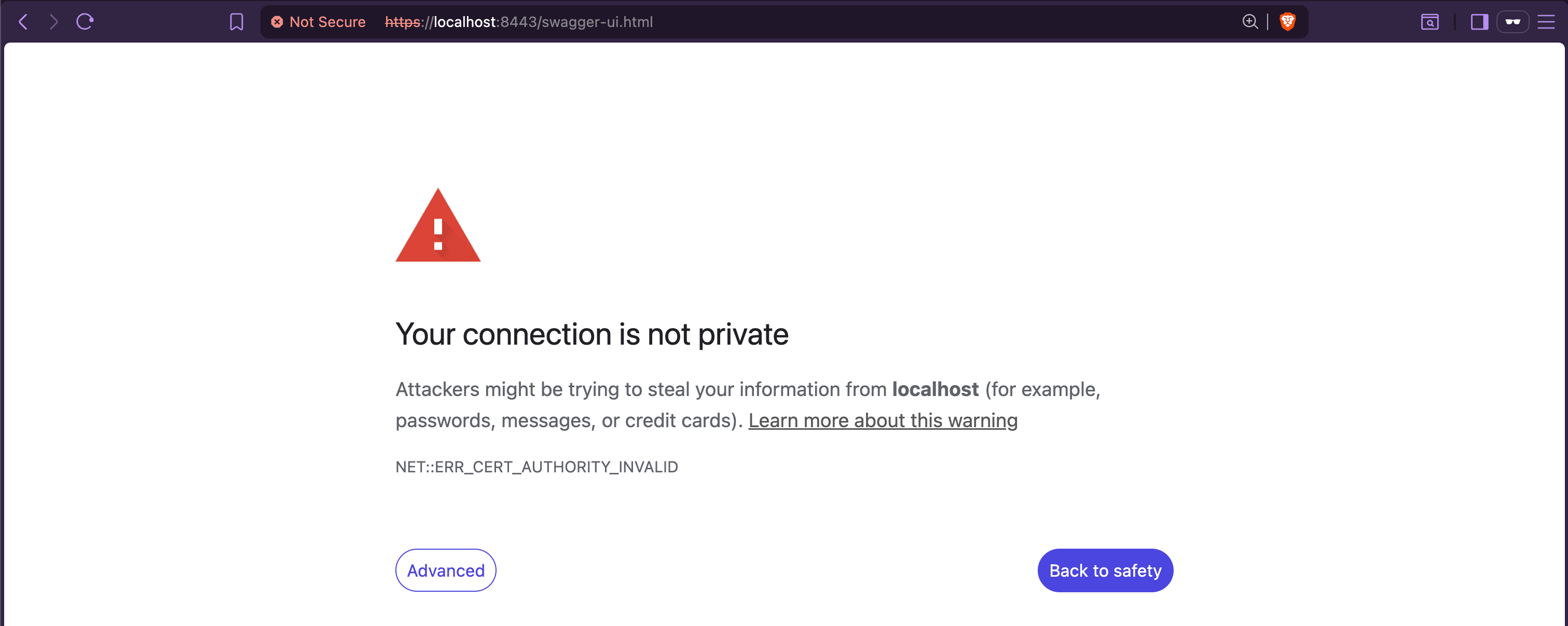
Once accessed for the first time, the following page will appear:

Click Advanced > Proceed to localhost (unsafe).
Now, you should see:

To re-enable the security warning saying Your connection is not private for https://localhost:8443/swagger-ui.html, click Not Secure (in the address bar) > Re-enable warnings.
movies-shell
Open a terminal and, inside the https-springboot-react/movies-shell folder, run the command below:
./mvnw clean spring-boot:run
Sample of the shell interface and execution:

movies-ui
Open a new terminal and navigate to the https-springboot-react/movies-ui folder.
Execute the command below if you are running it for the first time:
npm install
To start movies-ui run:
npm start
Access https://localhost:3443
Once accessed for the first time, the following page will appear:

Click Advanced > Proceed to localhost (unsafe)
Now, you should see:

Note: In case
movies-uicannot communicate withmovies-api:
- Open
movies-apiSwagger website: https://localhost:8443/swagger-ui.html- Click
Advanced>Proceed to localhost (unsafe)- Reload
movies-uipage
To re-enable the security warning saying Your connection is not private for https://localhost:3443, click Not Secure (in the address bar) > Re-enable warnings.
To stop movies-api, movies-ui and movies-shell, go to the terminal where they are running and press Ctrl+C.
movies-api
https-springboot-react/movies-api folder, run the command below:
./mvnw clean testmovies-shell
https-springboot-react/movies-shell folder, run the command below:
./mvnw clean testmovies-ui
https-springboot-react/movies-ui folder, run the command below:
npm testIn order to create a PKCS12 certificate, run the following command:
keytool -genkeypair -alias localhost \
  -keyalg RSA -keysize 2048 -storetype PKCS12 \
  -keystore keystore.p12 -validity 3650 \
  -dname "CN=localhost, OU=MyCompany, O=MyCompany, L=Berlin, ST=Berlin, C=DE"
Set a password. In this project, we will use secret:
Enter keystore password: secret
Re-enter new password: secret
To list the certificates keystore.p12 run the command below. The password will be requested:
keytool -list -v -keystore keystore.p12
In a terminal, make sure you are inside the https-springboot-react/movies-ui folder.
Run the following commands:
npm upgrade
npm i -g npm-check-updates
ncu -u
npm install
Spring Boot modules (movies-api and movies-shell): Code is formatted using Spotless with Google Java Format.
To check or apply formatting, make sure you are inside the module folder and run the following command:
Check formatting:
./mvnw spotless:check
Auto-fix formatting:
./mvnw spotless:apply
React module (movies-ui): Code is formatted using Prettier with rules aligned to the project's style guide (2-space indentation, single quotes, no trailing semicolons). ESLint conflicts are resolved via eslint-config-prettier. Configuration is defined in .prettierrc (formatting rules) and .editorconfig (editor consistency).
To check or apply formatting, make sure you are inside the movies-ui folder and run the following commands:
Check formatting:
npm run format:check
Auto-fix formatting:
npm run format
[Medium]: How I Reduce GIF and Screenshot Sizes for My Technical Articles on macOS
If you find this useful, consider buying me a coffee:
This project is licensed under the MIT License.
ivangfr/https-springboot-react is a public repo on GitHub by ivangfr. The goal of this project is to play with HTTPS and enable it in Spring Boot applications. For it, we will implement a Spring Boot Rest API that will have its endpoints ready to accept and server over HTTPS. Furthermore, a Spring Boot Shell Java application and a Frontend React application will be implemented to consume movies-api.
It declares the MIT license on GitHub.
Its maker has not tagged a system, so it is unknown here. Its README says what it needs.
Open "Take it" on its page: Take My Repo writes an install plan for your machine and hands it to your AI agent (Claude Code, Codex or Cursor), which asks you before each step. Take My Repo has not tested it on any machine.
The easiest, and most secure way to access and protect all of your infrastructure.
Its last change on GitHub was on 2026-07-25. Take My Repo does not judge from that whether it is maintained.
Nobody has reviewed it on Take My Repo yet, which says nothing about its quality.
A tidy SQL-based DB access library for Scala developers. This library naturally wraps JDBC APIs and provides you easy-to-use APIs.
Fast and extensible multi-platform HTTP/1-2-3 web server with automatic HTTPS
Reverse engineer anything with agents, from app behavior down to native binaries.
Flutter makes it easy and fast to build beautiful apps for mobile and beyond
f.k.a. Awesome ChatGPT Prompts. Share, discover, and collect prompts from the community. Free and open source — self-host for your organization with complete privacy.
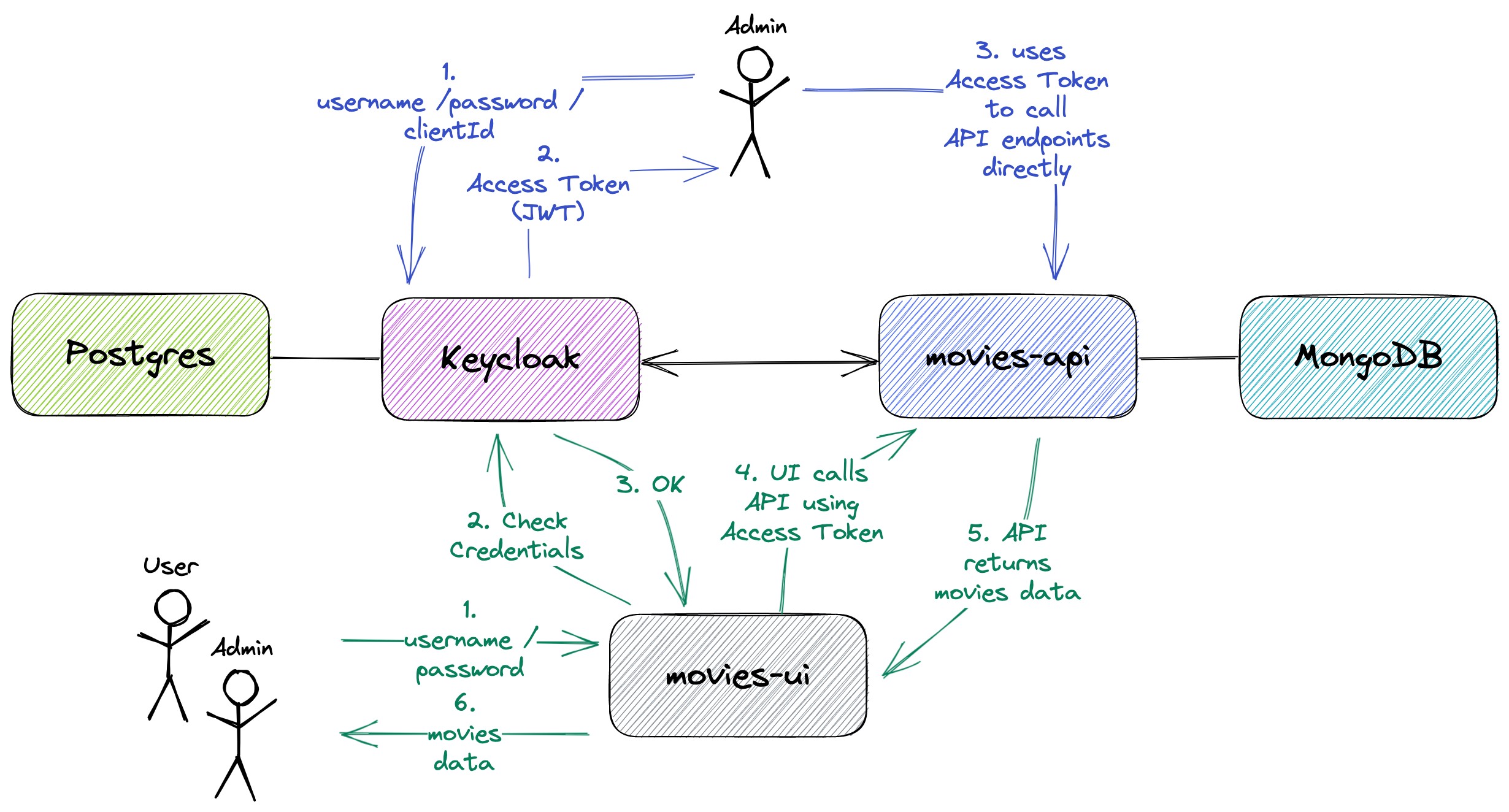
The goal of this project is to secure movies-app using Keycloak (with PKCE). movies-app consists of two applications: one is a Spring Boot Rest API called movies-api and another is a React application called movies-ui.
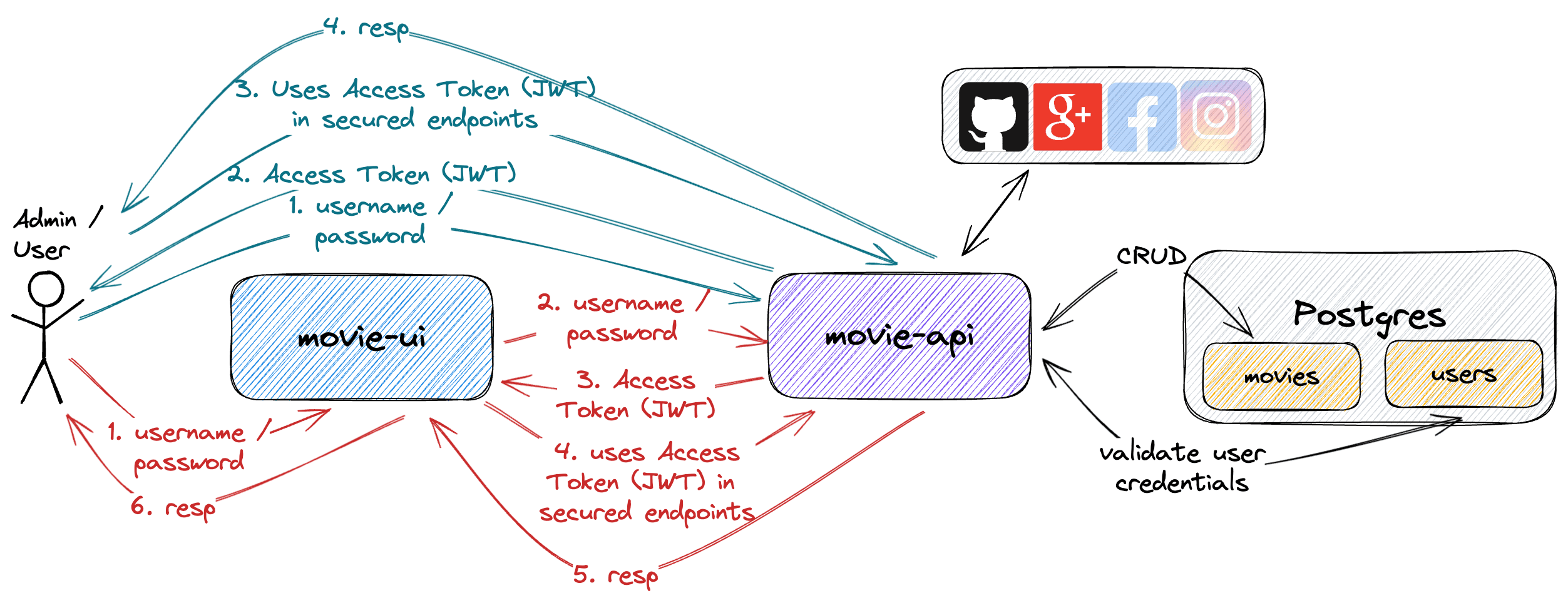
The goal of this project is to implement an application called movie-app to manage movies. For it, we will implement a back-end Spring Boot application called movie-api and a front-end React application called movie-ui. Additionally, we will use OAuth2 (Social Login) to secure both applications.
Keycloak-Clustered extends quay.io/keycloak/keycloak official Keycloak Docker image by adding JDBC_PING discovery protocol.
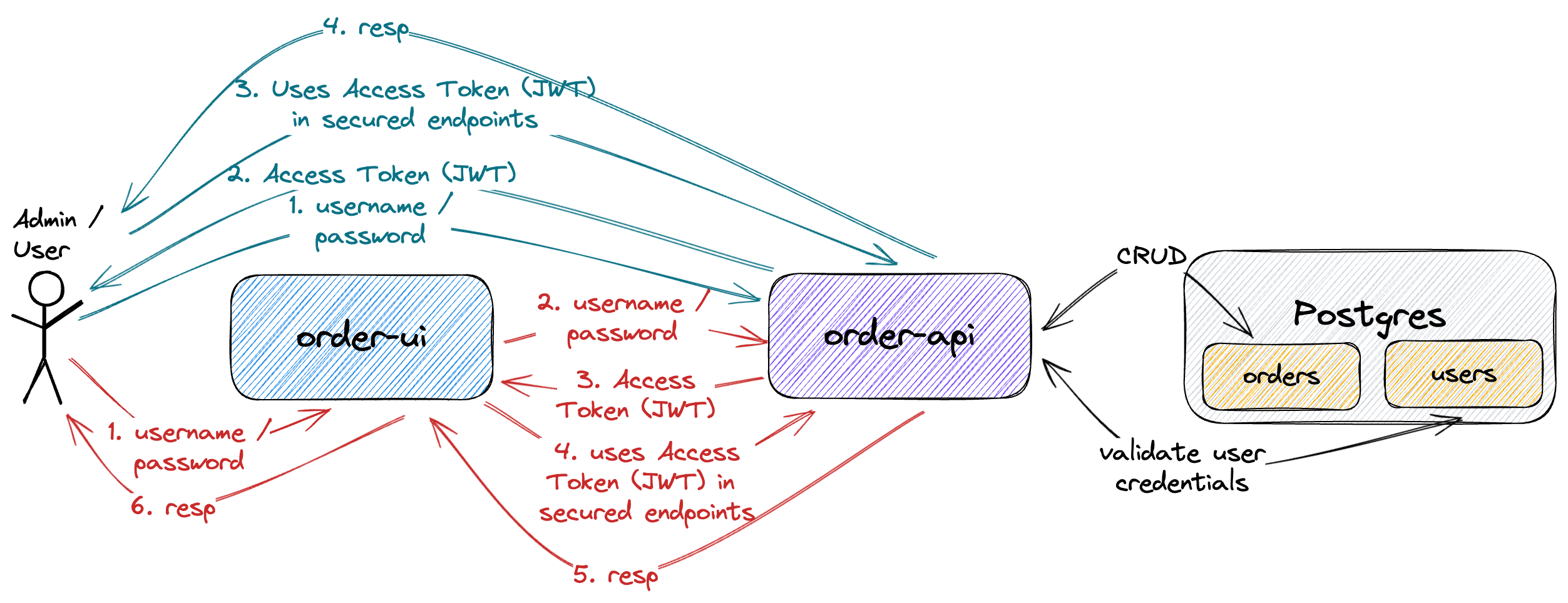
The goal of this project is to implement an application called order-app to manage orders. For it, we will implement a back-end Spring Boot application called order-api and a front-end React application called order-ui. Besides, we will use JWT Authentication to secure both applications.
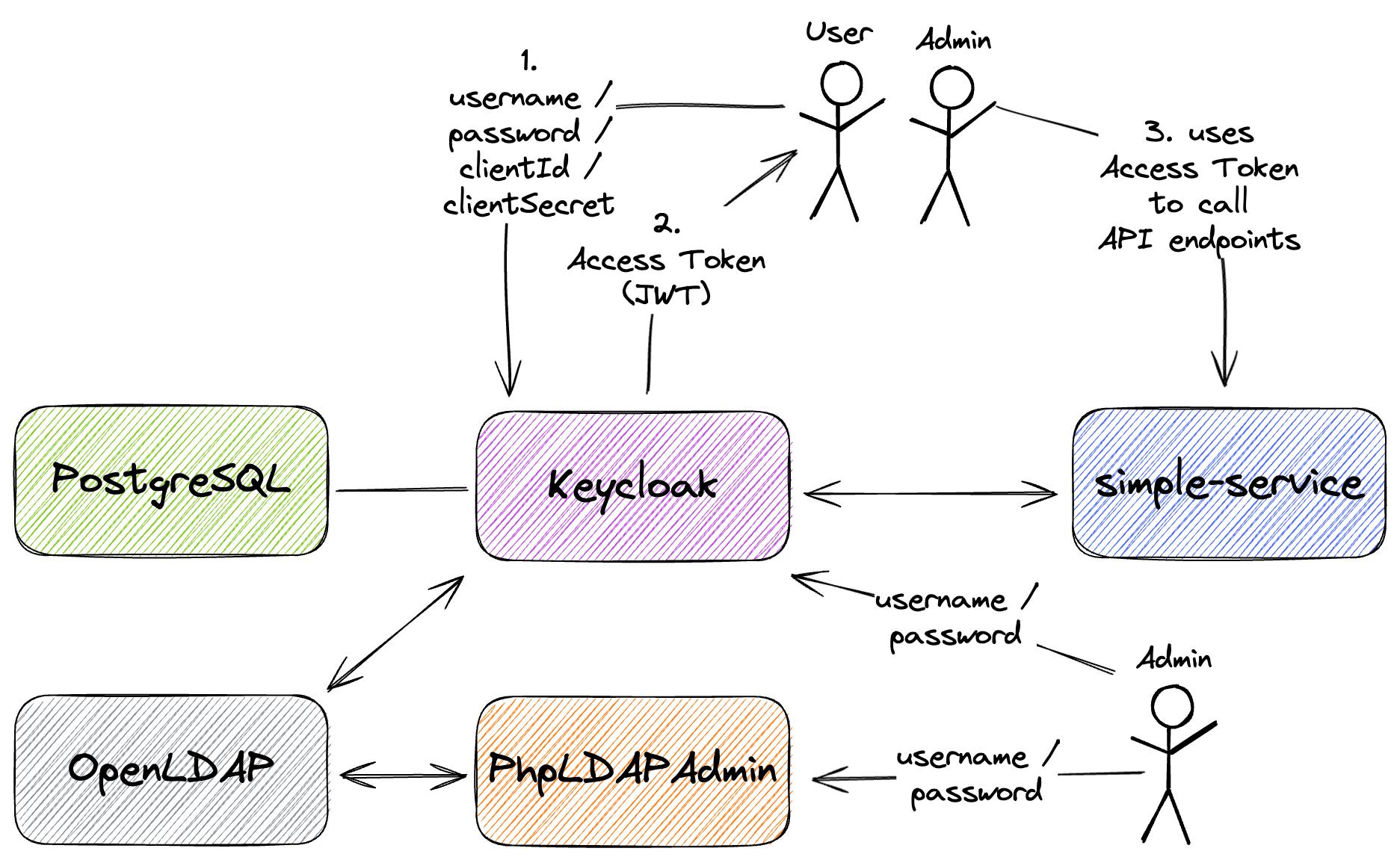
The goal of this project is to create a simple Spring Boot REST API, called simple-service, and secure it with Keycloak. Furthermore, the API users will be loaded into Keycloak from OpenLDAP server.
The goal of this project is to compare some Java Microservice Frameworks like: Quarkus, Micronaut and Spring Boot. For it, we will implement applications using those frameworks, build their JVM and Native Docker images and measure start-up times, memory footprint, etc.