
SpectaDockPin
Keeps the macOS Dock pinned to one display on multi-monitor Macs — drops only the pointer events that summon it.
- 0
- MIT
- 5 wk ago
Repo kennss/SpectaDockPin, read from GitHub 9 h ago. kennss has not joined Take My Repo.
In short
kennss/SpectaDockPin is a public repo on GitHub by kennss. Keeps the macOS Dock pinned to one display on multi-monitor Macs — drops only the pointer events that summon it. It declares the MIT license on GitHub. It is written mainly in Swift, has 0 stars and last changed on 2026-10-18. Nobody has reviewed it on Take My Repo yet, which says nothing about its quality. Read from GitHub on 2026-11-25.
SpectaDockPin
On a Mac with more than one display, the Dock follows your pointer: rest it at the bottom of another screen for a moment and the Dock jumps there. SpectaDockPin keeps the Dock on the display you choose. It stops only the pointer events that summon the Dock, and if the Dock still ends up elsewhere, it brings it back. A small menu-bar app from Calida Lab's Specta family.
Download
⬇ Download the latest DMG. Open it and drag SpectaDockPin to Applications. It is signed with a Developer ID and notarized by Apple, and it updates itself (Check for Updates… in its menu).
On first launch SpectaDockPin asks for the one permission it needs: the privacy setting that lets an app control the pointer (Accessibility; macOS 27 calls it Device Control and Data Access). Turn SpectaDockPin on there. The Dock is guarded as soon as you do.
Quit SpectaDockPin before you turn that permission off. There are unresolved reports (macOS 15 through 27) that switching the permission off while an app's event tap is running can freeze all mouse and keyboard input until a restart.
Why SpectaDockPin?
I work on three displays, and the Dock kept wandering off to whichever one I had just used. Every time I left the pointer near the bottom of a side screen, the Dock was gone from where I expected it. Turning off "Displays have separate Spaces" fixes it, but it also takes the menu bar and full-screen apps away from the other screens.
The open-source pinning apps I tried each fell short. The best of them let the Dock through while dragging a file, and blocked a 10-pixel strip that killed hover along the bottom edge. It also moved the cursor on every wake without checking whether the Dock had actually come back. Another mixed up coordinate systems and blocked the wrong place on stacked displays. A third stopped working for good once macOS switched its event tap off.
So I first measured how the Dock really decides to move. Then I built the smallest thing that stops it.
All the measurements are written down in Docs/DESIGN.md (Korean).
How it works
- Only the last row. The Dock moves to another display only after about 0.4 s of pointer events on that display's very last 1-point row. SpectaDockPin drops exactly those events, both moves and drags, and nothing else. Clicks, hover a pixel higher, hot corners and every other edge keep working.
- Checks, then fixes. The Dock can still land elsewhere: after sleep, when displays change, or while the app wasn't running. SpectaDockPin reads where the Dock actually is. Only when the screen is unlocked, no button is down and you aren't moving the mouse, it brings the Dock back by moving the pointer down onto the pinned display's bottom edge. Then it returns the pointer and confirms the Dock arrived. If the Dock still won't move after a few tries, the menu says so.
- Hold Option to move it on purpose. Hold Option while pushing against the bottom edge and the Dock is let through. SpectaDockPin leaves it there until you choose Move Dock Back Now.
- Nothing else. It never reads the keyboard and collects nothing. The only network traffic is the update check.
The menu
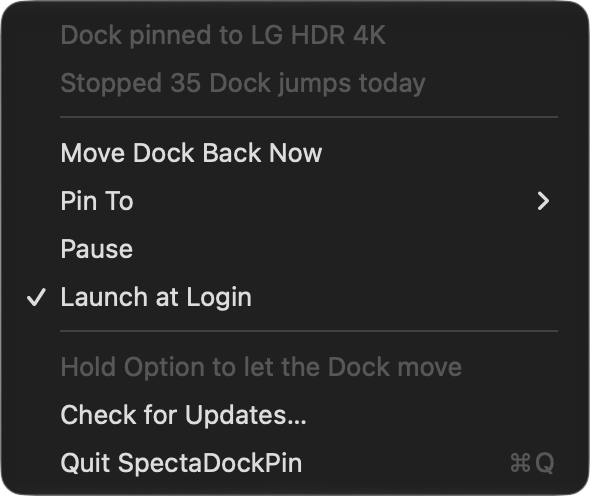
- Pin To: the main display (the default; it follows whichever display is main) or any connected display. A chosen display that is unplugged is remembered, and the main display stands in until it returns.
- Move Dock Back Now, Pause, Launch at Login (off until you turn it on), Check for Updates….
- The status line says why it is resting when it is: only one display, the Dock on the left or right, "Displays have separate Spaces" off, or the permission missing.
Requirements and limits
- macOS 14 or later. Developed and measured on macOS 27 on Apple Silicon with three displays.
- The Dock at the bottom of the screen, and "Displays have separate Spaces" on (otherwise macOS keeps the Dock on the main display by itself).
- It relies on how the Dock behaves today, which Apple does not document.
tools/DockProbere-runs the measurements after a macOS update. If SpectaDockPin can't find the Dock, it pauses instead of guessing.
Build from source
brew install xcodegen
xcodegen generate                    # creates SpectaDockPin.xcodeproj (not checked in)
xcodebuild -scheme SpectaDockPin -destination 'platform=macOS' test
open SpectaDockPin.xcodeproj
Set DEVELOPMENT_TEAM in project.yml to your own team first. Run a development build from /Applications,
signed with the same certificate every time. Otherwise the
permission is lost on each rebuild. scripts/release.sh builds the signed, notarized DMG and the Sparkle
appcast. tools/DockProbe (xcrun swift build) is the command-line tool behind the measurements in the
design document. tools/AppIcon/make_icon.swift draws the icon.
License
MIT © 2026 Kennt Kim (Calida Lab)
Questions
What is SpectaDockPin?
kennss/SpectaDockPin is a public repo on GitHub by kennss. Keeps the macOS Dock pinned to one display on multi-monitor Macs — drops only the pointer events that summon it.
Is SpectaDockPin open source?
It declares the MIT license on GitHub.
Does SpectaDockPin run on macOS, Windows or Linux?
Its maker tagged it for macOS. That is declared by the maker; Take My Repo has not tested it.
How do I install SpectaDockPin?
Open "Take it" on its page: Take My Repo writes an install plan for your machine and hands it to your AI agent (Claude Code, Codex or Cursor), which asks you before each step. Take My Repo has not tested it on any machine.