
eufy-mega-security
Event-first Eufy camera gateway and Home Assistant integration
- 54
- TypeScript
- MIT
- 9 h ago
A tool to help upload sets of posters from ThePosterDB and MediUX to your Plex server in seconds!
Repo mscodemonkey/artwork-uploader-plex, read from GitHub 2 h ago. mscodemonkey has not joined Take My Repo.
mscodemonkey/artwork-uploader-plex is a public repo on GitHub by mscodemonkey. A tool to help upload sets of posters from ThePosterDB and MediUX to your Plex server in seconds! It declares no license on GitHub. Public does not mean open source: without a license, nobody is granted the right to reuse it. It is written mainly in Python, has 45 stars and last changed on 2026-11-22. Nobody has reviewed it on Take My Repo yet, which says nothing about its quality. Read from GitHub on 2026-11-22.
Upload poster sets from ThePosterDB and MediUX to your Plex server, or save them locally alongside your media files or to your Kometa asset directory, in seconds.
Artwork Uploader takes a poster set URL (or a downloaded Zip file) from ThePosterDB or MediUX and applies the artwork to the matching movies, shows, seasons, episodes and collections in your Plex libraries. Alternatively, it can save the assets locally alongside your media files following the Plex local assets convention or to a Kometa asset directory for processing, overlaying and applying by Kometa. Run it from the web UI, the command line, or on a schedule, and let it keep your libraries beautiful while you sleep.
It started life as a fork of Brian Brown's plex-poster-set-helper and has grown into a full application with a web UI, a scheduler, artwork tracking, Sonarr/Radarr webhooks, support for Plex local media assets and Kometa integration.
Artwork sources
Speed
Control
--exclude s02, --exclude s01e05).Automation
Local Assets
Some users like to keep offline copies of their custom artwork. Artwork Uploader for Plex supports two distinct ways to do this:
There's a ready-to-run image on the GitHub Container Registry. Create a folder for the app, drop this in as docker-compose.yml (or download and rename docker-compose.example.yml), and customise your time zone and paths:
services:
  artwork_uploader:
    image: ghcr.io/mscodemonkey/artwork-uploader:latest
    container_name: artwork-uploader
    ports:
      - "4567:4567"
    volumes:
      # REQUIRED: The following bind mounts are required for general operation
      - ./bulk_imports:/artwork-uploader/bulk_imports:rw
      - ./config:/artwork-uploader/config:rw
      - ./logs:/artwork-uploader/logs:rw

      # OPTIONAL: Media paths (required for Plex local media assets mode)
      # Artwork Uploader must have access to all media folders assigned to Plex libraries
      # where local assets would potentially need to be saved. The host paths must be the
      # actual paths at the host level, and the container path names are arbitrary, but they
      # will be used if path mappings need to be defined.

      # If Plex is also running as a container, use the same container paths here to
      # avoid having to define path mappings
      - <HOST_PATH_TO_MEDIA_FOLDER_1>:/media/movies1:rw
      - <HOST_PATH_TO_MEDIA_FOLDER_2>:/media/movies2:rw
      - <HOST_PATH_TO_MEDIA_FOLDER_3>:/media/tv1:rw
      - <HOST_PATH_TO_MEDIA_FOLDER_4>:/media/tv2:rw
      - ...
      # Add as many bind mounts as root folders for media libraries you have in Plex

      # OPTIONAL: Kometa settings
      - <HOST_PATH_TO_KOMETA_ASSET_DIRECTORY>:/assets:rw # Required to save assets to your Kometa asset directory
      - <HOST_TEMP_PATH>:/temp:rw # Optional, only for testing with a temp dir
      - <HOST_PATH_TO_KOMETA_CONFIF_FILE>:/kometa_config:rw # Required for automatic Kometa updates when assets are downloaded or updated
      - /var/run/docker.sock:/var/run/docker.sock:ro # Required for automatic Kometa updates when assets are downloaded or updated
    environment:
      - TZ=Europe/London
      - RUNNING_IN_DOCKER=1
      - DOCKER_HOST=tcp://socket-proxy:2375 # Optional, if using a socket proxy instead of mounting the docker socket directly
    restart: unless-stopped

  # OPTIONAL: Only for Kometa auto-run (comment out or remove this entire section if not needed)
  # If instead of mounting the socket proxy directly in the container
  # you'd rather use a socket proxy, you can include one inside the container
  # or use one you already have deployed (in which case you'll have to change the DOCKER_HOST
  # environment variable with the appropriate URL). The socket proxy requires POST permission
  # to execute 'docker exec' commands and initiate the targeted Kometa runs
  socket-proxy:
    image: lscr.io/linuxserver/socket-proxy:latest
    container_name: socket-proxy
    environment:
      - CONTAINERS=1
      - EXEC=1
      - POST=1 # Required because docker exec sends HTTP POST requests to create/start the exec instance
    volumes:
      - /var/run/docker.sock:/var/run/docker.sock:ro
Then:
docker compose up -d
Open http://your_ip_address:4567 in a browser and you're ready to rock and roll!
You'll need Python 3.12 or later.
# Clone the repository (or download and extract the Zip)
git clone https://github.com/mscodemonkey/artwork-uploader-plex.git
cd artwork-uploader-plex

# Create and activate a virtual environment (recommended)
python3 -m venv .venv
source .venv/bin/activate  # macOS/Linux
# .venv\Scripts\activate   # Windows

# Install the dependencies
pip install -r requirements.txt

# Run it
python artwork_uploader.py
With no arguments, Artwork Uploader starts a web server on port 4567. You can customize the port number with the --port <port-numer> argument. If you get dependency errors, you're probably not using the virtual environment. See Troubleshooting.
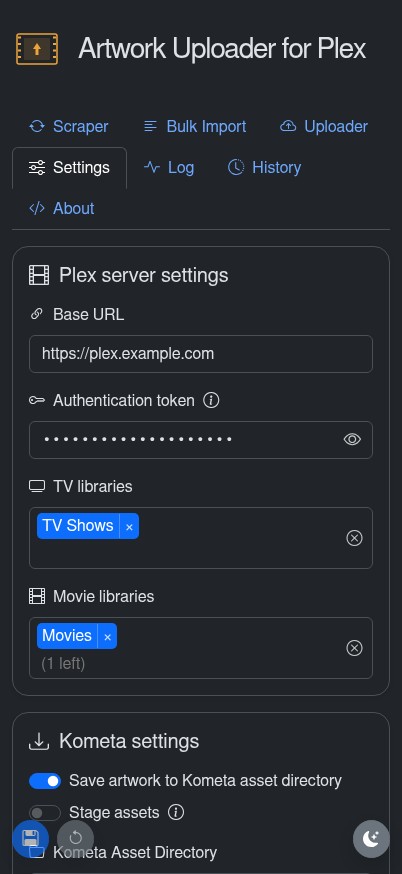
Everything is configured from the Settings tab in the web UI. On first run, point it at your Plex server and pick your libraries, and you're away. Behind the scenes the settings live in config/config.json (created on first run, with keys matching the names below), so you can also edit them in a text editor if that's more your thing.
http://12.34.56.78:32400, or https://myplex.example.com if it's behind a reverse proxy like Nginx or Caddy.Per provider, tick the artwork types you want uploaded by default: show covers, season covers, title cards, movie posters, backgrounds, square art and collection posters. ThePosterDB doesn't provide title cards, backgrounds or square art, so those only appear under MediUX. Anything unticked is skipped unless you ask for it per URL, with --filters on the command line or in a bulk file, or with the checkboxes in the scraper tab.
A note on square art: MediUX supports per-season square art for TV shows, but Plex only supports one square art asset at the show level, so the first one processed wins. When saving to the Kometa asset directory, the first is saved as square.ext and the rest as square_alt_#.ext, so you can rename an alternative into place.
0 turns catch-up off.--temp option or the corresponding web UI toggle.Artwork Uploader for Plex support two forms of autentication, and you can enable either type or both (or none, although we highly recommend enabling authentication if you plan to access the server from the outside world through a reverse proxy).
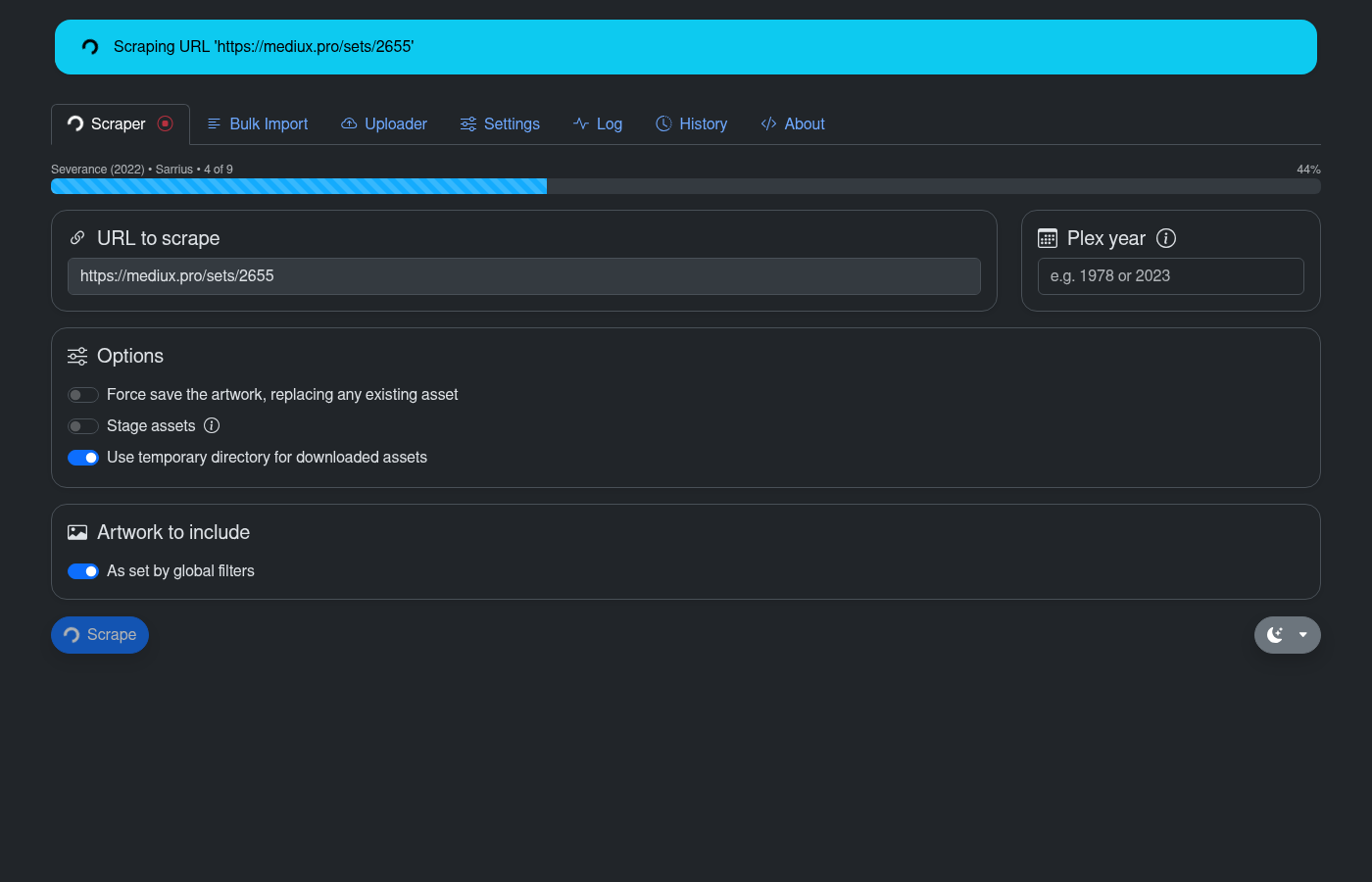
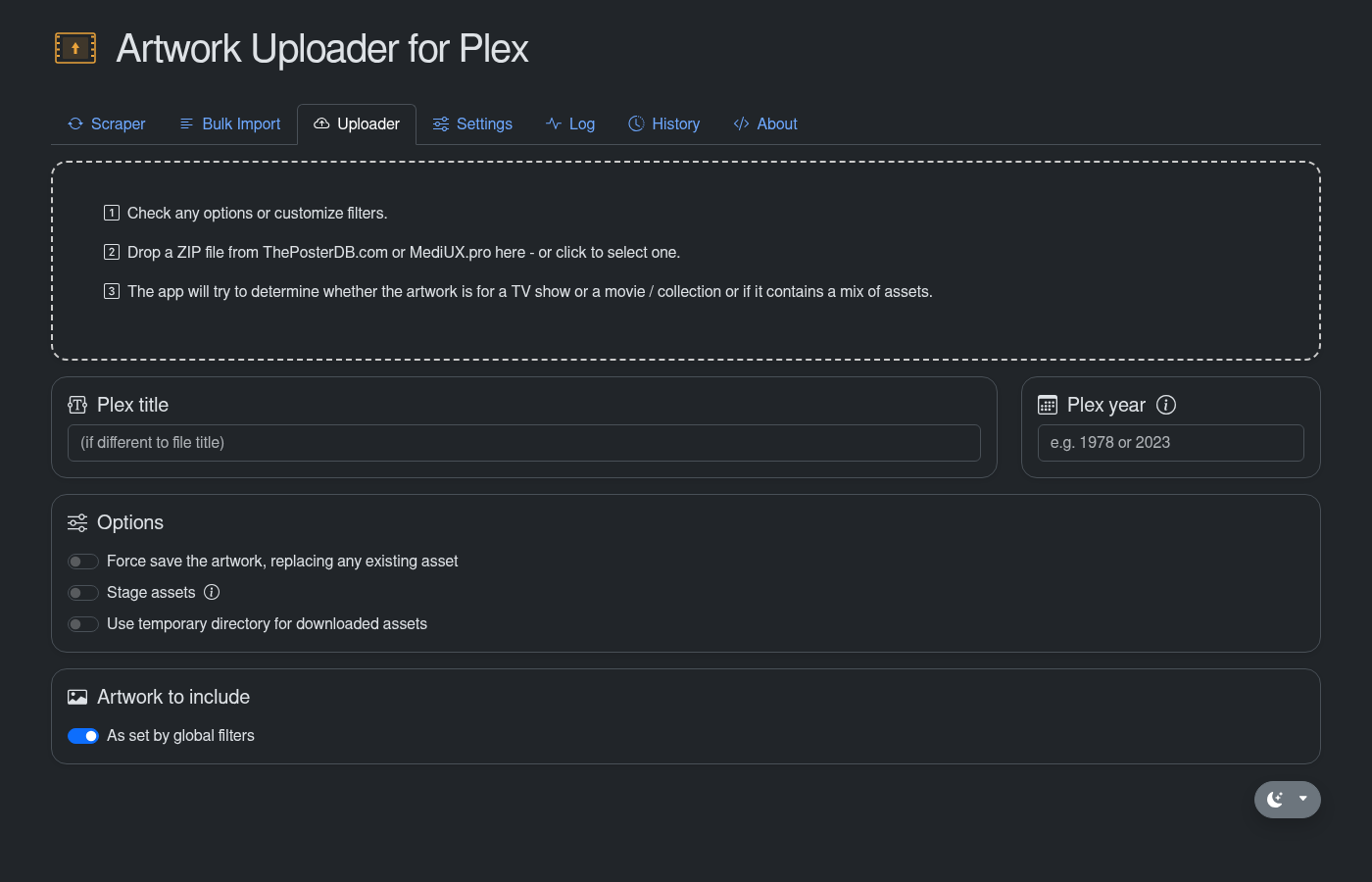
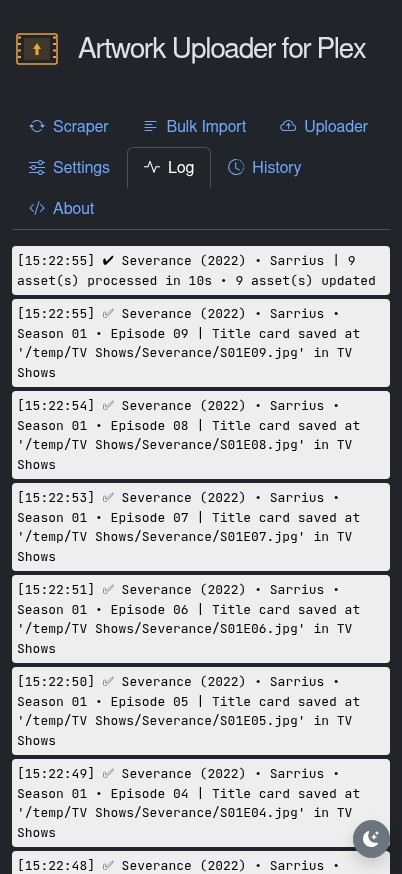
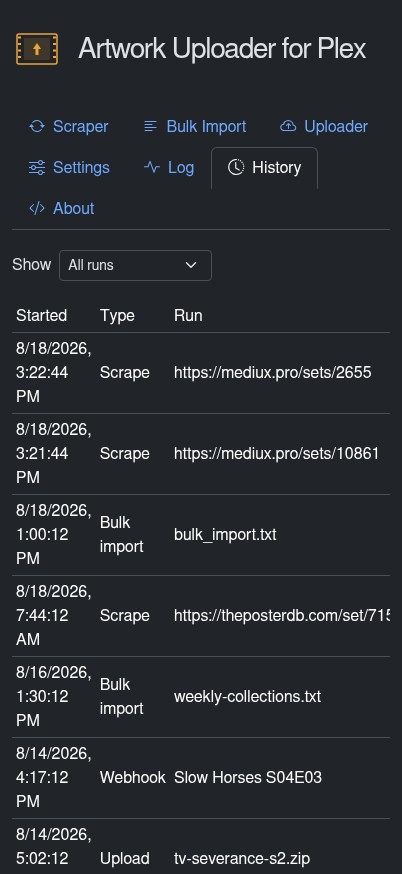
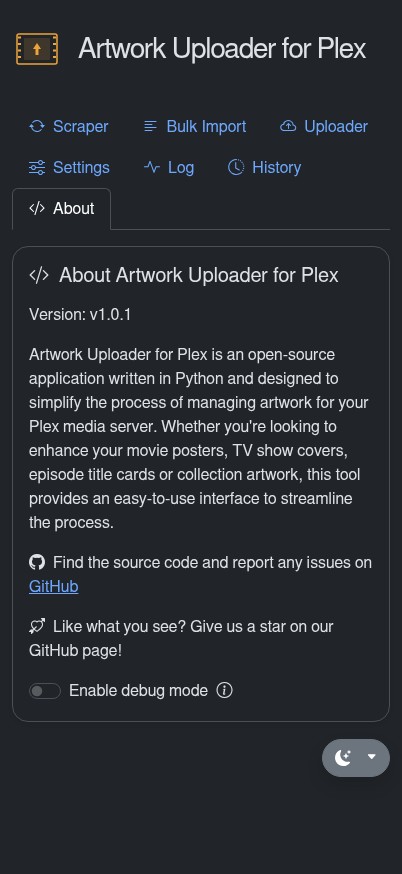
The web UI is a full interface for the app: configure any setting, launch scrapes, run bulk imports, upload Zip files, consult the run history and view the live log or the archived persistent per-run logs. It supports multiple browser instances against the same server, keeps every instance updated on the state of a running operation, guards against launching two scrapes at once, and lets you cancel an operation that's taking too long. There's a debug mode too, in case you run into issues and want to open a GitHub issue for our inspection.
It's fully responsive, so it works just as well from your phone. See Screenshots.
Point it at a single set or boxset:
python artwork_uploader.py https://mediux.pro/sets/9242

# Or a boxset (a collection of multiple sets)
python artwork_uploader.py https://mediux.pro/boxsets/1153
Depending on your environment you may need python3 instead of python.
--add-sets also parses any additional sets on the page (ThePosterDB).
--add-posters also parses the additional posters section of the set (ThePosterDB).
--force forces artwork to be updated even if it's the same as what's on Plex already. Or maybe you changed the artwork manually and want to override it...
--skip-locked skips any artwork whose target field is locked in Plex, unless --force is also used. Same as the Skip locked artwork setting, but per URL.
--allow-artist-updates lets a run replace artwork it applied earlier when the same artist has posted a newer version. Same as the Allow artist updates setting, but per URL, and needs the same settings on to take effect.
--exclude <id1> [<id2> <id3> ...] excludes the poster or artwork with the given ID. Grab the ID from the session log: ThePosterDB IDs are numbers, MediUX IDs are UUIDs. For TV shows you can also exclude specific episodes or whole seasons, and mix them with artwork IDs:
--exclude s01e05 excludes the title card for season 1 episode 5--exclude s1e5 is the same (both formats work)--exclude s02 excludes the season cover and every episode title card for season 2--exclude s00e01 s02 excludes specials episode 1 and all of season 2--filters <filter1> [<filter2> ...] uploads only the listed artwork types: show_cover, background, square_art, season_cover, title_card, movie_poster, collection_poster.
--year <year> overrides the year to look for in Plex. Sometimes the year on MediUX or ThePosterDB doesn't match the year in Plex, so the artwork won't apply. Ignored in bulk mode, where you specify it per line.
--kometa saves artwork to your Kometa asset directory instead of applying it to Plex. Not needed if Save artwork to Kometa asset directory is on. Existing assets in the directory are not overwritten unless --force is also given.
--temp saves artwork to the temporary directory (Temp Directory in settings) instead of the Kometa asset directory, for testing.
--stage, together with --kometa (or the Kometa setting), downloads assets for TV seasons and episodes not yet in Plex. Not needed if Stage assets is on. Does not apply to the Specials season (Season 0).
--no-cache crawls every page of a ThePosterDB user this run, ignoring the cached index (the index is still refreshed). Handy for forcing a full refresh of one user when Cache ThePosterDB user pages is on.
--port <port-number> customizes the port number the web app listens at if no other arguments are specified.
All of these options also work in the web UI's scraper tab and in bulk files: just add them after the URL, e.g.
https://theposterdb.com/set/71510 --add-posters --force
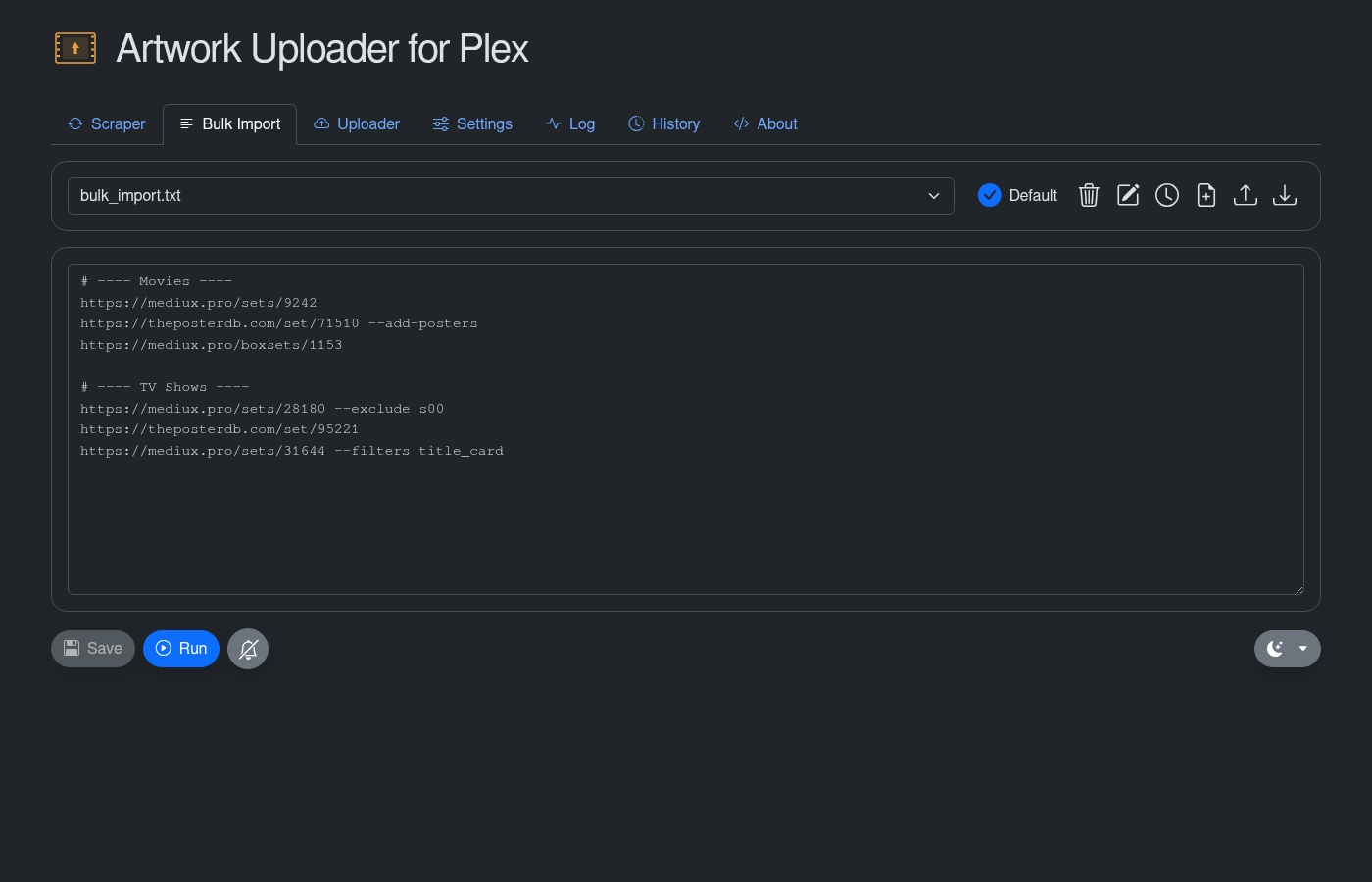
Import multiple links from a .txt file with the bulk argument:
python artwork_uploader.py bulk bulk_import.txt
# or // are ignored as comments.The scheduler lets you leave the app running and keep your artwork up to date automatically. On the bulk imports page, click the clock to add, edit or remove schedules for the open file. A file can carry more than one schedule, and each one either runs daily at a fixed time or repeats every N hours or days, so a large nightly run and a smaller twice-a-day one can share the same list. Tick Run now when creating an interval schedule and the first run happens within a couple of minutes instead of waiting a full interval. Interval schedules keep their anchor across an app restart, so the next run stays when it was already due, and runs missed while the app was down are caught up on startup, within the Missed run catch-up window.
Every bulk import run lands in the History tab, whether it was scheduled, started from the web UI or run from the command line: when it ran, what it processed, and how it ended (completed, completed with errors, failed, skipped or cancelled).
A few settings make scheduled runs much more pleasant:
You can also configure push notifications for scheduled runs through Apprise. Each channel is switched on or off per event from the web UI: a run completing cleanly, completing with errors, failing to start, being skipped, or being cancelled. New channels default to the two completion events; opt each channel in to the noisier ones yourself. Manual runs stay silent unless you turn on the "Notify" toggle before starting one. Scheduled runs always attempt to notify, subject to each channel's event selection.
With Cache ThePosterDB user pages on, the app already knows every poster your favourite users have uploaded, so it can apply the right artwork within about a minute of Sonarr or Radarr importing something, instead of waiting for the next scheduled run.
Turn on Enable Sonarr/Radarr webhook, set a Webhook token, and list the ThePosterDB users to apply from (in order of preference) under Webhook settings. Then add a webhook connection in each app:
http://<artwork-uploader-host>:<port-number>/webhook/radarr (or /webhook/sonarr), method POST. Tick the "On File Import" and "On File Upgrade" triggers, and no others. An upgrade replaces the file, and without that trigger the new copy can come up in Plex on the stock poster. Send the token as the connection's password, or as a header: click the Advanced (cog) button and add a header with key X-Webhook-Token and the token as the value. The Test button is acknowledged so you can save the connection.On an import, the title is looked up in the cached index. If one of your configured users covers it, that single poster (plus season covers for the imported seasons on TV items) is applied through the same processing path as a normal scrape, so artwork labels, locked-artwork skips and Kometa asset mode all behave the same. Imports can reach the webhook before Plex has scanned the new file, so the apply retries for a few minutes, then leaves it to the next scheduled run. Ambiguous title matches (same-name remakes, for example) are skipped rather than guessed, and nothing is applied when no configured user has the title. Radarr says which file it imported, and the poster is applied to the Plex item holding that file. So an edition kept in its own folder (Alien (1979) {edition-35mm Film Scan} beside Alien (1979)) is never mistaken for the plain release, or the other way round. On an upgrade, the item holding the old file is left alone and the apply waits for Plex to scan the new one in. Paths are compared from the movie's folder down, so Radarr and Plex can mount the library at different roots. The endpoints return 404 while the webhook is off.
Some users prefer to keep offline copies of their custom Plex artwork in order to have a backup for faster recovery in case of disaster. Artwork Uploader for Plex supports two distinct and mutually exclusive ways to save assets locally:
Turn on Save to Kometa asset directory and artwork is saved to Kometa's asset directory following Kometa's asset naming and directory structure convention instead of being applied to Plex. Whenever Kometa runs next, it applies all new or updated artwork with its overlays. Set Kometa Asset Directory to your base asset directory. You can optionally specify a Temp Directory for test runs.
Kometa asset directory mode assumes:
asset_folders is true in Kometa's config.yml, so each show or movie has its own folderassets_for_all is true in each libraryassets_for_all_collections is true in each library, if you want collection assets managedcreate_asset_folders is truelibraries: # This is called out once within the config.yml file
Movies: # These are names of libraries in your Plex
settings:
asset_directory:
- config/assets/Movies
create_asset_folders: true
operations:
assets_for_all: true
assets_for_all_collections: true
[...]
TV Shows:
settings:
asset_directory:
- config/assets/TV Shows
create_asset_folders: true
operations:
assets_for_all: true
assets_for_all_collections: true
[...]
settings:
[...]
asset_directory:
- config/assets
asset_folders: true
asset_depth: 2
create_asset_folders: true
[...]
  path/to/base/asset/directory
  ├── Movies                         # This folder name must match the library name in Kometa's config.yml as seen above
  │   ├── Death in Venice (1971)
  │   │   ├── poster.jpg
  │   │   └── background.jpg
  │   ├── Die Another Day (2002)
  │   │   ├── poster.jpg
  │   │   └── square.png
  │   ├── Spy Kids Collection
  ·   ·   ├── poster.jpg
  ·   ·   └── background.png
  │   └── The Amazing Spider-Man (2012)
  │       └── background.jpg
  ├── Movies 4K
  │   ├── 10 Cloverfield Lane (2016)
  │   │   ├── poster.jpg
  │   │   └── background.png
  │   ├── 28 Weeks Later (2007)
  │   │   └── poster.png
  ·   ·
  ·   ·
  │   └── Zootopia (2016)
  │       └── poster.jpg
  ├── TV Shows
  │   ├── Ted Lasso (2020) {tmdb-97546}
  │   │   ├── poster.png
  │   │   ├── square.webp
  │   │   ├── Season01.jpg
  │   │   ├── Season02.jpg
  │   │   ├── Season03.jpg
  │   │   ├── S01E01.jpg
  │   │   ├── S01E02.jpg
  │   ·   ·
  │   ·   ·
  │   │   └── S03E12.jpg
  ·   ·
  ·   ·
  │   └── Alien - Earth
  │       ├── poster.jpg
  │   │   ├── square.jpeg
  │       └── background.png
  └── TV Shows 4K
      ├── Foundation (2021)
      │   ├── poster.png
      │   ├── Season01.jpg
      │   ├── Season02.jpg
      ·   ├── Season03.jpg
      ·   └── background.png
      │
      └── Tales From The Loop
          ├── poster.png
          └── background.png
Turn on Run Kometa on new or updated assets if you'd rather not wait for the next Kometa scheduled run for your shiny new assets to be applied to your Plex server. With this setting, when a successful or partial run yields new or updated assets in your asset directory for one or more media items (movies, shows, seasons, episodes, collections), a custom Kometa config file targeting only the affected libraries will be crafted and Kometa will be invoked to run against only those media items that have received fresh artwork. This automatic Kometa run is supported across manual scrapes (both web and CLI) and bulk file operations, scheduled bulk file runs, ZIP uploads and webhook-triggered runs.
This requires Kometa 2.5.5 or above running as a Docker container in the same host system as Artwork Uploader. Kometa 2.5.5 adds support for targeted runs against specific Plex media items, including individual seasons or episodes. This avoids having to process entire libraries with potentially hundreds or thousands of seasons or episodes, which can take a long time, especially when using season or episode-level overlays. The targeted run will be crafted to update the artwork for affected media items alone, either directly (through a Kometa operations-only run) or with the necessary overlays baked in before applying (throuh a Kometa overlays-only run), completing in a matter of seconds.
Artwork Uploader must have read/write access to the folder where Kometa's main config.yml file is stored, and where it will store the bespoke, optimized temporary Kometa configuration file. The path to this folder must be provided via the kometa_config_path variable in config.json (or configured via web UI). A kometa_debounce timer (default 10 seconds) defines how long Artwork Uploader will wait after a run yields new or updated assets and before invoking Kometa in case a subsequent run yields additional assets, in which case they will all be processed together in a single operation.
Kometa asset directory mode supports asset staging. This allows Artwork Uploader to download assets for seasons or episodes not yet present in Plex, useful when a scheduled run happens before your automation has downloaded a new season or episode. This setting doesn't apply to the Specials season (Season 0).
Finally, if you're using the asset directory and are running Artwork Uploader as a Docker container, the app detects it (via the RUNNING_IN_DOCKER environment variable) and hardcodes the Kometa base directory to /assets, the temp directory to /temp and the Kometa config directory to /kometa_config. Map your real asset, temp and Kometa config folders to those paths in the container. Your real paths stay in config.json, so running the app outside the container still works too. Run Kometa on new or updated assets requires Artwork Uploader to be able to communicate with the Docker socket. This can be achieved by mounting it directly in the container or (more secure) through a Docker socket proxy. Check the Docker compose example for examples on how to configure both options. If the kometa_base path is not defined the option to enable Kometa asset directory will be disabled. Likewise, if the kometa_config path is not defined or Artwork Uploader can't communicate with the Docker socket the option to enabled Kometa auto-run will be disabled.
Turn on Save as Plex local media assets and artwork is saved to your media folders right next to your media files. This mode requires Artwork Uploader to have access to the same media folders as Plex. Depending on your environment, it may require configuring path mappings if Plex and Artwork Uploader see paths differently. In addition, if Artwork Uploder is running as a docker container, you must bind-mount all media folders to the container through the docker-compose.yml file. Check the provided Docker compose example for details.
In this mode, local media assets must be enabled on every library. Click on the three-dot menu of a media library and choose Manage Library > Edit. Click on Advanced, scroll down and check the Use local assets checkbox. Artwork Uploader will automatically refresh the media item so Plex picks up the new asset immediately after saving.
Local media asset mode does not support episode and season asset staging since the season folder or episode media file necessarily has to be present for Artwork Uploader to infer the correct file path and name for the locally saved asset.
You have a Plex server running natively on Windows with two libraries:
D:\Videos\MoviesE:\Media\MoviesF:\Media\TV ShowsArtwork Uploader is running as a docker container. In your docker-compose.yml file you must mount all of these root folders and assign them local container paths:
  - volumes:
    - D:/Videos/Movies:/media/movies_d:rw
    - E:/Media/Movies:/media/movies_e:rw
    - F:/Media/TV Shows:/media/tv_f:rw
Since Plex and Artwork Uploader will see fundamentally different paths to the same media file, path mappings must be defined. Path mappings can be defined via de web UI or through the config.json file in the following format:
{
  path_mappings: [
    {
      "plex_path": "D:\Videos\Movies",
      "app_path": "/media/movies_d"
    },
    {
      "plex_path": "E:/Media/Movies",
      "app_path": "/media/movies_e"
    },
    {
      "plex_path": "F:\Media\TV Shows",
      "app_path": "/media/tv_f"
    }
  ]
}
Note how the Windows paths can be specified with either back or forward slashes, Artwork Uploader will normalize them to avoid any problem. The container path names are arbitrary, you just have to ensure you use the same paths in the docker bind mounts and the path mappings' app-path fields.
When processing a poster for a movie whose location Plex reports as D:\Videos\Movies\22 Jump Street (2014) {imdb-tt2294449}\22 Jump Street (2014) {imdb-tt2294449} - [Remux-1080p][AAC 2.0][HLG][x265]-TURG.mkv, Artwork Uploader will translate the path as /media/movies_d/22 Jump Street (2014) {imdb-tt2294449} and will save the poster as /media/movies_d/22 Jump Street (2014) {imdb-tt2294449}/poster.jpg which through the docker bind mount will land exactly where Plex expects it at D:\Videos\Movies\22 Jump Street (2014) {imdb-tt2294449}\poster.jpg.
You have a Plex server running as a container in a Linux machine. You have three media locations:
/mnt/sda/media/movies/mnt/sdb/files/tv1/media/animeYour Plex server's compose file has the following bind mounts:
  - volumes:
    - /mnt/sda/media/movies:/media/movies:rw
    - /mnt/sdb/files/tv1:/media/tv_shows:rw
    - /media/anime:/media/anime:rw
Plex has three libraries:
/media/movies/media/tv_shows/media/animeArtwork Uploader is also running as a docker container. In your docker-compose.yml file you must mount all these root folders and assign them local container paths:
  - volumes:
    - /mnt/sda/media/movies:/media/movies:rw
    - /mnt/sdb/files/tv1:/media/tv_shows:rw
    - /media/tv:/media/tv_shows_2:rw
Since Plex and Artwork Uploader see the exact same paths to each media root folder, no path mappings are required. When Artwork Uploader processes title card for a TV show episode whose location Plex reports as /media/tv_shows/Ted Lasso (2020) {tmdb-97546}/Season 01/Ted Lasso (2020) - S01E06 [Bluray-2160p h265 HDR10PLUS DTS-ES 5.1]-BAE.mkv, it will save its corresponding title card as /media/tv_shows/Ted Lasso (2020) {tmdb-97546}/Season 01/Ted Lasso (2020) - S01E06 [Bluray-2160p h265 HDR10PLUS DTS-ES 5.1]-BAE.png which is exactly where Plex expects it.
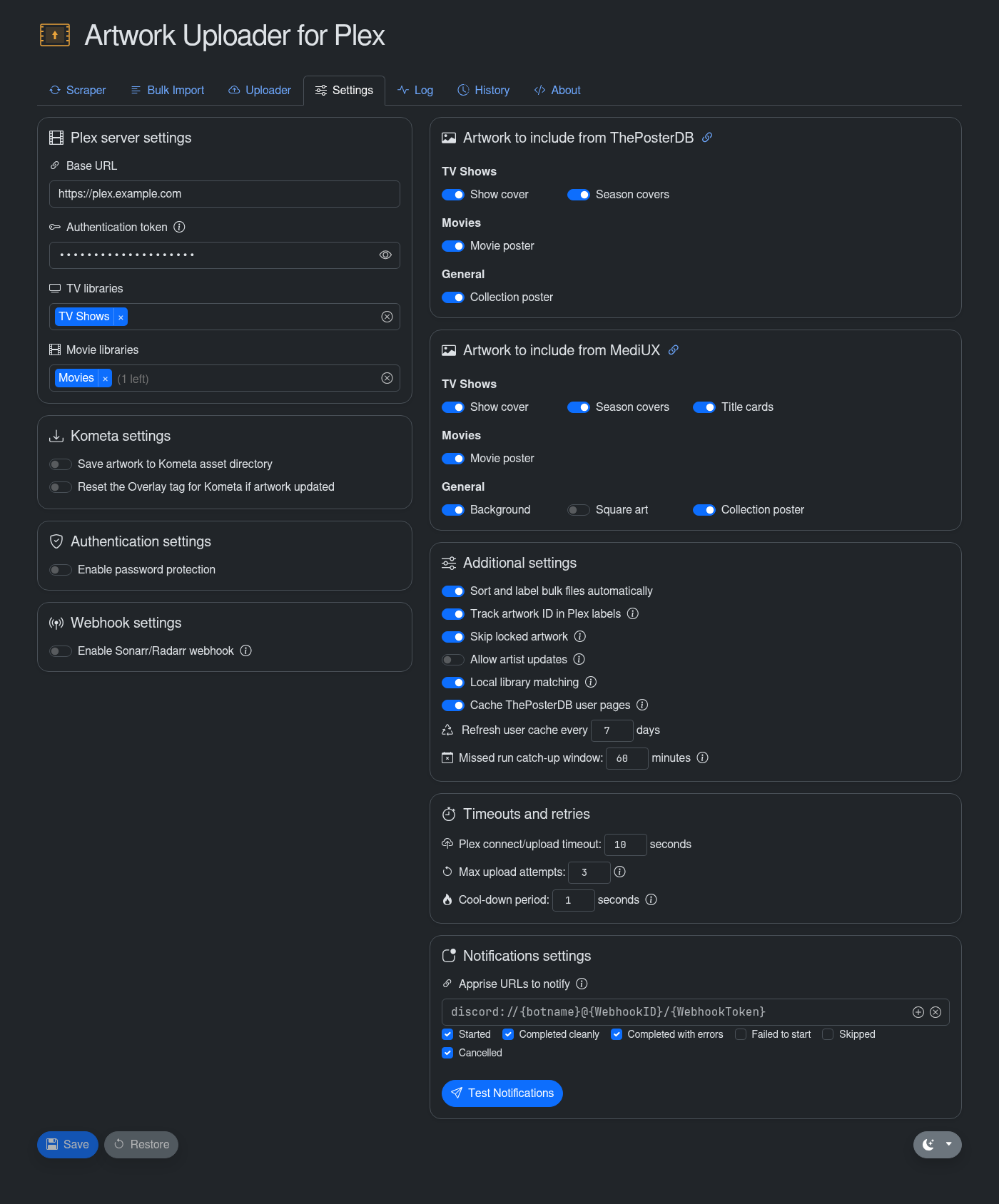
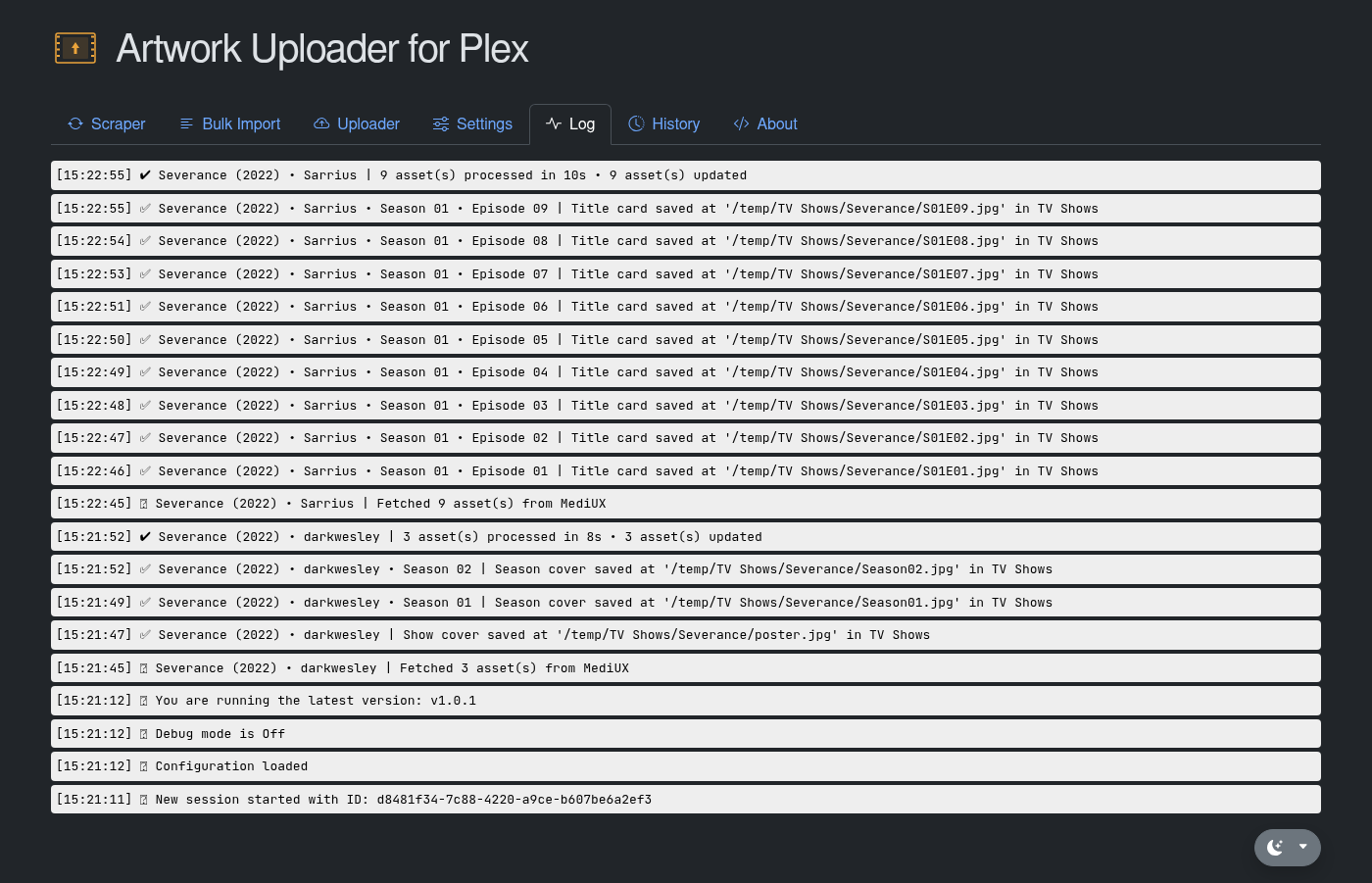
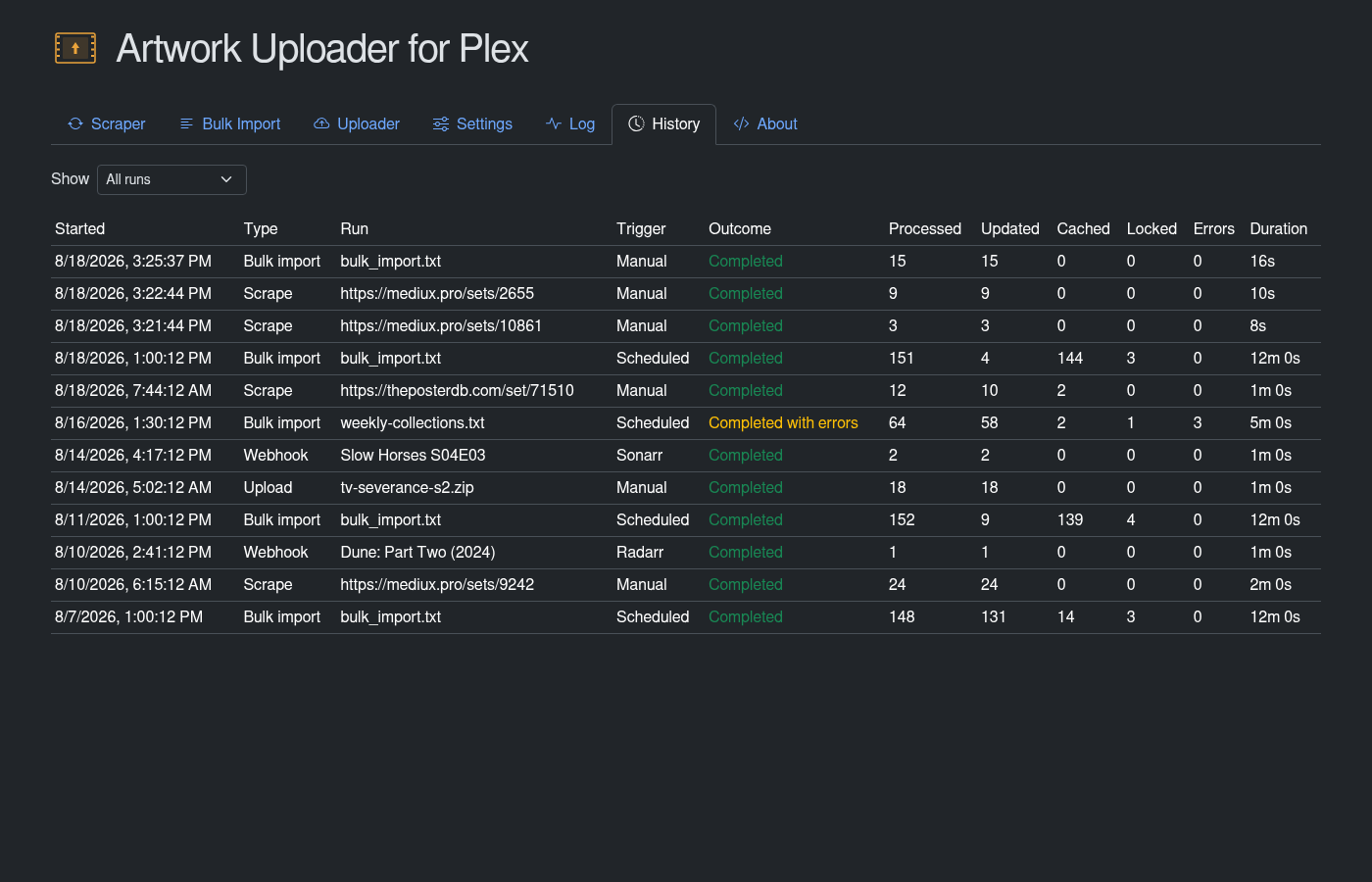
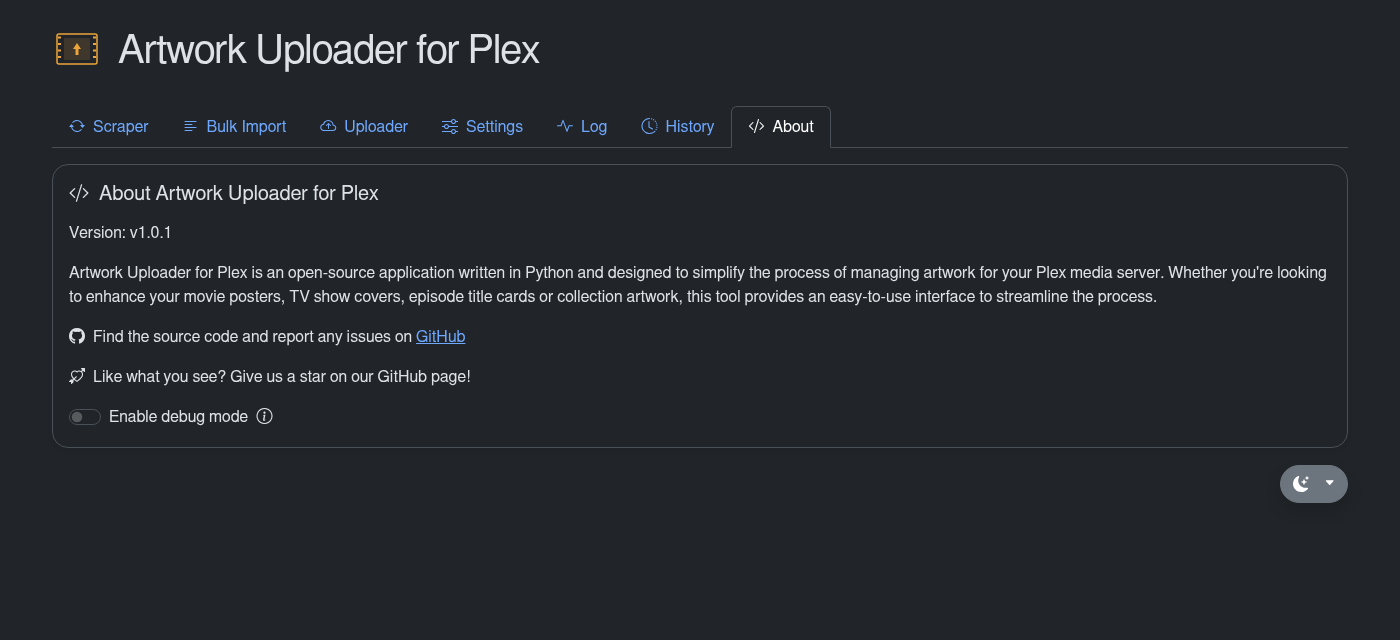
And a responsive mobile UI, perfected for using the app from your smartphone!
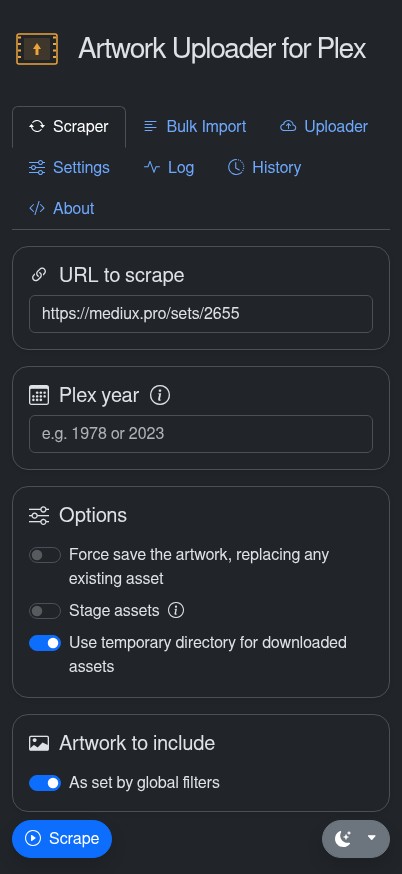
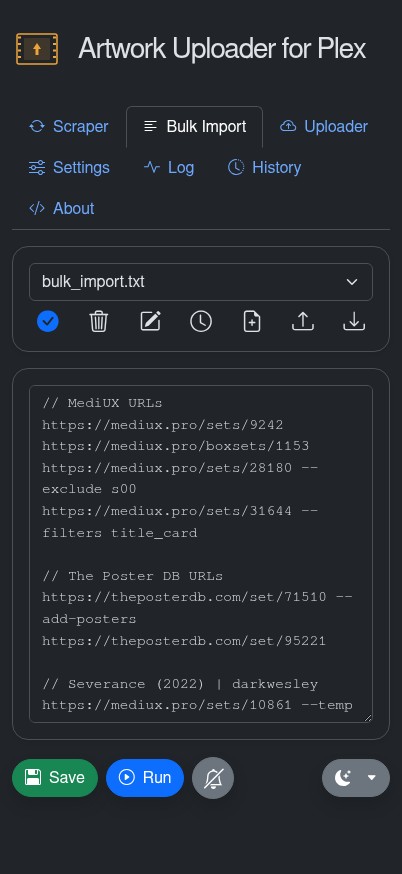
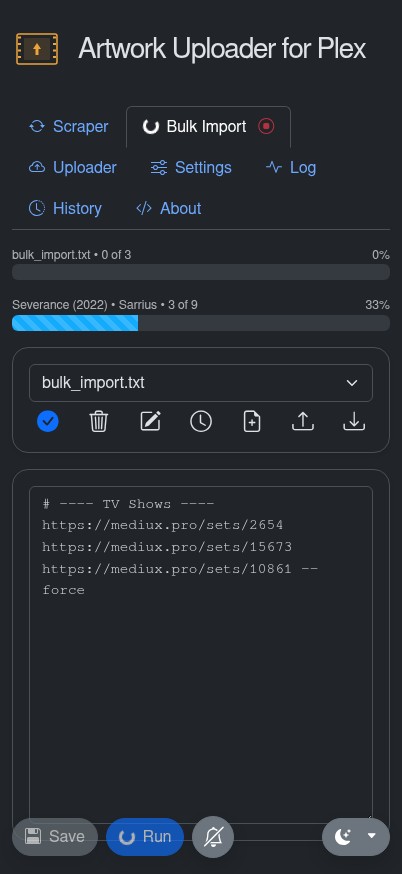
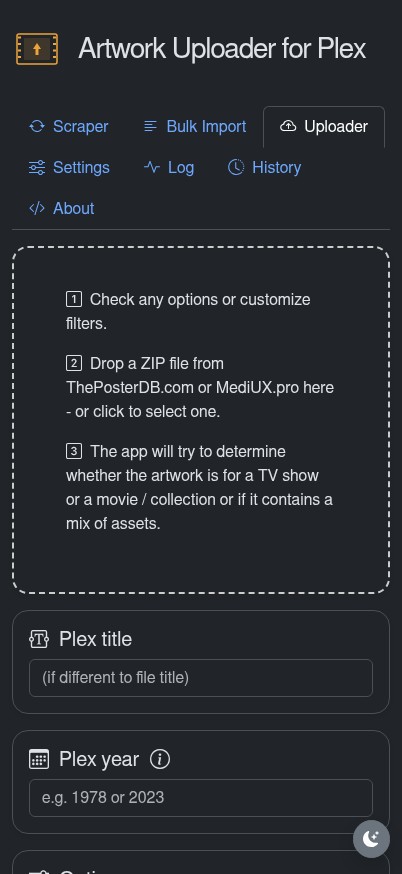
Python packages can't be imported. Common causes:
Requirements not installed
pip install -r requirements.txt
# or
python3 -m pip install -r requirements.txt
Wrong Python version. Artwork Uploader requires Python 3.12 or later:
python3 --version
Architecture mismatch (Apple Silicon Macs). If you're on an M-series Mac and see errors about "incompatible architecture (have 'x86_64', need 'arm64')", your packages were compiled for Intel. Reinstall them for ARM64:
pip3 uninstall Pillow Flask flask-socketio eventlet cffi cryptography -y
pip3 install Pillow Flask flask-socketio eventlet cffi cryptography
Not using the virtual environment. If you created a .venv but still get import errors, you're likely running system Python:
# Wrong - uses system Python ❌
python3 artwork_uploader.py

# Right - activate first, then run ✅
source .venv/bin/activate
python artwork_uploader.py

# Alternative - run directly from venv ✅
.venv/bin/python artwork_uploader.py
If you see the scheduler messages but can't access the web UI:
lsof -i :4567
# If something is using it, either kill it or change the port in docker-compose.yml or via the --port argument
http://localhost:4567, http://127.0.0.1:4567, http://0.0.0.0:4567.Errors like this in your logs:
127.0.0.1 - - [13/Oct/2025 12:21:30] code 400, message Bad request version ('\x16\x03\x01...')
This is completely normal and harmless! They're TLS/SSL handshake attempts: something (your browser, an extension, or a security tool) is trying to connect over HTTPS to the HTTP-only Flask server, and Flask correctly rejects it. If you want HTTPS, put a reverse proxy like Nginx or Caddy in front.
The app has a customizeable timeout for Plex connections and shows a clear error if it can't connect:
======================================================================
WARNING: Could not connect to Plex TV libraries
======================================================================
Cannot reach Plex server at http://192.168.1.4:32400. Please check
that the server is running and the address is correct.

The web UI will still start, but you won't be able to upload artwork
until you fix the Plex connection in Settings.
How to fix:
curl http://your-plex-ip:32400
# Should return some XML if Plex is accessible
config.json).The timeout can be customized under Additional Settings > Timeouts and Retries in the web UI or via the plex_connect_timeout key in config.json.
http://192.168.1.100:32400.--filters to only upload the artwork types you want.If you'd like to contribute or want to understand how it works under the hood, start with the Technical Information for Contributors: architecture overview, service layer documentation, how to add features, testing procedures and code style guidelines.
Artwork Uploader began as a fork of Brian Brown's (@bbrown430) plex-poster-set-helper - what a fantastic idea, and it's saved us a load of time!
mscodemonkey/artwork-uploader-plex is a public repo on GitHub by mscodemonkey. A tool to help upload sets of posters from ThePosterDB and MediUX to your Plex server in seconds!
It declares no license on GitHub. Public does not mean open source: without a license, nobody is granted the right to reuse it.
Its maker has not tagged a system, so it is unknown here. Its README says what it needs.
Open "Take it" on its page: Take My Repo writes an install plan for your machine and hands it to your AI agent (Claude Code, Codex or Cursor), which asks you before each step. Take My Repo has not tested it on any machine.
Its last change on GitHub was on 2026-11-22. Take My Repo does not judge from that whether it is maintained.
Event-first Eufy camera gateway and Home Assistant integration
Nobody has reviewed it on Take My Repo yet, which says nothing about its quality.
A voice interface to Overseerr, Jellyseerr and Ombi. Use Alexa, Google or Siri to download stuff!
Local-first and cloud fallback Gree air conditioner integration for Home Assistant
A community-driven distributed self-hosted poster art network.

