rea
Reverse engineer anything with agents, from app behavior down to native binaries.
- 478k
- TypeScript
- MIT
- 1 h ago
Runtime Forge CLI: inspect, install, update, and remove DirectX, VC++,.NET, Java, Python, Go, Rust,
Repo parth888/runtime-forge, read from GitHub 2 d ago. parth888 has not joined Take My Repo.
parth888/runtime-forge is a public repo on GitHub by parth888. Runtime Forge CLI: inspect, install, update, and remove DirectX, VC++,.NET, Java, Python, Go, Rust,. It declares the MIT license on GitHub. It is written mainly in Rust, has 153 stars and last changed on 2026-11-23. Nobody has reviewed it on Take My Repo yet, which says nothing about its quality. Read from GitHub on 2026-11-23.
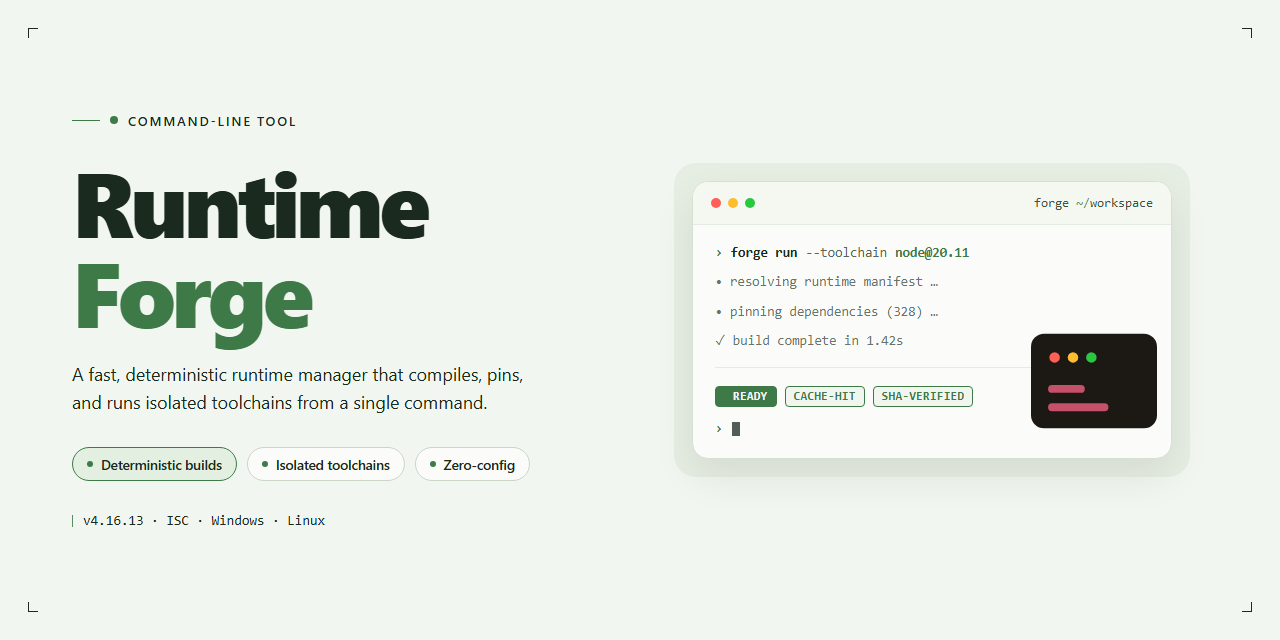
Runtime Forge is a command-line utility for inspecting and managing installed Windows runtimes and developer tooling. It reports what is already present, then installs, updates, or removes DirectX, Visual C++ redistributables,.NET, Java, Python, Go, Rust, Git, Node, Windows Terminal, and more than 60 additional components. Every download is verified by publisher signature and/or SHA-256 hash before execution, and operations that modify system state require administrator rights. Scope is deliberately narrow: Runtime Forge targets Windows only and does not attempt cross-platform package management, nor does it replace a general-purpose package manager for arbitrary software.
Inventory, not guesswork. runtime-forge list reports what is actually present for each supported component — DirectX, VC++ redistributables,.NET runtimes and SDKs, Java, Python, Go, Rust, Git, Node, Windows Terminal, and the rest of the 60+ catalog — by reading uninstall registry keys, filesystem markers, and Appx package state. Detection is per-component and machine-verified; a component whose detection cannot be confirmed is reported as unknown rather than absent.
Install, update, remove. Each catalog entry declares its own pipeline: a winget-backed install where a reviewed manifest exists, or a native download → verify → run_exe/run_msi path otherwise. Update checks compare the installed version against the current release metadata; removal uses the recorded uninstall command when one is safe to run. Not every component has all three operations — entries without a safe uninstall expose install and update only.
Integrity checks before execution. Every downloaded installer is verified twice: once on arrival and again immediately before it is launched. Verification requires either a valid Authenticode signature from the expected publisher via WinVerifyTrust, a SHA-256 matching the vendor's published digest or one pinned in source, or both. A failed check discards the staging file and is not retried. Packages routed through winget are checked by winget against its reviewed manifest hash.
Staging outside user-writable paths. Installer downloads are staged beside the executable, in an administrator-writable location only. No installer is ever executed from a user-writable directory.
PATH backups. Any operation that modifies PATH writes a timestamped backup of the previous value before the change, so a bad edit can be rolled back without reconstructing the environment by hand.
Optional components stay unchecked. Components marked optional are never pre-selected in an install run. Each entry carries a one-line note describing what it is for, so the selection step is a decision rather than a default.
Theme and interface. Dark and light themes are supported. The application is built on PyQt6.
Scope and limits. Runtime Forge targets Windows only. It manages the components in its own catalog; it is not a general-purpose package manager and will not resolve arbitrary packages by name. Version metadata is refreshed from a daily-updated local manifest, so a release published between refreshes is not visible until the next update. Components that require a reboot to complete are reported as such and are not silently restarted. There is no telemetry, and none is planned.
Runtime Forge is operated from a single entry point. Run the help output first to confirm the available commands and their argument order; the exact spelling of commands and flags is authoritative there and may change between versions.
The default invocation opens the GUI. Headless and scripted use go through the same binary with an explicit subcommand, so both paths share the catalog, the verification layer, and the logs.
Typical operations:
Component identifiers are the catalog keys shown by the list command. Passing an unknown key fails with a non-zero exit code rather than guessing at a near match. Components marked optional are never selected implicitly.
Scope and behavior to be aware of:
Logs are written alongside the executable. Review them when a component fails verification or an installer exits unexpectedly.
-list prints every catalog entry with its key, display name, category, and detection status, then exits. Use it to discover valid keys for the other flags.
-status <key> reports the detected state of one component: installed, outdated, missing, or unknown (detection could not run). Exit code is 0 for installed/outdated, 1 for missing, and 2 for unknown, so it can be scripted.
-install <key>[,<key>...] runs the install pipeline for the given keys in order. Accepts multiple keys separated by commas or repeated occurrences. Optional components are skipped unless named explicitly.
-update <key>[,<key>...] updates only components that are installed and outdated. Already-current components are left untouched; missing components are reported and skipped.
-remove <key>[,<key>...] uninstalls a component through its registered uninstaller. Components with no safe uninstall path are reported and left installed — the command never falls back to deleting files directly.
-all widens -update or -remove to every eligible component. With -install it installs all non-optional components. Combining -all with an explicit key list is rejected.
-dry-run resolves what each action would do — downloads, verification, installs, uninstalls — and prints the plan without executing it. Verification outcomes are not known until execution, so the plan shows the expected signer or hash rather than a confirmed result.
-force re-runs the pipeline for a component even if detection reports it as installed or current. Verification still runs; the flag bypasses detection, not integrity checks.
-verify-only downloads the artifacts a normal run would fetch, checks their signature and/or SHA-256, reports pass or fail per component, and stops before executing anything.
-no-verify is intentionally not provided. Verification cannot be disabled from the command line; a failing check discards the artifact and the component is retried on a subsequent run.
-yes answers yes to interactive confirmation prompts. Without it, each install or remove asks for confirmation when the terminal is attached to an interactive session.
-quiet suppresses progress output and prints only final per-component results. -verbose prints each pipeline step, including the resolved download source and the verification decision.
-json emits machine-readable output on stdout for the selected action. Progress and warnings go to stderr. The shape is stable enough for scripting but is not a versioned API.
-log <path> writes a run log to the given file, in addition to stdout. The default logs to the staging directory beside the executable.
-no-color disables ANSI styling in terminal output, for parsers and non-ANSI terminals.
-version and -help print the tool version and the full flag reference, respectively, and exit without touching the system.
Flags that modify a target set (-install, -update, -remove) require at least one key or -all; the tool exits with a usage error otherwise. -install, -update, and -remove are mutually exclusive within one invocation — issue separate runs, or let the default action (install missing, update outdated) handle a mixed set.
Inventory before touching anything. runtime-forge list prints every catalog entry with its key, display name, detected state, and installed version. Detection reads the registry Uninstall keys, on-disk markers, and Appx packages — nothing is inferred from PATH alone. Use -installed or -missing to filter; -json emits the same data for scripting.
Dry-run first when the target machine matters. runtime-forge install dry-run git node resolves the plan — download source, expected publisher, expected hash — without writing or executing anything. The output is the same plan the real run will follow, so a diff between the two is meaningful.
Install a named set, not "everything". runtime-forge install vcredist python go installs only the named keys. Keys are the catalog identifiers, not display names; runtime-forge list keys prints them one per line. Unknown keys fail the whole invocation before any download starts.
Update only what is already present. runtime-forge update present re-resolves versions for components detected as installed and skips the rest. This is the intended path for repeat runs on an existing machine; a plain update with no filter treats the full catalog as a candidate set.
Remove with the uninstaller the vendor ships. runtime-forge remove node invokes the registered uninstaller when one exists and refuses when it does not, rather than deleting files directly. Components without a safe uninstall path are marked as such in list output and will not be offered for removal.
Verify a download without running it. runtime-forge fetch verify-only <key> downloads to the staging directory, runs the Authenticode and SHA-256 checks, reports pass or fail, then discards the file. Useful for confirming a catalog entry still resolves to a valid artifact before a batch run.
Pin the catalog for reproducible machines. runtime-forge catalog <path> list and the same flag on install read a local catalog file instead of the bundled one. Combined with -json output from a known-good machine, this gives you an explicit, reviewable component set rather than whatever the current release ships.
Script the exit codes. 0 means every requested operation succeeded. 1 means at least one component failed verification or installation. 2 means the invocation itself was rejected — bad key, missing privilege, unreadable catalog — and nothing was attempted. Batch scripts should branch on these rather than parsing stdout.
Run elevated only when required. list, -dry-run, and fetch verify-only do not need elevation. Install, update, and remove do: installers are staged in an admin-writable directory beside the executable and never in a user-writable location, and this is checked at startup rather than discovered mid-run.
Scope note: Runtime Forge manages the components in its catalog. It does not resolve arbitrary package names, does not act as a general package manager, and does not modify a component's configuration beyond what its own installer does. If a key is not in list, it is not handled.
Is Runtime Forge a package manager?
No. It is a curated installer and inventory tool for a fixed catalog of Windows runtimes and developer tools. It does not resolve dependency graphs, does not maintain a global package database, and does not replace winget, choco, or scoop. Where a component is winget-backed, Runtime Forge acts as a front end to winget's reviewed manifests and inherits its hash checking; it does not add a second layer of resolution on top.
Which Windows versions are supported?
Windows 10 and Windows 11, x64. ARM64 is not a tested target. Components that ship only x86 or x64 installers will still run under emulation on ARM64, but detection and uninstall behavior in that configuration is unverified. Windows 7 and 8.1 are out of scope.
Does it need administrator rights?
Yes, for anything that installs, updates, or removes. The tool stages installers in a directory adjacent to the executable, which is writable only by administrators, and it launches installers elevated. Running as a standard user without elevation will let you inspect the inventory but not modify it.
What does "verified" mean here, precisely?
parth888/runtime-forge is a public repo on GitHub by parth888. Runtime Forge CLI: inspect, install, update, and remove DirectX, VC++,.NET, Java, Python, Go, Rust,.
It declares the MIT license on GitHub.
Its maker has not tagged a system, so it is unknown here. Its README says what it needs.
Open "Take it" on its page: Take My Repo writes an install plan for your machine and hands it to your AI agent (Claude Code, Codex or Cursor), which asks you before each step. Take My Repo has not tested it on any machine.
The developer platform for on-demand cloud development environments to create software faster and more securely.
The agent harness performance optimization system. Skills, instincts, memory, security, and research-first development for Claude Code, Codex, Opencode, Cursor and beyond.
Fair-code workflow automation platform with native AI capabilities. Combine visual building with custom code, self-host or cloud, 400+ integrations.
Its last change on GitHub was on 2026-11-23. Take My Repo does not judge from that whether it is maintained.
Nobody has reviewed it on Take My Repo yet, which says nothing about its quality.
Take My Repo cannot say: it does not audit code and has not run runtime-forge. What is known comes from GitHub. It declares the MIT license on GitHub. Its last change was on 2026-11-23. It has 153 stars, which measure popularity, not safety. Nobody has reviewed it on Take My Repo yet, which says nothing about its quality. Read the source before you run it. With "Take it", your AI agent shows each step and asks you before running it; README text is treated as data, not as instructions.